
The advent of smart televisions and dedicated streaming devices has fundamentally reshaped our entertainment consumption habits. Gone are the days when television was solely a passive medium for broadcast content. Today, our living rooms have transformed into dynamic hubs for on-demand streaming, gaming, and interactive experiences. At the forefront of this revolution is YouTube, the world’s largest video-sharing platform, offering an unparalleled library of content ranging from educational tutorials and news updates to entertainment vlogs and blockbuster music videos. Accessing this vast universe of content on the immersive canvas of a television screen significantly enhances the viewing experience. This guide will walk you through the various methods of signing into YouTube on your TV, ensuring you unlock the full potential of personalized recommendations, subscriptions, and an ad-free experience, all from the comfort of your couch.
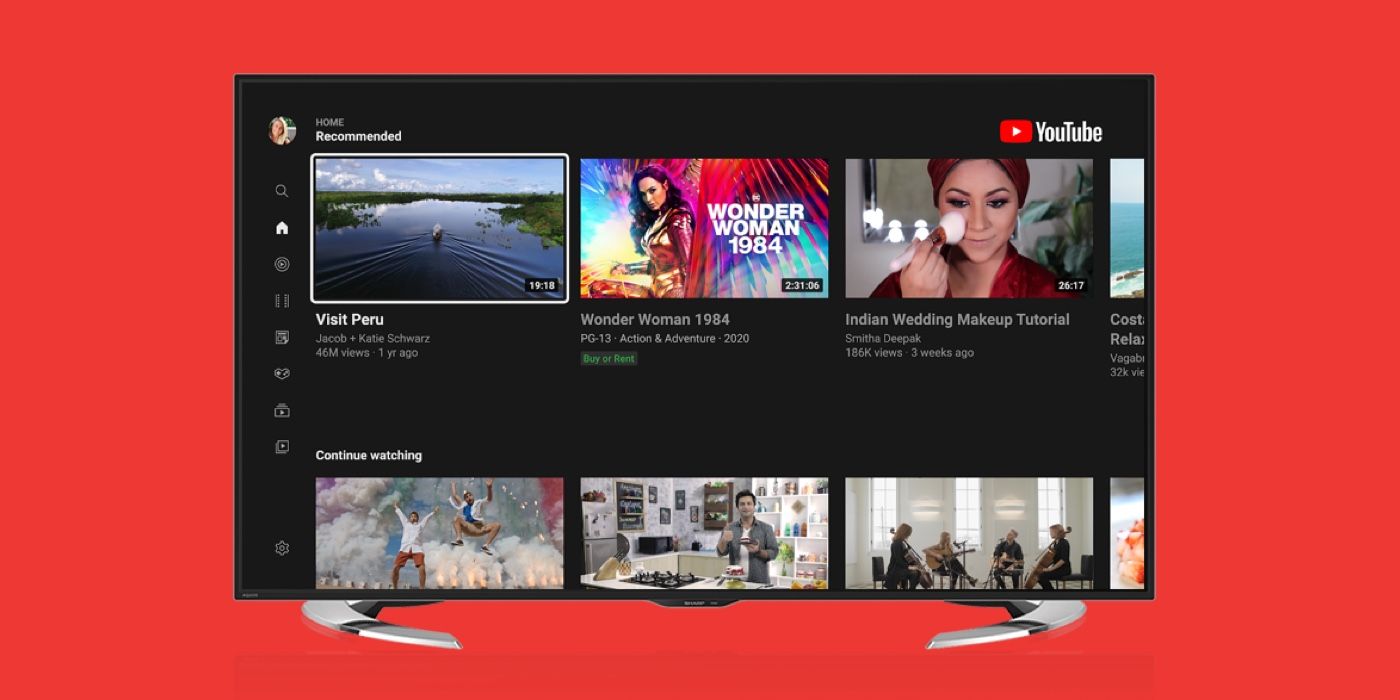
The Evolution of TV-Based Entertainment and YouTube’s Role
The journey from traditional broadcast television to today’s personalized streaming landscape has been swift and transformative, with YouTube playing an indispensable role in this paradigm shift.
From Broadcast to Streaming Dominance
For decades, television programming was a scheduled affair, dictated by broadcasters. The rise of the internet, coupled with advancements in digital display technology and internet infrastructure, paved the way for on-demand content. Streaming services began to fragment the traditional television audience, offering unprecedented control over what, when, and how viewers consumed content. Smart TVs, equipped with integrated internet connectivity and app stores, and dedicated streaming devices like Roku, Amazon Fire TV, Apple TV, and Google Chromecast, became the conduits for this new era. These technologies democratized access to a global library of content, moving beyond regional broadcast limitations.
Why YouTube on TV Matters
YouTube’s appeal on a television screen is multifaceted. While mobile devices and computers offer portability, the large display, superior sound systems (often connected to soundbars or home theater systems), and communal viewing aspect of a TV elevate the YouTube experience. Signing in allows users to access their personalized feeds, subscriptions, watch history, playlists, and premium features (like YouTube Premium for ad-free viewing and background play). This transforms YouTube from a simple video player into a deeply integrated entertainment hub that understands and caters to individual preferences, akin to a personalized TV channel curated just for you.
The Seamless Integration of Devices
Modern technology emphasizes seamless integration. The ability to start watching a video on your phone during your commute and pick it up on your TV when you get home, or to quickly share a video from your tablet to the big screen, highlights the interconnectedness of our digital ecosystems. This interoperability is a core component of the YouTube on TV experience, facilitated by various sign-in and casting methods designed for convenience and efficiency.
Understanding the Core Methods for Signing In
Signing into YouTube on your TV isn’t a one-size-fits-all process. Depending on your TV’s capabilities and your preferred method of interaction, there are several distinct approaches. Each method is designed to cater to different user preferences and technological setups.
Method 1: Signing In Directly on Your TV (Smart TVs & Streaming Devices)
This is perhaps the most straightforward method, resembling how you might log into an app on your smartphone or computer. Most modern smart TVs (from brands like Samsung, LG, Sony, Vizio, etc.) and all dedicated streaming devices come with a pre-installed YouTube app or the option to download it from their respective app stores. This method typically involves navigating the app’s interface to input your Google account credentials directly using your TV remote.
Method 2: Activating Your TV with a Code on a Computer or Phone
Often considered the most convenient method for those who find typing with a TV remote cumbersome, this approach leverages a secondary device (a smartphone, tablet, or computer) to complete the sign-in process. The YouTube app on your TV will display a unique activation code. You then visit a specific Google/YouTube activation website on your secondary device, enter this code, and authorize the sign-in with your Google account. This method streamlines the data entry, reducing the chances of errors and frustration.
Method 3: Casting from Your Mobile Device or Computer
While technically not a “sign-in” to the TV’s YouTube app itself, casting offers a powerful way to bring YouTube content to your TV screen while logged into your account on your mobile device or computer. Devices like Google Chromecast are built specifically for this, but many smart TVs also have built-in Chromecast (Google Cast) or Apple AirPlay 2 functionality. When you “cast” a video, your phone or computer acts as a remote, telling the TV (or casting device) to fetch and play the video directly from the internet, reflecting your signed-in YouTube experience from your source device.
Step-by-Step Walkthroughs for Each Method
Let’s delve into the practical steps for each sign-in method, ensuring you can confidently get YouTube up and running on your television.
Direct Sign-In on TV: Navigating the Interface
This method is ideal if you’re comfortable using your TV remote for text input or if you have a remote with voice input capabilities.
- Open the YouTube App: Turn on your smart TV or streaming device and navigate to its app store or home screen. Find and open the YouTube app.
- Access Sign-In Options: Once the app loads, you’ll typically see a “Sign In” or “Account” option on the left-hand menu or as a prominent button on the screen. Select this.
- Enter Google Account Details: The app will prompt you to enter your Google email address and password. Use your TV remote’s on-screen keyboard to input these details carefully. Ensure you’re entering the correct credentials for the Google account associated with your YouTube profile.
- Complete Sign-In: After entering your details, select “Sign In” or “Next.” If two-factor authentication is enabled on your Google account (highly recommended for security), you may receive a prompt on your phone or need to enter a verification code.
- Enjoy: Once successfully signed in, your personalized YouTube homepage, subscriptions, and watch history will load, ready for viewing.
Activating with a Code: The ‘youtube.com/activate’ Process

This method is often preferred for its ease of use, eliminating the need for tedious typing on a TV remote.
- Open YouTube App on TV: Launch the YouTube app on your smart TV or streaming device.
- Select Sign In: Choose the “Sign In” option. Instead of asking for credentials directly, the app will display a unique 8-character activation code on your TV screen. It will also instruct you to visit
youtube.com/activateon a web browser. - Go to
youtube.com/activateon a Second Device: On your smartphone, tablet, or computer, open a web browser (Chrome, Firefox, Safari, Edge) and typeyoutube.com/activateinto the address bar. - Sign In to Your Google Account (if not already): The website will first ask you to sign in to your Google account if you aren’t already logged in. Make sure to sign into the account you wish to use for YouTube on your TV.
- Enter the Activation Code: Once signed into your Google account on the web browser, you’ll be prompted to enter the 8-character code displayed on your TV screen. Type the code accurately.
- Authorize Access: Click “Allow” or “Next” to authorize your TV to access your YouTube account.
- Confirmation and Enjoy: Your TV screen will refresh, confirming a successful sign-in. Your personalized YouTube experience will now be active on your television.
Casting to Your TV: Leveraging Device Connectivity
Casting is a fantastic way to quickly share videos from your mobile device or computer without fully signing into the TV app.
- Ensure Devices are on the Same Network: Both your TV (or casting device like Chromecast) and your mobile phone/computer must be connected to the same Wi-Fi network.
- Open YouTube App on Mobile/Computer: Launch the YouTube app on your smartphone or tablet, or open YouTube in a web browser on your computer. Ensure you are signed into your desired Google account on this device.
- Find the Cast Icon: Look for the “Cast” icon. On mobile, it usually appears in the top right corner of the YouTube app (it looks like a TV screen with a Wi-Fi signal). On a computer browser, it might be in the video player controls or your browser’s toolbar (e.g., Chrome’s Cast icon).
- Select Your TV/Device: Tap or click the Cast icon. A list of available casting devices on your network will appear. Select your smart TV or streaming device (e.g., “Living Room TV,” “Roku,” “Chromecast”).
- Start Casting: Once connected, your TV screen will display the YouTube logo or indicate that it’s ready to cast. Start playing any video on your mobile device or computer, and it will automatically begin playing on your TV. Your mobile device now acts as a remote for playback control (pause, play, skip, volume).
- Disconnect (Optional): To stop casting, tap the Cast icon again on your mobile device and select “Disconnect.”
Troubleshooting Common Sign-In Issues
Even with clear instructions, technological hiccups can occur. Here are solutions to common problems you might encounter.
Incorrect Credentials and Password Management
- Double-Check Input: The most frequent error is simply typing the wrong email or password. Be meticulous, especially with case sensitivity.
- Forgot Password? If you’re unsure of your password, use Google’s account recovery tools. Visit
accounts.google.com/signin/recoveryon a trusted device. - Two-Factor Authentication (2FA): If you have 2FA enabled (which you should!), ensure you have your verification method handy (e.g., phone with Google Authenticator app, security key, or access to your registered phone number for SMS codes).
Network Connectivity Problems
- Check Wi-Fi: Ensure both your TV/streaming device and your secondary device (if using the code method or casting) are connected to the internet and, crucially, to the same Wi-Fi network.
- Restart Router: A simple restart of your home Wi-Fi router can resolve many connectivity issues. Unplug it for 30 seconds, then plug it back in.
- Test Internet Speed: Slow internet can cause issues. Use a speed test app on your phone or computer to ensure your connection is robust enough for streaming.
App Glitches and Updates
- Restart the App: Close the YouTube app on your TV completely and reopen it. Sometimes a quick refresh is all it needs.
- Restart TV/Device: Power cycle your smart TV or streaming device. Unplug it from the wall for 60 seconds, then plug it back in.
- Update App/Firmware: Ensure your YouTube app and your TV’s/streaming device’s operating system (firmware) are up to date. Outdated software can lead to bugs. Check your device’s settings for system updates.
- Clear Cache/Data: If problems persist, try clearing the YouTube app’s cache and data from your TV’s settings menu (this might log you out, requiring you to sign in again, but can resolve persistent issues).
Device Compatibility and Software Versions
- Older Devices: Very old smart TVs or streaming sticks might no longer support the latest YouTube app versions, potentially leading to sign-in difficulties or degraded performance. Consider upgrading if this is the case.
- AirPlay/Cast Not Showing: If your TV isn’t appearing as a casting target, verify that AirPlay or Google Cast functionality is enabled in your TV’s settings.
Maximizing Your YouTube on TV Experience
Once successfully signed in, the true power of YouTube on your television comes to life.
Personalization and Content Discovery
Being signed in allows YouTube to leverage your viewing history, subscriptions, and likes to offer highly personalized recommendations. This leads to efficient content discovery, surfacing videos and channels you’re most likely to enjoy without endless searching. Your home screen becomes a dynamic portal to endless content tailored to your tastes.
Enhancing Viewing with Premium Features
For those seeking an uninterrupted experience, YouTube Premium offers significant benefits. When signed in on your TV with a Premium account, you’ll enjoy:
- Ad-free viewing: No more commercial interruptions.
- Background play: Listen to music videos or podcasts while using other apps (on mobile, though less relevant on TV).
- Downloads: Save videos for offline viewing (primarily on mobile, but relevant for understanding the premium ecosystem).
- YouTube Music Premium: Full access to YouTube’s dedicated music streaming service.

Future Trends in TV-Based Streaming
The landscape of TV-based streaming is constantly evolving. Expect to see continued advancements in user interface design, deeper integration with voice assistants (like Google Assistant and Alexa for hands-free control), and potentially more interactive viewing experiences. As 5G and fiber internet become more widespread, higher resolution streaming (8K and beyond) and even more immersive content formats are on the horizon, further cementing the television as the central hub of digital entertainment.
Signing into YouTube on your TV is a gateway to a richer, more personalized, and more enjoyable entertainment experience. By understanding the different methods and familiarizing yourself with potential troubleshooting steps, you can ensure that you’re always connected to the world’s most extensive library of video content, right from your living room.
aViewFromTheCave is a participant in the Amazon Services LLC Associates Program, an affiliate advertising program designed to provide a means for sites to earn advertising fees by advertising and linking to Amazon.com. Amazon, the Amazon logo, AmazonSupply, and the AmazonSupply logo are trademarks of Amazon.com, Inc. or its affiliates. As an Amazon Associate we earn affiliate commissions from qualifying purchases.