
In an increasingly digital world, the way we consume television content has undergone a revolutionary transformation. Gone are the days when a cable box and a limited channel lineup were the only options. Today, services like YouTube TV offer a robust alternative, bringing live television, on-demand content, and cloud DVR functionality directly to your living room without the need for traditional cable or satellite subscriptions. This shift, often referred to as “cord-cutting,” provides unparalleled flexibility, a wider array of content, and often significant cost savings.
YouTube TV, a subscription-based streaming service from Google, delivers over 100 channels, including major broadcast networks, popular cable channels, and sports networks. It’s designed to replicate the traditional TV experience but with the added benefits of modern internet streaming: multi-device access, unlimited cloud DVR, and no annual contracts. However, to truly enjoy its full potential, knowing how to seamlessly connect YouTube TV to your television is paramount. This guide will walk you through various methods, troubleshoot common issues, and help you optimize your viewing experience, ensuring you can dive into your favorite shows and live events with ease.
Understanding Your Connection Options for YouTube TV
Connecting YouTube TV to your television isn’t a one-size-fits-all process. The method you employ largely depends on the type of TV you own and the auxiliary devices you have available. Modern technology offers several pathways, each with its own set of advantages and simple setup procedures. Identifying the best approach for your specific setup is the first step toward enjoying a seamless streaming experience.
Smart TVs with Built-in YouTube TV App
Perhaps the most straightforward method involves using a Smart TV. Most contemporary Smart TVs, regardless of brand (Samsung, LG, Sony, Vizio, etc.), come equipped with their own operating systems (like Tizen, webOS, Android TV, or Roku TV) that support a wide range of streaming applications. If your TV was manufactured in the last few years, there’s a high probability it has a built-in app store where you can download YouTube TV directly.
The process typically involves navigating to your TV’s home screen, accessing the app store or ‘Apps’ section, searching for “YouTube TV,” and then downloading and installing the application. Once installed, you simply open the app and sign in with your Google account credentials associated with your YouTube TV subscription. This method eliminates the need for additional hardware, relying solely on your TV’s internal capabilities and internet connection.
Streaming Devices and Media Players
For those with older “dumb” TVs or Smart TVs that lack native YouTube TV support or whose interfaces are sluggish, dedicated streaming devices are an excellent solution. These compact gadgets plug into your TV via an HDMI port and provide access to a vast ecosystem of apps, including YouTube TV, often with superior performance and user experience compared to some built-in Smart TV platforms.
- Roku Devices (Roku Streaming Stick, Roku Express, Roku Ultra): Roku’s intuitive interface and broad app support make it a popular choice. Connect the Roku device to an HDMI port, power it on, connect to Wi-Fi, and then add the YouTube TV channel from the Roku Channel Store.
- Amazon Fire TV Devices (Fire TV Stick, Fire TV Cube): Similar to Roku, Fire TV devices offer access to the Amazon Appstore. Plug in, connect to Wi-Fi, and download the YouTube TV app.
- Apple TV: For Apple ecosystem users, the Apple TV box integrates seamlessly. Download YouTube TV from the App Store on Apple TV.
- Chromecast with Google TV / Google TV Devices: As a Google product, YouTube TV integrates perfectly with Chromecast with Google TV and other Google TV devices. The app is typically pre-installed or easily downloadable from the Google Play Store.
- Older Chromecast Devices: For older, screen-less Chromecast dongles, you would “cast” content from your mobile device or computer rather than directly running an app on the TV.
Gaming Consoles
Modern gaming consoles have evolved beyond just gaming machines; they are powerful media centers. Both Sony PlayStation (PS4, PS5) and Microsoft Xbox (Xbox One, Xbox Series X/S) consoles offer the ability to download and run streaming apps, including YouTube TV. Navigate to the console’s respective store (PlayStation Store or Microsoft Store), search for YouTube TV, download, install, and sign in. This is a convenient option if your console is already connected to your main TV.
Mobile Device Casting (Chromecast Built-in, AirPlay)
Another versatile method, especially if you prefer using your phone or tablet as a remote, is casting.
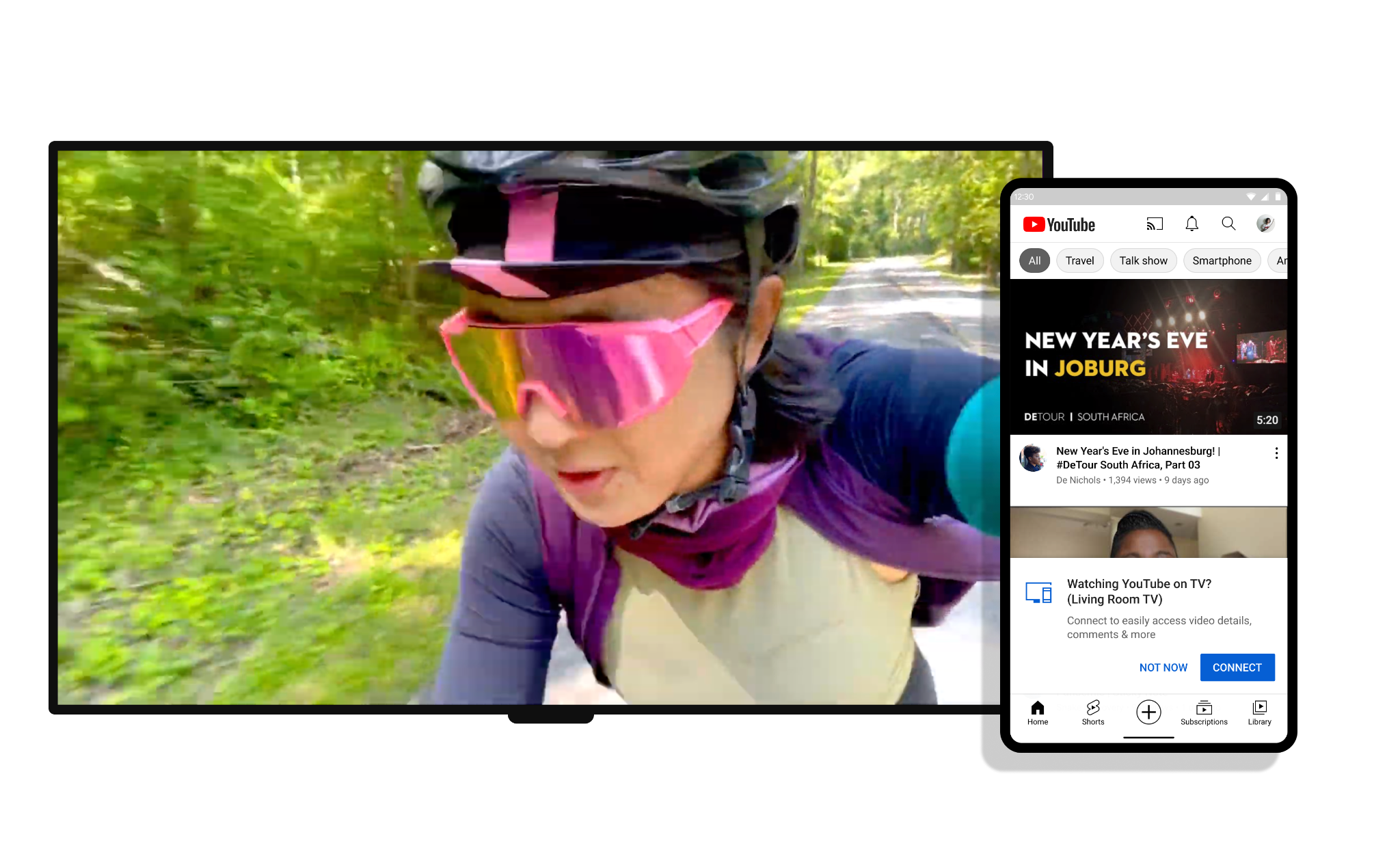
- Chromecast built-in (Google Cast): Many Smart TVs, Android TV devices, and of course, Google’s own Chromecast devices, have “Chromecast built-in.” This technology allows you to stream content from a compatible app on your smartphone or tablet directly to your TV. Simply open the YouTube TV app on your mobile device, ensure both your phone and TV are on the same Wi-Fi network, tap the “Cast” icon (a rectangle with a Wi-Fi symbol), and select your TV from the list.
- Apple AirPlay: If you have an Apple device (iPhone, iPad, Mac) and an Apple TV or an AirPlay 2-compatible Smart TV, you can use AirPlay to mirror or cast content. Similar to Chromecast, open YouTube TV on your Apple device, tap the AirPlay icon (a rectangle with an upward-pointing arrow), and choose your TV.
Connecting a Computer via HDMI
While perhaps less elegant than dedicated streaming solutions, connecting a laptop or desktop computer to your TV via an HDMI cable is a perfectly viable method. Simply connect one end of the HDMI cable to your computer’s HDMI output and the other to an available HDMI input on your TV. Then, switch your TV’s input source to the corresponding HDMI port. You can then open a web browser on your computer, navigate to tv.youtube.com, and stream YouTube TV directly to your television, effectively using your TV as a large monitor.
Step-by-Step Connection Guides for Key Methods
While the previous section outlined the various avenues for connecting YouTube TV, having a clear, step-by-step guide for the most common methods can simplify the process, especially for first-time users. These instructions assume you already have an active YouTube TV subscription and a stable internet connection.
For Smart TVs (with Built-in App Stores)
- Power On Your TV: Ensure your Smart TV is powered on and connected to your home Wi-Fi network.
- Access the Home Screen/App Launcher: Use your TV’s remote to navigate to the main home screen or app launcher. This is usually marked by a ‘Home’ button or a ‘Smart Hub’ button.
- Find the App Store: Look for an icon or section labeled “Apps,” “App Store,” “Google Play Store,” or “Smart Hub.” The exact name varies by TV brand.
- Search for YouTube TV: Once in the app store, use the search function (often represented by a magnifying glass icon) to type “YouTube TV.”
- Download and Install: Select the YouTube TV app from the search results and choose the “Download,” “Install,” or “Add to Home” option. Wait for the installation to complete.
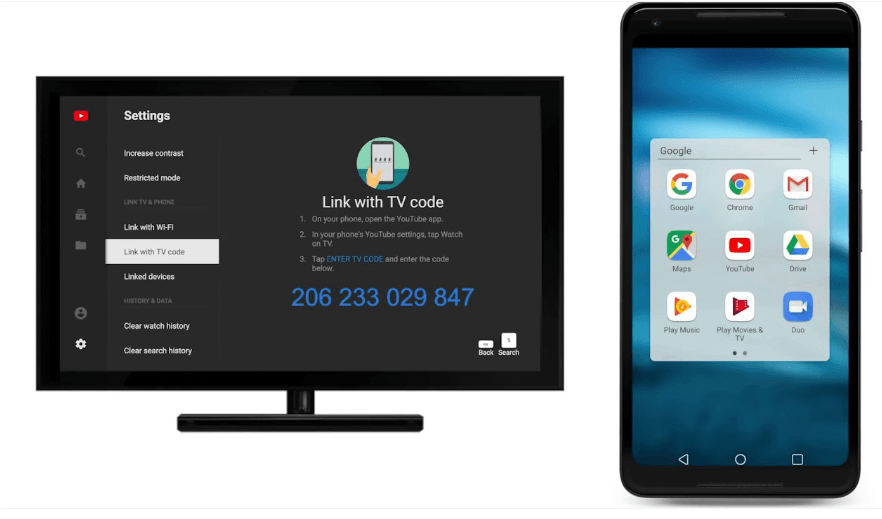
- Launch and Sign In: Open the newly installed YouTube TV app. You will be prompted to sign in with your Google account credentials that are linked to your YouTube TV subscription. Follow the on-screen instructions, which may involve entering a code on a separate device (like a computer or smartphone) at
tv.youtube.com/start. - Start Watching: Once signed in, you’ll be taken to the YouTube TV interface, and you can begin watching live TV or on-demand content.
For Streaming Devices (Roku, Fire TV, Apple TV, Google TV)
- Connect Device to TV: Plug your streaming device into an available HDMI port on your TV. Connect the power adapter to the streaming device and a wall outlet.
- Select HDMI Input: Turn on your TV and use your TV remote to select the correct HDMI input source where your streaming device is connected.
- Initial Device Setup: Follow the on-screen prompts from your streaming device to connect it to your Wi-Fi network and complete any initial setup (e.g., language selection, software updates).
- Access App Store: Once the device’s home screen appears, navigate to its app store (e.g., Roku Channel Store, Amazon Appstore, Apple App Store, Google Play Store).
- Search and Install YouTube TV: Search for “YouTube TV” and select the app to download and install it.
- Launch and Sign In: Open the YouTube TV app from your device’s home screen. Sign in using your Google account associated with your YouTube TV subscription. Again, you might be asked to visit a URL on another device and enter a code.
- Enjoy Your Content: After successful login, you’re ready to explore YouTube TV.
For Casting (Chromecast built-in / AirPlay)

- Ensure Device Compatibility: Make sure your TV or streaming device has Chromecast built-in or is AirPlay 2 compatible.
- Connect to Same Wi-Fi: Crucially, both your mobile device (phone/tablet) and your TV/streaming device must be connected to the same Wi-Fi network.
- Open YouTube TV App on Mobile: Launch the YouTube TV app on your smartphone or tablet.
- Select Content: Start playing any show, movie, or live channel you wish to watch.
- Tap the Cast/AirPlay Icon: Look for the “Cast” icon (a small rectangle with a Wi-Fi symbol in the corner) or the “AirPlay” icon (a rectangle with an upward-pointing arrow) within the YouTube TV app’s playback interface.
- Select Your TV: A list of available casting/AirPlay devices will appear. Select your television or streaming device from this list.
- Content Appears on TV: The content you selected will now begin playing on your television, with your mobile device acting as a remote control.
Optimizing Your YouTube TV Experience
Connecting YouTube TV to your television is just the beginning. To truly unlock a premium viewing experience, it’s essential to optimize your setup, ensuring smooth playback, high-quality visuals, and hassle-free usage. This involves focusing on network stability, display settings, and understanding common troubleshooting steps.
Ensuring a Stable Internet Connection
The bedrock of any streaming service is a robust internet connection. YouTube TV, being a live TV streaming platform, demands consistent bandwidth to prevent buffering, pixelation, and drops in quality.
- Bandwidth Requirements: Google recommends at least 3 Mbps for standard definition, 7 Mbps for a single 1080p stream, and 13 Mbps for multiple streams or 4K content. For an optimal experience, especially in households with multiple users or devices, a speed of 50-100 Mbps or higher is advisable.
- Wi-Fi vs. Ethernet: While Wi-Fi offers convenience, an Ethernet cable provides a more stable and faster connection by eliminating wireless interference. If your TV or streaming device has an Ethernet port, consider using it, especially for your primary viewing setup.
- Router Placement: Position your Wi-Fi router centrally in your home, away from obstructions and other electronics that might cause interference.
- Mesh Wi-Fi Systems: For larger homes or areas with poor Wi-Fi coverage, a mesh Wi-Fi system can significantly improve signal strength and consistency throughout your viewing spaces.
Picture and Sound Settings
Even with a perfect connection, subpar picture or sound settings on your TV can diminish the YouTube TV experience.
- TV Display Settings: Access your TV’s picture settings menu. Adjust brightness, contrast, color, and sharpness to your preference. Many TVs have pre-set picture modes (e.g., “Cinema,” “Sports,” “Game”) that can offer a good starting point. Ensure your TV is set to display in its native resolution (e.g., 4K or 1080p) if available.
- HDR/Dolby Vision: If your TV supports High Dynamic Range (HDR) or Dolby Vision, and YouTube TV offers content in these formats (especially with the 4K Plus add-on), ensure these settings are enabled on your TV for enhanced contrast and color.
- Audio Output: Check your TV’s audio output settings. If you’re using a soundbar or home theater system, ensure the TV is configured to output audio through the correct external device, often via HDMI ARC/eARC or optical cable. Within the YouTube TV app itself, there are usually no extensive audio settings, as it primarily relies on your device’s output.
Managing Your Account and Subscriptions
A smooth streaming experience also extends to effective account management.
- User Profiles: If you have multiple users in your household, YouTube TV allows you to create individual profiles. This ensures personalized recommendations, separate DVRs, and tracked viewing history for each person. Teach family members how to switch between profiles.
- Add-ons: YouTube TV offers various add-on channels and packages (e.g., Sports Plus, HBO Max, Showtime). Regularly review your subscriptions to ensure you’re only paying for what you use.
- Parental Controls: Utilize the parental control features to restrict content based on ratings, ensuring younger viewers only access appropriate programming.
Troubleshooting Common Issues
Despite best efforts, issues can arise. Knowing how to quickly troubleshoot can save frustration.
- Buffering/Poor Quality:
- Check your internet speed (via an online speed test).
- Restart your Wi-Fi router and modem.
- Close other bandwidth-intensive applications on your network.
- Try lowering the video quality within the YouTube TV app settings (if available).
- App Crashing/Freezing:
- Close and re-open the YouTube TV app.
- Restart your streaming device or Smart TV.
- Check for app updates in your device’s app store.
- Clear the app’s cache (usually found in your device’s system settings under “Apps” or “Storage”).
- Login Problems:
- Double-check your Google account credentials.
- Ensure your YouTube TV subscription is active.
- Try logging in on a different device to rule out device-specific issues.
- If using the
tv.youtube.com/startmethod, ensure the code is entered correctly and within the time limit.
- Device Not Found (Casting):
- Confirm both your mobile device and TV/streaming device are on the exact same Wi-Fi network.
- Restart both devices.
- Ensure your TV’s casting feature (e.g., Chromecast built-in) is enabled in its settings.
The Future of TV: Why YouTube TV is a Game Changer
Beyond the technicalities of connection, understanding the broader impact and advantages of services like YouTube TV reveals why they are redefining television consumption. It’s more than just a connection; it’s a paradigm shift.
The Cord-Cutting Revolution
YouTube TV stands at the forefront of the cord-cutting movement, offering a compelling alternative to traditional cable and satellite providers. Its appeal lies in its flexibility: no long-term contracts, the ability to cancel anytime, and the freedom to watch on a multitude of devices, from your living room TV to your smartphone on the go. This empowers consumers to tailor their viewing experience and subscription costs to their specific needs, breaking free from bundled packages filled with unwanted channels. The economic benefit, coupled with enhanced convenience, makes YouTube TV a powerful driver in the evolving media landscape.
Seamless Integration with the Google Ecosystem
As a Google product, YouTube TV benefits immensely from seamless integration within the broader Google ecosystem. This means if you use Google Assistant, Google Home devices, or have a Google account, your experience can be highly streamlined. Voice commands can easily switch channels, find content, or control playback. Personal profiles leverage your Google account data to offer tailored recommendations and maintain individual viewing histories and DVR libraries. This interconnectedness transforms the viewing experience from a passive activity into an interactive and personalized journey, leveraging smart home technology to its fullest.
Continuous Innovation and Features
Unlike traditional TV, which often requires hardware upgrades for new features, streaming services like YouTube TV are continuously updated via software. This means subscribers automatically gain access to new features and improvements without needing to purchase new equipment. Features such as unlimited cloud DVR, simultaneous streams (up to three standard streams, more with add-ons), and the 4K Plus add-on (offering 4K resolution, offline downloads, and unlimited streams at home) demonstrate this commitment to innovation. These advancements ensure that YouTube TV remains competitive and continues to meet the evolving demands of modern viewers, pushing the boundaries of what a TV service can offer.
Conclusion
Connecting YouTube TV to your television is a straightforward process, made accessible through a variety of methods catering to different setups. Whether you utilize your Smart TV’s built-in capabilities, leverage a dedicated streaming device, or simply cast from your mobile phone, the goal remains the same: to unlock a vast library of live and on-demand content with unparalleled flexibility. By understanding your options, following simple setup instructions, and optimizing your internet connection and TV settings, you can ensure a high-quality, uninterrupted viewing experience.
YouTube TV represents more than just another streaming service; it’s a significant component of the ongoing technological revolution in home entertainment. Its ease of connection, coupled with continuous innovation and seamless integration into the digital lifestyle, empowers viewers to take control of their television consumption. So, take the leap, connect your YouTube TV, and immerse yourself in the future of television, enjoying your favorite shows, movies, and sports with crystal-clear quality and ultimate convenience.
aViewFromTheCave is a participant in the Amazon Services LLC Associates Program, an affiliate advertising program designed to provide a means for sites to earn advertising fees by advertising and linking to Amazon.com. Amazon, the Amazon logo, AmazonSupply, and the AmazonSupply logo are trademarks of Amazon.com, Inc. or its affiliates. As an Amazon Associate we earn affiliate commissions from qualifying purchases.