
Minecraft is a global phenomenon, celebrated for its limitless creativity and open-world exploration. However, for many Mac users, the experience can sometimes be hindered by performance bottlenecks. Unlike high-end gaming PCs, many macOS devices—particularly older MacBooks and iMacs—struggle to maintain high frame rates when rendering complex landscapes or high-definition textures. This is where OptiFine comes into play. As a premier optimization mod, OptiFine allows Minecraft to run faster and look better with full support for HD textures and many configuration options.
In this guide, we will explore the technical nuances of installing OptiFine on a Mac, ensuring your software environment is correctly configured for a seamless graphical upgrade.

Understanding OptiFine and Its Role in the Minecraft Ecosystem
Before diving into the installation process, it is essential to understand what OptiFine does at a software level. OptiFine is not just a cosmetic tool; it is a sophisticated optimization engine that modifies the game’s rendering pipeline.
What is OptiFine?
OptiFine is an optimization mod for Minecraft that provides a significant boost to FPS (Frames Per Second) and decreases “lag spikes.” It provides players with a vast array of video settings that are not available in the vanilla (standard) version of the game. Key features include support for Shaders, which transform the game’s lighting and shadows, and “Connected Textures,” which make the environment look more natural.
Why Mac Users Benefit from OptiFine
macOS handles graphical processing differently than Windows, often relying on Metal or older OpenGL versions. Because many Macs use integrated Intel or Apple Silicon (M1/M2/M3) graphics rather than dedicated GPUs, Minecraft’s default resource-heavy nature can cause thermal throttling and stuttering. OptiFine introduces “Fast Math” and “Lazy Chunk Loading,” which are technical optimizations that reduce the CPU and GPU load, making the game run significantly cooler and smoother on Apple hardware.
Prerequisites for a Successful Installation
Installing mods on macOS requires a bit more technical diligence than on Windows due to Apple’s stringent security protocols and the way the OS handles Java applications. To ensure a smooth installation, you must prepare your system.
Updating the Java Runtime Environment (JRE)
Minecraft is built on Java. While the modern Minecraft Launcher includes a standalone version of Java, the OptiFine installer often requires a system-wide installation of the Java Runtime Environment to execute correctly.
- Visit the official Oracle website or adoptium.net to download the latest version of Java (JRE) compatible with macOS.
- For those using Apple Silicon (M1/M2/M3 chips), ensure you download the AArch64 version of Java to take advantage of the native architecture, which provides superior performance over the translated x64 version.
Preparing Your Minecraft Launcher
OptiFine must be installed for a specific version of Minecraft. Before attempting to install the mod, you must have run the official version of the game at least once.
- Open your Minecraft Launcher.
- Select the version of Minecraft you wish to play (e.g., 1.20.1).
- Click “Play” and wait for the game to reach the main menu.
- Quit the game. This process creates the necessary local files in your
~/Library/Application Support/minecraftdirectory that the OptiFine installer needs to modify.
Step-by-Step Guide to Installing OptiFine on macOS
With the prerequisites met, you can proceed to the actual installation. This process involves downloading the software and bypassing macOS’s “Gatekeeper” security settings.
Downloading the Correct Version
Navigate to the official OptiFine website (optifine.net). It is crucial to use the official source to avoid malware or compromised files.
- Go to the “Downloads” section.
- Locate the version that matches the Minecraft version you just ran.
- Click “Download” or “Mirror.” You may see an ad page; wait for the “Skip” button to appear in the top right corner.
- Save the
.jarfile to your Desktop or Downloads folder.
Executing the Installer and Troubleshooting Gatekeeper
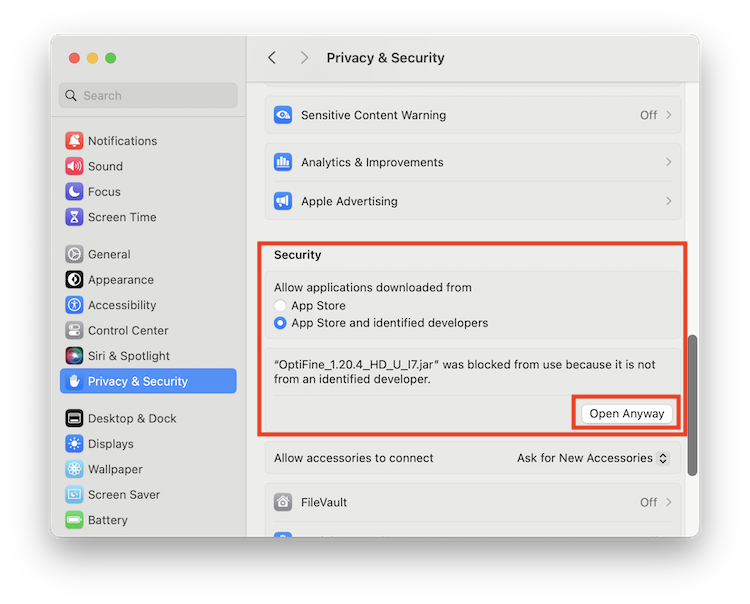
MacOS is designed to protect users from running software from unidentified developers. Because OptiFine is an independent mod, Apple’s security system (Gatekeeper) will likely block it initially.
- Locate the downloaded
.jarfile. - Do not simply double-click it. Instead, right-click (or Control-click) the file and select “Open.”
- A warning box will appear stating that the developer cannot be verified. Click “Open” anyway.
- If the “Open” option does not appear, go to System Settings > Privacy & Security, scroll down to the “Security” section, and click “Open Anyway” next to the OptiFine log.
Once the OptiFine installer window opens:
- Ensure the folder path points to your default Minecraft directory.
- Click “Install.”
- After a few moments, a message should appear saying “OptiFine is successfully installed.”
Finalizing the Profile in Minecraft Launcher
To run the mod, you must select the correct profile.
- Open the Minecraft Launcher.
- In the “Play” tab, click the version selector (usually to the left of the Play button).
- Look for a profile named “OptiFine.”
- If it is not there, go to the “Installations” tab at the top.
- Ensure the “Modded” checkbox is selected in the top right.
- If it still isn’t visible, click “New Installation,” name it “OptiFine,” and under “Version,” find the one that says “release [version]-OptiFine.”
Optimizing OptiFine Settings for Maximum Performance
Simply installing OptiFine provides some benefit, but the real power lies in the “Video Settings” menu. On a Mac, specific tweaks can drastically improve the user experience.
Video Settings for Lower-End Macs
If you are playing on a MacBook Air or an older MacBook Pro, focus on these settings to maximize FPS:
- Graphics: Set to “Fast.”
- Smooth Lighting: Set to “Off” or “Minimum.”
- Dynamic Updates: Set to “On” (this distributes chunk loading).
- Animations: Click “Animations” and select “All Off” to reduce the strain on your GPU during gameplay.
- Details: Turn off “Clouds” and “Sky.”
Performance and Quality Tabs
Under the “Performance” sub-menu, ensure the following are enabled:
- Fast Math: Uses optimized CPU functions for calculations.
- Fast Render: Optimized the rendering algorithm (Note: This may conflict with some shader packs).
- Smooth FPS: Stabilizes frame rates by flushing the GPU buffers.
Enabling Shaders for High-End Hardware
If you are using a Mac with an M2 Pro, M2 Max, or M3 chip, you likely have enough power to run Shaders.
- In Minecraft, go to Options > Video Settings > Shaders.
- Click “Shaders Folder.” This opens a Finder window.
- Drag and drop your favorite shader packs (like BSL or Complementary) into this folder.
- Select them in the game menu. Shaders utilize the “OptiFine” engine to introduce realistic lighting, waving grass, and water reflections.
Maintaining and Updating Your OptiFine Installation
Software environments are dynamic, and keeping your Minecraft installation stable requires occasional maintenance.
Dealing with Version Conflicts
When Minecraft releases a major update (e.g., from 1.20 to 1.21), your current OptiFine installation will not work with the new version. You must wait for the OptiFine developers to release a compatible update. Always check the “Preview Versions” on the OptiFine download page if a stable version for the newest Minecraft release isn’t available yet.

Security Best Practices for Modding
The world of Minecraft modding is vast, but it is important to maintain digital security.
- Source Verification: Only download OptiFine from
optifine.net. Third-party sites often bundle the software with unwanted “adware” or potentially unwanted programs (PUPs). - Java Security: Keep your Java installation updated. Old versions of Java can have vulnerabilities that are exploited by malicious scripts.
- Backup Your Worlds: Before installing any mod or changing versions, always back up your “saves” folder located in
~/Library/Application Support/minecraft. This ensures that if a configuration error occurs, your creative progress remains safe.
By following this guide, Mac users can bridge the gap between the standard macOS performance and the high-fidelity gaming experience typically reserved for dedicated gaming rigs. OptiFine remains an essential tool in the arsenal of any serious Minecraft player, proving that with the right software optimization, the Mac is a formidable platform for digital exploration.
aViewFromTheCave is a participant in the Amazon Services LLC Associates Program, an affiliate advertising program designed to provide a means for sites to earn advertising fees by advertising and linking to Amazon.com. Amazon, the Amazon logo, AmazonSupply, and the AmazonSupply logo are trademarks of Amazon.com, Inc. or its affiliates. As an Amazon Associate we earn affiliate commissions from qualifying purchases.