
Navigating the landscape of digital tax preparation often involves working with proprietary file formats. For users of TurboTax’s desktop software, the .tax file stands as the central repository for all tax return data, calculations, and associated information. Understanding how to properly open, manage, and secure these files is crucial for accurate tax filing, record-keeping, and ensuring digital security. This article delves into the technical specifics of TurboTax .tax files, providing a comprehensive guide to accessing your tax data.
Understanding the TurboTax .tax File Format
The .tax file is a proprietary data format specifically created and used by Intuit’s TurboTax desktop software. Unlike universal document formats like PDF or standard data files like CSV or XML, a .tax file cannot be opened directly by general-purpose applications such as word processors, spreadsheets, or even other tax preparation software. Its primary purpose is to encapsulate an entire tax return for a specific tax year, including personal information, income details, deductions, credits, and all the underlying calculations.
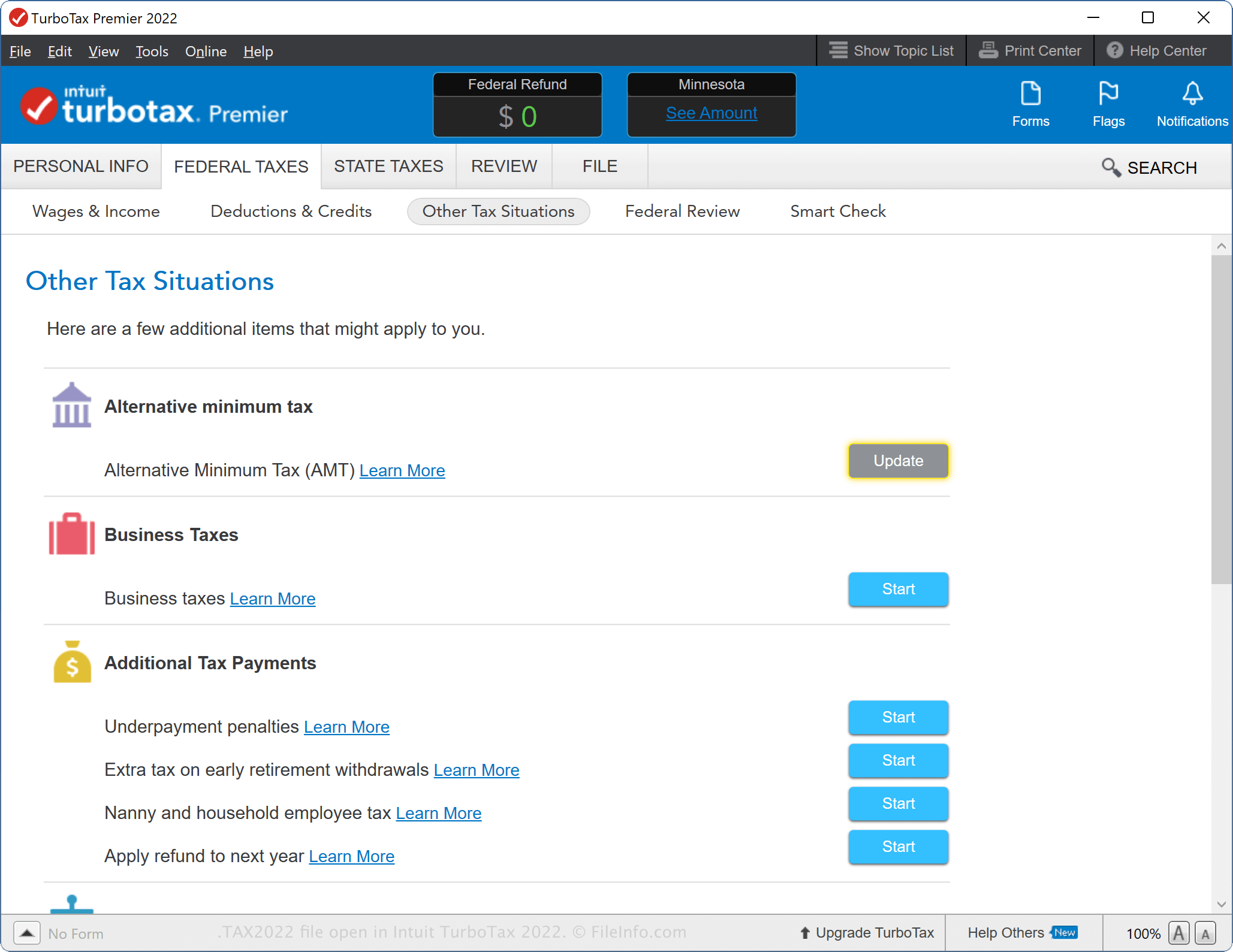
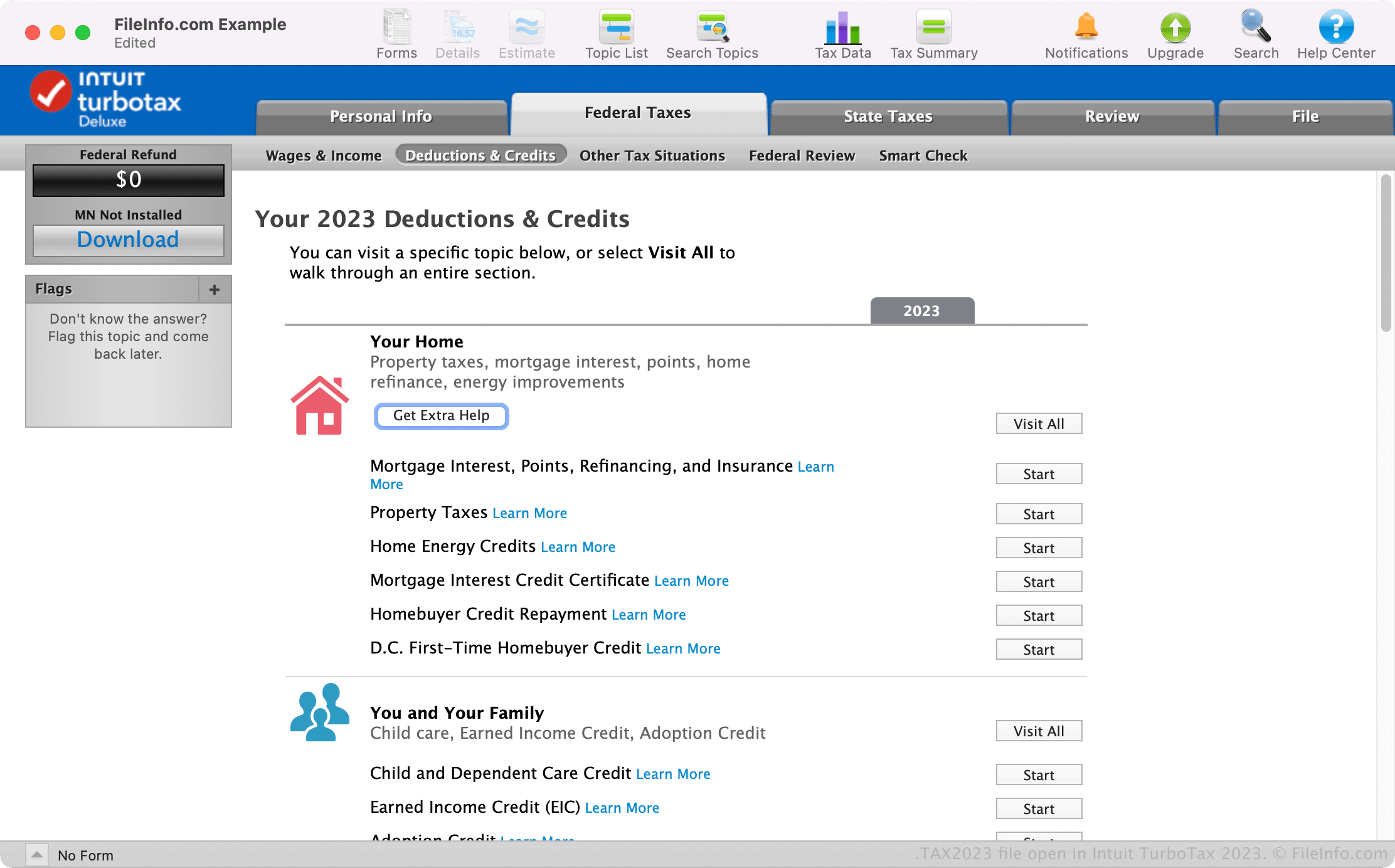
Each .tax file is uniquely identified by the tax year it pertains to, typically appended to the file name. For instance, a file named MyTaxReturn.tax2023 indicates a return prepared for the 2023 tax year. This year-specific nomenclature is critical because .tax files are generally forward-compatible but not backward-compatible. This means a TurboTax 2023 software might be able to open a .tax2022 file (often for importing prior year data), but TurboTax 2022 software cannot open a .tax2023 file. This version dependency is a key technical characteristic that users must be aware of to avoid access issues.
The internal structure of a .tax file is complex, designed to store a vast array of structured data points required for federal and state tax forms. This includes encrypted sensitive personal and financial information, making its security paramount. While it appears as a single file to the user, it is an intricate database of your financial life for a given tax year, making the correct method of access non-negotiable for data integrity and privacy.
The Primary Method: Opening with TurboTax Desktop Software
The only definitive way to open and interact with a .tax file is through the corresponding TurboTax desktop software application for the specific tax year. This is not merely a recommendation but a technical requirement due to the proprietary nature and versioning of the file format.
Ensuring You Have the Correct Software Version
The most common hurdle users face when trying to open a .tax file is using an incompatible version of the TurboTax software. As previously mentioned, a .tax2023 file requires the TurboTax 2023 desktop software (whether Basic, Deluxe, Premier, or Home & Business editions). Attempting to open it with TurboTax 2022 or an earlier version will result in an error, typically stating that the file was created in a newer version of the software.
It is crucial to understand that TurboTax Online, the web-based version of the software, does not generate or interact with .tax files in the same way the desktop software does. While it stores your tax data securely on Intuit’s servers, it does not create local .tax files on your computer. If your return was prepared using TurboTax Online, you would log into your account online to access it, not attempt to open a local .tax file.
Therefore, before attempting to open your file, verify the tax year suffix on the .tax file and confirm that you have the exact corresponding year’s desktop software installed on your computer. If you purchased a physical disc or downloaded the software, ensure it’s the correct annual release.
Step-by-Step Guide to Opening a .tax File
Once you have confirmed that the correct TurboTax desktop software for the corresponding tax year is installed, the process to open your .tax file is straightforward:
- Launch the TurboTax Software: Double-click the TurboTax icon for the relevant tax year on your desktop, Start menu, or Applications folder. Wait for the application to fully load.
- Access the “Open Tax Return” Feature:
- In most versions of TurboTax, once the program is open, navigate to the top menu bar.
- Click on “File”.
- From the dropdown menu, select “Open Tax Return…”.
- Alternatively, some versions might display a “Continue your return” or “Open a return” option directly on the welcome screen.
- Navigate to the File Location:
- A file explorer window (Windows) or Finder window (macOS) will appear.
- You will need to browse to the directory where your
.taxfile is saved. Common default locations include:My DocumentsTurboTax(Windows)Downloads(if you downloaded it from an email or cloud service)- An external hard drive or USB stick where you might have saved your backups.
- Select and Open the File:
- Once you locate your
.taxfile (e.g.,MyTaxes2023.tax2023), click on it to select it. - Then, click the “Open” button (or similar) in the file explorer window.
- Once you locate your
- Return Loading:
- TurboTax will then process and load the data from the
.taxfile. This may take a few moments depending on the file size and your computer’s performance. - Once loaded, your tax return will be displayed, allowing you to review, modify, print, or e-file (if within the filing period).
- TurboTax will then process and load the data from the
Following these steps meticulously ensures proper access to your tax data and avoids potential errors or data corruption.
Alternative Access: PDF Exports and TurboTax Online
While the .tax file is the definitive data file for desktop TurboTax, there are scenarios where direct interaction with this proprietary format isn’t strictly necessary or even possible. For simple viewing, printing, or sharing, other methods offer more universal compatibility.
When a .tax File Isn’t the Only Option
Often, the primary goal of “opening” a tax file is to review the completed return, print copies for personal records, or share it with a financial advisor. In these cases, a PDF (Portable Document Format) export of your tax return is generally more convenient and universally accessible. Any computer or device with a standard PDF reader (like Adobe Acrobat Reader) can open and display a tax return saved as a PDF, without needing specific tax software.
How to Export a PDF from TurboTax Desktop Software:
- Open your
.taxfile using the steps outlined above. - Navigate to the “File” menu.
- Select “Save to PDF” or “Print to PDF” (the exact wording may vary by year/version).
- You will typically be prompted to choose what parts of the return to save (e.g., just the forms, forms with worksheets, or client copy). Select the appropriate option.
- Choose a location on your computer to save the PDF and provide a file name.
This creates a static, view-only version of your return that is easily shareable and archive-friendly.
Accessing Returns Prepared with TurboTax Online
If you prepared your taxes using TurboTax Online (through a web browser), you will not have a local .tax file on your computer in the first place. Your data is stored securely on Intuit’s cloud servers. To access these returns:
- Go to the TurboTax website: Navigate to the official TurboTax website in your web browser.
- Log in to your account: Use your Intuit account username and password to log in.
- Navigate to “Tax Returns & Documents”: Once logged in, there’s usually a section or link (often under “My TurboTax” or a similar menu) that allows you to view past tax returns.
- Download PDF Copies: From this section, you can typically select the tax year you wish to view and download PDF copies of your federal and state tax returns. These PDFs serve the same purpose as those exported from the desktop software for viewing and printing.
This distinction between desktop software’s .tax files and online accounts’ cloud-stored data is crucial for troubleshooting access issues.
Troubleshooting Common Issues
Even with the correct software, users can encounter problems when attempting to open .tax files. Here are some common issues and their technical solutions.
“File Corrupted” or “Invalid File Format” Errors
These errors indicate that the .tax file’s internal structure has been compromised, making it unreadable by the software.
- Causes: Incomplete download, disk errors on the storage drive, improper shutdown while saving, malware infection, or power outage during file save operations.
- Solutions:
- Try a Backup: Always keep backups. If you have a recent backup of the file (e.g., on an external drive or cloud storage), try opening that version.
- Check Disk for Errors: On Windows, run
chkdsk(Check Disk) on the drive where the file is stored. On macOS, use Disk Utility to run First Aid. - Reinstall TurboTax: Sometimes the software itself might be corrupted. Uninstalling and reinstalling the correct year’s TurboTax desktop software can resolve underlying issues.
- Scan for Malware: Run a full system scan with reputable antivirus/anti-malware software to rule out malicious interference.
“Cannot Open File Created in Newer Version” Error
This is the most frequent error, stemming from version incompatibility.
- Cause: You are trying to open a
.tax2023file with TurboTax 2022 software (or similar year mismatch). - Solution: Identify the correct tax year suffix of your
.taxfile (e.g.,.tax2023). Then, acquire and install the precise TurboTax desktop software for that specific year. There is no workaround to open a newer.taxfile with older software.
Forgotten File Location or Lost Files
Misplacing your .tax file can cause significant stress.
- Solutions:
- Use System Search:
- Windows: Press
Win + Sto open search, then type*.taxto search your entire computer for all files ending with.tax. You can further refine this by adding the year, e.g.,*.tax2023. - macOS: Open Finder, go to “File” > “Find”, or use Spotlight Search (
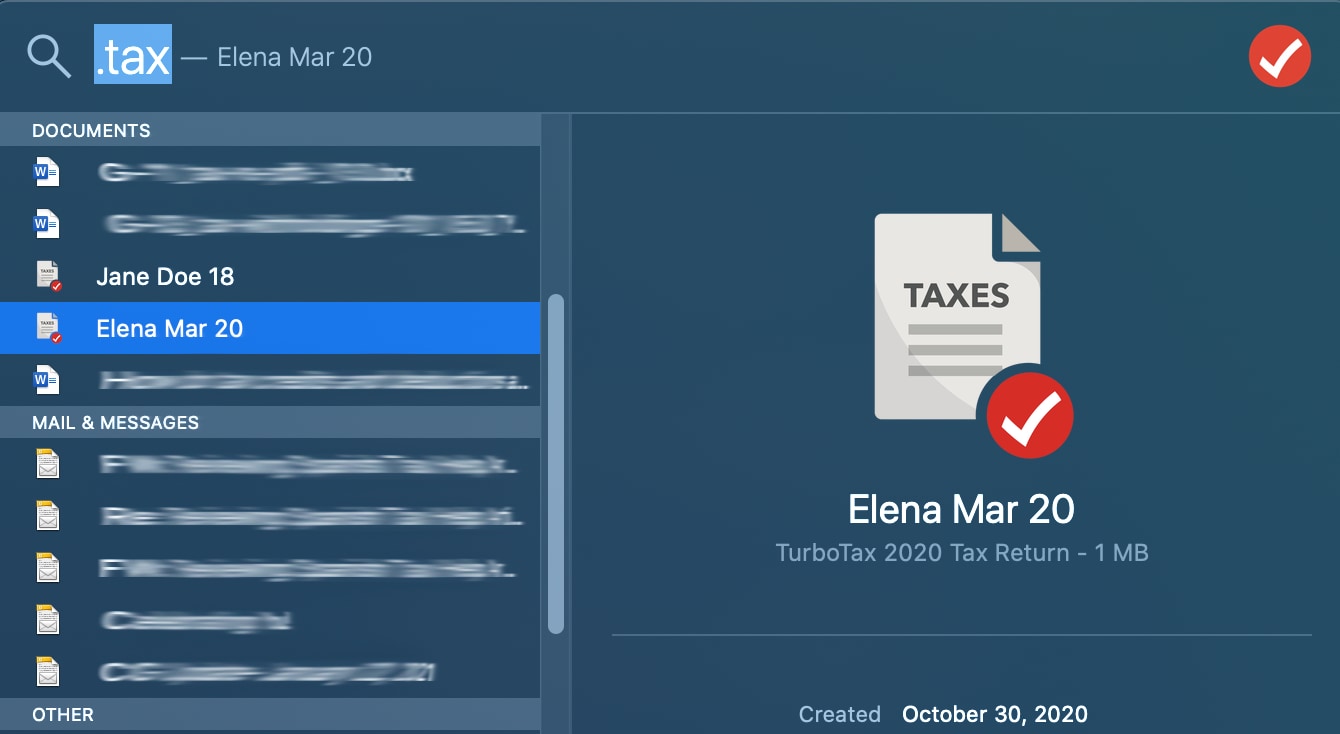
Command + Space) and type.tax.
- Windows: Press
- Check Default Locations: Look in
My DocumentsTurboTax(Windows) or theDownloadsfolder. Many users save to these locations by default. - Review Backup Devices: If you use external hard drives, USB sticks, or cloud storage for backups, check those locations thoroughly.
- Use System Search:
Compatibility with Other Software
A fundamental technical constraint is that .tax files are proprietary.
- Clarification:
.taxfiles cannot be opened by any other tax preparation software (e.g., H&R Block, TaxAct) or by generic applications like Microsoft Word, Excel, or PDF readers. They are solely designed for and compatible with Intuit’s TurboTax desktop software of the corresponding tax year. Attempts to open them with other programs will result in unreadable gibberish or error messages.
Digital Security and Best Practices for Tax Files
Given the highly sensitive nature of the personal and financial data contained within .tax files, implementing robust digital security measures and adhering to best practices is paramount. Losing access to or compromising these files can have severe consequences, including identity theft and financial fraud.
Protecting Your Sensitive Data
Your .tax files contain virtually every piece of information an identity thief would need. Protecting them is critical.
- Strong Passwords: Ensure your computer’s user account and any cloud storage accounts where you might back up your files are protected by strong, unique passwords and, ideally, two-factor authentication (2FA).
- Disk Encryption: Consider using full-disk encryption for your primary hard drive (e.g., BitLocker for Windows Pro, FileVault for macOS). This renders your data unreadable if your computer is lost or stolen. For individual files or folders, encryption tools like VeraCrypt can create encrypted containers.
- Avoid Public Computers: Never store or access your
.taxfiles on public or shared computers. These machines often have security vulnerabilities or keyloggers that could compromise your data. - Secure Transmission: Do not email unencrypted
.taxfiles. Email is not a secure medium for sensitive data. If you must share them, use secure, encrypted file-sharing services, or preferably, share a password-protected PDF version of the return.
Backup Strategies
Data loss due to hardware failure, accidental deletion, or ransomware is a real threat. A robust backup strategy is non-negotiable for .tax files.
- Multiple Locations: Store copies of your
.taxfiles in at least two different physical locations. This could include:- Your computer’s primary hard drive.
- An external hard drive or USB stick.
- A reputable, secure cloud storage service (e.g., Google Drive, OneDrive, Dropbox – ensuring the service itself employs strong encryption and security practices).
- Regular Backups: Make it a habit to back up your
.taxfiles immediately after completing your return and annually thereafter. Consider a system that automatically backs up your “My Documents” or “TurboTax” folder. - Version Control: When saving updated versions of your return (e.g., before and after e-filing), consider saving them with slightly different filenames (e.g.,
MyTaxReturn_PreFile.tax2023,MyTaxReturn_Filed.tax2023) to ensure you have multiple restoration points.
Archiving Old Tax Returns
The IRS generally recommends keeping tax records for three years from the date you filed your original return or two years from the date you paid the tax, whichever is later. However, for certain situations (e.g., underreporting income, worthless securities), this period can extend to six or even seven years.
- Long-Term Storage: For long-term archiving, keep both the
.taxfile and a PDF export of your return. The PDF provides an easily viewable record, while the.taxfile allows you to open and potentially amend the return using the correct year’s software if needed in the future. - Secure Physical Storage: If using external drives or USBs for long-term storage, ensure they are kept in a physically secure location (e.g., a locked drawer or fireproof safe).
- Secure Deletion: When you decide to discard old
.taxfiles after their retention period, simply dragging them to the trash and emptying it is often not enough for secure deletion. Use a file shredder utility (built into some operating systems or third-party software) that overwrites the file’s data multiple times, making it unrecoverable.
By adhering to these technical and security best practices, users can confidently manage their TurboTax .tax files, ensuring both accessibility and the robust protection of their sensitive financial data.