
For many, Minecraft is more than just a game; it’s a portal to endless creativity, a challenging survival adventure, and a social hub for friends. However, the perceived limitations of Chromebooks have often left aspiring builders and adventurers wondering if they can experience this beloved sandbox game on their lightweight, cloud-focused devices. The good news is that the answer is a resounding “yes!” While it might not be as straightforward as a traditional Windows or Mac installation, there are several effective methods to get Minecraft up and running on your Chromebook, catering to different versions of the game and varying levels of technical comfort.
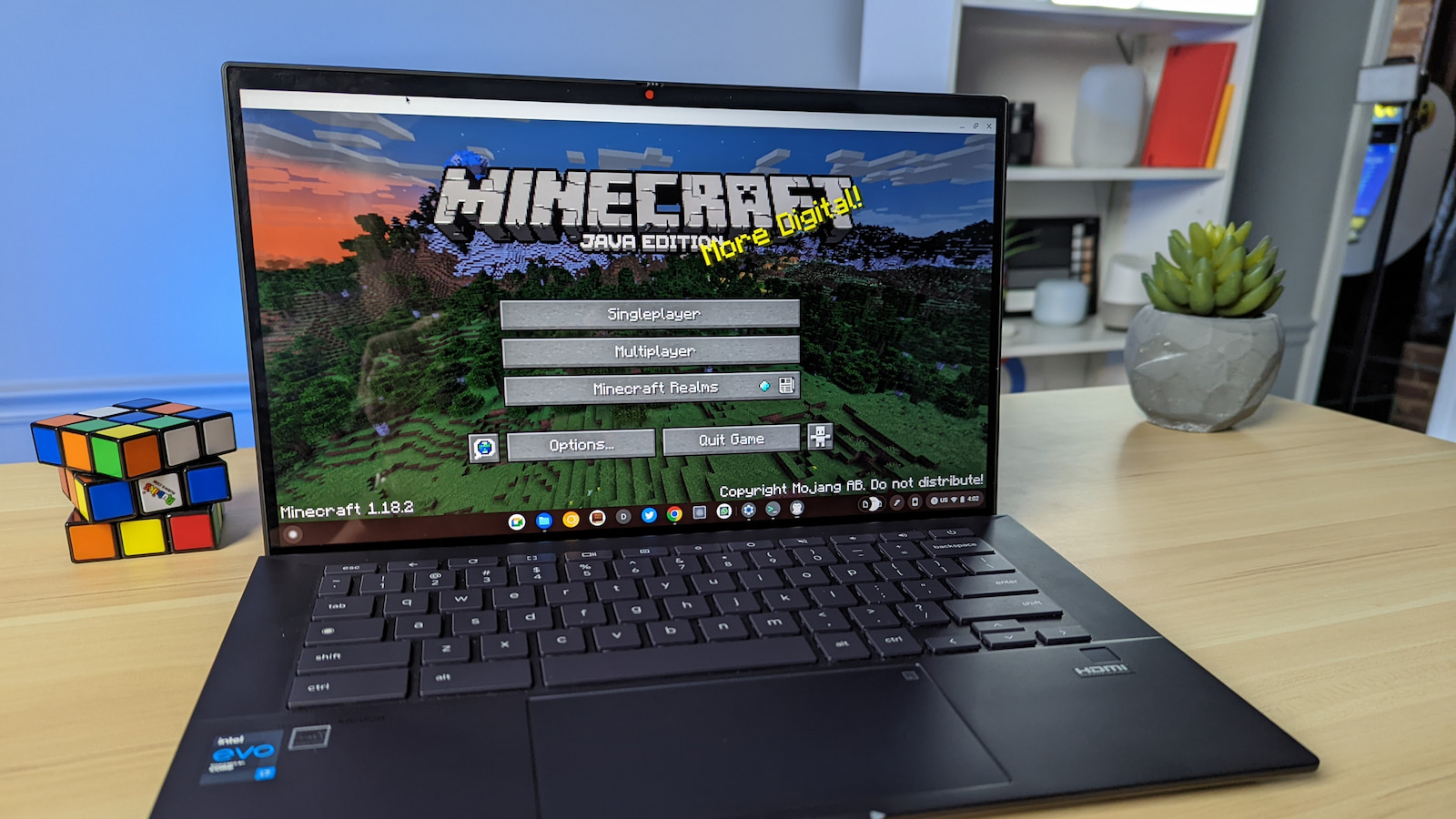
This guide will walk you through the process, demystifying the installation steps and empowering you to bring the blocky world of Minecraft to your Chromebook. We’ll explore the most accessible options, from the officially supported Android app to more advanced methods that unlock the full Java Edition experience. Whether you’re a seasoned gamer or a curious newcomer, you’ll find the information you need to start your Minecraft journey on your Chromebook.
Understanding Your Chromebook and Minecraft Options
Before diving into the installation process, it’s crucial to understand what your Chromebook offers and which version of Minecraft best suits your needs. Chromebooks run ChromeOS, an operating system designed for cloud computing and web applications. However, modern Chromebooks have evolved significantly, incorporating support for Android apps and even Linux environments, which opens up a world of possibilities for gaming.
There are generally three main versions of Minecraft to consider:
- Minecraft: Bedrock Edition (often referred to as just “Minecraft” or “Minecraft for Windows”): This is the most widely available version and is designed for cross-platform play. It’s the version you’ll typically find on mobile devices, consoles, and Windows PCs.
- Minecraft: Java Edition: This is the original PC version of Minecraft, known for its vast modding community and extensive customization options. It’s a favorite among many dedicated players.
- Minecraft Education Edition: This version is specifically designed for educational settings, offering features that support learning and classroom collaboration.
The method you choose to install Minecraft on your Chromebook will largely depend on which edition you want to play and the capabilities of your specific Chromebook model.
Android App Support: The Easiest Gateway
One of the most significant advancements in ChromeOS has been its robust support for Android applications. This feature has made installing and running many popular mobile games, including Minecraft, incredibly straightforward. For most users, this is the recommended and most user-friendly approach.
Installing Minecraft: Bedrock Edition via the Google Play Store
This is the simplest and most officially supported way to get Minecraft on your Chromebook. If your Chromebook supports Google Play Store apps, you’re in luck.
Prerequisites:
- A Chromebook that supports Android apps. Most modern Chromebooks released after 2017 do.
- A Google account.
- A stable internet connection.
Steps:
-
Enable Google Play Store (if not already enabled):
- Open your Chromebook’s Settings.
- In the left-hand menu, find and click on Apps.
- Look for Google Play Store. If it’s not already enabled, you should see an option to “Turn on” or “Install.” Click it and follow the on-screen prompts. You might need to restart your Chromebook after enabling it.
-
Open the Google Play Store:
- Once enabled, you’ll find the Google Play Store icon in your app launcher. Click on it to open the store.
-
Search for Minecraft:
- In the search bar at the top of the Play Store, type “Minecraft.”
-
Purchase and Install:
- You should see “Minecraft” by Mojang appear in the search results. Click on it.
- If you don’t already own the game, you’ll need to purchase it. The price will be displayed. Click the “Buy” button and follow the payment instructions using your linked Google account.
- Once purchased, the “Install” button will become available. Click on it.
- The game will download and install automatically.
-
Launch Minecraft:
- After installation, you’ll find the Minecraft icon in your app launcher. Click on it to start the game.
Benefits of this method:
- Ease of Use: It’s as simple as installing any other Android app.
- Official Support: This is the officially sanctioned way to play Minecraft on supported devices, ensuring a stable and well-integrated experience.
- Cross-Platform Play: Minecraft: Bedrock Edition allows you to play with friends on other platforms like Windows, Xbox, PlayStation, and mobile devices.
- Regular Updates: You’ll receive automatic updates directly from the Play Store.
Considerations:
- Performance: While generally smooth, performance can vary depending on your Chromebook’s hardware specifications. Lower-end Chromebooks might struggle with more demanding worlds or graphical settings.
- Not Java Edition: This method only installs the Bedrock Edition, not the Java Edition with its extensive modding capabilities.
Unlocking Java Edition: The Linux Environment Approach
For those who crave the full power and customization of Minecraft: Java Edition, the solution lies within your Chromebook’s Linux (Beta) environment. This feature allows you to run Linux applications directly on your Chromebook, effectively turning it into a more versatile machine. While this method requires a bit more technical setup, it provides access to the original, mod-friendly version of Minecraft.
Setting Up the Linux Development Environment
Before you can install Minecraft: Java Edition, you need to enable and set up the Linux environment on your Chromebook.
Prerequisites:
- A Chromebook that supports Linux (Beta). Most modern Chromebooks do.
- Sufficient storage space on your Chromebook for Linux and Minecraft.
- A stable internet connection.
Steps to Enable Linux (Beta):
- Open your Chromebook’s Settings.
- In the left-hand menu, find and click on Advanced.
- Scroll down to the Developers section.
- Look for Linux development environment. Click on Turn on.
- Follow the on-screen prompts. You’ll be asked to set a username and allocate disk space for the Linux environment. It’s recommended to allocate a reasonable amount of space (e.g., 10GB or more) to accommodate Minecraft and potential mods.
- Once the setup is complete, a Linux terminal window will open.
Installing Minecraft: Java Edition using Linux
With the Linux environment ready, you can now proceed with installing Minecraft: Java Edition. This typically involves downloading the official launcher.
Steps:
-
Update your Linux environment:
- Open the Linux terminal.
- Type the following commands, pressing Enter after each one:
bash

sudo apt update

sudo apt upgrade -y
- This ensures your Linux system is up-to-date.
-
Download the Minecraft Launcher:
- Visit the official Minecraft website: https://www.minecraft.net/
- Navigate to the download section for PC versions.
- Look for the option to download the launcher for Linux. It will usually be a
.debfile. - Save the
.debfile to your Chromebook’s Downloads folder.
-
Install the Minecraft Launcher:
- Open the Linux Files app.
- Navigate to your Downloads folder where you saved the
.debfile. - Double-click on the
.debfile. This should open a package installer for Linux. - Click the “Install” button and follow the prompts. You might be asked for your Linux password.
Alternatively, you can install it via the terminal:
- Open the Linux terminal.
- Navigate to your Downloads folder (e.g.,
cd Downloads). - Run the installation command. Replace
minecraft-launcher.debwith the actual name of the downloaded file:
bash

sudo dpkg -i minecraft-launcher.deb
- If you encounter dependency errors, run:
bash

sudo apt --fix-broken install
and then try thedpkg -icommand again.
-
Launch Minecraft Launcher:
- Once installed, you should find the Minecraft Launcher in your Chromebook’s app launcher under the Linux apps section.
- Open the launcher.
-
Log in and Play:
- You’ll be prompted to log in with your Mojang or Microsoft account.
- After logging in, you can select which version of Minecraft you want to install and play. Choose the latest release or a specific version if needed.
- Click “Install” for the chosen version.
- Once downloaded, click “Play.”
Benefits of this method:
- Full Java Edition Experience: Access to the original, highly customizable Minecraft experience.
- Modding Capabilities: The Java Edition is the primary platform for the vast Minecraft modding community, allowing for extensive modifications to gameplay, graphics, and more.
- Greater Control: You have more control over game settings and installations.
Considerations:
- More Technical: Requires enabling and managing the Linux environment, which might be daunting for some users.
- Performance: Performance can be variable and heavily dependent on your Chromebook’s hardware. More demanding mods or high graphical settings might strain older or less powerful Chromebooks.
- Storage Space: Minecraft and its mods can consume significant storage space, so ensure you have enough allocated to your Linux partition.
- Potential for Issues: While generally stable, running applications through a Linux environment can sometimes lead to unexpected issues or require troubleshooting.
Optimizing Performance and Troubleshooting Common Issues
Regardless of the installation method you choose, you might encounter situations where Minecraft doesn’t run as smoothly as you’d like. Fortunately, several steps can be taken to optimize performance and address common issues.
Performance Optimization Tips
- Close Unnecessary Apps: Before launching Minecraft, close all other applications, especially other Android or Linux apps, to free up system resources.
- Lower In-Game Graphics Settings:
- Within Minecraft, navigate to Options > Video Settings.
- Reduce settings such as Render Distance (this is a major performance hog), Graphics Quality (try “Fast” instead of “Fancy”), Smooth Lighting, Particles, and Clouds.
- Consider disabling V-Sync if you experience input lag, though this can sometimes lead to screen tearing.
- Allocate Sufficient RAM (for Java Edition via Linux): When setting up your Linux environment, ensure you allocated enough RAM. If you didn’t, you might need to remove and re-enable Linux (preserving your data if possible, though a fresh install is often cleaner) with a larger allocation.
- Keep ChromeOS Updated: Ensure your Chromebook’s operating system is always up-to-date. Google frequently releases performance improvements and bug fixes.
- Use a Wired Connection (if possible): For online play, a stable wired Ethernet connection can offer lower latency and more reliable performance than Wi-Fi.
- Consider Your Chromebook’s Hardware: Be realistic about your Chromebook’s capabilities. Older or lower-spec models will naturally struggle with more demanding tasks.
Troubleshooting Common Issues
- Minecraft Won’t Launch:
- Android App: Try clearing the cache and data for the Minecraft app in ChromeOS settings. Uninstall and reinstall the app. Ensure Google Play Store services are functioning correctly.
- Java Edition (Linux): Verify that the Linux environment is running correctly. Try reinstalling the Minecraft Launcher. Check the Linux terminal for error messages when you try to launch the game. Ensure your Linux installation is fully updated.
- Laggy Gameplay/Low FPS: Refer to the performance optimization tips above. This is the most common issue and usually addressed by lowering graphics settings.
- Crashing:
- Android App: This can sometimes be due to RAM limitations or app conflicts. Ensure you’re not running too many apps simultaneously.
- Java Edition (Linux): If you’re using mods, try disabling them to see if the crashing stops. If you’re not using mods, this could indicate a more fundamental issue with the game installation or system resources.
- Input Lag:
- Android App: Sometimes caused by background processes or touch input interference.
- Java Edition (Linux): Lowering graphics settings and disabling V-Sync can help. If using an external keyboard/mouse, ensure they are properly connected and drivers are not causing conflicts.
- Network/Server Issues: Ensure your internet connection is stable. If you’re playing on a specific server, check if the server itself is experiencing issues. For Java Edition, ensure your firewall is not blocking Minecraft.
By following these optimization and troubleshooting tips, you can significantly enhance your Minecraft experience on your Chromebook and ensure smooth, enjoyable gameplay.

Conclusion: Minecraft on Chromebook is Achievable
The question of whether Minecraft can be installed and played on a Chromebook is no longer a matter of “if,” but “how.” With the advancements in ChromeOS, particularly the integration of the Google Play Store and the Linux development environment, Chromebook users now have robust and accessible pathways to enjoy both the streamlined Bedrock Edition and the feature-rich Java Edition.
For the vast majority of users seeking a straightforward gaming experience, installing Minecraft: Bedrock Edition through the Google Play Store is the simplest and most recommended route. It offers excellent compatibility, cross-platform play, and is supported directly by Google and Mojang.
However, for the dedicated players who yearn for the extensive customization and modding potential of Minecraft: Java Edition, the Linux environment provides a powerful solution. While it demands a slightly more technical approach to setup, the ability to run the original PC version of Minecraft unlocks a world of possibilities for advanced users and mod enthusiasts.
Regardless of the method chosen, understanding your Chromebook’s capabilities and employing performance optimization techniques are key to ensuring a smooth and enjoyable gaming experience. With a little guidance and the right approach, your Chromebook can transform into a capable gaming device, allowing you to build, explore, and survive in the captivating world of Minecraft. So, don your digital pickaxe, fire up your Chromebook, and embark on your next grand adventure!
aViewFromTheCave is a participant in the Amazon Services LLC Associates Program, an affiliate advertising program designed to provide a means for sites to earn advertising fees by advertising and linking to Amazon.com. Amazon, the Amazon logo, AmazonSupply, and the AmazonSupply logo are trademarks of Amazon.com, Inc. or its affiliates. As an Amazon Associate we earn affiliate commissions from qualifying purchases.