
The allure of macOS is undeniable, with its sleek design and user-friendly interface. Yet, for many tech enthusiasts, developers, and those seeking ultimate control over their operating system, the open-source world of Linux beckons. If you’re a MacBook owner who’s curious about the vast possibilities that Linux offers but hesitant about the installation process, you’ve come to the right place. This guide will demystify the journey of installing Linux on your MacBook, transforming your Apple hardware into a versatile dual-booting powerhouse.
While Apple’s ecosystem is robust, it can also feel somewhat restrictive. Linux, on the other hand, provides unparalleled freedom and customization. Whether you’re a seasoned Linux user looking to consolidate your hardware or a curious newcomer eager to explore a different operating system, installing Linux on a MacBook is a rewarding endeavor. It allows you to leverage the powerful hardware of your MacBook while gaining access to the extensive software repositories, development tools, and the sheer flexibility that defines the Linux experience.

This article will not only walk you through the technical steps but also touch upon the “why” behind this decision, considering how it aligns with broader tech trends and potentially even your financial goals. Installing Linux can be seen as an investment in your technical skills and a way to unlock new avenues for productivity and even income generation.
Why Install Linux on Your MacBook? Unlocking New Possibilities
Before diving into the installation process, it’s crucial to understand the compelling reasons why you might choose to run Linux on your MacBook. This decision often stems from a desire for greater control, access to specific software, or a more tailored computing experience.
The Allure of Open Source and Customization
At its core, Linux is an open-source operating system. This means its source code is publicly available, fostering a vibrant community of developers who continuously improve, innovate, and secure it. For users, this translates to:
- Unparalleled Customization: Unlike macOS, which offers a curated experience, Linux allows you to tweak almost every aspect of your operating system. From the desktop environment (like GNOME, KDE Plasma, XFCE) to the kernel itself, you have the power to craft an environment that perfectly suits your workflow and aesthetic preferences. This level of personalization is a significant draw for users who value individuality and a deeply integrated digital experience.
- Vast Software Repositories: Linux distributions come with powerful package managers (like APT for Debian/Ubuntu-based systems, or DNF for Fedora-based systems) that provide access to tens of thousands of free and open-source applications. Whether you need powerful development tools, creative software, or everyday applications, you’re likely to find robust and often superior alternatives to proprietary software.
- Development Prowess: Linux is the undisputed champion in the world of software development. Many programming languages, frameworks, and development tools are either developed on Linux or have their primary support base there. For web developers, data scientists, system administrators, and anyone involved in cutting-edge tech, a Linux environment on their MacBook can significantly streamline their workflow and provide access to the latest tools.
- Enhanced Security and Stability: The open-source nature of Linux allows for rapid identification and patching of security vulnerabilities by the community. Coupled with its robust architecture, Linux distributions are renowned for their stability and resilience, often requiring fewer reboots than other operating systems.
Strategic Tech and Financial Considerations
Beyond the technical benefits, installing Linux on your MacBook can align with broader strategic objectives, both in terms of staying ahead of technology trends and potentially impacting your financial landscape.
- Staying Ahead of Tech Trends: The rapid evolution of AI, cloud computing, and the Internet of Things (IoT) are heavily influenced by open-source technologies, with Linux playing a central role. By becoming proficient in Linux, you position yourself at the forefront of these advancements. This skill set is increasingly valuable in the job market, opening doors to roles in areas like cloud engineering, DevOps, and cybersecurity.
- Boosting Productivity and Efficiency: While macOS is known for its productivity features, Linux offers a different kind of efficiency. Streamlined command-line tools, powerful scripting capabilities, and the ability to automate repetitive tasks can lead to significant time savings for power users. This increased efficiency can translate directly into more output, whether for personal projects or professional endeavors.
- Potential for Online Income and Side Hustles: A strong understanding of Linux can be a valuable asset for generating online income. This could involve freelance work in web development, system administration, or cybersecurity. For those interested in building their own online platforms or services, a Linux server offers a cost-effective and highly configurable environment. Furthermore, exploring areas like Linux-based embedded systems or contributing to open-source projects can even lead to direct financial rewards or valuable networking opportunities.
- Cost Savings on Software: While this is less of a direct concern when installing on a MacBook that already has proprietary software, the open-source ecosystem inherently promotes cost-effective solutions. Many powerful applications that would be expensive elsewhere are readily available for free on Linux. This can be a significant advantage if you’re building a new development environment or looking to reduce ongoing software expenditures.
Preparing for the Installation: Essential Steps and Considerations
Embarking on the journey of installing Linux on your MacBook requires careful preparation to ensure a smooth and successful process. This involves making crucial decisions about your Linux distribution, backing up your data, and understanding the partitioning of your hard drive.
Choosing Your Linux Distribution
The term “Linux” refers to the kernel, the core of the operating system. What most people refer to as Linux are actually distributions, which bundle the Linux kernel with a desktop environment, system utilities, and applications. For MacBook users, some distributions are particularly well-suited due to their ease of use, hardware compatibility, and community support.
- Ubuntu: Arguably the most popular Linux distribution, Ubuntu is known for its user-friendliness, extensive documentation, and massive community support. It’s an excellent choice for beginners and experienced users alike. Ubuntu has good hardware support out-of-the-box, making it a strong contender for MacBooks.
- Linux Mint: Based on Ubuntu, Linux Mint offers an even more traditional desktop experience that many users coming from Windows or macOS find intuitive. It focuses on simplicity and stability, making it another excellent option for those new to Linux.
- Fedora: Sponsored by Red Hat, Fedora is known for being at the cutting edge of technology, often incorporating the latest software packages and features. It’s a great choice for developers who want access to the newest tools.
- Debian: The foundation upon which Ubuntu and many other distributions are built, Debian is renowned for its stability and commitment to free and open-source software. It’s a solid choice for those who prioritize reliability.
- Arch Linux (for advanced users): If you’re an experienced Linux user who wants complete control and a system built from the ground up, Arch Linux is an option. However, its installation process is significantly more complex and not recommended for beginners on a dual-boot setup.
Recommendation for MacBook Users: For most MacBook users, Ubuntu or Linux Mint are the most recommended distributions due to their user-friendliness, excellent hardware compatibility, and vast community support, which is crucial when troubleshooting potential issues on Apple hardware.
Backing Up Your Precious Data
This is arguably the most critical step in any operating system installation, especially when dual-booting. Mistakes during partitioning or installation can lead to data loss.
- Time Machine: If you’re coming from macOS, your first line of defense is Time Machine. Ensure you have a recent backup of your entire MacBook to an external drive. This will be your lifeline if anything goes wrong.
- Cloud Storage: Utilize cloud services like iCloud Drive, Google Drive, Dropbox, or OneDrive to sync your essential documents, photos, and project files. This provides an additional layer of redundancy.
- External Hard Drives: For large files or specific project folders that might not be automatically backed up by Time Machine or cloud services, consider manually copying them to an external hard drive.
Always perform a full backup before you begin the installation process. This ensures that no matter what happens, your valuable data remains safe.
Understanding Disk Partitioning
When you dual-boot, you’re essentially dividing your MacBook’s internal storage into separate sections, each dedicated to a different operating system.
- macOS Partition: This is your existing macOS installation and will remain untouched.
- Linux Partition: This is the space you will allocate for your Linux distribution. You’ll typically need at least two partitions for Linux:
- Root Partition (
/): This is where the operating system files, applications, and system libraries will be installed. A minimum of 20-30 GB is recommended, but 50 GB or more is ideal for flexibility. - Swap Partition (optional but recommended): This partition acts as virtual RAM when your physical RAM is exhausted. A common recommendation is to make it equal to your RAM size, though for modern MacBooks with ample RAM, a smaller swap partition (e.g., 4-8 GB) or even no swap partition can be acceptable, depending on your usage.
- Home Partition (
/home) (optional but highly recommended): This partition stores your personal user files, settings, and configurations. Separating your/homepartition makes it easier to reinstall or upgrade Linux in the future without losing your personal data.
- Root Partition (
Tools for Partitioning: You will typically manage partitioning during the Linux installer. Most Linux installers will offer options to “Install alongside macOS,” which is the easiest method, or allow for manual partitioning where you can define the sizes of your Linux partitions.
The Installation Process: Step-by-Step Guide
With your preparations complete, you’re ready to embark on the actual installation of Linux on your MacBook. This involves creating a bootable USB drive, booting from it, and following the installer’s prompts.
Creating a Bootable USB Drive
To install Linux, you’ll need to create a bootable USB drive containing the ISO image of your chosen distribution.
- Download the ISO Image: Visit the official website of your chosen Linux distribution (e.g., ubuntu.com, linuxmint.com) and download the latest stable version of its ISO image.
- Download a USB Bootable Creator Tool:
- On macOS: You can use tools like balenaEtcher (recommended for its simplicity and cross-platform compatibility) or UNetbootin.
- On Windows: Rufus is a popular and effective choice.
- Create the Bootable USB:
- Insert your USB drive (at least 8GB is recommended).
- Open your chosen USB bootable creator tool.
- Select the downloaded ISO image.
- Select your USB drive as the target.
- Important: Ensure you select the correct USB drive, as the process will erase all data on it.
- Start the process. This may take several minutes.
Booting from the USB Drive on Your MacBook
This is often the trickiest part for newcomers, as Macs have a specific way of booting from external media.
- Shut Down Your MacBook: Ensure your MacBook is completely powered off.
- Insert the Bootable USB Drive: Plug in the USB drive you just created.
- Power On and Hold the Option (⌥) Key: Immediately press and hold the Option (⌥) key (also known as the Alt key on some keyboards) as soon as you hear the startup chime or see the Apple logo.
- Select the EFI Boot/USB Drive: Keep holding the Option key until you see a boot menu appear. You should see your internal macOS drive and an option for your USB drive, often labeled “EFI Boot” or with the name of your distribution. Use the arrow keys to select the USB drive and press Enter.
- Boot into the Live Environment: Your MacBook will now boot into the Linux distribution from the USB drive. This is often referred to as a “Live session.” You’ll have the option to “Try Ubuntu” (or your chosen distribution) without installing, or to proceed with the installation. It’s highly recommended to try it out first to ensure your hardware is recognized.
The Installation Wizard: Step-by-Step
Once you’ve booted into the Live environment and decided to proceed with installation, you’ll be guided by an installer. The exact steps may vary slightly between distributions, but the general process is consistent.
- Language and Keyboard Layout: Select your preferred language and keyboard layout.
- Connect to Wi-Fi: Connect to your Wi-Fi network. This is important for downloading updates and additional software during installation.
- Installation Type: This is where you decide how to install Linux.
- “Install Linux alongside macOS”: This is the most straightforward option for dual-booting. The installer will automatically detect your macOS partition and guide you through resizing it to create space for Linux. You’ll be presented with a slider to allocate space.
- “Erase disk and install Linux”: DO NOT SELECT THIS OPTION if you want to keep macOS. This will wipe your entire hard drive.
- “Something else” (Manual Partitioning): If you want full control over your partitions (e.g., to create separate
/homeor swap partitions), choose this option. You’ll need to manually create, format, and assign mount points to your partitions.
- Partitioning (if you chose “Install alongside macOS”): The installer will suggest a partition scheme. You can usually adjust the slider to allocate more or less space to Linux. Aim for at least 50GB for a comfortable experience.
- Location and Time Zone: Select your location to set the correct time zone.
- User Account Creation: Create your username, choose a computer name, and set a strong password. This will be your primary login for Linux.
- Begin Installation: Once you’ve confirmed all settings, the installation will begin. This process can take anywhere from 15 minutes to over an hour, depending on your MacBook’s speed and the distribution you’ve chosen.
- Restart: After the installation is complete, you’ll be prompted to restart your computer. Remember to remove the USB drive when instructed to boot into your newly installed Linux system.
Upon restarting, you should be presented with a bootloader (often GRUB) that allows you to choose between booting into macOS or your newly installed Linux distribution.
Post-Installation: Optimizing and Enhancing Your Linux Experience
Congratulations! You’ve successfully installed Linux on your MacBook. Now comes the exciting part: customizing and optimizing your new operating system to suit your needs.
Initial Updates and Software Installation
The first thing you should do after booting into your Linux system is to update it.
- Update Your System: Open a terminal (usually found in your applications menu or by pressing
Ctrl+Alt+T) and run the following commands:
bash

sudo apt update

sudo apt upgrade -y
(Replaceaptwithdnffor Fedora-based systems). This will download and install all available updates for your system and installed software. - Install Essential Software: Explore the software center or use the terminal to install applications you’ll need. For developers, this might include:
- Code Editors: VS Code, Sublime Text
- Version Control: Git
- Containerization: Docker
- Programming Language Runtimes: Python, Node.js, Java Development Kit (JDK)
- Virtualization: VirtualBox or VMware (though macOS’s built-in virtualization capabilities might suffice for some).
- Explore Different Desktop Environments: If you’re not entirely satisfied with the default desktop environment, you can usually install others alongside it (e.g., install KDE Plasma on an Ubuntu GNOME installation).
Hardware Compatibility and Drivers
While modern Linux distributions have excellent hardware support, some specific components on MacBooks might require a little extra attention.
- Wi-Fi and Bluetooth: Most modern Wi-Fi and Bluetooth chips are well-supported, but if you encounter issues, searching for your specific MacBook model and Linux distribution plus “Wi-Fi driver” can often lead to solutions.
- Graphics Drivers: For optimal performance, especially if you have a dedicated GPU, ensure you have the correct proprietary or open-source graphics drivers installed. The installer usually handles this well, but sometimes manual installation is required.
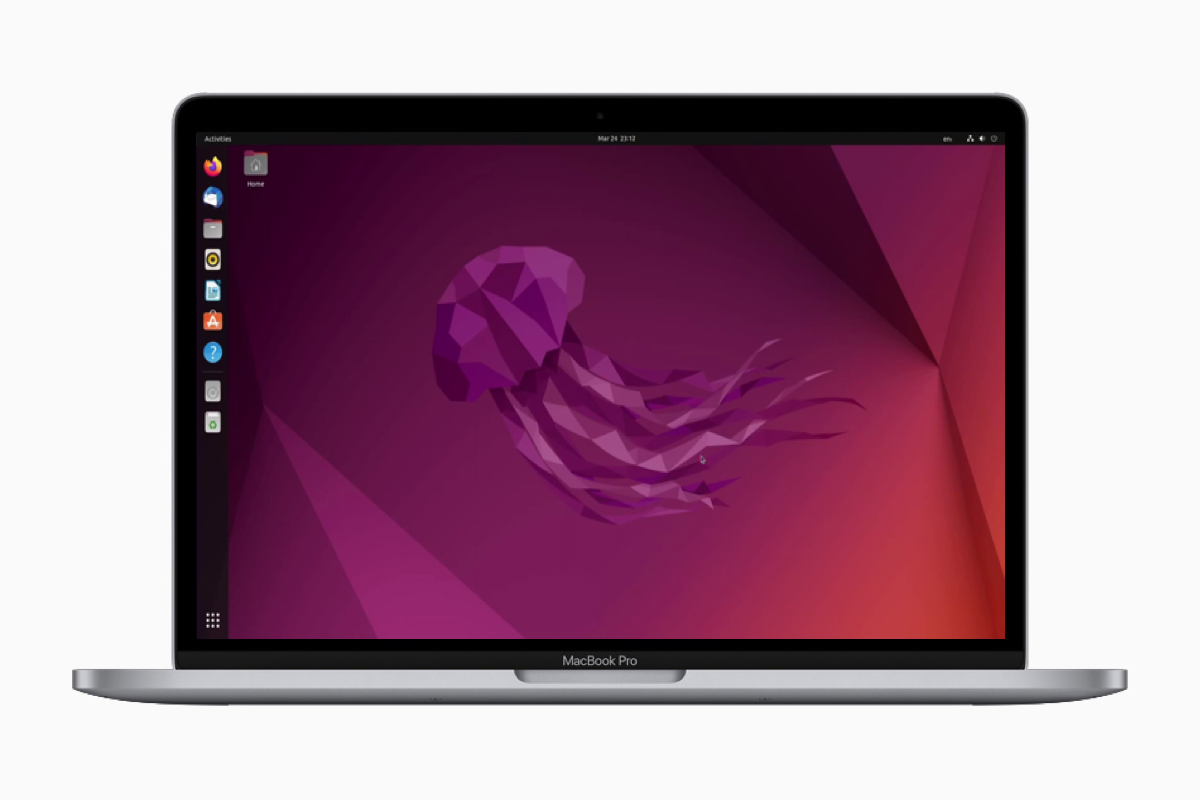
- Touchpad Gestures and Function Keys: Getting all the function keys (brightness, volume, etc.) and advanced touchpad gestures to work perfectly can sometimes be a challenge. Online forums and community wikis for your chosen distribution are invaluable resources for troubleshooting these specific hardware quirks.
Integrating with Your Existing Workflow
The goal of dual-booting is often to seamlessly switch between operating systems.
- File Sharing: You can access your macOS partitions from Linux, and vice-versa, though this requires specific configurations. For easier file sharing, consider using a shared partition formatted with a filesystem that both macOS and Linux can read and write to (like exFAT). Alternatively, cloud storage solutions work universally.
- Time Synchronization: Ensure your system clocks are synchronized. Sometimes, macOS and Linux handle time differently (UTC vs. local time). You can usually configure Linux to use UTC to avoid time discrepancies.
By following these steps, you can transform your MacBook into a powerful, versatile machine that harnesses the best of both worlds. The ability to run Linux opens up a universe of technical possibilities, enhances your productivity, and can even present new avenues for financial growth in the ever-evolving tech landscape. Enjoy exploring the open-source frontier on your Apple hardware!
aViewFromTheCave is a participant in the Amazon Services LLC Associates Program, an affiliate advertising program designed to provide a means for sites to earn advertising fees by advertising and linking to Amazon.com. Amazon, the Amazon logo, AmazonSupply, and the AmazonSupply logo are trademarks of Amazon.com, Inc. or its affiliates. As an Amazon Associate we earn affiliate commissions from qualifying purchases.