
Running out of ink can be a frustrating experience, especially when you have an important document to print. Fortunately, refilling your printer with ink is a straightforward process that most users can master with a little guidance. This guide will walk you through the essential steps, covering everything from identifying the correct ink cartridges to troubleshooting common issues. Whether you’re a seasoned tech enthusiast or new to printer maintenance, this tutorial aims to demystify the process and ensure your printer is back to producing high-quality prints in no time.

The world of printing technology, while seemingly simple, involves a complex interplay of hardware and consumables. Understanding how to properly maintain these consumables, like ink cartridges, is crucial for optimal performance and longevity of your printer. This not only saves you time and prevents printing errors but can also contribute to cost savings by avoiding unnecessary service calls or premature replacement of your device. Our focus today is on the practical, hands-on aspect of installing ink – a fundamental skill for any home or office printer user.
We will break down the process into manageable steps, ensuring clarity and ease of understanding. By the end of this guide, you’ll be equipped with the knowledge and confidence to tackle ink replacement on your own.
Preparing for Ink Replacement: What You Need and What to Know
Before you even open your printer or unbox new ink, a little preparation goes a long way. This initial phase is crucial for a smooth and error-free installation, minimizing the risk of damage to your printer or yourself. Think of it as gathering your tools and understanding the lay of the land before embarking on a task.
1. Identifying the Correct Ink Cartridge
This is arguably the most critical first step. Installing the wrong ink cartridge can lead to immediate printing issues, error messages, or even permanent damage to your printer.
- Consult Your Printer Manual: The most reliable source of information is always your printer’s user manual. It will clearly specify the exact model numbers or series of ink cartridges that are compatible with your specific printer. Many manuals are available online as PDFs on the manufacturer’s website, so even if you’ve lost the physical copy, you can usually find it.
- Check Your Existing Cartridges: If your printer is still functional enough to display information, or if you can safely open the cartridge bay, look at the existing cartridges. The model numbers are almost always printed directly on the cartridge itself. Take a clear picture or write down the number accurately.
- Manufacturer’s Website: Most printer manufacturers have a “support” or “consumables” section on their website. You can often enter your printer model, and it will direct you to the compatible ink cartridges. This is a good way to double-check and also to find genuine cartridges.
- Third-Party Retailers: Online retailers like Amazon, Best Buy, or dedicated ink supply stores will often have compatibility checkers. You can input your printer model, and they will show you the ink options available. Be cautious with third-party or “remanufactured” cartridges. While often cheaper, quality can vary significantly, and some printers may flag them as incompatible or of lower quality, potentially affecting print results or even voiding warranties. Always choose reputable sellers if opting for non-OEM (Original Equipment Manufacturer) cartridges.
- Ink Types: Dye vs. Pigment: While most users won’t need to delve this deep, it’s worth noting that ink comes in different types, primarily dye-based and pigment-based. Dye-based inks tend to produce more vibrant colors and are common in basic home printers. Pigment-based inks are generally more durable, water-resistant, and fade-resistant, often found in professional photo printers or business document printers. For most standard installations, you’ll be replacing like-for-like, but if you’re unsure, your manual or manufacturer’s website can clarify.
2. Gathering Necessary Tools and Supplies
While ink installation is typically a tool-free process, having a few items on hand can make the experience cleaner and more efficient.
- New Ink Cartridges: Obviously, this is the primary item. Ensure you have the correct ones identified in the previous step.
- Paper Towels or Cloths: Ink can be messy. Having paper towels or a clean, lint-free cloth readily available is essential for wiping up any stray drips or smudges on your hands or the printer’s interior.
- Gloves (Optional but Recommended): If you want to keep your hands completely clean, a pair of disposable gloves can be a good idea. Ink stains can be stubborn.
- Your Printer Manual (or its digital equivalent): As mentioned, this is your ultimate reference. Keep it handy in case any step is unclear for your specific model.
- A Clean, Well-Lit Workspace: Ensure you have enough space to comfortably work around your printer without bumping into things. Good lighting will help you see clearly what you’re doing.
3. Understanding Your Printer’s Ink System
Printers employ different methods for holding and delivering ink. Understanding your printer’s type can help you anticipate the process.
- Cartridge-Based Printers: This is the most common type for home and small office use. Ink is held in individual cartridges that are replaced when empty.
- Separate Color Cartridges: Many printers have individual cartridges for black, cyan, magenta, and yellow. This is often more economical as you only replace the color that runs out.
- Combined Color Cartridge: Some older or more basic models use a single cartridge that houses all three colors (cyan, magenta, and yellow). While convenient in that there’s only one to replace, it’s inefficient. If one color runs out, you have to replace the entire cartridge, even if the other colors are still full.
- Ink Tank / Inkjet Refillable Printers: These printers have permanent ink tanks that you refill from bottles of ink. While the initial cost of the printer might be higher, the long-term cost of ink is significantly lower. The installation process for these is different and involves pouring ink from bottles into designated tanks, which is a separate procedure from installing cartridges. This guide primarily focuses on cartridge-based systems.
The Step-by-Step Guide to Installing Printer Ink
Now that you’re prepared, it’s time to get your hands dirty (or at least, ready to be a little messy). Follow these steps carefully for a successful ink cartridge installation.
1. Accessing the Ink Cartridge Compartment
This is where printer models can differ significantly, so referring to your manual is key.
- Power On Your Printer: Most modern printers need to be powered on to allow access to the ink cartridges. Some printers will automatically move the print head to a convenient position for cartridge replacement when you open the cover. If yours doesn’t, you might need to manually initiate a “maintenance mode” or a similar function via the printer’s control panel.
- Open the Printer Cover: Locate the cover that gives you access to the ink cartridges. This is usually on the top or front of the printer. It might lift up, slide forward, or unlatch in some way.
- Wait for the Print Head to Position: Once the cover is open, the print head (the mechanism that holds the ink cartridges) should move to a central, accessible position. If it doesn’t, check your manual for instructions on how to manually move it or engage this function. Never try to force the print head to move manually if it’s not designed to be moved by hand.
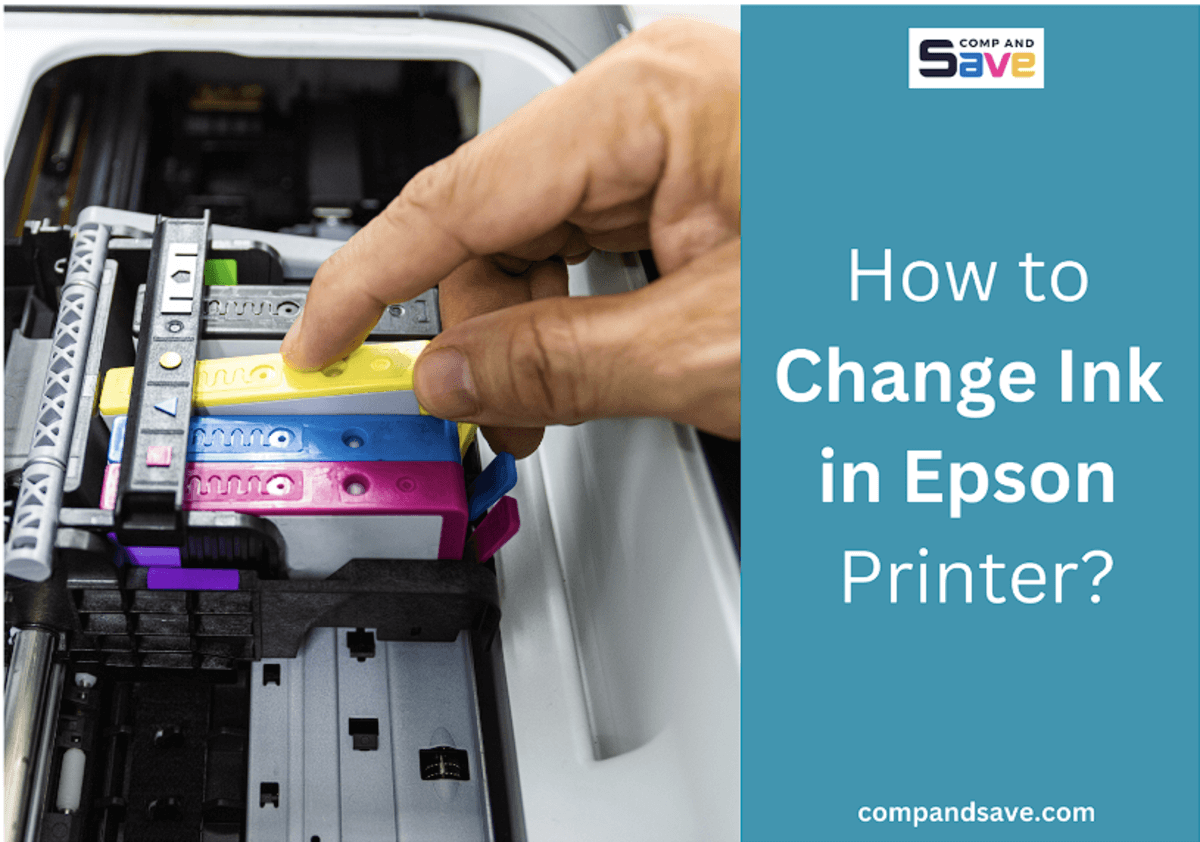
2. Removing the Old Ink Cartridge
With the print head in position, you can now remove the empty cartridge.
- Identify the Empty Cartridge: Look for the cartridge that has run out of ink. It might be indicated by an error light on the printer, a message on the screen, or simply by its color indicator if your printer has one.
- Release the Cartridge: Each printer model has a slightly different mechanism for securing cartridges.
- Lever/Clip Release: Many printers have a small lever, clip, or tab that you need to gently press or lift to release the cartridge.
- Pull-Up Release: Some cartridges simply pull straight up out of their housing.
- Push-Down Release: Less common, but some might require a gentle push down before pulling.
- Gently Remove the Cartridge: Once released, grasp the cartridge firmly but gently and pull it straight out. Be careful not to touch the electrical contacts or the ink nozzle on the bottom of the cartridge, as this can damage them or affect print quality.
- Dispose of Old Cartridges Responsibly: Many ink cartridges can be recycled. Check with your local recycling center or look for ink cartridge recycling programs offered by electronics stores or printer manufacturers. Don’t just toss them in the regular trash.
3. Installing the New Ink Cartridge
This is where your new ink brings your printer back to life.
- Unpack the New Cartridge: Carefully remove the new ink cartridge from its packaging.
- Remove Protective Tape/Seals: New cartridges come with protective packaging, often including a plastic cover over the print head and a strip of tape over the air vent or electrical contacts.
- Identify and Remove Tape: Look for a tab or a designated area to pull off any adhesive tape. This tape is usually brightly colored. Ensure you remove it completely. Crucially, locate and remove any tape covering the air vent (a small hole or series of holes). Without this vent being open, ink will not flow.
- Remove Protective Cover: There is usually a plastic clip or cover protecting the ink nozzles and electrical contacts. Gently pull this off. Again, avoid touching the nozzles or contacts directly.
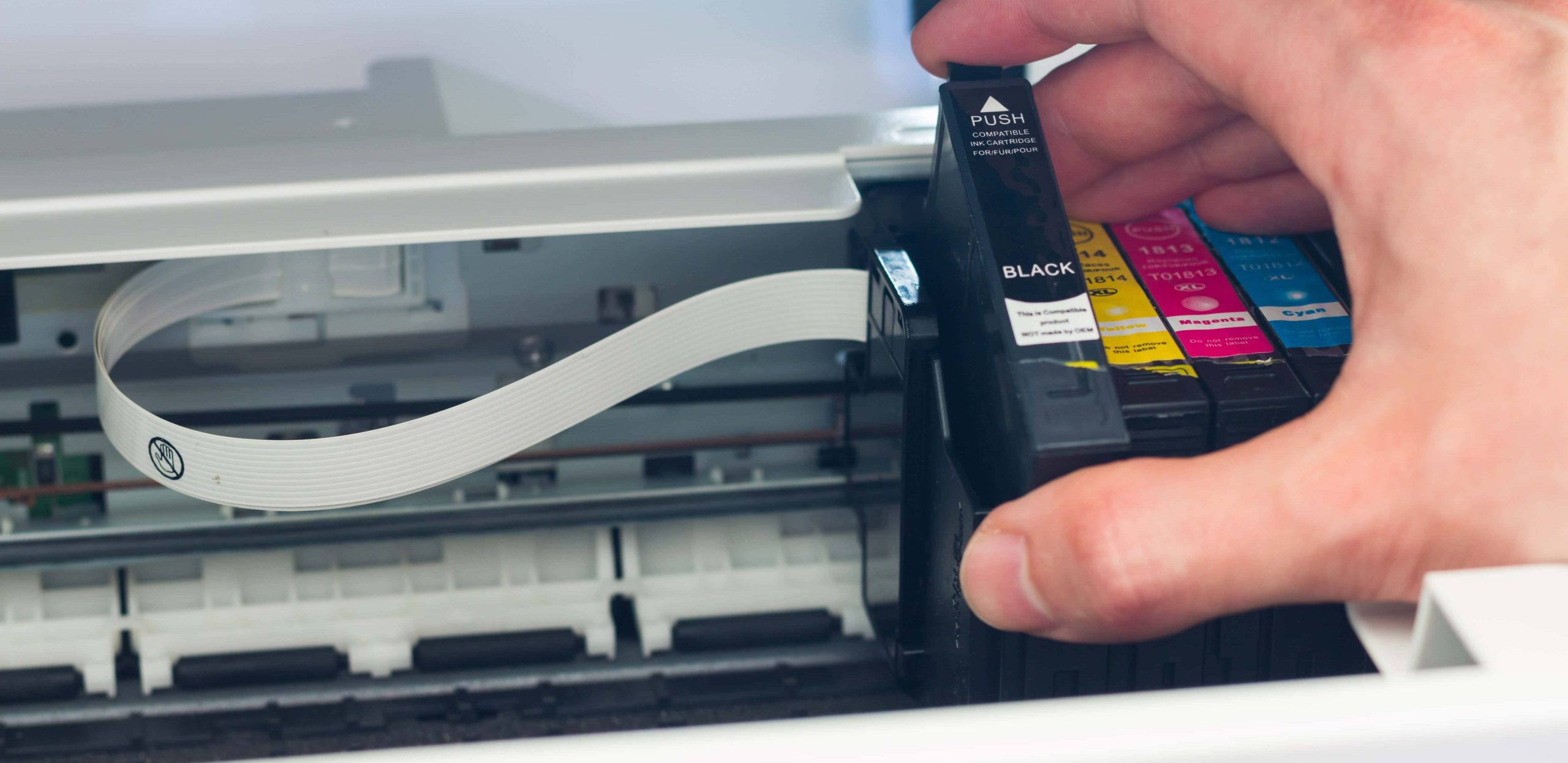
- Insert the New Cartridge: Align the new cartridge with the correct slot in the print head. The cartridge is usually shaped to fit only in its designated spot, preventing you from inserting it incorrectly.
- Slide into Place: Gently slide the cartridge into the slot.
- Listen for a Click: You should hear a soft click or feel a secure seating when the cartridge is properly installed. This indicates it’s locked into place.
- Close the Printer Cover: Once both old and new cartridges are installed (if you’re replacing multiple), firmly close the printer cover.
4. Printer Initialization and Test Print
After the physical installation, the printer needs to recognize and prepare the new ink.
- Printer Alignment/Calibration: Most printers will automatically begin an alignment or calibration process after a new cartridge is installed. This is crucial for ensuring accurate color mixing and sharp text. You might see the printer making noises or moving the print head around.
- Follow On-Screen Prompts: The printer’s display or your computer’s printer utility software may prompt you to confirm the ink installation or to print an alignment page. Follow these instructions carefully.
- Print a Test Page: Once the printer has completed its initialization process, it’s always a good idea to print a test page. This can usually be done through the printer’s control panel (often found under “Maintenance” or “Tools”) or via your computer’s printer properties.
- Check Print Quality: Examine the test page for any streaks, missing colors, or smudges. If the print quality is good, congratulations, you’ve successfully installed your ink!
Troubleshooting Common Ink Installation Issues
Even with the best intentions, sometimes things don’t go perfectly. Here are some common problems and how to address them.
1. Printer Not Recognizing New Cartridge
This is a frequent frustration. Several factors can cause this.
- Incorrect Installation: The most common reason is that the cartridge isn’t seated correctly. Try removing it and reinserting it, ensuring it clicks firmly into place.
- Protective Tape/Seals Still On: Double-check that all protective tapes, especially those covering air vents, have been completely removed.
- Dirty Electrical Contacts: The electrical contacts on both the cartridge and the printer’s print head might be dirty or oxidized.
- Cleaning: Gently clean the contacts on the cartridge with a dry, lint-free cloth or a pencil eraser. For the printer contacts, use a slightly damp (with distilled water) lint-free cloth, then immediately dry it. Ensure the printer is powered off before cleaning any internal contacts.
- Wrong Cartridge Model: You may have accidentally purchased or been sent the wrong cartridge model. Verify the model number against your printer’s requirements.
- Defective Cartridge: In rare cases, the new cartridge itself might be faulty. If you’ve tried everything else, consider exchanging it for a new one.
- Software Glitch: Sometimes, a simple printer restart or a reboot of your computer can resolve communication issues. Try powering off the printer, waiting 30 seconds, and powering it back on.
2. Streaky or Missing Colors After Installation
Even if the printer recognizes the cartridge, poor print quality is possible.
- Print Head Clogging: The ink nozzles on the print head can become clogged, especially if the printer hasn’t been used for a while or if there were issues with the previous cartridge.
- Head Cleaning Cycle: Most printers have a “head cleaning” function accessible through the printer’s control panel or software. Run this cycle once or twice. You may need to print a test page after each cleaning to see if it improves.
- Ink Cartridge Not Fully Seated: Similar to the recognition issue, a slightly misaligned cartridge can lead to poor ink flow. Re-seat the cartridge.
- Air Bubbles in Ink: Sometimes, air bubbles can form in the ink. Running a head cleaning cycle can help to dislodge these.
- Incorrect Cartridge Type: As mentioned, using the wrong type of ink (e.g., pigment when dye is expected, or vice-versa for certain components) can cause issues.
3. Ink Leaking or Smudging
This usually indicates a physical problem with the cartridge or its installation.
- Damaged Cartridge: Inspect the new cartridge for any visible cracks or damage.
- Improper Sealing: Ensure all protective seals and tapes were removed. If an air vent is still covered, ink can leak out.
- Over-Handling: Avoid touching the ink nozzles. If you’ve smudged ink onto other parts of the printer, gently clean them with a damp cloth.
- Faulty Cartridge: If a new cartridge is leaking significantly, it’s likely defective and should be replaced.
By following these comprehensive steps and being aware of potential pitfalls, you can confidently tackle the task of installing ink in your printer. Regular maintenance and proper ink replacement are key to ensuring your printer continues to deliver high-quality prints efficiently and reliably. Remember, when in doubt, your printer’s manual is your best friend.
aViewFromTheCave is a participant in the Amazon Services LLC Associates Program, an affiliate advertising program designed to provide a means for sites to earn advertising fees by advertising and linking to Amazon.com. Amazon, the Amazon logo, AmazonSupply, and the AmazonSupply logo are trademarks of Amazon.com, Inc. or its affiliates. As an Amazon Associate we earn affiliate commissions from qualifying purchases.