
Git, the ubiquitous distributed version control system, is an indispensable tool for developers, sysadmins, and anyone working with code. Whether you’re collaborating on a complex software project, managing your personal coding ventures, or simply want to track changes in configuration files, Git provides the robust framework you need. For users of the popular Linux distribution Ubuntu, installing and configuring Git is a straightforward process, essential for unlocking its full potential. This guide will walk you through every step, from initial installation to basic configuration, ensuring you’re ready to leverage Git for your technical endeavors.
This article is tailored for individuals who fall within the “Tech” category of our website, encompassing those interested in software, tutorials, productivity, and digital security. While Git’s primary function is technical, understanding its implications for workflow and project management can also touch upon productivity and even aspects of personal branding for developers.
Why Git is Essential for Your Tech Workflow
Before diving into the installation process, it’s crucial to understand why Git is such a cornerstone of modern technology development. At its heart, Git is a version control system (VCS). This means it allows you to track and manage changes to files over time. Think of it as a sophisticated undo button for your entire project, but far more powerful.
The Power of Version Control
- Tracking Changes: Every modification you make to your project is recorded. This allows you to revert to previous versions, see who made what changes, and when. This is invaluable for debugging, understanding the evolution of your codebase, and recovering from mistakes.
- Collaboration Made Easy: Git’s distributed nature is a game-changer for teamwork. Developers can work on separate parts of a project independently and then merge their contributions seamlessly. This avoids the chaos of multiple people editing the same files simultaneously and reduces merge conflicts.
- Branching and Merging: This is perhaps Git’s most celebrated feature. Branching allows you to create isolated environments for developing new features or fixing bugs without affecting the main codebase. Once your work is complete and tested, you can merge these branches back into the main line of development. This process is clean, organized, and greatly enhances development agility.
- Backup and Recovery: Your local Git repository acts as a local backup. Furthermore, when you push your code to a remote repository (like GitHub, GitLab, or Bitbucket), you have an offsite backup, protecting your work from hardware failures or accidental deletions.
- Experimentation Without Fear: Branches enable you to experiment with new ideas or refactor existing code without the risk of breaking your stable version. If an experiment doesn’t pan out, you can simply discard the branch.
For anyone serious about software development, data science, web design, or even managing complex configuration files, mastering Git is not an option, but a necessity. It forms the backbone of efficient, collaborative, and secure development practices.
Installing Git on Ubuntu: The Terminal Approach
Ubuntu, being a Debian-based Linux distribution, offers several straightforward ways to install software. The most common and recommended method for installing Git is through the Advanced Packaging Tool (APT), Ubuntu’s package manager. This ensures you get a stable, officially supported version of Git.
Step 1: Update Your Package Lists
Before installing any new software, it’s always a good practice to update your system’s package lists. This ensures that you are aware of the latest available versions of software and their dependencies.
Open your terminal (you can usually find it by searching for “Terminal” in your applications menu or by pressing Ctrl + Alt + T).
Execute the following command:
sudo apt update
sudo: This command grants you administrative privileges, which are necessary for modifying system files and installing software. You’ll be prompted to enter your user password.apt update: This command fetches the latest package information from all configured sources.
Step 2: Install Git
Once your package lists are up-to-date, you can proceed to install Git.
Run the following command in your terminal:
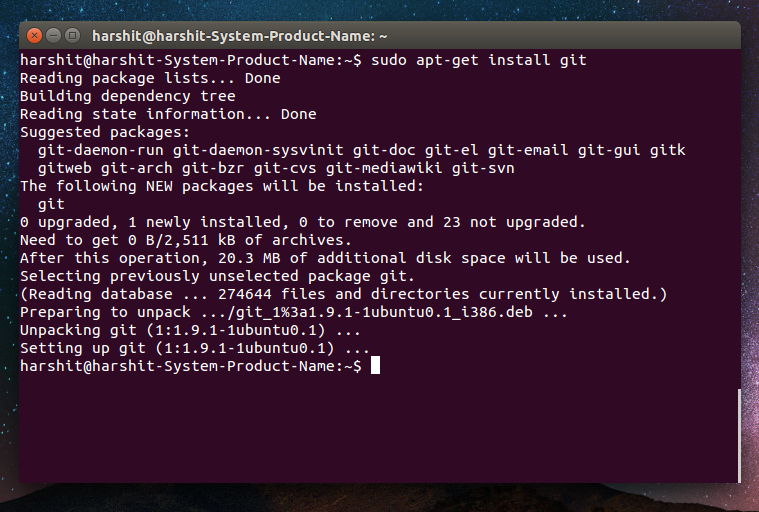
sudo apt install git
apt install git: This command tells APT to download and install the Git package and any necessary dependencies.
APT will present you with a list of packages to be installed and ask for confirmation. Type Y and press Enter to proceed.
The installation process is usually quick, and once it’s complete, Git will be installed and ready to use on your Ubuntu system.
Step 3: Verify the Installation
To confirm that Git has been installed correctly, you can check its version.
In your terminal, type:
git --version

This command should output the version of Git that was installed on your system, for example: git version 2.34.1. If you see a version number, congratulations! Git is successfully installed.
Configuring Git: Personalizing Your Development Environment
After installing Git, the next crucial step is to configure it with your personal information. This information is used by Git to identify you as the author of commits. While it might seem like a minor detail, it’s essential for proper attribution and for collaborating effectively.
Setting Your Git Username and Email
Git uses your username and email address to tag your commits. These details will be visible in the commit history, so it’s important to use information you’re comfortable with.
Run the following commands in your terminal, replacing "Your Name" with your actual name and "your.email@example.com" with your email address:
git config --global user.name "Your Name"
git config --global user.email "your.email@example.com"
git config: This is the command used to set Git configuration options.--global: This flag indicates that the configuration should apply globally to all your Git repositories on this system for your user account. You can also use--localfor repository-specific settings or--systemfor system-wide settings (though--globalis most commonly used for user information).
To verify that your configuration has been saved, you can check the settings:
git config --global user.name
git config --global user.email
These commands will output the name and email you just set.
Setting Your Default Branch Name (Optional but Recommended)
Historically, the default branch in Git was named master. However, to promote more inclusive language, many projects and platforms are now adopting main as the default branch name. It’s a good practice to configure Git to use main as your default branch name for new repositories.
You can set this with the following command:
git config --global init.defaultBranch main
This configuration will ensure that when you initialize a new Git repository using git init, the primary branch will be created as main instead of master.
Understanding Git Configuration Levels
As mentioned with the --global flag, Git configurations can exist at different levels:
- System (
--system): This level applies to all users on the system. It’s less common for personal configuration. - Global (
--global): This level applies to your user account. Settings here are stored in~/.gitconfig(or~/.config/git/configon some systems). This is where you’ll set your name, email, and other user preferences. - Local (
--local): This level applies only to the current Git repository. Settings are stored in the.git/configfile within that repository. This is useful for repository-specific configurations, such as setting up remote repositories or custom hooks.
For most users, the --global configuration is sufficient for their primary Git setup.
Exploring Further: Beyond the Installation
With Git installed and configured, you’ve taken a significant step towards a more organized and efficient workflow. However, this is just the beginning of your Git journey. To truly harness its power, you’ll want to explore its core commands and concepts.
Essential Git Commands to Learn Next
git init: Initializes a new Git repository in the current directory.git clone <repository_url>: Clones an existing repository from a remote URL to your local machine.git add <file_name>: Stages changes in a file for the next commit.git add .stages all changes in the current directory.git commit -m "Your commit message": Records the staged changes to the repository history with a descriptive message.git status: Shows the current state of your working directory and staging area, indicating which files have been modified, staged, or are untracked.git log: Displays the commit history of the repository.git diff: Shows the differences between your working directory and the staging area, or between commits.git branch: Lists, creates, or deletes branches.git checkout <branch_name>: Switches to a different branch.git merge <branch_name>: Merges the specified branch into the current branch.git remote add origin <repository_url>: Adds a remote repository (e.g., on GitHub) as a remote named “origin”.git push origin <branch_name>: Uploads your local commits to a remote repository.git pull origin <branch_name>: Fetches changes from a remote repository and merges them into your current branch.
Integrating Git with Remote Platforms
The real power of Git is often unleashed when combined with remote hosting platforms. Services like GitHub, GitLab, and Bitbucket provide a centralized place to store your repositories, collaborate with others, and manage your projects. Setting up an account on one of these platforms and learning how to connect your local Git repository to a remote one is the next logical step after mastering the installation and basic configuration. This enables features like pull requests, issue tracking, and continuous integration/continuous deployment (CI/CD) pipelines.
Conclusion
Installing Git on Ubuntu is a fundamental step for anyone involved in software development, system administration, or technical projects that require version tracking. By following this guide, you’ve successfully installed Git and configured it with your essential details. This foundation will allow you to manage your code efficiently, collaborate seamlessly with others, and confidently explore the vast capabilities of this powerful tool. Remember, the journey with Git is one of continuous learning, so dive into the commands, experiment with branches, and connect with the wider developer community. Your technical workflow will undoubtedly be more robust and productive as a result.
aViewFromTheCave is a participant in the Amazon Services LLC Associates Program, an affiliate advertising program designed to provide a means for sites to earn advertising fees by advertising and linking to Amazon.com. Amazon, the Amazon logo, AmazonSupply, and the AmazonSupply logo are trademarks of Amazon.com, Inc. or its affiliates. As an Amazon Associate we earn affiliate commissions from qualifying purchases.