
The modern digital landscape is a tapestry woven with interconnected devices, and at the heart of many home and office setups lies the humble, yet essential, printer. While wireless connectivity is increasingly prevalent, the reliable and often faster connection offered by a USB cable still holds significant sway. For Lexmark printer owners, ensuring seamless communication between their machine and computer is paramount for efficient document creation and management. This often hinges on the correct installation of printer drivers. This comprehensive guide will walk you through the process of installing drivers for your Lexmark printer when connected via USB, empowering you to overcome potential hiccups and get your printer up and running smoothly.

Understanding the Crucial Role of Printer Drivers
Before we delve into the installation process, it’s vital to understand why drivers are so indispensable. Think of a printer driver as a translator. Your computer speaks a digital language, and your Lexmark printer, while a sophisticated piece of hardware, has its own specific set of instructions and commands. The driver acts as the intermediary, converting the data from your computer into a format that your printer can understand and execute.
Without the correct driver, your computer won’t know how to communicate with your printer. This can manifest in a variety of frustrating ways, including:
- The printer not being recognized at all: Your computer might not even see that a device is connected.
- Printing errors and gibberish: When you do manage to send a document, it might come out as a jumbled mess of characters, lines, or incorrect formatting.
- Limited functionality: Even if some basic printing works, you might be unable to access advanced features like scanning, duplex printing, or specific paper tray selections.
- Slow or failed print jobs: The communication breakdown can lead to prolonged printing times or complete failure of the print job.
Therefore, installing the appropriate driver is not merely a technicality; it’s the fundamental step in unlocking your Lexmark printer’s full potential and ensuring reliable operation.
Method 1: Automatic Driver Installation via Windows Update
For many modern operating systems, particularly Windows, the simplest and often most effective way to install drivers for a USB-connected printer is through Windows Update. Microsoft actively works with hardware manufacturers to provide generic and sometimes specific drivers through this system, making the process remarkably user-friendly.
Step-by-Step Guide to Using Windows Update
-
Connect Your Lexmark Printer: Ensure your Lexmark printer is powered on and securely connected to your computer via a USB cable. It’s generally recommended to do this before starting the driver installation process, as the operating system may then automatically detect the new hardware.
-
Allow Windows to Detect: Once connected, Windows will typically attempt to detect the new hardware. You might see a notification in the bottom-right corner of your screen indicating that “Setting up a device” or “Installing device driver software” is in progress.
-
Initiate Windows Update (if not automatic): If Windows doesn’t automatically start the driver search, you can manually trigger it:
- Click on the Start Menu.
- Type “Windows Update” and select “Check for updates” from the search results.
- In the Windows Update window, click the “Check for updates” button.
-
Windows Update Scans for Drivers: Windows will now connect to Microsoft’s servers and search for available driver updates for all connected hardware, including your Lexmark printer. If a suitable driver is found, it will be downloaded and installed automatically.
-
Confirmation and Restart: Once the driver installation is complete, Windows will usually notify you. In some cases, a system restart might be required for the new driver to take full effect. It’s always a good practice to restart your computer after any significant driver installation.
-
Test Your Printer: After the restart, try printing a test page. You can usually do this by going to
Settings > Devices > Printers & scanners, selecting your Lexmark printer, and clicking “Manage” followed by “Print a test page.”
Important Considerations for Windows Update:
- Internet Connection: A stable internet connection is crucial for Windows Update to function correctly.
- Administrator Privileges: You may need administrator rights on your computer to install drivers.
- Generic vs. Specific Drivers: Windows Update might install a generic driver that provides basic printing functionality. While this is often sufficient, it may not include all the advanced features of your specific Lexmark model. For the full suite of features, downloading the manufacturer’s official driver is usually preferable.
Method 2: Manual Driver Installation from Lexmark’s Official Website
When Windows Update doesn’t find the correct driver, or if you want to ensure you have the latest features and optimizations for your specific Lexmark printer model, downloading the driver directly from Lexmark’s official website is the recommended approach. This method offers greater control and ensures compatibility.
Navigating Lexmark’s Support and Driver Portal
-
Identify Your Lexmark Printer Model: This is a critical first step. Look for the model name and number on the printer itself – it’s usually on the front, top, or back panel. Common examples include “Lexmark MS317dn,” “Lexmark CS310n,” or “Lexmark P1100.”
-
Access the Lexmark Support Website: Open your web browser and navigate to the official Lexmark support website. The URL is typically something like
support.lexmark.comorwww.lexmark.com/en_us/support. -
Locate the Driver Download Section: On the support page, look for a section or link labeled “Support & Downloads,” “Drivers & Downloads,” “Software & Downloads,” or something similar.
-
Enter Your Printer Model: You will usually find a search bar or an option to enter your printer’s model name or number. Type in the information you found in step 1 and press Enter or click the search button.
-
Select Your Operating System: The website will then present you with available downloads for your printer. Crucially, you need to select the correct operating system (e.g., Windows 11, Windows 10, macOS Ventura, etc.) and architecture (32-bit or 64-bit). If you’re unsure of your system’s architecture, you can usually find this information in your computer’s system settings.
-
Download the Appropriate Driver: Lexmark usually offers different driver packages. Look for the “Full Feature Software and Driver” or “Universal Driver” if available. The full package typically includes all software, utilities, and drivers for your printer. Download the installer file to a convenient location on your computer, such as your Desktop or Downloads folder.
Executing the Driver Installation
-
Disconnect and Reconnect (Optional but Recommended): Before running the downloaded installer, it’s often good practice to disconnect your Lexmark printer from the USB cable and power it off. This prevents any potential conflicts with existing, possibly incorrect, driver installations.
-
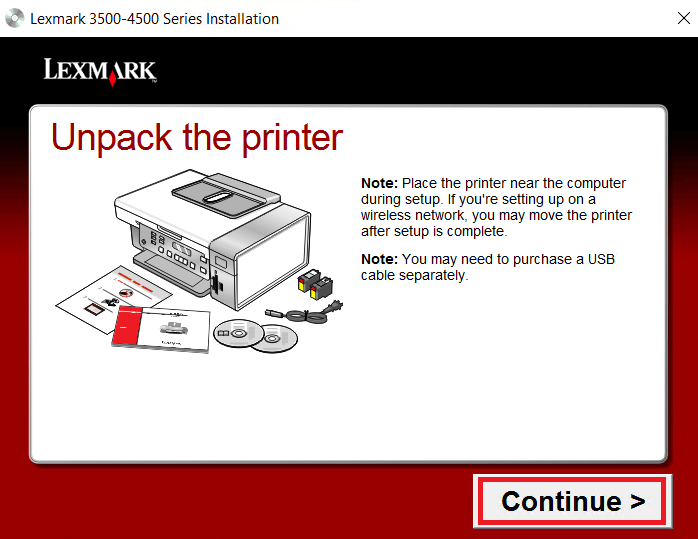
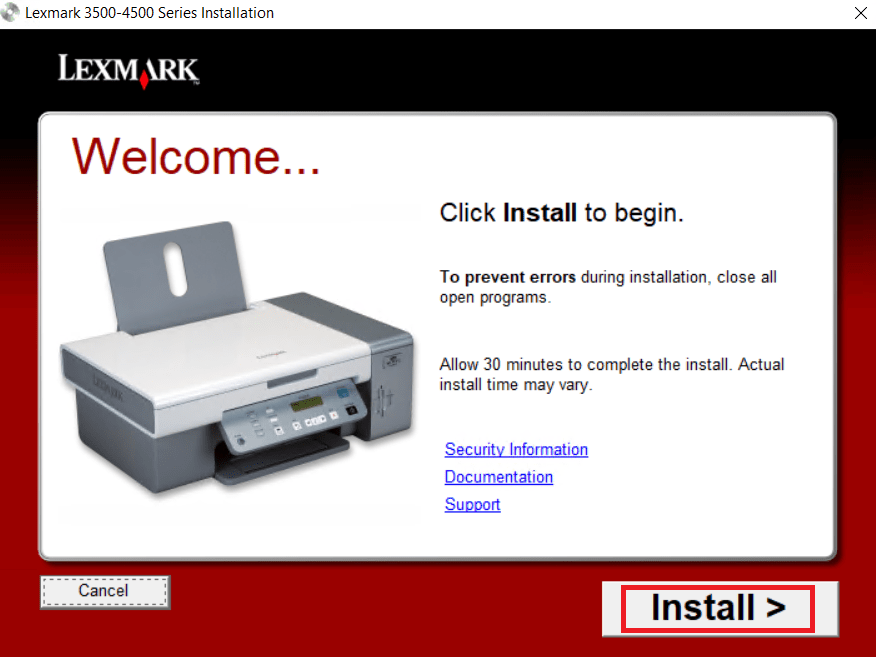
Run the Installer: Locate the downloaded driver file (it will likely be an executable file, e.g.,
.exeon Windows). Double-click on it to launch the installation wizard. -
Follow the On-Screen Prompts: The installation wizard will guide you through the process. You’ll typically need to:
- Accept the License Agreement: Read and agree to the terms and conditions.
- Choose Installation Type: Select “Typical” or “Recommended” for most users. You might have an option for “Custom” if you want to choose specific components to install.
- Select Connection Type: Ensure you select “USB Connection” when prompted.
- Connect Printer: The installer will instruct you when to connect your Lexmark printer via USB and power it on. Follow these instructions carefully.
- Driver Installation: The installer will proceed to copy files and install the necessary drivers. This may take a few minutes.
- Software Installation: You may also be prompted to install additional Lexmark software, such as utility programs for scanning, maintenance, or ink level monitoring. Choose these based on your needs.
-
Complete the Installation and Restart: Once the installation is finished, you’ll usually be prompted to restart your computer. This is essential for the new drivers and software to be properly integrated into your system.
-
Test Your Printer: After restarting, print a test page to confirm that everything is working correctly.
Troubleshooting Common Driver Installation Issues
Despite following the steps carefully, you might occasionally encounter issues during the driver installation process. Here are some common problems and their solutions:
Issue 1: Printer Not Detected During Installation
- Check USB Cable: Ensure the USB cable is securely plugged into both the printer and the computer. Try using a different USB port on your computer and a different USB cable if you have one.
- Power Cycle Printer and Computer: Turn off your printer and computer, disconnect the USB cable, wait for about 30 seconds, and then power everything back on and reconnect the cable.
- Device Manager Check (Windows):
- Right-click on the Start Menu and select “Device Manager.”
- Look for your Lexmark printer under “Printers” or “Other devices” (it might appear with a yellow exclamation mark if there’s an issue).
- If you see it, right-click on it and select “Update driver.” Choose “Search automatically for drivers.”
- If it’s listed under “Other devices,” try right-clicking and selecting “Uninstall device,” then disconnect and reconnect the printer to let Windows try to detect it again.
Issue 2: “Driver Not Found” or “Access Denied” Errors
- Administrator Privileges: Ensure you are logged into your computer with an administrator account. If not, log out and log back in with an administrator account, or right-click the installer and select “Run as administrator.”
- Antivirus Interference: Temporarily disable your antivirus software during the driver installation. Remember to re-enable it immediately after the installation is complete. Antivirus programs can sometimes mistakenly identify driver installation files as threats.
- Corrupted Download: If you downloaded the driver, try downloading it again from the Lexmark website. Your previous download might have been incomplete or corrupted.
Issue 3: Printer Installed but Not Printing Correctly
- Incorrect Driver Selected: Double-check that you downloaded the driver for the exact model of your Lexmark printer and for your specific operating system version.
- Printer Queue Issues:
- Go to
Settings > Devices > Printers & scanners. - Select your Lexmark printer and click “Open queue.”
- Cancel all pending print jobs. If the printer is unresponsive, you might need to restart the “Print Spooler” service:
- Press Windows Key + R, type
services.msc, and press Enter. - Find “Print Spooler” in the list, right-click it, and select “Restart.”
- Press Windows Key + R, type
- Go to
- Reinstall the Driver: The most robust solution for persistent printing issues is often to completely uninstall the current printer driver and then reinstall it using the official Lexmark installer. To uninstall, go to
Settings > Apps > Apps & features, find the Lexmark printer software, and uninstall it. Then, follow Method 2 to reinstall.
By systematically approaching the installation process and knowing how to troubleshoot common problems, you can ensure your Lexmark printer, connected via USB, becomes a reliable and productive part of your technology ecosystem. Remember, patience and attention to detail are key to a successful setup.
aViewFromTheCave is a participant in the Amazon Services LLC Associates Program, an affiliate advertising program designed to provide a means for sites to earn advertising fees by advertising and linking to Amazon.com. Amazon, the Amazon logo, AmazonSupply, and the AmazonSupply logo are trademarks of Amazon.com, Inc. or its affiliates. As an Amazon Associate we earn affiliate commissions from qualifying purchases.