
In today’s hyper-connected world, a stable and fast Wi-Fi connection is no longer a luxury; it’s a fundamental necessity. Whether you’re working remotely, streaming your favorite shows, gaming online, or simply browsing the web, a functional Wi-Fi adapter is your gateway to the digital realm. However, like any piece of hardware, your Wi-Fi adapter relies on specific software, known as drivers, to communicate effectively with your operating system. When these drivers are missing, outdated, or corrupted, you’ll inevitably face connectivity issues, slow speeds, or even a complete inability to connect to a wireless network.
This comprehensive guide will walk you through the essential steps of installing and updating Wi-Fi drivers, ensuring you can maintain a seamless and reliable internet experience. We’ll cover various scenarios, from initial setup to troubleshooting common problems, empowering you with the knowledge to manage your Wi-Fi drivers with confidence.
Understanding Wi-Fi Drivers: The Unsung Heroes of Connectivity
Before we dive into the installation process, it’s crucial to understand what Wi-Fi drivers are and why they are so vital. At its core, a driver is a piece of software that acts as a translator between your hardware (in this case, your Wi-Fi adapter) and your operating system (like Windows, macOS, or Linux). Without the correct driver, your operating system wouldn’t know how to send or receive data through your Wi-Fi card, rendering it useless.
Think of it like this: your Wi-Fi adapter is a specialized piece of equipment designed to speak a particular “language” for wireless communication. Your operating system, on the other hand, speaks a more general “language.” The driver is the interpreter that bridges this communication gap, allowing your OS to command the Wi-Fi adapter and understand the information it receives from your router.
Why Drivers Matter: The Impact on Your Wi-Fi Performance
The importance of having the right Wi-Fi drivers cannot be overstated. Here’s how they directly impact your connectivity:
- Enabling Wi-Fi Functionality: The most basic function of a Wi-Fi driver is to allow your computer to detect, connect to, and communicate with wireless networks. If the driver is missing or incompatible, your Wi-Fi adapter might not even appear in your system’s hardware list.
- Optimizing Performance: Manufacturers continuously update drivers to improve performance, enhance stability, and fix bugs. An updated driver can lead to faster download and upload speeds, a more stable connection with less dropouts, and better overall network efficiency.
- Improving Security: Sometimes, driver updates include security patches that address vulnerabilities. Keeping your drivers current can help protect your network and devices from potential threats.
- Resolving Compatibility Issues: As operating systems evolve, hardware drivers need to be updated to ensure compatibility. An outdated driver might cause conflicts with newer OS versions, leading to unpredictable behavior.
- Enabling Advanced Features: Some Wi-Fi adapters offer advanced features like specific Wi-Fi standards (e.g., Wi-Fi 6E), enhanced security protocols, or power-saving modes. These features are often unlocked and managed through the driver software.
Identifying Your Wi-Fi Adapter and Its Driver Needs
The first step in installing or updating any driver is to identify the specific hardware you’re working with. This is especially true for Wi-Fi drivers, as different manufacturers produce a wide variety of Wi-Fi adapters, each requiring its own unique driver.
Locating Your Wi-Fi Hardware Information
There are a few straightforward ways to find out which Wi-Fi adapter is installed in your computer:
For Windows Users:
-
Device Manager: This is the most reliable method.
- Press the Windows key + R to open the Run dialog box.
- Type
devmgmt.mscand press Enter, or click OK. - In the Device Manager window, expand the “Network adapters” section.
- Look for an entry that typically includes “Wireless,” “Wi-Fi,” “802.11,” or the manufacturer’s name (e.g., “Intel Wireless-AC,” “Realtek RTL8822BE,” “Qualcomm Atheros QCA9377”).
- Right-click on your Wi-Fi adapter and select “Properties.”
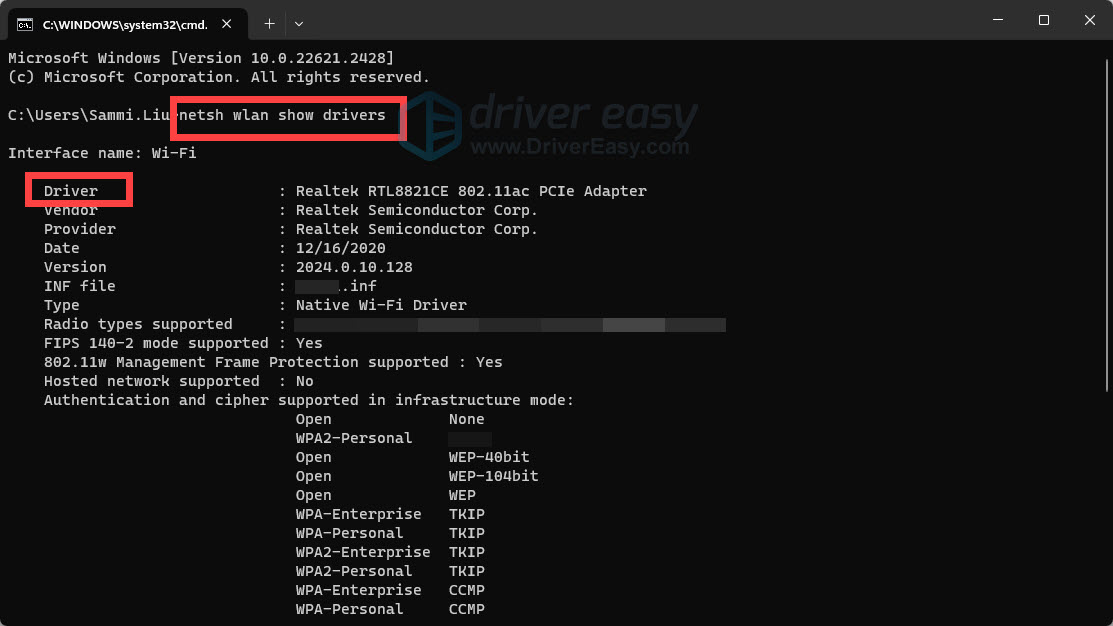
- In the Properties window, go to the “Driver” tab. Here you’ll see the driver provider, driver version, and driver date.
- For more specific hardware identification, go to the “Details” tab and select “Hardware Ids” from the Property dropdown. This will give you a string of codes (e.g.,
PCIVEN_8086&DEV_A370) which is extremely useful for searching for the correct driver online.
-
System Information:
- Press the Windows key + R to open the Run dialog box.
- Type
msinfo32and press Enter. - In the System Information window, navigate to Components > Network > Adapter.
- Look for your wireless adapter in the list and note its name and description.
For macOS Users:
macOS generally handles driver installations automatically and much more seamlessly. However, if you’re troubleshooting or using an external Wi-Fi adapter, you might need to understand the system.
- System Information:
- Click the Apple menu in the top-left corner of your screen.
- Select “About This Mac.”
- Click “System Report…”
- In the System Information window, under the “Network” section, click on “Wi-Fi.” This will display information about your built-in Wi-Fi hardware.
For Linux Users:
Linux distributions are very good at auto-detecting hardware. If you’re having issues, the command line is your friend.
- Terminal:
- Open a terminal window.
- Type
lspci | grep -i networkand press Enter. This command lists all PCI devices and filters for network-related ones. - Alternatively,
lshw -C networkcan provide more detailed information.
Once you have identified your Wi-Fi adapter model and manufacturer, you can proceed to find the appropriate driver.
Deciding When to Install or Update Drivers
Not every Wi-Fi issue requires a driver reinstallation. Here are common scenarios where driver management is necessary:
- New Wi-Fi Adapter: If you’ve installed a new Wi-Fi card or USB adapter, you’ll definitely need to install its drivers for it to work.
- No Wi-Fi Connectivity: If your Wi-Fi icon is missing, or you cannot see any available networks, a missing or corrupted driver is a prime suspect.
- Intermittent Connection Issues: Frequent Wi-Fi drops, unstable connections, or sudden disconnections can often be resolved by updating to the latest driver.
- Slow Wi-Fi Speeds: If your internet speeds are significantly slower than what your plan offers, or slower than expected for your Wi-Fi standard, an outdated or inefficient driver might be the culprit.
- Error Messages: Specific error messages related to your wireless adapter or network connection often point towards driver problems.
- Operating System Upgrade: After upgrading your operating system (e.g., from Windows 10 to Windows 11), existing drivers may become incompatible. It’s good practice to check for and install updated drivers for all hardware components.
- Performance Degradation: Over time, even if your Wi-Fi seems to be working, a driver update might offer subtle performance improvements, better power management, or enhanced compatibility with new Wi-Fi routers and security protocols.
Methods for Installing and Updating Wi-Fi Drivers
There are several ways to get the correct drivers for your Wi-Fi adapter, ranging from automatic system tools to manual downloads. We’ll explore the most common and effective methods.
Method 1: Automatic Driver Updates (Recommended First Step)
Most modern operating systems have built-in tools that can automatically detect and install drivers. This is the simplest and often the safest method.
For Windows Users:
-
Windows Update:
- Go to Settings > Update & Security > Windows Update.
- Click “Check for updates.”
- Windows Update will not only fetch OS updates but also often find and install the latest compatible drivers for your hardware, including your Wi-Fi adapter.
- If updates are found, click “Download and install.”
- After installation, restart your computer to apply the changes.
-
Device Manager (Update Driver Option):
- Open Device Manager (as described in the previous section).
- Locate your Wi-Fi adapter, right-click on it, and select “Update driver.”
- Choose “Search automatically for drivers.” Windows will then attempt to find the best available driver online through its Windows Update service.
- If a new driver is found, follow the on-screen prompts to install it. Restart your computer afterward.
For macOS Users:

As mentioned, macOS is very good at managing drivers automatically. Wi-Fi drivers are typically integrated into the macOS updates. Ensure your system is up-to-date:
- Go to Apple menu > System Settings (or System Preferences) > General > Software Update.
- Install any available macOS updates. These updates often include driver improvements.
For Linux Users:
Linux distributions use package managers to handle software and drivers.
- Open your distribution’s software center or use the terminal. For example, on Ubuntu/Debian-based systems, you might use
sudo apt update && sudo apt upgrade. - For specific hardware drivers, your system might prompt you to install “additional drivers” or “proprietary drivers” for better performance or hardware support. Look for a “Software & Updates” or “Driver Manager” tool.
Method 2: Downloading Drivers from the Manufacturer’s Website (Most Reliable for Specific Models)
While automatic updates are convenient, they don’t always provide the very latest drivers or the most comprehensive driver packages. For the most up-to-date and feature-rich drivers, downloading directly from the Wi-Fi adapter manufacturer or your computer manufacturer’s website is the best approach.
Steps for Downloading and Installing Manually:
-
Identify Your Wi-Fi Adapter (Hardware IDs are Key):
- As detailed earlier, use Device Manager’s “Hardware Ids” to get specific identifiers for your Wi-Fi chip. This will look something like
VEN_8086&DEV_A370. TheVEN(Vendor) ID andDEV(Device) ID are crucial.
- As detailed earlier, use Device Manager’s “Hardware Ids” to get specific identifiers for your Wi-Fi chip. This will look something like
-
Determine the Manufacturer:
- The Vendor ID (e.g.,
8086for Intel,10ECfor Realtek,14C3for Qualcomm Atheros) will tell you the manufacturer of your Wi-Fi chip. - Alternatively, if you know the brand name of your Wi-Fi adapter (e.g., “Intel Wireless-AC 9560”), you can go directly to that brand’s support website.
- If you have a laptop, it’s often best to visit your laptop manufacturer’s support website (e.g., Dell, HP, Lenovo, Acer) and search for drivers for your specific laptop model. They usually provide optimized drivers for the components they’ve integrated.
- The Vendor ID (e.g.,
-
Visit the Manufacturer’s Support Website:
- For Laptop Manufacturers: Go to the support section of your laptop brand’s website. Enter your laptop’s model number or serial number to find specific drivers.
- For Wi-Fi Chip Manufacturers (e.g., Intel, Realtek, Broadcom, Qualcomm Atheros):
- Intel: Visit intel.com/support and use their Driver & Support Assistant or search by product name.
- Realtek: Search for “Realtek driver download” and navigate to their driver download portal.
- Qualcomm Atheros: Look for the Qualcomm or Atheros support pages.
- Broadcom: Search for “Broadcom wireless drivers.”
-
Download the Correct Driver:
- On the support page, you’ll need to select your operating system (e.g., Windows 10 64-bit, Windows 11, macOS Ventura).
- Find the latest driver version for your Wi-Fi adapter model. Pay attention to the release date.
- Download the installer file. It’s usually an
.exefile for Windows.
-
Install the Driver:
- Close all unnecessary applications.
- Run the downloaded installer file by double-clicking it.
- Follow the on-screen instructions. You might be prompted to uninstall an older version first, or the installer will simply update the existing driver.
- Restart your computer when the installation is complete. This is crucial for the new driver to take effect.
Method 3: Using Third-Party Driver Update Tools (Use with Caution)
There are numerous third-party software tools that claim to automatically scan your system, identify outdated drivers, and download and install the latest versions. While these tools can sometimes be convenient, they should be used with caution.
- Pros: Can simplify the process of finding and updating multiple drivers at once.
- Cons:
- Risk of Malware: Some free driver tools are bundled with adware, spyware, or even malware.
- Incorrect Drivers: They might install the wrong driver, leading to further problems.
- Stability Issues: Installing drivers from unknown sources can sometimes cause system instability or conflicts.
If you choose to use a third-party tool, ensure you download it from a reputable source, read reviews, and understand what you are installing. It’s generally safer and more reliable to stick to the manufacturer’s websites or Windows Update.
Troubleshooting Common Wi-Fi Driver Issues
Even with the best intentions, you might encounter problems during the driver installation or when using your Wi-Fi. Here are some common issues and their solutions:
“Wi-Fi Adapter Not Found” or “Unknown Device” in Device Manager
This usually means the operating system doesn’t recognize your Wi-Fi hardware, most likely due to a missing or incorrect driver.
- Solution:
- Double-check Device Manager: Ensure you are looking in the correct category (“Network adapters”).
- Use Hardware IDs: If you see an “Unknown device,” go to its Properties > Details > Hardware Ids. Search online for these IDs to identify the manufacturer and model.
- Manual Download and Install: Download the driver directly from the Wi-Fi chip manufacturer or your computer manufacturer’s website.
- Reseat the Adapter: If it’s a physical card (PCIe or M.2), ensure it’s properly seated in its slot. For USB adapters, try a different USB port.
Wi-Fi Not Working After Driver Installation/Update
Sometimes, a new driver can introduce new problems or be incompatible.
- Solution:
- Roll Back Driver: In Device Manager, right-click your Wi-Fi adapter, select “Properties,” go to the “Driver” tab, and click “Roll Back Driver” if the option is available. This will revert to the previous driver.
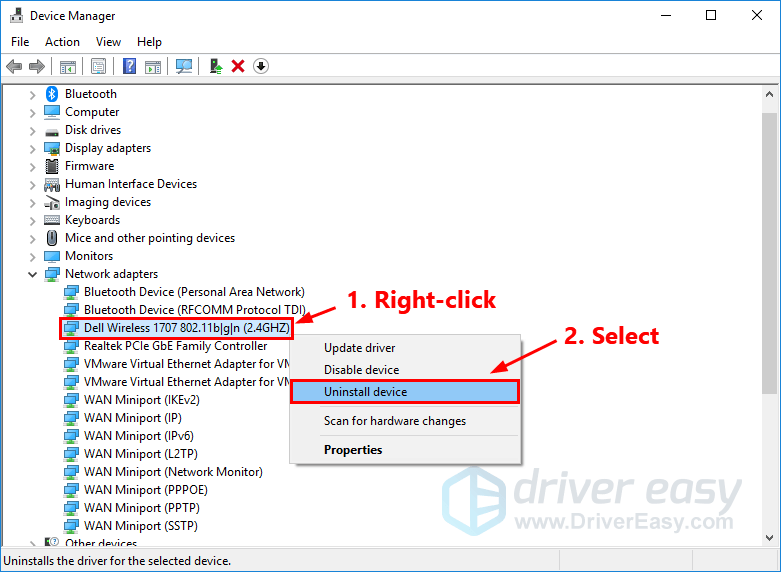
- Uninstall and Reinstall: Uninstall the driver from Device Manager (check the box to delete the driver software if prompted), restart your computer, and then manually download and install the correct driver from the manufacturer’s website.
- Try an Older Driver Version: If the latest driver is problematic, try downloading and installing a slightly older, stable version from the manufacturer’s archives.
Limited Connectivity or Slow Speeds
This could be a driver issue, a router issue, or an internet service problem.
- Solution:
- Update to Latest Driver: Ensure you have the latest stable driver installed.
- Restart Router and Modem: Power cycle your network equipment.
- Test on Another Device: See if other devices on your network experience similar issues.
- Change Wi-Fi Channel: Sometimes interference on a specific channel can cause issues. This is a router setting.
- Check Network Settings: Ensure your adapter is set to use the optimal Wi-Fi standard (e.g., Wi-Fi 5/ac, Wi-Fi 6/ax) if your router supports it. This is usually configured within the advanced properties of your Wi-Fi adapter in Device Manager.
Wi-Fi Icon Missing from Taskbar/System Tray
This usually indicates that the Wi-Fi adapter is disabled or that the driver is not loaded correctly.
- Solution:
- Check Device Manager: Ensure your Wi-Fi adapter is enabled (no down arrow icon). If it’s disabled, right-click and select “Enable device.”
- Reinstall Driver: If enabling doesn’t work, try reinstalling the driver.
- Check Wi-Fi Button/Switch: Some laptops have a physical switch or function key to toggle Wi-Fi on/off. Ensure it’s in the “on” position.
- Network Troubleshooter (Windows): Run the built-in network troubleshooter.
Conclusion: Empowering Your Digital Connection
Maintaining up-to-date and correctly installed Wi-Fi drivers is a cornerstone of a reliable and efficient digital experience. By understanding how to identify your hardware, utilize automatic updates, and perform manual installations from trusted sources, you can overcome most connectivity hurdles.
Remember, the goal is a seamless connection. Whether you’re a tech enthusiast or a casual user, the knowledge of how to install and manage your Wi-Fi drivers empowers you to take control of your online world. Don’t let driver issues be a barrier to your productivity, entertainment, or communication. With this guide, you’re well-equipped to keep your Wi-Fi running smoothly, ensuring you stay connected to what matters most.
aViewFromTheCave is a participant in the Amazon Services LLC Associates Program, an affiliate advertising program designed to provide a means for sites to earn advertising fees by advertising and linking to Amazon.com. Amazon, the Amazon logo, AmazonSupply, and the AmazonSupply logo are trademarks of Amazon.com, Inc. or its affiliates. As an Amazon Associate we earn affiliate commissions from qualifying purchases.