
In the rapidly evolving landscape of digital finance, peer-to-peer payment applications like Cash App have become indispensable tools for managing personal funds, sending money to friends, and receiving payments. Understanding how to effectively navigate these platforms, especially for a fundamental task like checking your balance, is crucial for maintaining control over your digital finances and ensuring a secure user experience. This guide provides a detailed walkthrough, focusing on the technological aspects of the application, its interface, and the essential digital security practices involved.
Navigating the Cash App Interface for Balance Retrieval
Cash App’s design prioritizes user-friendliness, aiming for a straightforward experience even for first-time users. Accessing your balance is one of the most fundamental operations within the app, typically displayed prominently upon login. The application’s architecture is built to provide real-time updates, ensuring that the balance you see accurately reflects your current available funds. This relies on efficient data synchronization between your device, the Cash App servers, and potentially linked financial institutions.
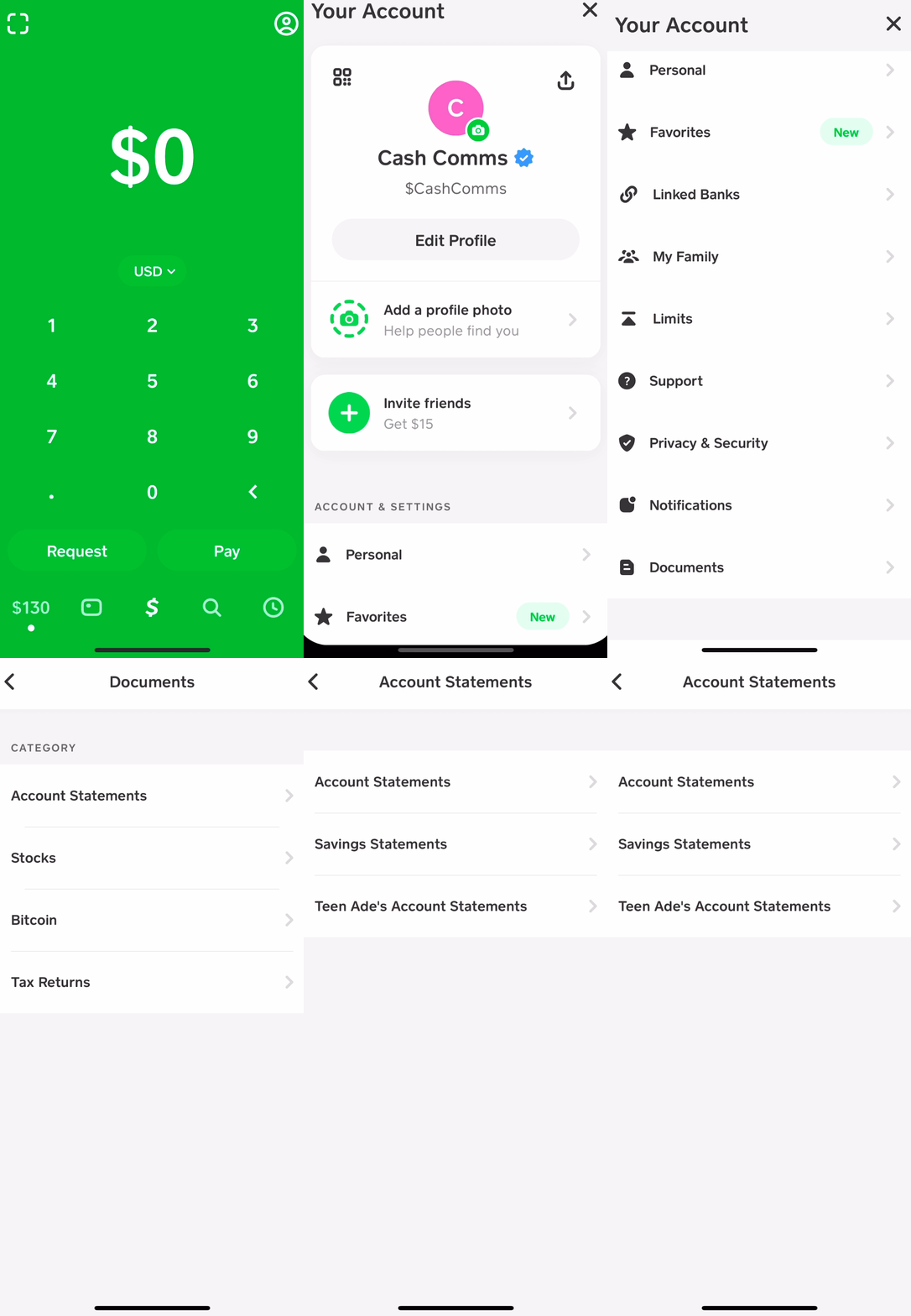
Step-by-Step Guide to Viewing Your Balance
To check your Cash App balance, follow these precise steps:
- Launch the Cash App Application: Locate the Cash App icon on your smartphone’s home screen or app drawer and tap it to open the application. Ensure you are using the official Cash App, available on the Apple App Store for iOS devices or Google Play Store for Android devices, to prevent security risks from counterfeit applications.
- Log In (If Required): If you are not already logged in, you will be prompted to enter your phone number or email address associated with your Cash App account. Following this, you will receive a verification code via SMS or email. Input this code into the app to gain access. For enhanced security, many users enable biometric authentication (fingerprint or face ID), which allows for quicker and more secure access without manual code entry. This leverages device-level hardware security modules to protect your credentials.
- Locate the “Money” Tab or Home Screen: Upon successful login, you are typically directed to the Cash App home screen, often referred to as the “Money” tab or the “My Cash” section. This screen is designed as a central dashboard, providing an immediate overview of your account status.
- View Your Current Balance: Your available balance will be prominently displayed at the top center of this screen. It is typically presented in a clear, large font, making it easy to spot at a glance. This balance represents the total amount of funds currently held within your Cash App account that is available for sending, spending via the Cash Card, or withdrawing. The technology behind this display involves real-time API calls to Cash App’s financial backend, which aggregates your account data and presents it to your device.
This immediate display is a core feature, designed for convenience and efficiency, allowing users to quickly ascertain their financial standing within the platform without navigating through multiple menus.
Understanding Your Balance Display
The balance displayed on your Cash App home screen is dynamic, updating instantly with every transaction – whether you receive funds, send money, or use your Cash Card. It’s important to understand what this number represents:
- Available Funds: This is the spendable balance in your Cash App account. It includes money received from others, funds added from linked bank accounts, and direct deposits.
- Pending Transactions: While the main balance shows available funds, it’s insightful to remember that some transactions might be pending (e.g., an incoming payment that hasn’t fully cleared, or a recent purchase made with the Cash Card that is still being processed by the merchant’s bank). These pending items usually do not affect your immediately available balance until they are fully settled but can sometimes be viewed in your transaction history. The technical architecture behind this involves different states for transactions (e.g., authorized, pending, settled) managed by the payment processor.
- Cash Card Integration: If you utilize the Cash Card (Cash App’s linked debit card), your displayed balance is what’s available for purchases. The card operates directly off your Cash App balance, drawing funds in real-time. Any transaction made with the Cash Card will immediately deduct from this displayed balance, demonstrating the tight integration between the card and the app’s core functionality.
Advanced Balance Management Features
Beyond simply viewing your current balance, Cash App offers several integrated features that provide a more comprehensive view of your financial activity within the platform. These features leverage the app’s backend data processing capabilities to present a detailed history and facilitate more intricate financial management.
Transaction History and Statement Access
A critical component of managing any digital financial account is the ability to review past transactions. Cash App provides a robust transaction history, allowing users to track every incoming and outgoing fund movement.
- Accessing Transaction History: From the main Cash App screen, locate the clock icon (often found in the bottom right corner). Tapping this icon will take you to your “Activity” feed. This feed chronologically lists all your transactions, including payments sent, payments received, Cash Card purchases, and funds added or cashed out. Each entry provides details such as the date, amount, transaction type, and the other party involved (if applicable). This detailed log is essential for reconciliation and monitoring spending habits.
- Downloading Monthly Statements: For more formal record-keeping, Cash App allows you to download monthly statements. These statements provide a consolidated view of all your transactions over a specific period, often required for tax purposes or personal financial analysis. To access these:
- Navigate to your profile icon (usually in the top right corner).
- Scroll down and select “Documents” or “Statements.”
- Choose the desired statement type (e.g., “Monthly Statements” or “Tax Documents”).
- Select the specific month or year you wish to view or download. The app typically generates these as PDF files, which can be viewed directly on your device or emailed for printing/archiving. This functionality relies on Cash App’s server-side data warehousing and report generation tools.
Linking External Accounts for a Holistic View
While Cash App’s balance is crucial, it often represents only a portion of an individual’s total financial picture. The app provides functionality to link external bank accounts, which, while not directly showing their balances within Cash App, facilitates seamless fund transfers.

- Adding a Bank Account: To link an external bank account, navigate to your profile icon, then select “Linked Banks” or “Bank & Cards.” You’ll be prompted to enter your bank’s login credentials through a secure third-party service (like Plaid), which encrypts your information and establishes a connection. This technological bridge allows Cash App to initiate ACH transfers for adding funds to your balance or cashing out funds from Cash App to your bank.
- Adding a Debit Card: Similar to bank accounts, you can link debit cards. This enables instant deposits to your Cash App balance from your card or instant cash-outs (though often with a small fee). The card linking process also involves secure tokenization, where your card details are converted into a unique token that can be processed without exposing your raw card number to the app’s system, significantly enhancing security.
These integrations are foundational for managing the flow of money between your traditional banking ecosystem and your Cash App balance, offering flexibility in how you fund and utilize your digital wallet.
Ensuring Digital Security While Checking Your Balance
Security is paramount when dealing with digital financial applications. While Cash App employs robust security measures on its backend, user vigilance is equally important. Understanding the technical security features and adopting best practices will safeguard your account when checking your balance and performing any other transaction.
Best Practices for App Security
Adopting stringent security habits is crucial for protecting your Cash App balance and personal information.
- Strong, Unique Passwords/PINs: Always use a strong, unique PIN or password for your Cash App account. Avoid easily guessable combinations like birth dates or sequential numbers. For phones that support it, enable biometric login (fingerprint or facial recognition), which leverages hardware-level security to verify your identity. These methods are generally more secure than PINs alone as they are tied to your unique physical attributes.
- Two-Factor Authentication (2FA): Cash App inherently uses a form of 2FA by sending a verification code to your registered phone number or email during login from a new device. Ensure your contact information is always up-to-date. This adds an extra layer of security, as even if someone knows your login details, they would also need access to your phone or email.
- Keep Your Device Secure: Your smartphone is the gateway to your Cash App account. Use a strong screen lock (PIN, pattern, fingerprint, or face ID) on your device. Regularly update your phone’s operating system (iOS or Android) to ensure you have the latest security patches that protect against known vulnerabilities.
- Public Wi-Fi Caution: Avoid accessing Cash App or performing financial transactions over unsecured public Wi-Fi networks. These networks are often vulnerable to eavesdropping, where malicious actors can intercept your data. If you must use public Wi-Fi, consider using a Virtual Private Network (VPN) to encrypt your internet traffic.
- Log Out of Shared Devices: Always log out of Cash App if you’re using a shared device or a device that isn’t yours. This prevents unauthorized access to your account.
- Review Activity Regularly: Make it a habit to check your Cash App activity feed frequently. This allows you to quickly spot any unauthorized transactions or suspicious activity and report it immediately.
Recognizing and Avoiding Phishing Scams
Phishing attacks are common tactics used by cybercriminals to gain access to your financial accounts. These scams often mimic legitimate communications from Cash App.
- Be Skeptical of Unsolicited Communications: Cash App will never ask for your PIN, login code, social security number, or full bank account number via email, text, or phone call. Be wary of any message requesting this information, even if it appears to be from Cash App.
- Examine Email Addresses and URLs: Before clicking any links, inspect the sender’s email address. Phishing emails often use addresses that look similar but have subtle misspellings or different domains (e.g., “cashappsupport.co” instead of “cash.app”). Similarly, hover over links to see the actual URL before clicking. Legitimate Cash App links will direct to their official domain.
- Report Suspicious Activity: If you receive a suspicious email, text, or phone call purporting to be from Cash App, do not respond or click any links. Instead, forward suspicious emails to Cash App’s official security email address (often support@cash.app or a similar designated address, which can be found on their official website) and then delete them. Reporting helps Cash App identify and block these phishing attempts.
- Verify Information Directly in the App: If you receive a message about your account or a transaction, always verify it by logging directly into your Cash App application rather than relying on links in emails or texts. The app itself is the most secure source of information about your account status.
Troubleshooting Common Balance Display Issues
Occasionally, users might encounter technical glitches that prevent their balance from displaying correctly or updating in real-time. These issues are typically temporary and can often be resolved with basic troubleshooting steps, which focus on app performance and network connectivity.
App Performance and Connectivity Checks
Most display issues stem from the application itself or your device’s connection to Cash App’s servers.
- Check Internet Connection: Cash App requires a stable internet connection (Wi-Fi or mobile data) to function correctly and update your balance. Ensure your device is connected to a reliable network. Try toggling Wi-Fi off and on, or switching between Wi-Fi and mobile data to see if that resolves the issue. A weak signal can lead to delayed data retrieval.
- Restart the Cash App: Sometimes, the app may simply need a refresh. Force close the Cash App completely (swipe it away from your recent apps list) and then reopen it. This clears any temporary caches or processes that might be causing a display error.
- Clear App Cache (Android) or Reinstall (Both): On Android devices, you can try clearing the app’s cache through your phone’s settings (Settings > Apps > Cash App > Storage > Clear Cache). For more persistent issues on both Android and iOS, consider uninstalling and then reinstalling the Cash App. Before uninstalling, ensure you remember your login credentials, as you’ll need to log back in. Reinstallation ensures you have the latest, uncorrupted version of the app.
- Update the App: Outdated versions of Cash App can sometimes have bugs that have been fixed in newer releases. Check your device’s app store (Apple App Store or Google Play Store) to ensure your Cash App is updated to the latest version. Developers regularly release updates that include bug fixes, performance improvements, and security enhancements.
- Check Cash App Server Status: Occasionally, issues might not be on your end but with Cash App’s servers. Major outages can affect balance displays and transaction processing. You can often check the official Cash App Twitter account, their support page, or third-party status checkers (like Downdetector) to see if there are any widespread service interruptions.

Contacting Support for Persistent Problems
If troubleshooting steps do not resolve your balance display issue, it’s time to contact Cash App support.
- In-App Support: The most secure and recommended way to contact Cash App support is directly through the application. Navigate to your profile icon, scroll down, and select “Support” or “Cash App Support.” Follow the prompts to describe your issue. This method helps verify your identity securely and allows support agents to access your account details (with your permission) to diagnose the problem.
- Official Website Support: You can also visit the official Cash App website and access their support section. Be cautious of unofficial support numbers or websites. Only use the contact methods provided on the official Cash App domain.
Providing detailed information about the problem, including screenshots if applicable, will help the support team resolve your issue more efficiently. Remember that Cash App support will never ask for your full PIN or complete social security number.
aViewFromTheCave is a participant in the Amazon Services LLC Associates Program, an affiliate advertising program designed to provide a means for sites to earn advertising fees by advertising and linking to Amazon.com. Amazon, the Amazon logo, AmazonSupply, and the AmazonSupply logo are trademarks of Amazon.com, Inc. or its affiliates. As an Amazon Associate we earn affiliate commissions from qualifying purchases.