
In an increasingly connected world, our entertainment hubs have evolved far beyond mere television sets. Devices like the Apple TV stand at the forefront of this digital revolution, transforming your living room into a dynamic portal for endless content, interactive experiences, and smart home integration. At the heart of the Apple TV’s versatility lies its robust app ecosystem, a curated collection of software designed to enhance, inform, and entertain. From streaming blockbusters and live sports to delving into fitness routines and exploring educational content, apps unlock the full potential of your Apple TV.
This comprehensive guide will walk you through every step of installing apps on your Apple TV, ensuring you can effortlessly navigate its intuitive interface and customize your viewing experience to perfection. Whether you’re a seasoned Apple user or new to the tvOS environment, understanding how to effectively manage your apps is crucial for maximizing your digital lifestyle and staying abreast of the latest technology trends in home entertainment. We’ll delve into finding the right apps, the installation process itself, and tips for managing your growing library, all while subtly touching upon how Apple’s brand strategy and the value proposition of apps contribute to a richer digital experience.
Navigating the Apple TV App Ecosystem: Your Gateway to Digital Content
The Apple TV, powered by tvOS, offers a streamlined and user-friendly platform designed for seamless interaction with a vast array of applications. Unlike traditional cable boxes, the Apple TV’s strength lies in its ability to adapt and expand through apps, making it a central component of a modern smart home setup. Understanding this ecosystem is the first step towards transforming your device into a personalized entertainment powerhouse.
Understanding the Apple TV App Store: A Curated Digital Marketplace
At the core of the Apple TV app experience is the App Store, Apple’s proprietary digital distribution platform. Much like its counterparts on iOS and macOS, the tvOS App Store is a carefully curated marketplace, ensuring that applications meet Apple’s stringent standards for performance, security, and user experience. This commitment to quality is a hallmark of Apple’s brand strategy, fostering trust and providing users with a reliable environment for discovering and downloading software.
The App Store on Apple TV is not just a repository; it’s an intelligent hub designed for discovery. You’ll find apps categorized by genre (Movies & TV, Games, Entertainment, Lifestyle, etc.), featured collections, editorial picks, and charts showcasing the most popular free and paid applications. This intuitive layout allows users to easily browse and explore new content that aligns with their interests, whether they’re looking for the latest streaming service, an immersive game, or a utility app to manage smart home devices. The emphasis on user experience and seamless navigation reflects Apple’s broader commitment to design and functionality, making the process of finding and installing apps as straightforward as possible. For those interested in technology trends, the App Store also highlights emerging categories and innovative applications, giving users a glimpse into the future of interactive entertainment and digital services.
Prerequisites for App Installation: What You Need to Get Started
Before you embark on your app installation journey, a few fundamental requirements need to be met to ensure a smooth and secure process. These prerequisites are standard across the Apple ecosystem, designed to protect your account and provide a consistent user experience.
- An Apple TV Device: Naturally, you’ll need an Apple TV (4th generation or newer, running tvOS). Older models (2nd and 3rd generation) do not support the App Store as they run a more basic operating system focused primarily on built-in services and rentals, not third-party apps.
- A Stable Internet Connection: All app downloads and updates require an active internet connection, ideally Wi-Fi or Ethernet, to ensure swift and reliable access to the App Store servers. A robust connection is also essential for smooth streaming and optimal app performance once installed.
- An Apple ID: This is your digital passport to the entire Apple ecosystem. An Apple ID is a unique username (typically an email address) linked to your personal information, payment methods (if applicable), and cloud services. You will need to be signed in with your Apple ID on your Apple TV to download any apps, whether they are free or paid. If you don’t have one, it’s free and easy to create at appleid.apple.com. Your Apple ID also ties into crucial digital security features, allowing you to manage purchases, subscriptions, and device permissions securely. For families, setting up Family Sharing can allow multiple Apple IDs to share purchases, offering a smart financial approach to app acquisition.
- Sufficient Storage Space: While tvOS apps are generally smaller than their mobile counterparts, they still require storage space. Games, in particular, can consume several gigabytes. Your Apple TV comes with either 32GB or 64GB of internal storage. While you typically won’t run out of space quickly, it’s worth being mindful, especially if you plan to download many large games or apps that cache significant amounts of data. The tvOS system intelligently manages app data, sometimes offloading less-used app data to free up space, but the core app still resides on the device.
Meeting these basic requirements ensures that your Apple TV is ready to connect, download, and operate applications efficiently and securely, making the most of Apple’s robust infrastructure and user-centric design.
Step-by-Step Guide: Installing Apps on Your Apple TV
Once your Apple TV is set up and connected, installing apps is a remarkably straightforward process, designed to be intuitive and accessible. This section will guide you through each stage, from discovery to download, ensuring you can quickly populate your device with your favorite content and services.
Finding Your Desired Apps: Navigating the App Store
The first step in installing an app is finding it. The Apple TV App Store offers several methods for discovery, catering to different browsing preferences.
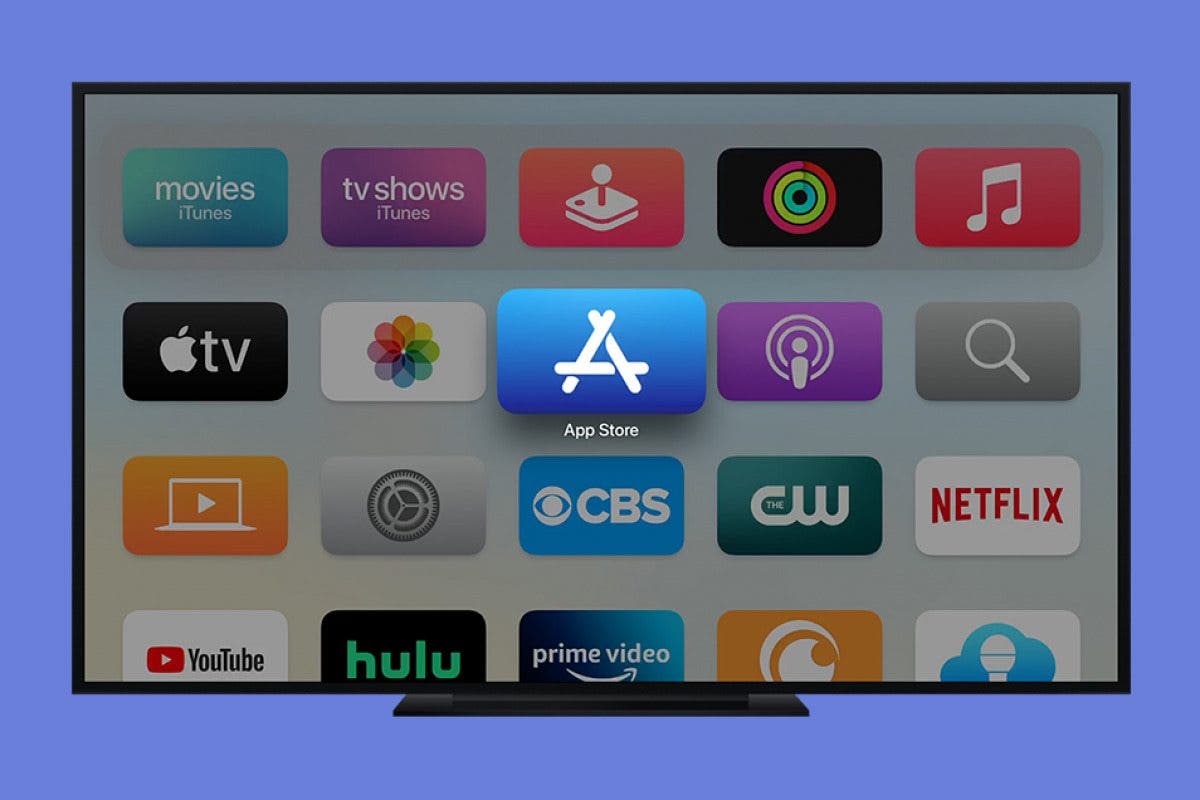
- Launch the App Store: From the Apple TV Home screen, locate and select the “App Store” icon. It typically features a white ‘A’ on a blue background.
- Explore Categories: Inside the App Store, you’ll see various sections. “Featured” showcases new and popular apps, editor’s picks, and themed collections. “Categories” allows you to browse apps by genre, such as Movies & TV, Games, Sports, Kids, Lifestyle, and more. This is excellent for general browsing and discovering apps you didn’t even know you needed.
- Use the Search Function: If you know exactly what app you’re looking for (e.g., “Netflix,” “Disney+,” “Peloton”), the “Search” tab is your fastest route.
- Navigate to the “Search” tab using your Siri Remote.
- Click the touch surface or use the directional pad to select letters on the on-screen keyboard. As you type, the Apple TV will suggest apps or search terms, making it quicker to find what you’re looking for.
- Alternatively, and often more efficiently, you can press and hold the Siri button (microphone icon) on your remote and verbally tell Siri the app you want to find (e.g., “Search for HBO Max”). Siri’s integration is a powerful productivity tool, streamlining navigation and search.
- Check Purchased Apps: If you’ve previously downloaded an app on another Apple device (like an iPhone or iPad) that also has a tvOS version, you might find it under your “Purchased” tab within the App Store. This is particularly useful for consolidating your digital library across devices, leveraging the multi-platform nature of the Apple ecosystem.
The Installation Process: From Selection to Stream
Once you’ve located an app you wish to install, the process is simple and secure.
- Select the App: Click on the app’s icon or listing to open its dedicated page. Here, you’ll find details such as the app description, screenshots, user ratings, reviews, developer information, and compatibility. It’s always a good idea to read a few reviews and check the star rating to gauge the app’s quality and functionality before downloading. This is part of being a savvy consumer in the digital marketplace, making informed decisions about where your time and potential money (for paid apps) go.
- Initiate Download/Purchase:
- For Free Apps: You’ll see a “Get” button. Click on it.
- For Paid Apps: You’ll see a button displaying the price (e.g., “$4.99”). Click on it.
- Authenticate (if required):
- If it’s a free app, the download usually starts immediately.
- For paid apps, or sometimes for free apps (especially if it’s your first download after signing in or a significant system update), you might be prompted to enter your Apple ID password or use Touch ID/Face ID via a connected iPhone/iPad. This is a crucial digital security measure to prevent unauthorized purchases and protect your account.
- If you have Family Sharing enabled, any purchases might first go through an “Ask to Buy” request to the family organizer, especially for minors, providing an extra layer of financial control.
- Wait for Installation: Once authenticated, the “Get” or price button will change to a “Loading” indicator, showing the app’s download progress. A small circle will fill up around the app icon on the Home screen as it downloads and installs. The speed of this process depends on your internet connection and the size of the app.
- Launch the App: After the installation is complete, the app’s icon will appear on your Apple TV Home screen. The “Loading” indicator on its App Store page will change to “Open.” You can either click “Open” from the App Store page or navigate back to the Home screen and select the new app icon to launch it.
Congratulations! You’ve successfully installed an app on your Apple TV. Now, you can explore its features, sign in to your accounts (if it’s a streaming service), and start enjoying your new content.
Organizing and Managing Your Apps: A Tidy Digital Space
As you accumulate more apps, keeping your Apple TV Home screen organized becomes important for efficient navigation and a clutter-free experience. Apple TV offers simple ways to arrange, move, and even delete apps.
- Moving Apps: To rearrange apps, highlight the app you wish to move using your Siri Remote. Press and hold the touch surface or the select button until the app icon begins to jiggle. Now, use the directional pad on your remote to move the app to your desired position on the screen. Once it’s where you want it, press the touch surface or select button again to confirm its new location.
- Creating Folders: For even greater organization, you can group related apps into folders. While an app is jiggling, drag it on top of another app. This will automatically create a new folder containing both apps. You can then drag other apps into this folder. To rename a folder, highlight it, and with the folder open, click on its name to bring up the on-screen keyboard. Folders are excellent for categorizing apps by type (e.g., “Streaming,” “Games,” “News,” “Fitness”), which is a great productivity hack for quickly finding what you need.
- Deleting Apps: If an app is no longer needed or you need to free up storage space, deleting it is simple. Highlight the app you want to remove, then press and hold the touch surface or select button until it jiggles. With the app jiggling, press the “Play/Pause” button on your remote. A prompt will appear asking if you want to “Delete App.” Confirm your choice, and the app will be removed from your Apple TV. Remember that deleting an app removes it from your device, but it remains linked to your Apple ID in the “Purchased” section of the App Store, so you can always redownload it later without repurchasing (if it was a paid app).
Maintaining a well-organized app library enhances your user experience and makes your Apple TV a more efficient and enjoyable device to use, reflecting good digital hygiene and smart tech management.
Maximizing Your Apple TV Experience with Apps
Installing apps is just the beginning. The true power of your Apple TV unfolds as you leverage its diverse app ecosystem to transform your viewing habits, explore new hobbies, and even enhance your daily routines.
Beyond Entertainment: Productivity and Utility Apps
While entertainment apps like Netflix, Disney+, and Apple TV+ are often the primary drivers for an Apple TV purchase, the App Store offers much more. Modern technology trends see devices like Apple TV moving beyond pure consumption to offer practical utilities and productivity enhancements.
- Fitness and Wellness: Apps like Peloton, Nike Training Club, and Apple Fitness+ bring studio-quality workouts directly to your living room. These apps allow you to follow guided routines, track your progress (often integrating with Apple Watch), and motivate you to stay active – a prime example of how tech can boost personal productivity and well-being.
- Smart Home Control: With the rise of smart homes, apps like HomeKit-enabled controllers or dedicated apps for smart lighting (e.g., Philips Hue) or thermostats allow you to manage your connected devices directly from your TV screen. This integrates your entertainment hub into a broader, more efficient smart living environment.
- Education and Learning: Apps providing educational content, interactive lessons, or even language learning tools can turn your TV into a family learning station.
- News and Information: Dedicated news apps offer curated content, live streams, and in-depth analyses, keeping you informed and engaged with current events in a TV-optimized format.
By exploring these varied categories, you can truly unlock the multi-faceted potential of your Apple TV, extending its utility far beyond just watching movies and shows. This breadth of functionality underscores the value proposition of a well-developed app ecosystem, which Apple has consistently prioritized as part of its brand strategy.
Troubleshooting Common App Installation Issues: Smooth Sailing
While the Apple TV app installation process is generally robust, you might occasionally encounter minor hiccups. Knowing how to troubleshoot common issues can save you time and frustration, ensuring your digital security and productivity aren’t compromised.
- App Not Downloading/Stuck:
- Check Internet Connection: Ensure your Apple TV is connected to a stable Wi-Fi or Ethernet network. You can do this by going to Settings > Network.
- Restart Apple TV: A simple restart can often resolve temporary software glitches. Go to Settings > System > Restart, or hold down the TV button and Play/Pause button on your remote simultaneously until the Apple TV light flashes rapidly.
- Check Apple System Status: Occasionally, Apple’s services (including the App Store) might experience outages. You can check the official Apple System Status page online to see if there are any reported issues.
- “Cannot Connect to App Store” Error:
- Verify Apple ID Sign-in: Ensure you are correctly signed in with your Apple ID. Go to Settings > Users and Accounts > [Your Apple ID]. Try signing out and signing back in.
- Check Date and Time Settings: Incorrect date and time settings can sometimes interfere with server connections. Ensure they are set to “Automatic” in Settings > General > Date and Time.
- App Crashes or Freezes After Installation:
- Force Quit and Relaunch: Double-press the TV button on your Siri Remote to bring up the App Switcher. Swipe left or right to find the problematic app, then swipe up on the touch surface to close it. Then, relaunch the app.
- Delete and Reinstall: If the issue persists, try deleting the app (as described in the “Deleting Apps” section) and then reinstalling it from the App Store. This can resolve corrupted files or installation errors.
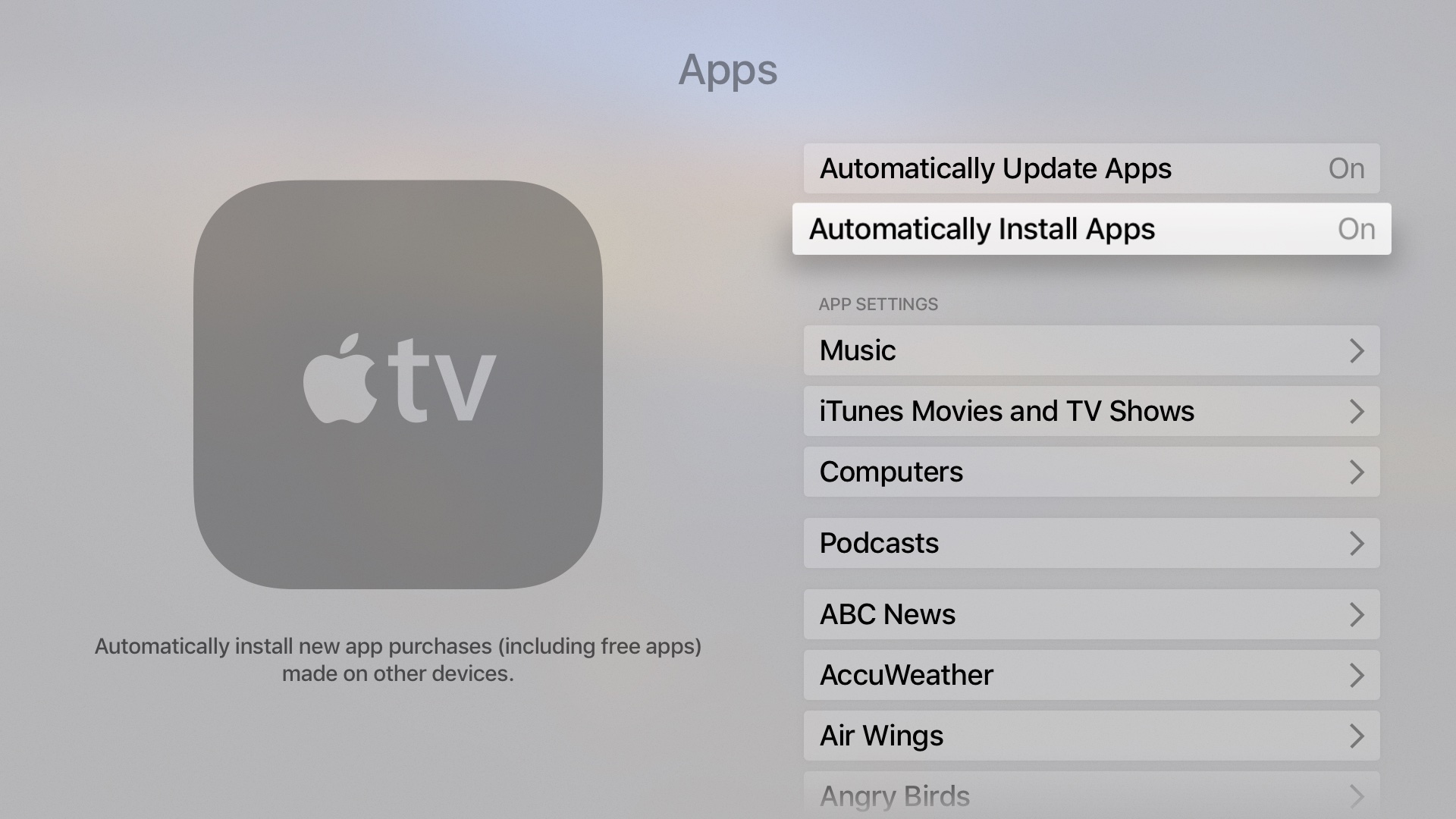
- Check for App Updates: Developers frequently release updates to fix bugs and improve performance. Go to the App Store, navigate to “Purchased,” and see if there are any available updates for the app. tvOS also generally updates apps automatically in the background, but a manual check can sometimes expedite fixes.
- Not Enough Storage Space:
- If you receive a notification about insufficient storage, you’ll need to delete some existing apps or games to free up space. You can check your storage usage in Settings > General > Manage Storage. This section shows you which apps are taking up the most space, helping you make informed decisions about what to remove.
By following these troubleshooting steps, you can swiftly resolve most common app-related issues, ensuring your Apple TV remains a reliable and enjoyable part of your digital ecosystem. These practices are part of good digital citizenship, contributing to a smoother technology experience.

The Future of Apple TV Apps and Your Digital Lifestyle
The journey of installing and managing apps on your Apple TV is more than just a technical process; it’s an active step in curating your personal digital lifestyle. As technology trends continue to evolve, so too will the capabilities and diversity of apps available on tvOS. We can anticipate deeper integration with AI tools for personalized recommendations, enhanced augmented reality experiences (especially with future hardware iterations), and even more seamless connectivity with other smart home devices.
Apps transform your Apple TV from a simple media player into a dynamic, adaptable hub for entertainment, education, fitness, and smart home management. By mastering the art of app installation and organization, you empower yourself to customize your device to perfectly fit your needs, maximizing its value and ensuring it remains a central, intelligent component of your connected world. Embrace the vast possibilities of the App Store, and let your Apple TV unlock new dimensions of digital engagement.
aViewFromTheCave is a participant in the Amazon Services LLC Associates Program, an affiliate advertising program designed to provide a means for sites to earn advertising fees by advertising and linking to Amazon.com. Amazon, the Amazon logo, AmazonSupply, and the AmazonSupply logo are trademarks of Amazon.com, Inc. or its affiliates. As an Amazon Associate we earn affiliate commissions from qualifying purchases.