
The iPhone has fundamentally redefined our relationship with technology, transforming from a simple communication device into a sophisticated pocket computer capable of handling everything from professional video editing to high-level financial management. At the heart of this transformation is the App Store, a robust and secure marketplace that serves as the primary gateway for software distribution on iOS. Understanding how to install an app on an iPhone is more than just a basic utility; it is the first step in customizing a digital environment tailored to your specific needs. This guide explores the technical nuances, security protocols, and step-by-step procedures required to navigate the Apple software ecosystem effectively.
The Foundations of the iOS App Experience
Before diving into the mechanics of installation, it is essential to understand the underlying infrastructure that makes the process seamless. Apple’s “walled garden” approach ensures that every piece of software running on your device meets stringent criteria for performance, design, and security.
The Central Role of the Apple ID
Your Apple ID is the cornerstone of your digital identity within the iOS ecosystem. It is not merely a login credential; it is a synchronization engine that links your apps, subscriptions, and data across all your Apple devices. To install any app—whether free or paid—you must have an active Apple ID signed into the App Store. This account tracks your purchase history, allowing you to delete and reinstall apps without being charged again, and enables features like Family Sharing, where multiple users can access the same purchased content.
Navigating the App Store Interface
The App Store is designed with a focus on discovery and curation. Upon launching the store, users are met with several tabs:
- Today: A curated feed of stories, tips, and highlighted apps.
- Games and Apps: Dedicated sections for specific categories.
- Arcade: Apple’s premium gaming subscription service.
- Search: The primary tool for finding specific software.
The interface is optimized for speed, utilizing Apple’s proprietary search algorithms to deliver relevant results based on keywords, developer names, and trending topics.
The Practical Walkthrough: From Discovery to Launch
Installing an app on an iPhone is a multi-stage process that involves discovery, authentication, and deployment. While the process is intuitive, understanding the technical steps ensures a smoother experience, especially when dealing with large files or paid software.
Searching and Selecting the Right Software
The first step is locating the application. Using the “Search” tab, you can enter the name of the app or a general category (e.g., “photo editor”). The results page provides a wealth of information, including the app’s star rating, the number of reviews, and “Privacy Labels.” These labels are a crucial tech feature that informs you exactly what data the app collects—ranging from your location to your contact info—before you even hit the download button.
The Installation Sequence
Once you have selected an app, the process follows a standardized path:
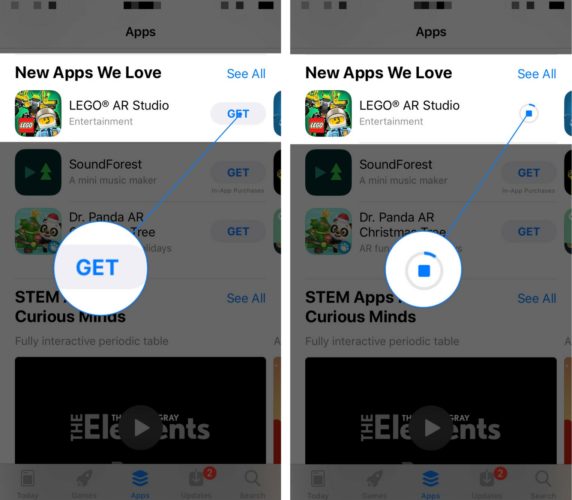
- The Action Button: For free apps, the button will say “Get.” For paid apps, it will display the price. If you have previously downloaded the app, you will see a cloud icon with a downward arrow.
- Authentication: Upon tapping the button, the device will prompt for authentication. Depending on your iPhone model, this will involve Face ID (double-clicking the side button), Touch ID (placing your finger on the home button), or entering your Apple ID password. This layer of security prevents unauthorized downloads and accidental purchases.
- The Download Progress: A circular progress indicator will appear on the app icon on your Home Screen. Technically, the iPhone is downloading a compressed package (an .IPA file) and extracting it into a sandboxed environment on your device’s storage.
Post-Installation Setup
Once the download is complete, the app is ready for launch. It is important to note that many modern apps require an initial setup phase upon the first open. This often includes granting permissions for notifications, camera access, or location services. Under iOS’s strict privacy framework, these permissions must be granted explicitly by the user, ensuring that the software does not overreach its intended functionality.
Advanced App Management and Optimization
Installing an app is only half the battle; maintaining a high-performing device requires active management of your software library. Apple provides several advanced tools to help users optimize storage and keep their apps running efficiently.

Offloading vs. Deleting Apps
One of the most innovative features in iOS is the ability to “Offload” apps. This is a middle-ground solution for users with limited storage.
- Offloading: This removes the app’s binary (the bulk of the software) but keeps all your personal data and documents associated with it. The app icon remains on your Home Screen with a small cloud symbol. If you need it again, you simply tap the icon, and the iPhone re-downloads the software, restoring your data instantly.
- Deleting: This completely removes the app and all its associated data from the device. This is best for apps you no longer intend to use.
Utilizing App Clips for Instant Access
For users who need a specific function of an app without committing to a full installation, Apple introduced “App Clips.” These are small, modular parts of an app that can be triggered via QR codes, NFC tags, or links in Safari. An App Clip allows you to perform a task—such as paying for parking or ordering food—without visiting the App Store. It is a lightweight, high-speed solution that utilizes the same security frameworks as full apps but avoids cluttering your device.
Automatic Downloads and Background Updates
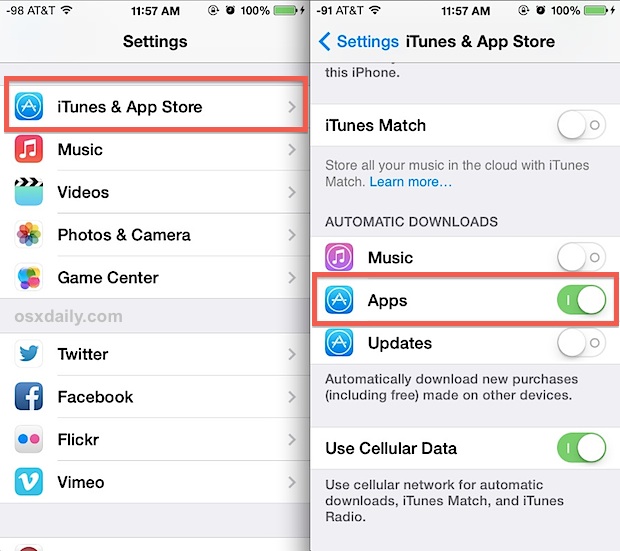
To ensure a frictionless experience across multiple devices, you can enable “Automatic Downloads.” If you install an app on your iPad, the tech-integrated ecosystem can automatically trigger the same installation on your iPhone. Furthermore, enabling “App Updates” in the settings ensures that your software is always running the latest version, which is critical for both feature access and digital security.
The Security Architecture Behind the Install
One of the primary reasons for the iPhone’s success in the enterprise and consumer markets is its rigorous security architecture. Every app installation happens within a controlled environment designed to protect the user’s data and the device’s integrity.
Sandboxing and System Integrity
When you install an app on an iPhone, it is placed in a “sandbox.” This is a technical term meaning the app is isolated from other apps and the core operating system files. An app cannot “see” what another app is doing unless you explicitly grant permission (such as through the Share Sheet). This prevents malware from spreading across the system and ensures that a crash in one app does not compromise the entire device.
The Role of App Store Review Guidelines
Every app available for installation has undergone a human and automated review process by Apple. This review checks for malicious code, hidden features, and adherence to privacy standards. For the user, this means that the “Install” button represents a seal of approval. Unlike “sideloading” on other platforms—which involves installing software from unverified sources—the official App Store route minimizes the risk of phishing and spyware.
App Tracking Transparency (ATT)
A significant technological shift in recent years is the introduction of App Tracking Transparency. After you install and launch an app, iOS may prompt you to choose whether the app is allowed to track your activity across other companies’ apps and websites. This puts the power of data privacy directly into the hands of the user, forcing developers to be transparent about their monetization and data-gathering practices.
Troubleshooting and Connectivity Requirements
While the installation process is generally flawless, certain technical hurdles can occasionally arise. Understanding these can help you resolve issues without needing professional support.
Network Constraints and File Sizes
The iPhone generally requires a stable internet connection to download software. For apps larger than 200MB, iOS historically required a Wi-Fi connection to prevent users from accidentally exhausting their cellular data limits. While modern versions of iOS allow for large downloads over 5G and LTE (with user permission), a stable Wi-Fi 6 or 6E connection remains the gold standard for speed and reliability.
Storage Management and Compatibility
If an installation fails, the most common culprit is a lack of available storage space. High-end games and professional suites can require several gigabytes of space. Additionally, software compatibility is a factor; if your iPhone is running an older version of iOS, you may find that newer apps require an OS update before they can be installed. Always ensure your device is running the latest version of iOS to maintain compatibility with the newest software releases.
Region Locks and Apple ID Syncing
Occasionally, an app may be restricted to specific geographic regions due to licensing or legal requirements. In these cases, the app will not appear in search results if your Apple ID is registered to a different country. Managing your region settings is possible, but it requires a valid payment method from that specific region, highlighting the tight integration between software distribution and financial verification.
In conclusion, installing an app on an iPhone is a sophisticated interplay of user-friendly design and complex backend security. By mastering the App Store, understanding the importance of the Apple ID, and leveraging advanced features like offloading and privacy controls, users can ensure their device remains a powerful, secure, and highly personalized tool. As the iOS ecosystem continues to evolve with AI integration and spatial computing, the fundamental skill of managing app installations will remain the cornerstone of the mobile tech experience.
aViewFromTheCave is a participant in the Amazon Services LLC Associates Program, an affiliate advertising program designed to provide a means for sites to earn advertising fees by advertising and linking to Amazon.com. Amazon, the Amazon logo, AmazonSupply, and the AmazonSupply logo are trademarks of Amazon.com, Inc. or its affiliates. As an Amazon Associate we earn affiliate commissions from qualifying purchases.