
The Android operating system has long been celebrated for its open-source nature and the flexibility it affords its users. Unlike closed ecosystems that restrict software installation to a single, proprietary storefront, Android allows for a process known as “sideloading.” This involves installing applications using Android Package Kit (APK) files sourced from outside the Google Play Store. Whether you are a developer testing a build, a power user seeking geo-restricted content, or a tech enthusiast looking for legacy versions of a favorite app, understanding how to safely and effectively install an APK is a foundational skill in the modern mobile landscape.
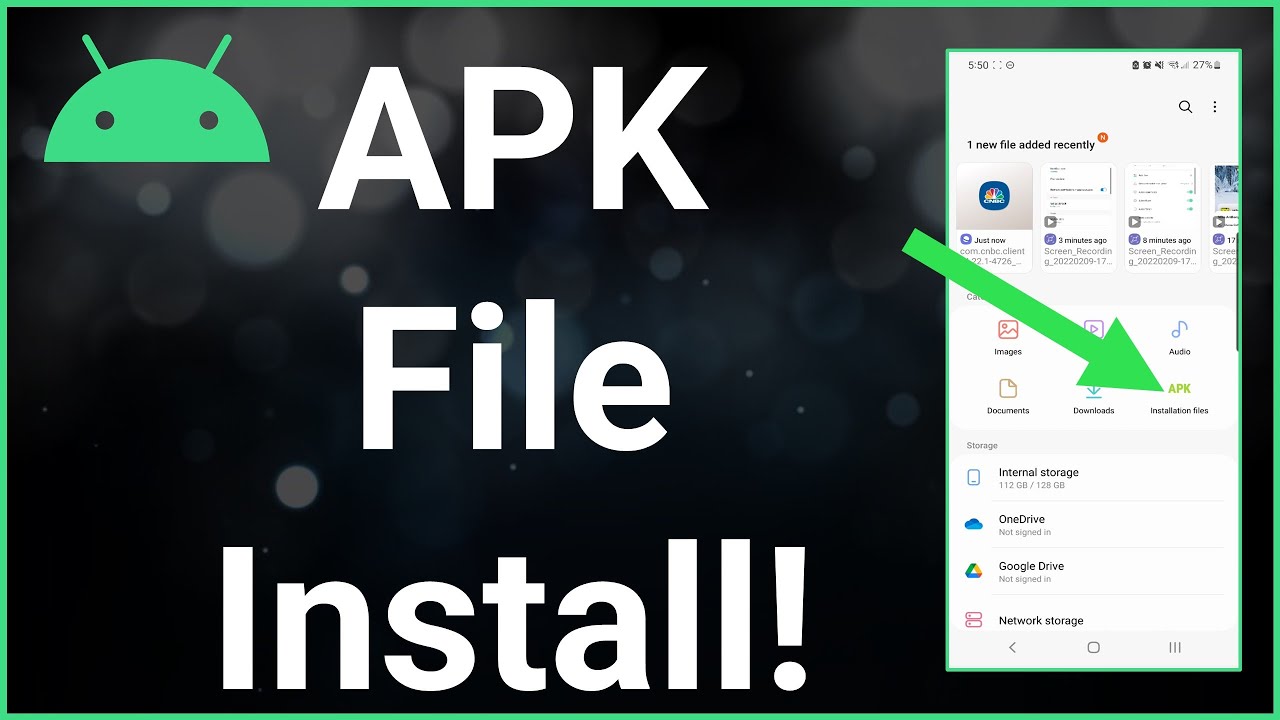
This guide provides a comprehensive, professional deep dive into the technicalities of APK installation, the security protocols governing the Android OS, and the step-by-step procedures required across various versions of the platform.
Decoding the APK: Understanding the Core of Android Applications
Before diving into the installation process, it is essential to understand what an APK actually is. In the world of technology, an APK (Android Package Kit) is the file format used by the Android operating system for the distribution and installation of mobile apps. It is analogous to an .exe file on Windows or a .pkg file on macOS.
What is Contained Within an APK?
An APK file is essentially a compressed archive. If you were to change the extension to .zip, you could peer inside and see the application’s code (DEX files), resources (images, layouts), and the AndroidManifest.xml file. This manifest is the “brain” of the installer, telling the Android OS which permissions the app requires and which hardware features it needs to access. When you “install” an APK, the Android Package Installer reads this manifest and extracts the contents to the appropriate system directories.
The Shift from APK to AAB
While APKs remain the standard for sideloading, it is worth noting a significant trend in Android development: the move toward Android App Bundles (.aab). Google now requires new apps to be submitted in this format. App Bundles allow Google Play to generate optimized APKs specifically for a user’s device configuration. However, since AABs cannot be installed directly by the Android system, they are often converted back into “Split APKs” for manual installation—a nuance that tech-savvy users must recognize when sourcing files from third-party repositories.
Security Protocols and Risk Mitigation in Sideloading
The primary reason sideloading is not enabled by default is security. When you download an app from the Google Play Store, it undergoes a rigorous scanning process via Google Play Protect. Sideloading bypasses this initial gatekeeper, placing the responsibility of security squarely on the shoulders of the user.
The “Unknown Sources” Security Model
In older versions of Android (7.0 Nougat and below), security was managed by a global “Unknown Sources” toggle. This was a binary setting: either your phone could install apps from anywhere, or it couldn’t. This created a significant vulnerability; if a user left the setting on, any malicious website could potentially trigger a background download and installation.
Starting with Android 8.0 Oreo, Google transitioned to a “Permit per-app” model. This means you no longer grant permission to the entire phone, but rather to a specific application—such as your web browser or file manager—to function as an installer. This granular control is a major milestone in digital security, ensuring that an APK cannot be executed without explicit, context-specific consent.
Verifying File Integrity and Source Reliability
To maintain a secure digital environment, professional users must practice due diligence. This involves:
- Source Verification: Only download APKs from reputable repositories like APKMirror, F-Droid, or the official websites of developers. These platforms verify the cryptographic signatures of the files to ensure they haven’t been tampered with.
- Signature Matching: Android will not allow an update to an existing app if the new APK’s signature does not match the original. This prevents “overlay attacks” where a malicious app tries to masquerade as a legitimate update.
- Hash Checking: For high-security environments, comparing the SHA-256 hash of the downloaded APK against the developer’s provided hash ensures bit-perfect integrity.
Step-by-Step Tutorial: Installing APKs Across Different Android Versions
The process for installing an APK has evolved alongside the Android UI. Below is the technical workflow for modern and legacy systems.
Installation on Modern Android (Version 8.0 Oreo to Android 14+)
Modern Android versions have streamlined the process into a “Just-in-Time” permission request.
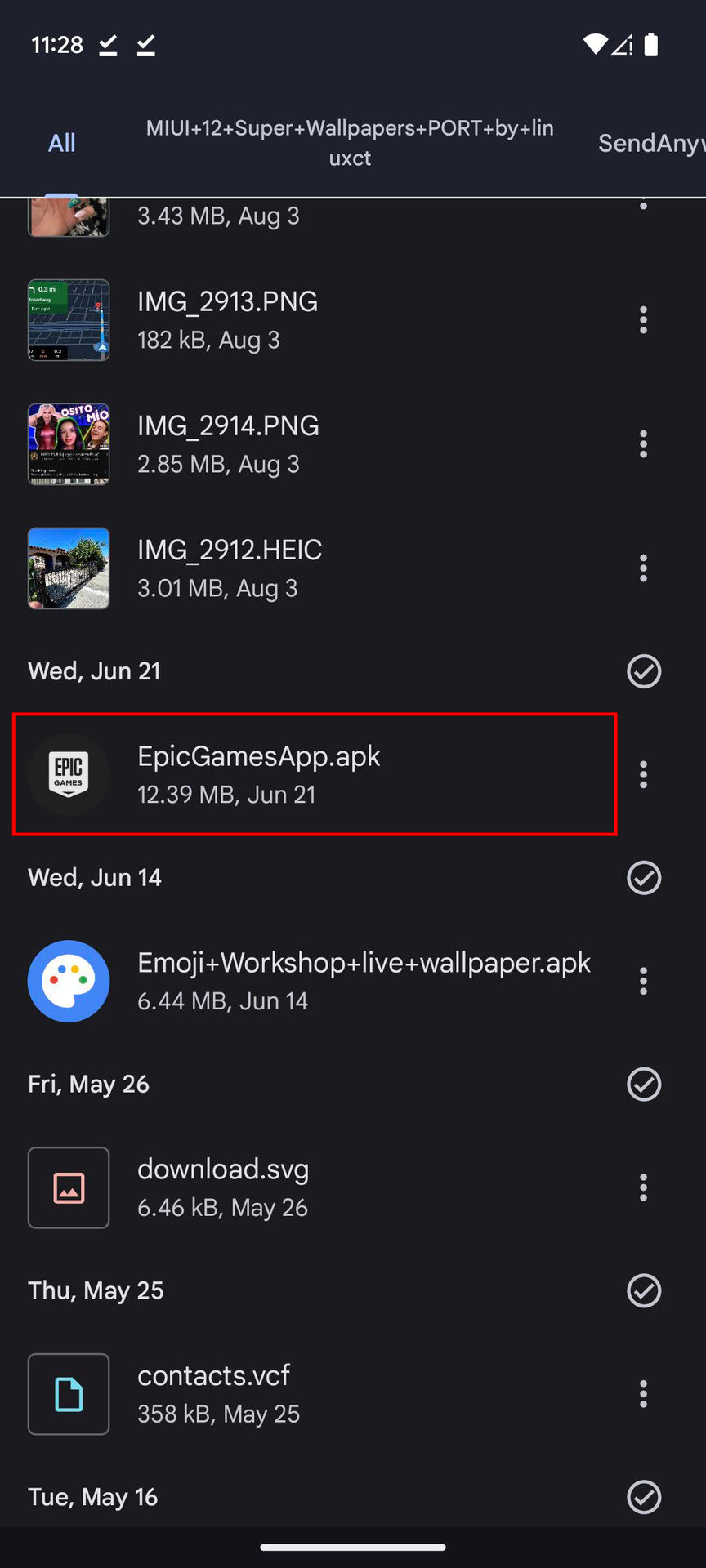
- Download the APK: Use your mobile browser (e.g., Chrome) to download the file. You will likely receive a warning stating that the file “might be harmful.” Select “Download anyway.”
- Initiate Installation: Once downloaded, tap “Open” from the browser notification or locate the file in your “Downloads” folder using a File Manager app.
- Grant Permission: A system prompt will appear: “For your security, your phone is not allowed to install unknown apps from this source.” Tap Settings.
- Toggle the Switch: Locate the “Allow from this source” toggle and switch it on.
- Confirm Installation: Tap the back button or return to the installer and select Install. The Android Package Installer will then finalize the process.
Installation on Legacy Android (Version 7.0 Nougat and Older)
If you are working with legacy hardware, the process requires a proactive change in system settings.
- Navigate to Security: Open the Settings menu and scroll down to Security (or “Lock Screen and Security”).
- Enable Unknown Sources: Look for the “Unknown Sources” option and toggle it on. A warning will appear regarding the risks of third-party apps; select “OK.”
- Locate and Install: Open your File Manager, find the APK file, tap it, and follow the on-screen prompts to install. Note: It is highly recommended to toggle this setting back to “Off” once the installation is complete.
Using Third-Party File Managers
Sometimes, the built-in “Files” app lacks the permissions to execute an APK. In these instances, using a professional-grade file manager like Solid Explorer or Amaze File Manager is recommended. These apps provide a clearer interface for managing file permissions and can often handle the installation of Split APKs (APKM or XAPK) that standard system installers cannot.
Advanced Sideloading: Navigating XAPK, APKM, and Split APKs
As mobile applications grow in complexity, the simple APK format is sometimes insufficient. Developers now use “Split APKs” to save storage space and bandwidth. This has led to the rise of new file extensions like .XAPK and .APKM.
The Challenge of Split APKs
A Split APK consists of a “base” APK and several “config” APKs (containing specific languages, screen densities, or CPU architectures). The standard Android Package Installer cannot handle these multiple files simultaneously. If you attempt to install an XAPK as a standard APK, you will encounter a “Parsing Error.”
Using Specialized Installers
To install these complex formats, you must use a specialized tool such as the Split APKs Installer (SAI) or the APKMirror Installer.
- Download the Installer: Install SAI from the Play Store or F-Droid.
- Select Files: Inside the app, click “Install APKs” and select the .XAPK or .APKM file from your storage.
- Internal Processing: The tool will automatically identify which splits are compatible with your specific device hardware and bundle them into a single installation command for the OS.
Managing and Troubleshooting Sideloaded Applications
The technical lifecycle of an application does not end at installation. Professional management of sideloaded apps requires an understanding of updates and troubleshooting.
The Problem of Manual Updates
One of the primary drawbacks of sideloading is the lack of automatic updates. Apps installed via the Play Store update in the background. Sideloaded apps, however, usually require you to manually download the newer APK and install it over the old version.
- Insight: Some third-party stores, like F-Droid, have their own client that can manage updates for apps within their repository, bridging the gap between convenience and freedom.
Common Troubleshooting Steps
If you encounter the “App Not Installed” error, it is usually due to one of three technical conflicts:
- Incompatible Architecture: You are trying to install an ARM64 app on a 32-bit (ARM) processor.
- Conflicting Signatures: There is an existing version of the app on your phone signed with a different cryptographic key. You must uninstall the existing app before the new one will install.
- Insufficient Storage: The Android Package Installer requires roughly double the APK’s size in free space to complete the extraction and installation process.
By mastering the nuances of APK installation, users can unlock the full potential of the Android ecosystem. While it requires a heightened sense of digital literacy and a commitment to security best practices, the ability to sideload software remains one of the most powerful features of modern mobile computing, fostering innovation and user autonomy in an increasingly restricted digital world.
aViewFromTheCave is a participant in the Amazon Services LLC Associates Program, an affiliate advertising program designed to provide a means for sites to earn advertising fees by advertising and linking to Amazon.com. Amazon, the Amazon logo, AmazonSupply, and the AmazonSupply logo are trademarks of Amazon.com, Inc. or its affiliates. As an Amazon Associate we earn affiliate commissions from qualifying purchases.