
In the vast landscape of data, the ability to plot a graph is not merely a technical skill; it’s a fundamental competency that transforms raw information into actionable insights. From software development metrics to AI model performance, and from network traffic analysis to user experience (UX) trends, graphs serve as the universal language for understanding, communicating, and driving decision-making within the technology sector. This tutorial delves into the technical intricacies and best practices of data visualization, guiding you through the essential tools, methodologies, and advanced techniques required to create impactful graphs.
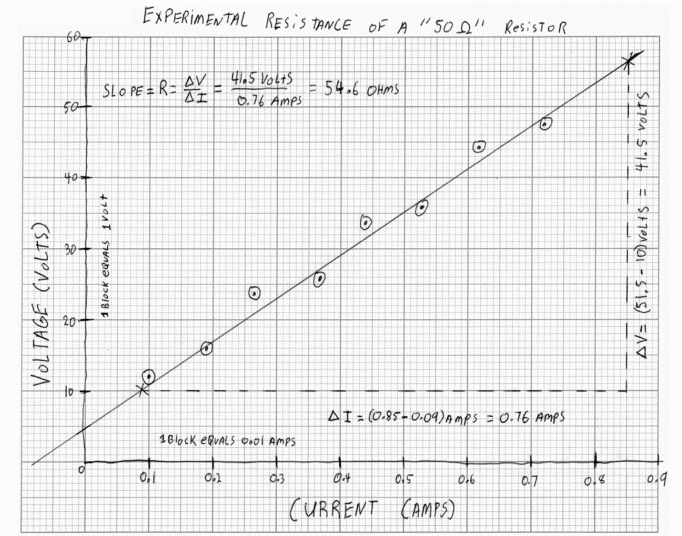
The Indispensable Role of Data Visualization in Technology
In an era saturated with data, the sheer volume of information can be overwhelming. Technology professionals—be they software engineers, data scientists, AI/ML engineers, or product managers—rely heavily on data to validate hypotheses, diagnose problems, and identify opportunities. However, raw data, often presented in spreadsheets or databases, lacks immediate interpretability. This is where data visualization, particularly through graphing, becomes critical.
Understanding the Power of Visual Data
Visual representations distill complex datasets into digestible formats, allowing the human brain to rapidly identify patterns, trends, outliers, and correlations that would be invisible in textual or numerical form. For instance, a line graph can instantly reveal a critical performance bottleneck in a server’s response time over a specific period, or a scatter plot can highlight the relationship between two variables affecting user engagement with an application. In tech, this immediate clarity is invaluable for:
- Debugging and Performance Optimization: Quickly identifying system anomalies or performance dips.
- Predictive Analytics and AI/ML: Visualizing model training progress, error rates, and feature importance.
- Product Development: Understanding user behavior, A/B testing results, and feature adoption.
- Security Monitoring: Spotting unusual network activity or potential threats.
- Research and Development: Communicating complex experimental results effectively to stakeholders.
The speed and precision with which visual data can convey information accelerate problem-solving and innovation, making it a cornerstone of modern tech workflows.
Beyond Raw Numbers: The Human-Computer Interface
Effective graphing acts as a crucial interface between complex computational processes and human understanding. It bridges the gap between the algorithms crunching petabytes of data and the human decision-makers who need to act upon that intelligence. By transforming abstract data points into intuitive visual narratives, graphs facilitate:
- Enhanced Comprehension: Making complex technical data accessible to non-technical stakeholders, such as executives or marketing teams.
- Improved Collaboration: Providing a common visual reference point for cross-functional teams to discuss findings and strategize.
- Data Storytelling: Crafting compelling narratives that communicate insights persuasively, influencing product roadmaps or investment decisions.
In essence, plotting a graph in a technology context is not just about drawing lines and bars; it’s about crafting a powerful communication tool that empowers faster, more informed decisions.
Essential Tools and Technologies for Graphing
The choice of tool for plotting graphs is often dictated by the complexity of the data, the desired level of customization, and the technical proficiency of the user. From user-friendly spreadsheet applications to sophisticated programming libraries, the tech landscape offers a diverse array of options.
Spreadsheet Software: Microsoft Excel and Google Sheets
For quick visualizations, smaller datasets, and users who prefer a graphical interface, spreadsheet software remains an incredibly popular choice.
- Microsoft Excel: A ubiquitous tool with robust charting capabilities. Its “Recommended Charts” feature can quickly suggest appropriate graph types, while its extensive customization options allow for fine-tuning. Excel is excellent for preparing data, performing basic statistical analysis, and creating presentation-ready graphs without writing a single line of code. Its integration with other Microsoft Office products makes it a go-to for many business and data analysts.
- Google Sheets: As a cloud-based alternative, Google Sheets offers similar charting functionalities with the added benefits of real-time collaboration and seamless integration with Google Workspace. It’s particularly useful for teams working on shared datasets and needing to visualize data on the fly from anywhere. Both Excel and Sheets provide intuitive wizards that guide users through selecting data ranges, choosing chart types, and adding labels.
Programming Languages and Libraries: Python (Matplotlib, Seaborn, Plotly) and R (ggplot2)
For data professionals dealing with large datasets, complex analyses, or needing highly customized and reproducible visualizations, programming languages are indispensable.
- Python: A leading language in data science and machine learning, Python boasts an impressive ecosystem of graphing libraries:
- Matplotlib: The foundational plotting library, providing extensive control over every aspect of a graph. It’s powerful for creating static, publication-quality figures, though it can sometimes be more verbose for simple plots.
- Seaborn: Built on top of Matplotlib, Seaborn offers a higher-level interface for drawing attractive and informative statistical graphics. It simplifies the creation of complex plots like heatmaps, violin plots, and pair plots, often with fewer lines of code. It’s excellent for exploratory data analysis.
- Plotly: A versatile library for creating interactive, web-based visualizations. Plotly charts can be embedded in web applications, dashboards, and reports, allowing users to zoom, pan, and hover for detailed information. It also supports 3D graphs and geographical plots, making it a favorite for dynamic data presentation.
- R (ggplot2): R is another powerful language for statistical computing and graphics. Its
ggplot2library, based on “The Grammar of Graphics,” provides a highly structured and elegant approach to building complex plots layer by layer. It’s renowned for producing aesthetically pleasing and highly customizable statistical graphics, making it a staple in academic research and advanced statistical analysis.
Specialized Data Visualization Tools: Tableau, Power BI, D3.js
Beyond general-purpose tools and programming libraries, dedicated visualization platforms offer advanced features for building interactive dashboards and exploring vast datasets.
- Tableau: A market leader in business intelligence and data visualization. Tableau’s drag-and-drop interface allows users to create stunning interactive dashboards and reports without coding. It connects to a multitude of data sources, enabling powerful data exploration and storytelling. It’s widely used in corporate environments for executive dashboards and intricate data analysis.
- Microsoft Power BI: Similar to Tableau, Power BI is another robust business intelligence tool that integrates seamlessly with Microsoft products. It allows users to connect to data, transform it, and create interactive reports and dashboards. It’s particularly strong for organizations heavily invested in the Microsoft ecosystem.
- D3.js (Data-Driven Documents): For web developers, D3.js is a JavaScript library for creating highly customized, interactive data visualizations for the web. It provides unparalleled flexibility, allowing developers to bind arbitrary data to a Document Object Model (DOM) and apply data-driven transformations. While it has a steeper learning curve, D3.js enables the creation of truly unique and dynamic visualizations not easily achievable with other tools.
Preparing Your Data for Effective Visualization
The adage “garbage in, garbage out” holds especially true for data visualization. A poorly prepared dataset will inevitably lead to misleading or inaccurate graphs, regardless of the sophistication of the plotting tool. Data preparation is a critical first step, often consuming a significant portion of a data scientist’s time.
Data Collection and Cleaning: The Foundation of Good Graphs
Before any plotting can occur, data must be meticulously collected and cleaned. This involves:
- Identifying Data Sources: Locating relevant data—whether from databases, APIs, log files, spreadsheets, or external services.
- Data Ingestion: Loading data into your chosen environment (e.g., Python script, spreadsheet, BI tool).
- Handling Missing Values: Deciding how to address gaps in your data. Options include removal of rows/columns, imputation (replacing with mean, median, mode, or more advanced methods), or treating missingness as a category. The chosen method can significantly impact the visual representation.
- Correcting Inaccuracies and Typos: Ensuring data consistency. For example, standardizing categorical entries (“USA,” “U.S.A.,” “United States” should all become one consistent value).
- Removing Duplicates: Eliminating redundant entries that could skew aggregations.
- Standardizing Formats: Ensuring dates, numbers, and text adhere to a consistent format (e.g., ‘YYYY-MM-DD’ for dates, consistent currency symbols).
Neglecting this cleaning phase can result in graphs that paint a distorted picture, leading to erroneous conclusions and flawed decisions.
Structuring Data for Different Graph Types
The way your data is structured profoundly impacts which graph types are appropriate and how easily they can be generated.
- Tidy Data Principle: For many plotting libraries (especially
ggplot2in R andSeaborn/Plotlyin Python), the “tidy data” format is highly beneficial. This means each variable forms a column, each observation forms a row, and each type of observational unit forms a table. This structure simplifies data manipulation and visualization, as most plotting functions expect data in this format. - Pivot Tables for Summarization: For aggregated views, especially in spreadsheets or BI tools, pivot tables are invaluable. They allow you to summarize and reshape data, making it easy to generate graphs like bar charts showing totals by category or line graphs showing trends of aggregated metrics.
- Wide vs. Long Format: Understanding when to use wide (e.g., multiple columns representing different time points or categories for the same observation) versus long format (e.g., a single ‘category’ column and a ‘value’ column) is crucial. Long format is generally preferred for plotting libraries like
Seabornandggplot2for easier grouping and facetting.
Handling Missing Values and Outliers
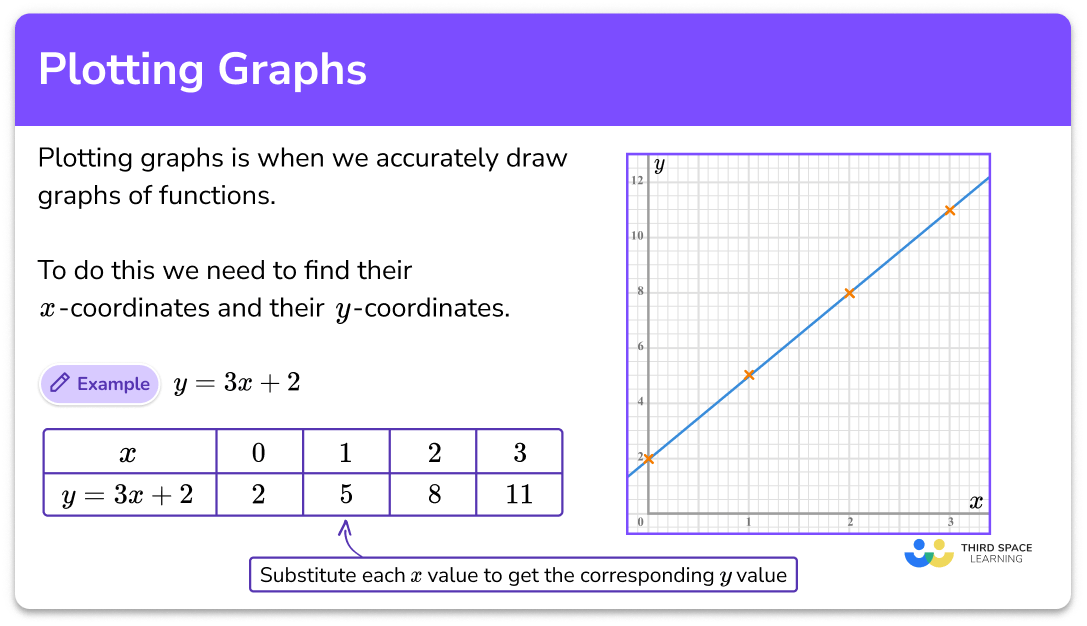
Special attention must be paid to missing values and outliers, as they can severely distort graph interpretations.
- Missing Values: While cleaning removes or imputes them, their presence (or absence) should sometimes be visualized. For example, plotting the percentage of missing data per feature can reveal data quality issues.
- Outliers: These are data points that significantly deviate from other observations. They can be genuine anomalies worth investigating (e.g., a sudden surge in server errors) or simply data entry errors. Visualizing data with scatter plots or box plots helps identify outliers. Depending on their nature, outliers might need to be removed, transformed, or analyzed separately to prevent them from skewing the visual representation of the main data distribution. For instance, a single extremely high value can compress the scale of a bar chart, making other bars appear insignificant.
Step-by-Step Guide to Plotting Common Graph Types
While specific steps vary by tool, the fundamental principles for plotting different graph types remain consistent. Here, we’ll outline a generic approach applicable across common platforms, focusing on popular graph types essential in tech analysis.
Creating Bar Charts for Categorical Data
Bar charts are ideal for comparing quantities across different discrete categories.
- Select Data: Identify your categorical variable (e.g., “Operating System,” “Product Feature”) and the numerical variable you wish to compare (e.g., “Number of Users,” “Error Count”).
- Choose Chart Type: Select “Bar Chart” (or “Column Chart” for vertical bars) from your tool’s charting options.
- Define Axes: Your categorical variable typically goes on the x-axis, and the numerical variable on the y-axis (or vice-versa for horizontal bars).
- Customize: Add a clear title (e.g., “User Distribution by OS”), label axes appropriately, and consider sorting bars for better readability (e.g., descending order of value). For tech, bar charts are excellent for comparing market share of technologies, adoption rates of different software versions, or bug counts per module.
Visualizing Trends with Line Graphs
Line graphs are indispensable for showing trends and changes over a continuous variable, most commonly time.
- Select Data: You need a continuous variable, usually time (e.g., “Date,” “Hour,” “Build Number”), and one or more numerical variables representing the metric(s) changing over that continuum (e.g., “Latency,” “CPU Utilization,” “Number of Active Sessions”).
- Choose Chart Type: Select “Line Chart.”
- Define Axes: The continuous variable goes on the x-axis, and the numerical metric(s) on the y-axis.
- Customize: Ensure time-series data is ordered correctly. Add a title (e.g., “Server Latency Over Time”), axis labels, and a legend if plotting multiple lines. In tech, line graphs track system performance, user growth, code commits over time, or the evolution of machine learning model accuracy.
Exploring Relationships with Scatter Plots
Scatter plots are used to visualize the relationship or correlation between two numerical variables.
- Select Data: Choose two numerical variables (e.g., “Hours of Testing,” “Number of Bugs Found”; or “CPU Cores,” “Processing Time”).
- Choose Chart Type: Select “Scatter Plot.”
- Define Axes: One numerical variable goes on the x-axis, and the other on the y-axis. There’s usually no strict ‘independent’ or ‘dependent’ variable unless you’re explicitly testing a hypothesis.
- Customize: Add a title (e.g., “Correlation Between Test Hours and Bug Count”), axis labels. Consider adding a trendline (regression line) to quantitatively assess the relationship. For tech, scatter plots can show the relationship between input features and output in an ML model, or the impact of configuration parameters on system performance.
Understanding Proportions with Pie Charts (and their alternatives)
Pie charts represent parts of a whole, showing the proportion of each category relative to the total.
- Select Data: One categorical variable and one numerical variable that represents a part of the total (e.g., “Browser Type,” “Percentage of Users”).
- Choose Chart Type: Select “Pie Chart.”
- Customize: Ensure percentages or raw values are clearly labeled for each slice. Add a title (e.g., “Website Browser Usage Share”).
- Consider Alternatives: While common, pie charts can be hard to read, especially with many categories or similar slice sizes. Bar charts (especially stacked bar charts for comparing compositions) or treemaps often provide clearer representations of proportions, particularly in tech contexts where precise comparisons are often required. For example, comparing resource allocation across different microservices might be better visualized with a bar chart than a pie chart.
Best Practices and Advanced Techniques for Tech-Driven Graphs
Creating effective graphs goes beyond merely selecting the right chart type; it involves meticulous attention to detail and an understanding of how to maximize clarity, impact, and interactivity.
Enhancing Clarity and Readability: Labels, Legends, and Titles
A graph’s primary purpose is to communicate. Clear and precise annotations are paramount:
- Descriptive Titles: Every graph needs a concise, informative title that summarizes its content (e.g., “Monthly API Call Volume by Service,” not just “API Calls”).
- Labeled Axes: Both axes must be clearly labeled with the variable name and units (e.g., “Time (UTC),” “Latency (ms),” “Users (Thousands)”).
- Intuitive Legends: If multiple series or categories are plotted, a legend is essential to differentiate them. Place the legend strategically to avoid obscuring data.
- Data Labels (Sparingly): While tempting, don’t overcrowd graphs with data labels on every point. Labeling key points, maximums, minimums, or specific anomalies is more effective.
- Consistent Styling: Use consistent fonts, colors (e.g., a standard color palette for your brand or project), and line styles across multiple graphs to maintain visual coherence. Avoid overly bright or clashing colors.
- Appropriate Scaling: Ensure axes start at zero when comparing magnitudes (especially for bar charts) unless there’s a specific reason to zoom in on variations. For line graphs, zooming can highlight subtle trends, but always indicate breaks if used.
Choosing the Right Graph Type for Your Data Story
The “best” graph type depends entirely on the message you want to convey and the type of data you possess.
- Comparison: Bar charts (discrete categories), Line charts (time series, continuous).
- Relationship/Correlation: Scatter plots, Heatmaps (for correlations between many variables).
- Distribution: Histograms, Box plots, Violin plots (for showing data spread and outliers).
- Composition/Proportion: Stacked bar charts, Treemaps, (carefully considered) Pie charts.
- Trends: Line graphs, Area charts.
Always ask: “What insight am I trying to highlight?” and then select the graph that best facilitates that insight. Sometimes, a combination of graph types or small multiples (multiple similar graphs arranged in a grid) can be most effective.
Interactive Graphs and Dynamic Dashboards
In the modern tech landscape, static images often fall short. Interactive graphs and dynamic dashboards empower users to explore data themselves:
- Zooming and Panning: Allows users to focus on specific data segments without losing context.
- Hover-overs (Tooltips): Reveal detailed information about individual data points when the cursor hovers over them.
- Filtering and Sorting: Enable users to dynamically adjust the data being displayed based on various criteria.
- Drill-down Capabilities: From a high-level overview, users can click to reveal more granular details.
- Linked Visualizations: Changes in one graph automatically update others in a dashboard, allowing for multi-faceted data exploration.
Tools like Plotly, Tableau, Power BI, and D3.js are specifically designed to create these interactive experiences, which are crucial for complex operational dashboards, real-time monitoring systems, and detailed data exploration by analysts.
Automating Graph Generation for Reporting and Analysis
For recurring reports or real-time monitoring, manual graph plotting is inefficient and error-prone. Automation is key:
- Scripting: Using Python with Matplotlib/Seaborn/Plotly or R with ggplot2 allows you to write scripts that fetch data, process it, and generate plots automatically. These scripts can be scheduled to run at regular intervals.
- API Integration: Connect directly to databases or APIs to pull fresh data programmatically before plotting.
- Dashboarding Tools: Platforms like Grafana (for time-series data, often used in DevOps), Kibana (for Elasticsearch data), and the aforementioned Tableau/Power BI offer robust scheduling and live data integration capabilities for automated dashboard updates.
- Version Control: Store your plotting scripts and data processing pipelines in version control systems (e.g., Git) to ensure reproducibility and collaboration.
By embracing automation, tech professionals can build scalable and reliable data visualization pipelines, ensuring that stakeholders always have access to the most current and relevant insights, driving continuous improvement and informed decision-making across all aspects of technology.
aViewFromTheCave is a participant in the Amazon Services LLC Associates Program, an affiliate advertising program designed to provide a means for sites to earn advertising fees by advertising and linking to Amazon.com. Amazon, the Amazon logo, AmazonSupply, and the AmazonSupply logo are trademarks of Amazon.com, Inc. or its affiliates. As an Amazon Associate we earn affiliate commissions from qualifying purchases.