
A clean install of Windows is akin to hitting the reset button on your computer’s operating system. It involves completely wiping your hard drive and reinstalling Windows from scratch. This process is crucial for several reasons, ranging from resolving persistent software glitches and performance slowdowns to preparing a new computer or ensuring optimal performance on an older machine. While it might sound intimidating, with the right guidance, it’s a manageable process that can breathe new life into your system.
This comprehensive guide will walk you through every step of performing a clean install of Windows, ensuring you have the necessary knowledge and tools to execute it successfully. We’ll cover why you might need to do this, what you’ll need beforehand, the actual installation process, and what to do once your new Windows installation is up and running.

Why Perform a Clean Install of Windows?
The allure of a clean install often stems from the desire for a fresh start. Over time, your Windows installation can accumulate a host of issues that, while not catastrophic, can significantly degrade your user experience. Think of it like decluttering your physical workspace; removing the unnecessary clutter allows you to work more efficiently.
Addressing Software Glitches and Performance Degradation
The most common motivator for a clean install is to fix stubborn software problems that traditional troubleshooting methods can’t resolve. Have you encountered recurring error messages, application crashes that defy logic, or a general slowdown in your computer’s responsiveness? These symptoms can often be traced back to corrupted system files, conflicting software, or remnants of uninstalled programs that refuse to leave. A clean install effectively eradicates these digital gremlins, providing a pristine environment for your software to operate in.
Beyond specific glitches, a clean install can also dramatically improve overall system performance. As you install and uninstall applications, modify system settings, and accumulate temporary files, your operating system can become bloated. This bloatware and fragmented data can lead to slower boot times, longer application loading times, and a less fluid overall user experience. By starting fresh, you eliminate this accumulated digital baggage, allowing Windows to run with the speed and efficiency it was designed for.
Preparing a New Computer or Upgrading Hardware
When you purchase a new computer, it often comes with a pre-installed operating system. While this is convenient, these “OEM” installations can sometimes include trialware, manufacturer-specific utilities, and drivers that you might not need or want. Performing a clean install on a new machine ensures you have a pure Windows experience, free from any pre-loaded bloatware, and allows you to install only the drivers and software you truly require.
Similarly, if you’ve recently upgraded a significant piece of hardware, such as your motherboard or CPU, a clean install is often recommended. While Windows can sometimes adapt to hardware changes, it’s not always seamless. A clean installation guarantees that Windows is configured correctly for your new hardware, preventing potential driver conflicts and ensuring optimal performance and stability.
Recovering from Malware or Security Breaches
In the unfortunate event of a severe malware infection or a security breach that compromises your system’s integrity, a clean install is often the most reliable way to ensure your computer is completely free of any lingering threats. While antivirus software can remove many malicious programs, some advanced malware can embed itself deeply within the operating system, making complete removal challenging. A clean install effectively wipes the slate clean, ensuring no malicious code remains. This is particularly important for protecting sensitive data and maintaining your digital security.
Preparing for a Clean Install: What You’ll Need
Before you embark on the clean install process, thorough preparation is key to a smooth and successful outcome. Skipping this stage can lead to frustration and potential data loss.
Backing Up Your Important Data
This is arguably the most critical step. A clean install will erase everything on the drive where Windows is installed. Therefore, you must back up all your important personal files, documents, photos, videos, music, and any other data you wish to keep. Consider using an external hard drive, cloud storage services (like OneDrive, Google Drive, or Dropbox), or a network-attached storage (NAS) device. Ensure your backups are complete and accessible. It’s also a good practice to verify your backups by opening a few files from the backup location to confirm their integrity.
Gathering Your Software and Licenses
After the clean install, you’ll need to reinstall all your desired applications and software. Before you begin the installation process, make a list of all the programs you regularly use. Locate their installation media (download links, CDs/DVDs) and, crucially, any product keys or license information. This is especially important for paid software, such as Microsoft Office or professional design tools. If you’ve lost product keys, explore options for retrieving them from your email accounts or by contacting the software vendor.
Creating Windows Installation Media
To perform a clean install, you’ll need a bootable USB drive or DVD containing the Windows installation files.
Using the Media Creation Tool
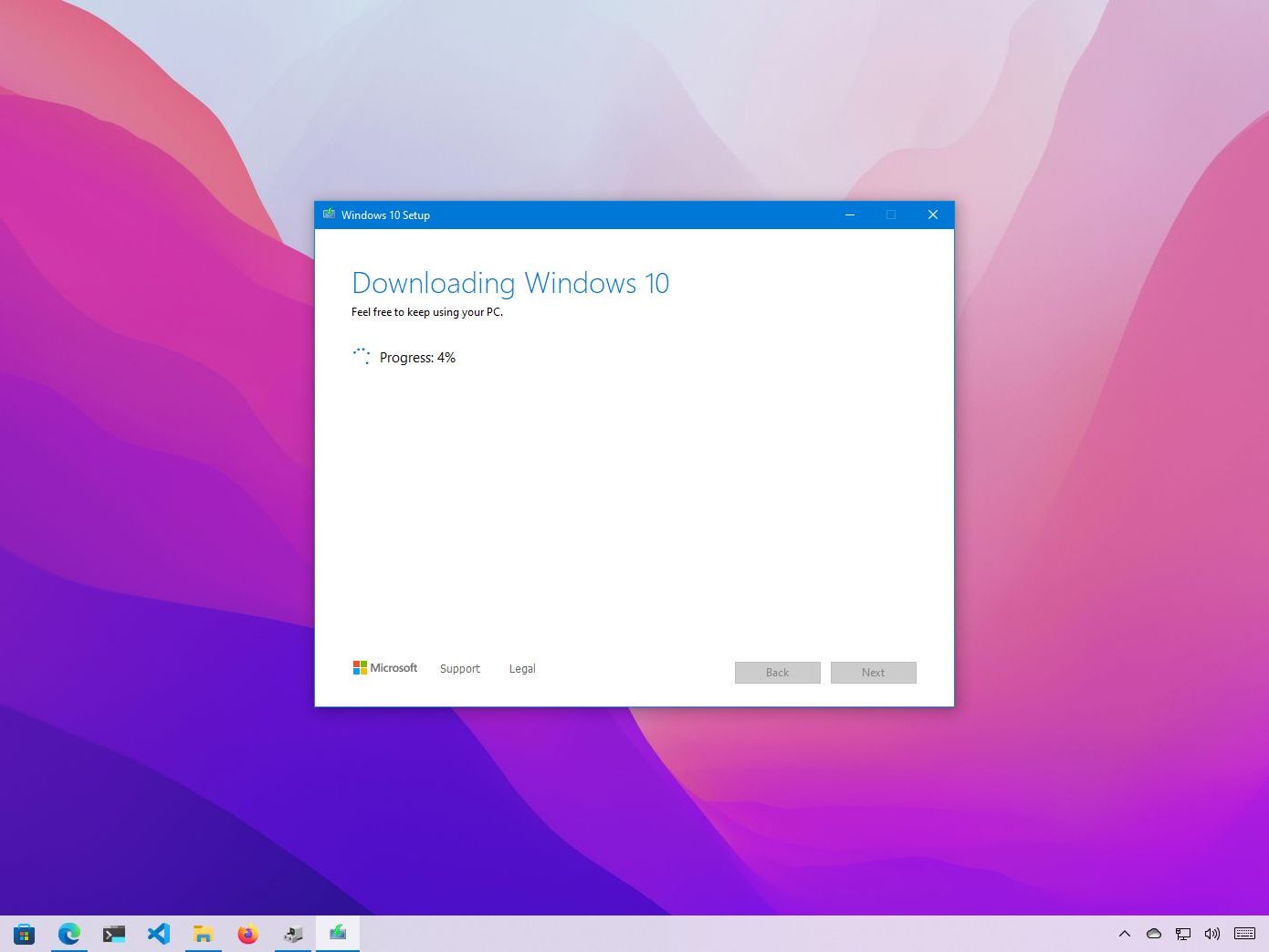
The easiest and most recommended method is to use Microsoft’s official Media Creation Tool.
- Download the Tool: Visit the official Microsoft website and search for “Media Creation Tool” for your specific Windows version (e.g., Windows 10 or Windows 11).
- Run the Tool: Execute the downloaded file.
- Accept Terms: Agree to the license terms.
- Choose “Create installation media”: Select the option to create installation media (USB flash drive, DVD, or ISO file) for another PC.
- Select Language, Edition, and Architecture: Choose the appropriate options for your region and desired Windows version. It’s generally recommended to use the same edition and language as your current Windows installation.
- Choose Media Type: Select “USB flash drive” and ensure you have a USB drive with at least 8GB of free space. The tool will then download the necessary Windows files and make the USB drive bootable.
Alternatively, you can choose to download an ISO file, which you can later burn to a DVD or use with other tools to create bootable media.
The Clean Install Process: Step-by-Step
Once you have your data backed up and your installation media ready, you can proceed with the actual clean install. This process involves booting your computer from the installation media and following the on-screen prompts.

Booting from Installation Media
- Insert Media: Insert your bootable USB drive or DVD into your computer.
- Restart Your PC: Reboot your computer.
- Access Boot Menu/BIOS: As your computer starts up, you’ll need to enter your system’s BIOS or UEFI settings or access the Boot Menu. The key to press varies by manufacturer but is typically one of the F keys (F2, F10, F12, DEL, ESC). Watch your screen for prompts during the initial boot sequence.
- Change Boot Order: In the BIOS/UEFI settings, find the “Boot” or “Boot Order” section. Change the boot priority to make your USB drive or DVD drive the first boot device. If you accessed the Boot Menu, simply select your USB drive or DVD drive from the list of bootable devices.
- Save and Exit: Save your changes and exit the BIOS/UEFI. Your computer will restart and should now boot from your Windows installation media.
Navigating the Windows Setup
Once your computer boots from the installation media, you’ll be greeted by the Windows Setup screen.
- Language, Time, and Keyboard: Select your preferred language, time format, and keyboard input method. Click “Next.”
- Install Now: Click the “Install now” button.
- Product Key: You’ll be prompted to enter your Windows product key. If you’re reinstalling Windows on a computer that was previously activated, you can often click “I don’t have a product key” and Windows will automatically activate later based on your hardware.
- Choose Operating System: If you have multiple Windows editions on your installation media, select the one you want to install.
- Accept License Terms: Read and accept the Microsoft license terms.
- Choose Installation Type: This is a crucial step. Select “Custom: Install Windows only (advanced).” This option allows for a clean installation. Do NOT choose “Upgrade.”
Partitioning and Formatting the Drive
This is where the actual “clean” part of the clean install happens.
- Drive Selection: You’ll see a list of drives and partitions on your computer. Carefully identify the drive where you want to install Windows. This is usually your primary drive (often labeled “Drive 0”).
- Deleting Existing Partitions (Recommended for True Clean Install): To ensure a truly clean install, it’s recommended to delete all existing partitions on the target drive. WARNING: This will permanently erase all data on that drive. Select each partition on the target drive and click “Delete.” You’ll end up with “Unallocated Space.”
- Creating New Partitions (Optional but Recommended): You can now click “New” to create new partitions for Windows. For a simple setup, you can let Windows automatically create the necessary system partitions by clicking “New” and then “Apply” in the dialog box that appears (it will use all the unallocated space). Windows will automatically create a primary partition for your OS and any necessary system partitions (like System Reserved or Recovery).
- Selecting the Primary Partition: Select the main partition you just created (or the largest one if you let Windows handle it) and click “Next.”
Installing Windows
Windows will now begin installing. This process can take a significant amount of time, and your computer will restart multiple times.
- Installation Progress: The setup will copy files, install features, and install updates.
- Restarting: Your computer will automatically restart. When it does, remove the USB drive or DVD to prevent it from booting from the installation media again. If your computer boots back into setup, you’ll need to go back into the BIOS/UEFI and set your hard drive as the primary boot device.
- Out-of-Box Experience (OOBE): After the restarts, Windows will guide you through the Out-of-Box Experience, where you’ll set up your region, keyboard layout, network connection, and create a user account.
- Cortana/Digital Assistant: You may be prompted to set up Cortana or another digital assistant. You can choose to skip this if you prefer.
- Privacy Settings: Review and adjust your privacy settings according to your preferences.
Post-Installation Steps: Getting Your System Back Up and Running
Once Windows is successfully installed and you’ve completed the initial setup, your work isn’t quite finished. There are a few crucial steps to take to ensure your system is secure, up-to-date, and ready for use.
Installing Drivers
While Windows automatically installs many generic drivers during setup, it’s essential to install the specific drivers for your hardware components to ensure optimal performance and functionality.
- Device Manager: Open Device Manager by right-clicking the Start button and selecting “Device Manager.” Look for any devices with a yellow exclamation mark, which indicates a driver issue.
- Manufacturer Websites: The best place to get the latest drivers is directly from the manufacturer’s website for your motherboard, graphics card, network adapter, audio chipset, and any other peripherals.
- Windows Update: Often, Windows Update can also find and install necessary drivers.
Running Windows Update
To ensure your system is protected with the latest security patches and has access to the newest features, run Windows Update.
- Settings App: Go to Settings > Update & Security (or Windows Update on Windows 11).
- Check for Updates: Click “Check for updates.” Download and install all available updates. This may require several restarts.
Reinstalling Your Applications
Now it’s time to bring your favorite programs back to your refreshed system. Refer to the list you made during your preparation phase and reinstall your applications, entering product keys where necessary.
Restoring Your Data
Finally, connect your external hard drive or access your cloud storage and begin restoring your backed-up personal files to their appropriate locations. Take this opportunity to organize your files and perhaps declutter any old or unnecessary data.
Optimizing Your New Installation
With your system set up, you can further optimize it. This might involve adjusting power settings for better performance, tweaking visual effects for speed, or ensuring your antivirus software is configured correctly for maximum digital security. You might also consider installing some useful productivity apps or exploring new AI tools that can enhance your workflow.
By following these steps, you’ll have successfully performed a clean install of Windows, resulting in a faster, more stable, and more secure computing experience. This process, while time-consuming, is a powerful tool for maintaining the health and performance of your computer.
aViewFromTheCave is a participant in the Amazon Services LLC Associates Program, an affiliate advertising program designed to provide a means for sites to earn advertising fees by advertising and linking to Amazon.com. Amazon, the Amazon logo, AmazonSupply, and the AmazonSupply logo are trademarks of Amazon.com, Inc. or its affiliates. As an Amazon Associate we earn affiliate commissions from qualifying purchases.