
In today’s hyper-connected world, a reliable internet connection isn’t just a luxury; it’s the backbone of personal productivity, business operations, and financial management. At the heart of this connection for most broadband users lies the modem – a crucial piece of technology that bridges your home or office network with your Internet Service Provider (ISP). Whether you’re setting up a new service, upgrading existing equipment, or troubleshooting connectivity issues, understanding how to properly install a modem is a fundamental skill. This comprehensive guide will walk you through the entire process, from initial setup to optimization and security, weaving in insights on how these tech choices impact your brand, your finances, and your overall digital life.

The Essential Pre-Installation Checklist: What You Need to Know Before You Start
Before you even unbox your new modem, a little preparation goes a long way. Thinking ahead can save you significant time, frustration, and potential costs down the line. This foundational stage is where crucial decisions are made, impacting everything from your internet speed to your long-term financial outlay.
Understanding Your Internet Service Provider (ISP) and Service Type
The first and most critical step is to understand your ISP and the type of internet service they provide. Common broadband types include Cable, DSL, Fiber Optic, and Satellite. Each of these technologies utilizes specific types of modems. For instance, a cable modem (DOCSIS standard) will not work with a DSL or fiber optic service.
- Cable Internet: Uses coaxial cables. You’ll need a DOCSIS-compatible modem. Ensure your modem’s DOCSIS version (e.g., 3.0, 3.1) supports your subscribed speed tier. Older modems might bottleneck faster connections, even if technically compatible.
- DSL Internet: Uses traditional telephone lines. You’ll need a DSL modem, often integrated with a router (a “gateway”).
- Fiber Optic Internet: Often uses an Optical Network Terminal (ONT) provided by the ISP, which converts the fiber signal into an Ethernet signal. You might then connect your own router to the ONT, or the ISP might provide an integrated gateway.
- Satellite Internet: Requires specific satellite modems and dishes.
Contact your ISP or check your service agreement to confirm your service type and the required modem specifications. This due diligence is critical not just for a successful installation but also for ensuring you get the speeds you pay for – a direct impact on your financial investment in internet service.
Choosing the Right Modem: Buying vs. Renting
One of the most significant financial decisions related to modem installation is whether to buy your own modem or rent one from your ISP.
- Renting from ISP:
- Pros: Convenience (often pre-configured), direct ISP support for the equipment, easy replacement if faulty.
- Cons: Monthly rental fees (typically $10-$15), which add up significantly over time. Over a few years, these costs can easily exceed the purchase price of a high-quality modem. This impacts your personal finance negatively, as it’s a recurring expense that can be avoided.
- Buying Your Own Modem:
- Pros: Long-term cost savings (the modem pays for itself, usually within 6-12 months), often higher quality or more features than basic rental units, greater control over your network hardware. Investing in a robust modem can be a smart financial move, akin to investing in a good computer or smartphone. It’s an asset that supports your online income streams, financial management apps, and overall digital productivity.
- Cons: Upfront cost, responsible for your own troubleshooting (though ISP will still support the connection), compatibility research required.
When purchasing, ensure the modem is approved by your ISP and supports your internet speed. Look for brands with good reputations for reliability and performance – this reflects not just tech savvy but also a wise financial and “brand” choice for your home network. A reliable modem supports the smooth operation of your business, online presence, and personal brand.
Gathering Your Tools and Components
Once you’ve made your choices, gather everything you’ll need:
- Your new modem: Unboxed and ready.
- Power adapter: Included with the modem.
- Coaxial cable (for cable internet), phone cable (for DSL), or Ethernet cable (for fiber/router connection): Often provided, but having a spare good quality cable (especially Ethernet, Cat5e or Cat6) can be useful for optimal performance.
- Ethernet cable: To connect the modem to your computer for activation or to your Wi-Fi router.
- Your ISP account information: Account number, phone number, and any activation codes.
- A computer or mobile device: For activation and initial setup.
- Optional: A Phillips head screwdriver (if you need to remove wall plates, though usually not necessary for modem installation), cable ties for organization.
Having these items readily accessible streamlines the installation process, preventing delays and ensuring a smooth transition to your new internet setup.
Step-by-Step Modem Installation: From Unboxing to Connection
With your preparations complete, it’s time to dive into the physical installation process. While the exact steps might vary slightly depending on your modem model and ISP, the core sequence remains consistent. This section focuses on the practical application of tech knowledge to establish your digital gateway.
Unboxing and Physical Connections
- Choose a Location: Select a central location for your modem, ideally near an existing cable/phone jack and a power outlet. Avoid confined spaces that can hinder ventilation, as modems generate heat. Proximity to where you’ll use Wi-Fi most often is also a plus if your modem includes a Wi-Fi router.
- Disconnect Old Equipment (if applicable): If replacing an old modem, power it off and disconnect all cables.
- Connect the Data Cable:
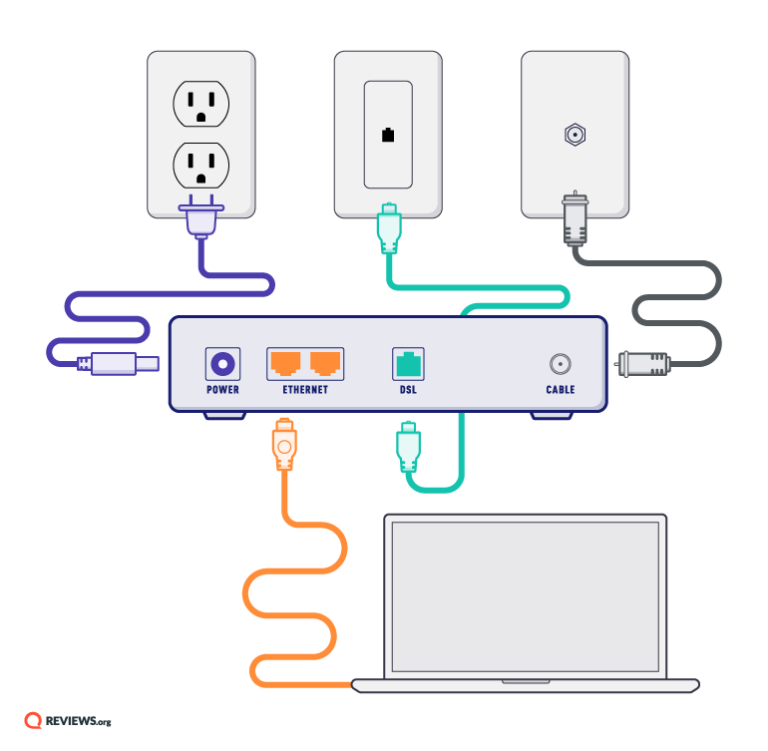
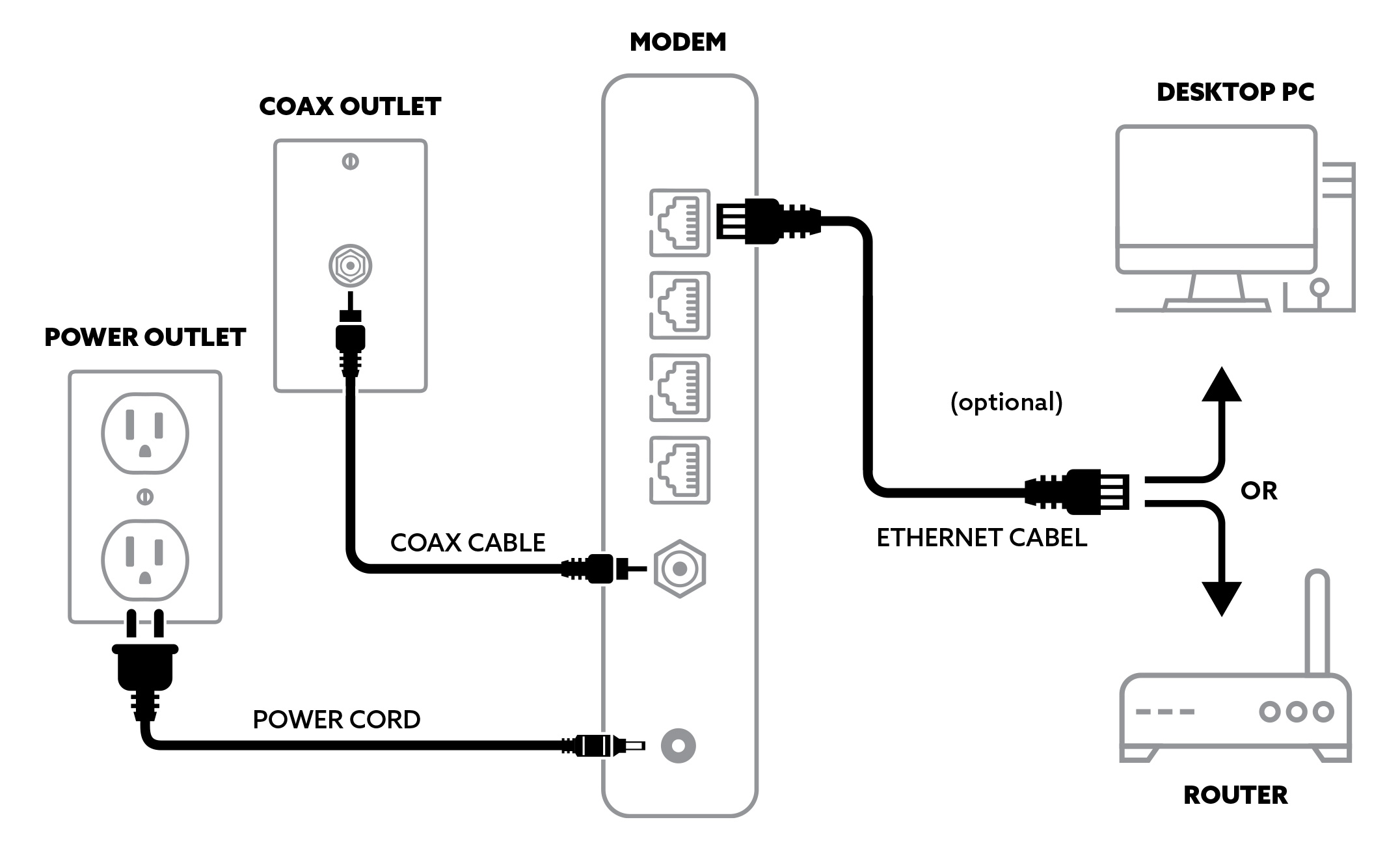
- For Cable Modems: Connect one end of the coaxial cable to the cable wall outlet and the other end to the “Cable In” or “RF In” port on the back of your modem. Hand-tighten the connectors; do not overtighten.
- For DSL Modems: Connect one end of the phone cable to the DSL wall jack and the other end to the “DSL” or “Line” port on your modem.
- For Fiber (if using your own router with an ONT): The ONT will have an Ethernet port. Connect an Ethernet cable from the ONT to the “WAN” or “Internet” port on your router (if your modem is integrated with a router or if you’re using a separate router).
- Connect Your Router (if separate): If your modem is just a modem (no built-in Wi-Fi), you’ll need a separate Wi-Fi router. Connect one end of an Ethernet cable to the “LAN” or “Ethernet” port on your modem and the other end to the “WAN” or “Internet” port on your Wi-Fi router.
- Connect to a Computer (Optional, for initial setup): For initial setup and activation, you might want to connect an Ethernet cable directly from one of the modem’s (or router’s) LAN ports to your computer’s Ethernet port. This provides a stable, wired connection during the activation process.
This meticulous approach ensures that all physical links are secure, laying a strong foundation for your digital security and productivity.
Powering Up and Waiting for Signal Lock
- Connect the Power: Plug the modem’s power adapter into the modem’s power port, then plug the adapter into an electrical outlet.
- Power On: Press the power button on the modem, if it has one.
- Monitor Indicator Lights: This is where the tech aspect becomes crucial. Observe the LED indicator lights on the front of your modem. The specific labels and colors vary by manufacturer, but generally, you’ll be looking for lights indicating:
- Power: Solid green or blue.
- Downstream/Receive: Solid green or blue, indicating it’s receiving data from your ISP. Might blink initially.
- Upstream/Send: Solid green or blue, indicating it’s sending data to your ISP. Might blink initially.
- Online/Internet: Solid green or blue, indicating a successful connection to the internet. This is the crucial light.
- Activity/Link: Blinking, indicating data transfer.
It can take several minutes (5-15 minutes) for the modem to establish a connection and for all the lights to stabilize. During this time, the modem is communicating with your ISP’s network, downloading necessary firmware, and acquiring an IP address. Patience is key here. If the lights don’t stabilize after a reasonable period, consult the modem’s manual for error light interpretations or the troubleshooting section of this guide.
Activating Your Modem with Your ISP
Once your modem lights indicate a stable connection (especially the “Online” or “Internet” light is solid), the final step is to activate it with your ISP. This is where your account information becomes vital.
- Automated Activation (Sometimes): Some ISPs offer an automated activation portal. If you’re connected to the modem (either directly via Ethernet or via Wi-Fi if it’s a gateway), open a web browser. You might be automatically redirected to your ISP’s activation page. Follow the on-screen prompts, which usually involve entering your account number and modem’s MAC address (found on a sticker on the modem).
- Manual Activation by Phone: If the automated process doesn’t work or isn’t available, you’ll need to call your ISP’s customer support line.
- Have your account number ready.
- Provide the customer service representative with the MAC address (also called CMAC or HFC MAC ID) and serial number of your new modem. These are typically on a sticker on the bottom or back of the modem.
- The representative will provision your modem on their network. This might take a few minutes, and your modem may restart during the process.
- Once confirmed, test your internet connection by trying to browse websites on your connected computer or device.
This activation step is crucial for establishing your internet service and linking the physical hardware to your digital identity with your ISP. A successful activation means you’re ready to harness the full power of the internet for your tech needs, financial operations, and online presence.
Beyond Installation: Optimizing Your Network and Ensuring Security
Installing your modem is just the beginning. To truly leverage your internet connection for productivity, digital security, and even your brand image, you need to think beyond the basics. This section delves into optimizing performance and safeguarding your network – critical considerations for both personal users and those managing a small business or personal brand online.
Configuring Your Wi-Fi Router (if separate)
If you’re using a separate Wi-Fi router (which is often recommended for better performance and control), configuring it properly is vital.
- Connect and Access: Ensure your router is connected to the modem via the WAN port, and power it on. Connect your computer to one of the router’s LAN ports via Ethernet.
- Access Router Interface: Open a web browser and enter your router’s default IP address (e.g., 192.168.1.1 or 192.168.0.1). This information is usually found on a sticker on the router itself or in its manual.
- Log In: Enter the default username and password (also on the sticker/manual). Immediately change these default credentials to something strong and unique. This is a fundamental step in digital security.
- Configure Wi-Fi Settings:
- SSID (Network Name): Change the default Wi-Fi network name (SSID) to something recognizable but not overly personal.
- Security Type: Choose WPA2-PSK (AES) or WPA3 for the strongest encryption. Avoid WEP or WPA/WPA-TKIP, as they are less secure.
- Wi-Fi Password: Set a strong, complex password for your Wi-Fi network. This is your first line of defense against unauthorized access.
- Channel Selection: If you experience slow Wi-Fi, you might try manually selecting a less congested Wi-Fi channel (1, 6, or 11 for 2.4GHz; various for 5GHz).
- Firmware Update: Check if there are any firmware updates available for your router. Keeping firmware current ensures security patches and performance improvements, which are crucial for maintaining the “tech health” of your network.
Proper router configuration ensures efficient data flow, supporting everything from seamless video calls for remote work (impacting your professional brand) to smooth online transactions for managing your money.
Securing Your Network: Passwords and Firmware Updates
Network security is paramount. A compromised network can lead to data breaches, identity theft, and significant financial losses.
- Strong Passwords are Non-Negotiable:
- Modem/Router Admin Password: As mentioned, change default passwords immediately. Use a unique combination of uppercase and lowercase letters, numbers, and symbols, at least 12-16 characters long.
- Wi-Fi Password: Equally important. Don’t share it indiscriminately.
- Consider a Guest Wi-Fi Network: Most routers allow you to set up a separate guest network. This keeps visitors off your main network, enhancing security and isolating potential threats.
- Regular Firmware Updates: Firmware is the software embedded in your modem and router. Manufacturers regularly release updates to fix bugs, improve performance, and, most importantly, patch security vulnerabilities. Check your modem and router manufacturer websites periodically for the latest firmware and follow their instructions for updating. This proactive approach to digital security is a hallmark of good tech hygiene.
- Firewall Settings: Most routers have a built-in firewall. Ensure it’s enabled and configured appropriately to block unwanted incoming connections.
- Physical Security: Place your modem and router in a secure location where they are less likely to be tampered with.
Neglecting network security is akin to leaving your front door unlocked – a risky move for your data, your finances, and potentially even your personal brand if sensitive information is exposed.
Troubleshooting Common Modem Issues
Even with careful installation, you might encounter issues. Here are some common problems and their solutions:
- No Internet Connection:
- Check Lights: Are the modem lights stable? If not, recheck connections.
- Power Cycle: Unplug the modem (and router, if separate) for 30 seconds, then plug them back in. Wait 5-10 minutes for them to restart fully. This often resolves minor glitches.
- Cable Connections: Ensure all coaxial, Ethernet, and power cables are securely connected.
- ISP Outage: Check your ISP’s website or social media for service outages in your area.
- Contact ISP: If all else fails, call your ISP. They can check the signal to your modem and help troubleshoot.
- Slow Speeds:
- Wired Test: Connect a computer directly to the modem via Ethernet and perform a speed test (e.g., Speedtest.net). If speeds are good here but slow on Wi-Fi, the issue is likely with your router or Wi-Fi signal.
- Wi-Fi Interference: Change Wi-Fi channels, move your router, or consider a mesh Wi-Fi system.
- Modem Compatibility: Ensure your modem supports your subscribed speed tier (e.g., DOCSIS 3.0 might struggle with gigabit speeds).
- ISP Plan: Verify you’re getting the speed you pay for.
- Intermittent Connection:
- Often indicates a signal issue from your ISP or a faulty modem/cable.
- Check for loose cables, splitter issues, or frayed cables.
- Contact your ISP; they can check line quality.
Effective troubleshooting minimizes downtime, ensuring your productivity remains high and your access to financial tools and online opportunities is uninterrupted.
The Broader Impact: How Reliable Internet Shapes Your Digital Life
A properly installed and maintained modem is more than just a piece of hardware; it’s the gateway to your entire digital ecosystem. Its reliability directly impacts your technological capabilities, financial well-being, and even the strength of your personal and professional brand.
Empowering Your Tech Stack and Productivity
In an era defined by digital tools, robust internet connectivity is non-negotiable for maximizing your tech stack and personal productivity. From cloud computing and collaboration platforms to streaming services and smart home devices, every modern application relies on a stable connection.
- Software and AI Tools: Fast internet ensures smooth operation of resource-intensive software, AI-powered tools, and cloud applications, preventing lag and fostering efficiency.
- Apps and Gadgets: Your smartphone, tablet, smart TV, security cameras, and other IoT gadgets all require internet. A well-configured modem ensures they operate seamlessly, enhancing convenience and utility.
- Remote Work and Learning: For remote professionals and students, reliable internet is the office and classroom. Dropped connections can derail meetings, compromise deadlines, and hinder learning, directly impacting career progression and academic success.
- Digital Security: Beyond just patching your modem, a strong connection allows for timely updates of operating systems and antivirus software, crucial elements of a comprehensive digital security strategy.
The Financial Edge: Smart Connectivity Choices
The choices you make during modem installation and maintenance have tangible financial implications. Smart decisions can lead to significant savings and empower better financial management.
- Cost Savings from Ownership: As discussed, buying your modem quickly offsets rental fees, representing a smart, long-term investment. This frees up monthly cash flow for other investments or savings goals.
- Online Income and Side Hustles: For those engaged in online income generation (e-commerce, freelancing, content creation), a dependable internet connection is literally the lifeline of their business. Downtime means lost revenue.
- Access to Financial Tools: Modern personal finance thrives on online banking, investment platforms, budgeting apps, and cryptocurrency exchanges. Uninterrupted internet access is essential for managing your money effectively and capitalizing on market opportunities.
- Avoiding Hidden Costs: Choosing the right modem and understanding your ISP plan prevents situations where an outdated modem throttles your paid speed, effectively costing you money for service you can’t fully utilize.
Building Your Brand on a Solid Digital Foundation
Whether you’re an individual with a personal brand, a freelancer, or a small business owner, your online presence is intrinsically linked to your internet connectivity. A reliable modem contributes directly to a strong digital foundation for your brand.
- Corporate Identity and Reputation: For small businesses, consistent internet access is vital for processing transactions, communicating with clients, maintaining a functional website, and utilizing cloud-based CRM/ERP systems. Downtime can severely damage customer trust and brand reputation.
- Personal Branding: Freelancers, consultants, and remote professionals rely on video conferencing, portfolio hosting, and social media to build and maintain their personal brand. A stable connection ensures professional presentations and timely engagement, projecting competence and reliability.
- Marketing and Design: Digital marketing efforts, including content creation, website management, and social media campaigns, demand robust internet. Fast uploads and downloads are crucial for designers, marketers, and anyone producing rich media content.
- Case Studies: Many successful online ventures, large and small, showcase the power of leveraging technology for growth. Their success is fundamentally rooted in reliable internet infrastructure that supports innovation and global reach.
In essence, your modem is not just a device; it’s a strategic asset that underpins your tech capabilities, secures your financial future, and empowers your brand in the digital age.
Conclusion
Installing a modem, while seemingly a technical task, is a critical step in establishing a robust and reliable digital life. From understanding your ISP’s service and making informed purchasing decisions, to physically connecting the device and activating it, each step contributes to the overall stability and security of your network.
Beyond the initial setup, actively managing your Wi-Fi router, diligently updating firmware, and implementing strong security measures are ongoing responsibilities that pay dividends in productivity and peace of mind. Moreover, recognizing the broader implications – how a well-installed and optimized modem empowers your tech stack, safeguards your financial endeavors, and bolsters your personal and corporate brand – elevates this task from a mere technical chore to a strategic investment in your digital future. By following this guide, you’re not just installing a modem; you’re laying the groundwork for seamless connectivity, enhanced security, and unbounded digital opportunity.
aViewFromTheCave is a participant in the Amazon Services LLC Associates Program, an affiliate advertising program designed to provide a means for sites to earn advertising fees by advertising and linking to Amazon.com. Amazon, the Amazon logo, AmazonSupply, and the AmazonSupply logo are trademarks of Amazon.com, Inc. or its affiliates. As an Amazon Associate we earn affiliate commissions from qualifying purchases.