
In the intricate world of Microsoft Windows, countless processes run behind the scenes, ensuring the smooth operation of our computers. While many remain invisible to the average user, their collective function is critical for everything from booting up to running complex applications. Among these essential components is the Windows Installer Module Worker, a cornerstone of software deployment and management. Often misunderstood or only noticed when something goes wrong, this module plays a pivotal role in how applications are installed, updated, and removed from your system.
For anyone navigating the digital landscape, especially those keen on understanding the “Tech” side of their devices, delving into the mechanics of the Windows Installer Module Worker offers invaluable insights. It’s not just about a specific program; it’s about the very foundation upon which software reliability and system integrity are built. This comprehensive guide will demystify this critical component, explaining its function, how it interacts with your system, common issues, and ultimately, its profound importance for a stable and secure computing experience.
The Foundation: What Exactly is the Windows Installer Module Worker?
At its core, the Windows Installer Module Worker is a part of the broader Windows Installer service, which is Microsoft’s standard framework for installing and uninstalling software. When you download a program and run an executable, especially one packaged as an MSI (Microsoft Installer) file, it’s this service, and its underlying worker modules, that takes over to manage the installation process.
Defining the Core Component
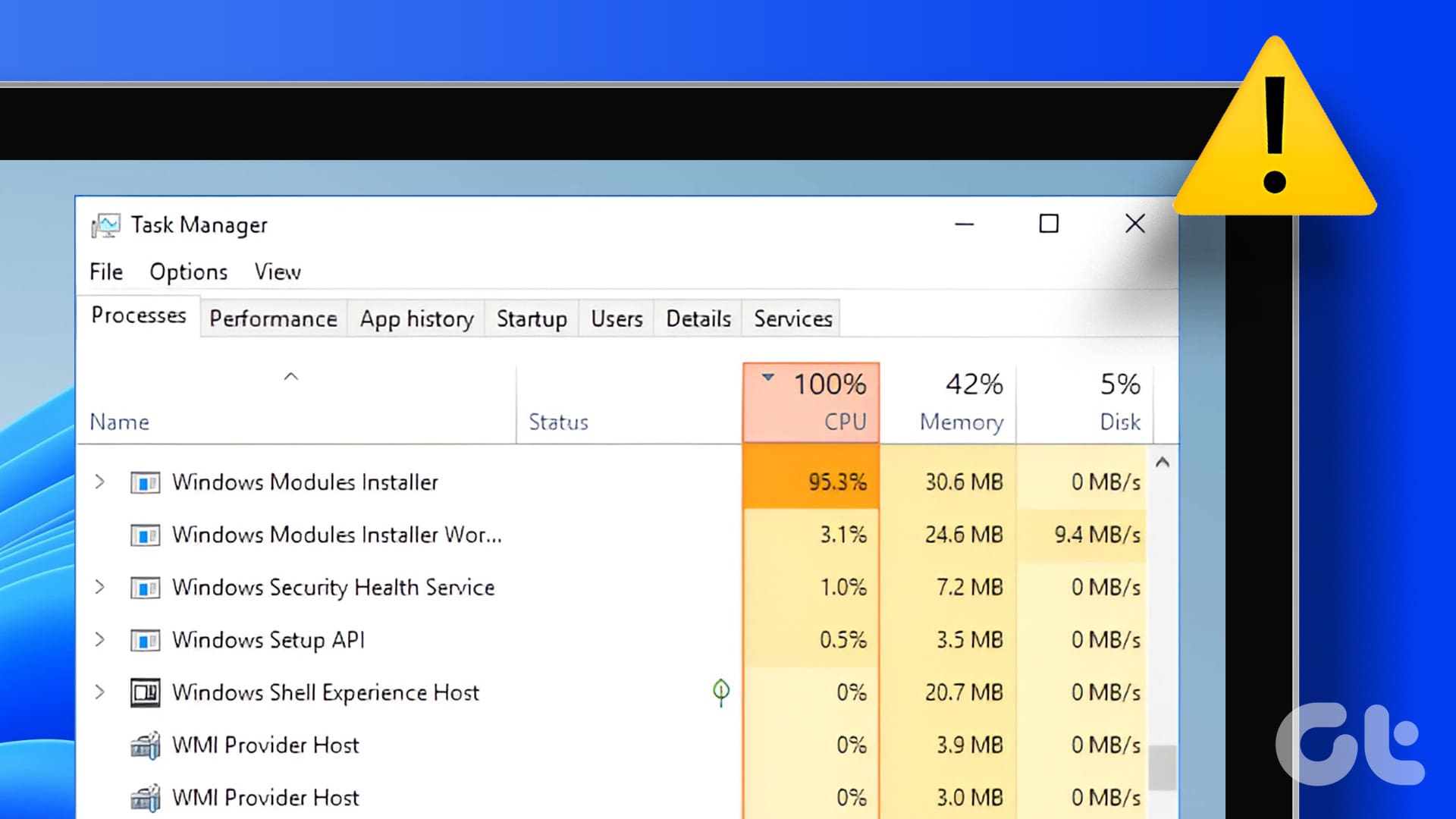
The “Windows Installer Module Worker” isn’t a single, monolithic file or service you can easily point to. Instead, it represents the operational threads and processes managed by the Windows Installer service (often seen as msiexec.exe running in Task Manager). Think of it as the active agent responsible for executing the instructions contained within an MSI package. These instructions can range from copying files and creating registry entries to setting up shortcuts and configuring services.
Its primary function is to interpret and execute the installation logic defined by software developers using the Windows Installer API. This standardized approach ensures that installations are performed consistently across different applications and system configurations, adhering to a predefined set of rules that promote stability and security. Without this dedicated “worker,” every software vendor would have to invent their own installation mechanism, leading to chaos, incompatibility, and a much higher risk of system corruption.
Its Role in the Windows Ecosystem
In the vast ecosystem of Windows, the Installer Module Worker acts as a crucial intermediary between software packages and the operating system. It operates with elevated privileges (often as SYSTEM or Administrator) to make the necessary changes to system directories, the registry, and other protected areas that user-level accounts typically cannot modify. This elevated access is fundamental, as software installations often require deep system integration.
Beyond just putting files in place, its role extends to:
- Transactional Installations: It ensures that installations are either fully completed or completely rolled back if an error occurs. This “all or nothing” approach prevents partial installations that can leave a system in an unstable or broken state. If the installation fails midway, the worker attempts to revert all changes, leaving the system as it was before the installation attempt.
- Dependency Management: While not its sole responsibility, the worker often plays a part in ensuring that necessary prerequisite components (like specific versions of .NET Framework or C++ redistributables) are present or installed alongside the main application.
- Patching and Upgrading: It manages the application of updates and patches, intelligently modifying existing installations rather than simply overwriting them.
- Uninstallation: Crucially, it tracks all changes made during installation, enabling a clean and complete uninstallation process later. This prevents the accumulation of “digital clutter” – orphaned files and registry entries that can slow down a system over time.
By providing a robust, transactional framework, the Windows Installer Module Worker contributes significantly to the overall stability and integrity of the Windows operating system, directly influencing the user’s “Tech” experience by ensuring reliable software interactions.
How Does it Function? The Mechanics of Software Installation
To truly appreciate the Windows Installer Module Worker, it’s helpful to understand the mechanics of how it operates during the software installation lifecycle. This isn’t just a simple file copy operation; it’s a sophisticated process involving multiple stages and careful execution.
Interacting with MSI Packages
The core input for the Windows Installer Module Worker is almost always an MSI file. MSI stands for Microsoft Software Installer, and it’s essentially a database that contains all the information needed to install or uninstall a particular application. This includes:
- File Table: A list of all files to be installed, their source locations, and their destination paths on the target system.
- Registry Table: Instructions for creating, modifying, or deleting registry keys and values.
- Component Table: Defines logical groups of files, registry entries, and other resources that belong together.
- Feature Table: Organizes components into installable features that users can choose to include or exclude during custom installations.
- Custom Actions: Specific scripts or programs that need to be run at certain points during the installation process, allowing developers to extend the installer’s capabilities.
When you double-click an MSI file, the Windows Installer service (msiexec.exe) is invoked. It then parses this database, and the “Module Worker” components within that service spring into action, executing the commands systematically. This interaction is designed to be highly controlled and predictable, reducing the chances of inconsistencies.
The Installation Lifecycle
The installation process orchestrated by the Module Worker follows a well-defined lifecycle, ensuring order and accountability:
- Initialization: The worker starts by verifying the MSI package, checking for digital signatures (if any) and ensuring the package is valid. It also determines the installation target (e.g., current user, all users).
- System Requirements Check: It assesses the target system against the software’s specified requirements (OS version, architecture, available disk space, etc.).
- UI Sequence (Optional): If the package includes a user interface, the worker presents dialogs for user input (e.g., accepting license agreements, choosing installation directories, selecting features).
- Execution Sequence: This is where the heavy lifting happens. The worker proceeds through a series of actions, typically in a specific order:
- File Copying: Extracts and places application files into the designated directories.
- Registry Modification: Adds, modifies, or deletes registry keys.
- Shortcut Creation: Creates desktop icons, Start Menu entries, and other shortcuts.
- Service Configuration: Installs and configures Windows services if the application requires them.
- Component Registration: Registers DLLs, COM objects, and other components with the system.
- Custom Actions: Runs any specified custom scripts or executables.
- Finalization: Once all actions are completed, the worker finalizes the installation, updates internal databases to track installed components, and logs the process.
- Rollback (if necessary): If any step in the execution sequence fails, the Module Worker initiates a rollback, undoing all changes made up to that point, aiming to return the system to its pre-installation state. This transactional capability is a hallmark of the Windows Installer and a critical safety net.
This meticulous, step-by-step approach ensures that software is integrated into your system with minimal disruption and maximum consistency, a vital aspect for maintaining a healthy and performant “Tech” environment.
Handling Updates and Removals
The intelligence of the Windows Installer Module Worker truly shines when dealing with updates and uninstallation. Rather than treating an update as a fresh installation, it intelligently applies patches (MSU or MSP files) by modifying existing components. It can identify which files or registry entries need updating, replacing only the necessary parts. This is far more efficient and less prone to errors than a full reinstallation.
For uninstallation, the Module Worker leverages the information it meticulously recorded during the initial installation. It knows exactly which files were copied, which registry keys were created, and which shortcuts were made. This allows for a clean removal, leaving minimal residue behind. A well-designed MSI package, expertly handled by the Windows Installer Module Worker, ensures that uninstalling software doesn’t leave behind a trail of digital debris that can clutter your system and potentially impact performance. This commitment to cleanliness and integrity is essential for a robust digital experience and even ties into the broader “Brand” perception of software vendors who provide clean uninstallers.

Common Issues and Troubleshooting
Despite its robust design, the Windows Installer Module Worker isn’t immune to problems. Users occasionally encounter errors during installations, updates, or uninstallations. Understanding these common issues and knowing how to troubleshoot them is a critical skill for any “Tech” enthusiast.
Identifying Module Worker Errors
Errors related to the Windows Installer often manifest as generic messages like “The Windows Installer Service could not be accessed,” “Error 1603: Fatal error during installation,” or “Error 1605: This action is only valid for products that are currently installed.” While these messages can be frustratingly vague, they point to an underlying issue with the module worker or the service it belongs to.
Common causes include:
- Corrupted Installer Service: The core
msiexec.exeor its associated DLLs (msi.dll) might be damaged. - Insufficient Permissions: The installer might not have the necessary administrative privileges to modify system files or registry entries.
- Conflicting Processes: Another program or a security suite (antivirus, firewall) might be interfering with the installation process.
- Corrupted Installation Package: The MSI file itself might be incomplete or damaged during download.
- System File Corruption: Broader system file corruption can affect the integrity of the Windows Installer.
- Pending Windows Updates: Sometimes, pending updates or restarts can temporarily block new installations.
- Disk Space Issues: Insufficient disk space can halt an installation.
The first place to look for more detailed information is usually the Windows Event Viewer, under “Windows Logs” -> “Application” or “System.” Here, you might find more specific error codes or descriptions that can guide your troubleshooting efforts.
Practical Solutions for Installation Problems
When faced with Windows Installer errors, a systematic approach can help resolve most issues:
- Restart Your Computer: A simple restart can often clear temporary glitches and unlock resources that might be preventing the installer from working.
- Run as Administrator: Right-click the installer file and select “Run as administrator” to ensure it has the necessary permissions.
- Check for Windows Updates: Ensure your operating system is fully up-to-date. Missing updates can sometimes cause compatibility issues or indicate broader system problems that need patching.
- Temporarily Disable Antivirus/Firewall: Security software can sometimes be overly aggressive and block legitimate installer actions. Temporarily disabling them (and re-enabling immediately after installation) can help diagnose if this is the cause.
- Free Up Disk Space: Ensure you have ample free disk space on your C: drive, as installations often require more than just the final installed size.
- Re-register Windows Installer Service:
- Open Command Prompt as an administrator.
- Type
msiexec /unregisterand press Enter. - Type
msiexec /regserverand press Enter. - Restart your computer. This command attempts to refresh the Windows Installer service registration.
- Check for System File Corruption:
- Open Command Prompt as an administrator.
- Run
sfc /scannow. This command checks for and repairs corrupted Windows system files. - If SFC finds issues it can’t fix, try
DISM /Online /Cleanup-Image /RestoreHealth. This tool uses Windows Update to fix component store corruption, which SFC relies upon.
- Clean Boot: Perform a clean boot to start Windows with a minimal set of drivers and startup programs. This helps identify if a third-party application is conflicting with the installer.
- Download a Fresh Installer: If the installer package itself is suspected, download a fresh copy from the official source.
- Consult Specific Error Codes: If you get a specific error code (like 1603), search online for that code along with “Windows Installer” for targeted solutions.
These practical steps are invaluable for anyone managing their own “Tech” setup, turning what seems like a daunting installation failure into a solvable technical challenge.
Best Practices for System Health
Proactive measures can significantly reduce the likelihood of encountering Windows Installer problems:
- Keep Windows Updated: Regularly apply Windows updates to ensure all system components, including the Installer service, are current and secure.
- Use Reputable Software Sources: Download installers only from official websites or trusted application stores to avoid corrupted or malicious packages.
- Maintain Adequate Disk Space: Regularly clean up unnecessary files to prevent low disk space from causing installation failures.
- Regular System Checks: Periodically run
sfc /scannowto catch and fix minor system file corruptions before they escalate.
Adhering to these best practices not only ensures smoother software installations but also contributes to overall system stability and performance, aligning perfectly with good “Tech” habits.
Importance for System Stability and Digital Security
The significance of the Windows Installer Module Worker extends far beyond simply putting programs on your computer. It is deeply intertwined with the overall stability, reliability, and digital security of your Windows environment.
Ensuring Reliable Software Management
A robust and functional Windows Installer Module Worker is the bedrock of reliable software management. When it operates correctly:
- Consistent Installations: Applications are installed in a standardized manner, reducing the risk of conflicts and unexpected behavior. This consistency is crucial for user experience and system predictability.
- Reduced System Instability: By providing transactional installations and clean uninstallations, it minimizes the accumulation of errors and orphaned files that can degrade system performance over time.
- Predictable Updates: Patches and updates are applied precisely, ensuring that security fixes and new features are integrated without breaking existing functionality. This predictability is vital for long-term system health.
- Troubleshooting Efficiency: When issues do arise, the standardized logging and error reporting of the Windows Installer make it easier for IT professionals and advanced users to diagnose and resolve problems, saving time and effort—which can even be linked to “Money” saved in productivity and reduced support costs.
For software vendors, ensuring their applications are packaged correctly for the Windows Installer is part of their “Brand” promise – a reliable installation process is often the first impression a user has of their product. A flawless installation experience fosters trust and confidence in the software and, by extension, the company behind it.
Security Implications and Best Practices
The elevated privileges required for software installation present a potential security risk if not managed correctly. The Windows Installer Module Worker, by design, helps mitigate these risks:
- Controlled Execution: It enforces a structured installation process, making it harder for malicious software to perform arbitrary actions during installation without detection.
- Digital Signatures: The Windows Installer supports digital signatures for MSI packages, allowing users and the system to verify the authenticity and integrity of the installer. This helps prevent tampering and ensures the software comes from a trusted source.
- Privilege Management: While it runs with elevated privileges, it does so within a defined scope, executing only the actions specified in the MSI package. This limits the potential damage even if a compromised MSI is executed.
However, users still have a role to play in maintaining security:
- Verify Source: Always download software from official, trusted sources. Avoid torrent sites or unofficial download portals, as these are common vectors for malware disguised as legitimate installers.
- Check Digital Signatures: Before running an unfamiliar MSI or executable, check its digital signature if available. Right-click the file, go to “Properties,” then the “Digital Signatures” tab.
- Use a Standard User Account: For daily tasks, using a standard user account (rather than an administrator account) can limit the impact of accidental or malicious software installations, as the Windows Installer will prompt for administrator credentials when needed.
- Keep Antivirus Software Updated: A good, up-to-date antivirus program can detect and block malicious installers before the Windows Installer Module Worker even gets a chance to process them.
By understanding these security aspects, users can make informed decisions that protect their systems, reinforcing the idea that good “Tech” habits are integral to digital safety and privacy.
Conclusion
The Windows Installer Module Worker, though often an unseen cog in the vast machinery of Windows, is an indispensable component for modern computing. It is the silent workhorse that ensures our software is installed, updated, and removed cleanly and reliably. From its intricate dance with MSI packages to its transactional guarantees, it underpins the very stability and security of our operating systems.
For anyone who cares about their “Tech” environment—whether a casual user facing an installation error or a power user striving for optimal system health—understanding this module is empowering. It transforms frustrating error messages into solvable puzzles and highlights the importance of good software management practices. By appreciating the role of the Windows Installer Module Worker, we gain a deeper insight into the sophisticated engineering that makes our digital lives possible, ensuring our systems remain robust, secure, and ready for whatever we throw at them.
aViewFromTheCave is a participant in the Amazon Services LLC Associates Program, an affiliate advertising program designed to provide a means for sites to earn advertising fees by advertising and linking to Amazon.com. Amazon, the Amazon logo, AmazonSupply, and the AmazonSupply logo are trademarks of Amazon.com, Inc. or its affiliates. As an Amazon Associate we earn affiliate commissions from qualifying purchases.