
In the rapidly evolving landscape of digital entertainment, the synergy between cutting-edge streaming services and sophisticated smart televisions has become the cornerstone of modern home viewing. Paramount Plus, a formidable contender in the streaming arena, offers a vast library of iconic movies, acclaimed original series, live sports, and breaking news. For owners of Samsung Smart TVs, known for their vibrant displays and intuitive operating systems, integrating Paramount Plus promises an enhanced entertainment experience. This guide delves into the practical steps, technical considerations, and optimization tips necessary to seamlessly bring Paramount Plus to your Samsung TV, ensuring you unlock the full potential of your home entertainment system.

The Synergistic Appeal of Paramount Plus on Samsung Smart TVs
The proliferation of streaming platforms has reshaped how consumers access media, moving away from traditional broadcast schedules to on-demand content personalized for individual tastes. Within this paradigm, the combination of a robust content provider like Paramount Plus and a leading hardware manufacturer like Samsung represents a powerful convergence that addresses the desires of today’s tech-savvy viewer.
Paramount Plus: A Gateway to Premium Entertainment
Paramount Plus, a subsidiary of Paramount Global, stands out with its diverse content catalog. It’s home to beloved franchises like Star Trek, SpongeBob SquarePants, and Survivor, alongside a growing slate of exclusive originals such as “1883,” “Halo,” and “Mayor of Kingstown.” Beyond scripted entertainment, subscribers gain access to live sports via CBS, local news, and an extensive collection of movies from the Paramount Pictures vault. This breadth of content caters to a wide demographic, making it a compelling subscription choice for families, film enthusiasts, and sports fans alike. Its commitment to delivering high-quality video and audio, often in 4K UHD with Dolby Vision and Dolby Atmos, underscores its position as a premium service.
Samsung Smart TVs: A Platform for Seamless Streaming
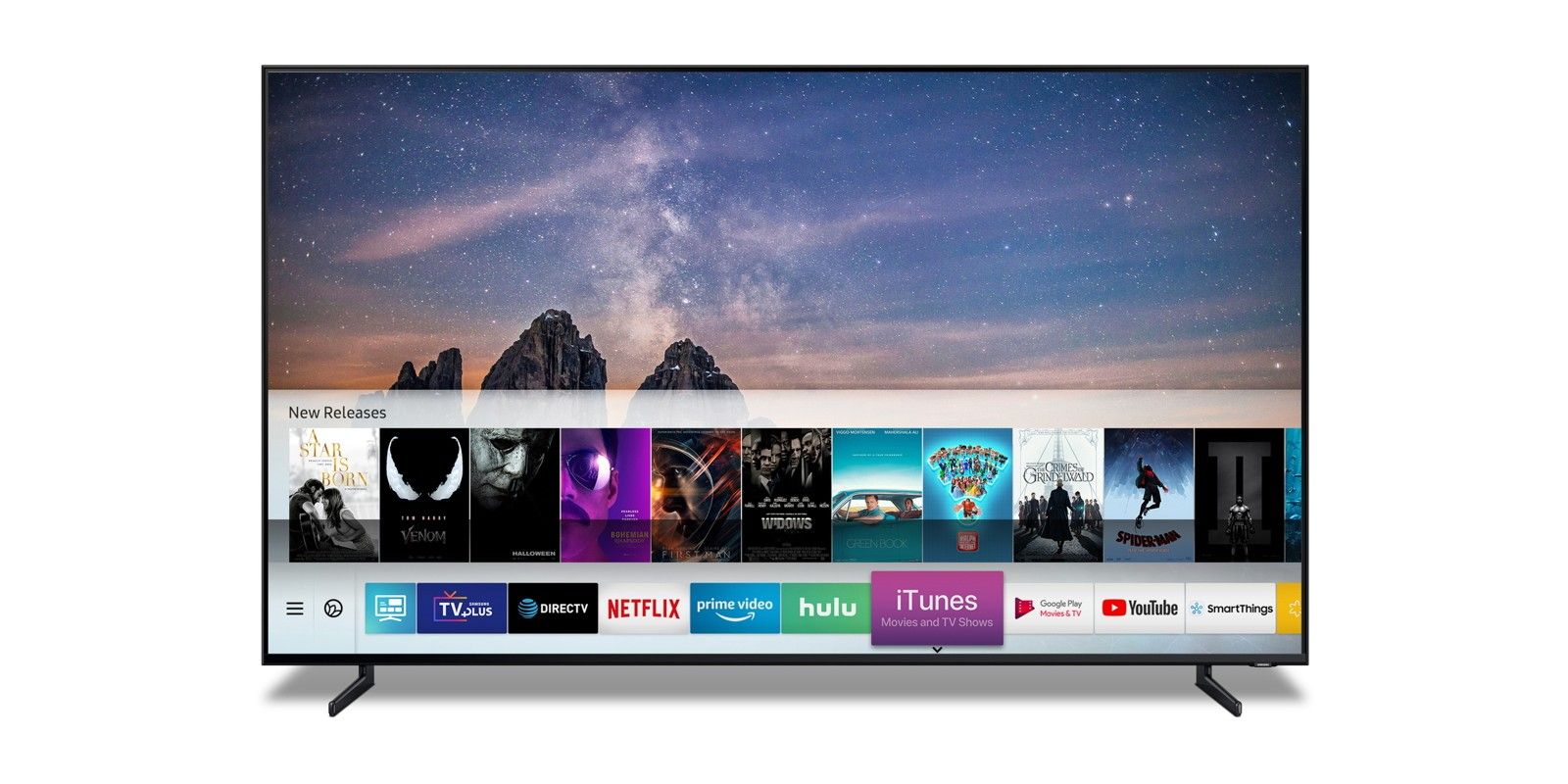
Samsung has long been a dominant force in the television market, celebrated for its innovative display technologies and user-friendly Smart TV platforms. Equipped with Tizen OS, Samsung Smart TVs offer a streamlined interface, quick app access, and robust processing power that ensures smooth navigation and playback. The Smart Hub, Samsung’s central content discovery platform, integrates apps, live TV, and connected devices into a single, cohesive experience. This robust ecosystem is designed to minimize friction between the viewer and their desired content, making it an ideal environment for streaming services to thrive. The integration of advanced picture processing technologies, such as Quantum Dot and Neo QLED, further enhances the visual fidelity of streamed content, providing an immersive viewing experience that highlights the cinematic quality of Paramount Plus’s offerings.
Why This Combination Matters for Modern Viewers
The pairing of Paramount Plus with a Samsung Smart TV is more than just convenience; it’s about optimizing the viewing experience. Samsung’s commitment to visual excellence means that the high-definition and 4K content offered by Paramount Plus can be fully appreciated. The intuitive Smart Hub interface simplifies the process of finding and launching the app, removing barriers that might otherwise deter less tech-savvy users. Furthermore, the robust network connectivity options (both wired Ethernet and Wi-Fi) on Samsung TVs ensure a stable and high-bandwidth connection, which is crucial for uninterrupted streaming of data-intensive 4K content. This symbiotic relationship between content and hardware empowers users to transform their living rooms into personalized cinematic hubs, delivering a level of convenience and quality that sets a new standard for home entertainment.
A Comprehensive Guide to Installing Paramount Plus
Getting Paramount Plus onto your Samsung Smart TV is a straightforward process, designed to be accessible even for those who aren’t particularly tech-inclined. However, a few preliminary checks can ensure a smooth installation.
Verifying Your Samsung TV’s Compatibility and Connectivity
Before initiating the download, it’s crucial to confirm that your Samsung TV supports the Paramount Plus app and has a stable internet connection. Most Samsung Smart TVs manufactured from 2017 onwards are compatible with Paramount Plus. To check your model year, you can usually find this information in the TV’s settings under “Support” > “About This TV” or on a sticker on the back of the set.
Next, ensure your TV is connected to the internet. For optimal streaming quality, especially for 4K content, a wired Ethernet connection is recommended. If using Wi-Fi, ensure your TV is connected to a strong, stable network. Navigate to “Settings” > “General” > “Network” > “Network Status” to confirm connectivity. A slow or intermittent connection can lead to download failures and buffering issues during playback. It’s also wise to ensure your TV’s software is up to date, as app compatibility and performance can sometimes depend on the latest firmware. This can usually be checked under “Settings” > “Support” > “Software Update.”
Step-by-Step Installation via the Smart Hub
Once compatibility and connectivity are confirmed, follow these steps to download and install Paramount Plus:
- Access the Smart Hub: On your Samsung TV remote, press the “Smart Hub” button (often represented by a colorful cube or house icon). This will open the Smart Hub interface, displaying all your installed apps and a menu for app discovery.
- Navigate to the Apps Section: Within the Smart Hub, use your remote’s directional pad to navigate to the “Apps” section. This is typically an icon that looks like a group of apps or says “Apps.”
- Search for Paramount Plus: Once in the Apps section, you’ll see a search icon (often a magnifying glass). Select this icon to open the search bar. Type “Paramount Plus” using the on-screen keyboard.
- Select and Download the App: The Paramount Plus app should appear in the search results. Select it. You’ll then see a dedicated app page with information about Paramount Plus. Look for the “Install” or “Add to Home” button and select it. The app will begin downloading and installing. The time this takes will depend on your internet speed.
- Launch the App: Once the installation is complete, the “Install” button will change to “Open” or “Launch.” Select this to open Paramount Plus for the first time. The app icon will also be added to your Smart Hub for quick access in the future.
Logging In and Personalizing Your Streaming Experience
After launching the app, you will be prompted to sign in. If you already have a Paramount Plus subscription, select “Sign In” and follow the on-screen instructions. This usually involves entering your email and password directly on the TV or, more commonly, navigating to a specific URL on a web browser on a separate device (computer or smartphone) and entering a unique activation code displayed on your TV screen. This activation method is designed for security and ease of entry, as typing complex passwords with a TV remote can be cumbersome.
If you don’t have a subscription, the app will guide you through the sign-up process, which typically involves selecting a subscription plan and providing payment details. While you can often initiate a free trial, remember to manage your subscription details via the Paramount Plus website rather than directly on the TV app for greater control. Once signed in, take some time to explore the interface, browse content, create user profiles for family members, and customize settings like subtitles or parental controls, ensuring a personalized and safe viewing environment.
Navigating Common Challenges and Enhancing Your Viewing
Even with the most robust systems, users may occasionally encounter issues. Knowing how to troubleshoot common problems and optimize your setup can significantly enhance your Paramount Plus experience on your Samsung TV.
Troubleshooting Download and Installation Issues
If you experience difficulties downloading or installing the Paramount Plus app, several factors could be at play:
- “App Not Found” or Missing from Smart Hub: Ensure your Samsung TV model is compatible. If it is, try restarting your TV by unplugging it from the power outlet for 60 seconds and plugging it back in. Sometimes, a full power cycle can refresh the Smart Hub cache. Also, verify your region settings on the TV, as app availability can be geo-restricted.
- Download Errors: This often points to an unstable internet connection. Check your Wi-Fi signal strength or try connecting via Ethernet. Temporarily disabling other devices using bandwidth on your network might also help. If the error persists, try clearing your TV’s app cache (if available in settings) or resetting the Smart Hub (be aware this may remove all installed apps).
- Installation Stuck or Frozen: Again, a power cycle of your TV is often the first and most effective step. If the issue persists, ensure your TV’s firmware is updated to the latest version. Insufficient storage space on the TV is rarely an issue for individual apps but can be checked if other solutions fail.
Resolving Playback and Performance Glitches
Once installed, issues like buffering, poor video quality, or app crashes can detract from your experience:
- Buffering and Poor Quality: The primary culprit is almost always network speed. Perform an internet speed test on your TV (if an app is available) or a device connected to the same network. Paramount Plus recommends at least 5 Mbps for HD streaming and 25 Mbps for 4K. If your speed is low, try restarting your router and modem. Move your Wi-Fi router closer to the TV or consider a Wi-Fi extender.
- App Crashes or Freezing: Try closing the Paramount Plus app completely and reopening it. If that doesn’t work, perform a full power cycle of your TV. If the problem continues, consider uninstalling and reinstalling the Paramount Plus app. Ensure your TV’s software is up to date, as firmware bugs can sometimes affect app stability.
- Audio/Video Sync Issues: Check if the issue occurs with other apps or content. If it’s specific to Paramount Plus, try adjusting the audio settings on your TV (e.g., switching between PCM and Bitstream) or ensuring your soundbar/receiver firmware is updated.
Optimizing Your Internet Connection for Flawless Streaming
A robust internet connection is the backbone of high-quality streaming. Beyond basic troubleshooting, consider these optimization tips:
- Wired Connection (Ethernet): Whenever possible, connect your Samsung TV directly to your router using an Ethernet cable. This provides the most stable and fastest connection, bypassing potential Wi-Fi interference.
- Upgrade Your Router: An older router might struggle to handle multiple streaming devices simultaneously. Upgrading to a modern Wi-Fi 6 (802.11ax) router can significantly improve network efficiency and speed.
- QoS (Quality of Service) Settings: Some routers allow you to prioritize network traffic for specific devices (like your Samsung TV) or applications (like streaming). Enabling QoS for your TV can ensure it receives sufficient bandwidth.
- Minimize Wi-Fi Interference: Keep your router away from other electronics (microwaves, cordless phones) that can interfere with Wi-Fi signals. Consider changing your Wi-Fi channel if your neighbors are using the same ones.
Maximizing Your Paramount Plus Experience on Samsung
Beyond just watching, there are ways to fully leverage the features of Paramount Plus and your Samsung TV to create a truly immersive and personalized entertainment hub.
Exploring Key Features and Exclusive Content
Paramount Plus offers several features designed to enhance your viewing:
- Live TV and On-Demand: Access live CBS channels, including local news and sports, alongside a vast library of on-demand content.
- Originals: Dive into a growing collection of exclusive series and films only available on Paramount Plus.
- Multiple Profiles: Create individual profiles for each family member to track viewing history, receive personalized recommendations, and maintain separate watchlists.
- Download for Offline Viewing: While primarily a mobile feature, keep an eye on app updates, as some streaming services occasionally extend this to smart TV apps for limited content, though it’s not standard for Paramount Plus on TVs.
- 4K UHD, HDR, Dolby Vision, and Dolby Atmos: Many titles support these advanced formats, delivering stunning visual clarity and immersive audio. Ensure your Samsung TV is compatible with these technologies and that they are enabled in your TV’s settings for the best experience.
Understanding Subscription Tiers and Parental Controls
Paramount Plus typically offers different subscription tiers, usually including an ad-supported and an ad-free option, sometimes with additional features like live local CBS streaming. Familiarize yourself with your chosen plan and its benefits.
Parental controls are essential for families. Within the Paramount Plus app, you can usually set up PIN-protected profiles or content restrictions based on ratings, ensuring children only access age-appropriate material. Similarly, Samsung TVs offer their own robust parental control features, which can be configured independently to further safeguard your viewing environment. Understanding and utilizing both sets of controls provides comprehensive protection.
Leveraging Samsung TV’s Capabilities for Superior Immersion
Samsung Smart TVs come with a suite of features that can elevate your Paramount Plus experience:
- Picture Modes: Experiment with different picture modes (e.g., Movie, Filmmaker Mode) to find the one that best suits the content and your preferences. Filmmaker Mode, specifically, aims to present content as intended by the creators.
- HDR/Dolby Vision Settings: Ensure your TV’s HDR+ (for HDR10 content) or Dolby Vision settings are correctly configured. Sometimes, minor adjustments to brightness, contrast, and color saturation can make a significant difference.
- Sound Settings: Utilize your Samsung TV’s audio enhancements, such as Adaptive Sound, which optimizes sound based on the content and your room environment. If you have a Samsung soundbar, Q-Symphony technology can synchronize the TV speakers with the soundbar for a richer soundstage.
- SmartThings Integration: If you have other Samsung SmartThings devices, you can integrate your TV into a broader smart home ecosystem, potentially controlling lighting or other ambient settings that complement your viewing experience.
The Future of Streaming: Paramount Plus and Smart TV Ecosystems
The journey of digital entertainment is one of continuous evolution. As technology advances and user expectations grow, the integration between streaming services and smart TV platforms will only deepen, offering more personalized, immersive, and interactive experiences.
Continuous Updates and Feature Enhancements
Both Paramount Plus and Samsung are committed to regular updates. For Paramount Plus, this means a constantly expanding content library, new original programming, and potential app feature additions like enhanced user profiles, improved search capabilities, or even interactive elements. For Samsung Smart TVs, firmware updates bring performance enhancements, security patches, and support for new technologies or standards, ensuring your TV remains cutting-edge and compatible with the latest streaming innovations. Keeping both your app and TV software updated is crucial for optimal performance and access to the newest features.
The Evolving Landscape of Content Delivery
The streaming market is intensely competitive, driving innovation from all players. Expect more personalized content recommendations powered by advanced AI, deeper integration with voice assistants (like Bixby, Google Assistant, or Alexa on Samsung TVs), and possibly even more interactive viewing options. The rise of FAST (Free Ad-Supported Streaming TV) channels and hybrid models means more choices for consumers, and smart TV platforms will continue to be the central hub for navigating this complex landscape. Paramount Plus, with its deep content catalog and growing global presence, is well-positioned to adapt and thrive in this environment.

A Vision for Integrated Home Entertainment
Ultimately, the goal is to create a seamless, integrated home entertainment experience. Your Samsung Smart TV, running Paramount Plus, is a significant step towards this vision. It’s not just about watching shows; it’s about a complete ecosystem where content, hardware, and user experience converge to deliver unparalleled convenience and quality. As smart homes become more prevalent, the TV will likely play an even larger role as the central display and control point for various connected devices, further embedding streaming services like Paramount Plus into the fabric of daily life. By understanding the technology and following best practices, you ensure that your investment in both content and hardware continues to deliver rich, engaging entertainment for years to come.
aViewFromTheCave is a participant in the Amazon Services LLC Associates Program, an affiliate advertising program designed to provide a means for sites to earn advertising fees by advertising and linking to Amazon.com. Amazon, the Amazon logo, AmazonSupply, and the AmazonSupply logo are trademarks of Amazon.com, Inc. or its affiliates. As an Amazon Associate we earn affiliate commissions from qualifying purchases.