
In an increasingly fragmented digital media landscape, pinpointing how to access specific content can often feel like navigating a maze. For fans of compelling dramas, reality series, and live events, Paramount Network stands out as a destination for quality entertainment. Shows like “Yellowstone,” “Bar Rescue,” and various critically acclaimed miniseries have solidified its place in the television ecosystem. However, with the proliferation of traditional cable, live TV streaming services, and dedicated streaming platforms, understanding the various pathways to get Paramount Network on your TV requires a clear, technical breakdown. This guide will demystify the options, detailing the steps, necessary technology, and considerations to ensure you can enjoy Paramount Network’s diverse programming slate seamlessly.
Understanding Paramount Network’s Digital Footprint
Before diving into the “how-to,” it’s crucial to distinguish between Paramount Network as a traditional linear channel and the broader Paramount streaming ecosystem. This distinction is often a source of confusion for many users.
What is Paramount Network (The Linear Channel)?
Paramount Network is a cable and satellite television channel owned by Paramount Global. It operates on a traditional schedule, broadcasting specific shows at specific times, much like any other conventional TV channel. Its programming slate primarily focuses on scripted dramas, unscripted reality series, movies, and occasional live events. When people ask “how do I get Paramount Network on my TV,” they are typically referring to accessing this live, linear broadcast or its on-demand content via a TV Everywhere authenticated app.
The Distinction: Paramount Network Content vs. Paramount+
This is perhaps the most significant point of clarification in the current streaming environment. While both are under the Paramount Global umbrella, Paramount Network and Paramount+ are distinct services with different content libraries and access methods:
- Paramount Network (the channel): This is a linear television channel that you typically receive through a cable TV, satellite TV, or live TV streaming subscription. It broadcasts scheduled programming.
- Paramount+ (the streaming service): This is a standalone subscription streaming service offering a vast library of on-demand content, including original series, movies, sports, and news. Importantly, Paramount+ includes a significant amount of content from Paramount Network, often after it has aired on the linear channel. For example, seasons of “Yellowstone” are available on Paramount+ after their linear broadcast run, though new episodes of the current season typically stream on Peacock first due to a separate licensing deal, which further complicates matters. Paramount+ also offers live feeds of local CBS stations and some sports. However, subscribing to Paramount+ does not automatically give you access to the live, linear Paramount Network channel. You cannot simply download the Paramount+ app and expect to watch what’s currently airing live on the Paramount Network channel, unless specific live events are simulcast or a live feed of the channel is offered as part of a premium tier (which is not standard for Paramount Network).
The primary goal of this guide is to explain how to get the linear Paramount Network channel or its associated on-demand content on your TV, often requiring a traditional TV subscription.
Traditional Access: Cable and Satellite Providers
For many years, the most straightforward way to get Paramount Network on your TV has been through a subscription to a traditional cable or satellite television provider. This method leverages established infrastructure and bundled services.
Verifying Provider Availability
Paramount Network is widely carried by most major cable and satellite providers across the United States. These typically include:
- Cable Providers: Xfinity (Comcast), Spectrum, Cox, Optimum, Suddenlink, Mediacom, and many regional providers.
- Satellite Providers: DirecTV and Dish Network.
To determine if Paramount Network is included in your current TV package, you’ll need to:
- Check Your Bill or Online Account: Most providers list the channels included in your specific package.
- Consult Your Provider’s Channel Lineup: Visit your provider’s website and search for their channel lineup by your zip code and package tier.
- Contact Customer Service: If you’re unsure, a quick call to your provider’s customer service can confirm availability and channel number.
It’s important to note that Paramount Network might be part of a higher-tier package. If it’s not in your current plan, you may need to upgrade your subscription, which will impact your monthly cost.
Leveraging Your Existing Subscription with the Paramount Network App
Even with a traditional cable or satellite subscription, you aren’t limited to watching only through your set-top box. Most modern TV providers support “TV Everywhere” functionality, which allows you to access content from channels you subscribe to via their dedicated apps or websites.
To utilize this for Paramount Network:
- Download the Paramount Network App: Search for “Paramount Network” on your smart TV’s app store (e.g., LG Content Store, Samsung Smart Hub, Android TV Google Play Store, Roku Channel Store, Amazon Appstore for Fire TV) or on your streaming device (Roku, Amazon Fire TV Stick, Apple TV, Chromecast with Google TV).
- Install and Open the App: Once downloaded, launch the Paramount Network app.
- Activate Your Device: The app will typically prompt you to activate your device by visiting a specific URL (e.g., paramountnetwork.com/activate) on a web browser (computer or mobile phone) and entering a code displayed on your TV screen.
- Sign In with Your TV Provider Credentials: On the activation website, you will be asked to select your cable or satellite TV provider from a list and then log in using the username and password associated with your TV subscription account. This authenticates your access.
- Start Watching: Once successfully authenticated, your TV will refresh, and you’ll gain access to the live Paramount Network channel feed (if available through the app) and a library of on-demand episodes and movies.
This method is particularly useful for watching on devices other than your main TV or if you prefer a streamlined smart TV interface over your provider’s set-top box menu.
Modern Access: Live TV Streaming Services

For cord-cutters or those looking for more flexible alternatives to traditional cable, live TV streaming services have become a popular method for accessing linear channels like Paramount Network. These services deliver live television broadcasts over the internet, requiring no satellite dish or coaxial cable connection.
Exploring Popular Live TV Options
Several prominent live TV streaming services include Paramount Network in their channel lineups, often as part of their base packages or specific tiers. These typically include:
- Sling TV: Known for its customizable channel packages. Paramount Network is usually available in its “Orange” or “Blue” packages, or a combination thereof.
- Hulu + Live TV: Offers a comprehensive package that bundles a vast on-demand library (Hulu’s standard service) with over 90 live TV channels, including Paramount Network.
- YouTube TV: Provides a single, extensive package with a wide array of channels, including Paramount Network, alongside unlimited cloud DVR storage.
- FuboTV: Primarily focused on sports, but also offers a strong general entertainment lineup, which includes Paramount Network in its core plans.
- DirecTV Stream: Offers various packages, with Paramount Network typically included from its “Entertainment” package upwards.
These services generally offer free trials, allowing you to test their interfaces, channel lineups, and overall performance before committing to a monthly subscription. This is a crucial step to ensure the service meets your viewing needs and preferences.
Subscription and Setup Process
The technical setup for live TV streaming services is remarkably similar across platforms and generally follows these steps:
- Choose a Service: Based on channel lineup, pricing, and features (like cloud DVR, simultaneous streams), select the live TV streaming service that best fits your requirements.
- Create an Account and Subscribe: Visit the service’s website (e.g., sling.com, hulu.com/live-tv) to sign up for an account and choose your desired subscription package. You’ll need to provide payment information.
- Download the Service’s App: Navigate to the app store on your smart TV or streaming device (Roku, Amazon Fire TV, Apple TV, Chromecast, gaming consoles like Xbox or PlayStation). Search for the app of your chosen service (e.g., “Sling TV,” “Hulu,” “YouTube TV”).
- Install and Launch: Download and open the application on your TV.
- Log In: Use the credentials (email and password) you created during the subscription process to log into the app on your TV.
- Start Watching: Once logged in, you’ll gain immediate access to the live channel guide and on-demand content library provided by the service. You can then navigate to Paramount Network to begin watching.
These services rely heavily on your internet connection. A stable and sufficiently fast broadband connection (typically 25 Mbps or higher for HD streaming on multiple devices) is essential for a smooth, buffer-free viewing experience.
Optimizing Your Viewing Experience and Troubleshooting
Regardless of how you choose to get Paramount Network, ensuring a smooth and high-quality viewing experience involves more than just subscribing to a service. It also hinges on your home technology setup and understanding common troubleshooting steps.
Compatible Devices and Smart TV Integration
Modern television viewing is largely driven by smart TVs and streaming devices, which act as the gateways to digital content.
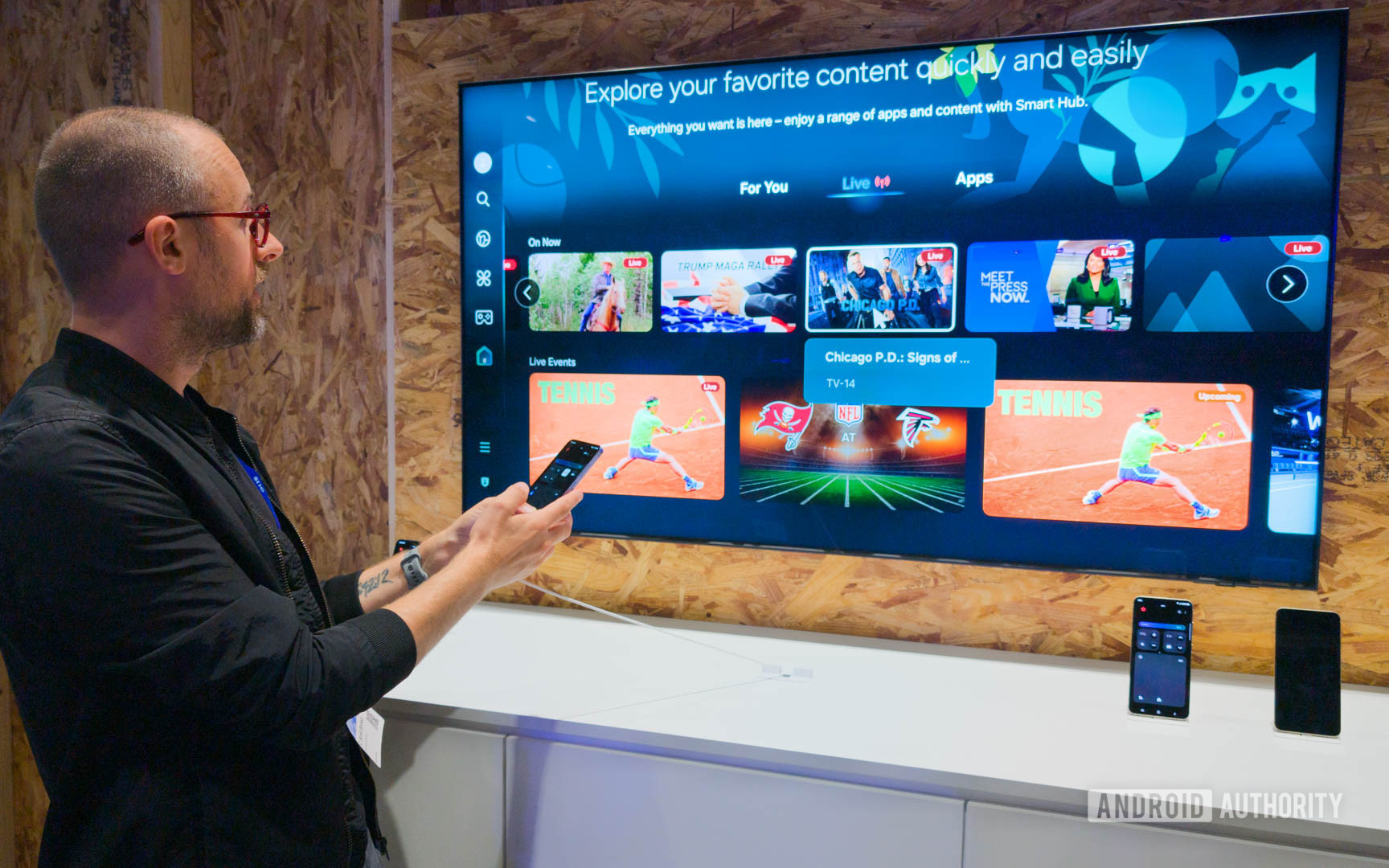
- Smart TVs: Most smart TVs from major manufacturers (Samsung, LG, Sony, Vizio, TCL, Hisense) running platforms like webOS, Tizen, Android TV, or Roku TV, have built-in app stores. You can directly download the Paramount Network app or the app for your chosen live TV streaming service onto your TV. This eliminates the need for additional hardware and often offers a seamless user interface.
- Streaming Devices: If you have an older TV or prefer a more robust streaming platform, dedicated streaming devices are excellent options:
- Roku devices (Roku Express, Streaming Stick, Ultra): Offer a vast selection of channels and a user-friendly interface.
- Amazon Fire TV devices (Fire TV Stick, Cube): Integrate well with Amazon’s ecosystem and Alexa voice control.
- Apple TV: Known for its premium interface, seamless integration with Apple products, and powerful performance.
- Chromecast with Google TV: Combines Google’s content aggregation with cast functionality.
- Gaming Consoles (Xbox, PlayStation): Many streaming apps are available on these platforms, turning your console into a media hub.
Ensure your chosen device is up-to-date with the latest firmware or operating system version, as app compatibility and performance can be affected by outdated software.
Ensuring Reliable Internet Connectivity
Your internet connection is the backbone of any streaming experience. Without sufficient bandwidth and stability, even the best streaming service will suffer from buffering, reduced video quality, or complete interruptions.
- Bandwidth Requirements: For a single stream of HD content, a minimum of 5-10 Mbps is generally recommended. For 4K UHD content, this jumps to 25 Mbps or more. If multiple devices are streaming simultaneously or engaging in other bandwidth-intensive activities (online gaming, video calls), you’ll need a significantly faster connection.
- Wi-Fi vs. Ethernet: While Wi-Fi offers convenience, an Ethernet (wired) connection typically provides superior speed and stability, especially for devices that are stationary and frequently used for streaming. If using Wi-Fi, ensure your router is centrally located, free from obstructions, and consider upgrading to a newer Wi-Fi standard (e.g., Wi-Fi 6/802.11ax) if you have many connected devices.
- Router Performance: An older or underpowered router can bottleneck your internet speed, even if your ISP provides a fast connection. Regularly rebooting your router can also help resolve minor connectivity issues.
Common Issues and Solutions
Even with a perfect setup, occasional hiccups can occur. Here’s a quick troubleshooting guide for common streaming problems:
- Buffering or Poor Video Quality:
- Check your internet speed using an online speed test (e.g., fast.com).
- Reduce the number of devices using your internet simultaneously.
- Close other apps or browser tabs on your streaming device.
- Reboot your router and modem.
- Try lowering the video quality setting within the streaming app, if available.
- App Crashing or Not Loading:
- Close and restart the app.
- Restart your streaming device or smart TV.
- Check for app updates in your device’s app store.
- Clear the app’s cache and data (usually found in your device’s settings under “Apps” or “Applications”).
- Reinstall the app.
- Login Issues:
- Double-check your username and password. Many services offer a “forgot password” option.
- Ensure your subscription is active and in good standing.
- If using TV Everywhere, confirm your TV provider details are correct and your subscription includes Paramount Network.
Getting Paramount Network on your TV is a straightforward process once you understand the available avenues and the technical requirements. Whether through a traditional cable subscription, a modern live TV streaming service, or via the dedicated Paramount Network app authenticated with your TV provider, a clear path exists. By choosing the method that aligns with your viewing habits and ensuring your home network is optimized, you can enjoy all that Paramount Network has to offer with clarity and ease.
aViewFromTheCave is a participant in the Amazon Services LLC Associates Program, an affiliate advertising program designed to provide a means for sites to earn advertising fees by advertising and linking to Amazon.com. Amazon, the Amazon logo, AmazonSupply, and the AmazonSupply logo are trademarks of Amazon.com, Inc. or its affiliates. As an Amazon Associate we earn affiliate commissions from qualifying purchases.