
In the rapidly evolving landscape of digital entertainment, streaming services have become the primary conduits for accessing a vast array of movies, TV shows, and live content. Paramount Plus, with its rich library drawing from CBS, BET, Comedy Central, MTV, Nickelodeon, and the iconic Paramount Pictures catalog, has cemented its position as a major player. While mobile devices and computers offer convenient on-the-go access, the true immersive experience of a premium streaming service is undoubtedly best enjoyed on the biggest screen in your home: your television. This comprehensive guide will delve into the various technological pathways available to bring Paramount Plus directly to your TV, ensuring you can enjoy your favorite shows and films in optimal quality and comfort.

The Ubiquitous Appeal of Paramount Plus on Your Big Screen
The allure of streaming content on a television is undeniable. It transforms a solitary viewing experience into a communal one, enhances visual fidelity, and leverages the superior audio capabilities typically found in home theater setups. Paramount Plus, with its exclusive originals like 1923, Star Trek: Strange New Worlds, and Yellowjackets, alongside live sports and news, is designed for exactly this kind of grand presentation.
A Gateway to Exclusive Entertainment
Paramount Plus offers a compelling mix of classic favorites and brand-new, exclusive programming. From the latest blockbusters released shortly after their theatrical run to a deep archive of beloved series, the platform caters to a wide audience. Being able to access this treasure trove directly on your TV means no compromises on viewing quality, allowing you to fully appreciate the cinematic production values and intricate storytelling. The platform’s robust content strategy emphasizes a steady stream of new additions, making a reliable TV viewing setup essential for staying current with its offerings.
Why TV Delivers the Ultimate Viewing Experience
Beyond sheer screen size, televisions provide a host of advantages for streaming. Modern smart TVs boast advanced display technologies such as 4K HDR (High Dynamic Range) and Dolby Vision, which significantly enhance color accuracy, contrast, and overall picture detail. Coupled with integrated sound systems or external soundbars and surround sound setups, the audio experience is equally elevated. Furthermore, the ergonomic comfort of watching from a couch or recliner, away from the often smaller screens and less powerful speakers of portable devices, transforms passive viewing into a truly engaging entertainment event. Ensuring your TV is properly configured to display Paramount Plus content in its intended glory is key to unlocking this premium experience.
Direct Methods: Accessing Paramount Plus via Smart TVs and Dedicated Apps
The most straightforward and often preferred method for watching Paramount Plus on your television is through its native application directly installed on a smart TV. Most major smart TV manufacturers integrate app stores that host the Paramount Plus application, offering a seamless and intuitive user experience.
Native Smart TV Applications: Seamless Integration
Nearly all contemporary smart televisions, regardless of brand, come equipped with an operating system (OS) that supports various streaming applications. Manufacturers like Samsung (Tizen OS), LG (webOS), Sony (Android TV/Google TV), Vizio (SmartCast), and Hisense/TCL (Roku TV or Android TV) provide app stores where users can download and install the Paramount Plus app. This method requires no additional hardware beyond the TV itself and a stable internet connection. The app integrates directly into the TV’s interface, allowing for easy navigation with your TV remote.
Ensuring Your Smart TV’s Compatibility
Before attempting to download the app, it’s prudent to verify that your specific smart TV model and its operating system version are compatible with Paramount Plus. While most TVs purchased in the last 5-7 years are likely supported, very older models or those with less common operating systems might not have a dedicated app or receive updates. You can usually find a list of supported devices on the official Paramount Plus website or by checking your TV manufacturer’s support pages. Keeping your TV’s firmware and operating system up to date is also crucial, as app updates often rely on the latest software versions for optimal performance and security.
Step-by-Step Setup for Smart TV Users
- Connect to the Internet: Ensure your smart TV is connected to a stable Wi-Fi network or via an Ethernet cable. A strong and consistent internet connection is paramount for buffer-free streaming, especially for high-definition and 4K content.
- Access the App Store: Navigate to your TV’s app store or home screen. This might be labeled “Apps,” “Smart Hub,” “LG Content Store,” “Google Play Store,” or similar, depending on your TV brand.
- Search for Paramount Plus: Use the search function within the app store to find “Paramount Plus.”
- Download and Install: Select the Paramount Plus app and initiate the download and installation process. This usually takes only a few moments.
- Launch the App: Once installed, open the Paramount Plus app from your TV’s home screen or app launcher.
- Sign In or Sign Up: If you already have a Paramount Plus subscription, select “Sign In” and enter your credentials. You may be given an activation code to enter on the Paramount Plus website (paramountplus.com/activate) using a computer or mobile device, which streamlines the login process on the TV. If you are a new user, you will need to sign up for a subscription, typically done via the Paramount Plus website on a separate device, before logging in on your TV.
- Start Streaming: After logging in, you can browse the content library and begin watching.
Leveraging Streaming Devices for Enhanced TV Viewing
For televisions that are not “smart” or whose smart features are outdated, streaming media players offer a powerful and often superior alternative. These dedicated devices connect to your TV via an HDMI port and provide access to a vast ecosystem of apps, including Paramount Plus, often with more robust performance and more frequent software updates than integrated smart TV platforms.
Roku Devices: A User-Friendly Approach
Roku devices, known for their simplicity and broad app support, are an excellent choice. Whether it’s a Roku Streaming Stick, Roku Express, or Roku Ultra, the platform provides an intuitive interface and a wide selection of channels (apps), including Paramount Plus. Installation involves plugging the Roku device into an HDMI port, connecting it to power, and following the on-screen setup prompts to connect to Wi-Fi and link to your Roku account. The Paramount Plus app can then be found and installed from the Roku Channel Store.
Amazon Fire TV: The Ecosystem Advantage
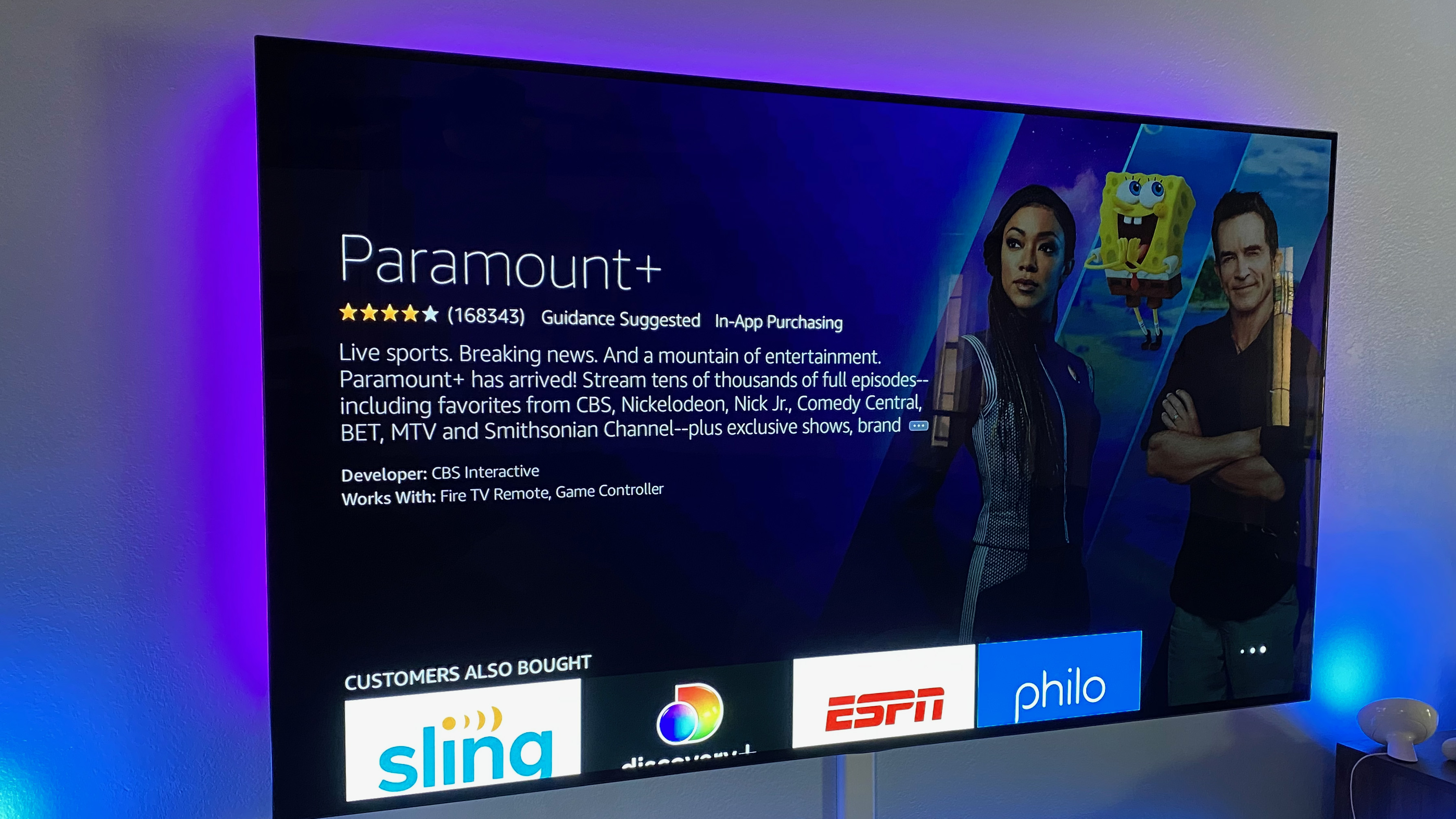
Amazon’s Fire TV stick and Fire TV Cube devices integrate seamlessly into the Amazon ecosystem, offering voice control via Alexa and a user-friendly interface. After plugging a Fire TV device into your TV’s HDMI port and connecting to Wi-Fi, you can search for and download the Paramount Plus app from the Amazon Appstore. The voice remote allows for quick content searches and playback control, enhancing the user experience.
Apple TV: Premium Experience and Integration
For users invested in Apple’s ecosystem, Apple TV (4K or HD models) provides a premium streaming experience. While it represents a higher initial investment, Apple TV offers excellent video and audio quality, robust performance, and tight integration with other Apple services and devices. After connecting your Apple TV to your television via HDMI and setting it up, you can download the Paramount Plus app from the App Store. Its intuitive interface and powerful A-series chip ensure smooth navigation and playback.
Google Chromecast: Casting Made Simple
Google Chromecast offers a unique casting-centric approach. Instead of a traditional app interface on the TV, Chromecast devices (including the newer Chromecast with Google TV, which features a traditional interface) allow you to “cast” content from the Paramount Plus app on your smartphone, tablet, or Chrome browser on your computer directly to your TV. You simply open the Paramount Plus app on your mobile device, tap the Cast icon (usually a rectangle with a Wi-Fi symbol), select your Chromecast device, and the content will begin playing on your TV. This method leverages your mobile device as a remote control.
Gaming Consoles: Beyond Entertainment
Modern gaming consoles like the PlayStation (PS4, PS5) and Xbox (Xbox One, Xbox Series X/S) are more than just gaming machines; they are powerful media centers. Both console families support the Paramount Plus app, which can be downloaded from their respective digital stores (PlayStaton Store, Microsoft Store). This provides a convenient option for gamers who already have these consoles connected to their TV, allowing them to switch seamlessly between gaming and streaming entertainment.
Alternative Viewing Strategies: Casting, Mirroring, and Cable Solutions
Beyond dedicated apps and streaming devices, several other technological approaches can be employed to bring Paramount Plus content to your television screen, offering flexibility for various setups and preferences.
Screen Mirroring and Casting from Mobile Devices
Even if your TV lacks a smart OS or a streaming device, you might still be able to watch Paramount Plus via screen mirroring or direct casting from your smartphone or tablet. Many Android devices and some smart TVs support Miracast or Google Cast protocols, allowing you to duplicate your phone’s screen onto the TV. iPhones and iPads can use AirPlay to mirror their screen to an Apple TV device or AirPlay 2-compatible smart TVs. While not always providing the same crispness as a native app, it’s a viable workaround. To do this, open the Paramount Plus app on your mobile device, locate the casting or mirroring icon (often a TV screen with a Wi-Fi signal), and select your compatible TV or casting device.
HDMI Connection for Direct PC/Laptop Hookup
For the most basic, yet highly effective, method, you can connect a laptop or desktop computer directly to your TV using an HDMI cable. Your TV essentially acts as a large external monitor. Simply connect one end of the HDMI cable to your computer’s HDMI output port and the other end to an available HDMI input on your TV. Then, switch your TV’s input source to the corresponding HDMI port. You can then open a web browser on your computer, navigate to paramountplus.com, log in, and play your desired content. Adjust your computer’s display settings to ensure the best resolution and aspect ratio for your TV. This method is particularly useful if you encounter compatibility issues with other devices or prefer using your computer for content management.
Paramount Plus via Cable Providers (if applicable and relevant to TV viewing)
In some regions, Paramount Plus may be offered as an add-on or integrated service through traditional cable or satellite TV providers. If you subscribe to Paramount Plus through such a provider, you might be able to access the content directly through your cable box’s on-demand menu or a dedicated channel, eliminating the need for a separate app or device. Check with your specific cable provider to see if this option is available and how to access it on your TV. This simplifies the process by consolidating your entertainment sources into one interface.
Optimizing Your Paramount Plus TV Experience and Troubleshooting
Ensuring a smooth, high-quality streaming experience with Paramount Plus on your TV involves more than just getting the app running. Several factors contribute to performance, and knowing how to troubleshoot common issues can save a lot of frustration.
Internet Connection: The Foundation of Seamless Streaming
A fast and stable internet connection is the single most critical factor for optimal streaming. Paramount Plus recommends a minimum of 3 Mbps for standard definition (SD) content, 5 Mbps for high definition (HD), and 25 Mbps or higher for 4K Ultra HD. If you’re experiencing buffering, pixelation, or frequent disconnections, check your internet speed. Consider connecting your streaming device or smart TV via an Ethernet cable if Wi-Fi is unstable or congested. Moving your Wi-Fi router closer to your TV or using a mesh Wi-Fi system can also improve signal strength and reliability.
App Updates and System Software Maintenance
Software glitches are often resolved with updates. Regularly check for and install updates for the Paramount Plus app on your smart TV or streaming device. Similarly, ensure your TV’s operating system or your streaming device’s firmware is up to date. These updates often include performance enhancements, bug fixes, and security patches that can significantly improve your streaming experience. Outdated software can lead to compatibility issues, crashes, or suboptimal playback.
Common Troubleshooting Tips for TV Playback
- Restart the App: Close the Paramount Plus app completely and reopen it.
- Restart the Device: Power cycle your smart TV, streaming device, or gaming console by unplugging it from the power source for 30 seconds and then plugging it back in.
- Restart Your Router/Modem: Unplug your internet router and modem for 60 seconds, then plug them back in. This often resolves network-related issues.
- Clear Cache/Data: If available in your device’s settings, clear the cache or data for the Paramount Plus app. Be aware that clearing data will require you to sign back into the app.
- Check Server Status: Occasionally, streaming issues can be due to problems on Paramount Plus’s end. Check their social media or support pages for any reported service outages.
- Reinstall the App: As a last resort, uninstall the Paramount Plus app and then reinstall it.
Maximizing Video Quality and Audio Settings
To truly get the most out of Paramount Plus on your TV, ensure your TV’s picture and sound settings are optimized. For 4K HDR content, verify that HDR is enabled on your TV and that your HDMI cables are rated for high-bandwidth 4K transmission (HDMI 2.0 or higher). Adjust your TV’s picture mode to “Movie” or “Cinema” for more accurate colors, and disable any motion smoothing features (“soap opera effect”) that detract from the cinematic experience. For audio, ensure your TV or sound system is configured to output multi-channel audio (like Dolby Digital or Dolby Atmos) if your setup supports it, providing a more immersive soundscape.
By understanding these technological avenues and optimization strategies, you can transform your living room into a powerful entertainment hub, bringing the vast world of Paramount Plus to your TV with unparalleled clarity and ease.
aViewFromTheCave is a participant in the Amazon Services LLC Associates Program, an affiliate advertising program designed to provide a means for sites to earn advertising fees by advertising and linking to Amazon.com. Amazon, the Amazon logo, AmazonSupply, and the AmazonSupply logo are trademarks of Amazon.com, Inc. or its affiliates. As an Amazon Associate we earn affiliate commissions from qualifying purchases.