
In the modern computing landscape, the Graphics Processing Unit (GPU) has evolved from a simple component that renders text and basic shapes into the powerhouse of the machine. Whether you are a competitive gamer seeking the highest frame rates, a creative professional rendering 8K video, or an AI researcher training neural networks, your video card is the heart of your workflow. However, even the most expensive hardware is only as good as the software that communicates with it. This software is known as the driver.
Updating your video card drivers is one of the most essential maintenance tasks for any PC user. In this comprehensive guide, we will explore why these updates are critical, how to identify your specific hardware, and the most effective methods for keeping your system running at peak performance.
Understanding the Importance of Video Card Drivers
To the average user, a driver might seem like a background file with little significance. In reality, the driver is a complex translator that allows your operating system (Windows, macOS, or Linux) and your applications to speak the language of the GPU hardware.
Bridging the Gap Between Hardware and Software
Modern GPUs contain billions of transistors and specialized cores designed for parallel processing. Without a high-quality driver, the operating system wouldn’t know how to allocate tasks to these cores. When a new game or a piece of professional software like Adobe Premiere Pro is released, it often uses new coding techniques. Drivers are updated to ensure the GPU understands these instructions efficiently, preventing bottlenecks and hardware underutilization.
Performance Gains and Bug Fixes
One of the most visible benefits of updating drivers is the immediate boost in performance. Graphics card manufacturers like NVIDIA and AMD often release “Game Ready” or “Studio” drivers timed with major software launches. These updates can provide double-digit percentage increases in frame rates or significantly reduce rendering times. Beyond speed, updates also fix “artifacts” (visual glitches), system crashes, and the dreaded “Blue Screen of Death” (BSOD) caused by memory leaks or compatibility errors.
Ensuring Security and Compatibility
In an era of increasing digital threats, even your GPU driver can be a vector for security vulnerabilities. Hackers occasionally find ways to exploit driver code to gain unauthorized access to a system’s memory. Manufacturers frequently patch these holes in their latest releases. Furthermore, as Windows or other operating systems receive major updates, older drivers may become unstable, making regular updates a requirement for long-term system health.
Identifying Your Graphics Hardware
Before you can update your drivers, you must know exactly what hardware you are running. Using the wrong driver can lead to installation failures or, in rare cases, system instability.
Using Windows Device Manager and System Tools
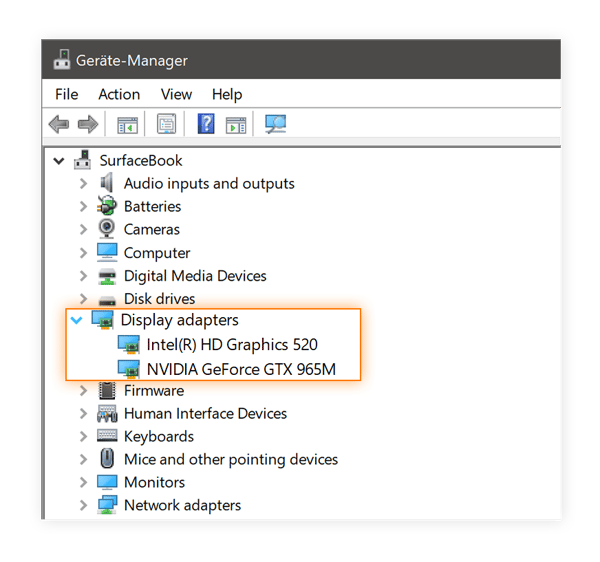
The quickest way to identify your GPU on a Windows machine is through the Device Manager. By right-clicking the Start button and selecting “Device Manager,” you can navigate to the “Display adapters” section. Here, the exact model of your card—such as an NVIDIA GeForce RTX 3080 or an AMD Radeon RX 6700 XT—will be listed. For more detailed information, including the current driver version and BIOS details, you can use the “DirectX Diagnostic Tool” by typing dxdiag into the Windows search bar.
Third-Party Diagnostic Tools
For power users who want deep insights into their hardware, third-party utilities like GPU-Z are invaluable. These lightweight tools provide information that the operating system often hides, such as the specific manufacturer of the video memory (VRAM), clock speeds, and the date the current driver was compiled. This is particularly useful if you are troubleshooting a used graphics card or a specialized laptop GPU.
Physical Inspection and OEM Support
If you are working with a pre-built system from a company like Dell, HP, or Lenovo, your GPU might be an “OEM” version. In these cases, it is often helpful to look for the Service Tag or Serial Number on the chassis. Visiting the manufacturer’s support website with this information can lead you to customized drivers that are specifically validated for your machine’s unique thermal and power profiles.
Method 1: Updating Drivers via Manufacturer Software
For the vast majority of users, the automated route is the most efficient and safest way to keep video card drivers current. The three major players—NVIDIA, AMD, and Intel—all offer robust software suites designed to handle the heavy lifting.

NVIDIA GeForce Experience
NVIDIA’s GeForce Experience is a comprehensive tool for owners of GeForce GPUs. Once installed, it runs in the background and notifies you the moment a new driver is available. It offers a “one-click” installation process. Within the app, users can choose between “Game Ready Drivers,” which are optimized for the latest gaming titles, and “Studio Drivers,” which prioritize stability for creative applications like DaVinci Resolve or Maya. The software also offers to optimize game settings based on your hardware, ensuring a balance between visual fidelity and performance.
AMD Radeon Software (Adrenalin Edition)
AMD’s software suite, known as Adrenalin Edition, is highly regarded for its sleek interface and integrated performance tracking. Similar to NVIDIA’s offering, it automatically checks for updates. One of its standout features is the ability to update the driver without a full system restart in many cases. It also provides deep customization for “Undervolting” or “Overclocking,” allowing enthusiasts to tweak their hardware performance directly within the same interface used for driver management.
Intel Graphics Command Center
While Intel was historically known for integrated graphics, their entry into the discrete GPU market with the Arc series has changed the landscape. The Intel Graphics Command Center (and the newer Intel Arc Control) provides a modern interface for driver updates. It is essential for users of both Intel laptops and desktop Arc cards, as Intel’s driver team has been aggressively releasing updates to improve compatibility with older DirectX 9 and 11 titles.
Method 2: Manual Installation for Power Users
While automated tools are convenient, there are scenarios—such as offline systems, restricted work environments, or troubleshooting—where a manual installation is necessary.
Downloading Directly from the Source
The most reliable way to manually update is to visit the official download pages: NVIDIA.com, AMD.com, or Intel.com. You will be prompted to select your product type, series, and operating system. Manual downloading allows you to keep an “installer” file on a USB drive, which is helpful for technicians setting up multiple machines. It also allows you to choose specific older versions of a driver if a newer release happens to be buggy on your specific configuration.
The Clean Install Process and DDU
Sometimes, simply “overlaying” a new driver over an old one can cause registry conflicts or leftover files that degrade performance. Power users often perform a “Clean Install.” During the installation process, most installers offer a checkbox for “Perform a clean installation,” which wipes previous settings.
For severe issues, the community-standard tool is DDU (Display Driver Uninstaller). This utility is used in Windows Safe Mode to completely scrub every trace of a graphics driver from the system. Once the system is “clean,” you can install the new driver on a blank slate, often resolving persistent crashing or stuttering issues that a standard update couldn’t fix.
Managing Legacy Hardware
If you are using a GPU that is more than six or seven years old, it may have reached “Legacy” status. This means the manufacturer no longer releases monthly updates. For these cards, finding the “final” stable driver on the manufacturer’s archive page is crucial. While you won’t get optimizations for the latest games, ensuring you have the last released stable version is vital for maintaining the longevity of the hardware.
Troubleshooting and Best Practices
Driver updates are generally safe, but because they interact so deeply with the system kernel, things can occasionally go wrong.
What to Do If an Update Fails
If your screen goes black and doesn’t return after several minutes, or if you receive an “Installation Failed” error, do not panic. Most modern operating systems have a fallback “Basic Display Driver” that allows the computer to function at a low resolution. Often, simply restarting the computer and attempting the installation again as an Administrator will solve the issue. If the installer remains stuck, disabling your antivirus software temporarily can sometimes prevent conflicts during the file-writing phase.
Rolling Back to a Previous Driver
If you notice that your performance has actually decreased after an update—a rare but possible occurrence—Windows provides a “Roll Back Driver” feature. By going back to the Device Manager, right-clicking your GPU, and selecting “Properties,” you can find the “Roll Back” button under the “Driver” tab. This will revert the system to the previously installed version, allowing you to wait for a subsequent patch that addresses the regression.
Creating a System Restore Point
A professional best practice before any major hardware or driver change is to create a System Restore Point. In the Windows search bar, type “Create a restore point.” This takes a snapshot of your system files and registry. If a driver update causes a critical failure or a boot loop, you can use the Windows Recovery Environment to “wind back the clock” to the exact moment before the update was attempted, ensuring your data and configuration remain safe.
In conclusion, the process of updating video card drivers is a blend of routine maintenance and performance optimization. By understanding your hardware, choosing the right update method, and following safety protocols like clean installations and restore points, you ensure that your computer remains a powerful, reliable tool for years to come. In the fast-moving world of technology, staying updated is the simplest way to stay ahead.
aViewFromTheCave is a participant in the Amazon Services LLC Associates Program, an affiliate advertising program designed to provide a means for sites to earn advertising fees by advertising and linking to Amazon.com. Amazon, the Amazon logo, AmazonSupply, and the AmazonSupply logo are trademarks of Amazon.com, Inc. or its affiliates. As an Amazon Associate we earn affiliate commissions from qualifying purchases.