
In the vast digital landscape of content consumption, few platforms hold as much sway as YouTube. Yet, despite its undeniable utility, the standard YouTube experience comes with its own set of frustrations, most notably the incessant barrage of advertisements and the limitations on background playback. For years, users sought solutions, finding solace in modified applications that offered a reprieve from these annoyances. YouTube Vanced emerged as a beloved solution, providing an ad-free, feature-rich experience. However, Vanced’s discontinuation left a void, which was quickly filled by its spiritual successor: ReVanced.

ReVanced is not merely an app; it’s a powerful framework designed to patch various Android applications, primarily focusing on YouTube, to unlock premium features without the subscription cost. It empowers users to reclaim control over their viewing experience, offering functionalities like ad-blocking, background playback, SponsorBlock integration, and much more. This guide will walk you through the intricate yet rewarding process of installing ReVanced, transforming your standard YouTube interaction into a seamless, uninterrupted journey. We’ll delve into the necessary tools, the step-by-step installation, and crucial tips for maintaining your enhanced experience, ensuring you leverage the full potential of this innovative open-source project.
Understanding ReVanced: Beyond Standard Streaming
For many, the idea of a “modified” application might raise questions about security and legitimacy. However, ReVanced operates on a fundamentally different principle than simply distributing pirated software. Instead, it provides a set of tools and patches that users apply to the official YouTube APK, creating a customized version that retains the core integrity of the original application while integrating highly sought-after enhancements. This distinction is crucial and forms the bedrock of ReVanced’s appeal within the tech community.
What is ReVanced and Why it Matters
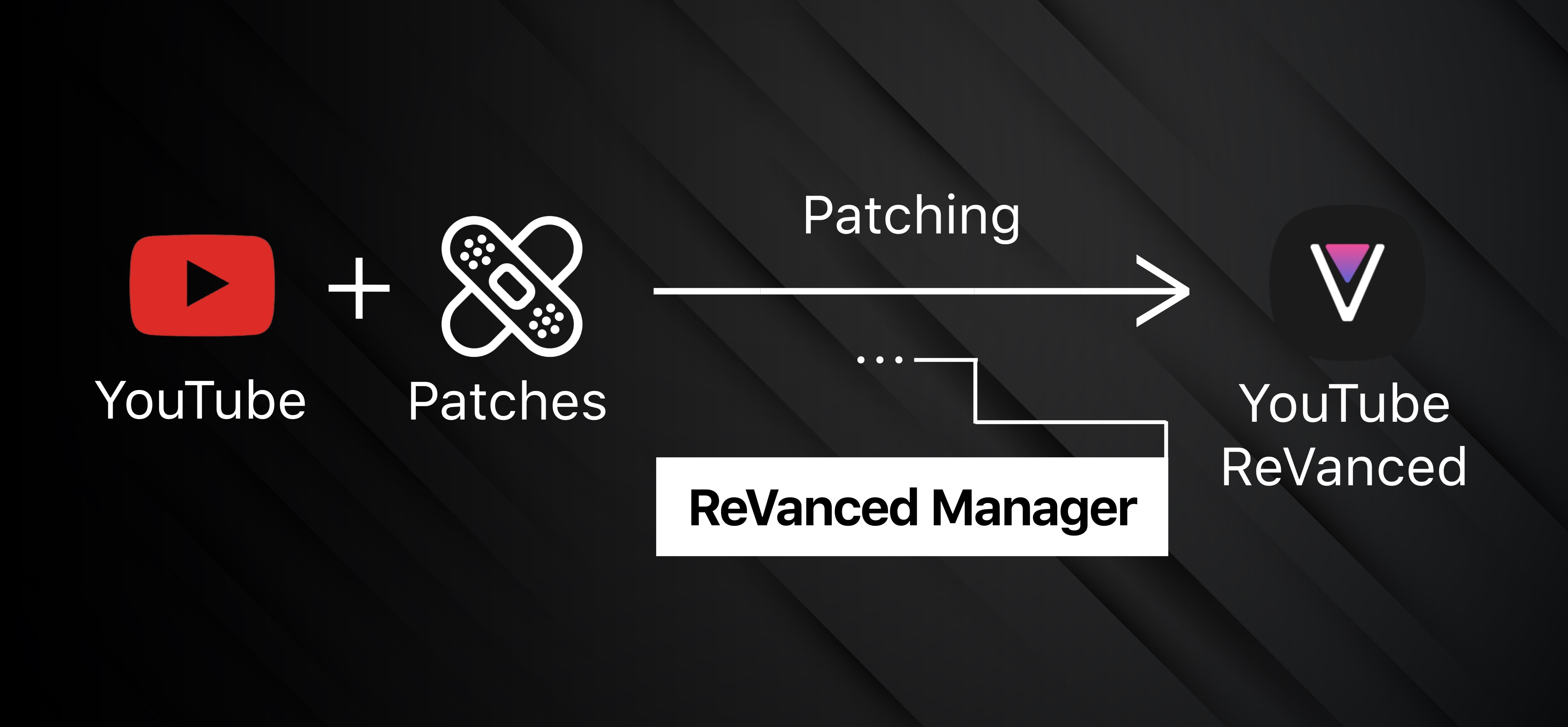
ReVanced is an open-source project that allows users to patch various Android applications, with YouTube being its most prominent target. At its core, ReVanced Manager is a sophisticated patching tool, not a pre-built application. It downloads specific patches from its repository and applies them to a compatible version of the official YouTube APK (Android Package Kit) that you provide. The result is a custom-built YouTube application that offers a suite of functionalities typically reserved for YouTube Premium subscribers or not available at all on the standard app.
The list of features ReVanced can inject is impressive and directly addresses common user pain points. Foremost among these is ad-blocking, which eliminates all in-stream video ads, banner ads, and homepage ads, providing a truly uninterrupted viewing experience. Beyond this, ReVanced enables background playback, allowing videos to continue playing even when you switch to another app or turn off your device’s screen. This feature is a game-changer for listening to music, podcasts, or long-form discussions. Other notable features include SponsorBlock integration, which automatically skips sponsored segments, intros, and outros in videos; the ability to override video quality limits; custom themes; and swipe controls for brightness and volume.
For users deeply invested in the tech ecosystem, ReVanced represents an exercise in digital autonomy. It’s about optimizing one’s digital life, saving money that might otherwise be spent on premium subscriptions, and reclaiming precious time lost to advertisements. In an era where digital content is king, ReVanced empowers users to consume that content on their terms, making it an invaluable tool for productivity and pure entertainment alike.
The Evolution from YouTube Vanced
The story of ReVanced is inextricably linked to its predecessor, YouTube Vanced. For years, Vanced was the go-to solution for Android users seeking an ad-free YouTube experience. It garnered a massive following and cultivated a strong brand identity around its promise of an enhanced, user-centric streaming environment. Vanced offered all the features that ReVanced now provides, and it built a reputation for reliability and ease of use. However, in early 2022, the developers of YouTube Vanced announced its discontinuation, citing “legal reasons” from Google. This news sent ripples through the tech community, leaving millions of users without their beloved ad-free streaming solution.
The void left by Vanced was significant, but the community’s demand for such a tool remained undiminished. This is where ReVanced stepped in. Born from the same spirit of open-source innovation, ReVanced picked up where Vanced left off, learning from its predecessor’s architecture and improving upon it. Crucially, ReVanced adopted a different distribution model. While Vanced offered pre-patched APKs, which carried inherent legal risks related to distributing modified proprietary software, ReVanced opted for a patching framework. This means ReVanced doesn’t distribute copyrighted YouTube code; instead, it provides the tools for you to modify your own legally obtained YouTube APK. This approach is generally considered safer from a legal standpoint and aligns more closely with the principles of open-source development and user empowerment. The transition from Vanced to ReVanced marked a significant evolution in how users could achieve an optimized YouTube experience, shifting the power squarely into the hands of the individual user to build their preferred app.
Essential Preparations Before Installation
Before embarking on the patching process, a few crucial preliminary steps are necessary to ensure a smooth and successful ReVanced installation. Think of this as laying the groundwork – having the right tools and understanding the environment will save you considerable time and frustration later on. These preparations are not just about convenience; they are about compatibility and security, ensuring that the patched application functions correctly and safely on your device.
Device Compatibility and Requirements
ReVanced is designed primarily for Android devices. While it works across a wide range of Android versions, it’s generally recommended to have a device running Android 8.0 (Oreo) or newer for optimal compatibility with the latest YouTube APKs and ReVanced patches. Older Android versions might encounter issues with newer YouTube app versions or specific patches.
There are no exceptionally demanding hardware requirements; if your phone can run the official YouTube app smoothly, it can handle ReVanced. However, you will need a reasonable amount of free storage space to download the YouTube APK, the ReVanced Manager, and then install the final patched application. Typically, a few hundred megabytes should suffice.
Most importantly, you must enable “Install unknown apps” or “Allow installation from unknown sources” in your device’s security settings. This is a standard Android security feature that prevents apps from being installed outside of the Google Play Store. Since you’ll be installing the ReVanced Manager and the final patched YouTube app directly from downloaded APK files, this permission is essential. The exact location of this setting varies slightly depending on your Android version and device manufacturer, but it’s typically found under “Settings > Apps & Notifications > Special app access > Install unknown apps” or “Settings > Security & privacy > More settings > Install unknown apps.” Remember to enable this for your browser (e.g., Chrome) and any file manager app you use for installations.
Key Tools You’ll Need: ReVanced Manager, MicroG, and the YouTube APK
The installation process for ReVanced isn’t a one-click affair; it involves a synergy of several components, each playing a vital role. Understanding these tools is paramount to a successful installation.
-
ReVanced Manager: This is the heart of the ReVanced ecosystem. ReVanced Manager is an application that allows you to download patches, select them, and apply them to a compatible stock YouTube APK. It’s the primary tool you’ll interact with during the patching process. It is crucial to download ReVanced Manager only from its official GitHub repository or trusted sources linked from the official ReVanced website. Beware of unofficial websites offering “ReVanced APK” downloads, as these might contain malware. Always verify the source.
-
YouTube APK (Specific Version): Unlike Vanced, ReVanced Manager does not download the YouTube APK for you. You must manually acquire a specific, compatible version of the official YouTube application’s APK file. The ReVanced project targets particular YouTube APK versions because patches are developed and tested against them. Using an incompatible version can lead to patching failures or an unstable app. You’ll typically find the recommended version listed within the ReVanced Manager itself or on the official ReVanced GitHub page. A reliable source for downloading legitimate APKs is APKMirror.com, where you can find verified versions of official apps. When downloading, ensure you select the correct architecture for your device (e.g.,
arm64-v8a,armeabi-v7a) and the “universal” DPI package if unsure. -
MicroG (for Google Account Login): If you wish to log in to your Google account within the patched ReVanced YouTube app (to access subscriptions, watch history, playlists, etc.), you will need to install MicroG. The official YouTube app relies on Google Play Services for account management. Since ReVanced is a modified version and not installed through the Play Store, it cannot directly use Google Play Services for login. MicroG is an open-source reimplementation of Google Play Services that allows apps to function correctly even when Google Play Services is not available or disabled. Just like ReVanced Manager, MicroG should be downloaded only from its official source, usually linked from the ReVanced project’s documentation. Without MicroG, you can use ReVanced, but you won’t be able to log into your Google account.
Having these three components ready and correctly sourced is the backbone of a successful ReVanced installation. Take your time with this preparation phase; it directly impacts the rest of the process.
Step-by-Step Installation: Patching Your Way to Ad-Free Content
With your preparations complete, you are now ready to dive into the core process of installing ReVanced. This involves a sequence of steps, from downloading the necessary files to patching and finally installing the custom-built application. Pay close attention to each stage, as precision here ensures a seamless experience.
Acquiring the Correct YouTube APK
The first critical step is to obtain the precise version of the official YouTube APK that ReVanced Manager is designed to patch. This is not just any YouTube APK; it must match the version specified by the ReVanced developers to ensure patch compatibility.
- Check ReVanced Manager for Recommended Version: Once you’ve downloaded and installed the ReVanced Manager APK (remembering to enable “Install unknown apps”), open it. Navigate to the “Patcher” section and then select “Select an application.” Choose “YouTube.” The manager will often display the recommended YouTube APK version at the top. Note this version number down.
- Download from APKMirror: Head to
APKMirror.comin your device’s browser. Search for “YouTube” and then specifically look for the version number you noted. It’s crucial to download the “universal” or “nodpi” variant if available, or one that matches your device’s architecture (e.g.,arm64-v8a) if a universal option isn’t present. Avoid downloading “split APKs” or “bundle APKs” as these are harder to patch with ReVanced Manager. Ensure the file extension is.apk. - Transfer (if necessary): If you downloaded the APK on a computer, transfer it to your Android device, preferably into a dedicated “Downloads” folder or similar accessible location. Do not install this stock YouTube APK. It’s just the base file we’ll be patching.
Navigating the ReVanced Manager
With the correct YouTube APK in hand, the ReVanced Manager becomes your primary interface for creating your custom app. This intuitive tool guides you through the patching process.
- Open ReVanced Manager: Launch the ReVanced Manager app you previously installed.
- Go to the Patcher: On the bottom navigation bar, tap on “Patcher.”
- Select Application: Tap “Select an application.” A list of installed apps will appear. If YouTube is installed on your device, it will show there. If not, or if you want to use the downloaded APK, tap “Storage” in the top right to browse for the YouTube APK file you downloaded in the previous step. Select the correct YouTube APK file.
- Confirm Selection: Once selected, ReVanced Manager will analyze the APK. It should confirm that the version is compatible. If it indicates an incompatibility, you must go back and download the correct YouTube APK version.
Applying Patches and Building Your Custom App
This is where the magic happens – you get to choose which enhancements to integrate into your YouTube experience.
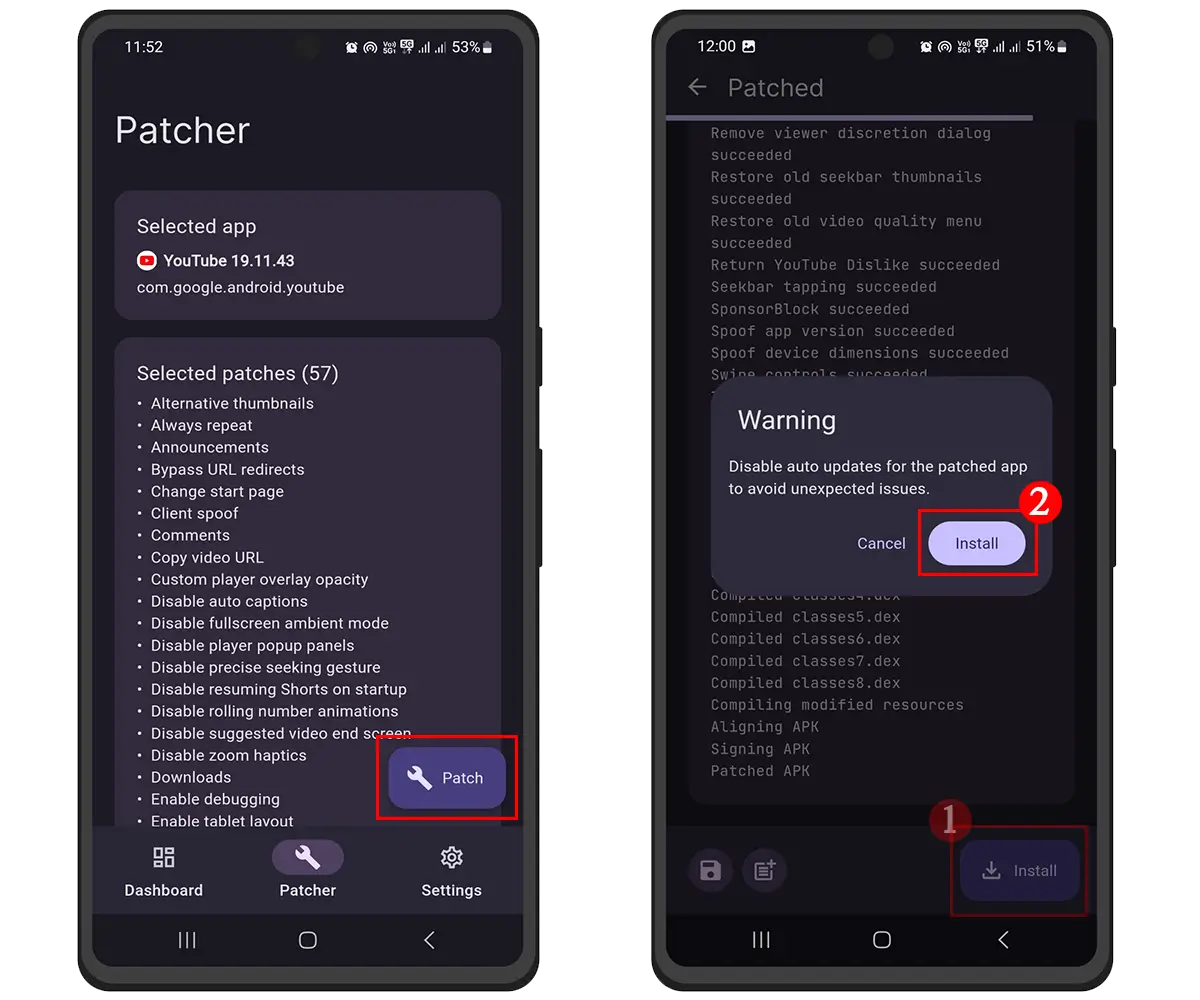
- Select Patches: After selecting the YouTube application, you’ll be presented with a list of available patches. By default, essential patches like “Ad-blocking,” “Background Playback,” and “SponsorBlock” are often pre-selected. You can review the list and check/uncheck patches based on your preferences. Each patch usually has a brief description to explain its function. For a first-time installation, it’s often best to stick with the recommended patches to ensure stability.
- Patch the Application: Once you’ve finalized your patch selection, tap the “Patch” button. The ReVanced Manager will now begin the process of injecting these chosen modifications into the original YouTube APK. This process can take several minutes, depending on your device’s performance and the number of patches selected. You’ll see a progress indicator, and it’s crucial not to close the app or interrupt the process during this time.
- Successful Patching: Upon completion, you’ll receive a “Success” message. If there are any errors, the manager will display them, often with guidance on potential fixes (e.g., “incompatible APK version”).
Installing MicroG for Google Account Integration
If you want to log into your Google account within ReVanced, MicroG is indispensable. Install it before installing the patched YouTube app.
- Download MicroG: From a trusted source (e.g., ReVanced’s official GitHub releases page or the MicroG project’s page, often linked from ReVanced documentation), download the MicroG APK. Ensure you download the version specifically designed for ReVanced (often called
vanced.microg). - Install MicroG: Locate the downloaded MicroG APK file using a file manager. Tap on it to begin the installation. Remember that “Install unknown apps” permission must be enabled for your file manager or browser. Follow the on-screen prompts to install it. It won’t have a visible app icon; it runs in the background.
Final Installation of the Patched ReVanced App
The last step is to install the newly created, patched YouTube application.
- Install from ReVanced Manager: After successful patching in ReVanced Manager, you’ll see an “Install” button. Tap it.
- Grant Permissions (if needed): ReVanced Manager will request permission to install apps. Grant it.
- Install the App: The standard Android app installer will appear, prompting you to install “YouTube” (though it’s the ReVanced version). Tap “Install” and wait for the process to complete.
- Open and Enjoy: Once installed, you can now open the ReVanced application. It will appear as a regular YouTube icon, but it will be your custom, ad-free version. If you installed MicroG, you can now log into your Google account within the ReVanced app to access all your personalized content.
Congratulations! You have successfully installed ReVanced and unlocked a significantly enhanced YouTube experience.
Troubleshooting Common Issues and Maintaining Your Installation
While the ReVanced installation process is generally straightforward when followed correctly, users might occasionally encounter issues. Knowing how to troubleshoot these problems and effectively maintain your ReVanced installation is key to a continuous, enjoyable experience. This section will cover common pitfalls and best practices for keeping your app running smoothly.
Addressing Installation Errors and App Crashes
Encountering errors during patching or having the ReVanced app crash after installation can be frustrating, but most issues have common solutions:
- Incompatible YouTube APK Version: This is the most frequent cause of patching failures. If ReVanced Manager reports an error during patching, double-check that you downloaded the exact YouTube APK version recommended by the manager or the official ReVanced project documentation. An outdated or too new YouTube APK can prevent patches from applying correctly. Always aim for a “universal” or architecture-specific (e.g.,
arm64-v8a)nodpivariant from a reputable source like APKMirror. - “Install Unknown Apps” Permission: If you can’t install ReVanced Manager or the final patched app, ensure you’ve enabled the “Install unknown apps” permission for your browser or file manager. Without this, Android will block the installation of APKs downloaded outside the Play Store.
- MicroG Issues for Login: If you can’t log into your Google account within ReVanced, ensure MicroG is correctly installed. Sometimes, uninstalling and reinstalling MicroG (from a verified source) can resolve login-related problems. Also, check your device’s battery optimization settings; ensure MicroG is not being put to sleep, which can interfere with its background services.
- App Crashing on Startup: This can sometimes be due to an issue with the patches. Try uninstalling the problematic ReVanced app, clearing the cache and data of ReVanced Manager, and then repatching with a slightly different set of patches (perhaps fewer, or only the essential ones) or trying a different compatible YouTube APK version.
- Insufficient Storage: Ensure your device has enough free storage space for both the patching process and the final installation. A lack of space can lead to corrupted files or incomplete installations.
- Clean Installation: If all else fails, a clean installation is often the best remedy. Uninstall ReVanced, ReVanced Manager, and MicroG. Delete any downloaded APKs. Then, restart your device and follow all the steps from scratch, paying close attention to recommended APK versions and official sources.
Keeping ReVanced Updated for Optimal Performance
The digital landscape is constantly evolving, and keeping your ReVanced installation updated is vital for security, stability, and access to new features. Google frequently updates the official YouTube app, which can sometimes break ReVanced’s functionality if the patches aren’t updated to match.
- Monitor ReVanced Project Updates: Regularly check the official ReVanced GitHub page or community forums (like Reddit’s r/revancedapp) for announcements regarding new manager versions, patch updates, and recommended YouTube APK versions.
- Update ReVanced Manager First: When a new version of ReVanced Manager is released, download its APK from the official source and install it over your existing version. This updates the manager itself, including its patch definitions.
- Re-patch and Reinstall: Once ReVanced Manager is updated, you’ll typically need to re-patch your YouTube APK.
- Find the new recommended YouTube APK version, if specified by ReVanced developers. Download it.
- Open the updated ReVanced Manager.
- Go to “Patcher” and select the new downloaded YouTube APK (or select the currently installed ReVanced app if you’re updating from a previous ReVanced build).
- Select your desired patches.
- Tap “Patch” and then “Install.”
- The installer will usually prompt you to update the existing ReVanced app rather than install a new one. This preserves your app data and settings.
- You generally do not need to uninstall and reinstall MicroG unless specifically instructed by the ReVanced team for a major update.
By staying proactive with updates, you ensure your ReVanced experience remains robust, secure, and equipped with the latest enhancements, allowing you to enjoy uninterrupted, ad-free content consumption without hassle.
The Broader Impact: Security, Ethics, and the Future of Content Consumption
While the primary focus of ReVanced is undoubtedly on enhancing the user experience, its existence and popularity also raise larger questions about digital ethics, personal finance, and the future trajectory of content platforms. Understanding these broader implications provides a richer context for why tools like ReVanced resonate so deeply with a significant portion of the online community.
Navigating the Legal and Ethical Landscape
The very nature of ReVanced, as a tool that modifies a proprietary application to bypass monetized features (like ads and premium subscriptions), places it in a somewhat grey area regarding legality and ethics. From Google’s perspective, ReVanced circumvents their business model, which relies on advertising revenue and premium subscriptions to support content creators and the platform itself. Terms of service for platforms like YouTube typically prohibit modifying their applications.
However, ReVanced operates under the principle that it’s a tool for users to modify their own copy of an application, rather than distributing modified copyrighted software itself. This distinction is legally nuanced and is partly why ReVanced adopted its patching framework model, moving away from the pre-patched APK distribution that led to Vanced’s demise. For individual users, the risk is generally considered low, as the focus is on the distributors of such tools rather than the end-users.
Ethically, the debate often centers on supporting content creators. YouTube’s ad revenue and Premium subscriptions directly contribute to creators’ livelihoods. By blocking ads or bypassing premium features, users might be seen as undermining this support structure. However, many ReVanced users argue that the platform’s ad intrusiveness has become excessive, disrupting the viewing experience to an unacceptable degree. Some also contend that they actively support creators through other means, like direct donations or merchandise purchases, decoupling their viewing experience from the platform’s monetization strategy. The discussion is complex, reflecting a tension between platform monetization, creator support, and user experience.
The Value Proposition: Why Users Choose ReVanced
The widespread adoption of ReVanced, much like its predecessor, speaks volumes about its compelling value proposition for users. This value extends beyond mere convenience and touches upon aspects of personal finance, digital productivity, and overall user satisfaction in a heavily monetized digital world.
From a financial perspective, ReVanced offers a compelling alternative to a YouTube Premium subscription. While YouTube Premium costs a monthly fee, ReVanced provides a comparable ad-free, background-playback experience at no direct monetary cost. For individuals and households looking to optimize their spending or for those in regions where subscription services are less accessible or affordable, ReVanced presents a significant saving. This aligns with the “Money” topic of our website, highlighting how smart tech choices can lead to practical financial benefits.
In terms of digital productivity and experience (Tech), ReVanced dramatically enhances how users interact with YouTube. Eliminating disruptive ads saves precious time and cognitive load. Background playback allows for true multitasking, turning YouTube into a powerful tool for audio-only content while working, commuting, or engaging in other activities. Features like SponsorBlock further refine the experience, ensuring that every moment spent watching a video is intentional and engaging. This focus on efficiency and uninterrupted flow greatly improves the overall digital lifestyle.
Furthermore, ReVanced builds on a brand of user empowerment and community-driven innovation. The project itself is a testament to the power of open-source collaboration in addressing widespread user frustrations. Users who choose ReVanced often feel a sense of agency and control over their digital environment, rather than being passively subjected to corporate monetization strategies. This community aspect and the collective effort to refine and maintain ReVanced contribute to its unique brand identity – one that stands for freedom of choice and a superior user experience in the face of platform limitations.
In conclusion, ReVanced is more than just an app installer; it’s a statement about the evolving relationship between users, content platforms, and the tools that mediate their interaction. By mastering its installation, you’re not just getting ad-free YouTube; you’re gaining control over your digital experience, optimizing your time and resources, and becoming part of a community that values user-centric innovation. Enjoy your newfound, enhanced YouTube journey.
aViewFromTheCave is a participant in the Amazon Services LLC Associates Program, an affiliate advertising program designed to provide a means for sites to earn advertising fees by advertising and linking to Amazon.com. Amazon, the Amazon logo, AmazonSupply, and the AmazonSupply logo are trademarks of Amazon.com, Inc. or its affiliates. As an Amazon Associate we earn affiliate commissions from qualifying purchases.