
The landscape of modern software development is dominated by Python. From data science and artificial intelligence to web development and automated scripting, Python has established itself as the lingua franca of the technological world. However, a Python installation is only as powerful as the libraries it can access. This is where Pip, Python’s standard package manager, becomes indispensable. Understanding how to correctly install Python alongside Pip is the foundational step for any developer, system administrator, or tech enthusiast looking to leverage the power of the Python ecosystem.
1. Understanding the Python and Pip Ecosystem
Before diving into the technical installation steps, it is essential to understand what these tools are and why they are inextricably linked in the modern tech stack. Python is a high-level, interpreted programming language known for its readability and versatility. Pip, which stands for “Pip Installs Packages,” is the tool that allows you to download, install, and manage additional libraries and dependencies that are not included in the standard Python distribution.
The Role of the Python Package Index (PyPI)
Pip functions as a bridge between your local machine and the Python Package Index (PyPI), a vast repository of over 300,000 software packages. Whether you need a framework like Django for web development or a library like NumPy for numerical computation, Pip handles the retrieval and installation process, ensuring that dependencies are resolved and versions are compatible.
Why Integrated Installation Matters
In older versions of Python, Pip had to be installed separately, often leading to configuration errors and “command not found” issues. In the current technical landscape (Python 3.4 and later), Pip is typically included by default with the Python binary installers. Ensuring that both are installed correctly and accessible via your system’s command line is the key to a frictionless development experience.
2. Installing Python and Pip on Windows Systems
Windows remains one of the most common environments for Python development. While Windows does not come with Python pre-installed, the installation process has become significantly more streamlined in recent years.
Using the Official Python Installer
The most reliable way to install Python on Windows is via the official executable installer available at python.org. When downloading, it is vital to select the version that matches your system architecture (usually 64-bit for modern machines).
- Download the Executable: Choose the latest stable release of Python 3.
- The “Add to PATH” Requirement: This is perhaps the most critical step in the entire installation process. On the initial installer screen, there is a checkbox labeled “Add Python to PATH.” You must check this box. Adding Python to your PATH environment variable allows you to run Python and Pip commands from any Command Prompt or PowerShell window.
- Customize Installation: Click on “Customize installation” to ensure that the “pip” checkbox is selected under the optional features.
- Finalizing Install: Click “Install Now” and provide administrative privileges if prompted.
Troubleshooting Windows Path Issues
If you forgot to check the “Add to PATH” box during installation, you don’t necessarily need to reinstall. You can manually edit your System Environment Variables. Navigate to Control Panel > System and Security > System > Advanced System Settings > Environment Variables. Under “System Variables,” find “Path” and add the directory where Python was installed (typically C:Users[Username]AppDataLocalProgramsPythonPython3x) and the Scripts folder within that directory.
Verification via Command Prompt
Once the installation is complete, open the Command Prompt (cmd) and type:
python --versionpip --version
If both commands return a version number, your installation was successful.
3. Setting Up Python and Pip on macOS and Linux
Unix-like systems, including macOS and various Linux distributions, often come with a version of Python pre-installed. However, these system-level versions are often outdated or reserved for OS-specific tasks. Professional developers typically install a separate, user-managed version of Python and Pip.

Installation on macOS
While macOS includes Python 2.x (in older versions) or a basic Python 3 stub, the standard tool for tech professionals on Mac is Homebrew, a package manager for macOS.
- Install Homebrew: If not already installed, run the installation script from the terminal.
- Install Python: Run the command
brew install python. Homebrew will automatically install the latest version of Python 3 along with Pip and Setuptools. - Zsh/Bash Profile: On modern macOS (using Zsh), you may need to ensure your path is updated by adding
export PATH="/usr/local/opt/python/libexec/bin:$PATH"to your.zshrcfile.
Installation on Linux (Ubuntu/Debian)
Linux distributions use their own package managers (like apt for Ubuntu or dnf for Fedora).
- Update Repository: Run
sudo apt update. - Install Python: Run
sudo apt install python3. - Install Pip Separately: On many Linux distros, Pip is not bundled. You must install it using
sudo apt install python3-pip. - Verification: Check the installation using
python3 --versionandpip3 --version. Note the use of “3” in the command, which specifies the Python 3 environment.
4. Post-Installation: Verifying and Managing Your Environment
Successfully running the installer is only half the battle. To maintain a healthy technical environment, you must know how to manage Pip and the packages it handles.
Upgrading Pip to the Latest Version
Pip is updated frequently to patch security vulnerabilities and improve dependency resolution. After your initial installation, it is a best practice to upgrade Pip immediately. Use the following command:
python -m pip install --upgrade pip
Using the -m pip syntax is a technical best practice because it ensures you are upgrading the Pip associated with the specific Python executable you are currently running.
Basic Pip Commands for Developers
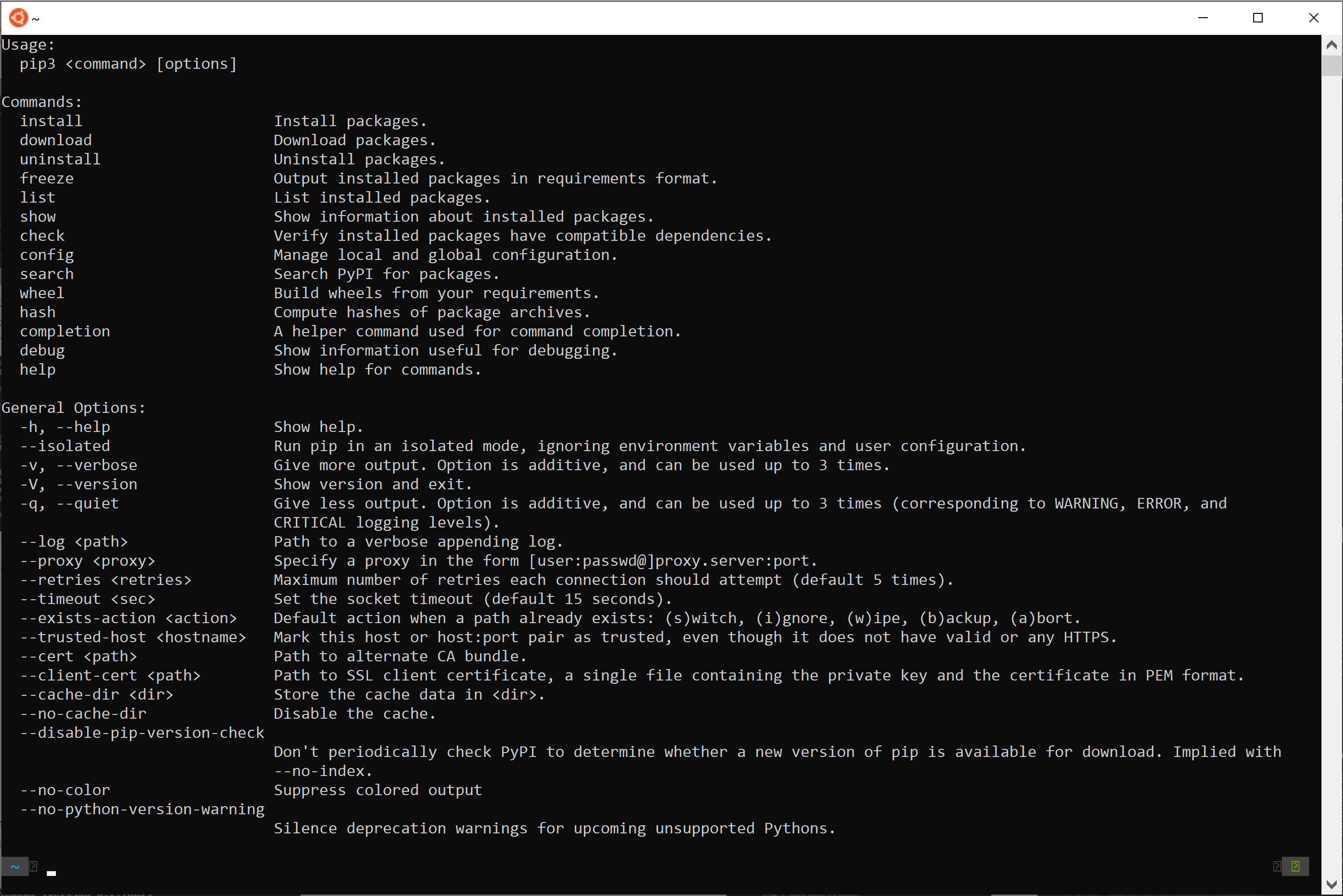
Once Pip is running, you should familiarize yourself with the core commands used in software development:
pip install <package_name>: Downloads and installs a library.pip list: Displays all currently installed packages.pip show <package_name>: Provides technical details about a specific package, including its version and dependencies.pip uninstall <package_name>: Safely removes a package from your system.
The Importance of Virtual Environments
One of the most common pitfalls for new developers is installing every package globally. This can lead to “dependency hell,” where different projects require different versions of the same library. To solve this, Python provides the venv module.
By running python -m venv myenv, you create an isolated environment. Activating this environment allows you to use Pip to install packages that exist only within that project folder, keeping your global Python installation clean and stable.
5. Security and Best Practices in Package Management
In the world of digital security, Pip requires careful handling. Because Pip executes code from the internet during installation, following technical best practices is non-negotiable for professional environments.
Using Requirements Files
For collaborative projects, you should never rely on manual installation. Instead, use a requirements.txt file. By running pip freeze > requirements.txt, you generate a list of every package and its exact version. Other developers can then recreate your exact technical environment using pip install -r requirements.txt. This ensures consistency across different machines and deployment servers.
Verifying Package Integrity
When working on sensitive tech projects, always verify the source of your packages. While PyPI is generally safe, “typosquatting” (where malicious actors upload packages with names similar to popular ones) is a known threat. Always double-check the spelling of the package name and, if necessary, check the package’s hash or use tools like pip-audit to scan for known vulnerabilities in your installed dependencies.
Keeping Python Updated
Technology evolves rapidly. Python releases new minor versions (e.g., 3.11 to 3.12) that include performance optimizations and new syntax features. Periodically check for updates. On Windows, this involves downloading the new installer; on macOS via Homebrew, a simple brew upgrade python will suffice. Keeping your environment up to date ensures you have the latest security patches and can utilize the most efficient coding patterns available in the ecosystem.
By following this guide, you have not just installed a piece of software; you have configured a robust, professional-grade development environment. Whether you are building the next generation of AI tools or simply automating a spreadsheet, a proper Python and Pip installation is the engine that will drive your technical success.
aViewFromTheCave is a participant in the Amazon Services LLC Associates Program, an affiliate advertising program designed to provide a means for sites to earn advertising fees by advertising and linking to Amazon.com. Amazon, the Amazon logo, AmazonSupply, and the AmazonSupply logo are trademarks of Amazon.com, Inc. or its affiliates. As an Amazon Associate we earn affiliate commissions from qualifying purchases.