
In an era dominated by digital entertainment, streaming services have become indispensable, transforming how we consume media. Amazon Prime Video stands as a giant among these, offering a vast library of movies, TV shows, and original content. While viewing on laptops or mobile devices is convenient, the true cinematic experience often unfolds on the biggest screen in your home: your television. Signing into Amazon Prime Video on your TV, however, can sometimes present a slight technical hurdle, especially for new users or those unfamiliar with specific smart TV interfaces. This comprehensive guide aims to demystify the process, providing a professional, insightful, and engaging walkthrough to get you streaming your favorite content seamlessly. We’ll delve into the various methods, prepare you for potential challenges, and ensure your Prime Video experience on the big screen is nothing short of exceptional.

The Gateway to Entertainment: Understanding Amazon Prime Video on TV
Before diving into the specifics of signing in, it’s crucial to understand what Amazon Prime Video offers and why watching it on your television significantly enhances the viewing experience. This section sets the stage, highlighting the technological context and the benefits of integrating Prime Video with your home entertainment system.
What is Amazon Prime Video?
Amazon Prime Video is a subscription video-on-demand service provided by Amazon. It’s a key benefit included with an Amazon Prime membership, granting access to thousands of titles, including critically acclaimed Amazon Originals, hit movies, popular TV series, and live sports. The service distinguishes itself with its diverse content library and integration into the broader Amazon ecosystem, offering a comprehensive entertainment solution. From high-definition streaming to 4K UHD content, Prime Video continually pushes the boundaries of visual fidelity, making it a premium choice for discerning viewers. Understanding its robust feature set helps appreciate the value of connecting it to your television.
Why Watch Prime Video on Your TV?
The leap from a small screen to a television screen dramatically elevates the entertainment experience. Watching Prime Video on your TV provides several distinct advantages. Firstly, it offers a larger, more immersive visual experience, especially beneficial for action sequences, intricate cinematography, or simply enjoying a movie with family and friends. Modern televisions often boast superior picture quality (e.g., 4K, HDR) and better sound systems than portable devices, transforming a casual viewing into a cinematic event. Furthermore, using a TV integrates Prime Video into your home entertainment hub, allowing for easier communal viewing and a more relaxed, hands-free experience compared to holding a device. It leverages existing home theater setups, making the most of your investment in display and audio technology.
Devices Compatible with Prime Video
The versatility of Amazon Prime Video extends to its wide array of compatible devices, ensuring nearly everyone can enjoy the service on their television. Understanding these devices is key to choosing the right sign-in method.
- Smart TVs: Most modern smart TVs (from brands like Samsung, LG, Sony, Vizio, Panasonic, Hisense, TCL) come with the Prime Video app pre-installed or readily available for download from their respective app stores. The operating systems (e.g., webOS, Tizen, Android TV, Roku TV) are designed for seamless app integration.
- Streaming Sticks and Boxes: Devices such as Amazon Fire TV Stick, Roku, Apple TV, Google Chromecast, and NVIDIA Shield TV are dedicated streaming hardware that plug into your TV’s HDMI port. These devices are optimized for streaming and often provide the smoothest user experience for various apps, including Prime Video.
- Gaming Consoles: PlayStation (PS4, PS5) and Xbox (One, Series X/S) consoles are not just for gaming; they also serve as robust media centers. The Prime Video app is available for download on their respective stores, making them a popular choice for streaming.
- Blu-ray Players: Many internet-enabled Blu-ray players also support streaming apps, including Prime Video, offering an alternative for older TV setups.
Identifying your specific device is the first step towards a successful sign-in.
Step-by-Step Guide: The Two Primary Sign-In Methods
While the exact steps might vary slightly depending on your device’s interface, Amazon Prime Video primarily offers two common methods for signing in on a TV. Both are designed for user convenience, but understanding their nuances can streamline the process.
Method 1: Signing In with an Activation Code (The Most Common and Recommended Method)
This method is generally the most straightforward and secure, especially when inputting complex passwords with a TV remote would be cumbersome. It leverages a secondary device (like a smartphone or computer) to complete the authentication.
Getting Your Activation Code
- Launch the Prime Video App on Your TV: Navigate to your TV’s app section or streaming device’s home screen and open the Amazon Prime Video application.
- Locate the Sign-In Option: Upon opening, the app will typically present an option to “Sign In” or “Register Your Device.” Select this.
- Note the Activation Code: The app will then display a unique, alphanumeric activation code (e.g., “XA9B3C”). This code is temporary and usually valid for a short period (e.g., 5-10 minutes). Keep this code visible on your TV screen.
Activating Your Device Online
- Switch to a Secondary Device: On your smartphone, tablet, or computer, open a web browser.
- Go to the Activation Page: Type
amazon.com/mytv(or sometimesprimevideo.com/mytvdepending on your region or device prompt) into the address bar and press Enter. This is the official Amazon device registration page. - Sign In to Your Amazon Account: If prompted, sign in with your Amazon account credentials (email and password) that are associated with your Prime membership. Ensure you are using the correct account.
- Enter the Activation Code: In the designated field on the
amazon.com/mytvpage, accurately enter the activation code displayed on your TV screen. Double-check for any typos. - Click “Register Device” or “Continue”: After entering the code, click the appropriate button. Your TV should then automatically refresh and sign into your Amazon Prime Video account within a few moments.
Method 2: Direct Sign-In on Your TV Screen (When Available and Preferred)
Some devices, particularly those with more advanced remote controls (like voice remotes or those with full QWERTY keyboards), may offer a direct sign-in option where you enter your credentials directly on the TV.
Initiating Direct Sign-In
- Launch the Prime Video App: Open the Amazon Prime Video app on your TV or streaming device.
- Select Direct Sign-In: Look for an option like “Sign In with Email and Password” or similar, instead of the activation code method.
- Input Your Credentials: Using your TV remote’s on-screen keyboard, carefully enter your Amazon account email address and password. This step requires precision, as misspellings are common.
- Confirm and Log In: After entering both fields, select the “Sign In” or “Log In” button. The app will then attempt to authenticate your details.
While seemingly simpler, this method can be slower due to the often cumbersome process of typing with a standard TV remote. However, for those comfortable with it, it avoids the need for a secondary device.
Preparing for a Seamless Sign-In Experience
A smooth sign-in process often hinges on proper preparation. Ensuring your setup meets the necessary technical prerequisites can prevent many common frustrations. This proactive approach is a hallmark of good tech usage.
Essential Prerequisites
Before you even launch the Prime Video app, confirm these foundational elements are in place:
- Active Amazon Prime Membership: Verify that your Amazon account has an active Prime subscription. Without it, you cannot access Prime Video content. You can check this by logging into your Amazon account on a computer or phone and navigating to your “Prime Membership” section.
- Stable Internet Connection: Prime Video streaming requires a robust and consistent internet connection. Ensure your TV or streaming device is connected to your home Wi-Fi or via Ethernet, and that your internet speed is adequate for streaming (Amazon recommends at least 1 Mbps for SD, 3.5 Mbps for HD, and 15 Mbps for 4K UHD).
- Updated Prime Video App and Device Firmware: Outdated software is a frequent culprit for technical glitches. Make sure your Prime Video app is updated to its latest version (check your device’s app store) and that your TV or streaming device’s firmware is also current (usually found in the device’s settings menu under “About” or “System Update”).
Optimizing Your Home Network
A stable internet connection isn’t just about speed; it’s about reliability.
- Router Placement: Position your Wi-Fi router centrally in your home, away from obstructions and other electronics that might cause interference.
- Bandwidth Management: If multiple devices are using your network heavily (e.g., large downloads, online gaming), it can impact streaming quality. Consider prioritizing your TV’s connection if your router supports Quality of Service (QoS) settings.
- Ethernet Connection: For the most stable and fastest connection, use an Ethernet cable to connect your TV or streaming device directly to your router, bypassing potential Wi-Fi interference.

Device Compatibility Checklist
While most modern devices support Prime Video, a quick check can prevent wasted effort.
- Review Device Manuals/Websites: Consult your TV or streaming device’s official website or manual to confirm its compatibility with Prime Video.
- Operating System Requirements: Some older devices might not meet the minimum operating system requirements for the latest Prime Video app versions.
- Available Storage: Ensure your streaming device has enough free storage if you need to download the Prime Video app or clear its cache.
Troubleshooting Common Sign-In Challenges
Even with careful preparation, technical issues can arise. Knowing how to troubleshoot common sign-in problems can save time and frustration, getting you back to your entertainment faster.
Incorrect Credentials
This is arguably the most common issue.
- Double-Check Username/Password: Carefully re-enter your Amazon account email and password. Pay close attention to capitalization, special characters, and numbers.
- Password Reset: If you’re unsure of your password, use the “Forgot Password” link on Amazon’s website (on a computer or phone) to reset it. Once reset, try signing in again.
- Account Lockout: Multiple failed attempts can temporarily lock your account for security reasons. Wait a few minutes and try again, or reset your password.
Activation Code Issues
Problems with the activation code are frequent, particularly due to time limits or input errors.
- Expired Code: Activation codes are time-sensitive. If the code on your TV expires, simply request a new one from the Prime Video app and re-enter it at
amazon.com/mytv. - Incorrect Entry: Ensure you type the code exactly as it appears, paying attention to letters and numbers that look similar (e.g., ‘O’ and ‘0’, ‘I’ and ‘1’). It’s case-sensitive.
- Correct Activation Page: Confirm you are on the legitimate
amazon.com/mytvpage. Phishing sites exist, though rare for this specific purpose.
App Not Loading or Crashing
Software glitches can prevent the app from functioning correctly.
- Force Quit and Restart: Close the Prime Video app completely (do not just minimize it) and then relaunch it.
- Clear App Cache/Data: Go to your device’s settings, find the Prime Video app, and clear its cache. If that doesn’t work, clear its data (be aware this will log you out of all accounts within the app). This often resolves corrupted data issues.
- Reinstall the App: As a last resort, uninstall the Prime Video app from your device and then reinstall it from the app store. This ensures you have a fresh, clean installation.
Network Connectivity Problems
Even if other apps work, Prime Video might be sensitive to specific network conditions.
- Restart Router and Modem: Power cycle your internet router and modem by unplugging them for about 30 seconds and then plugging them back in. Wait for them to fully reboot before trying again.
- Test Internet Speed: Use an online speed test tool (e.g., Speedtest.net) on a device connected to the same network to ensure your internet speed meets Prime Video’s requirements.
- Check DNS Settings: Rarely, incorrect DNS settings can cause connectivity issues. Consider switching to public DNS servers (like Google DNS: 8.8.8.8 and 8.8.4.4) in your router settings.
Dealing with Multiple Accounts
If you share your device or have multiple Amazon accounts.
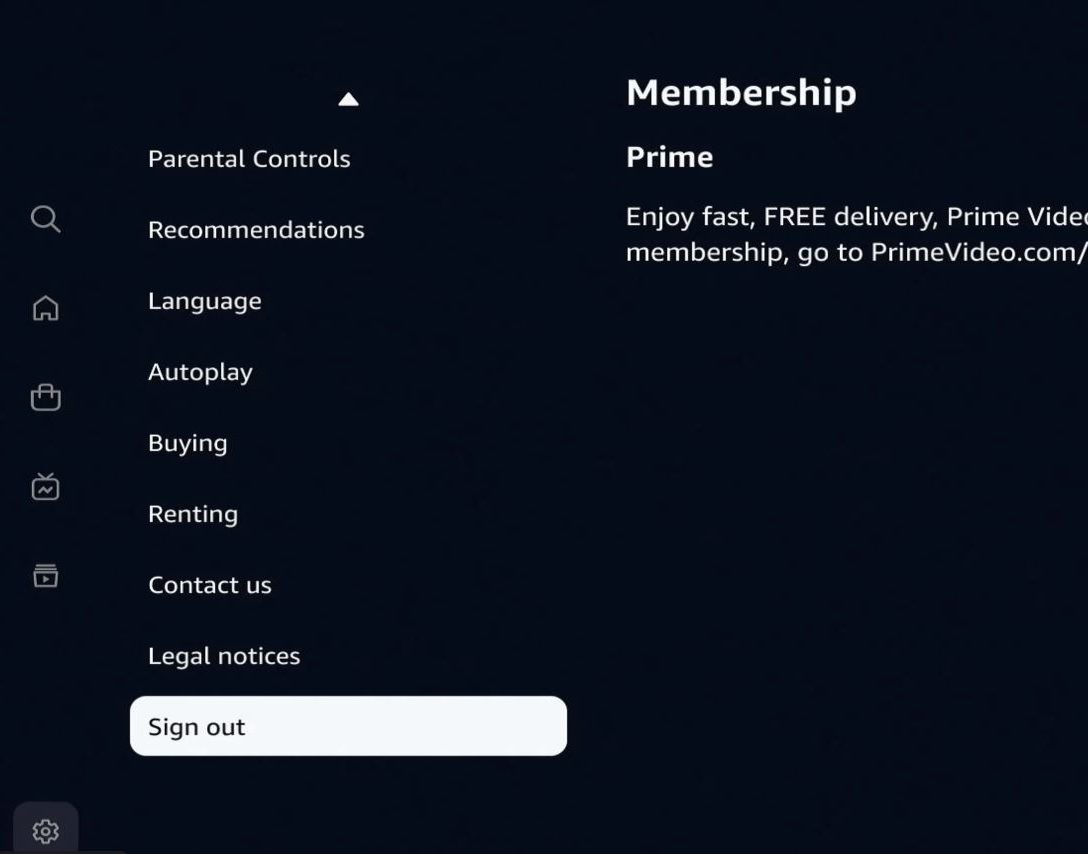
- Sign Out and Switch: If you’re trying to sign into a different account, ensure the previous account is fully signed out from the Prime Video app. Look for a “Sign Out” option in the app’s settings.
- Prime Video Profiles: Utilize Prime Video’s profile feature if available, which allows different users within the same Amazon account to have personalized watchlists and recommendations.
Enhancing Your Prime Video TV Experience
Once successfully signed in, the journey doesn’t end. Prime Video offers a suite of features that can further enrich your viewing pleasure and ensure a tailored experience for every member of your household.
Personalizing Profiles
Prime Video allows for the creation of multiple user profiles under a single Amazon account. This feature is particularly useful for households with diverse viewing tastes. Each profile maintains its own watch history, recommendations, and watchlist, ensuring that a family member’s preference for documentaries doesn’t skew another’s recommendations for action movies. Setting up individual profiles is typically done within the Prime Video app’s settings, allowing for a personalized and clutter-free experience for everyone.
Understanding Parental Controls
For families with children, parental controls are an essential feature. Prime Video offers robust options to manage content access based on ratings and specific age restrictions. You can set up a PIN to restrict purchases or prevent access to content above a certain age rating for specific profiles. This provides peace of mind, allowing children to browse freely within their designated profile without encountering inappropriate material. These settings are usually managed through the Amazon website under your account settings, then applied to the specific profiles within the Prime Video app.
Exploring 4K UHD and HDR Content
Modern televisions are built to deliver stunning visual fidelity, and Prime Video is a leader in offering content in 4K Ultra High Definition (UHD) and High Dynamic Range (HDR). If your TV supports these technologies and your internet connection is robust enough, you can unlock an unparalleled viewing experience with richer colors, deeper contrasts, and incredible detail. Look for titles marked “4K UHD” or “HDR” within the Prime Video app. Ensuring your TV’s picture settings are optimized for HDR content (often requiring specific HDMI input settings or picture modes) will maximize the visual impact.
Integrating with Voice Assistants
Many smart TVs and streaming devices integrate with voice assistants like Amazon Alexa or Google Assistant. This integration allows for hands-free control of your Prime Video experience. You can use voice commands to play specific titles, pause, fast forward, adjust volume, or even search for content. For instance, with an Alexa-enabled device, you can simply say, “Alexa, play The Marvelous Mrs. Maisel on Prime Video” to begin streaming. This feature adds a layer of convenience and modernity to your home entertainment setup, making navigation intuitive and effortless.
Conclusion
Signing into Amazon Prime Video on your TV is a fundamental step towards unlocking a world of premium entertainment. While the process is generally straightforward, understanding the underlying technology, being prepared for potential issues, and knowing the various sign-in methods can transform a potentially frustrating task into a seamless experience. By following the detailed steps and troubleshooting tips outlined in this guide, you can confidently connect your television to your Prime Video account. Moreover, by leveraging features like personalized profiles, parental controls, 4K UHD streaming, and voice assistant integration, you can enhance your viewing experience to its fullest potential. Embrace the convenience and immersive quality of Prime Video on the big screen, and let the captivating stories unfold.
aViewFromTheCave is a participant in the Amazon Services LLC Associates Program, an affiliate advertising program designed to provide a means for sites to earn advertising fees by advertising and linking to Amazon.com. Amazon, the Amazon logo, AmazonSupply, and the AmazonSupply logo are trademarks of Amazon.com, Inc. or its affiliates. As an Amazon Associate we earn affiliate commissions from qualifying purchases.