
In an increasingly digitized world, streaming services have become the cornerstone of home entertainment, offering an unparalleled library of content accessible at our fingertips. Among the giants of this industry, Amazon Prime Video stands out, not just for its vast collection of movies and TV shows – including award-winning originals – but also for being a significant component of the broader Amazon Prime ecosystem. For many, Prime Video is an included benefit they might not fully leverage, while for others, it’s a primary entertainment hub. Navigating the various platforms and features to get the most out of your Prime Video experience can sometimes seem daunting, but it’s a straightforward process once you understand the fundamentals.
This comprehensive guide will demystify the process of accessing, utilizing, and optimizing your Prime Video viewing, ensuring you can enjoy your favorite content with ease and efficiency across a multitude of devices. We’ll delve into everything from the initial setup to advanced viewing tips and common troubleshooting techniques, all strictly within the realm of technology. Whether you’re a long-time Amazon Prime subscriber or considering diving into the service for the first time, this guide will equip you with the knowledge to make Prime Video an integral part of your digital entertainment landscape.
Getting Started with Prime Video: The Gateway to Entertainment
Before you can immerse yourself in the rich content library of Prime Video, a few foundational steps are necessary. Understanding the subscription model and setting up your account correctly are crucial first hurdles that pave the way for seamless streaming.
Understanding Amazon Prime Membership
The primary way to access Prime Video is through an Amazon Prime membership. This comprehensive subscription service offers a wealth of benefits beyond just video streaming, including free expedited shipping on eligible Amazon purchases, access to Amazon Music Prime, Prime Reading, and more. If you’re already an Amazon Prime member, congratulations – you automatically have access to Prime Video as part of your existing subscription. There’s no separate sign-up required for the video service itself.
For those not yet subscribed, Amazon offers various Prime membership options: monthly or annual plans, student discounts, and even a standalone Prime Video subscription for those who only want the video component without the other Prime benefits. It’s important to evaluate which option best suits your needs and budget. Signing up for Amazon Prime typically involves visiting the Amazon website, navigating to the Prime section, and following the on-screen prompts to choose your plan and complete the registration process. This usually requires an existing Amazon account or the creation of a new one, along with valid payment information.
Signing Up and Account Creation
If you don’t have an Amazon account, creating one is the very first step. This involves providing an email address or mobile number, creating a secure password, and verifying your identity. Once your Amazon account is established, you can proceed to sign up for Amazon Prime. During the Prime sign-up process, you’ll be prompted to confirm your payment method and agree to the terms and conditions.
After your Prime membership is active, accessing Prime Video is as simple as navigating to the Prime Video website (primevideo.com) or opening the Prime Video app on a compatible device. You’ll typically be asked to sign in with your Amazon account credentials. The system will then recognize your active Prime membership and grant you full access to the video library. It’s crucial to keep your login credentials secure, especially as multiple devices may be linked to your account.
Navigating the Prime Video Interface
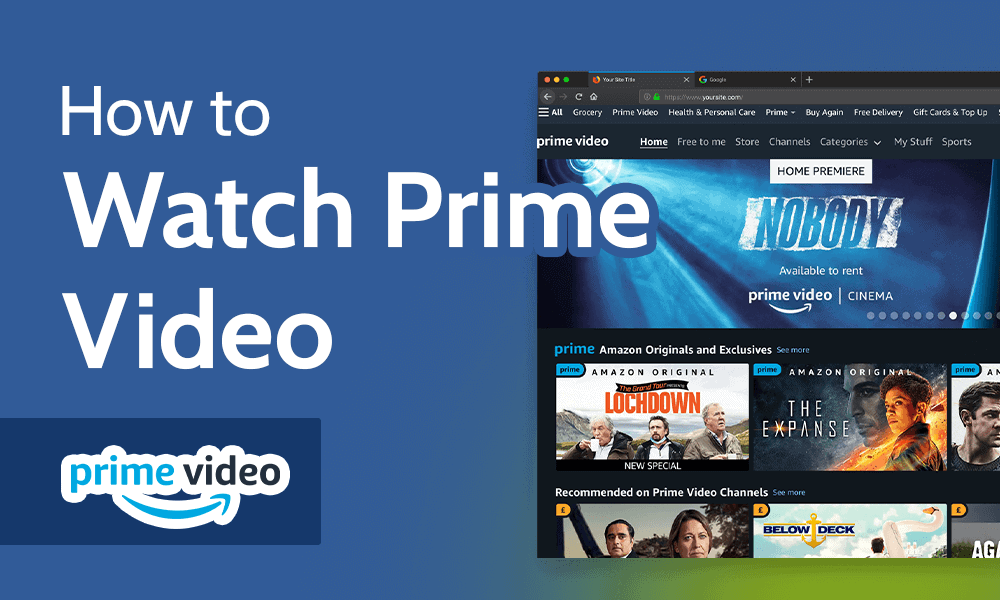
Once logged in, you’ll be presented with the Prime Video interface, which is designed for easy content discovery. The layout usually features a main carousel showcasing trending titles and Amazon Originals, alongside categorized sections like “Movies,” “TV Shows,” “Live TV,” “Kids,” “My Stuff,” and “Channels.” A search bar is prominently displayed for direct title lookup.
“My Stuff” is a particularly useful section where you can find your watchlist, purchases, and rentals. The interface also intelligently suggests content based on your viewing history and preferences, employing sophisticated algorithms to personalize your experience. Familiarizing yourself with these navigation elements will greatly enhance your ability to find and enjoy content quickly and efficiently. On most platforms, you’ll also find settings for profiles, parental controls, and video quality adjustments, which we’ll explore further.
A Multitude of Viewing Platforms: Your Content, Your Device
One of Prime Video’s strengths lies in its extensive device compatibility, ensuring you can watch your favorite shows and movies virtually anywhere. From the largest screens in your home to the smallest ones in your pocket, Prime Video makes entertainment accessible.
Smart TVs and Blu-ray Players
Modern Smart TVs from manufacturers like Samsung, LG, Sony, Vizio, and Panasonic often come with the Prime Video app pre-installed or available for download from their respective app stores. The process usually involves opening the app, signing in with your Amazon account, and then you’re ready to stream. Blu-ray players with smart capabilities also frequently support Prime Video, offering another dedicated way to watch. The benefit of watching on a Smart TV is the integrated experience, often providing the best picture and sound quality your home theater setup can deliver.
Dedicated Streaming Devices
For TVs that aren’t “smart” or for users who prefer a unified streaming experience, dedicated streaming devices are an excellent solution. Amazon’s own Fire TV Stick and Fire TV Cube are tailor-made for Prime Video, offering deep integration and an optimized user experience, often with voice control via Alexa. Other popular streaming devices like Roku, Apple TV, and Google Chromecast also fully support Prime Video.
- Fire TV Devices: Plug into HDMI, connect to Wi-Fi, sign in with Amazon account. Extremely user-friendly, especially for Prime members.
- Roku: Similar setup. The Prime Video channel is available in the Roku Channel Store.
- Apple TV: Download the Prime Video app from the App Store, sign in. Seamless integration within the Apple ecosystem.
- Google Chromecast: Cast from the Prime Video app on your mobile device or from the Chrome browser on your computer to your TV.
These devices offer flexibility and often better performance than built-in TV apps, especially for older Smart TVs.
Mobile Devices and Tablets
The Prime Video app is readily available for both iOS (iPhone, iPad) and Android smartphones and tablets. Simply download the app from the Apple App Store or Google Play Store, log in with your Amazon credentials, and you’ll have access to the entire Prime Video library. Mobile viewing is perfect for on-the-go entertainment, commutes, or casual watching. The mobile app also uniquely offers the ability to download content for offline viewing, a feature we’ll discuss further, making it ideal for travel in areas with limited or no internet access.
Web Browsers on Computers
For desktop and laptop users, Prime Video is easily accessible directly through any modern web browser. Simply navigate to primevideo.com, sign in with your Amazon account, and you can start streaming immediately. This offers a convenient way to watch while working, studying, or for users who prefer a larger screen than a mobile device but don’t have a TV nearby. Ensure your browser is up-to-date for the best performance and security.
Gaming Consoles
Gaming consoles have evolved into comprehensive entertainment hubs, and Prime Video is typically supported on major platforms. You can download the Prime Video app on:
- PlayStation (PS4, PS5): Available in the PlayStation Store.
- Xbox (Xbox One, Xbox Series X/S): Available in the Microsoft Store.
This provides another convenient way to access Prime Video, especially for households where a gaming console is already hooked up to the main TV. The app interface on consoles is generally optimized for controller navigation.
Optimizing Your Prime Video Experience: Enhancing Your Viewership
Beyond simply accessing content, Prime Video offers a range of features designed to enhance your viewing experience, from maximizing visual fidelity to managing family access and enjoying content offline.
Maximizing Video Quality (4K UHD, HDR)
Prime Video boasts an impressive library of content available in 4K Ultra HD (UHD) and High Dynamic Range (HDR), including Dolby Vision and HDR10+. To enjoy these premium formats, you’ll need:
- A compatible 4K HDR TV or monitor.
- A 4K HDR-capable streaming device (e.g., Fire TV Stick 4K, Apple TV 4K, specific Roku models, PS5/Xbox Series X).
- A stable, high-speed internet connection (Amazon recommends at least 15 Mbps for 4K streaming).
The Prime Video app will typically detect your setup and automatically stream in the highest possible quality. You can often check the resolution and HDR status within the player controls or by looking for “4K UHD” or “HDR” badges on the content details page.
Managing Profiles and Parental Controls
Prime Video allows the creation of multiple user profiles within a single account, ideal for families or shared households. Each profile can have its own viewing history, watchlist, and recommendations. Furthermore, a dedicated “Kids Profile” limits content to family-friendly titles.
Parental controls are robust. You can set up a PIN to restrict purchases, rentals, or even access to content above a certain age rating (e.g., only G/PG, or blocking R/MA). These settings can be managed through the Prime Video website or within the app’s settings section, offering peace of mind for parents.
Downloading Content for Offline Viewing
One of the most valuable features for mobile users is the ability to download select movies and TV shows for offline viewing. This is perfect for long flights, road trips, or areas with unreliable internet. To download:
- Open the Prime Video app on your mobile device or tablet.
- Find the title you wish to download.
- Tap the “Download” button (usually an arrow icon).
- Choose your desired video quality for the download (which affects file size).
Downloaded content is stored directly on your device and can be accessed from the “Downloads” section within the app. Remember that downloaded content usually has an expiration period once you start watching it, and you must have an active Prime membership to access it.
Exploring Channels and Rentals
Beyond the content included with your Prime membership, Prime Video acts as a hub for Prime Video Channels. These are optional, paid subscriptions to other streaming services (e.g., HBO, Showtime, Starz, BritBox) that you can add directly through Amazon. This centralizes your billing and access, often providing a streamlined experience.
You can also rent or purchase movies and TV show seasons that are not included with Prime, often day-and-date with their theatrical or home video release. These are separate transactions from your Prime membership and are typically accessed through the same Prime Video interface.
Troubleshooting Common Viewing Issues: Getting Back to Your Show
Even with the best technology, occasional hiccups can occur. Understanding how to diagnose and resolve common Prime Video viewing issues can save you frustration and get you back to your entertainment quickly.
Internet Connection and Bandwidth Checks
The vast majority of streaming problems stem from the internet connection.
- Slow Speeds: Prime Video requires a certain bandwidth for smooth streaming (at least 1 Mbps for SD, 5 Mbps for HD, and 15 Mbps for 4K UHD). Use an online speed test to check your current internet speed. If it’s too low, try restarting your modem and router.
- Wi-Fi Interference: Move closer to your Wi-Fi router or consider a wired Ethernet connection for devices that support it, especially for 4K streaming.
- Congestion: If multiple devices are using your network heavily (e.g., large downloads, online gaming), it can impact streaming performance. Pause other activities or adjust quality settings on Prime Video.
App Updates and Device Compatibility
Outdated app versions or incompatible devices are common culprits.
- Update the App: Always ensure your Prime Video app is updated to the latest version. App stores (on Smart TVs, streaming devices, mobile) will usually indicate when an update is available. Developers often release updates to fix bugs, improve performance, and add new features.
- Device Software: Similarly, ensure your streaming device’s operating system or your Smart TV’s firmware is up-to-date.
- Compatibility: While Prime Video is widely compatible, very old devices might no longer be supported or struggle with newer features. Check Amazon’s official support pages for a list of supported devices.
Clearing Cache and Reinstalling
If the app is behaving erratically, freezing, or failing to load content, clearing its cache or reinstalling it can often resolve the issue.
- Clear Cache: On most devices (especially Android mobile and streaming devices), you can go to the app’s settings (within the device’s main settings, not the Prime Video app itself) and find an option to “Clear Cache” or “Clear Data.” This removes temporary files that might be corrupted.
- Reinstall: If clearing the cache doesn’t work, try uninstalling the Prime Video app entirely and then reinstalling it from your device’s app store. This ensures you have a fresh, clean installation.
Contacting Amazon Support
If you’ve exhausted basic troubleshooting steps and are still experiencing persistent issues, Amazon’s customer support is available. You can usually find contact options (chat, phone, email) through the Amazon website under “Customer Service” or directly through the Prime Video support pages. Providing clear details about your device, the issue, and the troubleshooting steps you’ve already taken will help them assist you more efficiently.
Beyond Basic Viewing: Advanced Tips and Features
To truly master your Prime Video experience, exploring some of its more nuanced features can unlock deeper insights and greater control over your viewing.
Utilizing X-Ray for Behind-the-Scenes Insights
One of Prime Video’s unique and innovative features is X-Ray, powered by IMDb. While watching a title, simply tap or click on the screen (or press an equivalent button on your remote control), and X-Ray will pop up with contextual information about the scene you’re watching. This includes:
- Actors: Who is on screen, with links to their IMDb pages.
- Music: The song playing in the background.
- Trivia: Fun facts and behind-the-scenes details.
- Goofs: Noteworthy production errors.
- Scene Selections: A quick way to jump between major scenes.
X-Ray enriches the viewing experience by providing instant access to information without needing to leave the app or search separately.
Customizing Subtitles and Audio Tracks
Prime Video offers extensive customization options for subtitles and audio tracks, catering to diverse needs and preferences.
- Subtitles/Closed Captions: Most titles offer multiple language subtitle options. You can usually access these from the player controls (look for a speech bubble or “CC” icon). On many devices and via the web browser, you can also customize the appearance of subtitles – changing font size, color, and background to improve readability.
- Audio Tracks: Many titles also provide alternative audio tracks, including different languages or descriptive audio (for visually impaired viewers). These options are typically found alongside the subtitle settings within the player.

Discovering New Content with Watchlists and Recommendations
Prime Video’s algorithms are constantly working to recommend content you might enjoy, based on your viewing history and ratings. Take advantage of this by:
- Rating Content: After watching a show or movie, take a moment to give it a star rating. This feedback helps refine future recommendations.
- Utilizing the Watchlist: When you encounter a title that looks interesting but you’re not ready to watch immediately, add it to your “Watchlist.” This acts as your personal queue and helps Prime Video learn your preferences for future suggestions. Your Watchlist is accessible across all your devices, ensuring you never forget a title you wanted to see.
- Exploring Categories: Don’t just stick to the homepage. Dive into specific categories, genres, and curated collections to unearth hidden gems and expand your viewing horizons.
By harnessing these features, you can move beyond basic streaming and craft a truly personalized and enriched Prime Video experience, fully leveraging the technological capabilities it offers.
In conclusion, Prime Video is a robust and versatile streaming service designed to cater to a broad audience across an impressive array of devices. From the initial steps of membership and account setup to mastering advanced features like 4K streaming, offline downloads, and X-Ray, and even troubleshooting common technical issues, the platform offers a comprehensive entertainment solution. By understanding and utilizing the technological facets of Prime Video, you can unlock a world of award-winning originals, blockbusters, and beloved series, transforming your digital entertainment landscape into a seamless and enjoyable experience.
aViewFromTheCave is a participant in the Amazon Services LLC Associates Program, an affiliate advertising program designed to provide a means for sites to earn advertising fees by advertising and linking to Amazon.com. Amazon, the Amazon logo, AmazonSupply, and the AmazonSupply logo are trademarks of Amazon.com, Inc. or its affiliates. As an Amazon Associate we earn affiliate commissions from qualifying purchases.