
In an ever-evolving digital landscape, staying current with the latest operating systems is not merely about gaining access to new features; it’s a critical strategy for enhancing security, optimizing performance, and maximizing the longevity of your devices. Apple’s iOS platform consistently sets benchmarks in user experience, and the hypothetical arrival of iOS 26 promises to continue this tradition, bringing with it a suite of innovations designed to streamline our digital lives. For anyone invested in the Apple ecosystem, understanding how to install iOS 26 smoothly and securely is paramount. This comprehensive guide will walk you through every step, from meticulous preparation to seamless installation and effective troubleshooting, ensuring you leverage this significant update to its fullest potential, aligning with the core tenets of technology mastery, brand appreciation, and financial prudence in tech investment.
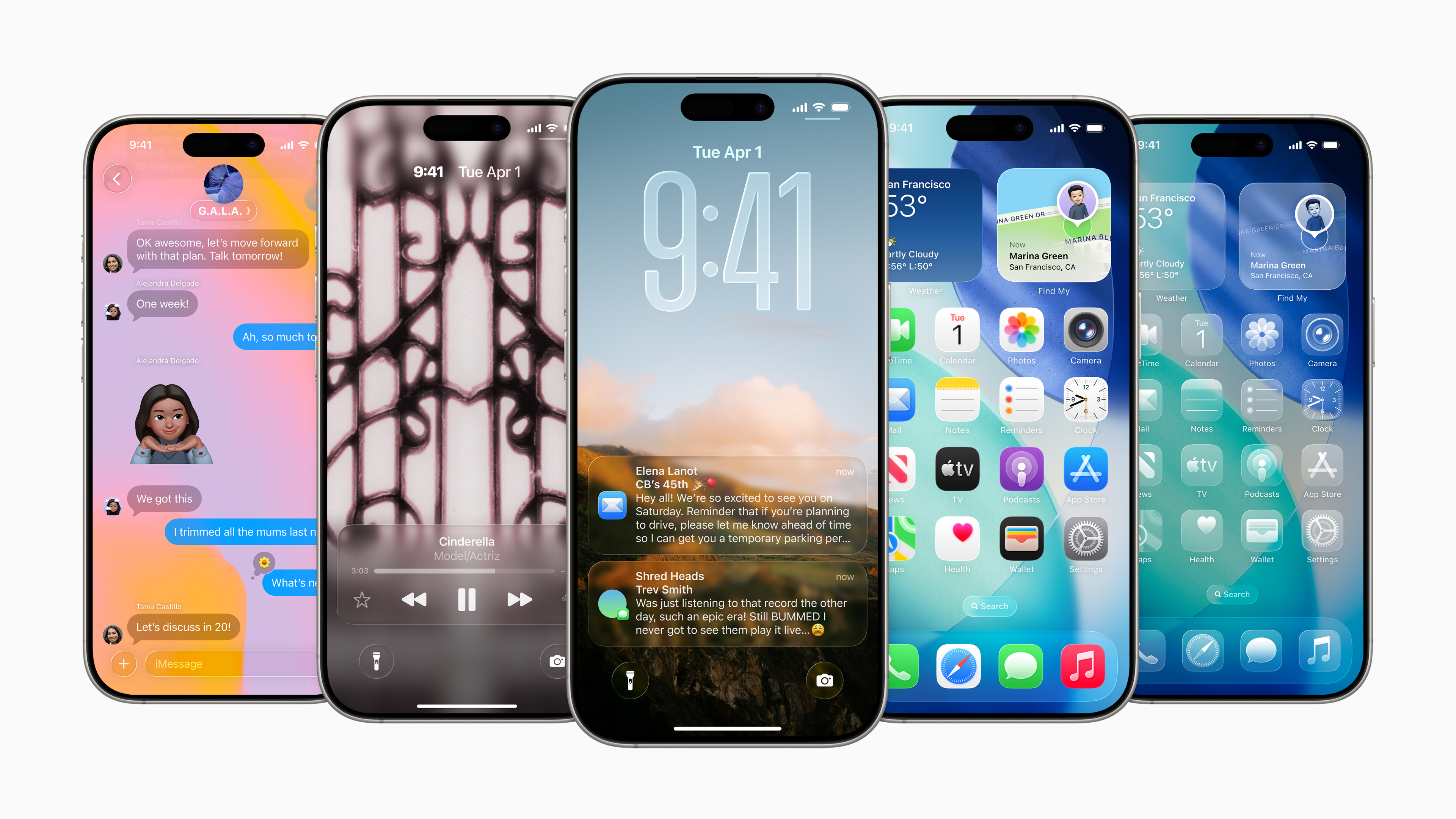
Preparing for Your iOS 26 Upgrade: A Proactive Approach
The journey to a successful iOS 26 installation begins long before you tap the “Download and Install” button. Thoughtful preparation is the bedrock of a smooth update process, minimizing risks like data loss or installation failures. Think of it as a strategic move: just as a well-defined brand strategy safeguards a company’s reputation, and meticulous financial planning protects assets, thorough pre-installation checks secure your digital experience.
The Indispensable Backup: Safeguarding Your Digital Life
Your data is your digital footprint – a repository of memories, crucial documents, and personal information. Upgrading an operating system, while generally safe, always carries a minute risk of unexpected issues. A complete and recent backup acts as your ultimate safety net, ensuring that even in the rarest of circumstances, your digital life remains intact. This isn’t just a technical recommendation; it’s a digital security imperative, protecting not only your photos and messages but potentially sensitive financial data and personal credentials stored on your device.
There are primarily two robust methods for backing up your iPhone or iPad:
-
iCloud Backup: This is often the most convenient method for most users. Ensure your device is connected to Wi-Fi, plug it into power, and navigate to
Settings > [Your Name] > iCloud > iCloud Backup. Toggle “iCloud Backup” on if it isn’t already, and then tap “Back Up Now.” iCloud intelligently stores your app data, device settings, photos, videos, messages, purchase history, and more in Apple’s secure cloud infrastructure. This method is particularly useful for those who prefer wireless convenience and the peace of mind that comes with automatic, regular backups when connected to power and Wi-Fi. It underscores Apple’s brand commitment to user convenience and data integrity. -
Computer Backup (Finder on Mac, iTunes on Windows): For those who prefer a local copy or have extensive data that might exceed iCloud storage limits, backing up to your computer offers a reliable alternative.
- On a Mac (macOS Catalina or later): Connect your device to your Mac using a USB cable. Open a Finder window, select your device from the sidebar, and choose “Back up all of the data on your iPhone to this Mac.” For enhanced security, select “Encrypt local backup” and set a memorable password. This encryption protects your sensitive data like saved passwords and Health data.
- On a Windows PC or Mac (macOS Mojave or earlier): Connect your device to your computer and open iTunes. Click on the device icon, then select “Back Up Now” under the “Backups” section. Again, consider encrypting your backup for comprehensive data protection.
Regardless of the method you choose, verify that the backup completed successfully. A recent, encrypted backup is a testament to sound digital hygiene and protects your investment in your device and its data.
Essential Pre-Installation Checklist: Optimizing for Success
Beyond backing up, several other critical steps ensure your device is primed for a flawless iOS 26 update. Overlooking these can lead to frustrating delays or even installation failures.
-
Charge Your Device: A minimum of 50% battery life is recommended, but ideally, plug your device into power during the update process. An interruption due to a dead battery during installation can corrupt the operating system, potentially requiring a DFU (Device Firmware Update) restore, which is more complex and time-consuming. This simple step protects your device’s operational integrity, much like a strong financial reserve protects a business during unexpected downturns.
-
Ensure Ample Storage Space: Major iOS updates, especially a generational leap like iOS 26, typically require several gigabytes of free storage. If your device is nearly full, the update process won’t even begin, or it might stall midway.
- To check your available storage, go to
Settings > General > iPhone Storage. - If you’re low on space, consider offloading unused apps, deleting old photos and videos (after backing them up!), or clearing app caches. iOS often suggests recommendations for freeing up space. Clearing out digital clutter not only facilitates the update but can also improve your device’s overall performance.
- To check your available storage, go to
-
Stable Wi-Fi Connection: Downloading a large operating system file requires a robust and reliable Wi-Fi connection. Using cellular data is generally not recommended due to potential data caps and slower speeds, which could prolong the download or lead to incomplete files. A stable internet connection ensures the integrity of the downloaded update package.
-
Check Device Compatibility: While iOS 26 is hypothetical, historically, new iOS versions eventually drop support for older devices. Before embarking on the update, quickly verify if your specific iPhone or iPad model is compatible with iOS 26. Apple’s official website or a quick search will usually confirm the list of supported devices. Upgrading an unsupported device isn’t possible, saving you frustration and wasted effort.
By diligently completing this checklist, you’re not just preparing your device; you’re adopting a best practice approach to technology management that minimizes risk and maximizes efficiency, a philosophy that resonates across technology, brand, and financial strategy.
Navigating the Installation Pathways: Methods for Updating to iOS 26
Once your device is thoroughly prepared, you have primarily two main avenues for installing iOS 26: the convenient Over-The-Air (OTA) method or the more controlled computer-based installation. Each has its advantages, catering to different user preferences and technical situations.
The Over-The-Air (OTA) Method: Simplicity and Convenience
For the vast majority of users, the OTA update is the preferred and most straightforward approach. It requires no computer and can be initiated directly from your device, embodying Apple’s commitment to user-friendly design.
Steps for OTA Update:
- Connect to Power and Wi-Fi: As emphasized in the preparation phase, ensure your device is plugged into a power source and connected to a stable Wi-Fi network.
- Access Software Update: Go to
Settings > General > Software Update. - Check for Update: Your device will automatically check for available updates. If iOS 26 is available for your device, you will see a notification.
- Download and Install: Tap “Download and Install.” You might be prompted to enter your passcode.
- Agree to Terms and Conditions: Review Apple’s terms and conditions and tap “Agree.”
- Wait for Installation: The download will commence. Once completed, your device will prompt you to “Install Now” or schedule it for later (e.g., overnight). Choose “Install Now.”
- Device Restart: Your device will restart, and you’ll see an Apple logo with a progress bar. Do not interrupt this process. It can take anywhere from 15 to 45 minutes, depending on the update size and your device model.
- Welcome to iOS 26: Once the installation is complete, your device will restart into iOS 26. You might need to enter your passcode, and possibly your Apple ID password, to finalize setup.
The OTA method excels in convenience, making it the go-to choice for seamless updates. It’s a testament to Apple’s brand focus on intuitive technology that empowers users with minimal technical overhead.
Updating Via Your Computer: For Control and Reliability
While OTA is convenient, updating via a computer using Finder (for modern Macs) or iTunes (for older Macs and Windows PCs) offers a more robust installation, often favored for its reliability and potential to resolve certain software glitches. This method downloads a full operating system image, which can sometimes be more stable than the incremental OTA update. It’s a smart choice for users who prioritize control and a guaranteed clean installation, aligning with a strategic, detail-oriented approach to tech management.

Steps for Computer Update:
- Update Your Computer’s OS and Software: Ensure your Mac is running the latest macOS version or that iTunes on your Windows PC is updated to the newest version.
- Connect Your Device: Plug your iPhone or iPad into your computer using a reliable USB cable.
- Trust the Computer: If prompted on your device, tap “Trust This Computer” and enter your passcode.
- Locate Your Device:
- On a Mac (macOS Catalina or later): Open Finder. Your device will appear in the sidebar under “Locations.” Click on it.
- On a Windows PC or Mac (macOS Mojave or earlier): Open iTunes. Click on the device icon near the top-left of the window.
- Check for Update: In the device summary pane, click “Check for Update.”
- Download and Update: Click “Download and Update” if iOS 26 is available. You may need to agree to terms and conditions.
- Wait for Installation: The update file will download to your computer first, and then it will be installed on your device. Your device will restart multiple times during this process. Do not disconnect your device from the computer until you see the “Welcome to your new iPhone/iPad” or similar message on your device screen.
This method can take longer initially due to the full OS download but can offer peace of mind, especially if you’ve encountered issues with OTA updates in the past. It offers a “hard reset” feel to the update, ensuring that your device gets the freshest installation of iOS 26 possible.
Exploring Advanced Options: Beta Programs and Developer Previews (A Cautionary Tale)
For the truly enthusiastic or those in app development, there are avenues to experience iOS 26 even before its official public release: Apple’s Developer Program and Public Beta Program. However, these are not recommended for general users, especially on primary devices. Beta software is inherently unstable, prone to bugs, performance issues, and reduced battery life. It could potentially impact critical app functionality or even lead to data loss. While tempting to be at the forefront of tech trends, installing beta software on your main device is a significant risk that can undermine productivity and expose you to security vulnerabilities. This aligns with financial wisdom: avoid unnecessary risks with your primary assets. Unless you are a developer testing apps or a tech enthusiast with a dedicated secondary device, stick to the stable public releases.
Post-Installation & Troubleshooting: Ensuring a Seamless iOS 26 Experience
Congratulations, you’ve successfully installed iOS 26! But the process doesn’t end there. A few crucial post-installation steps and an understanding of common troubleshooting techniques will ensure your new operating system functions optimally and securely. This final phase consolidates your tech investment, maintaining peak performance and fortifying your digital security posture.
First Steps After Installation: Exploring iOS 26’s New Horizons
Once your device restarts into iOS 26:
- Explore New Features: Take some time to navigate through the new interface elements, check out the updated apps, and experiment with the flagship features Apple has introduced. Often, Apple provides a “Welcome” screen or a guided tour highlighting key changes. This exploration is part of the brand experience, allowing you to appreciate the innovation.
- Update Your Apps: Many apps may require updates to be fully compatible and optimized for iOS 26. Go to the App Store, tap your profile icon, and scroll down to see pending updates. Tap “Update All.” This ensures your entire software ecosystem is aligned with the latest OS.
- Check Settings: Review your privacy, security, and notification settings, as some might have new options or default changes in iOS 26. This is particularly important for maintaining your preferred level of data protection and user experience.
- Monitor Performance: Over the next few days, pay attention to battery life, app responsiveness, and overall system stability. It’s normal for a new OS to take a day or two to fully “settle in” as it indexes files and optimizes processes.
Common Installation Hurdles and How to Overcome Them
Even with meticulous preparation, issues can sometimes arise. Knowing how to troubleshoot these common problems can save you a trip to support and minimize downtime.
- “Update Requested” or Stuck on Download:
- Solution: Check your internet connection. If stable, try restarting your device and attempting the download again. Sometimes, force-quitting the Settings app can also help.
- Insufficient Storage:
- Solution: If you missed this during preparation, you’ll need to free up space. Delete old media, uninstall unused apps, or offload app data. Go to
Settings > General > iPhone Storagefor recommendations.
- Solution: If you missed this during preparation, you’ll need to free up space. Delete old media, uninstall unused apps, or offload app data. Go to
- Update Stuck on Apple Logo/Progress Bar:
- Solution: This is more serious. Try a force restart:
- iPhone 8 or later (including X, 11, 12, 13, 14, 15 series): Press and quickly release the Volume Up button. Press and quickly release the Volume Down button. Then, press and hold the Side button until you see the Apple logo.
- iPhone 7/7 Plus: Press and hold both the Volume Down and Sleep/Wake buttons simultaneously until you see the Apple logo.
- iPhone 6s or earlier: Press and hold both the Home and Sleep/Wake buttons simultaneously until you see the Apple logo.
- If a force restart doesn’t work, you might need to connect your device to a computer and put it into Recovery Mode to reinstall iOS. This will typically install the latest available iOS version (which would be iOS 26 in this scenario). Be aware that if your device cannot boot, this process might require restoring from a backup, potentially leading to data loss if your backup isn’t recent.
- Solution: This is more serious. Try a force restart:
- Wi-Fi or Cellular Data Issues After Update:
- Solution: Try resetting network settings (
Settings > General > Transfer or Reset iPhone > Reset > Reset Network Settings). This will erase all saved Wi-Fi passwords, so be prepared to re-enter them.
- Solution: Try resetting network settings (
- Apps Crashing or Not Working:
- Solution: First, ensure the app is updated to its latest version (as mentioned above). If the issue persists, try reinstalling the app. If it’s a known issue with iOS 26, the app developer may release an update soon.
For persistent issues, Apple Support or an authorized service provider should be your next step.
Digital Security and Privacy in iOS 26: A Continued Priority
One of the most compelling reasons to install iOS 26 is the continuous enhancement of security and privacy features. Apple consistently invests in these areas, and each update brings critical patches for newly discovered vulnerabilities, alongside innovative privacy controls. Staying updated ensures your device benefits from the strongest possible digital defenses against malware, phishing attempts, and unauthorized data access.
- Review Privacy Settings: iOS 26 will likely introduce new privacy controls. Take the time to understand and configure them to your preferences, especially concerning app tracking, location services, and microphone/camera access.
- Strong Passcodes/Face ID/Touch ID: Ensure your device is secured with a strong alphanumeric passcode, Face ID, or Touch ID. These are the first lines of defense.
- Two-Factor Authentication (2FA): Confirm 2FA is enabled for your Apple ID and other critical online accounts. iOS often streamlines 2FA processes, making them more user-friendly.
Embracing these security measures is not just about protecting your personal data; it’s about safeguarding your financial information, maintaining your personal brand’s integrity online, and ensuring the overall trust you place in your technology.
The Strategic Imperative of Staying Updated: Beyond Just New Features
Installing iOS 26 is more than a simple software upgrade; it’s a strategic decision that impacts your daily productivity, digital security, and the long-term value of your Apple device. In a world where technology, personal branding, and financial acumen intersect, staying current with your operating system is an act of informed self-management.
Enhancing Productivity and User Experience
Every major iOS release introduces enhancements designed to make your device more intuitive, efficient, and powerful. iOS 26 will undoubtedly offer new features that streamline workflows, improve multitasking, and introduce innovative ways to interact with your digital environment. Whether it’s more intelligent Siri capabilities, refined widgets, new Focus modes, or advancements in spatial computing, these improvements are not mere luxuries; they are tools that can directly impact your productivity, helping you manage your time and tasks more effectively. A more efficient device translates into more efficient use of your time – a tangible return on your investment, aligning perfectly with financial principles of maximizing utility.
Bolstering Your Digital Security Perimeter
In an era of escalating cyber threats, an outdated operating system is an open invitation to vulnerabilities. Each iOS update contains critical security patches that address newly discovered exploits, safeguarding your personal data, banking information, and online identities from malicious actors. By installing iOS 26, you are actively participating in protecting your digital assets and reputation. This commitment to security isn’t just about personal protection; it’s about maintaining trust in the digital ecosystem, a core tenet for any brand aiming for longevity and customer loyalty. For financial security, it’s non-negotiable.

Maintaining Device Value and Longevity
An updated device tends to perform better, run the latest applications, and receive continued support from Apple and app developers. This translates directly into extending the useful life of your iPhone or iPad, offering a better return on your initial investment. Furthermore, if you ever decide to sell or trade in your device, an up-to-date operating system often commands a higher resale value, as buyers prefer devices that are current and supported. Maintaining your device with the latest software is a smart financial decision, contributing to both its functionality and its market appeal. It reflects well on your “personal brand” as someone who takes care of their assets.
In conclusion, the decision to install iOS 26 is a multifaceted one, extending beyond the immediate gratification of new features. It’s an act of digital responsibility that touches upon the core pillars of technological advancement, personal and corporate brand integrity, and astute financial management. By following this comprehensive guide, you are not just updating software; you are investing in a more secure, efficient, and valuable digital future, positioning yourself to fully leverage the innovations of iOS 26 while safeguarding your most precious digital assets. Embrace the future, strategically and securely.
aViewFromTheCave is a participant in the Amazon Services LLC Associates Program, an affiliate advertising program designed to provide a means for sites to earn advertising fees by advertising and linking to Amazon.com. Amazon, the Amazon logo, AmazonSupply, and the AmazonSupply logo are trademarks of Amazon.com, Inc. or its affiliates. As an Amazon Associate we earn affiliate commissions from qualifying purchases.