
In the rapidly evolving landscape of digital media, the shift from traditional linear broadcasting to on-demand streaming has fundamentally changed how we consume content. At the heart of this revolution is the Google Chromecast—a small but powerful device that bridges the gap between your mobile ecosystem and the big screen. Since its inception, the Chromecast has transformed from a simple mirroring tool into a sophisticated media hub, particularly with the introduction of “Chromecast with Google TV.” Understanding how to install and optimize this hardware is essential for anyone looking to streamline their home entertainment experience.
Phase 1: Pre-Installation and Hardware Configuration
Before diving into the software ecosystem, it is crucial to ensure that the physical setup is handled correctly. The Chromecast is designed for simplicity, but subtle nuances in how it is powered and positioned can significantly affect its performance and longevity.
Identifying Your Model
Google has released several iterations of the Chromecast, including the standard models (1st, 2nd, and 3rd generations), the Chromecast Ultra for 4K streaming, and the latest Chromecast with Google TV (available in HD and 4K versions). The installation process is largely uniform, but the newer Google TV models require a remote control for the initial setup, whereas older models rely entirely on a smartphone or tablet.
Physical Connection and Power Management
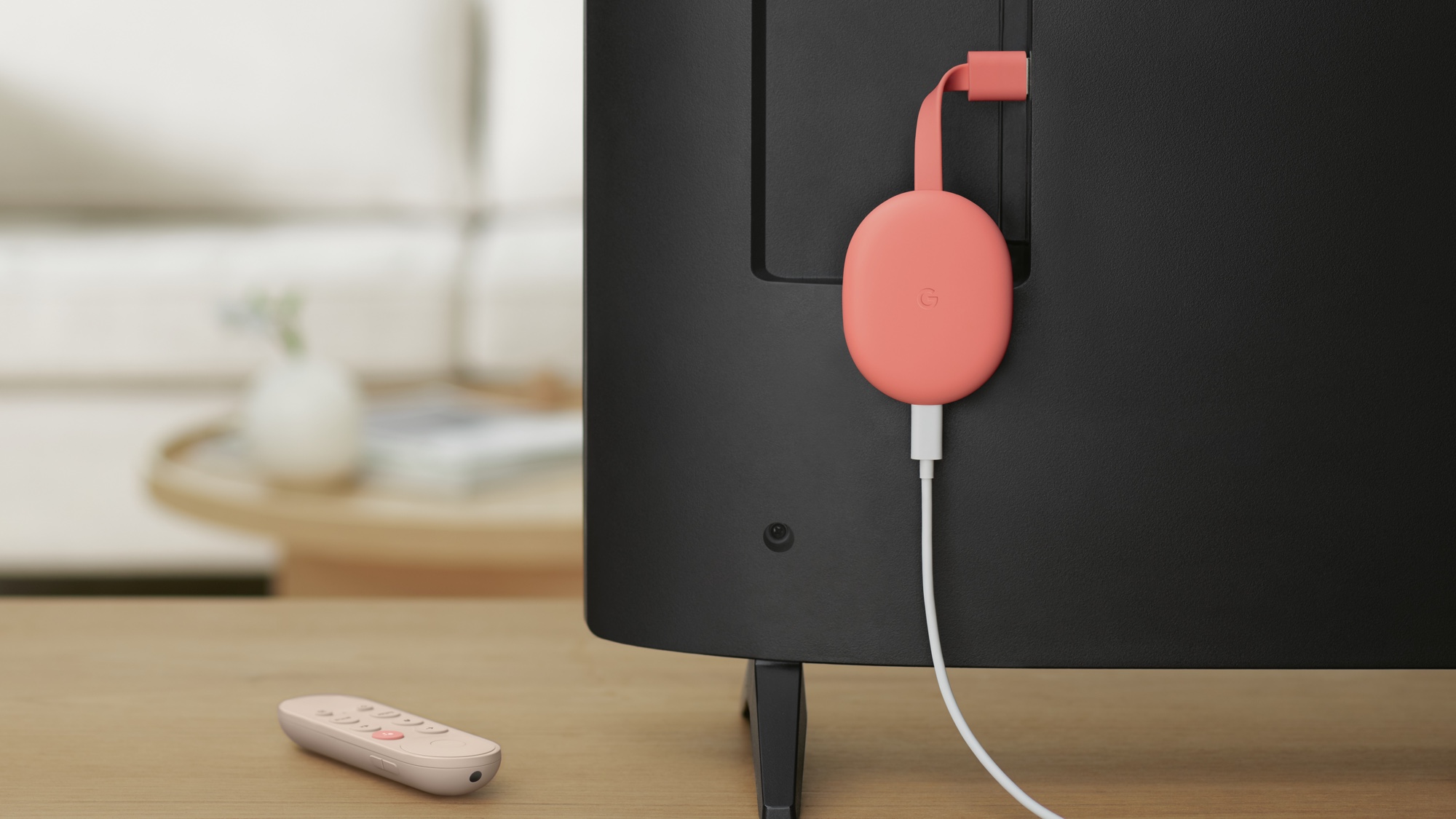
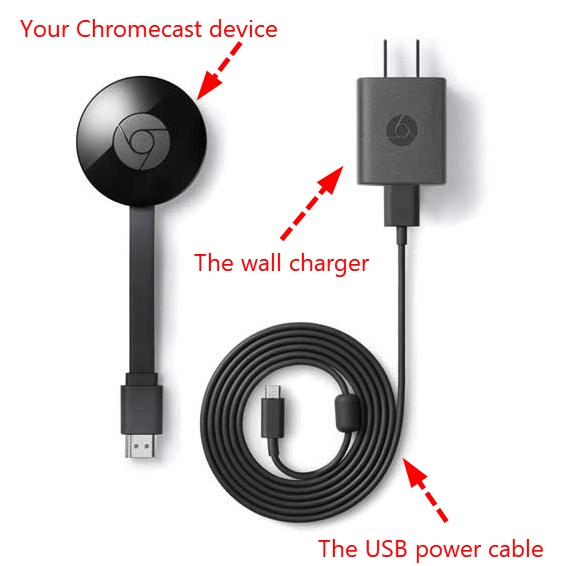
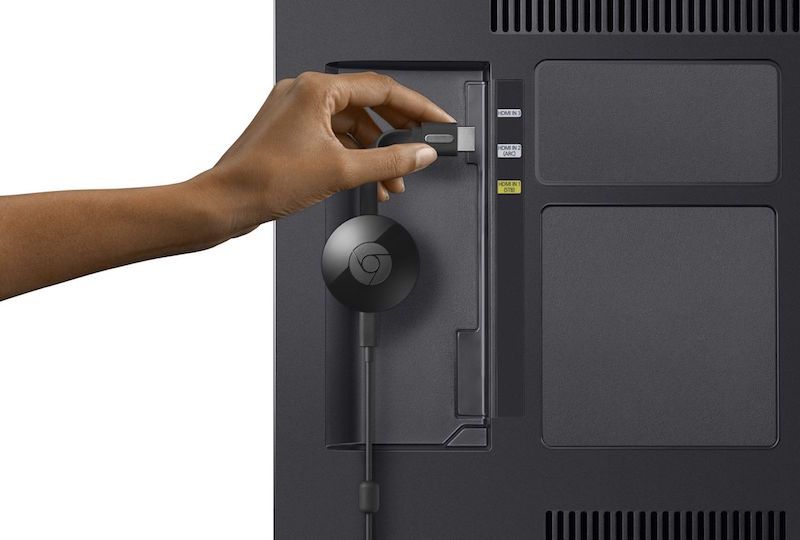
To begin, insert the Chromecast device into an available HDMI port on your television. While many modern TVs feature USB ports that can provide power, it is highly recommended to use the included wall power adapter and cable.
Using a TV’s USB port can lead to “insufficient power” warnings or cause the device to reboot unexpectedly during high-bandwidth activities like 4K streaming. Furthermore, powering the device via a wall outlet allows it to stay active while the TV is off, enabling features like “HDMI-CEC,” which lets you turn on your TV simply by casting a video from your phone.
Optimizing Signal Strength
The Chromecast is a wireless-dependent device. If your TV is mounted in a way that creates a “dead zone” for Wi-Fi—often caused by the metal chassis of the television interfering with the signal—use the HDMI extender cable included in the box. This small lead allows the Chromecast to hang slightly further away from the back of the TV, often improving Wi-Fi reception and preventing overheating.
Phase 2: Software Integration via the Google Home App
Once the hardware is connected and the TV is set to the correct HDMI input, the transition to software begins. Google has centralized its hardware management within the Google Home app, making it the primary tool for installation.
Initiating the Setup Process
Download the Google Home app from the Google Play Store or Apple App Store. Ensure that your mobile device’s Bluetooth is enabled, as this is the primary protocol used for the initial “handshake” between your phone and the Chromecast. Upon opening the app, tap the “+” icon and select “Set up device,” followed by “New device.” The app will automatically scan for the Chromecast’s unique signal.
The Verification and Connection Sequence
Once the app identifies your Chromecast, a four-digit alphanumeric code will appear on both your TV screen and your mobile device. Confirm that these codes match to ensure you are configuring the correct unit.
The next step is connecting the device to your local Wi-Fi network. For users with dual-band routers, it is advisable to connect the Chromecast to the 5GHz band. While 2.4GHz offers better range, the 5GHz band provides the higher data throughput required for seamless 4K HDR streaming and reduces interference from other household electronics like microwaves or cordless phones.
Linking Google Accounts and Services
During the setup, you will be prompted to link your Google account. This is a critical step for personalization. It allows the Chromecast to access your YouTube subscriptions, Google Photos, and “Continue Watching” lists. If you are using a Chromecast with Google TV, you will also be asked to select your preferred streaming services (such as Netflix, Disney+, or Spotify). This allows the device to aggregate content into a unified interface, eliminating the need to jump between individual apps to find something to watch.
Phase 3: Troubleshooting and Performance Optimization
Even with a successful installation, technical hurdles can arise. Understanding how to troubleshoot network issues and optimize video settings ensures a frustration-free viewing experience.
Resolving Network Connectivity Issues
The most common hurdle in Chromecast installation is the “Could not communicate with your Chromecast” error. This is often caused by AP (Access Point) Isolation settings on the router, which prevent wireless devices from communicating with each other. Ensure that AP Isolation is disabled in your router settings.
If the device frequently buffers, check for “signal noise.” Smart home ecosystems are crowded; shifting your router’s channel or moving the router closer to the entertainment center can resolve these throughput bottlenecks.
Calibrating Video and Audio Settings
For those using a 4K-capable Chromecast, go into the “Display & Sound” settings within the Google TV interface. Ensure that “Match content frame rate” is enabled. This feature adjusts the TV’s refresh rate to match the original source of the video (e.g., 24fps for movies), preventing “judder” and ensuring a cinematic experience. Additionally, verify that HDR and Dolby Vision are active if your television supports these formats.
The Importance of Firmware Updates
Google frequently releases “over-the-air” (OTA) updates that improve security and add features. During the initial setup, the device will likely require a significant update. Do not unplug the device during this process. In the future, you can manually check for updates in the System settings to ensure you are running the most stable version of the firmware.
Phase 4: Mastering Advanced Features and Ecosystem Integration
Beyond basic streaming, the Chromecast offers a suite of advanced features that turn your television into a collaborative and interactive tool.
Utilizing Guest Mode and Multi-Room Audio
Chromecast supports “Guest Mode,” which allows visitors to cast content to your TV without needing your Wi-Fi password. This is handled via an ultrasonic sound pairing or a manual PIN. Furthermore, if you have other Google Nest speakers, you can add your Chromecast to a “Speaker Group” within the Google Home app. This syncs your TV’s audio with other speakers throughout the house, perfect for hosting events or listening to music across multiple rooms.
Screen Mirroring and Chrome Browser Casting
While most users cast from mobile apps, the Chromecast is also a powerful tool for productivity. Using the Google Chrome browser on a PC or Mac, you can “Cast Tab” or “Cast Desktop.” This is invaluable for presentations, displaying web-based content that doesn’t have a native app, or viewing personal documents on a large screen. For Android users, the “Cast my screen” feature in the Google Home app mirrors the entire mobile interface with minimal latency.
Voice Control and Smart Home Automation
Integration with Google Assistant is a hallmark of the Chromecast experience. Once installed, you can use a Nest Mini or the remote’s voice button to execute commands like “Play Stranger Things on Netflix” or “Show me the front door camera.” Because the Chromecast is recognized as a smart home “node,” you can include it in “Routines.” For example, a “Movie Night” routine could simultaneously dim your smart lights, close the smart blinds, and turn on the Chromecast.
The Future of the Cast Ecosystem
The installation of a Google Chromecast is more than just a hardware setup; it is an entry point into a more integrated and intelligent digital life. As streaming technology continues to push toward 8K resolution and cloud-based gaming via platforms like YouTube Playables, the Chromecast remains a versatile anchor in the tech stack of the modern consumer.
By following a structured installation process—from robust hardware power management to precise software configuration—you ensure that your device operates at peak performance. As the boundary between mobile devices and home theaters continues to blur, mastering the Chromecast ensures you are at the forefront of the digital entertainment evolution. Whether you are a casual viewer or a tech enthusiast, the ability to seamlessly move content across screens remains one of the most significant conveniences of the modern age.
aViewFromTheCave is a participant in the Amazon Services LLC Associates Program, an affiliate advertising program designed to provide a means for sites to earn advertising fees by advertising and linking to Amazon.com. Amazon, the Amazon logo, AmazonSupply, and the AmazonSupply logo are trademarks of Amazon.com, Inc. or its affiliates. As an Amazon Associate we earn affiliate commissions from qualifying purchases.