
In the rapidly evolving digital landscape, your choice of web browser is more than just a preference; it’s a strategic decision that impacts your productivity, digital security, and overall online experience. For Mac users, while Safari offers a tightly integrated experience with macOS, Google Chrome remains a dominant force, renowned for its speed, extensive feature set, and powerful synchronization capabilities. Whether you’re a seasoned tech enthusiast, a budding entrepreneur managing online finances, or simply looking to optimize your daily digital workflow, understanding how to properly install and configure Chrome on your Mac is a foundational step.
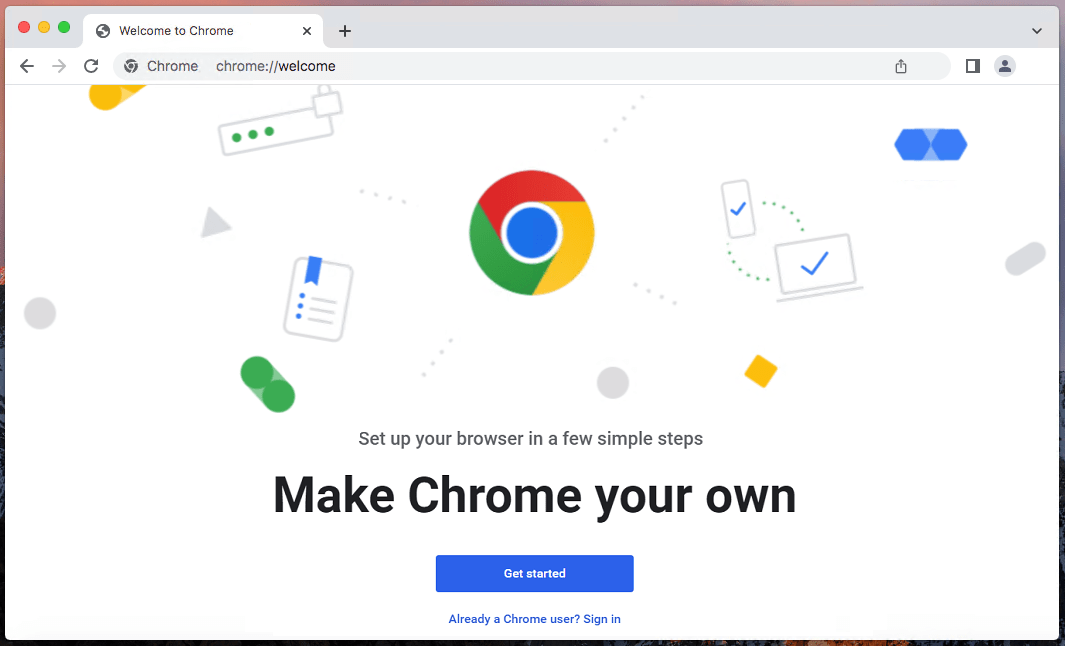
This guide will walk you through the entire process, from the initial download to advanced tips for maximizing Chrome’s potential. We’ll delve into why millions choose Chrome, its implications for personal and business use, and how to harness its features to enhance efficiency and safeguard your online presence. By the end, you’ll not only have Chrome successfully running on your Mac but also a deeper appreciation for its role in the broader tech ecosystem, aligning with the core tenets of software, digital security, and productivity that drive modern digital life.
Why Choose Google Chrome for Your Mac? Exploring Features and Benefits
Before diving into the installation specifics, it’s worth exploring the compelling reasons why Google Chrome continues to capture a massive share of the browser market, even among discerning Mac users who have a robust native alternative in Safari. Chrome isn’t just another browser; it’s a gateway to a powerful ecosystem, offering features that directly impact productivity, digital security, and how we interact with technology trends.
The Chrome Advantage: Speed, Sync, and Extensions
Google Chrome has built its reputation on a trinity of core strengths that resonate deeply with today’s internet users: unparalleled speed, seamless cross-device synchronization, and an incredibly vast extension ecosystem.
Speed and Performance
Chrome is engineered for speed. Its V8 JavaScript engine and efficient rendering capabilities ensure that web pages load quickly and complex web applications run smoothly. For professionals managing multiple online tools, conducting research, or engaging in real-time collaboration, a fast browser translates directly into saved time and increased efficiency. While Safari has made significant strides in performance, Chrome often holds an edge in handling resource-intensive tasks and a high volume of open tabs, which is crucial for a productive workflow.
Seamless Cross-Device Synchronization
One of Chrome’s standout features is its tight integration with your Google Account. By signing in, you unlock seamless synchronization across all your devices – Mac, iPhone, iPad, Windows PC, or Android. This means your bookmarks, browsing history, saved passwords, open tabs, and even payment information are instantly accessible wherever you are. For individuals juggling personal and professional tasks, or those frequently switching between devices, this level of synchronization is a massive productivity booster, ensuring continuity and reducing friction in your digital journey. This aligns perfectly with the “Apps” and “Productivity” aspects of modern tech.
Vast Extension Ecosystem
Perhaps the most powerful aspect of Chrome is its extensive Web Store, home to hundreds of thousands of extensions. These small software programs extend Chrome’s functionality, catering to almost any need imaginable. From powerful ad blockers and robust password managers to sophisticated productivity tools like task managers, note-taking apps, and project management integrations, extensions allow users to customize their browsing experience to an unparalleled degree. For those interested in online income or business finance, specific extensions can track analytics, manage SEO, find coupon codes, or even automate repetitive tasks, turning your browser into a highly specialized tool for earning and saving money. This direct link between custom functionality and practical gains underscores Chrome’s appeal.
Digital Security and Privacy Considerations
In an era of increasing cyber threats and growing privacy concerns, the security features of your browser are paramount. Google Chrome has invested heavily in robust security measures, alongside offering users tools to manage their privacy.
Built-in Protections
Chrome comes equipped with powerful built-in security features. Safe Browsing technology automatically warns you about dangerous websites and suspicious downloads, protecting you from phishing, malware, and other online threats. Regular updates ensure that these protections are kept current against the latest vulnerabilities. The browser also supports HTTPS-first mode, encrypting your connection to websites whenever possible, a critical aspect of digital security, especially when handling sensitive information like financial transactions or personal data.
Managing Your Privacy Settings
While Google’s business model relies on data, Chrome provides comprehensive controls for users to manage their privacy. You can easily adjust settings for cookies, site permissions, and sync options. Furthermore, the vast array of privacy-focused extensions, such as VPNs or advanced ad blockers, allows users to take an even more proactive stance on their data. Understanding and configuring these settings is crucial for anyone concerned with digital security and maintaining control over their personal information in the online realm.
Chrome’s Place in the Tech Landscape
Chrome’s dominance is undeniable, solidifying Google’s brand presence in virtually every corner of the internet. Its consistent innovation drives browser technology forward, influencing web standards and developer practices. For businesses, ensuring their websites and applications perform optimally on Chrome is a critical brand strategy consideration. For users, aligning with such a pervasive platform often means access to the latest web technologies and the broadest compatibility across various online services.
Step-by-Step Installation Guide: Getting Chrome Ready on Your macOS Device
Installing Google Chrome on your Mac is a straightforward process, designed to be user-friendly even for those new to macOS. However, a meticulous approach ensures a smooth setup, avoiding potential issues and adhering to best practices for software installation, a key aspect of reliable tech management.
Pre-Installation Checklist: What You Need
Before you begin, ensure you have these prerequisites in place:
Internet Connection
A stable internet connection is essential to download the Chrome installer package.
Sufficient Storage
Google Chrome itself is not a large application, but ensure you have a few hundred megabytes of free space for the installer and the application itself.
Admin Privileges
You’ll need administrative access to your Mac to install applications into the Applications folder. If you’re not the primary user, you may need to enter an administrator’s username and password during the process.
Downloading the Google Chrome Installer
The most critical step in securing a safe and effective installation is to download the software from an official and trusted source. This aligns directly with digital security best practices.
Visiting the Official Website
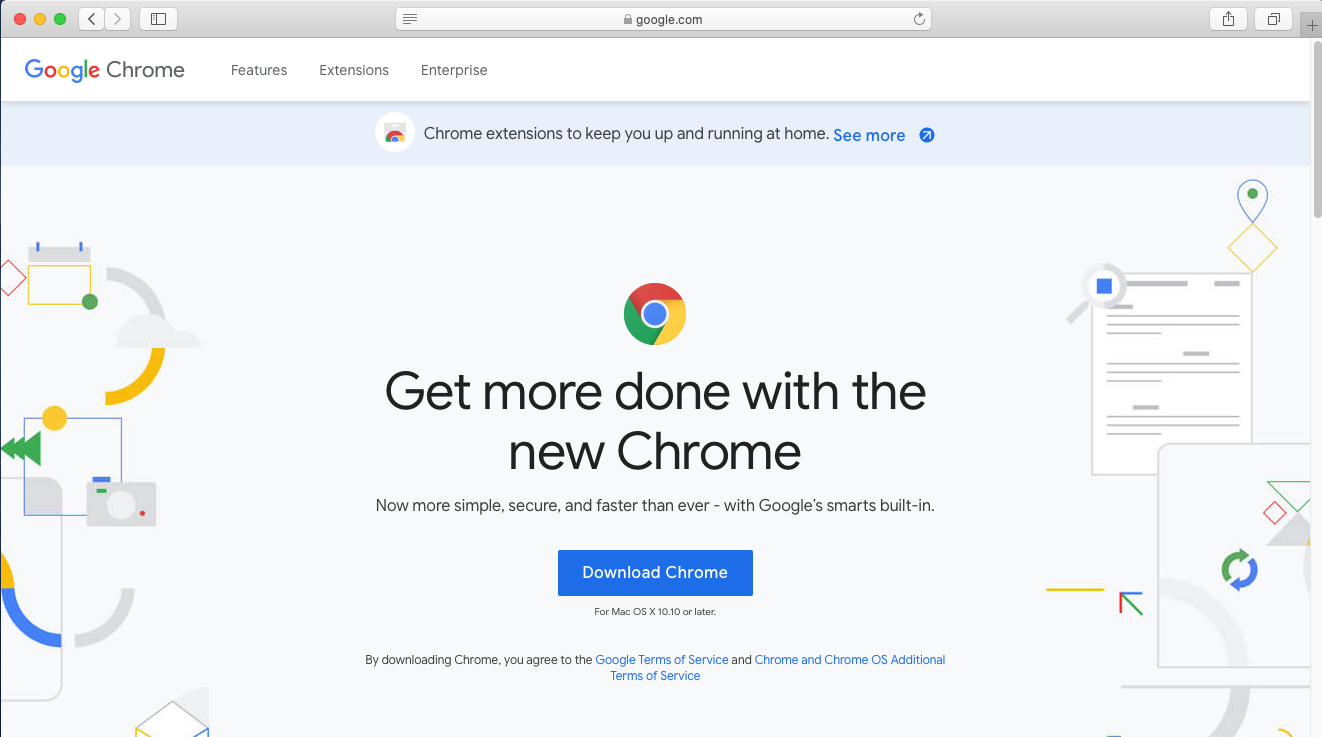
Open your current web browser (e.g., Safari) and navigate directly to the official Google Chrome download page: www.google.com/chrome. Avoid third-party download sites, as these can sometimes bundle unwanted software or even malicious content, compromising your digital security.
Choosing the Right Version
On the download page, Google typically auto-detects your operating system. Click the “Download Chrome” button. For modern Macs, you might be prompted to choose between versions optimized for “Mac with Intel chip” or “Mac with Apple chip.”
- For Apple Silicon Macs (M1, M2, M3, etc.): Select “Mac with Apple chip.” This version is specifically optimized for Apple’s custom processors, offering superior performance and energy efficiency.
- For Intel-based Macs: Select “Mac with Intel chip.”
Once you make your selection, the installer file, typically namedgooglechrome.dmg, will begin downloading to your Downloads folder.
Executing the Installation
With the .dmg file downloaded, you can proceed with the installation process, which involves interacting with the standard macOS application installation workflow.
Opening the DMG File
Locate the downloaded googlechrome.dmg file in your Downloads folder or wherever your browser saves downloaded files. Double-click the file to open it. This will mount a disk image on your desktop and open a new Finder window displaying the contents of the disk image.
Dragging to Applications Folder
Inside the newly opened Finder window, you will typically see the Google Chrome application icon and an alias to your Applications folder. The standard macOS installation method for most applications is simply to drag the Google Chrome icon into the Applications folder icon.
- Click and drag the
Google Chromeapplication icon. - Drop it onto the
Applicationsfolder icon.
This action copies the Chrome application bundle to your Applications folder, making it available for all users on your Mac (depending on your setup).
Handling Security Prompts
After copying, you can close the Finder window and drag the mounted disk image (Google Chrome icon on your desktop) to the Trash to “eject” it. This cleans up your desktop.
The first time you launch Chrome, macOS’s Gatekeeper security feature might prompt you with a message like “Google Chrome is an application downloaded from the Internet. Are you sure you want to open it?” This is a standard security check. Click “Open” to proceed. You may also be asked for your administrator password if you’re installing from a non-admin account or if your security settings require it.
First Launch and Initial Setup
Once installed, the initial launch of Chrome provides an opportunity to configure essential settings that enhance your productivity and personalize your browsing experience.
Setting as Default Browser
Upon its first launch, Chrome will likely ask if you want to make it your default browser. Setting Chrome as your default means all web links you click will automatically open in Chrome. This is a common preference for many users who rely on Chrome’s ecosystem for their daily tasks, significantly boosting productivity by centralizing their web activity. If you wish to do so, click “Set as default.” You can always change this later in Chrome’s settings or in macOS System Settings.
Signing In to Google Account
Chrome will also prompt you to sign in with your Google Account. This step is highly recommended to unlock the full potential of Chrome’s synchronization features. Signing in immediately syncs your bookmarks, history, passwords, and extensions across all your devices, providing a consistent and highly personalized browsing experience that saves time and effort.
Importing Bookmarks and Settings
If you’re migrating from another browser like Safari or Firefox, Chrome often offers the option to import your existing bookmarks, browsing history, and saved passwords during the initial setup. This is a convenient feature that minimizes disruption and helps you quickly transition to your new browser without losing valuable data.
Optimizing Your Chrome Experience: Tips for Productivity and Performance
Installing Chrome is just the beginning. To truly leverage its power, particularly for enhancing productivity and ensuring smooth performance on your Mac, a few optimization steps and habits can make a significant difference. These tips touch upon software management, app utilization, and digital security strategies.
Essential Chrome Settings for Mac Users
A quick dive into Chrome’s settings can tailor the browser to your specific needs, making your daily interactions more efficient.

Startup Settings
Configure what Chrome does when it launches. You can choose to:
- Open the New Tab page: For a clean start.
- Continue where you left off: Reopens all tabs from your previous session, ideal for productivity workflows where you frequently pick up tasks.
- Open a specific set of pages: Useful for professionals who always need certain websites open (e.g., email, project management tools, financial dashboards) when they begin their workday.
Appearance and Themes
While primarily aesthetic, customizing your browser’s appearance can contribute to a more pleasant and less distracting work environment. Chrome’s Web Store offers a plethora of themes. Additionally, dark mode support in macOS extends to Chrome, potentially reducing eye strain during long hours of screen time, a subtle but important aspect of user experience and productivity.
Search Engine Configuration
By default, Chrome uses Google Search. However, you can change your default search engine to alternatives like DuckDuckGo (for enhanced privacy) or Bing, based on your preferences or specific work requirements. This offers flexibility in how you access information and manage your data.
Leveraging Extensions for Productivity and Security
The Chrome Web Store is a treasure trove of tools. Thoughtfully chosen extensions can transform Chrome into a highly specialized powerhouse.
Popular Productivity Extensions
Consider extensions that integrate with your workflow:
- Ad Blockers (e.g., uBlock Origin): Beyond just convenience, blocking ads can reduce page load times, save data, and minimize distractions, directly increasing focus and productivity.
- Password Managers (e.g., LastPass, 1Password, Bitwarden): Essential for digital security and efficiency. They securely store and auto-fill complex passwords, saving time and bolstering your online defenses, particularly crucial for managing multiple online accounts related to finance or business.
- Note-Taking & Web Clipping Tools (e.g., Evernote Web Clipper, Notion Web Clipper): Capture important information from web pages directly into your note-taking system, streamlining research and content curation.
- Tab Management Extensions (e.g., OneTab, Great Suspender): For users with many tabs, these extensions help manage memory usage and keep your browser organized, preventing performance slowdowns and enhancing focus.
Security Extensions
Beyond password managers, other security-focused extensions can offer additional layers of protection:
- VPN Extensions: While a full system VPN is generally recommended, browser-specific VPN extensions can offer quick privacy enhancements for certain browsing sessions.
- Privacy-Focused Extensions (e.g., Privacy Badger): These can help block invisible trackers, further enhancing your digital security and data privacy.
Performance Boosters: Managing Tabs and Resources
While Chrome is fast, its resource consumption can increase with many open tabs and extensions. Efficient management ensures your Mac runs smoothly.
Task Manager
Chrome has its own built-in Task Manager (accessible via Window > Task Manager or Shift+Esc). This tool shows you which tabs and extensions are consuming the most CPU and memory. If Chrome feels slow, check here to identify and close resource-hogging tabs or extensions. This is a powerful feature for diagnosing and resolving performance issues, similar to macOS’s Activity Monitor.
Tab Management Extensions
As mentioned, extensions like OneTab can consolidate dozens of open tabs into a single list, freeing up system memory until you need to reopen them. This is an excellent strategy for maintaining performance without sacrificing your current research or workflow. Regular management of open tabs and extensions is key to sustained browser performance.
Advanced Management and Troubleshooting for Google Chrome on Mac
Maintaining your software is as crucial as its initial installation. For Google Chrome on Mac, this involves ensuring it’s always up-to-date, knowing how to thoroughly uninstall it if necessary, and being able to troubleshoot common issues. This speaks to the “Digital Security” and “Software” aspects of tech management.
Keeping Chrome Updated: The Importance of Regular Updates
Software updates are not just about new features; they are a cornerstone of digital security and performance.
Security Patches
Google regularly releases updates for Chrome that include critical security patches. These patches address newly discovered vulnerabilities that could be exploited by malicious actors. Running an outdated version of Chrome leaves you exposed to potential threats like malware, phishing attacks, and data breaches. Ensuring your browser is always current is a fundamental element of protecting your digital assets and maintaining online security, especially when dealing with sensitive information like financial accounts.
New Features and Performance Improvements
Beyond security, updates often bring new features, user interface enhancements, and performance optimizations. These improvements can lead to a faster, more stable, and more enjoyable browsing experience, further boosting your productivity. Chrome typically updates automatically in the background, but it’s good practice to occasionally check manually by going to Chrome > About Google Chrome in the menu bar.
Uninstalling Google Chrome on Mac OS (if needed)
While we advocate for Chrome, there might come a time when you need to uninstall it, perhaps to troubleshoot a persistent issue or simply to switch browsers. A complete uninstallation goes beyond just dragging the app to the trash.
Dragging to Trash
The first step is simple:
- Ensure Chrome is completely closed.
- Open your
Applicationsfolder in Finder. - Drag the
Google Chromeapplication icon to the Trash. - Empty the Trash.
This removes the core application, but some associated files remain.
Removing Leftover Files
For a thorough cleanup, especially important if you’re trying to resolve stubborn issues, you’ll want to remove residual files. These often include user profiles, caches, and application support files.
- Open Finder, click “Go” in the menu bar, then select “Go to Folder…”
- Type
~/Library/Application Support/Google/and press Enter. - Locate the “Chrome” folder and drag it to the Trash. This folder contains your user profile, bookmarks, and other data. Be aware that deleting this will remove all your Chrome data. If you plan to reinstall, ensure you’ve synced your data to your Google Account beforehand.
- You might also want to check
~/Library/Caches/Google/Chrome/and~/Library/Preferences/com.google.Chrome.plistand drag these to the Trash as well. - Finally, empty the Trash again.
Common Issues and Quick Fixes
Even the most robust software can encounter hiccups. Knowing how to quickly address common Chrome problems can save you valuable time and reduce frustration.
Chrome Crashing or Not Responding
- Restart Chrome: Close and reopen the browser.
- Restart Mac: A full system restart can resolve many temporary software glitches.
- Check for Updates: Ensure Chrome is up-to-date.
- Disable Extensions: Open Chrome in Incognito mode (which typically disables extensions by default) or go to
chrome://extensionsand temporarily disable them one by one to identify a problematic extension.
Page Loading Errors or Slow Performance
- Clear Cache and Cookies: Go to
Chrome > Clear Browsing Dataand select “Cached images and files” and “Cookies and other site data.” This often resolves loading issues. - Check Internet Connection: Ensure your Wi-Fi or Ethernet connection is stable.
- Disable Hardware Acceleration: Go to
Chrome Settings > Systemand toggle “Use hardware acceleration when available.” Sometimes, this can resolve rendering issues. - Reset Chrome Settings: Under
Chrome Settings > Reset settings, you can reset Chrome to its original defaults, which can fix many underlying configuration problems without deleting your bookmarks or history.
Extension Conflicts
If a specific extension is causing issues, disabling or removing it (chrome://extensions) is usually the quickest fix. Only install extensions from the official Chrome Web Store and scrutinize their reviews and requested permissions for digital security best practices.
The Financial and Brand Implications of Your Browser Choice
Beyond its technical capabilities, choosing Google Chrome for your Mac carries broader implications that touch upon personal finance, online income generation, business efficiency, and even how you perceive and interact with major tech brands. Your browser is not merely a tool; it’s a critical component of your digital identity and economic activity.
Productivity as Profit: How an Efficient Browser Fuels Online Income
In the digital age, time is money, and an efficient browser can be a direct contributor to your financial well-being, especially for those engaged in online income, side hustles, or running small businesses.
Faster Workflow for Business Tasks
For freelancers, entrepreneurs, and remote workers, Chrome’s speed, reliability, and synchronization features translate into a more fluid and less interrupted workflow. Whether you’re managing client projects, creating content, or engaging in market research, every second saved on page loads or switching between tools adds up. This efficiency can directly impact billable hours or the volume of work you can complete, thereby increasing potential online income.
Access to Financial Tools and Platforms
Most personal finance, investing, and business finance platforms are accessed via a web browser. Chrome’s robust performance ensures smooth interactions with banking portals, trading platforms, accounting software, and e-commerce dashboards. Its security features, when properly utilized, provide a safer environment for handling sensitive financial transactions. The vast extension ecosystem also includes tools for budgeting, tracking expenses, or even finding deals, indirectly saving or earning money.
Reduced Downtime
Browser crashes, slow performance, or security vulnerabilities can lead to significant downtime, costing you time and potentially money if you rely on online operations for income. By following best practices for Chrome installation, optimization, and updates, you minimize these risks, ensuring continuous access to your online income streams and financial tools.
Google’s Brand Influence and Data Considerations
Google’s brand is synonymous with innovation, search, and a vast ecosystem of services. Choosing Chrome means aligning with this powerful brand, but it also means engaging with discussions around data privacy and market dominance.
Trust vs. Privacy Concerns
Google’s brand equity inspires trust for many users due to its long history of developing reliable, innovative products. However, Google’s extensive data collection for advertising purposes is a well-documented concern for privacy advocates. By using Chrome, users implicitly engage with Google’s data practices. While Chrome offers privacy controls, it’s crucial for users to understand the trade-offs and actively manage their settings, balancing the convenience and features against their personal privacy preferences. This conscious choice is part of forming one’s personal branding in the digital sphere, deciding which tech giants to grant access.
The Ecosystem Lock-in
Chrome is a cornerstone of the broader Google ecosystem, which includes Gmail, Google Drive, Google Docs, YouTube, and more. For many, the seamless integration and synchronization across these services represent unparalleled convenience and productivity. This “ecosystem lock-in” can be a powerful draw for businesses and individuals who rely heavily on Google’s suite of tools, reinforcing their brand loyalty.
Market Dominance
Google Chrome’s market share is immense. This dominance means that web developers often optimize for Chrome first, ensuring the best possible experience on the browser. For users, this translates to reliability and compatibility across almost all websites and web applications, which indirectly contributes to a smoother, more productive online experience without technical hurdles.
Making an Informed Decision for Your Digital Journey
Ultimately, the choice of browser for your Mac is a personal one, influenced by your specific needs, workflows, and values. By understanding not just how to install Google Chrome, but also why it’s a popular choice, its implications for productivity, digital security, financial tasks, and its place within the powerful Google brand, you empower yourself to make an informed decision. This guide serves as a comprehensive resource, ensuring you can confidently install, optimize, and manage Google Chrome on your Mac, leveraging its full potential for a richer, more efficient, and secure digital journey.
aViewFromTheCave is a participant in the Amazon Services LLC Associates Program, an affiliate advertising program designed to provide a means for sites to earn advertising fees by advertising and linking to Amazon.com. Amazon, the Amazon logo, AmazonSupply, and the AmazonSupply logo are trademarks of Amazon.com, Inc. or its affiliates. As an Amazon Associate we earn affiliate commissions from qualifying purchases.