
Fortnite. The name itself conjures images of vibrant landscapes, intense build battles, and the thrill of securing that coveted Victory Royale. This free-to-play battle royale phenomenon has captivated millions worldwide, and for many PC gamers, the desire to jump into the action is as strong as ever. But if you’re new to the PC gaming scene or simply haven’t ventured into the Fortnite universe before, the question of “how to install Fortnite on PC” might be your first hurdle. This guide is designed to demystify the process, offering a clear, step-by-step walkthrough that caters to both seasoned tech enthusiasts and those who might be less familiar with PC software installations.
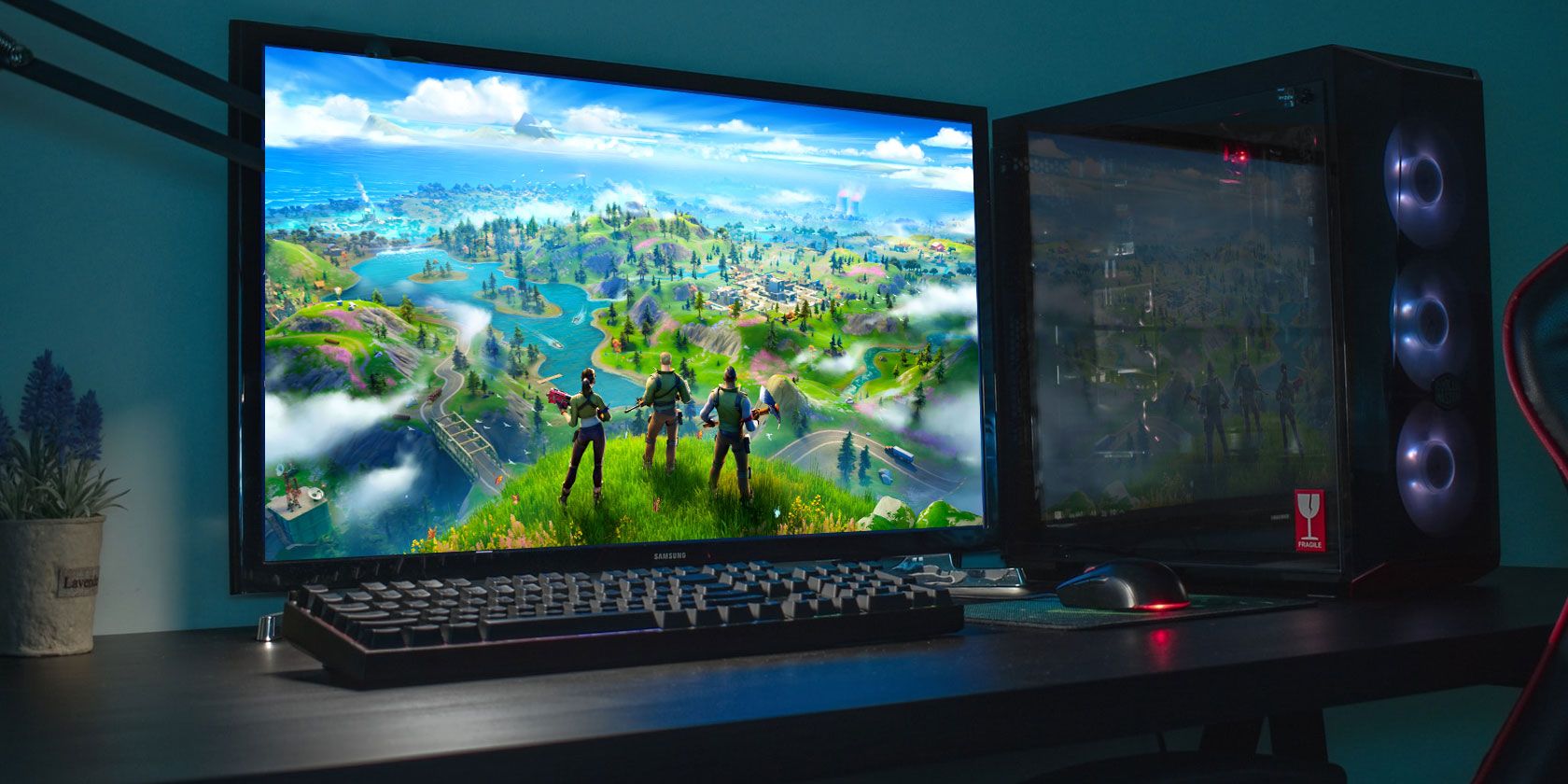
Our journey will not only cover the technicalities of getting Fortnite up and running but will also touch upon the underlying principles that make this process smooth and efficient. We’ll explore the essential software you’ll need, the importance of a stable internet connection, and how to navigate potential roadblocks. This isn’t just about downloading a game; it’s about understanding the digital infrastructure that supports it, a concept that resonates deeply within the broader landscape of technology and its evolving trends.
The Foundation: Epic Games Launcher and Your System
Before you can experience the thrill of dropping onto the Fortnite island, you need to install the gateway to all Epic Games titles: the Epic Games Launcher. This is the central hub from which you’ll download, manage, and launch Fortnite. Think of it as your digital key to a vast library of games.
Downloading the Epic Games Launcher
The first and most crucial step is to acquire the Epic Games Launcher itself. Fortunately, it’s a straightforward process.
-
Navigate to the Official Epic Games Website: Open your preferred web browser and go to the official Epic Games website. You can usually find this by searching for “Epic Games” on your search engine.
-
Locate the Download Option: Once on the website, look for a prominent “Download” or “Get the Epic Games Launcher” button. This is typically found in the navigation bar or on the homepage. Clicking this will initiate the download of the launcher’s installer file.
-
Run the Installer: After the download is complete, locate the downloaded file (usually in your “Downloads” folder) and double-click it to run the installer. The installation wizard will guide you through the process. You’ll likely be asked to accept the End-User License Agreement and choose an installation directory. For most users, the default settings are perfectly adequate.
Creating or Logging into Your Epic Games Account
The Epic Games Launcher requires an Epic Games account to function. If you already have an account, this step is simply a matter of logging in. If you’re new to the Epic Games ecosystem, you’ll need to create one.
- Logging In: If you have an existing account, enter your email address and password when prompted by the launcher.
- Creating an Account: If you’re a new user, click on the “Sign Up” or “Create Account” option. You’ll be asked to provide a valid email address, choose a username and password, and agree to the terms of service. It’s a good practice to use a strong, unique password for your Epic Games account, especially considering the digital security implications of online accounts.
System Requirements: Ensuring a Smooth Experience
While Fortnite is designed to be accessible, it’s essential to ensure your PC meets the minimum system requirements to guarantee a smooth and enjoyable gaming experience. Trying to run a demanding game on an underpowered system can lead to frustrating lag, low frame rates, and a generally subpar performance.
You can typically find the official system requirements on the Epic Games website or the Fortnite product page. Here’s a general overview of what to look for:
- Operating System: Most modern versions of Windows (Windows 10, 11) are supported.
- Processor (CPU): A multi-core processor is generally recommended.
- Memory (RAM): A minimum of 8GB of RAM is usually advised for a comfortable experience.
- Graphics Card (GPU): This is often the most critical component for gaming performance. A dedicated graphics card with a sufficient amount of VRAM (Video Random Access Memory) is essential.
- Storage Space: Fortnite is a large game, so ensure you have enough free space on your hard drive or SSD.
- Internet Connection: A stable, high-speed internet connection is paramount for downloading the game and for online multiplayer gameplay.
Meeting these requirements isn’t just about technical specifications; it’s about understanding the foundational hardware that enables your digital experiences. Just as a well-defined brand strategy underpins a successful business, robust hardware is the bedrock of a good gaming setup.
Downloading and Installing Fortnite
With the Epic Games Launcher installed and your account set up, the path to installing Fortnite is now clear. This stage is all about leveraging the launcher’s capabilities to bring the game files onto your system.
Finding and Installing Fortnite within the Launcher
-
Launch the Epic Games Launcher: Open the Epic Games Launcher application.
-
Navigate to the Store: Once logged in, look for the “Store” tab, usually located at the top of the launcher window.
-
Search for Fortnite: In the store’s search bar, type “Fortnite” and press Enter. The game’s official page should appear.
-
Initiate the Download: On the Fortnite page, you’ll find a prominent “Get” or “Download” button. Click this button. Since Fortnite is free-to-play, you won’t be prompted for payment. Instead, you’ll be directed to add it to your library.
-
Add to Library: Confirm that you want to add Fortnite to your game library.
-
Start the Installation: Once added to your library, you’ll be able to find Fortnite under the “Library” tab in the Epic Games Launcher. Click on the Fortnite icon, and you’ll be presented with an “Install” button.
-
Choose Installation Location: Before the download begins, you’ll be prompted to choose the installation directory. It’s recommended to install games on an SSD (Solid State Drive) if available, as this significantly improves loading times. Make sure the selected drive has enough free space.
-
Download Progress: The launcher will then begin downloading the game files. This can take a significant amount of time depending on your internet speed and the size of the game. You can monitor the download progress within the launcher. It’s advisable to keep your PC connected to a stable power source and avoid shutting down your computer during the download.
Verifying Installation and Initial Launch
Once the download is complete, the launcher will typically show that Fortnite is installed. It’s a good practice to perform a quick verification.
-
Locate Fortnite in Your Library: Go to the “Library” tab and find Fortnite.
-
Click “Launch”: The “Install” button will now have changed to “Launch.” Click it to start the game.
-
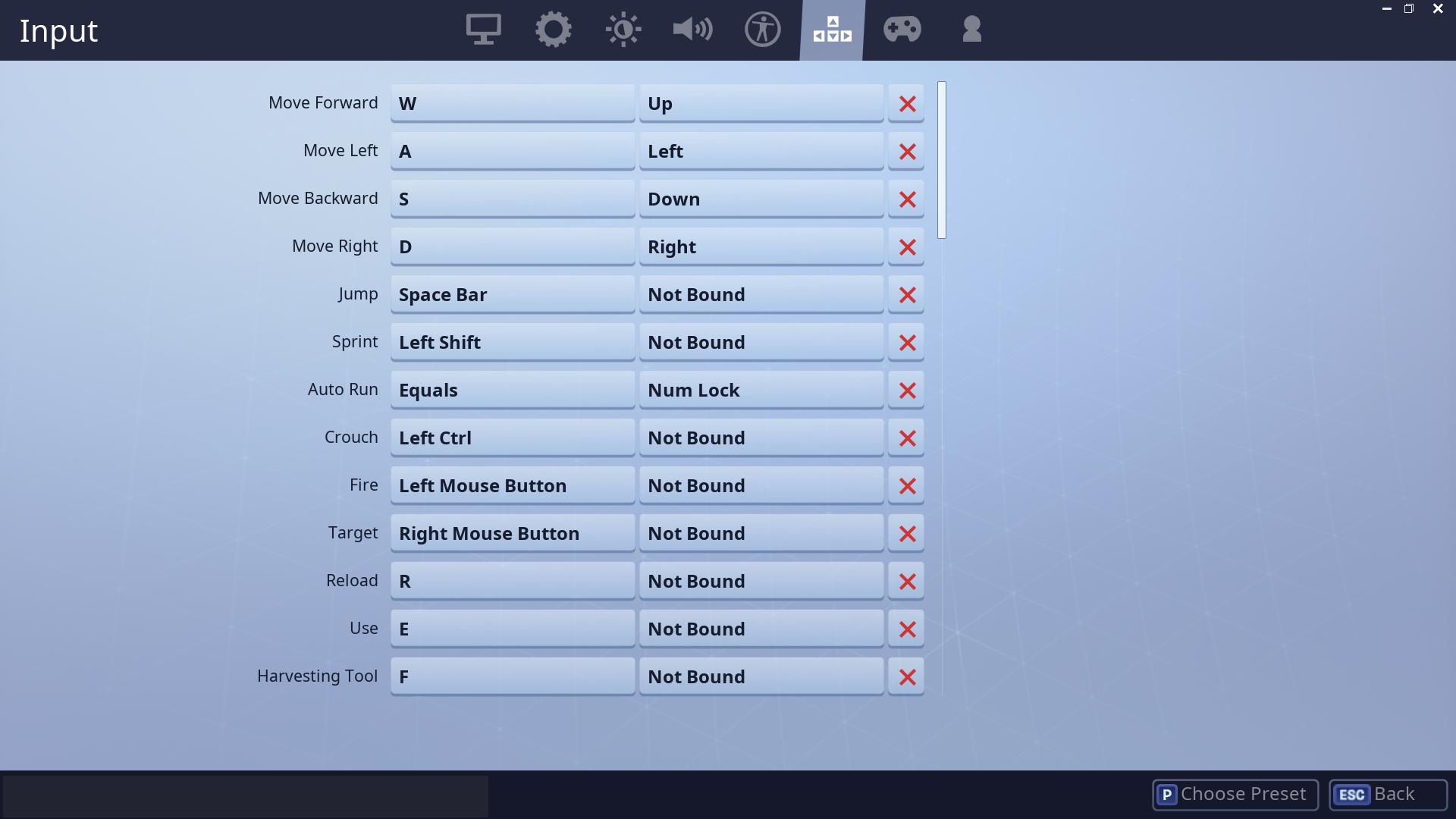
First-Time Setup: The first time you launch Fortnite, there might be a brief initial setup process. This could include shader compilation, which is a necessary step for optimizing graphics performance. This process can take some time, and you might see some stuttering during gameplay until it’s complete. Be patient; this is normal.
This installation process highlights the importance of digital infrastructure. The Epic Games Launcher acts as a centralized platform, simplifying the distribution and management of games. It’s akin to how a well-executed corporate identity streamlines communication and brand recognition.
Optimizing Your Fortnite Experience and Troubleshooting
Getting Fortnite installed is a major victory, but the journey doesn’t end there. To truly enjoy the game, you’ll want to ensure it runs smoothly and be prepared to tackle any minor hiccups that might arise. This involves understanding game settings and basic troubleshooting techniques.
Adjusting In-Game Settings for Performance
Fortnite offers a wide array of graphical and gameplay settings that can be tweaked to balance visual fidelity with performance. This is where the “Tech” aspect of our website truly comes into play – understanding and optimizing technology for a better user experience.
- Video Settings: Within Fortnite’s game settings, you’ll find a dedicated “Video” tab. Here, you can adjust resolutions, frame rate limits, and various graphical presets (low, medium, high, epic). Experiment with these settings. Lowering settings like shadows, textures, and anti-aliasing can significantly boost your frame rate, especially on less powerful hardware. Conversely, if your PC is robust, you might opt for higher settings to enjoy the game’s visual splendor.
- Display Settings: Consider running Fortnite in “Fullscreen” mode for optimal performance. Windowed or borderless windowed modes can sometimes introduce minor performance overhead.
- Network Settings: While not directly graphical, ensuring your network settings are configured correctly can impact latency and online responsiveness.
Optimizing these settings is a form of personal branding for your gaming experience. You’re tailoring the output to reflect your system’s capabilities and your personal preferences, much like a brand crafts its identity to resonate with its target audience.
Common Issues and How to Resolve Them
Even with the best preparation, you might encounter minor issues. Here are some common problems and their solutions:
- “Fortnite Crashes on Launch”:
- Verify Game Files: The Epic Games Launcher has a “Verify” option for installed games. Right-click on Fortnite in your library, select “Verify,” and the launcher will check for any corrupted or missing game files and redownload them if necessary.
- Update Graphics Drivers: Outdated graphics drivers are a frequent cause of game crashes. Visit the website of your graphics card manufacturer (NVIDIA, AMD, Intel) and download the latest drivers for your specific model.
- Run as Administrator: Right-click the Fortnite shortcut or the Epic Games Launcher shortcut and select “Run as administrator.”
- “Low Frame Rates or Lag”:
- Lower In-Game Settings: As mentioned above, reduce graphical settings.
- Close Background Applications: Ensure no other demanding applications are running in the background that might be consuming your system’s resources.
- Check Internet Connection: Lag in online games is often related to your internet connection. Run a speed test and ensure you have a stable connection. Consider a wired Ethernet connection over Wi-Fi if possible.
- “Epic Games Launcher Not Responding”:
- Restart the Launcher: Close the Epic Games Launcher completely (check your system tray for any lingering processes) and relaunch it.
- Clear Launcher Cache: There are guides available online for clearing the Epic Games Launcher’s cache, which can resolve various issues.
Troubleshooting is an integral part of the “Tech” domain. It’s about problem-solving, understanding how systems work, and finding efficient solutions, much like navigating financial markets or refining a marketing campaign.
Beyond Installation: Engaging with the Fortnite Ecosystem
Installing Fortnite is just the beginning of your adventure. The game is constantly evolving, with new seasons, events, and content being added regularly. Understanding this dynamic nature is key to staying engaged.
Staying Updated and Informed
Fortnite’s development team at Epic Games is incredibly active. New seasons bring significant map changes, weapon additions, and narrative developments. Keeping up with these updates is crucial for enjoying the full Fortnite experience.
- In-Game Announcements: Fortnite itself provides in-game notifications for upcoming events and updates.
- Official Fortnite Social Media: Follow Fortnite’s official accounts on platforms like Twitter, Instagram, and YouTube for the latest news, patch notes, and sneak peeks.
- Fortnite News Websites and Communities: Numerous dedicated websites and online communities offer in-depth coverage of Fortnite news, leaks, and discussions.
This continuous stream of new content and updates is a testament to the evolving nature of technology and entertainment. It’s a dynamic ecosystem that rewards engagement and adaptation, much like how businesses must constantly adapt their brand strategy to remain relevant in a changing market.
The Financial Aspect of Fortnite
While Fortnite is free-to-play, it’s important to acknowledge its economic model. The game generates revenue through optional in-game purchases, primarily cosmetic items like outfits, gliders, and emotes, as well as the Battle Pass.
- The Battle Pass: This is a seasonal progression system that offers players exclusive cosmetic rewards as they play and level up. It’s a prime example of a recurring revenue model that adds value and engagement for players who choose to participate.
- V-Bucks: The in-game currency used to purchase Battle Passes and cosmetic items. You can earn V-Bucks through the Battle Pass or purchase them with real-world money.
For those interested in the “Money” aspect, understanding the free-to-play model and its monetization strategies can be fascinating. It highlights how digital goods and services can be offered to a vast audience while still generating significant revenue. It’s a modern take on business finance and online income streams.

Conclusion: Your Fortnite Journey Begins
You’ve now navigated the process of installing Fortnite on your PC, from downloading the Epic Games Launcher to understanding the game’s dynamic ecosystem. This journey has touched upon the fundamental aspects of technology, from system requirements and software installation to the continuous evolution of digital entertainment. Whether you’re a seasoned gamer or just starting, this guide has provided the foundational knowledge to get you into the battle royale.
Remember, the world of PC gaming is vast and rewarding. Fortnite is just one entry point into this exciting domain. As you continue to play, explore, and perhaps even delve into the broader tech, brand, and money categories of our website, you’ll find a wealth of knowledge and experiences waiting for you. So, launch Fortnite, embrace the competition, and may your Victory Royales be plentiful!
aViewFromTheCave is a participant in the Amazon Services LLC Associates Program, an affiliate advertising program designed to provide a means for sites to earn advertising fees by advertising and linking to Amazon.com. Amazon, the Amazon logo, AmazonSupply, and the AmazonSupply logo are trademarks of Amazon.com, Inc. or its affiliates. As an Amazon Associate we earn affiliate commissions from qualifying purchases.