
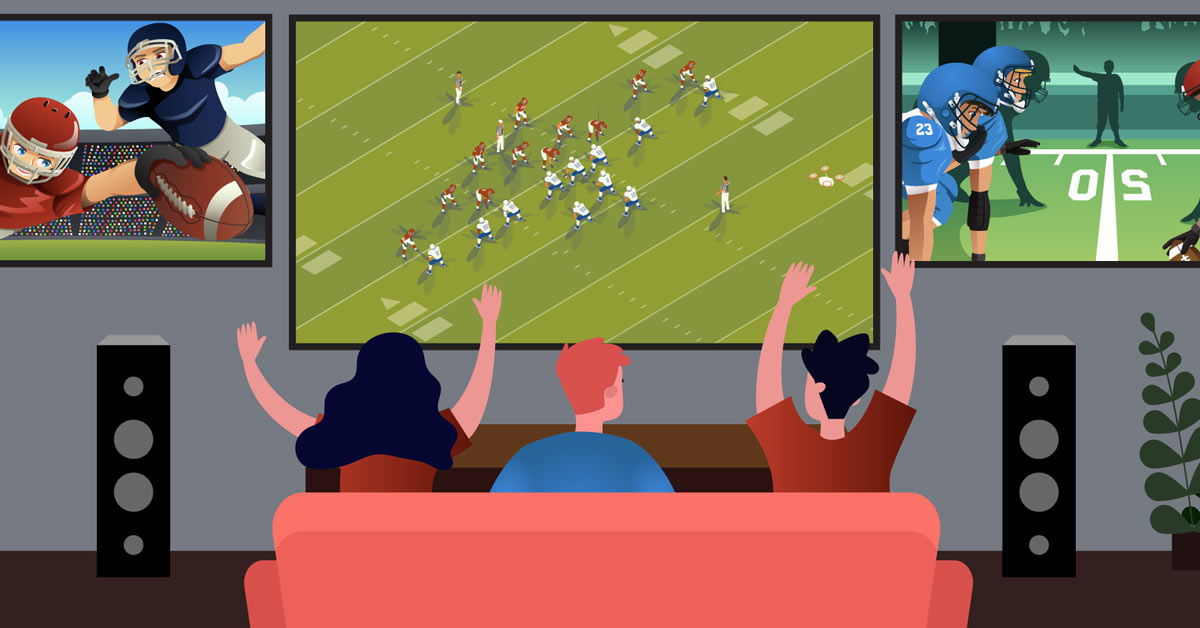
In the golden age of sports entertainment, the modern fan is often faced with a delightful yet challenging dilemma: too many compelling games happening simultaneously. From rivalries clashing across different leagues to playoff series unfolding in parallel, missing out on crucial moments is a genuine concern. YouTube TV, a prominent live TV streaming service, has positioned itself as a robust solution for cord-cutters and sports enthusiasts alike. This guide delves into the technical capabilities and strategic approaches to harness YouTube TV’s features, enabling you to master the art of watching multiple games without missing a beat. We’ll explore the platform’s native functionalities, offer insights into optimizing your setup, and anticipate future enhancements that promise an even richer multi-game viewing experience.
Understanding YouTube TV’s Sports Viewing Capabilities
YouTube TV stands out in the crowded streaming landscape primarily due to its comprehensive channel lineup, which often includes a wide array of sports networks crucial for any avid fan. From national giants like ESPN, Fox Sports, and CBS Sports to regional sports networks (RSNs) and league-specific channels, the platform aims to cover a broad spectrum of live sporting events. However, merely having access to channels isn’t enough when multiple games demand attention simultaneously. The true value lies in how the service facilitates the navigation and consumption of this content, particularly when juggling concurrent broadcasts.
The Modern Sports Fan’s Dilemma
The proliferation of sports content across various leagues and time zones has created a unique challenge. A Sunday afternoon might feature NFL games, a major golf tournament, a Formula 1 race, and an NBA or NHL regular-season game all vying for viewership. Traditionally, this would require intricate setups involving multiple TVs, satellite dishes, or simply choosing one game over others. Digital streaming services promise to simplify this, but not all are created equal in their ability to deliver a seamless multi-game experience. Fans seek agility – the ability to jump between broadcasts, catch crucial plays, and monitor scores without feeling overwhelmed or missing out on the action.
Why YouTube TV is a Contender
YouTube TV, backed by Google’s robust infrastructure, brings several inherent advantages to the table. Its user interface is generally intuitive, making channel surfing and content discovery straightforward. More importantly, its commitment to innovation has led to features specifically designed to enhance the live TV experience. For sports, this translates into capabilities that, when properly leveraged, can transform a chaotic multi-game scenario into an organized and enjoyable viewing event. The platform’s integration with various streaming devices and its cloud DVR functionality are cornerstone elements in building an effective multi-game strategy.
Leveraging Key Features for Multi-Game Viewing
The heart of watching multiple games on YouTube TV lies in understanding and utilizing its core features effectively. While not all functionalities are explicitly labeled “multi-game mode,” a combination of existing tools allows for a surprisingly flexible and powerful viewing strategy.
Split-Screen and Multiview Functionality
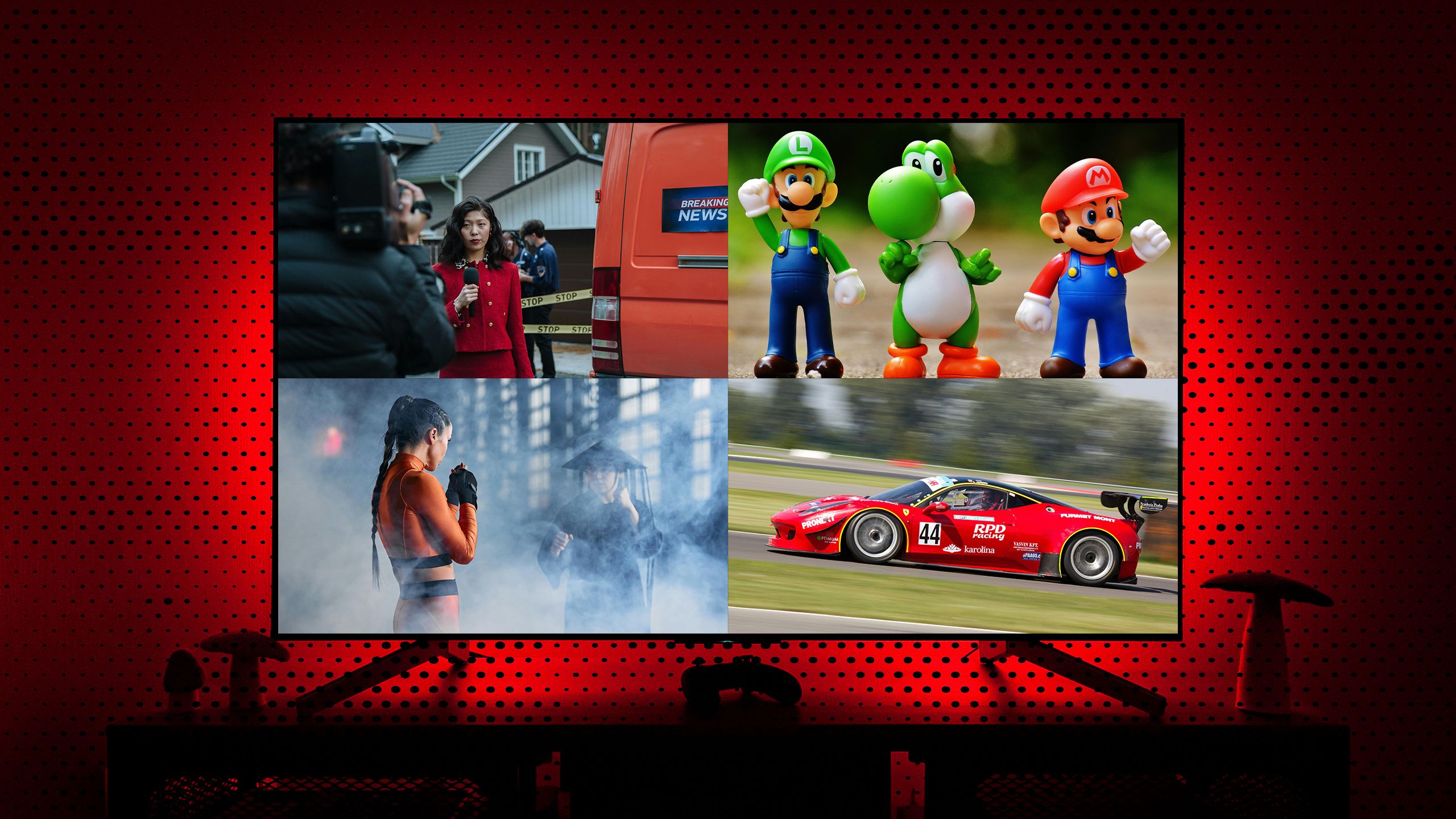
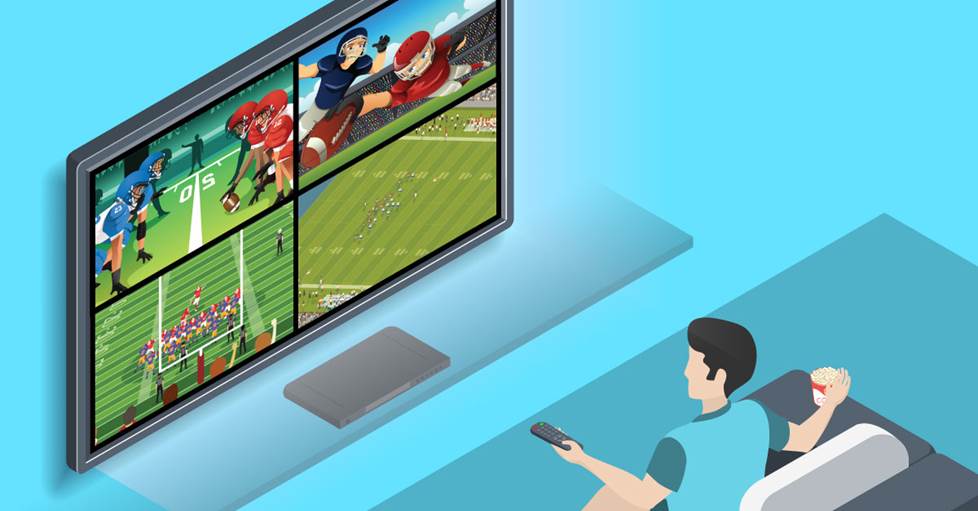
One of the most anticipated and impactful features for sports fans is the Multiview option. Introduced on select devices, particularly Smart TVs and streaming boxes like Apple TV and Google TV, Multiview allows users to watch up to four live streams simultaneously on a single screen. This is a game-changer for monitoring multiple sports events.
- How it Works: When available, YouTube TV’s interface might present a “Multiview” rail or suggested groupings of live sports events, especially during peak viewing times like Sunday NFL or Saturday college football. Users can select a pre-curated Multiview layout or, on some devices, manually choose which games to include. The audio typically defaults to one primary feed, with easy switching between audio tracks for each quadrant.
- Device Compatibility: It’s crucial to check if your specific streaming device supports Multiview, as this feature’s rollout has been phased and device-dependent. High-performance devices with robust processing capabilities are usually the first to receive such updates to ensure smooth playback across multiple streams.
- Optimizing Multiview: For the best experience, ensure your internet connection is stable and fast enough to handle multiple high-definition video streams simultaneously. A wired Ethernet connection is often preferable over Wi-Fi for critical viewing sessions.
Seamless Channel Switching and DVR Playback
Even without dedicated split-screen, YouTube TV offers robust tools for rapid channel switching and managing content.
- Quick Switching: The platform’s fast channel-switching capabilities mean you can jump between two or three games with minimal buffering delay. This is ideal for keeping an eye on scores or critical moments when a full split-screen isn’t an option or desired. Using the “Last Channel” button (often accessible via a remote’s dedicated button or a simple down-arrow press) allows for instant toggling between your two most recent channels.
- Cloud DVR: YouTube TV’s unlimited cloud DVR is an invaluable asset. If two must-watch games overlap completely, record one (or both!) and watch it later. Better yet, if you’re trying to keep up with two games, you can watch one live and simultaneously record the other. Once the live game concludes or during commercials, you can fast-forward through the recorded game to catch up on key plays, effectively condensing the viewing time. The ability to fast-forward through commercials on DVR recordings is a significant advantage.
- Customizing Your Sports Guide: Personalizing your Live Guide to prioritize sports channels or creating a “Sports” section in your library can streamline navigation, making it quicker to find and switch between active games.
Utilizing Multiple Devices Simultaneously
Perhaps the most straightforward approach to watching multiple games is simply using multiple devices. YouTube TV typically allows for up to three simultaneous streams per account.
- Strategy: Set up one game on your main TV, another on a tablet or laptop, and a third on a smartphone. This distributes the viewing load across different screens, allowing different household members (or a single dedicated fan) to follow distinct events.
- Hardware Setup: This requires having the necessary streaming hardware for each display (e.g., a smart TV with the YouTube TV app, a laptop with a browser, and a mobile device). Ensure all devices are connected to a stable home network.
Optimizing Your Multi-Game Experience
Beyond the features themselves, maximizing your multi-game experience involves a strategic approach to your home network, hardware, and personal viewing habits. A well-prepared setup can significantly reduce frustration and enhance enjoyment.
Internet Speed and Bandwidth Considerations
Streaming multiple high-definition video feeds simultaneously demands substantial internet bandwidth. Each 1080p stream can consume 5-7 Mbps, and 4K streams significantly more.
- Minimum Recommendations: For comfortable multi-game viewing, aim for a consistent internet speed of at least 50-100 Mbps, especially if multiple users or devices are consuming bandwidth concurrently. If utilizing Multiview (4 streams), consider higher tiers.
- Wired vs. Wireless: Whenever possible, connect your primary streaming device (e.g., Smart TV, streaming box) directly to your router via an Ethernet cable. This provides a more stable, faster, and less interference-prone connection than Wi-Fi, which can be susceptible to congestion and signal degradation.
- Router Quality: A modern, high-quality Wi-Fi router with good QoS (Quality of Service) capabilities can help prioritize streaming traffic, ensuring smoother playback even when other devices are active on your network.
Choosing the Right Hardware
The devices you use to access YouTube TV play a critical role in the quality and fluidity of your multi-game experience, particularly for features like Multiview.
- Smart TVs and Streaming Devices: Newer Smart TVs and dedicated streaming boxes (like Apple TV 4K, Google TV with Chromecast, Roku Ultra, Amazon Fire TV Cube) generally offer better performance, faster app loading, and more robust support for advanced features like Multiview. Ensure your device’s software is always up to date.
- Display Size and Resolution: For split-screen viewing, a larger TV screen makes it easier to track action across multiple quadrants. High-resolution displays (4K TVs) offer more screen real estate and sharper images, which can be beneficial when viewing multiple smaller feeds.
- Audio Solutions: Consider a soundbar or home theater system. While Multiview typically allows switching primary audio, a dedicated audio setup can enhance the immersion when focusing on one game, or even allow for different audio sources if using multiple physical screens.
Effective Use of Notifications and DVR
Beyond active viewing, YouTube TV’s complementary features can keep you informed and help you catch up.
- Sports Notifications: Configure YouTube TV to send notifications for specific teams or games. This can alert you to close scores, critical moments, or when a recorded game has finished, allowing you to switch over or start playback.
- DVR Management: Regularly review your DVR library. Prioritize which games to watch live and which to record. Utilize the “key plays” feature (if available for your sport) to quickly catch up on important moments in recorded games.
Addressing Common Challenges and Solutions
While YouTube TV offers a powerful platform for sports, users might encounter specific technical hurdles or content restrictions. Understanding these can help you troubleshoot and optimize.
Dealing with Geofencing and Blackouts
Regional sports blackouts and geofencing restrictions are realities of sports broadcasting that affect all streaming services, including YouTube TV. These are dictated by broadcast rights agreements, not limitations of the streaming platform itself.
- Understanding Blackouts: If a game is airing on a local broadcast channel or a regional sports network (RSN) in your area, and you’re within that team’s market, you might be “blacked out” from watching the game on out-of-market packages like NBA League Pass or MLB.TV (even if integrated via YouTube TV). Conversely, if you’re outside the local market, you may not have access to your home team’s local broadcasts.
- Solutions: Unfortunately, there are no sanctioned workarounds for genuine blackouts within YouTube TV’s terms of service. The primary solution is to understand which channels are available in your area and which games are subject to local broadcast rules. Sometimes, games on national networks (ESPN, TNT, etc.) are exempt from regional blackouts.
Troubleshooting Streaming Issues
Even with a robust internet connection, occasional buffering, pixelation, or dropped streams can occur.
- Basic Troubleshooting:
- Check Internet Speed: Use an online speed test (e.g., Speedtest.net) to verify your current bandwidth.
- Restart App/Device: Close and reopen the YouTube TV app, or restart your streaming device entirely.
- Router Reboot: Power cycle your Wi-Fi router and modem.
- Clear Cache: On some devices, clearing the app’s cache can resolve performance issues.
- Reduce Network Congestion: Temporarily pause other high-bandwidth activities on your network (e.g., large downloads, other streaming services).
- YouTube TV Status: Check official YouTube TV social media accounts or support pages for widespread outages.
Subscription Tiers and Add-ons for More Sports
YouTube TV’s base plan offers a comprehensive selection, but for specific niche sports or extended coverage, add-ons might be necessary.
- Sports Plus Add-on: This package often includes channels like NFL RedZone, Fox Soccer Plus, and others, significantly enhancing your sports offerings, particularly for multi-game viewing scenarios where you want access to every simultaneous touchdown.
- Individual League Passes: YouTube TV also integrates with third-party league passes (e.g., NBA League Pass, MLB.TV) allowing you to subscribe and access out-of-market games directly through the YouTube TV interface, consolidating your sports viewing under one umbrella. This is particularly useful for following a specific sport more intensely, though blackout rules still apply.
The Future of Multi-Game Sports Streaming
The landscape of sports broadcasting and streaming is in constant evolution, driven by technological advancements and consumer demand for more personalized and immersive experiences. YouTube TV, with its deep integration with Google’s AI and data capabilities, is well-positioned to lead some of these innovations.
AI-Powered Highlights and Personalization
Imagine an AI that learns your favorite teams, players, and types of plays. In the future, YouTube TV could leverage this to:
- Dynamic Multiview Suggestions: Automatically suggest the most compelling combination of live games for your personalized Multiview layout, perhaps even dynamically switching a quadrant to show a crucial play from a non-selected game.
- Real-time Highlight Generation: While watching one game, receive unobtrusive notifications or small pop-up windows with instant highlights from other games you might be interested in, powered by AI identifying key moments.
- Personalized Recaps: Quickly generate a custom recap of all the games you “missed” during an overlapping period, focusing on your preferred teams and the most impactful moments, rather than a generic summary.
Enhanced Interactive Features
The integration of interactivity could further transform the multi-game experience.
- Integrated Statistics and Betting Overlays: Imagine having real-time player stats, team probabilities, or even integrated sports betting odds subtly overlaid on your Multiview screens, without needing a separate app or browser tab.
- Social Viewing Integration: The ability to easily share key moments from one of your Multiview screens with friends or participate in live chats directly within the YouTube TV interface could create a more communal viewing experience, even when watching disparate games.
- Customizable Audio Tracks: Beyond just switching audio, imagine having AI-generated background commentary tracks focused on specific aspects of a game (e.g., defensive plays, offensive strategies) or even ambient crowd noise to enhance immersion in a silent quadrant.
As technology continues to advance, the ability to effortlessly track, enjoy, and interact with multiple live sporting events will only become more sophisticated. YouTube TV, by continuously refining its technical offerings and embracing these future trends, aims to remain at the forefront of delivering the ultimate multi-game sports viewing experience for the modern fan. By understanding its current capabilities and preparing for future innovations, users can ensure they are always at the center of the action.
aViewFromTheCave is a participant in the Amazon Services LLC Associates Program, an affiliate advertising program designed to provide a means for sites to earn advertising fees by advertising and linking to Amazon.com. Amazon, the Amazon logo, AmazonSupply, and the AmazonSupply logo are trademarks of Amazon.com, Inc. or its affiliates. As an Amazon Associate we earn affiliate commissions from qualifying purchases.