
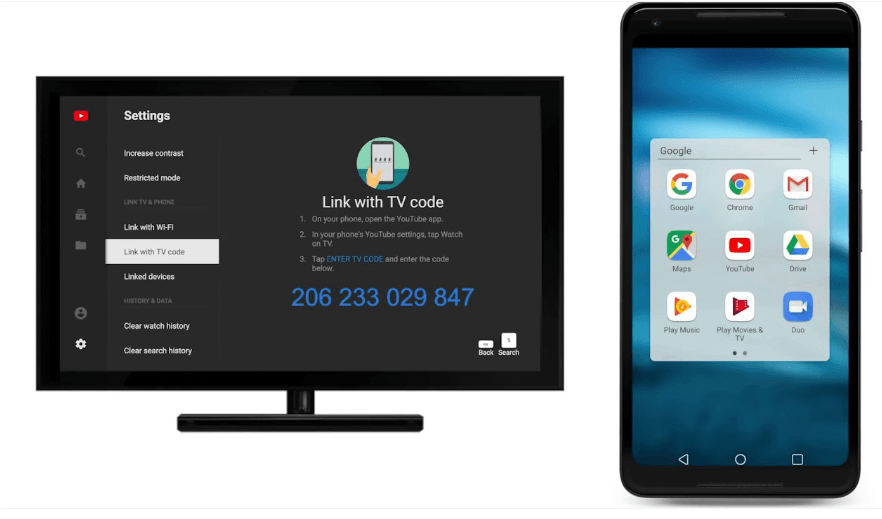
In an increasingly connected world, smart TVs and streaming devices have become central hubs for digital entertainment. YouTube, being a cornerstone of online video content, is almost certainly installed on every internet-enabled television. While the convenience of being continuously logged in offers seamless access to personalized recommendations and subscriptions, there are numerous critical reasons why knowing how to log out of your YouTube account on your TV is essential. From safeguarding your privacy on shared devices to preventing unauthorized access or simply switching between family members’ profiles, managing your login sessions is a fundamental aspect of digital hygiene. This comprehensive guide will navigate you through the various methods and considerations for logging out of YouTube across a range of smart TV platforms and streaming devices, ensuring your viewing experience remains secure and private.
The Imperative of Account Management on Shared Devices
The ease with which we can access our digital lives often comes with a subtle trade-off: persistent login sessions. While convenient for individual users, this can pose significant challenges in multi-user environments, making proactive account management a necessity. Understanding the implications of continuous logins on shared platforms like YouTube is the first step toward a more secure and personalized viewing experience for everyone.
Safeguarding Privacy and Preventing Unwanted Content Exposure
When you remain logged into YouTube on a shared TV, your viewing history, subscriptions, and personalized recommendations are readily accessible to anyone using that device. This can lead to a host of privacy concerns. Imagine a scenario where a child stumbles upon content intended for adults through your recommendation feed, or a guest inadvertently sees your private viewing habits. Logging out ensures that your personal digital footprint isn’t inadvertently shared with others. It’s a proactive measure to protect both your privacy and the viewing integrity of those you share your space with, preventing the algorithm from being skewed by multiple users or exposing sensitive information.
Preventing Unauthorized Account Access and Session Hijacking
Beyond privacy, security is a paramount concern. While less common on home networks, an active YouTube session on a TV could, in theory, be exploited if the device’s security is compromised or if it falls into the wrong hands. More practically, if you’re using a TV in a public space, a hotel, or even lending a device, a persistent login means anyone with physical access can potentially interact with your YouTube account, making purchases, altering settings, or even misusing your identity. Regularly logging out, especially on non-private devices, dramatically reduces the window of opportunity for unauthorized access, adding an extra layer of protection to your Google account, which is intrinsically linked to YouTube.
Facilitating Seamless Profile Switching for Multiple Users
In many households, a single TV is used by multiple family members, each with their own YouTube preferences and subscriptions. Maintaining separate profiles ensures that each user receives tailored recommendations, tracks their own watch history, and manages their own subscriptions without interfering with others. Logging out of one account to sign into another is the most straightforward way to achieve this separation. Rather than cluttering a single profile with diverse viewing habits, logging out and switching profiles creates a personalized and organized experience for everyone, preserving the integrity of individual content preferences and recommendations. This is especially crucial for families with children, allowing parents to control content access through their own profile or a child’s supervised account.
Universal Steps for Logging Out of YouTube on Smart TVs and Streaming Devices
While the specific user interface may vary slightly between different brands of smart TVs and streaming devices, the core navigation logic for logging out of your YouTube account remains remarkably consistent. The process typically involves accessing the app’s settings through your profile icon, which serves as your gateway to account management options.
Navigating to the YouTube App’s Main Interface
The first step is always to launch the YouTube application on your TV. Once the app is open, you’ll usually be greeted by the home screen, displaying recommended videos, subscriptions, and various navigation menus. It’s from this main interface that you’ll begin your journey towards logging out. Familiarize yourself with the general layout, as the subsequent steps will require you to locate specific icons or menu options.
Locating Your Profile Icon and Accessing Account Settings
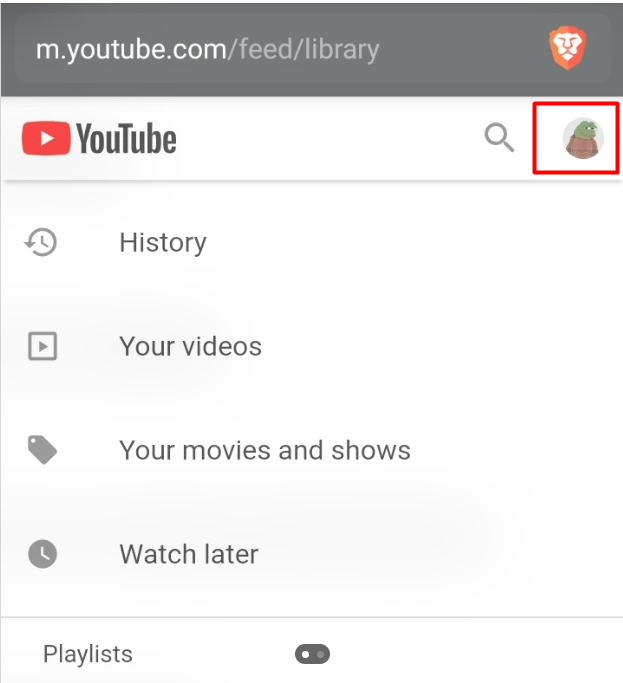
On most YouTube TV interfaces, your profile icon—typically a small circle in the upper left or right corner of the screen, often displaying your profile picture or the first letter of your name—is the primary point of entry for account management. Use your TV remote’s directional pad or navigation buttons to highlight and select this icon. Clicking on it will generally open a sidebar or a pop-up menu that contains various options related to your account, including settings, subscriptions, and crucially, sign-out options. This menu is your central hub for managing your YouTube identity on the device.
Executing the Sign Out or Switch Account Command
Within the account menu, you’ll need to look for an option that explicitly states “Sign out,” “Logout,” “Switch account,” or “Manage account.” The exact wording can differ, but the intent is always the same: to disconnect your Google account from the YouTube app on that particular device. If you see “Switch account,” selecting it will often present a list of accounts logged into the device, with an option to “Add account” or “Sign out of all accounts.” Choosing “Sign out” will usually prompt a confirmation message, asking if you’re sure you want to log out. Confirming this action will successfully end your session, often reverting the app to a generic logged-out state or presenting a sign-in screen. This ensures that the next user will not automatically access your personalized content or account.
Device-Specific Logout Procedures and Nuances
While the general principles of logging out remain similar, the specific steps and menu locations can vary depending on the operating system of your smart TV or streaming device. Understanding these device-specific nuances can save you time and frustration, ensuring a smooth and effective logout process regardless of your hardware.
Logging Out on Google TV / Android TV Devices
Devices running Google TV or Android TV (such as Sony, Hisense, TCL Android TVs, or the Chromecast with Google TV) typically integrate YouTube deeply with the device’s Google account.
- Open the YouTube app.
- Navigate to your profile icon in the top left or right corner.
- Select “Switch account” from the menu.
- You’ll see a list of accounts. Select the account you want to remove, and then choose “Remove account from this device” or “Sign out of YouTube.”
- Alternatively, you can go to the device’s main Settings > Accounts & Sign-in > Google > [Your Account] > Remove account. This removes the Google account entirely from the TV, which will log you out of all Google services, including YouTube, tied to that account on the device.
Logging Out on Roku Devices
Roku devices (Roku Streaming Stick, Roku Express, Roku TVs) have a consistent interface for their apps:
- Launch the YouTube app.
- Go to your profile icon (usually on the left sidebar).
- Scroll down and select “Switch account.”
- From the account list, select the account you wish to log out of.
- Choose “Remove account.” If you want to log out entirely, you might need to remove all associated accounts.
Logging Out on Amazon Fire TV Stick/Cube
Amazon Fire TV devices (Fire TV Stick, Fire TV Cube, Fire TVs) also offer a straightforward process:
- Open the YouTube app.
- Navigate to your profile icon (top left/right).
- Select “Switch account” or “Accounts” from the menu.
- Highlight the account you want to sign out of and select the option to “Remove account from this device.”
- For a more comprehensive logout from all Google services on the Fire TV, you might need to go to the Fire TV’s main Settings > Accounts & Profile > Google Accounts > [Your Account] > Remove account.
Logging Out on Apple TV
Apple TV (tvOS) devices follow a similar pattern for app-specific logouts:
- Launch the YouTube app.
- Select your profile icon (top right).
- Choose “Switch Account” from the menu.
- Select the account you want to remove and then “Remove account.” Apple TV doesn’t tie a Google account directly to the device’s main settings in the same way Android TV does, so the logout is typically app-specific.
Logging Out on Samsung and LG Smart TVs (Tizen/WebOS)
Samsung (Tizen OS) and LG (WebOS) smart TVs have their own app ecosystems, but the YouTube app interface generally remains consistent:
- Open the YouTube app.
- Navigate to your profile icon (usually top left).
- Select “Switch account” from the displayed menu.
- Choose your account from the list, then look for an option like “Remove account” or “Sign out.” The exact phrasing can vary slightly depending on the TV’s software version.
Logging Out on Gaming Consoles (PlayStation, Xbox)
Gaming consoles also host the YouTube app, and the logout procedure mirrors other platforms:
- Launch the YouTube app from your console’s dashboard.
- Navigate to your profile icon (usually on the left or top of the screen).
- Select “Switch account.”
- Choose the account you wish to sign out of and select “Remove account from this device.”
Advanced Troubleshooting and Enhanced Security Measures
Sometimes, a simple “sign out” option isn’t enough, or perhaps you encounter an issue that prevents a straightforward logout. In such cases, or for an extra layer of security, more advanced troubleshooting steps and security measures are available. These methods offer greater control over your account’s presence on various devices, ensuring comprehensive digital hygiene.
Removing Accounts from the TV’s System Settings
For devices like Android TV or Amazon Fire TV that allow you to link a Google account directly to the device’s operating system, merely logging out of the YouTube app might not be enough. If you want to completely dissociate your Google account from the TV, you’ll need to delve into the device’s main settings:
- Access your TV’s or streaming device’s main “Settings” menu (not the YouTube app settings).
- Look for “Accounts,” “Accounts & Sign-in,” or “Users & Accounts.”
- Select the Google account you wish to remove.
- Choose “Remove account” or a similar option.
This action will log you out of all Google services tied to that account on the device, including YouTube, Gmail, Google Play Store, and others. This is particularly useful when selling or giving away a device.
Remote Sign-Out via Google Account Security Settings
One of the most powerful tools for managing your account security is Google’s robust security dashboard. If you’re unsure which devices you’re logged into, or if you’ve forgotten to log out from a public or shared device, you can remotely sign out from anywhere with internet access:
- On a computer or mobile device, go to your Google Account security page (myaccount.google.com/security).
- Scroll down to the “Your devices” section and click on “Manage all devices.”
- This page will list all devices where your Google account is currently signed in.
- Find the TV or streaming device you wish to sign out of.
- Click on the device, then select “Sign out.”
This will immediately revoke access to your Google account (and thus YouTube) from that device, offering an invaluable safety net for forgotten logins.
What to Do If You Can’t Find the Logout Option
In rare instances, you might struggle to locate the logout option within the YouTube app or find that it’s unresponsive.
- Restart the YouTube app: Close the app completely and reopen it. Sometimes a quick refresh can resolve UI glitches.
- Restart the TV/Device: A full power cycle of your smart TV or streaming device can often fix software anomalies. Unplug it from the power source for 30 seconds, then plug it back in.
- Clear App Data/Cache: On Android TV/Fire TV, you can go to
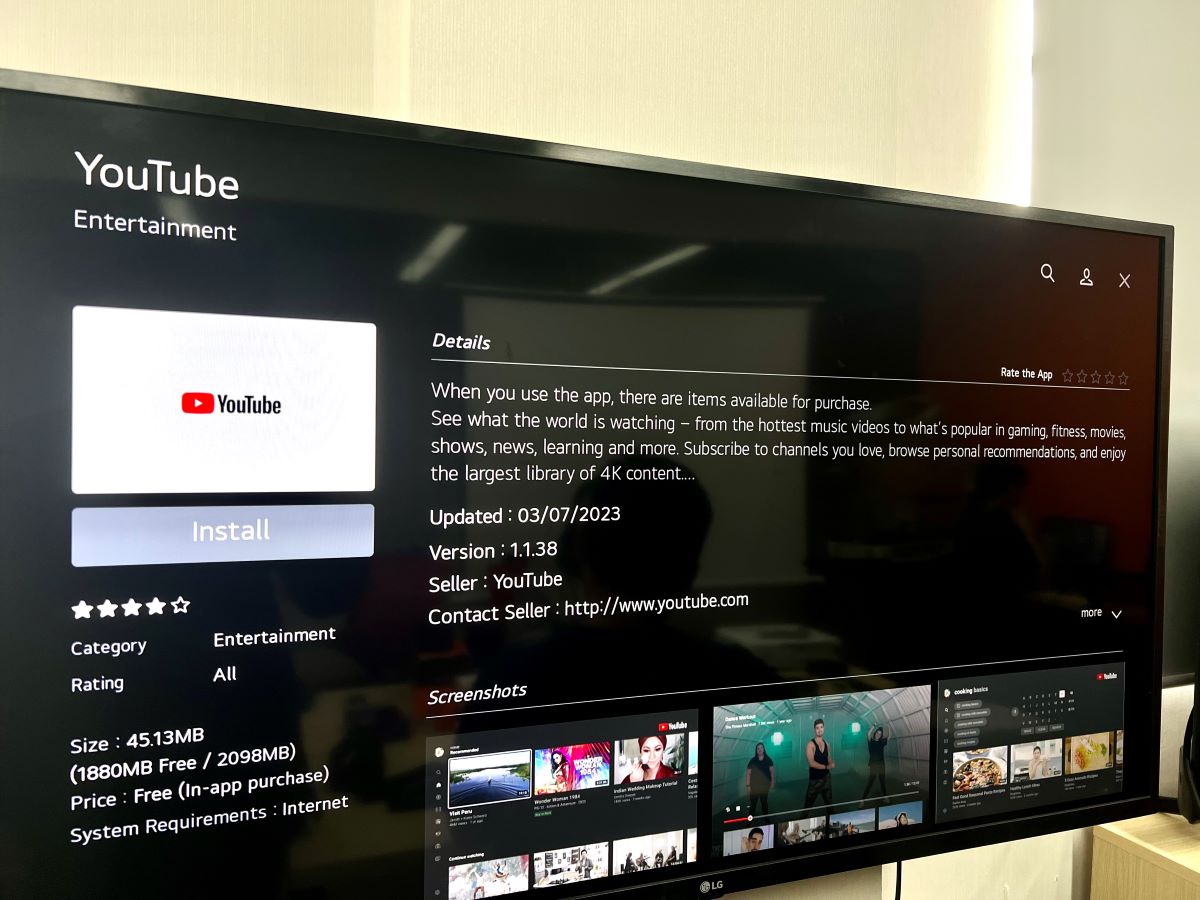
Settings > Apps > YouTube > Clear DataandClear Cache. Be aware this will remove all app settings and data, requiring you to set up the app again, including logging in. - Reinstall the App: If all else fails, uninstalling and then reinstalling the YouTube app from your TV’s app store can often resolve persistent issues related to user sessions or unresponsive menus. After reinstallation, you will be prompted to sign in fresh.
- Factory Reset (Last Resort for Device): As a very last resort, if you’re selling the device or experiencing severe, unresolvable issues, a factory reset of the TV or streaming device will wipe all data and accounts, including your YouTube login. This should only be considered after backing up any important device settings.
The Benefits of a Clean Logout
Beyond the immediate security and privacy advantages, cultivating the habit of a “clean logout” offers long-term benefits. It reinforces good digital hygiene, prevents the accumulation of outdated login sessions, and ensures that your personalized content streams remain truly personal. For instance, if you’re troubleshooting an issue with YouTube, logging out and logging back in is often a recommended first step. A clean logout is not just a reactive measure; it’s a proactive step towards a more secure, private, and tailored digital experience on your TV.
Conclusion
Effectively managing your YouTube account on your television is a crucial aspect of modern digital life. While the allure of instant access is strong, the importance of knowing how to log out cannot be overstated. From protecting your personal data and preventing unauthorized access on shared devices to simply ensuring a tailored viewing experience for each user in a household, the ability to control your login sessions is fundamental. By understanding the universal steps, recognizing device-specific nuances, and leveraging advanced security measures, you can maintain optimal privacy and security across all your connected devices. Embrace these practices as part of your digital routine, transforming your TV into a truly personal and secure entertainment hub for everyone.
aViewFromTheCave is a participant in the Amazon Services LLC Associates Program, an affiliate advertising program designed to provide a means for sites to earn advertising fees by advertising and linking to Amazon.com. Amazon, the Amazon logo, AmazonSupply, and the AmazonSupply logo are trademarks of Amazon.com, Inc. or its affiliates. As an Amazon Associate we earn affiliate commissions from qualifying purchases.