
YouTube has long transcended its origins as a mere video-sharing platform to become a ubiquitous hub for entertainment, education, and community engagement. From niche tutorials to global live events, the sheer volume and diversity of content are staggering. However, to truly unlock its full potential, personalize your experience, and contribute to the vast ecosystem, the fundamental first step is to sign in. While seemingly straightforward, understanding the nuances of signing in, managing your account securely, and troubleshooting common issues can significantly enhance your digital journey. This guide will walk you through everything you need to know about accessing your YouTube account, powered by your Google credentials.

The Foundational Steps: Signing In to YouTube
Accessing your YouTube account is a seamless process, primarily because YouTube is a Google product, meaning your Google account serves as your universal key. This integration simplifies user management across a suite of Google services.
Accessing the YouTube Platform
Before you can sign in, you need to navigate to YouTube itself. This can be done in several ways, each offering a slightly different entry point but leading to the same destination:
- Web Browser: Open your preferred web browser (Chrome, Firefox, Edge, Safari, etc.) and type
www.youtube.cominto the address bar. Press Enter. This will take you to the YouTube homepage. - YouTube Mobile App: If you’re on a smartphone or tablet, locate and tap the YouTube app icon. If you don’t have it, you can download it from your device’s app store (Google Play Store for Android, Apple App Store for iOS). The app provides an optimized mobile experience.
- Smart TVs and Streaming Devices: Many smart TVs, gaming consoles (PlayStation, Xbox), and streaming devices (Roku, Apple TV, Amazon Fire Stick) have dedicated YouTube apps. Launching these apps will present you with an interface to sign in.
Once you’re on the YouTube platform, regardless of the device, look for a “Sign In” button. On the desktop website, it’s typically located in the top-right corner. In the mobile app, it might be an icon (often a silhouette of a person) or a direct “Sign In” option when you try to access personalized features.
Entering Your Google Account Credentials
Clicking the “Sign In” button will redirect you to a Google sign-in page, or a Google account selector if you’re already signed into other Google services. This is where you provide your core identification.
- Enter Your Email or Phone Number: You’ll be prompted to enter the email address or phone number associated with your Google account. This is the same account you might use for Gmail, Google Drive, Google Photos, or Android devices.
- Click “Next”: After entering your identifier, click the “Next” button.
- Enter Your Password: On the subsequent screen, you’ll be asked to enter the password for that Google account. Ensure you enter it carefully, paying attention to case sensitivity.
- Click “Next” or “Sign In”: Once the password is entered, click the final button. If your credentials are correct, you will be successfully logged into YouTube, and your profile picture or initial will appear in the top-right corner, indicating your logged-in status.
Navigating Multiple Accounts
Many users operate with multiple Google accounts, perhaps one for personal use and another for professional or creative endeavors. When signing into YouTube, Google’s robust account management system makes switching between them intuitive. If you’re already signed into one Google account on your device, the sign-in page might present you with options to:
- Continue as [Your Name]: If the displayed account is the one you wish to use for YouTube.
- Use another account: This option allows you to enter credentials for a different Google account not currently active on your device or browser.
- Manage accounts on this device: For desktop users, this can lead to Google’s account management page, allowing you to add, remove, or switch accounts more broadly.
Carefully selecting the correct account ensures that your YouTube activity, subscriptions, and recommendations align with your intended profile.
Unlocking YouTube’s Full Potential: Why Signing In Matters
Signing in to YouTube is not merely a formality; it transforms your viewing experience from passive consumption to an active, personalized, and deeply engaging journey. It leverages the platform’s sophisticated algorithms and features to cater specifically to your interests and habits.
Personalized Content Recommendations
One of YouTube’s most powerful features is its recommendation engine. Once you’re signed in, the platform begins to learn your preferences.
- Viewing History: Every video you watch contributes to your viewing history, which YouTube analyzes to understand the types of content you enjoy.
- Likes and Dislikes: Your explicit feedback through likes and dislikes further refines the algorithm’s understanding of your tastes.
- Subscriptions: By subscribing to channels, you signal your interest in their content, ensuring you receive updates and recommendations from creators you follow.
- Search Queries: Even your search terms provide valuable data points, helping YouTube identify topics of interest.
This constant learning loop allows YouTube to present a highly tailored homepage feed, suggest related videos, and notify you about new uploads from your favorite channels, ensuring you spend less time searching and more time watching relevant content.
Engaging with the Community: Comments, Likes, and Subscriptions
YouTube is a vibrant global community, and signing in is your passport to participating in it.
- Commenting: You can post comments on videos, engage in discussions with other viewers, and directly interact with creators. This fosters a sense of community and allows for rich dialogue around content.
- Liking and Disliking Videos: Beyond influencing recommendations, your likes and dislikes provide direct feedback to creators, helping them understand what resonates with their audience.
- Subscribing to Channels: Subscribing is a simple yet powerful way to support creators and ensure you don’t miss their new content. It also helps creators grow their audience and gain visibility.
- Creating Playlists: Signed-in users can curate custom playlists, organizing videos by topic, mood, or any criteria they choose. This is excellent for personal organization, sharing with others, or simply bookmarking videos for later viewing.
Without signing in, these interactive features are unavailable, leaving you as a silent observer rather than an active participant.
Managing Your Own Content and Playlists
For creators, or even casual users who want to upload a private video to share with family, signing in is absolutely essential.
- Uploading Videos: To share your own creations with the world or a select few, you must be signed in to your account. This grants you access to the YouTube Studio, where you can upload, edit, and manage your video content.
- Managing Channel Settings: From customizing your channel art and description to setting privacy preferences and monetizing content, all channel management functions require you to be signed in.
- Monitoring Analytics: Creators rely on YouTube Analytics to understand their audience, track video performance, and refine their content strategy. This powerful dashboard is only accessible when logged into your channel account.
For any form of content creation or management, your logged-in Google account acts as your identity and control panel.
Cross-Device Synchronization
The modern digital lifestyle involves hopping between devices – from your smartphone on the commute to your laptop at work and your smart TV at home. Signing into YouTube provides seamless cross-device synchronization.
- Watch History: Your watch history is synchronized, meaning you can start a video on your phone and pick up exactly where you left off on your tablet or computer.
- Subscriptions and Playlists: Your subscriptions, saved playlists, and “Watch Later” queue are consistent across all signed-in devices, ensuring a unified experience.
- Settings and Preferences: Your general settings, such as playback quality preferences or restricted mode settings, also travel with your account.
This seamless continuity ensures that your personalized YouTube experience is always available, regardless of the screen you’re using.
Troubleshooting Common Sign-In Hurdles

Even with a straightforward process, users occasionally encounter obstacles when trying to sign in. Understanding the common issues and their solutions can save considerable frustration.
Incorrect Password or Username
This is arguably the most frequent reason for sign-in failure.
- Double-Check Typos: Ensure there are no spelling errors in your email address or phone number, and that your password is typed correctly, paying attention to capitalization. The password field often has an “eye” icon you can click to reveal the characters you’re typing, helping to catch errors.
- Keyboard Layout: Verify that your keyboard layout hasn’t accidentally switched (e.g., from QWERTY to AZERTY) or that the Caps Lock key isn’t inadvertently enabled.
- “Forgot Password?” Link: If you’re certain you’re using the correct email/username but can’t recall your password, utilize the “Forgot password?” link on the Google sign-in page. This initiates Google’s account recovery process, which typically involves verifying your identity through a recovery email, phone number, or security questions. Follow the prompts carefully.
Two-Factor Authentication (2FA) Challenges
Two-factor authentication adds a crucial layer of security, but it can sometimes be a bottleneck if not managed correctly.
- Access to Second Factor: Ensure you have access to your second verification method, be it your phone for a prompt, a specific authenticator app, or backup codes.
- Delayed Codes: Sometimes SMS codes can be delayed. If you don’t receive a code within a reasonable time, request another one or try an alternative verification method if available.
- Lost/Stolen Second Factor: If you’ve lost the device used for 2FA, you’ll need to use your backup codes or go through Google’s account recovery process, which can be more involved to ensure security. It’s vital to keep backup codes in a safe, accessible place.
Browser and Cache Issues
Web browsers store temporary data (cache and cookies) to speed up loading times. Sometimes, corrupted or outdated data can interfere with sign-in processes.
- Clear Browser Cache and Cookies: In your browser settings, look for options to clear browsing data, specifically cache and cookies. After clearing them, restart your browser and try signing in again. Note that this might sign you out of other websites.
- Try Incognito/Private Mode: Open an incognito or private browsing window. These modes typically don’t use existing cookies or cache. If you can sign in successfully in incognito mode, it strongly suggests a cache/cookie issue in your regular browsing session.
- Disable Browser Extensions: Certain browser extensions, especially ad-blockers or privacy tools, can sometimes interfere with website functionality. Try temporarily disabling them and attempting to sign in.
- Update Browser: Ensure your browser is up-to-date. Outdated browsers can have compatibility issues with modern website security protocols.
Account Recovery Procedures
In cases of forgotten passwords, lost 2FA devices, or suspected account compromise, Google’s robust account recovery system is your last resort.
- Be Patient and Accurate: Google asks a series of questions to verify your identity. Answer as accurately as possible. The more information you can provide that matches Google’s records, the higher your chances of recovery.
- Use a Familiar Device and Location: Attempt recovery from a device and location you frequently use to sign in to your Google account. This provides additional trust signals to Google.
- Follow Prompts: The system will guide you through steps like sending codes to recovery emails or phone numbers. Be diligent in following each prompt.
Fortifying Your Digital Presence: Security Best Practices for Your YouTube Account
Your YouTube account is intimately tied to your Google account, making its security paramount. Protecting it means safeguarding not just your viewing history and subscriptions, but also your personal data and potentially other critical Google services like Gmail and Drive.
Strong, Unique Passwords
The foundation of digital security is a strong, unique password.
- Complexity: Aim for a password that is at least 12-16 characters long, combining uppercase and lowercase letters, numbers, and symbols.
- Uniqueness: Never reuse passwords across different services. If one service is compromised, all accounts using that same password become vulnerable.
- Password Manager: Consider using a reputable password manager (e.g., LastPass, 1Password, Bitwarden) to generate and store complex, unique passwords for all your accounts. This eliminates the need to remember them all and significantly boosts security.
Leveraging Two-Factor Authentication (2FA)
As discussed, 2FA (also known as two-step verification) adds an essential layer of security. Even if a malicious actor obtains your password, they cannot access your account without the second factor.
- Enable 2FA: If you haven’t already, enable 2FA for your Google account immediately. Google offers various options, including prompts to your phone, authenticator apps (like Google Authenticator), or physical security keys.
- Backup Codes: Generate and store backup codes in a secure, offline location. These are critical if you lose access to your primary 2FA method.
Recognizing Phishing Attempts
Phishing is a common tactic where attackers try to trick you into revealing your login credentials.
- Suspicious Emails/Messages: Be wary of emails or messages purporting to be from YouTube or Google that ask you to click a link and enter your credentials. Always hover over links to check their destination before clicking. Legitimate Google sign-in pages will always have a
accounts.google.comURL. - Generic Greetings: Phishing emails often use generic greetings (“Dear User”) rather than your specific name.
- Urgent Tone: They frequently try to create a sense of urgency or threat (e.g., “Your account will be suspended if you don’t act now”).
- Report Suspicious Activity: If you receive a phishing attempt, do not click any links. Report it to Google and delete the email.
Regular Security Check-ups
Google provides excellent tools to monitor and enhance your account security.
- Google Security Checkup: Periodically visit
myaccount.google.com/security-checkup. This tool guides you through reviewing your recent security events, connected third-party apps, saved passwords, and 2FA settings, ensuring everything is up-to-date and secure. - Review Account Activity: Regularly check your Google account’s security page for unusual activity, such as sign-ins from unfamiliar locations or devices. If you spot anything suspicious, change your password immediately and review your security settings.
- Update Software: Keep your operating system, web browser, and security software (antivirus/anti-malware) up-to-date. Software updates often include critical security patches.
Beyond the Basics: Advanced Account Management
Once you’re comfortable with signing in and securing your account, a few additional management tips can further refine your YouTube experience.
Signing Out and Managing Sessions
While staying signed in offers convenience, there are times you’ll want to sign out.
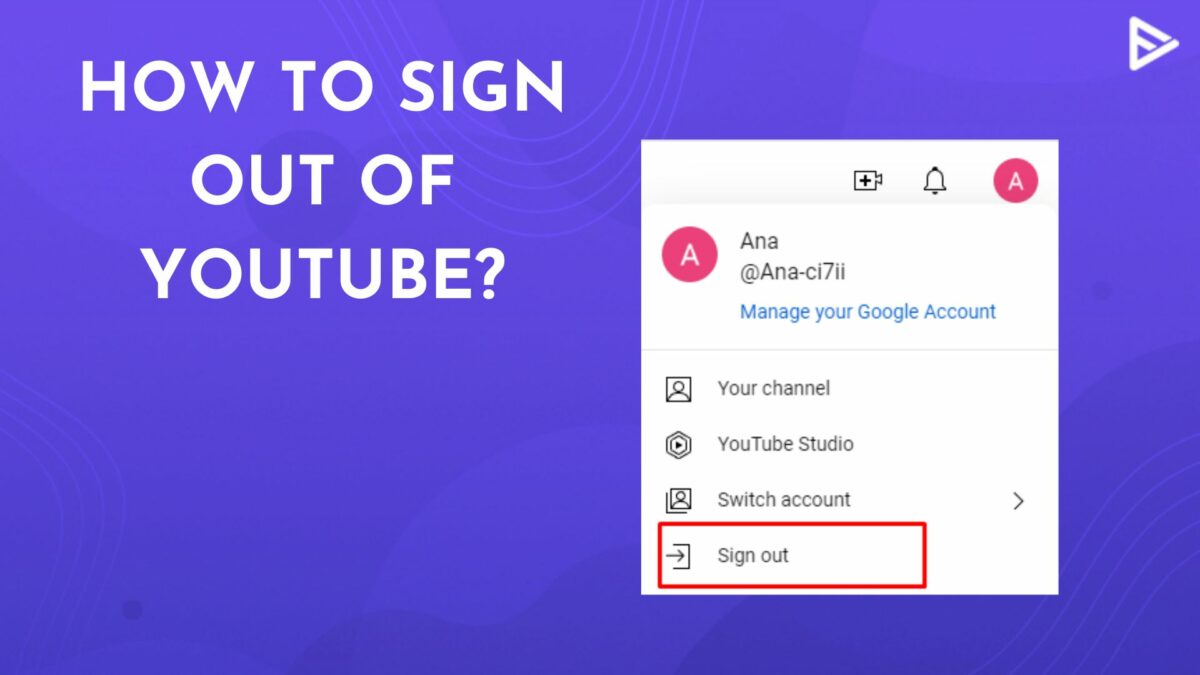
- Public/Shared Computers: Always sign out of YouTube (and your Google account) when using a public computer or a device shared with others to prevent unauthorized access.
- Signing Out: Click your profile picture in the top-right corner, then select “Sign out.” This will end your current session.
- Managing Devices: You can remotely sign out of devices you no longer use or recognize by visiting your Google Account security settings (
myaccount.google.com/device-activity). This is particularly useful if you lose a device.
Switching Between Google Accounts
For users with multiple Google profiles, smoothly transitioning between them on YouTube is crucial.
- “Switch Account” Option: After clicking your profile picture, select “Switch account.” This will display all Google accounts currently signed into your browser or device. You can then simply click the desired account to switch to it on YouTube.
- Adding Another Account: If the account you want isn’t listed, you can select “Add account” and go through the sign-in process for that specific Google account.
Understanding Account Privacy Settings
YouTube’s privacy settings, managed through your Google account, allow you to control who sees your activity and content.
- Activity Controls: You can pause or delete your YouTube search history and watch history via
myactivity.google.com/activitycontrols. - Playlist Privacy: When creating playlists, you can set them as Public, Unlisted, or Private, controlling their visibility.
- Channel Customization: For creators, YouTube Studio offers extensive options to control channel visibility, subscriber lists, and more.
By understanding and utilizing these settings, you can tailor your privacy level to your comfort, ensuring your YouTube experience is both enjoyable and secure.
In conclusion, signing into YouTube is the gateway to a rich, personalized, and interactive digital experience. By mastering the sign-in process, understanding its benefits, diligently troubleshooting any issues, and implementing robust security practices, you empower yourself to fully navigate and contribute to one of the world’s most dynamic online platforms.
aViewFromTheCave is a participant in the Amazon Services LLC Associates Program, an affiliate advertising program designed to provide a means for sites to earn advertising fees by advertising and linking to Amazon.com. Amazon, the Amazon logo, AmazonSupply, and the AmazonSupply logo are trademarks of Amazon.com, Inc. or its affiliates. As an Amazon Associate we earn affiliate commissions from qualifying purchases.