
In the vast and ever-expanding universe of YouTube, discovering new creators, revisiting favorite content providers, or locating a specific channel can sometimes feel like searching for a needle in a digital haystack. With billions of videos and millions of channels, an effective search strategy is paramount for anyone looking to optimize their viewing experience, conduct research, or simply reconnect with content they love. This comprehensive guide delves into the mechanics of YouTube’s search functionality, offering insights and practical steps to master channel discovery, ensuring you can navigate the platform with unparalleled precision and efficiency. Whether you’re a casual viewer or a dedicated researcher, understanding these techniques is a fundamental skill in today’s digital landscape.

Navigating YouTube’s Channel Discovery Landscape
YouTube is more than just a video platform; it’s a dynamic ecosystem where content creators build communities and audiences find their niche. The ability to effectively search for channels is at the heart of engaging with this ecosystem, allowing users to move beyond recommended videos and proactively seek out the content that truly resonates with them.
The Importance of Effective Channel Search
Effective channel search transcends mere convenience; it’s a critical tool for empowerment and personalization. For viewers, it means finding specialized content, following experts in specific fields, or discovering emerging talent that YouTube’s algorithm might not immediately surface. For businesses and researchers, it’s about competitive analysis, identifying thought leaders, or understanding audience demographics. Without precise search capabilities, users are largely reliant on YouTube’s recommendation engine, which, while powerful, can sometimes lead to a filter bubble, limiting exposure to diverse perspectives and fresh voices. Mastering channel search opens up the entire platform, transforming a passive viewing experience into an active, curated journey. It ensures you’re not just consuming content, but actively shaping your digital environment, aligning it with your interests and informational needs.
Understanding YouTube’s Search Algorithm
At its core, YouTube’s search functionality is powered by a sophisticated algorithm designed to deliver the most relevant results. When you type a query into the search bar, the algorithm considers numerous factors, including keywords, video metadata (titles, descriptions, tags), channel names, and user engagement metrics (views, likes, comments). For channel-specific searches, it places significant weight on the channel’s official name, its associated keywords, and the overall authority and relevance of the channel to the search query. It also learns from your past viewing habits and search history, attempting to personalize results. However, it’s crucial to understand that while the algorithm is intelligent, it’s not infallible. Sometimes, exact matches are hidden amidst popular videos, making it necessary for users to employ specific strategies and filters to get precisely what they’re looking for. Knowing this helps in crafting smarter search queries, recognizing that a generic search might prioritize popular videos over less prominent but highly relevant channels.
The Fundamentals of Channel Search on YouTube
Embarking on a channel search journey starts with understanding the basic yet powerful tools YouTube provides. These foundational steps are often overlooked but are essential for anyone aiming to quickly locate channels with minimal fuss.
Basic Search Bar Usage
The most direct way to search for channels on YouTube is through the omnipresent search bar located at the top of the YouTube interface.
- Access YouTube: Open your web browser and navigate to youtube.com, or launch the YouTube app on your mobile device.
- Locate the Search Bar: You’ll find a prominent search bar at the top center of the page or app, typically accompanied by a magnifying glass icon.
- Enter Your Query: Type the name of the channel you’re looking for, or relevant keywords describing the channel’s content, into the search bar. For instance, if you’re looking for “TED” talks, simply type “TED.” If you’re unsure of the exact channel name, broader keywords related to their content (e.g., “cooking channel vegan recipes”) can be effective.
- Initiate Search: Press Enter on your keyboard or tap the search icon.
- Review Results: YouTube will display a list of videos, playlists, and channels. Look for results categorized as “Channels.” Often, the most relevant channel will appear at or near the top, clearly labeled as a channel. You’ll typically see the channel’s icon, name, and subscriber count. Clicking on this will take you directly to the channel page.
This basic method is highly effective for well-known channels or when you have a fairly good idea of the channel’s name.
Applying Search Filters for Precision
When a basic search yields too many results or doesn’t immediately show the channel you want, YouTube’s built-in filters become your best friend. Filters allow you to narrow down results based on specific criteria, significantly improving the accuracy of your search.
- Perform an Initial Search: Start with a basic keyword search as described above.
- Locate the Filter Option: After the search results load, look for the “Filters” button. On desktop, it’s usually below the search bar on the right side. On mobile, it might be represented by a three-line or slider icon.
- Select “Channel” under “TYPE”: In the Filters menu, you’ll see various categories like “UPLOAD DATE,” “TYPE,” “DURATION,” and “FEATURES.” Under the “TYPE” category, select “Channel.”
- Apply Filters: Click or tap “Apply” or simply close the filter menu (depending on the interface).
YouTube will then refine your search results to display only channels that match your original keywords. This is an indispensable step for cutting through video clutter and directly targeting channels. You can combine this with other filters, like “Upload Date” if you’re looking for a channel that started uploading content around a certain time, though “Channel” is the primary filter for this objective.
Searching from a Video’s Watch Page
Sometimes, you discover an interesting video and want to find the channel that produced it. YouTube makes this incredibly intuitive:
- Watch the Video: While watching a video, look just below the video player.
- Locate Channel Information: You’ll see the channel’s name, often accompanied by its profile picture and subscriber count, directly beneath the video title.
- Click Channel Name: Clicking on the channel’s name (which is typically a clickable link) will instantly take you to that channel’s homepage, where you can explore their other content, check playlists, and subscribe. This method is the quickest way to navigate from a single piece of content to its source channel, streamlining your discovery process.
Advanced Strategies for Pinpointing Channels
While basic search methods are sufficient for many, certain situations demand a more nuanced approach. Advanced strategies leverage YouTube’s search capabilities and external tools to find even the most elusive channels.
Utilizing Exact Match Phrases and Keywords
For specific channel names or highly targeted content, using exact match phrases can significantly enhance search accuracy.
- Quotation Marks: Enclosing your search query in quotation marks (e.g.,
"The Great Courses Plus") tells YouTube to look for that exact phrase. This is incredibly useful when a channel name contains common words or if you want to avoid results that only partially match your query. - Specific Keywords: If you’re looking for a channel that focuses on a very particular niche (e.g., “vintage camera repair tutorials”), use those specific, long-tail keywords. The more precise your keywords, the more likely you are to find channels dedicated to that specific subject, especially when combined with the “Channel” filter.
- Adding “channel” to the query: Sometimes, simply adding “channel” to your search query (e.g., “NPR channel” or “gaming news channel”) can help YouTube prioritize channel results even before applying filters, though the dedicated filter is more reliable.

Leveraging Google Search for YouTube Channels
Don’t underestimate the power of Google for finding YouTube channels. Since Google owns YouTube, its search engine often provides excellent results for YouTube-specific queries.
- Formulate Your Query: In Google’s search bar, type
site:youtube.comfollowed by the channel name or keywords. For example,site:youtube.com "Vsauce" channelorsite:youtube.com "history documentaries" channels. - Review Google Results: Google will prioritize results from youtube.com, often linking directly to the channel page. This method can be particularly effective when a channel’s name is common or when you’re looking for channels related to a very broad topic that might be difficult to filter within YouTube directly. Google’s broader indexing capabilities can sometimes surface channels that might be harder to find through YouTube’s internal search, especially if the channel is well-referenced on external websites.
Exploring YouTube’s Browse Features
Beyond direct search, YouTube offers several browse functionalities that aid in channel discovery, often leading to unexpected and delightful finds.
- Home Page Recommendations: While not a “search” per se, YouTube’s homepage algorithm learns from your viewing habits and often recommends channels you might enjoy. Regularly reviewing these recommendations can be a passive yet effective way to discover new content.
- Trending Page: The “Trending” page (accessible from the left-hand navigation menu on desktop or under the “Explore” tab on mobile) showcases popular videos and creators at a given moment. While primarily video-focused, it often highlights channels that are currently gaining significant traction.
- Subscriptions Tab: If you’re following a channel that collaborates with or recommends other channels, your “Subscriptions” feed or the “Channels” tab on a creator’s page can be a goldmine. Many creators feature or link to channels they admire, expanding your network of discovery.
- Category Browsing (Explore Tab): The “Explore” tab on YouTube allows you to browse channels and videos by category (e.g., Gaming, Music, News, Sports). This is an excellent way to discover new channels within your general areas of interest, without needing a specific channel name in mind. It’s a more curated approach to browsing, allowing for broader exploration within defined niches.
Optimizing Your Channel Discovery Experience
Finding a channel is often just the first step. To truly optimize your YouTube experience, understanding how to manage your discoveries and engage with content is key.
Subscribing and Managing Your Subscriptions
Once you find a channel you love, subscribing is the best way to ensure you don’t miss their new content.
- Click the “Subscribe” Button: On any channel page, or directly from the search results, there’s a prominent red “Subscribe” button. Clicking it instantly adds the channel to your subscriptions.
- Bell Icon for Notifications: After subscribing, a bell icon will appear next to the “Subscribe” button. Clicking this bell allows you to customize notification settings (All, Personalized, None), ensuring you’re alerted to new uploads from that channel.
- Manage Subscriptions: Your “Subscriptions” feed (accessible from the left-hand menu) lists all the channels you follow. This central hub makes it easy to keep track of your favorite creators and view their latest content. Regularly reviewing and curating this list helps maintain a fresh and relevant viewing experience. Unsubscribing from inactive or irrelevant channels keeps your feed clean and focused.
Understanding Channel Pages and Their Features
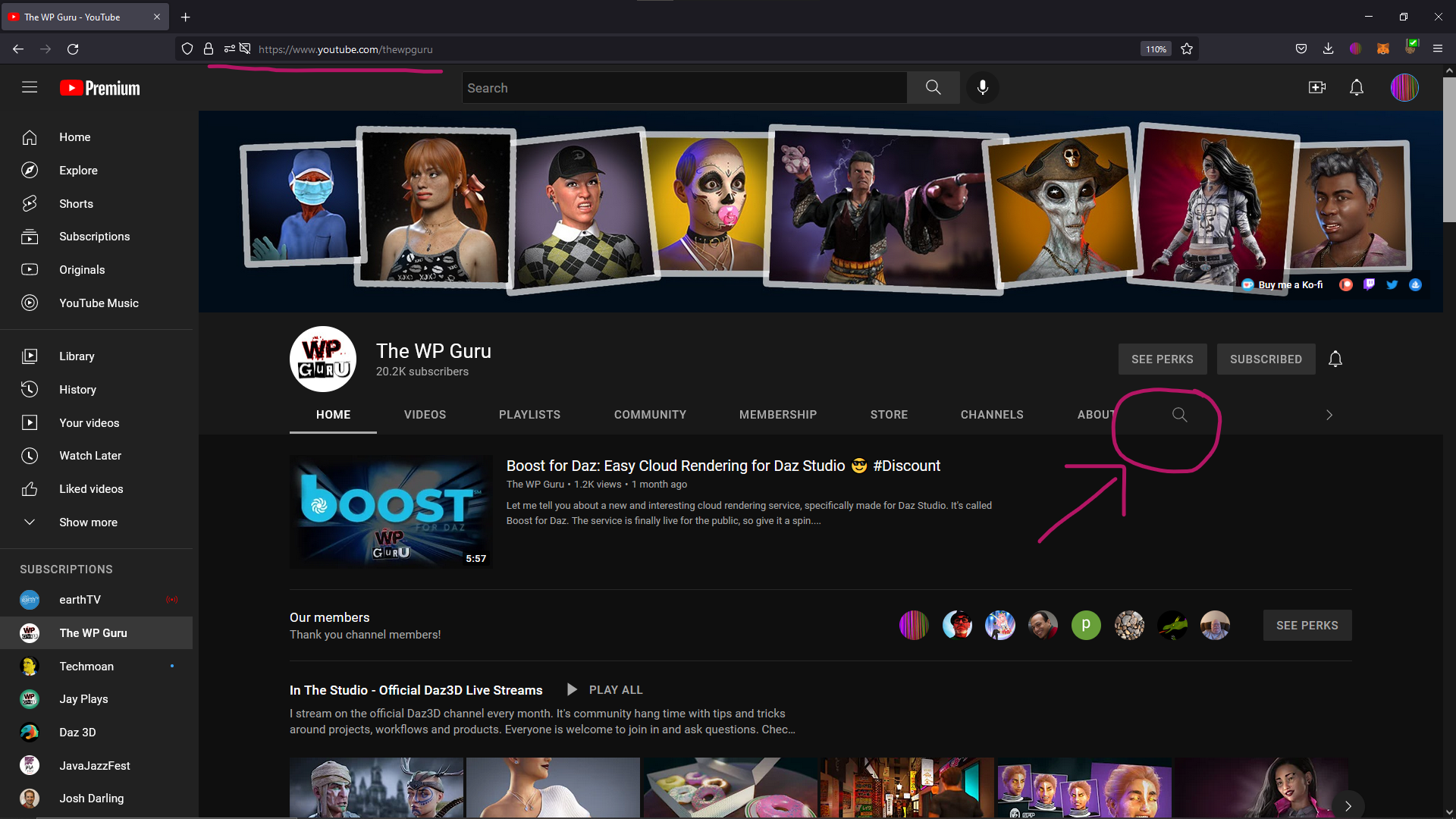
A channel’s homepage is a window into its content and community. Familiarizing yourself with its layout can significantly enhance your discovery process.
- Home Tab: Often features a channel trailer, featured videos, and organized sections of playlists. This is usually the best place to get an overview of what a channel is about.
- Videos Tab: Lists all videos uploaded by the channel, usually in reverse chronological order.
- Playlists Tab: Organized collections of videos, sometimes grouped by series, topic, or theme. Playlists are excellent for binge-watching specific content.
- Community Tab: A social feed where creators post updates, polls, and interact with their audience beyond videos. It’s a great place to stay engaged and informed.
- Channels Tab: Many creators list other channels they recommend or are affiliated with. This is a powerful feature for discovering new content from trusted sources.
- About Tab: Provides a description of the channel, links to social media, and business inquiries. This can offer deeper insight into the creator’s mission and background.
Exploring these tabs for a discovered channel helps you quickly assess its value and depth, guiding your decision to subscribe or delve deeper into its content.
Tips for Remembering Found Channels
With so many channels available, it’s easy to forget about ones you stumbled upon but didn’t immediately subscribe to.
- Use YouTube’s “Watch Later” or “Playlist” Features: If you find a video from a new channel you might like, add it to your “Watch Later” list or a custom playlist. This acts as a bookmark.
- Browser Bookmarks: For channels you’re seriously considering, a traditional browser bookmark can be a reliable backup.
- Private Playlists: Create a private playlist specifically for “Channels to Check Out” and add a video from each potential new channel. This centralizes your discovery efforts.
- Take Notes: For research or specific projects, a simple note-taking app or physical notebook can be invaluable for jotting down channel names and their primary topics.
Troubleshooting Common Search Issues and Enhancing Accessibility
Even with advanced strategies, users might encounter issues or seek ways to make their YouTube experience more inclusive. Addressing these concerns ensures a smoother and more accessible journey on the platform.
Addressing Inaccurate Search Results
Sometimes, despite your best efforts, YouTube’s search doesn’t deliver the expected channels.
- Double-Check Spelling: The most common issue. A single typo can completely throw off search results.
- Vary Keywords: If a specific channel name isn’t working, try alternative spellings, common abbreviations, or broader thematic keywords related to its content. For example, if “Mark’s Tech Reviews” isn’t working, try “tech reviews channel” and then filter.
- Consider Brand Changes: Channels sometimes change their names. If you’re looking for an older channel, try searching for its previous name, or research if the creator rebranded.
- Geographic Restrictions/Content Availability: Some content or channels may be restricted in certain regions. While not directly a search issue, it can explain why a channel you know exists isn’t appearing for you.
Ensuring Account Log-in and Customization Benefits
Being logged into your YouTube account significantly enhances your search experience.
- Personalized Results: YouTube’s algorithm learns from your watch history and subscriptions while logged in, often providing more relevant search suggestions and results.
- Save History: Your search history is saved, making it easy to revisit previous queries or channels you’ve looked for.
- Subscription Management: Logging in is essential for subscribing to channels and managing your notifications. While you can browse and watch without an account, the full suite of channel discovery and management features is only available when logged in.
Accessibility Features for Channel Discovery
YouTube is committed to accessibility, and these features can also aid in channel discovery for all users.
- Voice Search: On mobile devices and smart TVs, YouTube often offers a voice search option. This can be beneficial for users who find typing cumbersome or for quickly searching when hands-free. Simply tap the microphone icon in the search bar and speak your query.
- Keyboard Navigation: For desktop users, learning keyboard shortcuts can expedite navigation and interaction with search results, allowing for faster filtering and channel selection without relying solely on a mouse.
- High Contrast Mode/Dark Theme: While primarily for visual comfort, these settings can make text and interface elements clearer, potentially aiding in quicker identification of channel names and details in search results.
By mastering these strategies and understanding the underlying mechanics of YouTube’s search engine, you transform from a passive viewer into an active explorer. The ability to precisely locate and engage with channels is a core competency in navigating the digital world, ensuring that your YouTube experience is always tailored, informative, and truly engaging.
aViewFromTheCave is a participant in the Amazon Services LLC Associates Program, an affiliate advertising program designed to provide a means for sites to earn advertising fees by advertising and linking to Amazon.com. Amazon, the Amazon logo, AmazonSupply, and the AmazonSupply logo are trademarks of Amazon.com, Inc. or its affiliates. As an Amazon Associate we earn affiliate commissions from qualifying purchases.