
In the sprawling landscape of digital entertainment, subscription services like YouTube TV have become indispensable for countless households. Offering a robust alternative to traditional cable, YouTube TV provides live television from major broadcast and popular cable networks, along with a cloud DVR service. However, maintaining seamless access to this wealth of content hinges on one critical, yet often overlooked, aspect: your payment information. Whether a credit card has expired, you’ve switched banks, or simply wish to use a different payment method, knowing how to update your YouTube TV payment is a fundamental digital skill. This guide delves into the technical intricacies, user pathways, and best practices for managing your subscription payments, ensuring uninterrupted entertainment.
The Imperative of Managing Your YouTube TV Subscription Payment
In the digital age, subscription models power everything from productivity software to streaming entertainment. YouTube TV, as a premier live TV streaming service, operates on this very principle. A consistent and valid payment method is the cornerstone of continuous service, making proactive payment management not just a convenience but a necessity.
Why Regular Payment Management is Crucial
The digital subscription economy thrives on automation and convenience. Once set up, most users rarely think about their payment methods until an issue arises. However, various factors necessitate regular attention to your payment details. An expired credit card, a change in banking preferences, or even a simple security update to your card can disrupt your service. Forgetting to update these details can lead to unexpected service interruptions, requiring frantic troubleshooting just when you’re about to catch the big game or your favorite show. Moreover, proactively managing your payment information helps prevent late fees (if applicable, though YouTube TV typically suspends service rather than charging late fees) and ensures a smooth, uninterrupted viewing experience. It’s a small technical task that yields significant peace of mind.
Common Scenarios Requiring Payment Updates
Several common scenarios typically trigger the need for a payment update. The most frequent is the expiration of a credit or debit card. Cards have a finite lifespan, and as the expiration date approaches, providers often send reminders, but these can be easily missed. Another common scenario involves switching banks or primary financial institutions, necessitating a complete change of card details. Users might also wish to transition to a different payment method, perhaps from a credit card to a PayPal account, or vice-versa, to better manage their monthly expenditures or consolidate billing. Furthermore, incidents like lost or stolen cards require immediate updates, not just for security reasons but also to restore service quickly with a new card. Each of these situations underscores the importance of knowing the technical steps involved in updating your payment information within the YouTube TV ecosystem.
Step-by-Step Guide to Updating Your Payment Method
YouTube TV, being a Google product, leverages the robust Google Pay system for managing subscriptions. This integration simplifies the process across various Google services, including YouTube TV. The steps are generally intuitive, designed to be accessible whether you’re on a desktop browser, a mobile app, or even through your smart TV.
Via Web Browser: The Desktop Experience
Updating your payment method through a web browser is often the most comprehensive and straightforward method, offering a full-screen interface that minimizes confusion.
- Access YouTube TV Account: Open your preferred web browser and navigate to tv.youtube.com. Ensure you are logged in to the Google account associated with your YouTube TV subscription.
- Navigate to Settings: Once logged in, click on your profile picture in the top-right corner of the screen. From the dropdown menu, select “Settings.”
- Manage Membership: Within the Settings menu, you’ll see several categories. Click on “Membership.” This section displays your current plan, billing date, and payment method.
- Edit Payment Information: Under the “Primary payment method” section, you’ll find an option to “Edit” or “Update.” Clicking this will redirect you to the Google Pay interface, which handles all payment transactions for Google services.
- Google Pay Interface: In Google Pay, you’ll see your existing payment methods. You can either:
- Edit an existing card: Click on the card you wish to update (e.g., to change the expiration date or CVC/CVV).
- Add a new payment method: Select “Add payment method” and follow the prompts to enter details for a new credit card, debit card, or link a PayPal account.
- Save Changes: After making your desired changes or adding a new method, ensure you save the updates. Google Pay will typically ask you to confirm your changes. Once saved, the new payment method will be linked to your YouTube TV subscription.
On Mobile Devices: iOS and Android Apps
For users who primarily interact with YouTube TV via their smartphones or tablets, the process within the mobile app is similarly streamlined. The core navigation is consistent across both iOS and Android platforms, though minor UI differences may exist.
- Open YouTube TV App: Launch the YouTube TV app on your mobile device. Make sure you’re signed in to the correct Google account.
- Access Profile/Settings: Tap on your profile picture located in the top-right corner of the app screen.
- Go to Settings: From the menu that appears, tap on “Settings.”
- Select Membership: Within the Settings menu, find and tap on “Membership.”
- Update Payment Method: Similar to the web browser, locate the “Primary payment method” section and tap “Update” or “Edit.” This action will often open a web view within the app or redirect you to a mobile browser window linked to the Google Pay portal.
- Google Pay Mobile Interface: You will then be presented with the Google Pay interface, optimized for mobile. Here, you can add a new card, update an existing one, or manage linked PayPal accounts. Follow the on-screen prompts to input or modify your details.
- Confirm and Save: After entering the new information, confirm the changes to ensure they are saved and applied to your YouTube TV subscription.
Using Smart TV or Streaming Devices
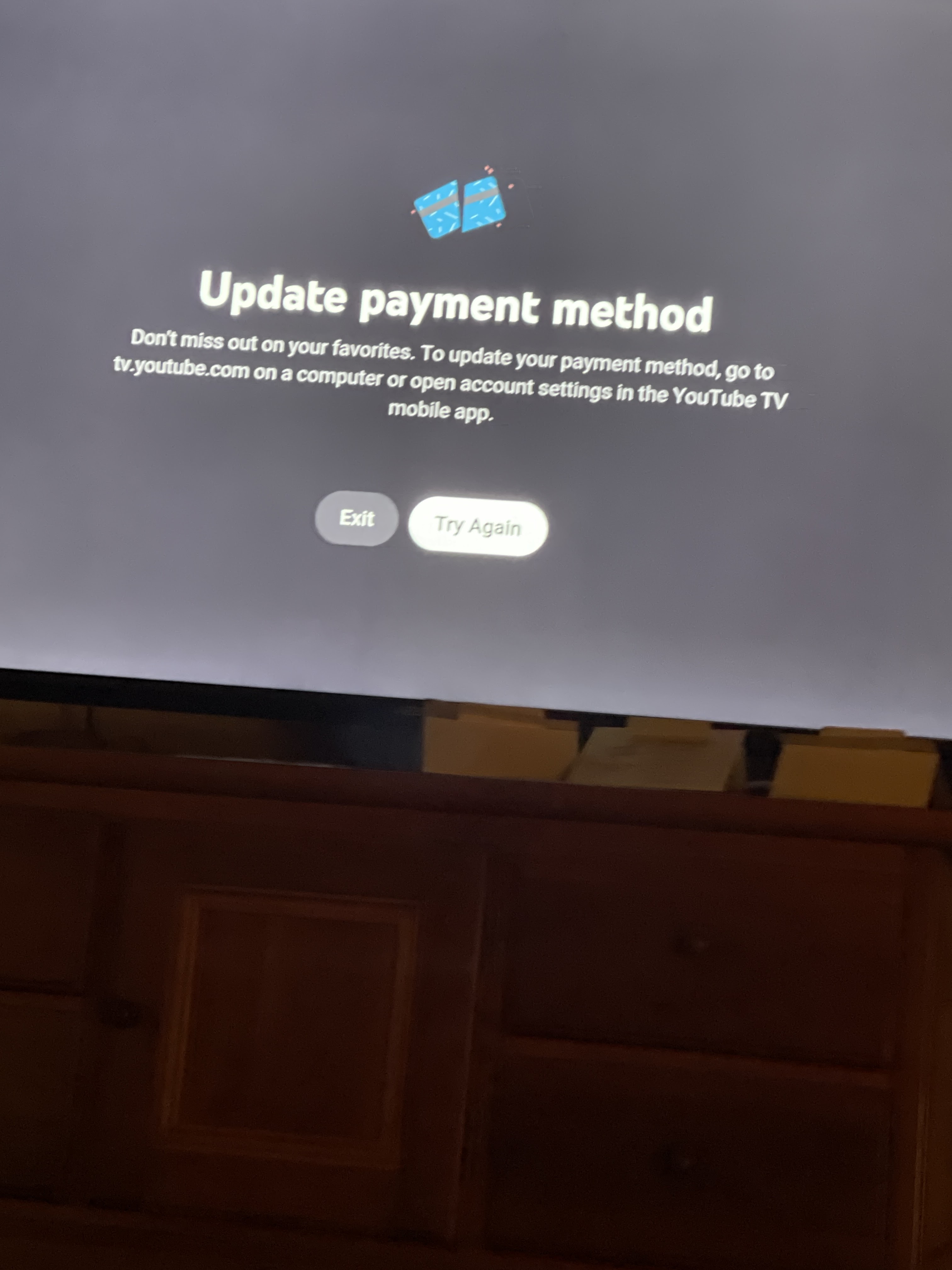
While you can watch YouTube TV on smart TVs and streaming devices (like Roku, Apple TV, Fire TV, Chromecast), the capability to update payment methods directly through these devices is generally limited. Most smart TV app interfaces are designed primarily for content consumption rather than deep account management.
- Limited Direct Management: Typically, you cannot update your payment method directly within the YouTube TV app on a smart TV or streaming stick. The app on these platforms usually directs users to a web browser or mobile app for account management tasks.
- Redirect to Web/Mobile: If you attempt to access account settings on these devices, you might see a message instructing you to visit tv.youtube.com/settings or use the mobile app to manage your membership details.
- Recommended Approach: Therefore, the most reliable and recommended method for updating payment information for YouTube TV, even if you primarily watch on a smart TV, is to use either a web browser on a computer or the YouTube TV mobile app on your smartphone or tablet. This ensures you’re using Google’s secure and fully functional Google Pay interface for handling sensitive financial data.
Navigating Payment Issues and Troubleshooting Tips
Even with clear instructions, technological processes can sometimes present hurdles. Payment issues, while frustrating, are often resolvable with a few systematic troubleshooting steps. Understanding common pitfalls and their solutions is key to quickly restoring your service.
Verifying Payment Details and Card Information
The vast majority of payment failures stem from simple data entry errors or outdated information. Before escalating to support, perform a thorough check of your inputted details:
- Card Number: Double-check every digit of your credit or debit card number. A single transposed number is enough to cause a rejection.
- Expiration Date: Ensure the month and year of expiration are precisely as they appear on your card. This is a very common oversight.
- CVC/CVV Code: This three- or four-digit security code on the back (or sometimes front) of your card is crucial for online transactions. Verify it meticulously.
- Billing Address: The billing address associated with your card must match the address on file with your bank or card issuer. Even minor discrepancies (e.g., “St.” vs. “Street”) can lead to declines.
- Name on Card: Ensure the name matches the primary cardholder’s name exactly.
- Sufficient Funds/Credit: While seemingly obvious, confirm that there are sufficient funds in your debit account or available credit on your credit card to cover the YouTube TV subscription fee.
Addressing Declined Payments and Error Messages
When a payment is declined, YouTube TV (or Google Pay) will usually provide an error message. These messages, though sometimes vague, offer clues:
- “Card Declined”: This general message often points back to the verification issues mentioned above. If all details seem correct, the problem might lie with your bank.
- “Payment Method Invalid”: This could mean the card type isn’t supported (e.g., a lesser-known local card), or there’s a fundamental issue with the card’s validity.
- “Error processing payment”: Could be a temporary system glitch on Google’s end or your bank’s. Try again after a few minutes, or even a few hours.
- Contact Your Bank: If all your details are correct and the card continues to be declined, the next step is invariably to contact your bank or card issuer. They can see the specific reason for the decline (e.g., fraud prevention flagging the transaction, international transaction block, insufficient funds not accurately reflected online) and often resolve it immediately. Inform them you’re trying to make a payment to “Google” or “YouTube TV.”
Contacting YouTube TV Support for Advanced Assistance
If you’ve exhausted all self-troubleshooting steps and still cannot update your payment method or complete a transaction, it’s time to reach out to YouTube TV support.
- Access Support: Within the YouTube TV app or on tv.youtube.com, look for a “Help” or “Support” option (usually under your profile picture or in the footer).
- Support Options: YouTube TV typically offers several support channels, including:
- Live Chat: Often the quickest way to get real-time assistance.
- Email Support: Good for non-urgent issues or if you need to provide detailed documentation.
- Phone Support: Some regions or issues may offer phone support for direct interaction.
- Be Prepared: When contacting support, have your account information ready (Google account email, details of the issue, any error messages you received, and what troubleshooting steps you’ve already taken). Avoid sharing full card numbers via chat or email, as support staff usually only need to confirm the last four digits or the card type.
Enhancing Your YouTube TV Experience: Beyond Payment Updates
While payment updates are a technical necessity, understanding how to manage other aspects of your YouTube TV account can further optimize your digital entertainment experience. The same settings menu that allows for payment modifications also houses other critical controls.
Managing Your Overall Subscription Plan
The “Membership” section within your YouTube TV settings isn’t just for payments; it’s your command center for your entire subscription. Here, you can:
- Change Your Base Plan: If YouTube TV offers different tiers or if your viewing habits change, you can upgrade or downgrade your base subscription.
- Pause or Cancel Membership: For periods when you’ll be away or wish to take a break, YouTube TV allows you to pause your membership for a set period, after which it automatically resumes. If you decide the service isn’t for you, this is also where you would initiate cancellation.
- Review Billing History: Access a detailed breakdown of your past payments and upcoming charges, providing transparency into your spending.
Exploring Add-ons and Premium Networks
YouTube TV enhances its core offering with a variety of add-ons, from premium movie channels like HBO Max and Showtime to sports packages and international content.
- Add/Remove Add-ons: Within the Membership settings, you can browse available add-ons and easily subscribe or unsubscribe from them. This allows for a truly customized viewing package tailored to your interests without committing to long-term contracts.
- Trial Management: If you’ve activated free trials for any add-ons, this section is where you would monitor their expiration dates and decide whether to continue the subscription or cancel before being charged.
Ensuring Account Security and Privacy
Given that YouTube TV is linked to your Google account and processes financial transactions, maintaining robust account security is paramount.
- Strong Passwords: Always use a strong, unique password for your Google account.
- Two-Factor Authentication (2FA): Enable 2FA on your Google account. This adds an extra layer of security, requiring a second verification step (e.g., a code sent to your phone) beyond just your password, significantly reducing the risk of unauthorized access, even if your password is compromised.
- Review Account Activity: Periodically check your Google account activity to ensure no suspicious logins or actions have occurred.
- Log Out of Unused Devices: If you’ve signed into YouTube TV on public or shared devices, always remember to log out to prevent unauthorized access to your account and potentially your payment information.
Future-Proofing Your Digital Entertainment: Best Practices
In an increasingly digital world, proactively managing your online subscriptions, particularly those involving recurring payments, is a key component of digital literacy and personal financial responsibility.
Setting Up Payment Reminders and Auto-Updates
Many digital payment systems, including those integrated with Google Pay, offer features to help you stay on top of your payment methods. Consider:
- Calendar Reminders: Set a recurring calendar reminder a month or two before your credit card’s expiration date. This gives you ample time to update the information without a last-minute scramble.
- Bank Notifications: Many banks offer notifications for credit card expirations or for large/recurring transactions, which can serve as a useful prompt.
- Digital Wallet Integration: Using services like Google Pay directly can sometimes streamline updates, as a single update within Google Pay might propagate to all linked services, though this isn’t universally guaranteed.
Reviewing Your Financial Commitments
Regularly auditing your digital subscriptions is a smart financial and technical habit.
- Monthly Review: Set aside time each month to review all your recurring subscriptions. This helps you identify services you no longer use, ensure you’re getting value for money, and catch any unexpected charges.
- Budgeting Tools: Utilize personal finance apps or spreadsheets to track your subscription spending. This not only highlights your financial commitments but also provides a consolidated view of where your money is going.
- “Subscription Fatigue”: Be mindful of “subscription fatigue,” where you accumulate too many services and lose track. Regularly reassess whether each service, including YouTube TV, still meets your entertainment needs and budget.
The Evolving Landscape of Digital Subscriptions
The world of digital entertainment is dynamic. New services emerge, existing ones evolve, and pricing models shift. Staying informed means:
- Keeping Up with Features: Periodically check YouTube TV’s official announcements for new features, channels, or changes to its service.
- Understanding Terms of Service: While tedious, occasionally reviewing the terms of service for significant updates can prevent surprises related to billing or content.
- Leveraging Technology: The tools and tutorials provided for services like YouTube TV are designed to empower users. By mastering tasks like updating payment methods, you gain greater control over your digital life and ensure that your entertainment flows as smoothly as possible.
In conclusion, knowing how to update your YouTube TV payment is more than just a technical step; it’s an essential skill for navigating the modern digital landscape. By understanding the process, troubleshooting common issues, and adopting best practices for account management, you can ensure an uninterrupted and secure entertainment experience, keeping your favorite shows and live events just a click away.
aViewFromTheCave is a participant in the Amazon Services LLC Associates Program, an affiliate advertising program designed to provide a means for sites to earn advertising fees by advertising and linking to Amazon.com. Amazon, the Amazon logo, AmazonSupply, and the AmazonSupply logo are trademarks of Amazon.com, Inc. or its affiliates. As an Amazon Associate we earn affiliate commissions from qualifying purchases.