
In the dynamic landscape of digital entertainment, free trials have become a ubiquitous offering, allowing consumers to sample services before committing to a paid subscription. While incredibly convenient for discovery, these trials also necessitate a keen understanding of account management, particularly when it comes to cancellation. YouTube TV, a prominent player in the live TV streaming arena, offers such a trial, and knowing precisely how to terminate it before incurring charges is a crucial aspect of digital literacy. This guide provides a detailed, step-by-step walkthrough, embedded within broader discussions of digital subscription management, user interface navigation, and the imperative of proactive tech engagement.

Navigating the Digital Subscription Landscape: Why Free Trials Matter
The allure of “free” is a powerful magnet in the digital world, drawing users into ecosystems that promise convenience, entertainment, or productivity. Free trials, particularly for robust services like YouTube TV, exemplify this strategy, offering a full-featured experience for a limited period. However, beneath the surface of this convenience lies a responsibility for the user to manage their digital commitments effectively.
The Allure and Risks of Free Trials in the Streaming Ecosystem
YouTube TV’s free trial allows users to explore its extensive channel lineup, cloud DVR capabilities, and multi-device compatibility without immediate financial obligation. This period is designed to showcase the service’s value proposition, ideally converting trial users into long-term subscribers. For the tech-savvy consumer, it’s an opportunity to thoroughly evaluate the user interface, streaming quality, content library, and overall user experience against personal preferences and other market alternatives.
However, the convenience of signing up often overshadows the crucial step of cancellation. Many users fall into the trap of forgetting about an active free trial, only to be surprised by a charge on their credit card once the trial period expires. This oversight isn’t merely a financial inconvenience; it represents a lapse in digital account management, highlighting the need for vigilance in a world increasingly dominated by recurring subscriptions. From a technical perspective, understanding the lifecycle of a subscription – from activation to evaluation to potential termination – is fundamental. It involves interacting with specific software interfaces, interpreting terms of service, and executing precise digital commands.
Identifying When to Cancel: Timing and User Experience
The optimal time to cancel a YouTube TV free trial is typically just before the trial period concludes. This ensures you maximize your free access without risking an automatic conversion to a paid membership. Most services, including YouTube TV, explicitly state the trial duration at signup and often send reminder emails as the trial nears its end. Paying attention to these notifications is a foundational element of effective digital interaction.
From a user experience standpoint, the cancellation process should ideally be straightforward and transparent. A service that intentionally obfuscates the cancellation path can erode user trust and generate negative sentiment. For YouTube TV, the process is generally user-friendly, allowing users to manage their membership directly through their account settings. This design choice reflects a broader best practice in software development: empowering users with control over their data and subscriptions. Familiarity with navigating web-based dashboards and mobile application menus is key here, as these are the primary interfaces for managing such services.
The Imperative of Proactive Digital Account Management
In an era where individuals subscribe to an average of five or more digital services, proactive account management isn’t just an option—it’s a necessity. Forgetting to cancel a free trial, whether for YouTube TV or another service, is symptomatic of a larger challenge: managing one’s digital footprint and financial commitments in an increasingly complex online world. This imperative extends beyond mere financial savings; it touches upon data privacy, the intentional consumption of digital content, and the overall psychological burden of subscription overload. Tech users must adopt a mindset of continuous review and active decision-making regarding their digital subscriptions, treating them as dynamic commitments rather than passive entitlements.
A Step-by-Step Technical Walkthrough: Canceling Your YouTube TV Free Trial
Successfully canceling your YouTube TV free trial requires navigating specific menus and confirming your choices within the platform’s user interface. While the exact steps might see minor interface updates over time, the fundamental path remains consistent.
Accessing Your YouTube TV Account via Web Browser (Primary Method)
The most reliable and comprehensive method for managing your YouTube TV membership, including cancellation, is through a web browser on a desktop or laptop computer. This provides the most expansive view of your account settings and is less prone to mobile app-specific quirks.
- Open Your Web Browser: Launch your preferred web browser (Chrome, Firefox, Safari, Edge, etc.).
- Navigate to YouTube TV: Go to
tv.youtube.com. - Sign In: Ensure you are signed into the Google account associated with your YouTube TV free trial. If you are not, click on the profile icon (usually in the top-right corner) and select “Sign in.”
- Access Settings: Once signed in, click on your profile picture or icon again in the top-right corner of the screen. A dropdown menu will appear.
- Select “Settings”: From the dropdown menu, choose “Settings.” This will take you to your account management page.
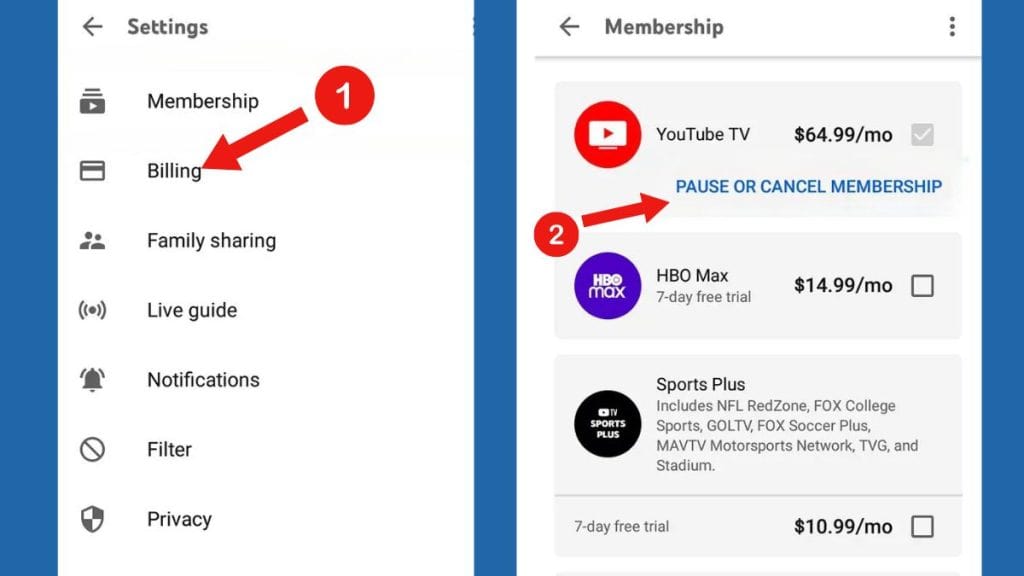
- Go to “Membership”: Within the Settings menu, you will typically find several tabs or sections. Look for “Membership” or “Billing.” Click on it.
- Initiate Cancellation: Under your YouTube TV Base Plan details, you should see an option related to managing or canceling your membership. This might be labeled “Manage,” “Cancel Membership,” or “Pause Membership.” Click on the “Cancel Membership” or equivalent option.
- Follow On-Screen Prompts: YouTube TV will likely present a series of screens asking for feedback on why you’re canceling and offering alternatives, such as pausing your membership. Carefully read these prompts.
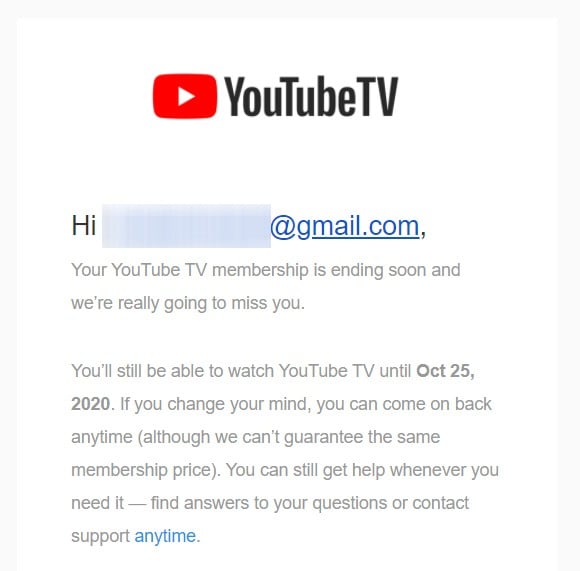
- Confirm Cancellation: To finalize the process, you must click through these prompts until you see a clear confirmation that your membership has been canceled. You should also receive a confirmation email from YouTube TV to the email address associated with your Google account. This email is crucial for your records.
Canceling Through Mobile Devices (iOS and Android Apps)
While the web browser method is often preferred for its clarity, you can also initiate cancellation directly through the YouTube TV mobile application on your iOS or Android device.
- Open the YouTube TV App: Launch the YouTube TV application on your smartphone or tablet.
- Sign In: Make sure you are logged into the correct Google account.
- Access Your Profile: Tap on your profile picture or icon, usually located in the top-right corner of the app screen.
- Go to “Settings”: From the profile menu, tap on “Settings.”
- Select “Membership”: Within the Settings, locate and tap “Membership.”
- Initiate Cancellation: Similar to the web browser method, find the option to “Cancel Membership” or “Manage Membership” under your Base Plan details.
- Complete the Process: Follow the on-screen instructions, providing feedback if prompted, and confirm your decision until you receive an in-app confirmation. An email confirmation should also be sent to your registered email address.
It’s important to note that if you subscribed to YouTube TV through a third-party billing service (e.g., Apple App Store, Google Play Store subscriptions managed outside the YouTube TV app itself), you might need to cancel directly through that platform’s subscription management settings. However, for most direct sign-ups, the in-app or web browser methods suffice.
Exploring Pause Options vs. Full Cancellation
Before fully canceling, YouTube TV often presents the option to “pause” your membership. This feature is a technical solution designed for users who anticipate not using the service for a temporary period but intend to return.
- Pause Membership: If you’re simply taking a break or going on vacation, pausing allows you to suspend billing and access for a set duration (e.g., 4 to 24 weeks). Your preferences, library, and recordings (within their expiration window) remain intact, making it easier to resume. This is a robust feature for managing intermittent usage without the hassle of full cancellation and re-subscription.
- Full Cancellation: Opting for full cancellation means your access will cease at the end of your current billing cycle (or free trial period), and your account will revert to an inactive state. While you can re-subscribe later, you might lose certain settings or recordings that aren’t retained indefinitely for inactive accounts. Understanding the technical implications of both choices—data retention, account state, and ease of recommencement—is vital for making an informed decision.
Post-Cancellation Dynamics: What to Expect and Future Considerations
Canceling a free trial isn’t just about avoiding a charge; it’s about understanding the immediate and long-term implications for your digital account and overall tech ecosystem.
Understanding Access Expiration and Data Retention
Upon successful cancellation of your YouTube TV free trial, your access to the service will typically continue until the end of the original trial period. For instance, if you started a 7-day trial and canceled on day 3, you would still have access until the end of day 7. YouTube TV does not usually offer pro-rata refunds for free trials that are canceled early, as the service is free for the designated period.
Regarding data retention, YouTube TV generally retains certain user data (like watch history, preferences, and potentially DVR recordings) for a period even after cancellation, especially if your Google account remains active. This is often to facilitate a smoother re-subscription experience. However, specific details on data retention policies are outlined in Google’s privacy policy, a critical document that often goes unread but contains vital information about your digital footprint. From a technical standpoint, services utilize databases and cloud storage to manage this data, and understanding these underlying processes enhances your appreciation for digital security and data governance.
Re-subscribing to YouTube TV: A Seamless Process?
Should you decide to re-subscribe to YouTube TV in the future, the process is usually designed to be seamless. If you cancel your free trial and later opt for a paid membership, you would typically sign in with the same Google account and initiate a new subscription. Many of your previous preferences and possibly some DVR recordings might be restored, depending on how long your account was inactive and YouTube TV’s internal data policies. This seamlessness is a technical feature aimed at improving user retention and reducing friction for returning customers.
The Impact on Google Accounts and Integrated Services
Canceling YouTube TV directly impacts only that specific service; it does not typically affect your broader Google account (Gmail, Google Drive, Google Photos, etc.) or other Google services you might use. YouTube TV operates as an add-on service tied to your Google ID. The only minor impact might be on personalized recommendations within other Google platforms if they leverage your YouTube TV viewing habits. Understanding this clear separation of services is important for maintaining control over your entire digital identity within the Google ecosystem.
Best Practices for Digital Subscription Management and Cybersecurity
Beyond the immediate task of canceling YouTube TV, the process serves as a practical lesson in broader digital hygiene. Effective management of subscriptions and accounts is integral to both financial and digital wellness.
Regularly Reviewing Connected Accounts and Billing Information
One of the most crucial tech best practices is to regularly review all connected accounts and associated billing information. This involves:
- Auditing Subscriptions: Periodically (e.g., quarterly) review your bank statements and credit card bills for recurring charges. This helps identify forgotten subscriptions or services you no longer use, including those from lapsed free trials.
- Checking App Store Subscriptions: For mobile users, frequently check the subscription management sections in the Apple App Store or Google Play Store, as many third-party services are billed through these platforms.
- Maintaining Accurate Payment Details: Ensure your payment methods on file for all services are up-to-date. Expired cards can lead to service interruptions or, conversely, unnoticed charges if a trial rolls over to a paid plan unexpectedly.
Utilizing Password Managers and Two-Factor Authentication for Subscription Security
Security is paramount in digital account management. For every service, including YouTube TV, robust security measures are indispensable:
- Password Managers: Use a reputable password manager (e.g., LastPass, 1Password, Bitwarden) to generate and store unique, strong passwords for each service. This prevents credential stuffing attacks, where a breached password from one site is used to gain access to others.
- Two-Factor Authentication (2FA): Whenever available, enable 2FA for all your online accounts, especially for your Google account which is the gateway to YouTube TV. This adds an extra layer of security, requiring a second verification step (like a code from your phone) even if your password is compromised. This is a non-negotiable step in safeguarding your digital identity.
The Broader Context of Digital Wellness and Minimizing Subscription Overload
The act of canceling a free trial is a micro-task within the larger framework of digital wellness. Subscription overload—the phenomenon of having too many digital subscriptions—can lead to financial drain, decision fatigue, and a cluttered digital life. By being intentional about free trials and knowing how to cancel them, users assert control over their digital consumption. This approach encourages a more mindful interaction with technology, ensuring that services genuinely add value rather than becoming hidden drains on resources. From a technological perspective, it promotes efficient resource allocation – both personal and digital – preventing unused applications from consuming bandwidth, storage, or processing power in the background.
Troubleshooting Common Issues and Seeking Support
Even with clear instructions, users may encounter issues. Knowing how to troubleshoot and where to seek support is an essential digital skill.
Addressing Billing Discrepancies After Cancellation
If you cancel your free trial but still see a charge, several steps can be taken:
- Check Confirmation Email: Verify your cancellation confirmation email. It serves as proof of cancellation.
- Review Bank/Credit Card Statement: Ensure the charge isn’t for a different Google service or a previous, legitimate charge.
- Check Google Play/Apple Subscriptions: If you originally subscribed via a mobile app, verify cancellation directly through your device’s app store subscription settings.
- Contact YouTube TV Support: If the charge persists despite clear cancellation, the next step is to contact customer support.
Contacting YouTube TV Customer Support
YouTube TV provides several avenues for support:
- Help Center: The YouTube TV Help Center (
support.google.com/youtubetv) is an excellent first resource, offering extensive FAQs and troubleshooting guides. - Live Chat/Email: Within the Help Center, you can usually find options for live chat or email support, allowing you to directly communicate with a support agent. Be prepared with your Google account details and any relevant transaction IDs.
- Phone Support: Depending on your region, phone support might also be available, offering direct verbal assistance.
When contacting support, be clear, concise, and have all relevant information (account ID, date of trial start, date of cancellation, screenshot of charges) ready. This streamlines the support process and improves the likelihood of a swift resolution.
Preventing Unwanted Renewals: A Checklist for Digital Users
To proactively prevent unwanted renewals, consider this comprehensive checklist:
- Set Calendar Reminders: Create calendar alerts a few days before each free trial is set to expire.
- Use Subscription Trackers: Employ dedicated subscription management apps or services that monitor your recurring payments.
- Review Terms of Service: Always quickly read the cancellation terms before starting any free trial.
- Confirm Cancellation Emails: Always look for and save confirmation emails after canceling any service.
- Monitor Bank Statements: Make it a habit to regularly review your bank and credit card statements for unexpected charges.
By adhering to these best practices and understanding the technical nuances of digital service management, users can confidently navigate the world of free trials, ensuring they only pay for services they genuinely desire and use. The act of canceling a YouTube TV free trial, while seemingly minor, encapsulates a broader set of skills essential for modern digital citizenship.
aViewFromTheCave is a participant in the Amazon Services LLC Associates Program, an affiliate advertising program designed to provide a means for sites to earn advertising fees by advertising and linking to Amazon.com. Amazon, the Amazon logo, AmazonSupply, and the AmazonSupply logo are trademarks of Amazon.com, Inc. or its affiliates. As an Amazon Associate we earn affiliate commissions from qualifying purchases.