
The iPhone has long been lauded as a paragon of intuitive design and seamless functionality, largely due to its robust ecosystem of applications. From enhancing productivity and streamlining communication to providing endless entertainment and crucial financial tools, apps are the very lifeblood of the modern smartphone experience. For new iPhone users, or even seasoned veterans looking to explore alternative installation methods, understanding the various ways to acquire and manage apps is fundamental. This guide delves deep into the mechanisms behind populating your iPhone with essential software, offering practical tutorials, security insights, and a glimpse into the evolving landscape of app distribution.
In an era defined by digital convenience and constant connectivity, the ability to effortlessly access and utilize applications is paramount. This article, aligning with our focus on Tech, Brand, and Money, will not only show you the “how-to” but also underscore the technological underpinnings, the importance of app reputation, and the economic implications of the app marketplace.
The Official Method: Navigating the Apple App Store
For the vast majority of iPhone users, the Apple App Store remains the primary, most secure, and most straightforward gateway to a universe of applications. Launched in 2008, it revolutionized software distribution, offering a curated platform that prioritizes user experience, security, and developer support. Installing apps from the App Store is a process designed for simplicity and reliability, ensuring that every download meets Apple’s stringent quality and privacy standards.
Discovering and Downloading Free Apps
Getting started with free apps is remarkably easy, making the App Store an accessible entry point for everyone.
- Open the App Store: Locate the blue icon with a white ‘A’ in a circle on your iPhone’s home screen and tap it.
- Explore and Search: The App Store’s interface is designed for discovery.
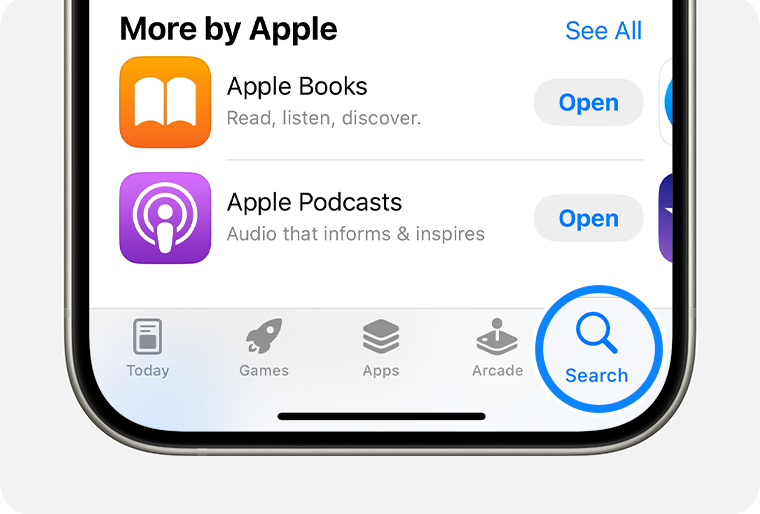
- Today Tab: Features daily stories, app lists, and interviews from the App Store’s editorial team, highlighting new and noteworthy apps. This is a great place for inspiration and to discover trending Tech innovations.
- Games Tab: Specifically curated for gaming enthusiasts, offering categories, charts, and recommendations.
- Apps Tab: Organizes non-gaming applications by category (e.g., Productivity, Social Networking, Health & Fitness, Utilities), making it easy to browse specific interests.
- Arcade Tab: If you have an Apple Arcade subscription, this tab provides access to exclusive, ad-free games.
- Search Tab: The most direct way to find a specific app. Tap the magnifying glass icon in the bottom right corner, then type the app’s name or keywords into the search bar at the top. For example, if you’re looking for a new AI Tool or a specific Digital Security app, this is where you’d start.
- Select an App: Once you find an app you’re interested in, tap on its icon to view its product page. This page provides crucial information:
- Developer Name: Key for understanding the Brand behind the app.
- Screenshots and Videos: Visual previews of the app’s interface and functionality.
- Ratings and Reviews: User feedback is invaluable for assessing an app’s quality and reliability.
- Description: A detailed overview of what the app does.
- Privacy Practices: A transparent summary of data collected, essential for Digital Security and informed choices.
- Version History: Information about recent updates and bug fixes.
- Download the App: For free apps, you’ll see a “GET” button. Tap it.
- You may be prompted to authenticate with Face ID, Touch ID, or your Apple ID password. This is a security measure to confirm you authorize the download.
- The app icon will appear on your home screen, showing a progress circle as it downloads and installs. Once complete, you can tap it to open.
Purchasing and Managing Paid Applications
While a plethora of free apps exists, many premium applications offer advanced features, an ad-free experience, or specialized functionalities that justify a one-time purchase or a subscription.
- Find a Paid App: The process is similar to finding free apps. On the app’s product page, you’ll see its price instead of a “GET” button (e.g., “$4.99”).
- Make the Purchase: Tap the price button.
- You’ll be asked to confirm the purchase using Face ID, Touch ID, or your Apple ID password.
- Ensure your payment method is set up correctly. You can manage your payment methods by going to Settings > [Your Name] > Payment & Shipping. Apple supports various payment options, including credit/debit cards, Apple Pay, and carrier billing, making Money transactions seamless.
- In-App Purchases and Subscriptions: Many free or paid apps offer additional content, features, or premium access through in-app purchases or subscriptions.
- These are usually managed within the app itself.
- For subscriptions, you can review and cancel them via Settings > [Your Name] > Subscriptions. Understanding your recurring Money outflows for apps is crucial for personal finance management.
- App Store Security: Apple’s rigorous review process for apps ensures a high level of Digital Security. Apps must adhere to strict guidelines regarding functionality, performance, and most importantly, privacy. This significantly reduces the risk of malware or data breaches compared to less controlled app marketplaces.
Updating and Offloading Apps for Optimal Performance
Maintaining your apps is crucial for security, performance, and to access new features.
- Updating Apps:
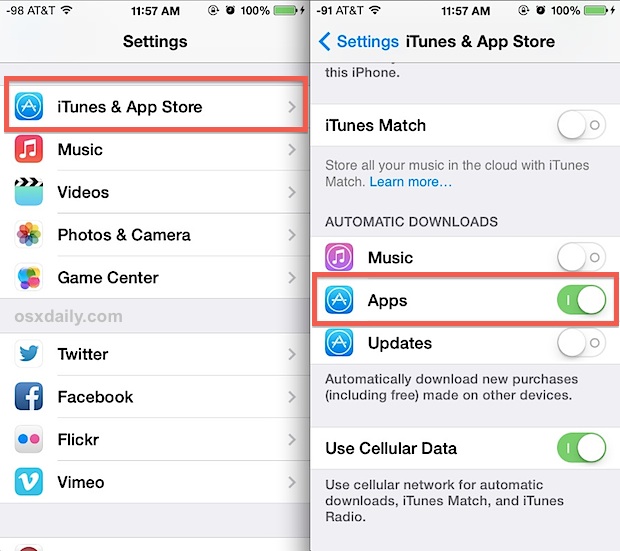
- Automatic Updates: Go to Settings > App Store, and ensure “App Updates” is toggled on. This is the most convenient way to keep your apps current, receiving the latest security patches and feature enhancements without manual intervention.
- Manual Updates: Open the App Store, tap your profile icon in the top right corner. Scroll down to see pending updates. You can tap “Update All” or update individual apps. It’s good practice to check this periodically, especially if you’ve disabled automatic updates or want immediate access to a new feature mentioned in a Tech blog.
- Offloading vs. Deleting Apps: To manage your iPhone’s storage and improve performance, you have two key options:
- Delete App: Long-press the app icon, tap “Remove App,” then “Delete App.” This removes the app and all its associated data from your device, freeing up maximum storage.
- Offload App: This intelligent feature removes the app itself but keeps its documents and data. If you reinstall the app later, your data will still be there. This is ideal for infrequently used apps that you might need again. To offload:
- Long-press the app icon, tap “Remove App,” then “Offload App.”
- Alternatively, go to Settings > General > iPhone Storage. Here, you’ll see a list of your apps and their storage consumption. You can tap on an app and choose “Offload App.” This is an excellent Productivity tip for keeping your Gadget running smoothly without losing important information.
Beyond the App Store: Exploring Alternative Installation Methods
While the App Store is the default and recommended method, the world of app distribution is evolving, particularly with new regulatory frameworks and specialized needs. Understanding these alternatives can be beneficial, especially for power users, developers, or those operating in specific geopolitical regions.
Sideloading and Third-Party App Marketplaces (Post-DMA Era)
Sideloading refers to installing applications on your iPhone from sources other than the official App Store. Historically, this was largely restricted to developers and required technical workarounds. However, recent regulatory changes, particularly the European Union’s Digital Markets Act (DMA), are ushering in a new era for app distribution on iOS within the EU.
- What is Sideloading? It’s the process of directly downloading and installing an app file (typically an
.ipafile) onto your device. Outside of specific developer tools, this has generally been unsupported by Apple for security reasons. - The Impact of the DMA: As of early 2024, the DMA mandates that Apple allow alternative app marketplaces (third-party app stores) and direct sideloading on iPhones within the European Economic Area (EEA). This is a monumental shift for Tech Trends and developer ecosystems.
- Third-Party App Marketplaces: Instead of sideloading individual apps, users in the EEA can now download and install alternative app stores from approved developers. These alternative stores can then offer their own curated selection of apps, potentially with different pricing models or content policies. This creates new opportunities for Online Income and app monetization outside of Apple’s commission structure.
- Developer and User Freedom: This move aims to increase competition and give developers more choice in how they distribute their apps, and users more choice in where they get them.
- Security Considerations and Risks: While offering more flexibility, sideloading and third-party app stores come with inherent risks that users must be aware of for their Digital Security:
- Malware and Viruses: Without Apple’s stringent review process, alternative stores or directly sideloaded apps could potentially contain malicious code, spyware, or ransomware.
- Privacy Concerns: Apps from unverified sources might not adhere to the same privacy standards, potentially collecting more user data than expected or without adequate consent.
- Stability and Performance: Apps not optimized for the standard iOS environment might lead to crashes, battery drain, or other performance issues.
- Loss of Warranty/Support: Installing unapproved software could, in some extreme cases, void warranty or complicate troubleshooting with Apple support.
- Recommendations: If you choose to explore these options (when available in your region), it is critical to:
- Only download from highly reputable and verified alternative app marketplaces.
- Research the Brand Reputation of any app and its developer before installing.
- Be extremely cautious about granting permissions to apps from non-official sources.
Enterprise and Developer App Distribution

For specific use cases, Apple provides methods for distributing apps outside the public App Store, primarily for businesses and developers.
- Enterprise Program: Large organizations can enroll in the Apple Developer Enterprise Program. This allows them to develop and privately distribute proprietary internal apps to their employees’ iPhones without going through the App Store. These apps are typically critical for internal Productivity and operations.
- Trusting Certificates: When an employee installs an enterprise app, they will usually need to manually “trust” the enterprise developer’s certificate in Settings > General > VPN & Device Management. This is a crucial security step.
- Developer Program / TestFlight: Individual developers or small teams use the Apple Developer Program to create and test their apps.
- TestFlight: Apple’s own platform for beta testing. Developers invite users to test pre-release versions of their apps. TestFlight apps are secure and temporary, expiring after a certain period or when a new version is released. This is vital for refining Software before its public launch.
These methods are typically not for general public use but highlight the flexibility within the iOS ecosystem for specific professional and developmental needs.
Web Clips and Progressive Web Apps (PWAs)
Sometimes, you don’t need a full-fledged native app to get an app-like experience. Web clips and Progressive Web Apps (PWAs) offer a lightweight alternative.
- Web Clips (Add to Home Screen): Any website can be “bookmarked” to your home screen, appearing like an app icon.
- How to: Open Safari, navigate to the desired website, tap the Share button (square with an arrow pointing up), and then tap “Add to Home Screen.”
- This creates a shortcut. When you tap the icon, it opens the website directly in Safari. It’s a quick way to access frequently visited sites like your favorite news portal, a Money management dashboard, or a productivity tool.
- Progressive Web Apps (PWAs): These are websites designed to function like native apps, offering features such as offline access, push notifications, and a full-screen, browser-chrome-free experience.
- Benefits: PWAs don’t require installation from an app store, saving device storage and bypassing certain distribution rules. They are often cross-platform, making them attractive for Brand Strategy as they offer a consistent experience across devices. Many major services, from social media to banking, offer PWA capabilities.
- Installation: Similar to web clips, you usually “install” a PWA by adding its website to your home screen. The website’s developer must have specifically designed it as a PWA for these advanced features to work.
Best Practices for App Management and Security
Beyond installation, effective app management is key to maximizing your iPhone’s potential, protecting your data, and ensuring a smooth user experience. This ties directly into Digital Security, Productivity, and the overall health of your Gadget.
Safeguarding Your Device: Permissions and Privacy Settings
The apps on your iPhone often request access to various parts of your device and data. Understanding and managing these permissions is critical.
- Review App Permissions:
- When you first open an app, it will typically ask for permissions (e.g., access to your camera, microphone, location, contacts, photos).
- Always read these requests carefully. Ask yourself if the app genuinely needs this access to function. For example, a photo editing app needs access to your photos, but a simple calculator app does not need access to your location.
- You can review and modify permissions anytime via Settings > Privacy & Security. Each category (e.g., Location Services, Photos, Microphone) lists the apps that have requested access.
- App Tracking Transparency (ATT): Apple’s ATT feature gives you control over whether apps can track your activity across other companies’ apps and websites for advertising purposes.
- When an app wants to track you, it must ask for your permission. You can choose “Ask App Not to Track” or “Allow.”
- Manage this setting globally or per app in Settings > Privacy & Security > Tracking. This is a powerful tool for maintaining your digital privacy.
- Strong Passwords and Biometrics: Always protect your Apple ID with a strong, unique password and enable Two-Factor Authentication (2FA). Use Face ID or Touch ID for authenticating purchases and downloads; this adds a critical layer of Digital Security to your app installations and in-app transactions, especially when dealing with Money.
Optimizing Your iPhone’s Performance and Storage
A cluttered iPhone is a slow iPhone. Proactive app management can keep your device running like new.
- Regular App Reviews: Periodically go through your home screens and app library. Delete or offload apps you no longer use. Many people accumulate dozens of apps they’ve forgotten about, consuming valuable storage and potentially running in the background.
- Check App Usage: In Settings > Battery, you can see which apps are consuming the most power. High battery drain might indicate an app that’s misbehaving or running excessively in the background.
- Clear Cache and Data: Some apps allow you to clear their internal cache or data without deleting the entire app. Look for this option within the app’s settings or in Settings > General > iPhone Storage (tap the app, then “Delete App” and reinstall to clear all data if no other option is available). This can often resolve performance issues.
- Identify Resource-Intensive Apps: Games, video editing apps, and certain social media platforms can be memory and storage hogs. Be mindful of how many of these you keep active, especially on older devices. This is a core Productivity concern for any Gadget user.
The “Brand” of Apps: Choosing Reputable Software
Just like any product, apps have a Brand behind them. Choosing reputable software from trusted developers is paramount for a positive experience and to avoid security risks.
- Developer Reputation: Before downloading any app, especially new or lesser-known ones, quickly research the developer. Do they have other reputable apps? Are there positive reviews online? A strong developer Brand often signifies a commitment to quality, security, and ongoing support.
- Read Reviews and Check Ratings: Don’t just look at the star rating; read a selection of recent reviews. Look for comments on bugs, privacy concerns, and customer support. Be wary of apps with overwhelmingly positive but generic-sounding reviews, which could be fake.
- Privacy Policy: While Apple provides a privacy summary, a reputable app will also have an easily accessible and transparent privacy policy linked on its App Store page and within the app itself. Understand how your data is being used.
- Avoid Sketchy Downloads: If an app promises something too good to be true, or redirects you to suspicious websites, steer clear. These are often indicators of scam apps or attempts at phishing. This advice is doubly important when considering any alternative app marketplaces.
Conclusion
Installing apps on your iPhone is more than just tapping a button; it’s about curating your digital life, protecting your privacy, and leveraging the full potential of your device. Whether you stick to the highly secure and convenient Apple App Store, or explore emerging alternative marketplaces in specific regions, a thoughtful approach to app acquisition and management is crucial.
As the Tech landscape continues to evolve, with shifts towards greater app distribution flexibility and increasingly sophisticated AI Tools, staying informed about best practices will empower you. By prioritizing Digital Security, understanding the Brand Reputation of the software you choose, and managing your digital Money and storage wisely, you can ensure your iPhone remains a powerful, personalized, and secure extension of yourself. The world of apps is vast and vibrant; armed with this knowledge, you are now well-equipped to navigate it confidently.
aViewFromTheCave is a participant in the Amazon Services LLC Associates Program, an affiliate advertising program designed to provide a means for sites to earn advertising fees by advertising and linking to Amazon.com. Amazon, the Amazon logo, AmazonSupply, and the AmazonSupply logo are trademarks of Amazon.com, Inc. or its affiliates. As an Amazon Associate we earn affiliate commissions from qualifying purchases.