
The App Store stands as the digital heart of every iPhone, serving as the essential gateway to millions of applications that extend the functionality, entertainment, and productivity of your device. It’s a core component of Apple’s iOS ecosystem, meticulously designed to be intuitive, secure, and always accessible. For many iPhone users, the idea of “installing” the App Store might seem counterintuitive, as it comes pre-installed on every new iPhone right out of the box. Unlike third-party applications that you download and set up, the App Store is an integral part of the iOS operating system, deeply woven into the device’s fabric.
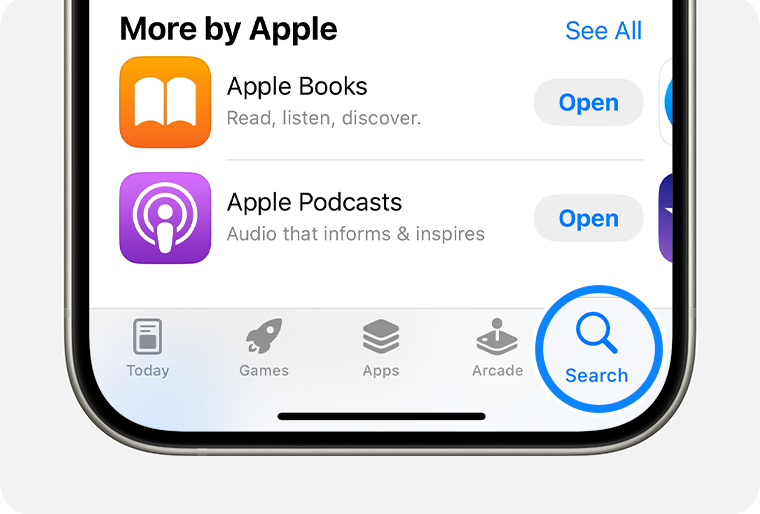
However, despite its inherent presence, it’s not uncommon for users to find themselves searching for information on how to “install” it. This usually stems from a specific scenario: the App Store icon might appear to be missing from the home screen, access to it might be restricted, or perhaps a user is experiencing functionality issues that make it seem as though the app itself is absent or corrupted. In these situations, the perceived need to “install” the App Store is actually a need to locate, restore access to, or troubleshoot an existing, albeit hidden or malfunctioning, core application.
This comprehensive guide aims to demystify the App Store’s presence on your iPhone and provide step-by-step solutions for navigating these common challenges. Whether you’ve accidentally hidden the icon, encountered a software glitch, or need to adjust parental controls, we’ll walk you through the process of ensuring your App Store is fully functional and readily available. Understanding how to manage and troubleshoot this vital application is crucial for maximizing your iPhone’s potential, ensuring you have uninterrupted access to the latest apps, updates, and digital innovations that define the modern tech landscape.
Understanding the App Store’s Inherent Presence on iOS
Before diving into troubleshooting, it’s essential to grasp a fundamental concept: the App Store is not an application you download or install in the traditional sense on an iPhone. It’s a foundational element of the iOS operating system, pre-loaded and integrated into every device manufactured by Apple. This design choice underscores Apple’s commitment to a cohesive and secure user experience, centralizing app distribution through a single, trusted portal.
The App Store: A Core iOS Component
From its launch in 2008, the App Store revolutionized how users interacted with their mobile devices, transforming the iPhone from a powerful gadget into an extensible platform. It became the definitive marketplace for software, offering an unparalleled selection of applications ranging from productivity tools and creative suites to immersive games and essential utilities. Its role extends far beyond merely a download hub; it’s a meticulously curated storefront, a critical component for delivering software updates, and a vibrant ecosystem that supports millions of developers worldwide.
Apple’s stringent review process for apps submitted to the App Store is a cornerstone of its digital security strategy. Every app undergoes a thorough vetting process to ensure it meets strict guidelines for performance, privacy, and content. This robust system provides a significant layer of protection for users, safeguarding against malware, phishing attempts, and other digital threats that are prevalent in less regulated marketplaces. For anyone concerned about digital security and the integrity of the software they use, the App Store represents a trusted brand environment where app quality and user safety are paramount. It’s where tech trends are often born and popularized, shaping how we interact with technology daily.
Why the Perception of “Installation” Arises
If the App Store is integral to iOS, why do users often search for ways to “install” it? The answer typically lies in several common scenarios where the App Store icon or access seems to vanish, creating the illusion that the application itself is missing or needs to be reinstalled. These situations can be perplexing, especially for new iPhone users or those unfamiliar with iOS’s deeper settings.
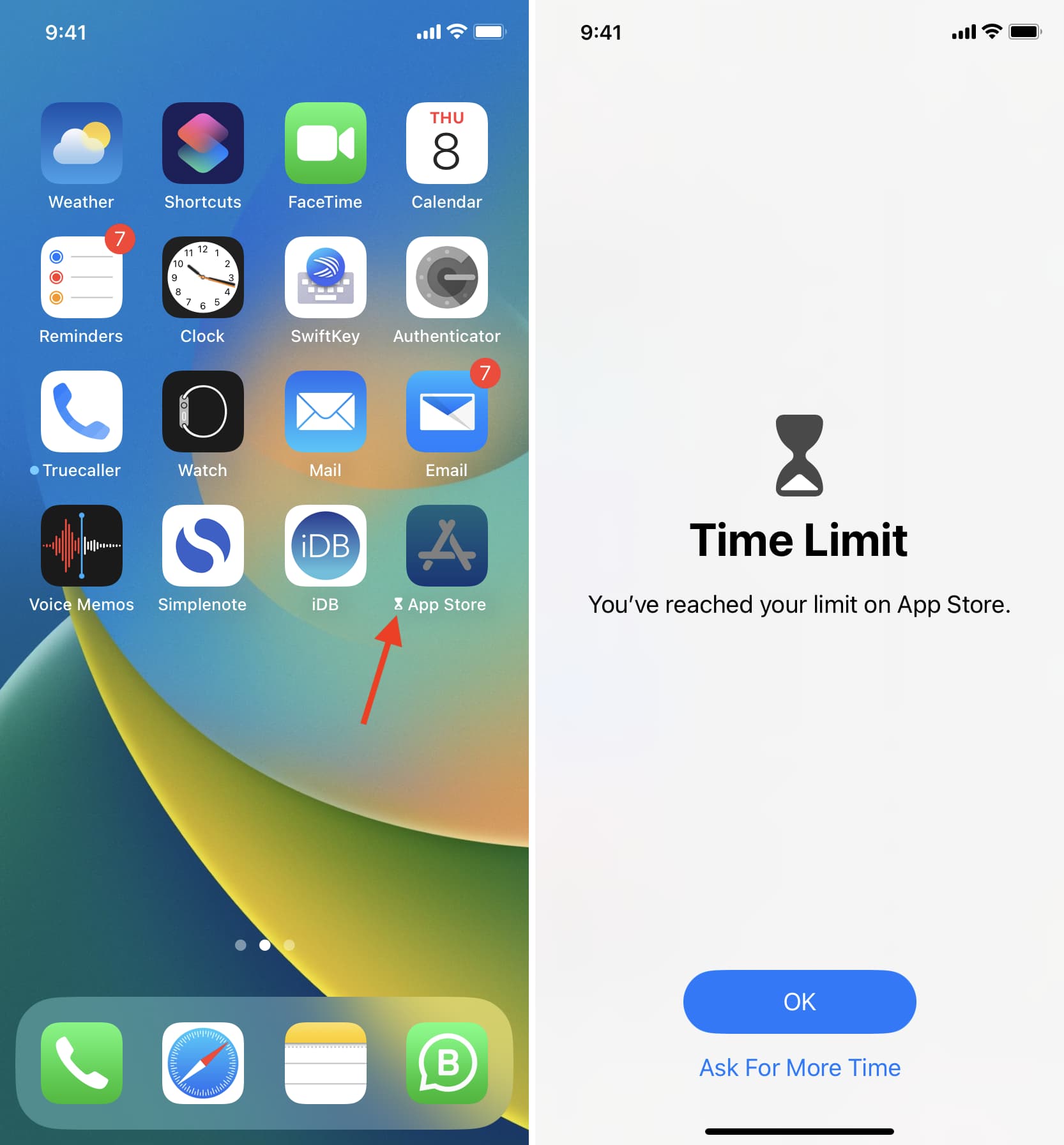
One of the most frequent reasons is simply that the icon has been moved or hidden. In the course of organizing home screens, creating folders, or experimenting with the App Library (introduced in iOS 14), the App Store icon can inadvertently be shifted out of sight. It hasn’t been deleted, merely relocated to a less obvious spot. Another significant cause relates to Content & Privacy Restrictions, often enabled under Screen Time settings. These powerful parental controls can be configured to prevent the installation or deletion of apps, effectively hiding the App Store or rendering it inaccessible for new downloads, making it appear as though it’s gone. Less common, but still possible, are minor software glitches that might momentarily cause the icon to disappear or prevent the app from launching correctly. In all these cases, the underlying App Store application remains present on the device, patiently waiting to be rediscovered or re-enabled.
Restoring Access: Finding Your App Store Icon
When the App Store icon seems to have disappeared, the good news is that it’s almost certainly still on your iPhone. It just needs to be found or re-enabled. The following methods will guide you through the process of restoring its visibility and ensuring full functionality.
Checking Your Home Screens and App Library
The most straightforward explanation for a missing App Store icon is that it has been moved or tucked away. Your iPhone’s home screen layout can become quite elaborate, especially with numerous apps and folders.
- Swipe Through All Home Screens: Start by slowly swiping left through all your home screens. The icon might simply be on a different page than where you usually expect it.
- Check All Folders: Look carefully inside every folder on your home screens. It’s easy to accidentally drag an app icon into an existing folder. Open each folder and scroll through its contents to ensure the App Store isn’t nestled within.
- Utilize the App Library (iOS 14 and later): If you have iOS 14 or a newer version, your iPhone features an App Library. This automatically organizes all your apps into categories. Swipe past your last home screen (swipe left until you can’t anymore) to access the App Library. Once there, you can either browse the categories or, more efficiently, use the search bar at the top. Simply type “App Store” into the search field. If it appears, you can long-press its icon and drag it back to any of your home screens for easier access. The App Library is an excellent feature that ensures no app is ever truly “gone,” even if removed from the home screen.
- Use Spotlight Search: This is arguably the quickest way to find any app on your iPhone. From any home screen, swipe down from the middle of the screen to bring up Spotlight Search. Type “App Store” into the search bar. The App Store icon should appear in the search results. You can tap it to open the app, or if it appears in a folder, the search result will usually indicate the folder name. While you can’t drag it from Spotlight Search, it confirms the app’s presence and allows immediate access.
Disabling Content & Privacy Restrictions
A very common reason for the App Store to appear “missing” or for app installations to be blocked is due to Content & Privacy Restrictions, which are part of Apple’s Screen Time feature. These powerful parental controls can inadvertently (or intentionally) prevent the installation of new applications, thus effectively hiding or disabling the App Store’s core functionality.
To check and adjust these settings:
- Open Settings: Tap the “Settings” app icon on your home screen.
- Navigate to Screen Time: Scroll down and tap “Screen Time.”
- Access Content & Privacy Restrictions: If Screen Time is enabled, you’ll see various options. Tap “Content & Privacy Restrictions.” You may be prompted to enter your Screen Time passcode if one has been set.
- Check iTunes & App Store Purchases: Within “Content & Privacy Restrictions,” tap on “iTunes & App Store Purchases.”
- Enable “Installing Apps”: Here, you’ll see several options. Ensure that “Installing Apps” is set to “Allow.” If it’s set to “Don’t Allow,” toggle it to “Allow.” This setting directly controls whether new apps can be downloaded from the App Store.
- Verify “Deleting Apps”: While you’re here, it’s also a good idea to ensure “Deleting Apps” is set to “Allow” to prevent accidental restrictions on uninstalling applications in the future.
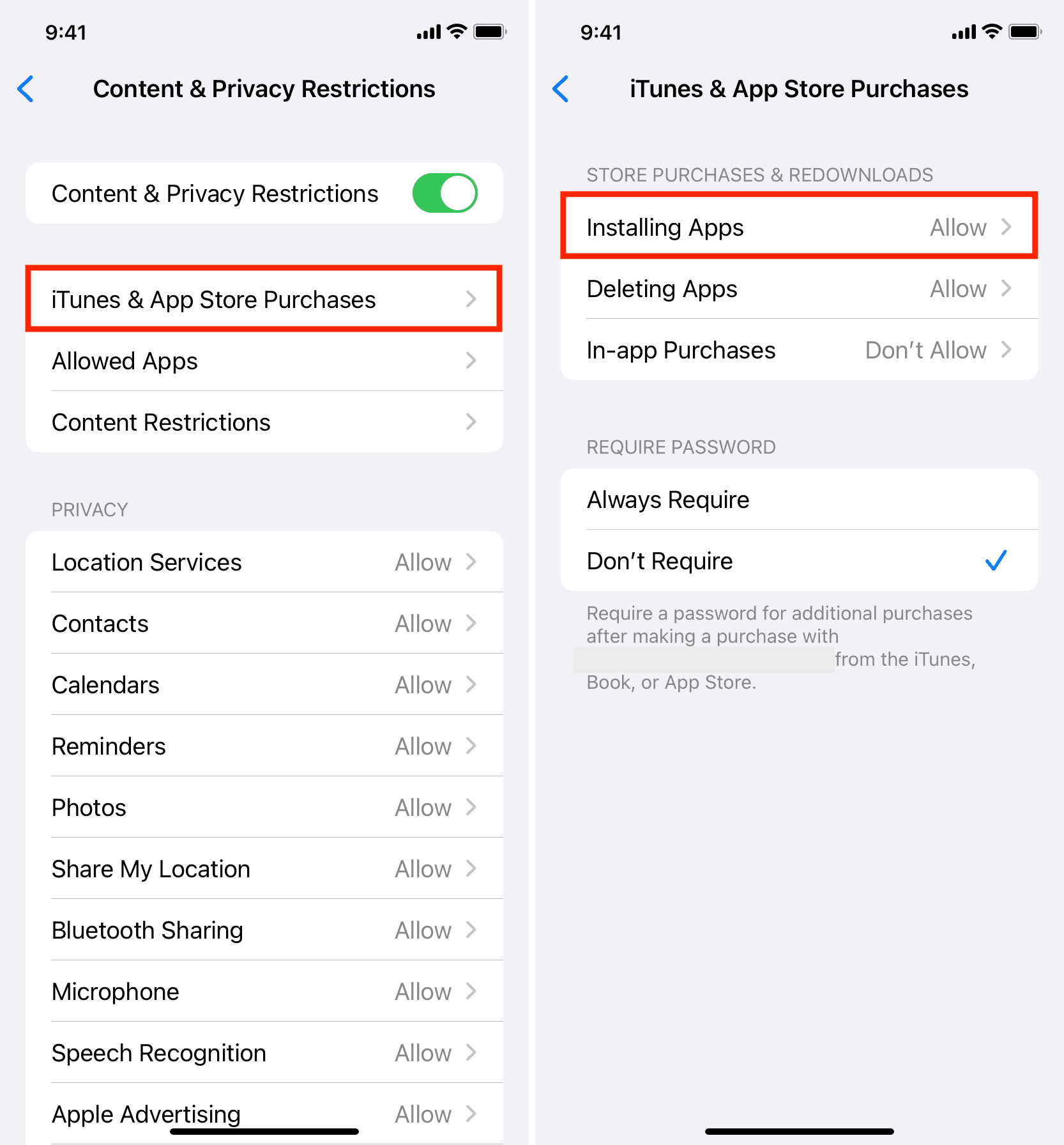
Disabling these restrictions restores full functionality to the App Store, allowing you to download and manage apps freely. This is a crucial step for anyone experiencing difficulties, particularly if your iPhone is shared or was previously configured with parental controls.
Resetting Home Screen Layout
If, after checking all your home screens, folders, and Spotlight Search, and verifying Content & Privacy Restrictions, the App Store icon is still stubbornly out of sight, a more drastic but often effective solution is to reset your home screen layout. This action rearranges all your app icons back to their factory-default positions, which means all pre-installed Apple apps (including the App Store) will return to the first page, and your downloaded apps will follow in alphabetical order.
To reset your home screen layout:
- Open Settings: Go to the “Settings” app.
- Navigate to General: Scroll down and tap “General.”
- Tap Transfer or Reset iPhone: At the bottom of the General settings, tap “Transfer or Reset iPhone.”
- Choose Reset: Tap “Reset.”
- Select Reset Home Screen Layout: From the list of reset options, choose “Reset Home Screen Layout.”
- Confirm: You will be prompted to confirm your action. Tap “Reset Home Screen” again.
Be aware that this will undo any custom organization you’ve done on your home screens, removing all folders and rearranging third-party apps alphabetically after the standard Apple apps. While this can be a minor inconvenience, it’s a reliable method for bringing a “missing” App Store icon back to the forefront. It also ensures that any accidental hiding or deletion from the home screen is rectified, restoring your iPhone to a clean, organized state, which can be beneficial for productivity.
Troubleshooting Common App Store Issues
Sometimes, the App Store icon might be present, but the application itself isn’t functioning as expected. This could manifest as slow loading times, inability to download or update apps, or various error messages. Addressing these common issues is crucial for a smooth and uninterrupted app experience.
Beyond a Missing Icon: Connectivity and Performance Problems
A non-responsive or slow App Store can be incredibly frustrating. These issues often stem from connectivity problems or minor software glitches that are relatively easy to resolve.
- Check Your Internet Connection: The App Store requires a stable internet connection to function.
- Wi-Fi: Ensure your iPhone is connected to a strong and reliable Wi-Fi network. Try opening a web page in Safari to confirm internet access. If Wi-Fi is an issue, try connecting to a different network or restarting your router.
- Cellular Data: If you’re using cellular data, make sure it’s enabled for the App Store. Go to Settings > Cellular > App Store and ensure the toggle is on. Also, check if you have sufficient data allowance.
- Check Apple System Status: Occasionally, Apple’s servers might experience outages or maintenance, affecting App Store availability. Visit Apple’s System Status page (status.apple.com) on another device or a web browser. Look for a green indicator next to “App Store.” If it’s orange or red, there might be a widespread issue, and you’ll simply need to wait for Apple to resolve it. This highlights the interdependency of tech services and how even major brands can experience temporary disruptions.
- Force Quit and Restart the App Store App: Like any other application, the App Store can sometimes benefit from a fresh restart to clear temporary glitches.
- For iPhones with Face ID: Swipe up from the bottom of the screen and pause in the middle to reveal the App Switcher. Swipe up on the App Store preview card to force quit it.
- For iPhones with a Home button: Double-press the Home button to bring up the App Switcher, then swipe up on the App Store preview card.
- After force quitting, tap the App Store icon to relaunch it.
- Restart Your iPhone: A simple device restart can resolve a multitude of minor software issues by clearing temporary memory and refreshing system processes.
- For iPhones with Face ID: Press and hold the side button and either volume button until the power off slider appears. Drag the slider, then wait for your iPhone to turn off. To turn it back on, press and hold the side button until you see the Apple logo.
- For iPhones with a Home button: Press and hold the side (or top) button until the power off slider appears. Drag the slider, then wait for your iPhone to turn off. Press and hold the side (or top) button again until you see the Apple logo.
- Check Date & Time Settings: Incorrect date and time settings can sometimes interfere with secure connections required by the App Store. Go to Settings > General > Date & Time and ensure “Set Automatically” is toggled on.
- Update iOS: Ensure your iPhone is running the latest version of iOS. Apple regularly releases updates that include bug fixes and performance improvements. An outdated operating system can sometimes lead to compatibility issues with core apps like the App Store. Go to Settings > General > Software Update to check for and install any available updates. Keeping your software up-to-date is a key aspect of digital security and maintaining optimal tech performance.
Addressing Account-Related Obstacles
Sometimes, issues with the App Store are linked to your Apple ID rather than the app itself. These are typically account authentication or billing problems.
- Sign Out and Sign Back into Your Apple ID: This can often resolve authentication glitches that prevent the App Store from functioning correctly or processing downloads.
- Go to Settings > [Your Name] (at the top).
- Scroll down and tap “Sign Out.” Follow the prompts, potentially choosing to keep some data on your iPhone.
- After signing out, restart your iPhone.
- Go back to Settings > Sign in to your iPhone and enter your Apple ID credentials to sign back in.
- Verify Payment Methods: While not directly related to the installation of the App Store, issues with payment methods can prevent you from downloading even free apps (as Apple sometimes requires a valid payment method on file for verification) or, more obviously, purchasing paid apps or in-app content.
- Go to Settings > [Your Name] > Payment & Shipping.
- Review your listed payment methods to ensure they are current and valid. Update any expired cards or add a new one if necessary. If you’re experiencing issues with online income or financial tools related to app purchases, this is a key area to check.
- Regional Restrictions: While rare for the App Store itself, the availability of specific apps, games, or content can vary by region. If you’ve recently changed your Apple ID region or are traveling, some content might become inaccessible. Ensure your Apple ID region matches your current geographical location and payment method country.
The Indispensable Role of the App Store in Your Digital Life
Beyond merely being a place to download apps, the App Store plays a profound and multi-faceted role in the overall iPhone experience and the broader digital economy. Its existence profoundly impacts tech trends, digital security, personal productivity, and even the way individuals manage their money through digital services.
Why the App Store Matters
- Access to Millions of Apps: The App Store provides a vast and diverse ecosystem of applications, catering to virtually every need and interest. From productivity suites like Microsoft Office and Google Workspace to creative tools like Procreate and GarageBand, and entertainment platforms like Netflix and Spotify, it unlocks the full potential of your iPhone. This wealth of software keeps your device at the forefront of tech capabilities.
- Security and Vetting: Apple’s rigorous App Store review process is a critical defense mechanism for users. Every app submitted must adhere to strict guidelines regarding privacy, data handling, performance, and content. This vetting process significantly reduces the risk of downloading malicious software, spyware, or apps with deceptive practices, making the App Store a trusted source for digital content and bolstering overall digital security. This commitment to trust is a cornerstone of Apple’s brand reputation.
- Seamless Updates: The App Store simplifies the process of keeping your apps up-to-date. Regular updates bring new features, performance improvements, and crucial security patches. A well-maintained app ecosystem ensures that your software remains efficient and secure against evolving threats.
- Ecosystem Benefits: The App Store is deeply integrated into the Apple ecosystem. It facilitates smooth in-app purchases through Apple Pay, manages subscriptions for various services, and ensures a consistent user experience across different Apple devices. This integration fosters a cohesive and user-friendly digital environment.
- Impact on Developers and the App Economy: The App Store has created a colossal app economy, providing a platform for millions of developers worldwide to innovate and monetize their creations. This entrepreneurial hub drives constant innovation, offering users a continuous stream of new and improved applications. For individuals and businesses exploring online income opportunities or leveraging financial tools, the App Store is often a crucial platform for reaching customers and generating revenue.
Conclusion
While the idea of “installing” the App Store on an iPhone is a common misconception, the underlying desire to access or restore its functionality is very real. As we’ve explored, the App Store is not a detachable application but an inherent, critical component of the iOS operating system, pre-installed on every iPhone. When it appears to be missing or unresponsive, it’s typically due to the icon being hidden, content restrictions being enabled, or minor software glitches.
By following the steps outlined in this guide – diligently checking your home screens and App Library, adjusting Content & Privacy Restrictions, resetting your home screen layout, and troubleshooting common connectivity or account issues – you can almost certainly regain full access to this indispensable portal.
A fully functional App Store is paramount for maximizing your iPhone’s utility, ensuring access to the latest applications, critical security updates, and a vast ecosystem of digital content that enhances productivity, entertainment, and communication. It represents a vital nexus of technology, brand trust, and economic opportunity, making its accessibility essential for every iPhone user. For more expert insights into technology trends, digital security best practices, and optimizing your mobile experience, explore the wealth of resources available on our website.
aViewFromTheCave is a participant in the Amazon Services LLC Associates Program, an affiliate advertising program designed to provide a means for sites to earn advertising fees by advertising and linking to Amazon.com. Amazon, the Amazon logo, AmazonSupply, and the AmazonSupply logo are trademarks of Amazon.com, Inc. or its affiliates. As an Amazon Associate we earn affiliate commissions from qualifying purchases.