
In the intricate world of computing, where cutting-edge hardware meets sophisticated software, there exists a crucial, often overlooked, layer that ensures seamless communication: drivers. These small, yet mighty, pieces of software are the unsung heroes working behind the scenes, dictating how your operating system interacts with every single component within your computer and any peripheral you connect. Without the correct drivers, your state-of-the-art graphics card might as well be a paperweight, your high-fidelity speakers silent, and your lightning-fast network adapter unable to connect to the internet.
This comprehensive guide will demystify the process of installing and updating drivers, transforming what might seem like a daunting technical task into a straightforward one. We’ll explore what drivers are, why their proper management is paramount for optimal performance and security, and provide step-by-step instructions for the most effective installation methods. By the end, you’ll be equipped with the knowledge to maintain a healthy, high-performing system, ensuring you get the most out of your technology investments.
Understanding Drivers: The Essential Software-Hardware Bridge
At its core, a computer is a collection of diverse components – a processor, memory, storage drives, network cards, sound chips, and many more. Each of these components speaks its own unique electronic language. The operating system (OS), like Windows or macOS, needs a way to understand and communicate with all of them. This is precisely the role of a driver.
What Exactly is a Driver?
Imagine a driver as a specialized translator or an instruction manual. When your operating system wants your graphics card to display an image, it doesn’t know the specific commands the graphics card understands. Instead, it sends a standardized request to the graphics driver. The driver then translates this request into the precise, low-level instructions that the graphics card can execute. This happens constantly, for every piece of hardware, every time you interact with your computer.
Drivers are specific to both the hardware component and the operating system version. A driver for an NVIDIA graphics card on Windows 10 will be different from one for an AMD card, and different again if you’re running Windows 11. They are also constantly updated by manufacturers to improve performance, add new features, fix bugs, and patch security vulnerabilities.
Why Driver Management Matters for Performance and Security
The seemingly simple act of installing or updating a driver has profound implications for your system’s overall health and your digital experience. Neglecting driver management can lead to a cascade of issues, while diligent maintenance ensures stability, speed, and safety.
-
Optimal Performance: Modern hardware, especially high-end graphics cards, processors, and SSDs, relies heavily on optimized drivers to unlock their full potential. An outdated graphics driver might severely limit frame rates in games or slow down rendering in design software. Similarly, an old storage driver could prevent your SSD from reaching its advertised speeds. Keeping drivers current ensures your hardware performs as intended, providing a smoother, faster computing experience. This directly impacts your “Productivity” and the overall value you derive from your “Gadgets.”
-
System Stability: Drivers are often the root cause of common computer woes like system freezes, crashes, and the dreaded Blue Screen of Death (BSOD). Incompatible or corrupted drivers can lead to conflicts within the operating system, causing instability. Regularly updating drivers can resolve these underlying issues, leading to a more reliable and frustration-free user experience.
-
Security Vulnerabilities: Just like any other piece of software, drivers can contain security flaws. Malicious actors constantly look for these vulnerabilities to gain unauthorized access to systems, steal data, or deploy malware. Hardware manufacturers frequently release driver updates that include crucial security patches. Keeping your drivers up-to-date is a vital aspect of “Digital Security,” protecting your system and personal information from potential threats.
-
Compatibility: New software, games, or even new operating system versions often require updated drivers to function correctly. An outdated driver might cause a new peripheral not to be recognized, or a new software application to fail, leading to wasted time and potential “Money” spent on troubleshooting or replacement hardware. Proper driver management ensures your entire tech ecosystem works harmoniously.
When and Why You Need to Install or Update Drivers
Knowing when to update or install drivers is as important as knowing how. While some updates happen automatically, there are several key scenarios where proactive driver management becomes essential.
New Hardware Installation
This is perhaps the most obvious scenario. When you install a new component, whether it’s an internal graphics card, a new sound card, an external printer, a webcam, or a game controller, it almost always requires a specific driver to function. While Windows often provides generic drivers that allow basic functionality, installing the manufacturer’s official driver is crucial for unlocking all features and ensuring optimal performance.
Resolving Performance Issues or Glitches
If you’re experiencing strange behavior from a specific component—like choppy video playback, no sound, frequent network disconnections, or a peripheral that suddenly stops responding—an outdated or corrupted driver is often the culprit. Updating the driver is a primary troubleshooting step in these situations and can frequently resolve the problem without needing further repairs.
System Upgrades and Major OS Updates
When you upgrade your operating system (e.g., from Windows 10 to Windows 11) or install a major feature update (like the bi-annual Windows feature updates), existing drivers might become incompatible or less optimized for the new environment. While Windows tries to migrate drivers, it’s often a good practice to check for and install updated drivers specifically released for the new OS version.
Accessing New Features and Enhancements
Manufacturers often bundle new features, performance enhancements, or bug fixes into driver updates. For gamers, new graphics drivers frequently offer performance boosts for the latest titles. For professionals, updated drivers might unlock new functionalities in specialized hardware. Keeping an eye on these updates ensures you’re always benefiting from the latest capabilities your hardware has to offer.
Step-by-Step Guide: Installing and Updating Drivers Effectively
Now that we understand the importance of drivers, let’s dive into the practical methods for installing and updating them. We’ll cover the most common and effective approaches, empowering you to manage your system with confidence.
Method 1: Using Windows Update (The Easiest Route)
Windows Update is the simplest and often the most convenient way to keep many of your drivers up-to-date. Microsoft works with hardware manufacturers to deliver drivers directly through its update service.
- How it works: Windows Update automatically scans for available updates, including drivers, and downloads them in the background. For essential system components, this process is largely automatic. However, for some drivers, particularly for less critical peripherals or optional updates, you might need to manually check.
- Steps:
- Press the Windows key + I to open Settings.
- Click on Update & Security (Windows 10) or Windows Update (Windows 11).
- Click Check for updates. Windows will scan for both OS updates and available driver updates.
- If updates are found, they will download and install automatically, or you’ll be prompted to install them.
- For Windows 10, look for “View optional updates” or “Driver updates available.” For Windows 11, click on “Advanced options” under Windows Update and then “Optional updates.” Here, you can select specific driver updates to install.
- Restart your computer if prompted to ensure the changes take effect.
- Pros: Simplicity, convenience, covers a broad range of essential system components, and often maintains basic functionality. It’s an excellent first line of defense for driver management.
- Cons: Drivers offered via Windows Update are not always the absolute latest versions directly from the manufacturer. Sometimes they are generic drivers that provide basic functionality but don’t unlock advanced features or optimizations.

Method 2: Manually Installing from the Manufacturer’s Website (The Best Practice)
This is often the most recommended method, especially for critical components like graphics cards, chipsets, and network adapters. It ensures you get the latest, most optimized driver specifically designed for your hardware.
- Why it’s preferred: Manufacturers release drivers tailored for performance, stability, and new features that might not immediately appear on Windows Update. For gamers, content creators, and power users, this method is crucial for maximizing hardware potential.
- Pre-installation checks:
- Identify Hardware Model Precisely: You need to know the exact make and model of the hardware component (e.g., “NVIDIA GeForce RTX 3070,” “Intel Core i7-12700K,” “Realtek ALC1200 Audio”). You can find this information in Device Manager (Win + X > Device Manager), system information tools (like “dxdiag” or “msinfo32”), or by physically inspecting the component or your computer’s specifications.
- Determine OS Version and Architecture: You need to know if you’re running Windows 10 or 11, and whether it’s a 32-bit or 64-bit operating system. Most modern systems are 64-bit. You can check this by going to Settings > System > About.
- Steps:
- Locate Manufacturer’s Support Page: Open your web browser and navigate to the official support or driver download page for your hardware’s manufacturer (e.g., NVIDIA, AMD, Intel, Dell, HP, ASUS, Logitech, etc.).
- Search for Your Product: On the manufacturer’s site, use their search function or navigation menus to find your specific product model. There’s usually a “Drivers & Software” or “Support” section.
- Select OS and Architecture: Once you find your product, you’ll typically be asked to select your operating system (e.g., Windows 11 64-bit).
- Download the Correct Driver Package: Download the latest recommended driver package. These are usually executable files (.exe) that contain the installer. Be wary of unofficial download sites, as they may bundle malware.
- Create a System Restore Point (Optional but Recommended): Before installing any major driver, creating a system restore point provides a safety net. If something goes wrong, you can revert your system to its previous working state. Search for “Create a restore point” in the Windows search bar.
- Run the Installer: Double-click the downloaded .exe file to start the installation process. Follow the on-screen prompts. Most installers offer “Express” or “Custom” installation. “Express” is usually fine, but “Custom” allows you to deselect optional software (like bundled utilities you might not need).
- Reboot if Prompted: After the installation is complete, the installer will usually prompt you to restart your computer. Do so to finalize the driver installation.
- Tips: Always download from the official manufacturer’s website. If you encounter issues, try running the installer as an administrator (right-click > “Run as administrator”).
Method 3: Using Device Manager (For Specific Devices)
Device Manager is Windows’ built-in utility for managing hardware and their drivers. It’s particularly useful when you’re troubleshooting a specific device, or if Windows Update and manufacturer websites haven’t yielded a solution.
- When to use: When a specific device isn’t working correctly (often indicated by a yellow exclamation mark in Device Manager), or if you have a driver file (e.g., a .inf file) but no installer.
- Steps:
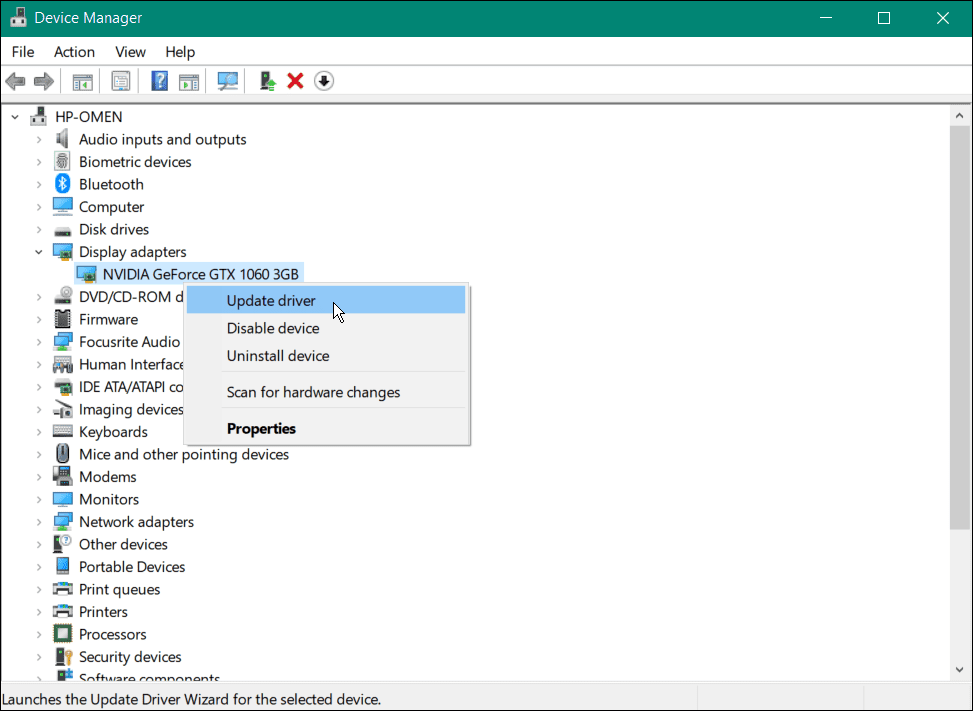
- Open Device Manager: Right-click the Start button (or press Win + X) and select Device Manager.
- Locate the Device: Expand the categories to find the device you want to update. Devices with issues often have a yellow exclamation mark next to them.
- Update Driver Software: Right-click on the device and select “Update driver” (Windows 10) or “Update driver software” (Windows 11).
- Choose Search Method:
- “Search automatically for drivers”: Windows will attempt to find a compatible driver on your computer or through Windows Update. This is useful if you suspect a basic driver is missing.
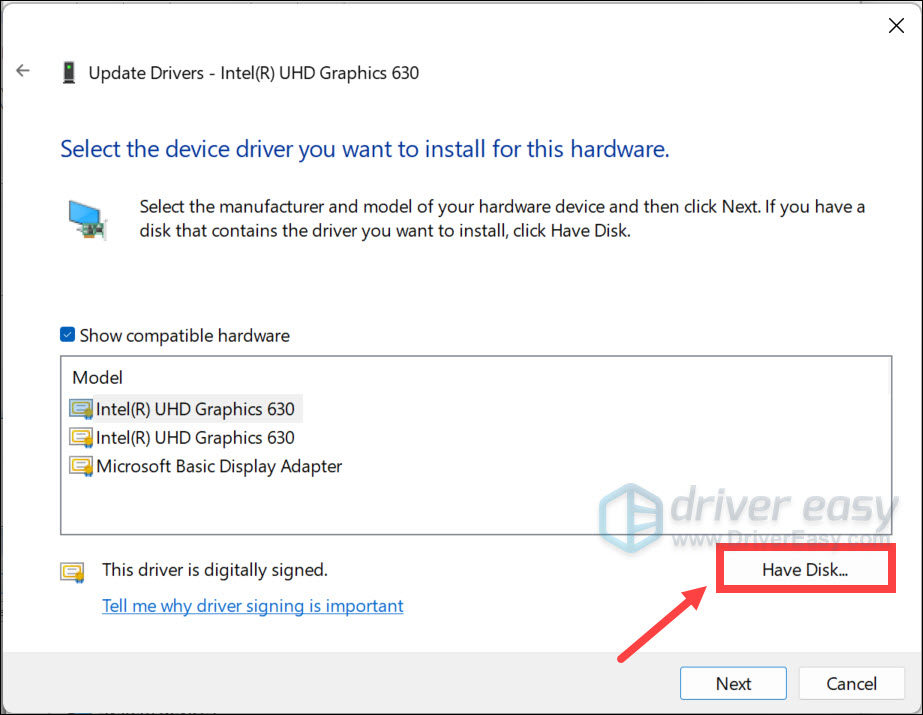
- “Browse my computer for drivers”: Select this if you have downloaded a driver package (e.g., a folder containing .inf, .sys, and .cat files) but there’s no executable installer. You’ll need to point Windows to the folder where you extracted or downloaded the driver files.
- Follow Prompts: Complete any remaining on-screen instructions.
- Reboot: Restart your computer if necessary.
Method 4: Leveraging Third-Party Driver Updaters (Use with Caution)
Several third-party software applications claim to automatically detect, download, and install outdated drivers for you. While these can offer convenience, they come with significant caveats.
- Pros: Can quickly identify many outdated drivers across your system, potentially saving time if you have many components to manage.
- Cons:
- Bloatware and Adware: Many free driver updaters bundle unwanted software, toolbars, or ads during installation.
- Incorrect Drivers: They might sometimes install generic or incorrect drivers, leading to instability or performance issues.
- Security Risks: Unreputable tools could be conduits for malware or install compromised drivers.
- Cost: Many useful features are locked behind a paid subscription, raising questions about their value compared to free, official methods.
- Recommendation: For the average user, stick to official methods (Windows Update and manufacturer websites). If you choose to use a third-party tool, do thorough research, read reviews, and select a highly reputable one. Even then, exercise caution and create a system restore point before using them. Consider the “Money” aspect: is the convenience worth the potential risks and subscription costs? For enhancing “Digital Security,” it’s often better to avoid these tools unless absolutely necessary.
Troubleshooting Common Driver Issues
Even with the best practices, driver issues can sometimes arise. Here’s how to deal with the most common problems:
Driver Rollback
If a new driver update causes problems (e.g., crashes, functionality loss), Windows allows you to revert to the previously installed driver.
- Steps: Open Device Manager, right-click the problematic device, go to its Properties, click the Driver tab, and select “Roll Back Driver.” If the button is grayed out, Windows doesn’t have a previous driver to revert to.
Uninstalling and Reinstalling
If a driver is corrupted or causing severe issues, completely uninstalling it and then reinstalling a fresh version can often fix the problem.
- Steps: In Device Manager, right-click the device, and select “Uninstall device.” Check the box “Delete the driver software for this device” if available, then click “Uninstall.” Restart your PC. Windows will often try to install a generic driver, or you can manually install the correct driver using Method 2 or 3.
Compatibility Mode
For older hardware or drivers that aren’t officially supported on newer Windows versions, you can try running the driver installer in compatibility mode.
- Steps: Right-click the driver installer (.exe file), select Properties, go to the Compatibility tab, check “Run this program in compatibility mode for,” and select an older Windows version.
System Restore Points
Always remember the importance of system restore points. They are your ultimate safety net. If a driver installation utterly destabilizes your system, you can use a restore point to revert your entire system configuration (including drivers) to a previous, stable state. This is a critical “Productivity” tip, as it minimizes downtime.
Best Practices for Driver Maintenance
Maintaining your drivers doesn’t have to be a constant chore. By incorporating a few best practices into your routine, you can ensure a stable, high-performing system.
- Regular Checks: Periodically check the support pages for your most critical hardware (graphics card, motherboard chipset, network adapter) for new driver releases. A monthly or quarterly check is usually sufficient.
- Create System Restore Points: Make it a habit to create a restore point before installing any major driver update or new hardware. It takes minutes and can save hours of troubleshooting.
- Understand Your Hardware: Knowing the exact models of your components will drastically simplify finding the correct drivers.
- Prioritize Official Sources: Always download drivers directly from the hardware manufacturer’s official website. This minimizes security risks and ensures optimal compatibility.
- Avoid Beta Drivers Unless Necessary: Beta drivers are pre-release versions and can be unstable. Only install them if you need a specific new feature or bug fix and are prepared to deal with potential issues.
- Consider a Driver Backup: For older or less common hardware, consider backing up their working drivers to an external drive. This can be invaluable if you ever need to reinstall Windows or migrate hardware.
The Broader Impact: Drivers on Your Tech, Brand, and Money
Effective driver management extends far beyond simply getting your devices to work. It’s a foundational element that ties into the core themes of technology, personal and corporate branding, and financial acumen.
-
Tech: At its heart, driver maintenance is about maximizing your “Tech” investments. By ensuring your “Gadgets” and “Software” communicate optimally, you’re leveraging cutting-edge “Technology Trends” to their fullest. It’s a key aspect of “Digital Security” and boosts your “Productivity,” making your digital life smoother and more efficient. A well-maintained system is more responsive, less prone to errors, and more capable of handling demanding tasks, directly translating into a superior user experience.
-
Money: Proactive driver management can be a surprising money-saver. By extending the lifespan of your hardware through optimized performance and stability, you delay the need for costly replacements. Preventing system crashes and resolving issues yourself avoids expensive trips to repair shops. For professionals, freelancers, or small businesses, a stable, high-performing system means less downtime and greater “Productivity,” directly impacting “Online Income” or “Business Finance.” Time saved troubleshooting is money earned or saved.
-
Brand: While seemingly indirect, how you manage your technology can subtly influence your “Personal Branding” or even a “Corporate Identity.” For individuals, a smoothly functioning, up-to-date computer system enhances your ability to perform tasks efficiently, reflecting competence and professionalism. For businesses, a well-maintained IT infrastructure, supported by properly updated drivers, contributes to a reliable “Reputation” and operational efficiency, projecting an image of stability and modernity to clients and employees alike. It’s an underlying factor in a successful “Brand Strategy.”
Conclusion: Empowering Your Digital Experience
Drivers are the invisible workforce that makes your computer truly functional. While often taken for granted, their proper management is indispensable for a robust, secure, and high-performing system. By understanding what drivers are, recognizing when and why to update them, and mastering the various installation methods, you gain significant control over your digital environment.
Adopting the best practices outlined in this guide – from prioritizing official sources to creating system restore points – will not only mitigate frustration and technical headaches but also optimize your technology, safeguard your digital security, and ultimately enhance your productivity. Take charge of your drivers, and empower yourself with a computing experience that is as reliable as it is rewarding.
aViewFromTheCave is a participant in the Amazon Services LLC Associates Program, an affiliate advertising program designed to provide a means for sites to earn advertising fees by advertising and linking to Amazon.com. Amazon, the Amazon logo, AmazonSupply, and the AmazonSupply logo are trademarks of Amazon.com, Inc. or its affiliates. As an Amazon Associate we earn affiliate commissions from qualifying purchases.