
Ubuntu, a widely celebrated open-source operating system, stands as a beacon of flexibility and power in the Linux ecosystem. At its core, managing software on Ubuntu often revolves around its robust Advanced Package Tool (APT) system, which leverages repositories to provide a vast array of applications, libraries, and utilities. However, there are instances where the software you need isn’t readily available in the official repositories, or you might require a specific version that’s newer or older than what APT offers. This is where .deb packages come into play.
A .deb file is the standard package format for Debian-based distributions like Ubuntu. These packages contain all the files and metadata necessary to install a piece of software, including executables, libraries, configuration files, and information about dependencies. While Ubuntu’s Software Center and APT typically handle software installation seamlessly, understanding how to manually install a .deb package empowers users with greater control over their system, enabling them to access a wider range of software and resolve specific installation challenges.
This comprehensive guide will walk you through the various methods of installing .deb packages on Ubuntu, from the user-friendly graphical interface to the more powerful command-line tools. We’ll delve into the nuances of dependency management, explore common pitfalls, and provide best practices to ensure a smooth and secure installation experience. Whether you’re a seasoned Linux user or just starting your journey with Ubuntu, mastering .deb package installation is a valuable skill that enhances your system’s capabilities and your overall productivity.
Understanding .deb Packages and Ubuntu’s Software Ecosystem
Before diving into the “how-to,” it’s crucial to grasp the fundamental concepts surrounding .deb packages and their place within Ubuntu’s software management framework. This foundational knowledge will help you make informed decisions and troubleshoot potential issues effectively.
What is a .deb Package?
A .deb package is essentially an archive file containing all the necessary components for a piece of software to be installed on Debian-based systems. Think of it like a .exe installer on Windows or a .dmg on macOS, but tailored for Linux. Inside a .deb package, you’ll find the actual application binaries, configuration files, documentation, and a control file that specifies the package’s name, version, architecture, and, crucially, its dependencies.
The primary tool for interacting with .deb packages at a low level is dpkg. This command-line utility handles the installation, removal, and querying of individual .deb files. However, dpkg itself doesn’t automatically resolve dependencies. If a package requires other software to function, dpkg will simply fail the installation until those dependencies are met manually. This is where higher-level tools like APT come in, which build upon dpkg to manage a holistic software environment, including fetching packages from repositories and automatically resolving dependencies.
Why Manual .deb Installation Might Be Necessary
While Ubuntu’s official repositories offer a vast selection of stable and well-tested software, there are several compelling reasons why you might need to install a .deb package manually:
- Proprietary Software: Some commercial or niche software is not open-source and thus not included in the official Ubuntu repositories. Companies often distribute their Linux versions as
.debpackages (e.g., Google Chrome, Microsoft Teams, various VPN clients). - Latest Software Versions: The versions of applications in Ubuntu’s stable repositories are often older than the very latest releases to ensure maximum stability and compatibility. If you need the bleeding-edge features or bug fixes, a
.debpackage provided by the developer might be your only option. - Software Not in Official Repositories: Smaller projects, custom tools, or specialized applications might not have made their way into the official Ubuntu archives or even into Personal Package Archives (PPAs). Developers often provide direct
.debdownloads in such cases. - Testing and Development: Developers might provide pre-release versions of their software as
.debpackages for testing purposes, allowing users to try out new features before they hit official channels. - Offline Installation: If you’re setting up a system without an internet connection, you can download
.debpackages on another machine and transfer them for offline installation, bypassing the need for repository access during the setup.
Understanding these scenarios helps you decide when to rely on the standard APT method and when to embrace the flexibility of manual .deb installation.
Preparing Your Ubuntu System for .deb Installation
Before you embark on installing any new software, especially from external sources, it’s always good practice to prepare your system. This ensures a smoother installation process and mitigates potential conflicts or issues arising from outdated packages or unmet dependencies.
Essential System Updates and Package Dependencies
A well-maintained system is a stable system. Always start by updating your package lists and upgrading any existing software to their latest versions. This can resolve underlying dependency issues that might otherwise interfere with your new .deb installation.
-
Update Package Lists: Open your terminal (Ctrl+Alt+T) and run:
sudo apt updateThis command refreshes the list of available packages from all configured repositories.
-
Upgrade Installed Packages: After updating the lists, upgrade your system:
sudo apt upgradeThis command installs the newest versions of all packages currently installed on your system.
-
Clean Up Unused Packages: Occasionally, packages that were installed as dependencies for other software are no longer needed. Remove them to free up space and prevent conflicts:
bash

sudo apt autoremove
Downloading the .deb Package
The next critical step is obtaining the .deb package itself. This process demands caution and an understanding of security best practices.
- Identify a Reputable Source: Always download
.debpackages directly from the official developer’s website or a well-known, trusted third-party repository. Avoid downloading from obscure or unofficial sites, as these could contain malicious software or outdated, incompatible versions. - Check for System Architecture: Most
.debpackages are compiled for specific system architectures. Ubuntu runs primarily onamd64(64-bit) systems. Ensure you download the correct version for your system. If you’re unsure, you can check your architecture with:
bash

dpkg --print-architecture
Look foramd64(64-bit) ori386(32-bit, less common now). - Download the File: Once you’ve identified the correct package, download it to a convenient location on your system, typically your
Downloadsfolder.
By diligently following these preparatory steps, you significantly reduce the likelihood of encountering issues during the installation phase, setting yourself up for success.
Step-by-Step Methods for Installing .deb Packages
Ubuntu provides multiple avenues for installing .deb packages, catering to different user preferences and technical proficiencies. We’ll explore the most common and effective methods, starting with the simplest graphical approach and moving towards more powerful command-line utilities.
Method 1: Using the Ubuntu Software Center (Graphical User Interface)
This is the most straightforward method, ideal for users who prefer a graphical interface and for packages with simple dependency requirements.
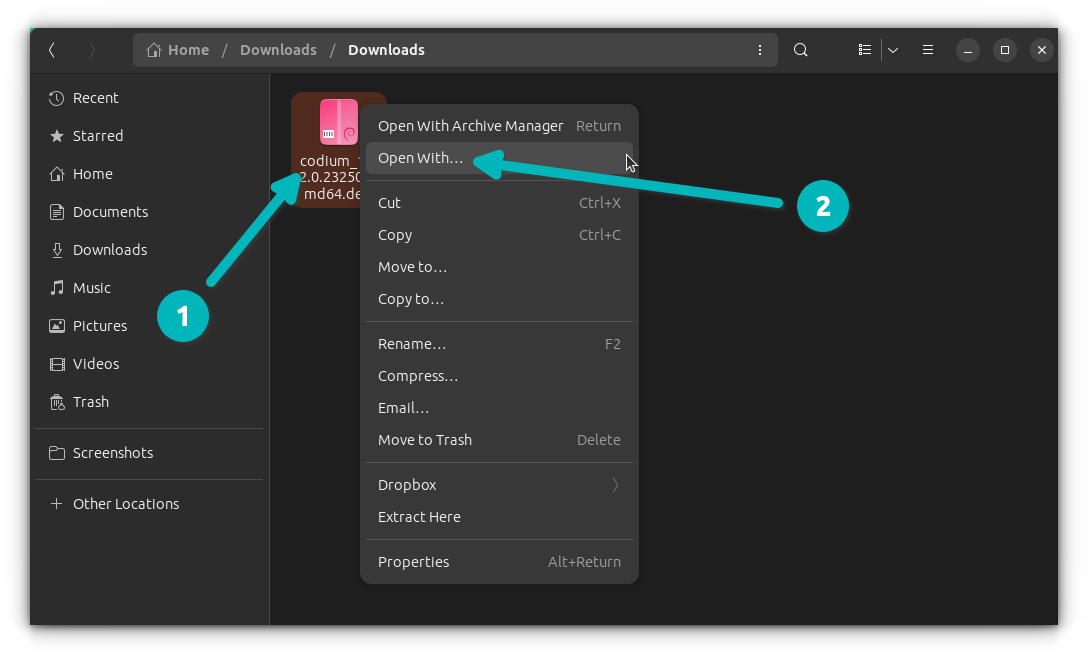
- Locate the .deb file: Navigate to the directory where you downloaded the
.debpackage using your file manager (e.g.,Nautilus). - Double-click the .deb file: Ubuntu is usually configured to open
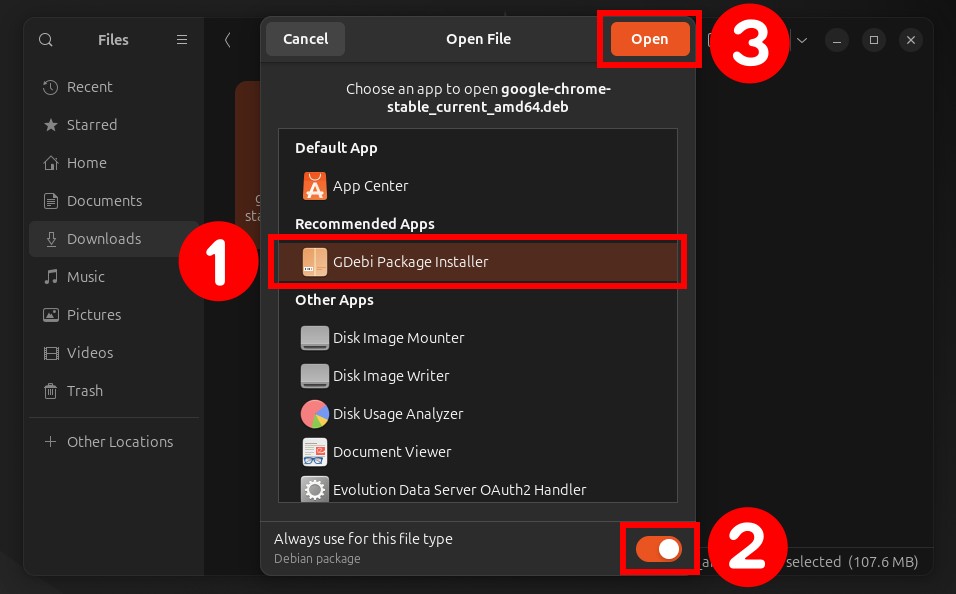
.debfiles with the Ubuntu Software Center (or its predecessor,Gdebiin older versions or if installed). - Review Package Information: The Software Center will open and display details about the package, including its name, version, description, and sometimes its dependencies.
- Click “Install”: If everything looks correct, click the “Install” button. You might be prompted to enter your password to authorize the installation.
- Wait for Installation: The Software Center will download any necessary dependencies and install the package. Once complete, the “Install” button will change to “Remove.”
This method is user-friendly, but it can sometimes struggle with complex dependency chains, especially if the required dependencies are not in the standard repositories.
Method 2: Using the dpkg Command (Command Line Interface)
The dpkg command is the foundational tool for managing .deb packages. It’s powerful but does not handle dependencies automatically, which can lead to “dependency hell” if not managed carefully.
- Open Terminal: Press
Ctrl+Alt+Tto open your terminal. - Navigate to the .deb file: Use the
cdcommand to change to the directory where your.debfile is located. For example, if it’s inDownloads:
bash

cd ~/Downloads
- Install the package: Use
sudo dpkg -ifollowed by the package name. Replacepackage_name.debwith the actual name of your file:
bash

sudo dpkg -i package_name.deb
- Handle Dependency Errors (if they occur): If
dpkgreports dependency errors, it means the package requires other software that isn’t currently installed. You can attempt to fix these by asking APT to satisfy the missing dependencies:
bash

sudo apt --fix-broken install
This command will scan for broken dependencies and try to install them automatically. After running this, you might need to try thedpkg -icommand again, or APT might complete the installation itself.
Method 3: Using apt (Command Line Interface) for Smarter Dependency Handling
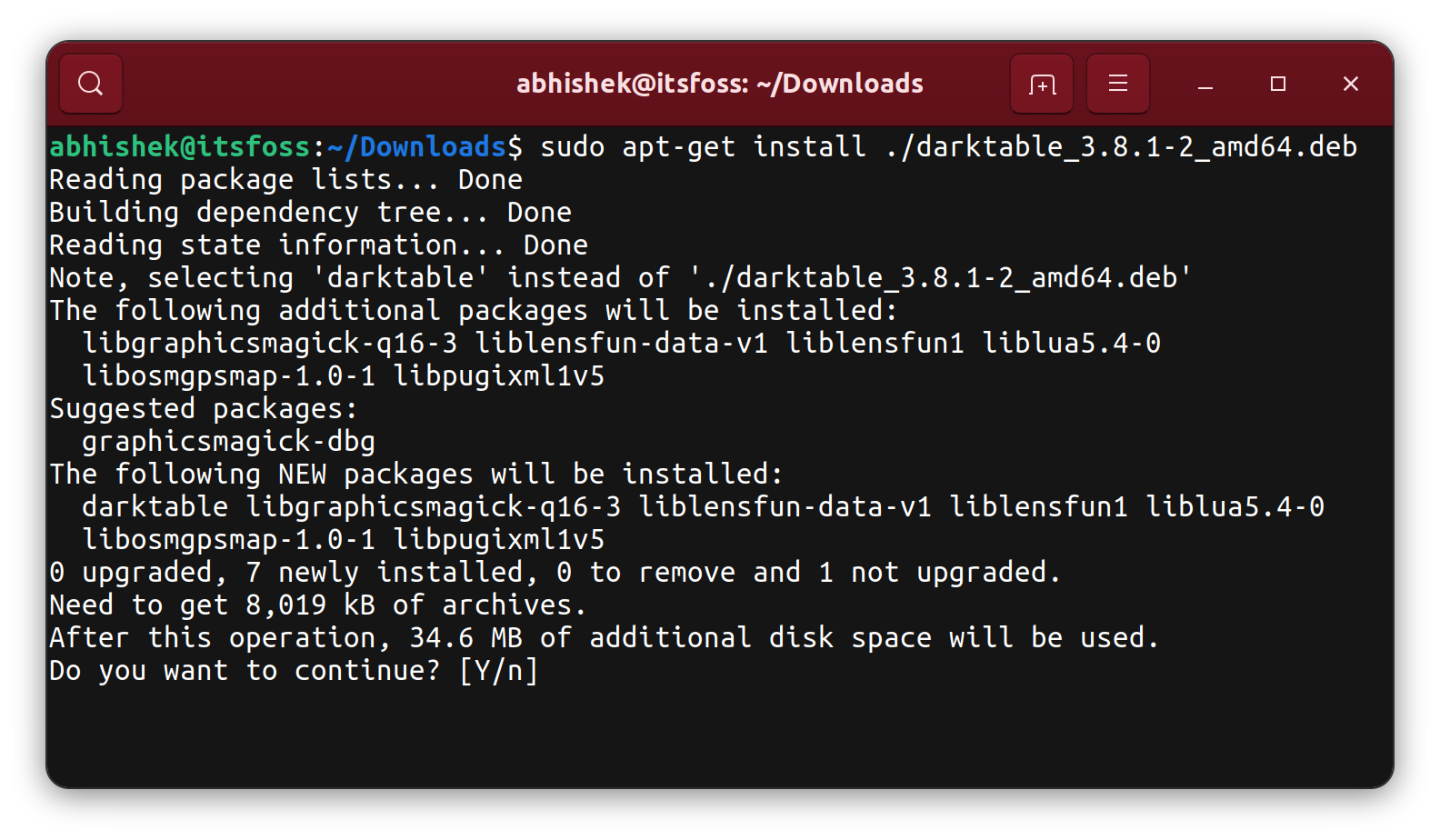
Since Ubuntu 14.04, the apt command (a newer, user-friendly interface to apt-get and apt-cache) can also be used to install local .deb files, and crucially, it does handle dependency resolution automatically. This makes it a much preferred method over bare dpkg for most users.
- Open Terminal: Press
Ctrl+Alt+T. - Navigate to the .deb file: Change to the directory containing your
.debfile:
bash

cd ~/Downloads
- Install the package with
apt: Usesudo apt installfollowed by./and the package name. The./is important to tellaptthat you’re referencing a local file, not a package from a repository.
bash

sudo apt install ./package_name.deb
aptwill then analyze the package, download any missing dependencies from the repositories, and install the.debfile along with them. This is often the most recommended command-line method due to its balance of power and convenience.
Method 4: Using gdebi (Recommended for Complex Dependencies)
gdebi is a lightweight graphical and command-line tool specifically designed to install .deb packages while automatically resolving and installing their dependencies from the repositories. It’s often superior to the Ubuntu Software Center for .deb files with complex dependencies.
- Install
gdebi-core: If you don’t havegdebiinstalled, you can get it from the repositories:
bash

sudo apt install gdebi-core
(For the graphical version, you might also installgdebiwithout-core). - Open Terminal: Press
Ctrl+Alt+T. - Navigate to the .deb file: Change to the directory containing your
.debfile:
bash

cd ~/Downloads
- Install the package with
gdebi:
bash

sudo gdebi package_name.deb
gdebiwill show you the package information and its dependencies. It will then ask for confirmation to install them. Typeyand press Enter to proceed.
gdebi is an excellent tool because it intelligently handles dependencies, making it a robust alternative to dpkg and often more reliable than the standard Software Center for tricky installations.
Troubleshooting Common .deb Installation Issues
Even with the right methods, you might encounter issues during .deb package installation. Understanding common problems and their solutions is crucial for maintaining a healthy Ubuntu system.
Dependency Errors
This is by far the most frequent problem when installing .deb packages manually with dpkg. You’ll see messages like “unmet dependencies” or “depends on X but it is not installable.”
- Solution 1: Use
sudo apt --fix-broken install: As mentioned earlier, this command is a lifesaver. It attempts to resolve broken dependencies by installing missing packages or removing conflicting ones.
bash

sudo apt --fix-broken install
After running this, you might need to re-attempt thedpkg -icommand for your original.debpackage, oraptmight have completed the installation itself. - Solution 2: Use
apt install ./package_name.deborgdebi: These tools are designed to handle dependencies automatically, often preventing these errors in the first place. If you useddpkgand encountered errors, try installing withaptorgdebiinstead. - Solution 3: Manual Dependency Identification: In rare cases,
aptmight also struggle. You might have to manually look for the specific dependency packages and install them first usingsudo apt install dependency-package-name. This often happens if the dependency itself is not in the standard repositories or requires a specific version.
Package Already Installed/Newer Version Available
Sometimes you try to install a package, and it’s already there, or an even newer version is available.
- Solution: Check and Purge: If you want to install an older version or replace a broken installation, you might need to remove the existing package first.
- To remove:
sudo apt remove package_name - To completely remove (including configuration files):
sudo apt purge package_name - Then, try installing your
.debpackage again.
- To remove:
Signature Verification Errors
Occasionally, you might see warnings or errors related to “GPG errors” or “NO_PUBKEY” when running apt update after adding a new repository for a .deb package (e.g., if you added a PPA). This means the system can’t verify the authenticity of packages from that source.
- Solution: Import the Public Key: Reputable third-party repositories provide a public GPG key to verify the integrity of their packages. You typically add this key using
apt-key addor by placing it in/etc/apt/trusted.gpg.d/. The specific command usually looks something like:
bash

sudo apt-key adv --keyserver keyserver.ubuntu.com --recv-keys <KEY_ID>
(Replace<KEY_ID>with the ID provided in the error message or by the repository’s instructions). For newer Ubuntu versions (20.04+), a more secure method involves downloading the key and moving it to/etc/apt/keyrings/and referencing it in thesources.list.dentry. Always refer to the specific instructions provided by the software vendor or repository maintainer.
Best Practices and Post-Installation Considerations
Successfully installing a .deb package is just one part of maintaining a healthy and secure Ubuntu system. Adhering to best practices is crucial for long-term stability and security.
Keeping Your System Secure and Stable
- Only Install from Trusted Sources: This cannot be stressed enough. Unofficial or suspicious
.debpackages can contain malware, introduce system instability, or compromise your privacy. Stick to official developer websites, well-known PPAs, or reputable third-party vendors. - Regular System Updates: Continue to run
sudo apt updateandsudo apt upgraderegularly. This ensures all your software, including dependencies installed for your.debpackages, remains up-to-date with security patches and bug fixes. - Understand Dependencies: While
aptandgdebihandle dependencies, it’s good to be aware of what extra packages are being installed. Sometimes a.debpackage might pull in a large number of dependencies you don’t otherwise need. - Backup Your System: Before installing critical or potentially risky software, especially from unofficial sources, consider creating a system backup (e.g., with Timeshift). This allows you to easily revert to a stable state if something goes wrong.
Uninstalling .deb Packages
Removing manually installed .deb packages is as important as installing them.
-
Identify Package Name: The package name might not always be identical to the
.debfile name. You can often find the installed package name using:dpkg -l | grep package_name_partFor example, for
google-chrome-stable_current_amd64.deb, the installed package name is usuallygoogle-chrome-stable. -
Remove the Package:
- To remove the package but keep its configuration files:
bash

sudo apt remove package_name
- To completely remove the package and its configuration files (a “purge”):
bash

sudo apt purge package_name
- After removal, it’s a good idea to clean up any remaining unused dependencies:
bash

sudo apt autoremove
- To remove the package but keep its configuration files:
When to Avoid Manual .deb Installation
While powerful, manual .deb installation isn’t always the first or best choice:
- Prioritize Official Repositories: Always check if the software you need is available in Ubuntu’s official repositories first. It’s the most secure, stable, and easily updateable method.
- Consider PPAs (Personal Package Archives): For newer versions of popular software or niche applications that aren’t in official repos, a PPA is often a better option than a standalone
.deb. PPAs integrate with APT, allowing for automatic updates and dependency resolution, much like official repositories. Add a PPA usingsudo add-apt-repository ppa:user/ppa-name. - Snap or Flatpak: For containerized applications, consider Snap or Flatpak packages. They bundle dependencies, isolate applications from the system, and provide a secure, universal way to install software across different Linux distributions. They are excellent alternatives when
.debpackages pose dependency challenges or if you prefer sandboxed applications.
Conclusion
Installing .deb packages on Ubuntu is a fundamental skill that significantly expands your control over your operating system. Whether you’re integrating proprietary software, accessing the latest features, or simply managing a unique application, knowing how to handle these package files is invaluable. We’ve explored the diverse toolkit at your disposal, from the intuitive Ubuntu Software Center to the robust command-line utilities like dpkg, apt, and gdebi. Each method offers distinct advantages, with apt install ./ and gdebi standing out for their intelligent dependency resolution.
Beyond the mechanics of installation, we’ve emphasized the critical importance of best practices: always sourcing packages from trusted origins, maintaining regular system updates, and understanding how to troubleshoot common issues like dependency errors. By adopting these habits, you ensure not only the successful deployment of new software but also the long-term security and stability of your Ubuntu environment.
As you continue your journey with Ubuntu, remember that flexibility comes with responsibility. While manual .deb installation offers immense power, it’s often best complemented by official repositories, PPAs, and containerized formats like Snap or Flatpak. By thoughtfully choosing the right installation method for each application, you harness the full potential of your Ubuntu system, transforming it into a personalized and highly capable workspace that caters precisely to your technological needs and productivity goals.