
In an increasingly interconnected world, effective communication is no longer a luxury but a fundamental necessity. Messaging applications have revolutionized how we interact, bridging distances and fostering instant connections across the globe. Among the myriad options available, WhatsApp stands out as a colossal player, boasting billions of users worldwide. From personal chats with loved ones to professional collaborations and community building, WhatsApp has become an indispensable tool in our digital lives. Its blend of simplicity, robust features, and end-to-end encryption has solidified its position as the go-to platform for many.
This comprehensive guide will demystify the process of installing WhatsApp, ensuring that even the most technologically tentative users can get started with confidence. Whether you’re setting up on a smartphone, tablet, or desktop computer, we’ll walk you through each step, highlight essential prerequisites, and even offer insights into maximizing your experience and troubleshooting common issues. By the end of this article, you won’t just know how to install WhatsApp; you’ll understand the strategic steps to integrate this powerful communication tool seamlessly into your digital ecosystem, enhancing your productivity and securing your conversations.
Preparing for Seamless Communication: Essential Prerequisites
Before diving into the actual installation process, laying the groundwork is crucial. Like preparing a workspace before a complex project, ensuring you meet certain preliminary requirements will make the WhatsApp setup smoother and prevent common hurdles. These foundational steps involve checking your device’s compatibility and readiness, as well as confirming access to a vital component: your phone number.
Device Compatibility and Software Requirements: Ensuring Your Gadget is Ready
WhatsApp is designed to be highly accessible, supporting a wide range of devices across various operating systems. However, there are minimum requirements that your device must meet to ensure optimal performance and access to all features.
For Android users, WhatsApp generally requires Android OS 4.1 or newer. While most modern Android smartphones easily surpass this, if you’re using an older device, it’s worth checking your system version. You can typically find this information in your phone’s “Settings” under “About Phone” or “Software Information.” Equally important is having sufficient storage space. The WhatsApp application itself isn’t massive, but accumulated chat history, media files, and backups can consume significant memory. It’s always advisable to have at least a few hundred megabytes, if not a couple of gigabytes, of free space for smooth operation and future updates. A device with outdated software might lead to compatibility issues, security vulnerabilities, or a degraded user experience, so keeping your Android OS updated is a good practice for overall digital security and productivity.
iOS users (iPhone) need to be running iOS 12 or newer. Similar to Android, newer iPhones will effortlessly meet this criterion. Older iPhone models might struggle, and updating your iOS version is often the solution. Check your iOS version via “Settings” > “General” > “About” > “Software Version.” Just like with Android, storage is key. While iOS manages storage efficiently, a clogged device can hinder app performance and prevent installations. Ensure you have ample free space for the app and its data. Modern apps, especially those handling media, benefit greatly from robust device specifications, so a reasonably recent iPhone will provide the best WhatsApp experience.
For Desktop users (Windows or macOS), WhatsApp offers dedicated applications that mirror your mobile experience. For Windows, you’ll need Windows 8.1 or newer (64-bit recommended), and for macOS, macOS 10.13 or newer. The desktop application provides a more integrated experience than WhatsApp Web, allowing for native notifications and better system resource management. As with mobile, ensure your desktop has adequate RAM and storage to run the application smoothly alongside other software, contributing to overall digital productivity. The underlying “Tech” aspect here is that these applications are often resource-intensive when handling multiple media files and active conversations, so a well-maintained system is beneficial.
The All-Important Phone Number and Internet Connection: Your Digital Identity and Lifeline
WhatsApp fundamentally links your account to a valid, active phone number. This number serves as your unique identifier on the platform, allowing others to find you and facilitating the crucial SMS verification process. Without an active phone number capable of receiving text messages, you simply cannot create or activate a WhatsApp account. This ties into the “Digital Security” aspect, as the phone number acts as a primary authentication factor.
Consider these points regarding your phone number:
- Active Status: The phone number must be currently active and able to receive SMS messages. If it’s a new SIM card, ensure it’s been activated by your carrier.
- Unique to WhatsApp: While you can use a dual-SIM phone, each WhatsApp account must be tied to a distinct phone number. You cannot use the same number for two separate WhatsApp accounts.
- International Numbers: WhatsApp supports international phone numbers, making it a truly global communication tool. Just remember to include the correct country code when entering your number.
Finally, an active internet connection is non-negotiable. Whether it’s Wi-Fi or mobile data (3G, 4G, 5G), WhatsApp requires a stable connection to download the app, verify your account, send/receive messages, and make calls. A poor internet connection can lead to failed downloads, verification code delays, or interrupted communication, frustrating your attempts at a seamless installation and usage experience. A robust internet connection is the backbone of any “Tech” related communication tool, ensuring reliability and real-time interaction.
A Step-by-Step Guide to WhatsApp Installation Across Platforms
With the prerequisites handled, it’s time to get down to the actual installation. WhatsApp’s ubiquity is largely due to its cross-platform availability and relatively straightforward setup process, whether you’re on a mobile device or a computer. This section will guide you through the specific steps for each primary platform.
Mobile Mastery: Installing WhatsApp on Android and iOS
The vast majority of WhatsApp users interact with the platform via their smartphones. The installation process on both Android and iOS devices is quite similar, revolving around their respective app stores.
Android Specifics: Navigating the Google Play Store
- Open the Google Play Store: On your Android phone, locate and tap the “Play Store” icon. It’s usually a colorful triangle icon.
- Search for WhatsApp: In the search bar at the top of the Play Store interface, type “WhatsApp” and press the search icon.
- Select WhatsApp Messenger: From the search results, tap on “WhatsApp Messenger” (it should be listed as “WhatsApp LLC” as the developer). Be wary of unofficial or copycat apps. The “Tech” advice here is always to download from official sources to avoid malware or compromised apps.
- Initiate Download and Installation: Tap the “Install” button. The app will begin downloading and then automatically install on your device. This process’s speed will depend on your internet connection.
- Grant Permissions (as prompted): During or after installation, WhatsApp will request various permissions, such as access to your contacts, camera, microphone, and storage. These permissions are necessary for the app to function correctly (e.g., accessing contacts to show your WhatsApp friends, using the camera for photos/video calls). Review and grant the necessary permissions. You can always adjust these later in your phone’s settings.
- Launch the App: Once installed, an “Open” button will appear in the Play Store, or you can find the WhatsApp icon on your phone’s home screen or app drawer. Tap it to launch WhatsApp.
iOS Specifics: Engaging with the Apple App Store
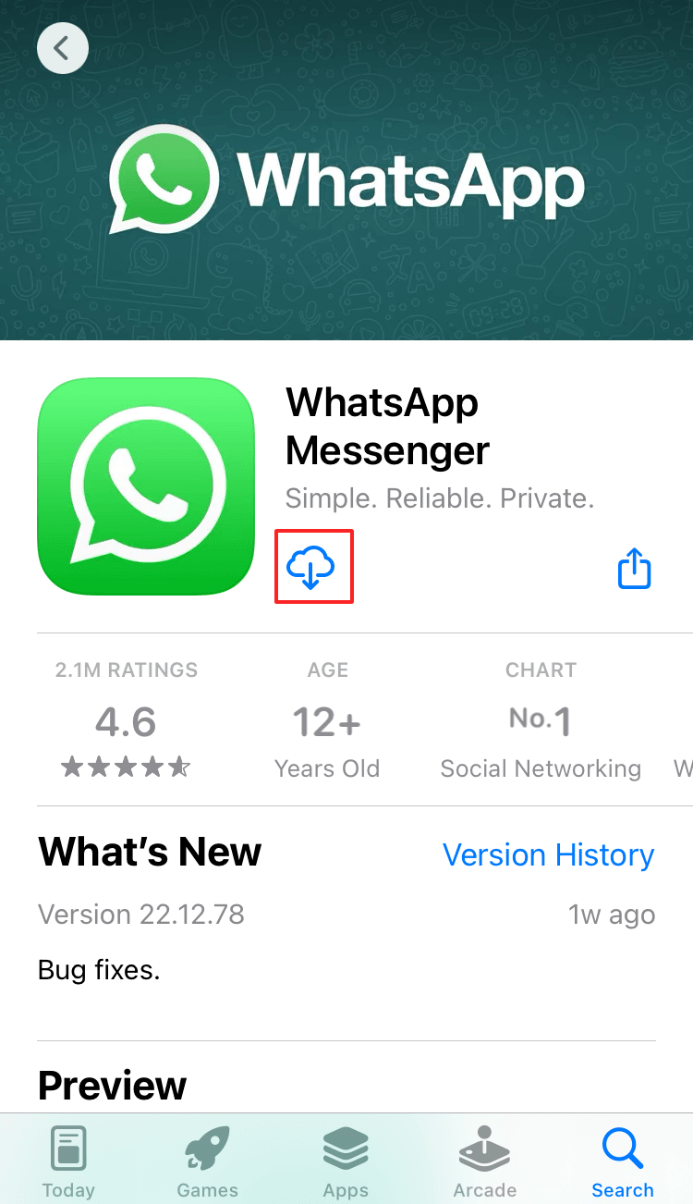
- Open the App Store: On your iPhone, find and tap the “App Store” icon (a blue icon with a white ‘A’).
- Search for WhatsApp: Tap the “Search” tab at the bottom right of the screen. In the search bar at the top, type “WhatsApp” and tap “Search.”
- Select WhatsApp Messenger: Locate “WhatsApp Messenger” by “WhatsApp Inc.” in the search results. Again, confirm the official developer to ensure digital security.
- Download and Install: Tap the “Get” button next to the app. You might need to authenticate this action using Face ID, Touch ID, or your Apple ID password. The app will download and install automatically.
- Grant Permissions (as prompted): Similar to Android, WhatsApp will ask for permissions to access your contacts, photos, microphone, and camera. Granting these is essential for full functionality.
- Launch the App: After installation, the “Get” button will change to “Open,” or you can find the WhatsApp icon on your home screen. Tap it to open WhatsApp.
Bridging the Gap: Setting Up WhatsApp on Your Desktop
WhatsApp isn’t limited to mobile devices. For those who spend a significant amount of time on their computers, WhatsApp offers both a dedicated desktop application and a browser-based version, allowing you to seamlessly continue conversations without switching devices. This aspect significantly boosts “Productivity” by centralizing communication channels.
WhatsApp Desktop Application: For a More Integrated Experience
The desktop application provides a richer, more integrated experience with your operating system, including native notifications.
- Download from the Official Website: Open your web browser and go to the official WhatsApp download page:
whatsapp.com/download. - Choose Your Operating System: Select either “Download for Windows” or “Download for Mac” based on your computer’s OS. The download will start automatically.
- Install the Application:
- Windows: Locate the downloaded
.exefile (usually in your “Downloads” folder) and double-click it. Follow the on-screen instructions. The installation is typically straightforward, often just requiring you to agree to terms and click “Install.” - macOS: Locate the downloaded
.dmgfile. Double-click it to open the installer. Drag the WhatsApp icon into your “Applications” folder.
- Windows: Locate the downloaded
- Launch WhatsApp Desktop: Once installed, open the WhatsApp application from your Start Menu (Windows) or Applications folder (macOS).
- Link to Your Phone: The application will display a QR code. On your phone, open WhatsApp, go to “Settings” (iOS) or “More options” (Android) > “Linked Devices.” Tap “Link a Device” and use your phone’s camera to scan the QR code on your computer screen. This process securely links your desktop app to your mobile account.
WhatsApp Web for Browser Convenience: Access Anywhere
WhatsApp Web offers the ultimate flexibility, allowing you to access your chats from virtually any web browser without installing additional software.
- Visit WhatsApp Web: Open your preferred web browser (Chrome, Firefox, Edge, Safari, etc.) and go to
web.whatsapp.com. - QR Code Display: The website will display a unique QR code.
- Link to Your Phone: Similar to the desktop app, open WhatsApp on your phone, go to “Settings” (iOS) or “More options” (Android) > “Linked Devices.” Tap “Link a Device” and scan the QR code displayed on your computer’s browser screen.
Your WhatsApp chats will now sync and appear in your browser, enabling you to send and receive messages from your computer. Remember to log out of WhatsApp Web if you’re using a public or shared computer to maintain your “Digital Security.”
Activating Your Account: Verification, Restoration, and Personalization
Once the WhatsApp application is successfully installed on your chosen device(s), the next crucial phase is activating your account. This involves verifying your identity, optionally restoring past conversations, and setting up your personal profile. These steps are universal across mobile platforms and are key to making WhatsApp truly yours.
The Verification Process: Securing Your Digital Identity
This is the cornerstone of your WhatsApp account setup, linking your chosen phone number to your new messaging profile.
- Agree to Terms and Conditions: Upon first launching WhatsApp, you’ll be presented with their “Terms of Service and Privacy Policy.” It’s good “Tech” practice to briefly review these, especially concerning data handling and “Digital Security.” Tap “Agree and Continue” to proceed.
- Enter Your Phone Number: You’ll be prompted to enter your phone number. Ensure you select the correct country code from the dropdown list before typing your full mobile number. Double-check for accuracy, as an incorrect number will prevent successful verification.
- SMS Verification: WhatsApp will send a 6-digit verification code via SMS to the number you provided.
- Automatic Detection: On many smartphones, WhatsApp can automatically detect and input the code, streamlining the process.
- Manual Entry: If automatic detection fails, manually enter the 6-digit code into the provided field within WhatsApp.
- Troubleshooting: If you don’t receive the code, wait a few minutes before requesting a new one (using the “Resend SMS” or “Call Me” options). Common issues include poor network signal, an inactive number, or incorrectly entered phone number. Ensure your device isn’t blocking unknown numbers.
This verification is a critical security measure, ensuring that the person setting up the account is the legitimate owner of the phone number, thereby safeguarding your “Personal Branding” and digital identity on the platform.
Seamless Transitions: Restoring Chat History and Media
One of WhatsApp’s most user-friendly features is the ability to restore your previous chat history and media, ensuring a seamless transition when you get a new phone or reinstall the app. This feature is a significant boon for “Productivity” as it prevents the loss of valuable conversations and shared files.
- Backup Detection: If WhatsApp detects an existing backup associated with your phone number on your cloud storage (Google Drive for Android, iCloud for iOS), it will prompt you to restore it.
- Initiate Restoration: Tap “Restore” when prompted. WhatsApp will then begin downloading your chat history and media from the cloud. This process can take some time, depending on the size of your backup and your internet speed.
- Completion and Next Step: Once the restoration is complete, you’ll be informed, and you can then proceed to set up your profile.
- Importance of Backups: Regularly backing up your WhatsApp chats is an essential “Digital Security” and “Productivity” practice. On Android, go to “Settings” > “Chats” > “Chat backup.” On iOS, it’s “Settings” > “Chats” > “Chat Backup.” Ensure automatic backups are enabled to Google Drive or iCloud. Without a current backup, your chat history will be lost permanently upon reinstallation or device change.
Crafting Your Presence: Setting Up Your Profile
Your WhatsApp profile is how others identify you on the platform. It’s a small but significant part of your “Personal Branding” within your immediate network.
- Enter Your Name: You’ll be asked to enter your name. This is the name people who don’t have you in their contacts will see. Choose a name that helps others easily identify you.
- Add a Profile Picture (Optional but Recommended): Tap the camera icon to add a profile picture. You can choose from your gallery or take a new one. A recognizable profile picture helps friends and family find you and adds a personal touch.
- Tap “Next”: Once you’re satisfied with your name and profile picture, tap “Next.”
- Explore WhatsApp: You’ll now be taken to your main WhatsApp chat screen, ready to start communicating!
Remember that you can always change your profile picture, name, and “About” status later through WhatsApp’s settings. Be mindful of the “Privacy Settings” here; you can control who sees your profile photo, last seen status, and about information, allowing you to manage your digital footprint effectively.
Beyond Installation: Leveraging WhatsApp for Enhanced Productivity and Security
Installing WhatsApp is just the first step. To truly harness its power, understanding its core functionalities and adopting best practices for security and productivity is essential. WhatsApp offers a rich suite of features that, when utilized effectively, can transform your communication experience.
Navigating Your New Communication Hub: Initial Features and Settings
Upon successful setup, WhatsApp presents a clean, intuitive interface. Here’s how to get started with basic communication and crucial initial settings:
- Syncing Contacts: WhatsApp automatically scans your phone’s contact list to identify individuals who are also on WhatsApp. These contacts will appear in your “Chats” or “Contacts” tab, ready for you to message. If you don’t see someone, ensure they have WhatsApp installed and that their phone number is saved correctly in your device’s contacts.
- Starting a Conversation:
- Android: Tap the green chat bubble icon (usually at the bottom right) to see your contact list and select someone to start a new chat.
- iOS: Tap the “New Chat” icon (a square with a pencil, top right) to view your contacts and begin a conversation.
- Exploring Basic Communication Tools:
- Text Messaging: The primary function. Type your message in the text box and tap the send icon.
- Voice and Video Calls: Tap the phone or video camera icon within a chat to initiate a voice or video call. These calls are free over Wi-Fi and use data on mobile networks.
- Media Sharing: The paperclip icon (Android) or “+” icon (iOS) allows you to send photos, videos, documents, and contacts from your device.
- Voice Messages: Hold down the microphone icon in the chat to record and send voice messages.
- Overview of Privacy Settings: WhatsApp places a strong emphasis on user privacy. Navigate to “Settings” > “Privacy” to control who can see your:
- Last Seen & Online: Who can see when you were last active.
- Profile Photo: Who can view your profile picture.
- About: Who can see your ‘about’ status.
- Read Receipts: Turn off to prevent others from knowing you’ve read their messages (and vice versa).
- Groups: Control who can add you to groups, preventing unwanted additions.
Understanding and configuring these settings is crucial for managing your digital footprint and maintaining your “Digital Security.”
Advanced Usage and Best Practices for the Modern User
Beyond the basics, WhatsApp offers features that enhance “Productivity” and uphold “Digital Security,” making it a powerful tool for various communication needs.
- End-to-End Encryption (E2EE): WhatsApp’s most significant security feature is E2EE, which means only the sender and receiver can read messages. Not even WhatsApp can access the content of your communications. This is automatically enabled for all personal chats and calls. For businesses, while some aspects of WhatsApp Business may involve different data handling, individual chats remain encrypted. This “Tech” advancement provides a critical layer of “Digital Security.”
- Group Chats and Broadcast Lists:
- Groups: Create groups for family, friends, colleagues, or communities. Ideal for collaborative projects, event planning, or general discussions among multiple people.
- Broadcast Lists: Send a single message to multiple contacts simultaneously, with each recipient receiving it as a private message. Useful for announcements where individual responses aren’t expected in a group setting.
- Status Updates: Share photos, videos, and text updates that disappear after 24 hours, similar to Instagram or Snapchat stories. It’s a casual way to share moments with your selected contacts.
- WhatsApp Business: While this article focuses on the standard app, it’s worth noting WhatsApp Business. This separate application caters to small businesses, offering tools like automated messages, quick replies, and product catalogs. This highlights WhatsApp’s evolution beyond personal use, into the “Brand” and “Money” categories, enabling businesses to connect with customers directly.
- Digital Security Tips:
- Two-Factor Verification (2FA): Enable 2FA in “Settings” > “Account” > “Two-step verification.” This adds an extra layer of security by requiring a PIN when registering your phone number with WhatsApp, even if someone obtains your SIM card. Essential for protecting your “Personal Branding” and account integrity.
- Managing Notifications: Customize notifications to balance staying informed with avoiding distractions. You can mute specific chats or groups.
- Responsible Sharing: Be mindful of what you share and with whom. Scammers often target WhatsApp users with phishing links or fake promotions. Exercise caution and verify information before clicking links or sharing personal data.
- Regular Backups: As mentioned, consistently back up your chats to Google Drive or iCloud. This is your safety net against data loss.
Troubleshooting Common Roadblocks During Installation
Even with careful preparation, you might encounter minor issues. Here are quick solutions to common installation problems:
- “Not Enough Storage” Error: Delete unnecessary apps, photos, or videos from your device to free up space. Clear cache data for other apps.
- App Not Downloading/Installing:
- Check your internet connection.
- Restart your phone.
- Clear the cache and data for the Play Store (Android) or check App Store network settings (iOS).
- Verification Code Not Received:
- Ensure your phone number was entered correctly, including the country code.
- Check your SMS inbox and spam folder.
- Wait a few minutes and request to “Resend SMS.” If still unsuccessful, use the “Call Me” option.
- Verify your network signal is strong enough to receive SMS.
- Compatibility Issues: If your device is too old, it might not meet WhatsApp’s minimum OS requirements. Consider upgrading your device or using WhatsApp Web on a compatible computer.

Conclusion
Installing WhatsApp is a straightforward process that unlocks a world of instant, secure communication. By following the steps outlined in this guide – from ensuring device compatibility and an active phone number to navigating app stores and verifying your account – you can seamlessly integrate this powerful tool into your daily routine. Beyond mere installation, understanding how to leverage its features for enhanced productivity, customizing privacy settings, and adopting strong digital security practices like Two-Step Verification will empower you to communicate effectively and safely.
In an era defined by constant connectivity, WhatsApp stands as a testament to how technology can bring people closer, facilitate collaboration, and streamline personal and professional interactions. Embrace the power of connectedness, stay informed, and enjoy the rich, secure communication experience that WhatsApp provides. Your journey into more efficient and globally connected digital communication starts now.
aViewFromTheCave is a participant in the Amazon Services LLC Associates Program, an affiliate advertising program designed to provide a means for sites to earn advertising fees by advertising and linking to Amazon.com. Amazon, the Amazon logo, AmazonSupply, and the AmazonSupply logo are trademarks of Amazon.com, Inc. or its affiliates. As an Amazon Associate we earn affiliate commissions from qualifying purchases.