
Chromebooks have long been celebrated for their simplicity, security, and affordability, primarily serving as web-centric productivity machines. However, as Chrome OS matures and hardware specifications improve, a growing segment of users is asking: can these lightweight laptops handle more demanding tasks, specifically gaming? And more precisely, can you install Steam on a Chromebook? The answer, increasingly, is a resounding “yes,” but it comes with nuances, different methods, and varying degrees of success depending on your device and expectations. This guide delves deep into the possibilities, offering a comprehensive look at how to bring the vast Steam library to your Chromebook, transforming it from a mere web browser into a surprisingly capable gaming companion.

The Evolving Landscape of Chromebook Gaming and the “Can You?” Answer
For years, the idea of gaming on a Chromebook was largely dismissed. Their architecture, optimized for cloud-based applications and basic tasks, didn’t seem suited for the demanding resources required by most PC games. Yet, the technology landscape is ever-changing. Google has steadily invested in expanding Chrome OS capabilities, integrating features like Android app support and, crucially, a Linux development environment. This evolution has opened doors that were once firmly shut, making native PC gaming a tangible, albeit sometimes challenging, reality on select Chromebooks.
At its core, the question “can you install Steam on a Chromebook?” is now met with a definitive affirmative. However, the experience isn’t uniform. There are several pathways to accessing Steam’s immense catalog, each with its own set of requirements, benefits, and limitations. Understanding these methods is key to choosing the right approach for your specific Chromebook and gaming preferences. From direct installation through a Linux container to leveraging the power of cloud-based streaming or local network solutions, the options are more diverse than ever before, marking a significant shift in how we perceive the gaming potential of these once-humble devices.
Method 1: Native Steam Installation via Linux (Crostini)
The most direct and arguably most exciting way to get Steam on your Chromebook is through its built-in Linux development environment, often referred to by its codename, Crostini. This feature allows you to run a full-fledged Debian Linux distribution within a virtual machine on your Chrome OS device, creating an isolated, secure, and surprisingly performant environment for traditional desktop applications, including Steam.
What is Crostini and Its Role?
Crostini essentially provisions a lightweight Linux virtual machine directly on your Chromebook. This isn’t a dual-boot scenario that requires wiping your operating system; it runs seamlessly alongside Chrome OS, allowing you to switch between Linux applications and Chrome browser tabs with ease. For gamers, this means installing the native Linux version of the Steam client, which then allows you to download and play Linux-compatible games directly on your Chromebook’s hardware. It’s a powerful feature that extends the utility of Chrome OS far beyond its initial design, positioning it as a more versatile platform for tech enthusiasts and, increasingly, gamers.
Essential Prerequisites and Hardware Recommendations
While Crostini is a fantastic feature, not all Chromebooks are created equal when it comes to running demanding applications like Steam games. To ensure a tolerable gaming experience, your Chromebook needs to meet certain specifications:
- Processor: An Intel Core i3 or higher (i5/i7 recommended) or an AMD Ryzen 3 or higher (Ryzen 5/7 recommended) is crucial. Entry-level Celeron or MediaTek processors will struggle significantly.
- RAM: This is perhaps the most critical component. While some will argue 4GB might suffice for very light games, 8GB of RAM is generally considered the bare minimum for a decent experience, with 16GB being ideal for more demanding titles. Chromebooks with less RAM will quickly hit performance bottlenecks.
- Storage: You’ll need ample internal storage, as games can quickly consume dozens or even hundreds of gigabytes. 128GB SSD is a good starting point, but 256GB or more is highly recommended if you plan to install several games.
- Graphics: Most Chromebooks rely on integrated graphics (Intel UHD/Iris Xe, AMD Radeon Graphics). While these are improving, they are still the primary limiting factor for running graphically intensive games. Stick to older titles or less demanding indie games for the best results.
- Chrome OS Version: Ensure your Chromebook is updated to a recent version of Chrome OS that supports the Linux development environment.
A Step-by-Step Guide to Setting Up Steam on Linux
The process of installing Steam via Crostini involves a few straightforward steps:
-
Enable the Linux Development Environment:
- Open your Chromebook’s Settings app.
- Navigate to “Developers” in the left sidebar.
- Find the “Linux development environment” option and click “Turn on.”
- Follow the on-screen prompts, choosing your username and allocating disk space (at least 20-30GB for Steam and a few games is advisable). This process can take several minutes to complete.
-
Update Your Linux Environment:
- Once the Linux terminal window appears, it’s good practice to update your package lists and installed packages. Type the following commands, pressing Enter after each:
bash

sudo apt update

sudo apt upgrade
- This ensures you have the latest software components before installing Steam.
- Once the Linux terminal window appears, it’s good practice to update your package lists and installed packages. Type the following commands, pressing Enter after each:
-
Install the Steam Client:
- Steam provides a
.debpackage for Debian-based distributions (which Crostini uses). You can download it directly or use the command line:
bash

sudo apt install steam-installer
- Alternatively, you can download the
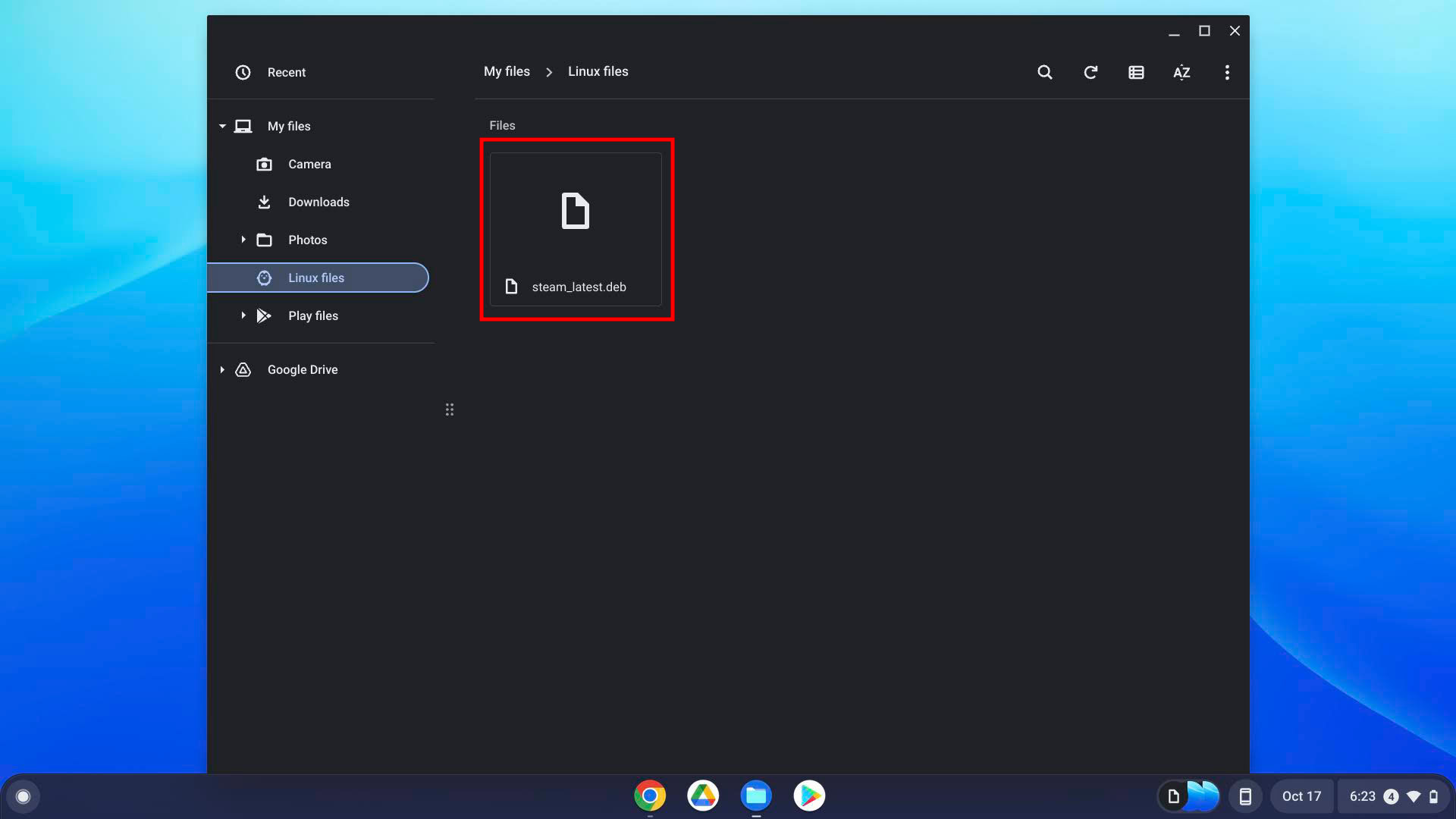
.debfile from the official Steam website using the browser, then navigate to your “Linux files” folder in the Chrome OS Files app, double-click the downloaded file, and follow the installation prompts.
- Steam provides a
-
Launch and Configure Steam:
- After installation, you should find a Steam icon in your Chromebook’s app launcher, usually within the “Linux apps” folder.
- Launch Steam. It will perform an initial update and download necessary runtime components, which might take some time depending on your internet speed.
- Once launched, log in with your Steam account. You can then browse your library and install Linux-compatible games.
Understanding Performance and Compatibility Limitations
Even with a powerful Chromebook, gaming via Linux has its limits. Performance will heavily depend on your hardware, especially the integrated GPU. Expect to run older titles, indie games, or less graphically demanding games at lower settings. Modern AAA titles are generally out of reach for integrated graphics, even on high-end Chromebooks. Furthermore, not all games in the Steam library are Linux compatible. While Valve’s Proton compatibility layer for Steam Play has made great strides in running Windows-only games on Linux, its performance and stability can vary wildly on a virtualized environment like Crostini. Always check game compatibility before purchasing. Expect some tinkering, driver issues, and performance compromises when running games this way.
Method 2 & 3: Cloud Gaming and Local Streaming Alternatives
While native Linux installation offers the most direct access to Steam on your Chromebook’s hardware, it’s not always the best or most convenient solution, especially for those with less powerful devices or a desire to play high-fidelity games. Fortunately, two excellent alternatives leverage network streaming to bring an unparalleled gaming experience to your Chromebook: cloud gaming services and local streaming via Steam Link.
Cloud Gaming: Playing High-End Games Without the Hardware
Cloud gaming revolutionized the concept of gaming on resource-limited devices. Instead of your Chromebook running the game, a powerful remote server in a data center executes the game, rendering the graphics and processing the inputs. The server then streams the video and audio output to your Chromebook in real-time, while simultaneously sending your controller or keyboard/mouse inputs back to the server. This means your Chromebook essentially acts as a “dumb terminal,” requiring only a stable internet connection and the ability to decode video streams.
Leading Cloud Gaming Platforms for Chromebooks:
- NVIDIA GeForce NOW: Arguably one of the best experiences for Steam users. GeForce NOW connects directly to your Steam (and Epic Games Store) library, allowing you to play hundreds of your purchased games on powerful NVIDIA GPUs in the cloud. It offers various subscription tiers, including a free one with session limits, and delivers excellent performance with minimal latency, provided you have a strong internet connection. It runs entirely within your Chrome browser, making it natively compatible with every Chromebook.
- Xbox Cloud Gaming (Xbox Game Pass Ultimate): For fans of Xbox titles and a vast, rotating library of games, Xbox Cloud Gaming (part of Xbox Game Pass Ultimate) is an excellent choice. Like GeForce NOW, it runs in your browser, enabling you to stream a wide array of Xbox games directly to your Chromebook. It’s particularly appealing for its curated library and seamless integration with Xbox controllers.
- Other Alternatives: Services like Boosteroid and Shadow PC also offer robust cloud gaming experiences. Boosteroid works similarly to GeForce NOW, allowing you to play games from your existing libraries. Shadow PC goes a step further by providing you with a full-fledged cloud-based Windows PC that you can access from your Chromebook, offering maximum flexibility but often at a higher cost.
Advantages and Disadvantages of Cloud Gaming:
Advantages:
- Play demanding games: Access to modern AAA titles at high settings, regardless of your Chromebook’s specs.
- No installation: Games are streamed, saving precious local storage space.
- Platform independence: Works across various devices, including Chromebooks, often just through a web browser.
- Instant access: No long download or installation times.
Disadvantages:
- Internet dependency: Requires a fast, stable, low-latency internet connection (ideally wired or 5GHz Wi-Fi).
- Subscription costs: Most services require a monthly fee for premium access.
- Input lag: While minimal, some inherent input lag is always present compared to local gaming.
- Game availability: Not all games are supported on every cloud gaming platform, even if you own them.
Steam Link: Streaming from Your Own Gaming PC
For those who already own a powerful Windows PC loaded with their Steam library, Steam Link offers a clever solution to play those games on your Chromebook. Instead of relying on remote data centers, Steam Link streams games directly from your local gaming PC over your home network.
What is Steam Link and How Does It Work?
Steam Link is a free application that allows you to stream games from your gaming PC (running Steam) to another device, such as a Chromebook, smart TV, or smartphone. Your powerful PC does all the heavy lifting – rendering graphics, running the game – and then streams the video and audio to your Chromebook. Your inputs (keyboard, mouse, or controller connected to the Chromebook) are sent back to the gaming PC. Essentially, it turns your Chromebook into a wireless monitor and input device for your main gaming rig.
Setting Up and Using Steam Link on Your Chromebook:
- Install the Steam Link app: Search for “Steam Link” in the Google Play Store on your Chromebook and install it.
- Ensure PC is running: Make sure your primary gaming PC is turned on, Steam is running, and you’re logged in.
- Pair your devices: Launch the Steam Link app on your Chromebook. It will scan your local network for PCs running Steam. Select your PC and follow the on-screen instructions to pair them (usually by entering a PIN displayed on your PC into the Chromebook app).
- Connect and Play: Once paired, you can launch games from your Steam library on the Chromebook.
When is Steam Link the Right Choice?
Steam Link is an excellent option if you:
- Already own a powerful gaming PC.
- Have a robust home network (preferably wired Ethernet for the PC, and strong Wi-Fi for the Chromebook).
- Want to play your entire existing Steam library without re-buying games or dealing with cloud service limitations.
- Prefer to game in different rooms of your house without moving your main PC.
It’s important to note that Steam Link doesn’t install Steam directly on your Chromebook; it merely streams from another source. It’s a fantastic way to extend your gaming PC’s reach without needing high-end specs on your Chromebook itself, relying instead on network performance.
Optimizing Your Chromebook for the Best Gaming Experience
Regardless of whether you choose to install Steam natively via Linux, stream via cloud services, or use Steam Link, certain factors will significantly impact your gaming experience on a Chromebook. Optimizing these elements can mean the difference between frustrating lag and smooth gameplay.
Key Hardware Considerations (RAM, CPU, and Storage)
While cloud gaming and Steam Link offload most processing to a remote or local PC, your Chromebook’s hardware still plays a role, especially for native Linux gaming.
- RAM: For native Linux gaming, 8GB of RAM is the minimum, 16GB is ideal. Even for streaming, having sufficient RAM prevents Chrome OS from slowing down when running the streaming app alongside other tasks.
- CPU: A capable processor (Intel Core i5/i7 or AMD Ryzen 5/7) is vital for native Linux gaming to handle game logic and system processes efficiently. For streaming, a decent CPU helps with video decoding, ensuring a smooth stream.
- Storage: Crucial for native Linux games. Allocate enough space for the Linux container and your installed games. For streaming, storage is less critical, but a fast SSD helps with overall system responsiveness.
- GPU: For native Linux gaming, the integrated GPU is the primary bottleneck. Manage expectations and stick to less demanding games. For streaming, the GPU is irrelevant as it only decodes the video stream.
The Importance of a Robust Internet Connection
For cloud gaming and Steam Link, your internet and home network connection are paramount.
- Speed: A minimum of 25-50 Mbps download speed is recommended for a good cloud gaming experience, with higher speeds allowing for better resolution and framerates. For Steam Link, your internal network speed (Gigabit Ethernet or fast Wi-Fi 6) is key.
- Stability: Consistent bandwidth is more important than peak speed. Frequent drops or fluctuations will lead to stuttering, pixelation, and disconnections.
- Latency (Ping): Low latency (under 20-30ms to the cloud gaming server) is critical for responsive gameplay. Wired connections generally offer lower latency than Wi-Fi. For Steam Link, latency within your home network should be very low if properly configured.
- Wi-Fi Configuration: Use a 5GHz Wi-Fi network if possible, as it’s faster and less prone to interference than 2.4GHz. Keep your Chromebook close to your router or consider a wired connection if your Chromebook has an Ethernet port or you use a USB-C hub with one.
General Tips for Enhancing Performance
- Close Unnecessary Tabs and Apps: Free up RAM and CPU resources by closing browser tabs, Android apps, and Linux applications not in use, especially when gaming natively or streaming.
- Keep Chrome OS Updated: Google regularly rolls out performance improvements and driver updates.
- Use Game Mode (if available): Some newer Chromebooks or Chrome OS versions might have gaming-specific optimizations.
- Connect Peripherals: Use a dedicated gaming mouse and keyboard, or a Bluetooth gaming controller (Xbox controllers are generally well-supported) for a better experience.
- Adjust In-Game Settings: For native Linux gaming, lower graphics settings, resolution, and disable demanding effects to improve framerate.
Navigating Challenges and the Future of Chromebook Gaming
While the possibilities for gaming on a Chromebook are more exciting than ever, it’s important to approach them with realistic expectations and an awareness of potential challenges.
Common Hurdles and Troubleshooting
- Game Compatibility: Not all games are Linux compatible, and even with Proton, some Windows-only titles may struggle or refuse to run in Crostini. Cloud gaming platforms also have curated libraries.
- Driver Issues: Linux environments can sometimes present challenges with graphics drivers, leading to visual glitches or crashes.
- Performance Bottlenecks: Integrated graphics and limited RAM remain significant hurdles for native high-fidelity gaming.
- Input Lag (Streaming): Even with excellent internet, some perceptible input lag can occur in cloud gaming, which might be a dealbreaker for competitive players.
- Setup Complexity: Installing Steam via Linux requires comfort with the command line, which might intimidate novice users.
- Battery Drain: Running demanding applications or constantly streaming video will significantly reduce your Chromebook’s battery life.
For troubleshooting, online communities (like Reddit’s r/Crostini or r/cloudgaming) are invaluable resources. Checking specific game forums for Linux compatibility notes is also highly recommended.
The Road Ahead: What to Expect from Chrome OS Gaming
The future of gaming on Chrome OS looks promising. Google is actively investing in improving Linux integration, and Project Borealis, a rumored initiative to bring Steam more officially and directly to Chrome OS, suggests a dedicated focus on gaming. We can anticipate:
- Improved Performance: As Chromebook hardware continues to evolve with more powerful CPUs, GPUs, and ample RAM, the native gaming experience will only get better.
- Enhanced Compatibility: Better driver support and streamlined integration of compatibility layers like Proton could make a wider range of PC games playable.
- Closer Integration: Google might offer more official, user-friendly ways to install and manage games, reducing the reliance on command-line tinkering.
- Continued Cloud Gaming Dominance: Cloud gaming will likely remain the most accessible way to play cutting-edge titles, with services expanding libraries and refining streaming technology.
- New Form Factors: Gaming-focused Chromebooks with better cooling and discrete graphics might emerge, catering specifically to this growing niche.
This commitment from Google, combined with the continuous innovation in cloud technologies, paints a vibrant picture for Chromebooks as a legitimate and versatile gaming platform.
Conclusion: Your Gateway to Gaming on the Go
The journey from a simple web browser to a capable gaming machine has been remarkable for Chromebooks. The question “can you install Steam on a Chromebook?” is no longer a rhetorical one but a practical inquiry with multiple viable solutions. Whether you opt for the hands-on approach of a native Linux installation, embrace the power of cloud gaming to stream high-end titles, or leverage Steam Link to extend your existing gaming PC’s reach, your Chromebook offers a diverse array of pathways into the vast world of PC gaming.
While challenges and limitations still exist, the ongoing advancements in Chrome OS, coupled with increasingly powerful hardware and the maturation of streaming technologies, mean that your lightweight, secure, and affordable Chromebook is more ready than ever to become your portable gaming hub. So, go ahead, explore the possibilities, and unlock a whole new dimension of entertainment on your Chromebook. The game is on!
aViewFromTheCave is a participant in the Amazon Services LLC Associates Program, an affiliate advertising program designed to provide a means for sites to earn advertising fees by advertising and linking to Amazon.com. Amazon, the Amazon logo, AmazonSupply, and the AmazonSupply logo are trademarks of Amazon.com, Inc. or its affiliates. As an Amazon Associate we earn affiliate commissions from qualifying purchases.