
Baldur’s Gate 3 (BG3) has taken the gaming world by storm, captivating players with its deep narrative, intricate gameplay, and unparalleled player freedom. While the base game is already a masterpiece, the vibrant modding community has further expanded its horizons, offering a plethora of ways to enhance, customize, and even fundamentally alter your experience. Whether you’re looking to add new spells, tweak character appearances, introduce quality-of-life improvements, or dive into entirely new quests, modding BG3 can breathe fresh life into Faerûn. However, for newcomers, the process of installing these modifications can seem daunting. This comprehensive guide, drawing on the principles of clear technical instruction and accessible digital content, will demystify the process, empowering you to confidently install BG3 mods and unlock a universe of new possibilities.

The explosion of BG3’s popularity has naturally led to a surge in interest regarding its modding scene. Much like the evolution of technology itself, where software updates and new applications constantly refine our digital interactions, modding BG3 represents an ongoing evolution of the game, driven by its passionate player base. This article aims to provide a clear, step-by-step tutorial, akin to a well-crafted software guide or a detailed app review, ensuring a smooth installation process for everyone, regardless of their technical expertise. We’ll cover the essential tools, the primary installation methods, and crucial tips to avoid common pitfalls.
Understanding the BG3 Modding Ecosystem
Before diving into the installation process, it’s beneficial to understand the fundamental components and concepts of the BG3 modding ecosystem. This involves understanding what mods are, where to find them, and the different types of installations you might encounter.
What are BG3 Mods and Where to Find Them?
At its core, a mod (short for modification) is a user-created alteration to the game that can change anything from visual elements to gameplay mechanics. The BG3 modding community is incredibly active, with the primary hub for downloading mods being Nexus Mods. Nexus Mods is a vast repository for game modifications across numerous titles, and BG3 is no exception. Here, you’ll find a meticulously organized collection of mods, complete with descriptions, user reviews, installation instructions provided by the mod author, and often, troubleshooting advice.
When browsing Nexus Mods, you’ll typically encounter different categories of mods. These can range from:
- Visual Mods: These alter character appearances, armor sets, spell effects, and environmental textures. They are often the easiest to install and can significantly enhance the game’s aesthetic appeal.
- Gameplay Mods: These introduce new abilities, spells, combat mechanics, or alter existing ones. They can offer a fresh challenge or allow for more strategic depth.
- Quality-of-Life (QoL) Mods: These focus on improving user experience by streamlining menus, adding inventory management tools, or providing helpful visual cues. They don’t necessarily change the core gameplay but make playing the game more enjoyable.
- Story/Quest Mods: While less common and often more complex, some mods aim to add new narrative content, quests, or even companion characters.
- Utility Mods: These are often essential tools that facilitate the installation or management of other mods.
It’s crucial to always read the mod description carefully. Mod authors provide vital information regarding compatibility, any prerequisite mods, and specific installation steps. This meticulous attention to detail is akin to understanding the specifications of a new gadget or the strategic approach for a marketing campaign – preparation is key to success.
Mod Managers: Your Digital Assistants
While some simple mods can be installed manually, the vast majority, especially those that alter game files or add new assets, require a mod manager. Think of a mod manager as a specialized software tool designed to streamline the installation, uninstallation, and management of mods. It automates many of the complex steps, reducing the risk of errors and conflicts.
For Baldur’s Gate 3, the most widely recommended and robust mod manager is the Baldur’s Gate 3 Mod Manager. This tool is indispensable for handling most types of mods and is essential for more complex installations. Its interface allows you to easily enable, disable, and reorder mods, which is critical for troubleshooting.
Beyond the main mod manager, you’ll also encounter BG3 Script Extender. This is not a mod manager itself but a crucial dependency for many of the more advanced mods, particularly those that alter gameplay mechanics or introduce new scripting. The Script Extender essentially provides a framework for modders to interact with the game’s code more deeply. If a mod lists BG3 Script Extender as a requirement, you must install it first.
Understanding these core components – Nexus Mods as the marketplace, and the Mod Manager/Script Extender as your primary tools – lays the groundwork for a successful modding journey. It’s about leveraging the right technology and understanding its function, much like utilizing AI tools for productivity or understanding brand strategy for effective marketing.
The Essential Pre-Installation Checklist
Before you even think about downloading your first mod, there are a few critical steps you need to take to ensure a smooth and safe modding experience. This preparation is akin to conducting thorough market research or ensuring your digital security is up to par.
1. Back Up Your Save Files
This is arguably the most important step. Modding, by its nature, involves altering game files, and while most mods are stable, there’s always a risk of corruption or unforeseen issues. A corrupted save file can lead to hours of lost progress.
How to Back Up Your Save Files:
- Locate your BG3 save folder: This is typically found in:
%USERPROFILE%AppDataLocalLarian StudiosBaldur's Gate 3PlayerProfilesPublicSavegamesStory
(You can paste this path directly into the File Explorer address bar and press Enter.) - Copy the entire
Storyfolder: Paste this copied folder to a safe, separate location on your computer, such as your Documents folder, an external hard drive, or a cloud storage service. - Regularly back up: It’s good practice to back up your saves before installing any new mods, and periodically throughout your modded playthrough.
This proactive measure is a cornerstone of responsible digital practice, much like regular data backups for businesses or secure password management for personal accounts.
2. Ensure Your Game is Up-to-Date
Mod developers usually design their mods for specific versions of the game. If your game is significantly outdated, mods may not function correctly, or at all. Fortunately, Steam and other platforms automatically handle game updates.
- Steam: Right-click on Baldur’s Gate 3 in your library, select “Properties,” then “Updates.” Ensure “Always keep this game updated” is selected.
- GOG/Other Platforms: Check the platform’s update settings for Baldur’s Gate 3.
Maintaining an updated software base is fundamental to compatibility and performance, echoing the importance of staying current with technological trends.
3. Understand Mod Compatibility
Not all mods play nicely together. Some mods might modify the same game files, leading to conflicts. Others might have specific dependencies on other mods or the game version.
- Read Descriptions: Always, always, always read the mod description on Nexus Mods. Authors will usually list known incompatibilities and required mods.
- Check the “Posts” and “Bug” Sections: These sections on Nexus Mods are invaluable for seeing if other users have encountered compatibility issues and if solutions have been found.
- Load Order: For mods that alter similar aspects of the game, their load order (the sequence in which they are loaded by the game) can be critical. Mod managers help manage this.
Thinking about compatibility is akin to understanding how different software applications integrate or how a marketing campaign needs to align with a brand’s core identity.
Installing Mods: The Core Methods
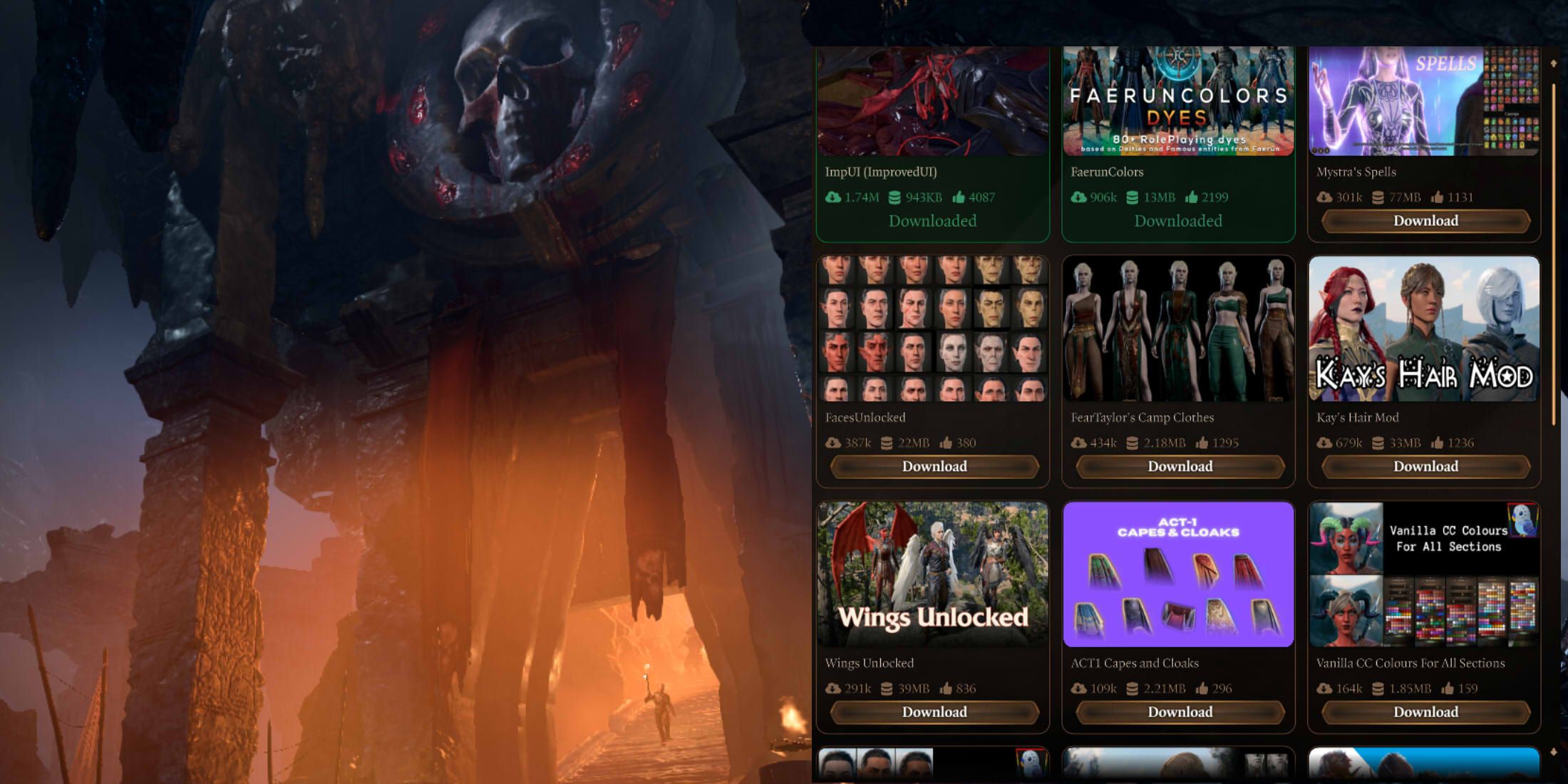
Now that you’re prepared, let’s dive into the primary methods for installing BG3 mods. The method you use will largely depend on the type of mod you’re installing and the tools you have at your disposal.
Method 1: Using the Baldur’s Gate 3 Mod Manager
This is the recommended method for the vast majority of mods, especially those that require more than just copying files into a folder.
Step 1: Download and Install BG3 Mod Manager
- Go to Nexus Mods: Search for “Baldur’s Gate 3 Mod Manager” and download the latest version. It’s typically distributed as a ZIP archive.
- Extract the files: Extract the contents of the ZIP file to a convenient location on your computer. Do not extract it into your Baldur’s Gate 3 game folder. A good place is your Desktop or a dedicated “Modding Tools” folder.
- Run the Mod Manager: Inside the extracted folder, you’ll find
BG3MM.exe. Run this executable. - Configure Mod Manager (First Run): The first time you run the Mod Manager, it will likely ask you to point it to your Baldur’s Gate 3 installation directory. Ensure it’s correctly set. It might also prompt you to install the “BG3SE Installer” if it’s not detected – this is a good idea.
Step 2: Download Your Chosen Mods
- Navigate to Nexus Mods: Find the mod you want to install on Nexus Mods.
- Look for the “Mod Manager Download” Option: Many mods on Nexus Mods offer a “Mod Manager Download” button. This downloads the mod in a format compatible with the Baldur’s Gate 3 Mod Manager, often as a
.pakfile. - Save the file: Save the downloaded
.pakfile to a location you can easily access, such as a “BG3 Mods” folder you create.
Step 3: Install Mods via the Mod Manager
- Open Baldur’s Gate 3 Mod Manager: Launch the tool.
- Drag and Drop: In the Mod Manager window, you’ll see two main panes. The left pane lists available mods, and the right pane lists your installed mods. Drag the
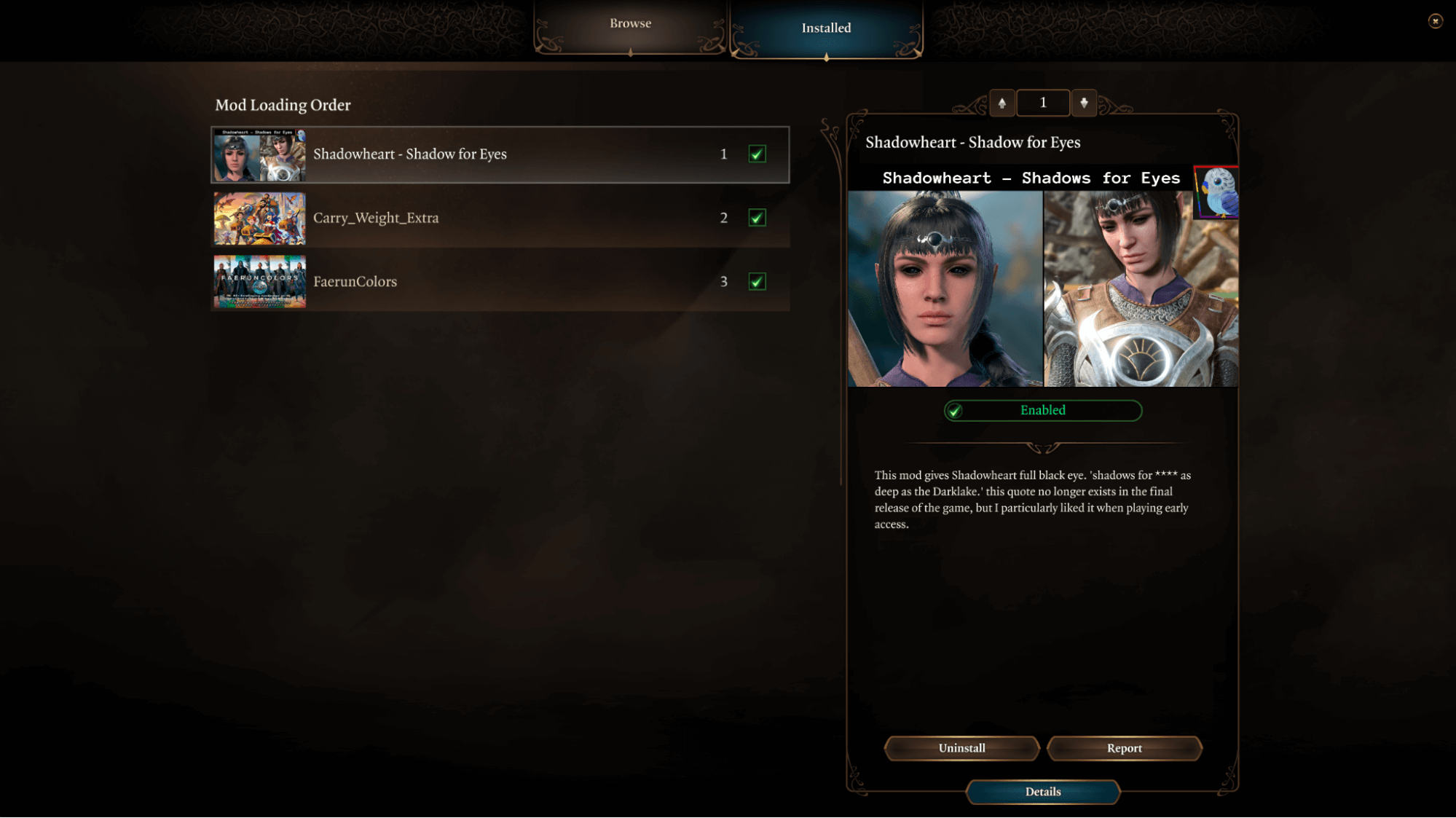
.pakfiles you downloaded from your “BG3 Mods” folder into the left pane (the “Available Mods” section). - Order Your Mods: The order in which mods are listed in the right pane (the “Active Mods” section) is their load order. If you have multiple mods, especially those that might conflict, their order can matter. Generally, mods that add new content should be higher up, and mods that modify existing things lower down. However, always refer to individual mod author instructions for specific load order recommendations. The Mod Manager provides tools to easily reorder them.
- Generate ModConfig Data: After adding and ordering your mods, click the “Save Order” button. This tells the Mod Manager your desired load order.
- Deploy Mods: Finally, click the “Deploy Mods” button. The Mod Manager will then process your mods and place them correctly within your Baldur’s Gate 3 game files. You’ll see a progress bar.
Step 4: Launch the Game
Launch Baldur’s Gate 3 as you normally would through Steam, GOG, or the Larian Launcher. The mods should now be active.
Method 2: Manual Installation (for Simple Mods)
Some very basic mods, often referred to as “loose file” mods, might only require you to copy files directly into a specific game folder. These are less common for complex modifications.
Step 1: Locate the Game’s Data Folder
The exact location can vary slightly, but for most users, it’s within the game’s installation directory:
[Your Steam Library Folder]steamappscommonBaldur's Gate 3Data
If you’re unsure where your Steam library is, right-click BG3 in Steam, go to “Properties” > “Local Files” > “Browse…”.
Step 2: Copy Mod Files
- Download the Mod: Download the mod as instructed by the author. It might be a ZIP file.
- Extract and Identify: Extract the ZIP file. Look for folders named
Public,Mods, or specific asset folders. - Copy to Data Folder: Carefully copy the extracted mod files and folders into the
Baldur's Gate 3Datafolder. If prompted to overwrite existing files, be extremely cautious. Usually, you should only do this if the mod author explicitly states to.
Warning: Manual installation carries a higher risk of errors and conflicts. It’s generally recommended to use the Mod Manager unless a mod explicitly states it requires manual installation and provides clear instructions.
Troubleshooting Common Issues
Even with the best preparation and tools, you might run into problems. Here are some common issues and how to address them. This section is akin to a “frequently asked questions” or a “troubleshooting guide” for software or apps.
“My game crashes on startup!”
- Conflicting Mods: This is the most common cause. Try disabling mods one by one (using the Mod Manager) and relaunching the game to identify the culprit.
- Incorrect Load Order: Revisit the load order recommendations for your mods.
- Missing Dependencies: Did you forget to install BG3 Script Extender or another required mod?
- Corrupted Mod Files: Re-download the mod and try installing it again.
- Game/Mod Version Mismatch: Ensure your game is updated and that the mod is compatible with your game version.
“A specific mod isn’t working.”
- Check Installation: Did you follow all the steps for that specific mod? Did you deploy it correctly in the Mod Manager?
- Load Order: Adjust its position in the load order.
- Read the Comments/Bug Reports: See if other users have reported similar issues.
- Reinstall: Try uninstalling and reinstalling the mod.
“I want to remove a mod.”
- Using Mod Manager: If you installed a mod via the Mod Manager, select it in the “Active Mods” pane (right pane) and click the “Remove” button. Then, click “Deploy Mods” again.
- Manual Installation: This can be trickier. You’ll need to manually delete the files you added to the
Datafolder. This is why manual installation is discouraged for anything beyond the simplest modifications. - Clean Install: If you’re having persistent issues, a “clean install” of the game (uninstalling and then reinstalling BG3) might be necessary. Remember to back up your saves first!
“My save file is corrupted!”
This is why backups are so crucial. If you have a recent backup of your save files, you can restore them. If not, you may have to restart that section of the game or, in a worst-case scenario, the entire playthrough. This emphasizes the importance of preventative measures in any digital endeavor, from personal finance to software management.
Conclusion
Modding Baldur’s Gate 3 opens up a vast landscape of customization and replayability. By following these steps, understanding the tools, and approaching the process with a bit of patience and diligence, you can transform your already incredible gaming experience into something truly unique. Remember to always start with backups, read mod descriptions meticulously, and leverage the power of the Baldur’s Gate 3 Mod Manager. Happy modding, and enjoy your enhanced adventures in Faerûn! The world of BG3 is now yours to shape, enhance, and explore in ways you never thought possible.
aViewFromTheCave is a participant in the Amazon Services LLC Associates Program, an affiliate advertising program designed to provide a means for sites to earn advertising fees by advertising and linking to Amazon.com. Amazon, the Amazon logo, AmazonSupply, and the AmazonSupply logo are trademarks of Amazon.com, Inc. or its affiliates. As an Amazon Associate we earn affiliate commissions from qualifying purchases.