
The modern television has evolved far beyond simply displaying broadcast channels. Today’s smart TVs are powerful, connected devices capable of transforming your living room into an entertainment hub. LG, a leading name in consumer electronics, offers a robust smart TV platform that allows users to access a vast ecosystem of applications. Whether you’re looking to stream your favorite movies and shows, get your game on, or even manage your smart home devices, the right apps can significantly enhance your LG TV experience.
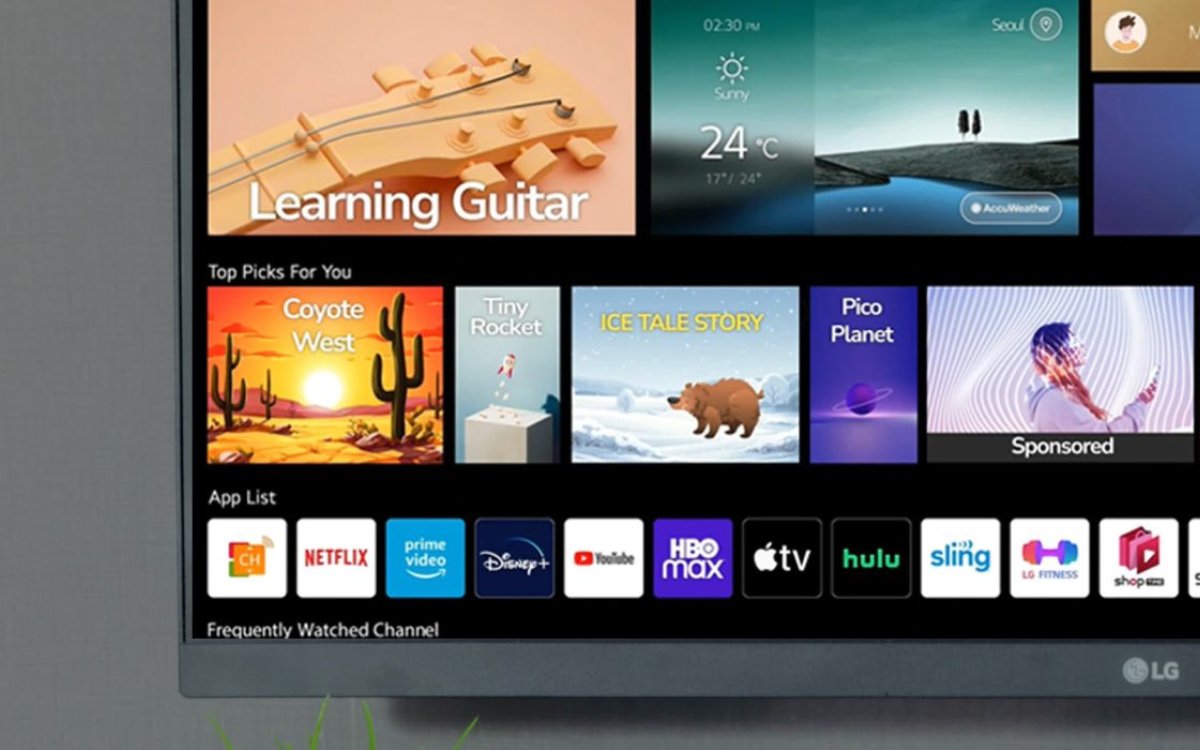
This guide will walk you through the straightforward process of installing applications on your LG TV, ensuring you can leverage the full potential of your smart display. We’ll cover the different methods available, delve into troubleshooting common issues, and even touch upon some of the most popular app categories you might want to explore.
Understanding LG’s Smart TV Platform: webOS
LG TVs primarily run on their proprietary operating system, webOS. This user-friendly and intuitive interface is designed to make navigating your TV’s features and accessing content as seamless as possible. One of the core strengths of webOS is its integrated app store, known as the LG Content Store. This is your primary gateway to discovering, downloading, and installing a wide array of applications.
Navigating the LG Content Store
The LG Content Store is pre-installed on all LG smart TVs. Think of it as the equivalent of an app store on your smartphone or tablet, but specifically curated for your television. It’s organized into various categories, making it easy to find what you’re looking for. These categories typically include:
- Video: This is where you’ll find all the major streaming services like Netflix, Hulu, Amazon Prime Video, Disney+, YouTube, and many more.
- Games: For those who enjoy casual gaming on the big screen, this section offers a selection of titles.
- Apps: A broad category encompassing utilities, social media apps, music streaming services, and other general-purpose applications.
- Education: Applications designed for learning, from language courses to interactive encyclopedias.
- Lifestyle: Apps that can help with fitness, cooking, news, and other daily activities.
- Top Charts/Popular: These sections highlight the most downloaded and trending apps, providing a great starting point if you’re unsure what to install.
You can access the LG Content Store directly from your TV’s home screen. Typically, you’ll see a dedicated icon or a menu option labeled “LG Content Store” or simply “Apps.”
Finding an App
Once you’re in the LG Content Store, you have several ways to find the app you want:
- Browsing Categories: As mentioned, scrolling through the different categories is the most common method.
- Search Function: Most LG TVs feature a search bar within the Content Store. This is ideal if you know the exact name of the app you’re looking for. You can usually input text using your TV remote’s on-screen keyboard, or in some newer models, use voice commands through the Magic Remote.
- Recommendations: The Content Store often provides personalized recommendations based on your viewing habits and previously installed apps.
The Standard Method: Installing Apps from the LG Content Store
This is the most common and recommended way to install apps on your LG TV. It’s designed to be simple and accessible to all users.
Step-by-Step Installation Process
- Power On Your LG TV: Ensure your TV is connected to the internet. A stable internet connection (Wi-Fi or Ethernet) is crucial for downloading and installing apps.
- Access the Home Screen: Press the “Home” button on your LG Magic Remote. This will bring up the webOS dashboard, usually at the bottom of your screen.
- Navigate to the LG Content Store: On the home screen, use your remote’s directional buttons to highlight and select the “LG Content Store” icon or menu item.
- Find Your Desired App: Browse through the categories or use the search function to locate the app you wish to install.
- Select the App: Once you’ve found the app, select it. This will take you to its dedicated page within the Content Store, where you’ll see a description, screenshots, user reviews, and information about its compatibility.
- Initiate the Download and Installation: On the app’s page, you’ll see a button that typically says “Install” or “Download.” Select this button.
- App Installation: The TV will begin downloading the app. The progress will usually be displayed on your screen. Once the download is complete, the app will automatically install. This process can take a few seconds to a few minutes, depending on the size of the app and your internet speed.
- Launching the App: After installation, the app will usually appear on your home screen’s app bar or within the “My Apps” section. You can then select it to launch and start using it. You might need to sign in to your respective account for streaming services.
Important Considerations for App Installation
- Account Creation/Login: For most streaming services and some other apps, you will need to create an account with the service provider or log in to an existing account after installation.
- Storage Space: While most apps are relatively small, some, particularly games, can take up a significant amount of storage space. Ensure your TV has sufficient free storage. If you encounter storage issues, you might need to uninstall unused apps.
- App Updates: LG TVs, like smartphones, receive updates for both the webOS operating system and individual apps. It’s good practice to keep your apps updated to ensure they function correctly and have the latest features and security patches. You can usually manage app updates through a dedicated section in your TV’s settings.
Alternative Scenarios and Advanced Tips
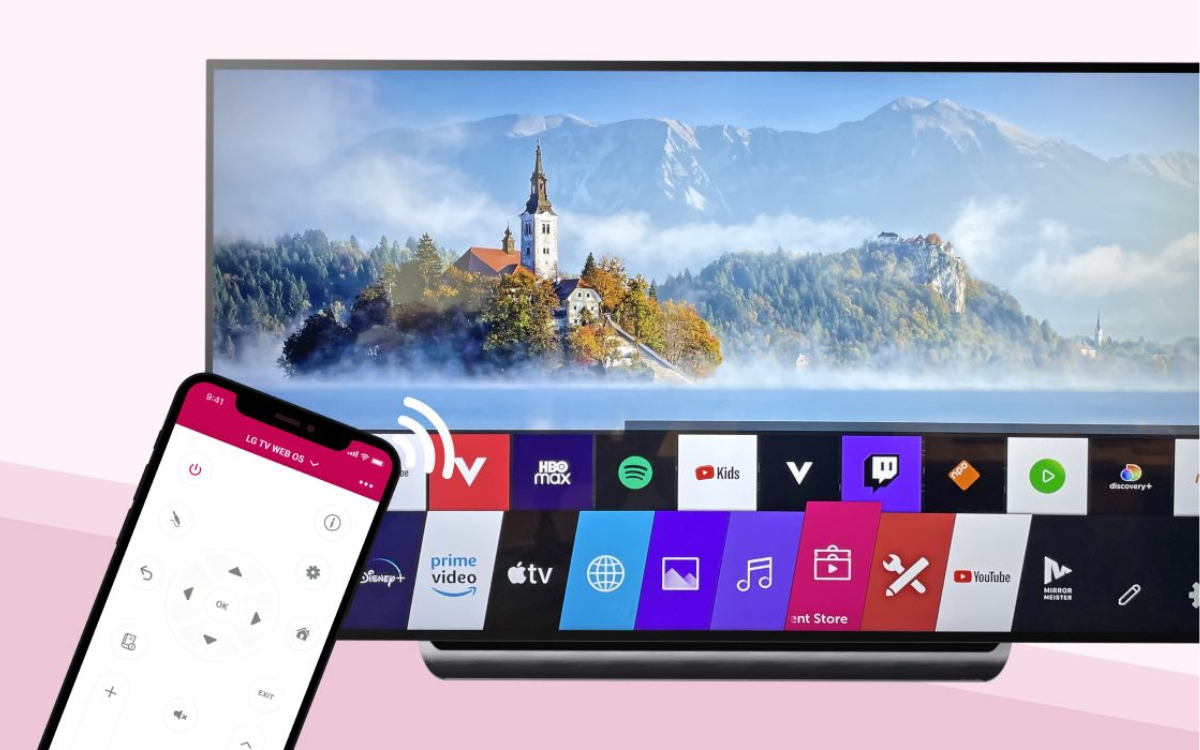
While the LG Content Store is the primary method, there are a few other situations or advanced scenarios to consider when it comes to apps on your LG TV.
What If an App Isn’t Available in the LG Content Store?
This is a common question, especially for users accustomed to the vast app libraries on other platforms. The LG Content Store, while extensive, does not have every single app available.
- Web-Based Alternatives: For some services that might not have a dedicated app, you might be able to access them through a web browser. Many LG TVs come with a built-in web browser. You can open this browser, navigate to the service’s website, and potentially stream content from there. However, the user experience might not be as optimized as a dedicated app.
- Screen Mirroring/Casting: A very popular workaround is to use screen mirroring or casting from your smartphone, tablet, or computer.
- Screen Mirroring: This feature allows you to mirror your device’s entire screen onto your LG TV. Many LG TVs support Miracast or similar technologies. You can then open the app on your device and have it displayed on the TV.
- Casting: Services like Chromecast (though not natively built into LG TVs, some LG models support Google Cast protocols, or you can use external devices) and AirPlay (for Apple devices) allow you to “cast” content from an app on your device to your TV. You initiate the cast from within the app on your device, and the TV takes over playback. This is often a smoother experience than full screen mirroring.
- Third-Party Streaming Devices: If an app is crucial and unavailable on your LG TV, consider investing in a dedicated streaming device like an Amazon Fire TV Stick, Roku, Apple TV, or Google Chromecast. These devices offer their own app stores with potentially a wider selection of applications, and you can connect them to your LG TV via HDMI.
Troubleshooting Common App Installation Issues
Despite the user-friendly nature of the LG Content Store, you might occasionally encounter problems. Here are some common issues and their solutions:
- “Cannot Connect to Server” or “Network Error”:
- Check Your Internet Connection: Ensure your LG TV is connected to your home network and that the internet connection is active and stable. Try restarting your router and modem.
- Test Other Apps/Internet Browsing: See if other apps on your TV can connect or if the web browser works. This helps isolate whether the issue is with the Content Store specifically or your general internet access.
- Check LG Server Status: While rare, sometimes LG’s servers might be down for maintenance. You can try again later.
- App Fails to Install After Download:
- Restart Your TV: A simple restart can often resolve temporary glitches.
- Clear Cache/Data (Advanced): In some LG TV models, you can access developer options or app management settings to clear the cache or data for the Content Store app itself. This can sometimes resolve installation issues. You may need to refer to your specific LG TV model’s manual for instructions on accessing these advanced settings.
- Insufficient Storage: As mentioned earlier, check your TV’s storage. Go to Settings > General > Storage to see how much space is available. Uninstalling apps you no longer use can free up space.
- App Not Loading or Crashing:
- Uninstall and Reinstall: The most common fix for an app that’s not working correctly is to uninstall it and then reinstall it from the LG Content Store.
- Check for App Updates: Ensure the app is updated to the latest version.
- Check for TV Software Updates: Sometimes, issues with apps can be resolved by updating your LG TV’s operating system. Go to Settings > General > About This TV > Check for Updates.
- Factory Reset (Last Resort): If all else fails, performing a factory reset on your LG TV will revert it to its original settings, including clearing all installed apps and data. Be aware that this will erase all your customizations, Wi-Fi passwords, and logged-in accounts. You’ll need to set up your TV again from scratch. This should only be used as a last resort.
Beyond Streaming: Expanding Your LG TV’s Capabilities with Apps
While streaming services dominate the app landscape for smart TVs, LG’s platform offers much more.
Gaming on Your LG TV
For casual gamers, the LG Content Store offers a selection of titles that can be controlled with your remote or, in some cases, a compatible game controller. These are often simpler puzzle games, arcade-style experiences, or titles designed for quick pick-up-and-play sessions. If you’re looking for a more serious gaming experience, you’ll likely want to connect a dedicated gaming console like a PlayStation or Xbox.
Productivity and Utility Apps
LG TVs are increasingly becoming central hubs for home management. You might find apps for:
- Smart Home Control: If you have a smart home ecosystem (e.g., Philips Hue lights, Nest thermostats), you might find apps that allow you to control these devices directly from your TV’s interface.
- News and Weather: Stay updated with the latest headlines and local weather forecasts without needing to switch to another device.
- Music Streaming: Services like Spotify, Pandora, and others are often available, allowing you to turn your TV into a powerful audio system.
Digital Security and Content Management
While less common for direct installation on the TV itself, understanding app permissions and digital security is crucial. Ensure you are only downloading apps from the official LG Content Store to avoid malware or compromised applications. Be mindful of the permissions an app requests, especially if it’s not a well-known service.
Conclusion
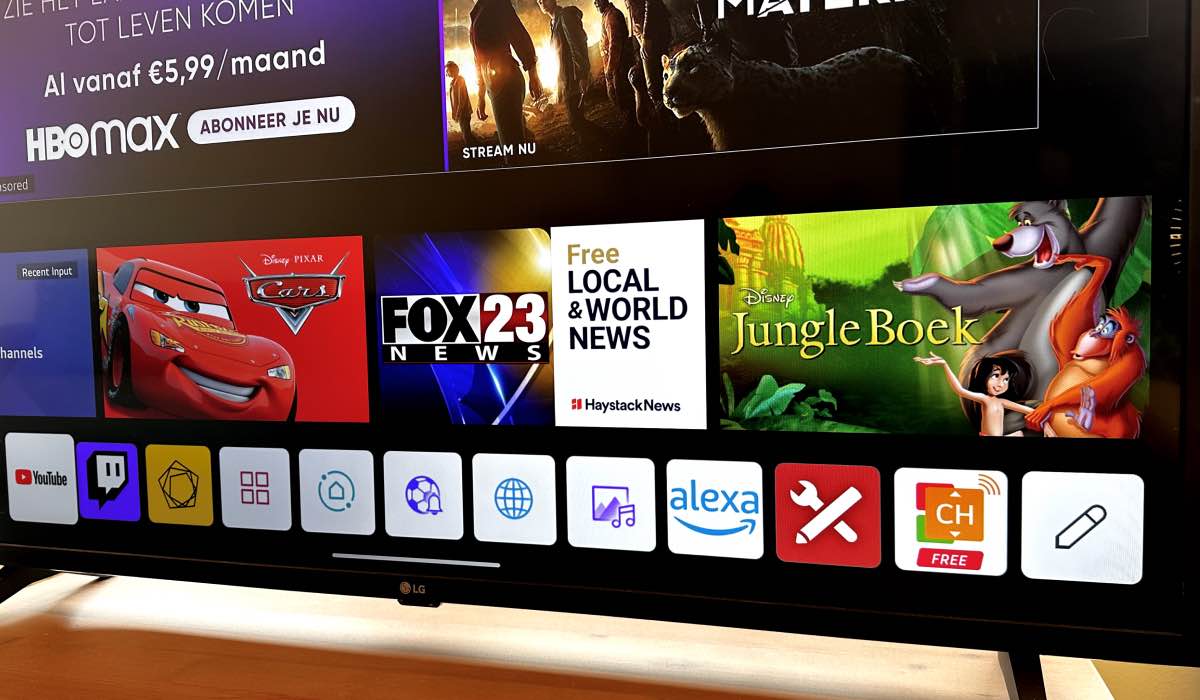
Installing apps on your LG TV is a fundamental step in unlocking its full entertainment and smart capabilities. The LG Content Store provides a user-friendly and organized way to access a vast library of applications, from popular streaming services to casual games and utility tools. By following the straightforward steps outlined in this guide, you can easily enhance your viewing experience, discover new content, and make your LG TV the true centerpiece of your digital life. Remember to keep your TV and apps updated, and don’t hesitate to explore the various categories within the LG Content Store to discover hidden gems. If you encounter any issues, the troubleshooting tips provided should help you get back to enjoying your favorite apps in no time.
aViewFromTheCave is a participant in the Amazon Services LLC Associates Program, an affiliate advertising program designed to provide a means for sites to earn advertising fees by advertising and linking to Amazon.com. Amazon, the Amazon logo, AmazonSupply, and the AmazonSupply logo are trademarks of Amazon.com, Inc. or its affiliates. As an Amazon Associate we earn affiliate commissions from qualifying purchases.