
Ubuntu, a beacon of open-source innovation, stands as a testament to powerful, flexible, and user-centric computing. At the heart of its application ecosystem lies the .deb package format, a cornerstone of Debian-based distributions. Whether you’re a seasoned Linux user or just starting your journey into the world of free and open-source software, understanding how to effectively manage these packages is crucial for customizing your system, boosting productivity, and tapping into a vast array of specialized applications not always found in the default repositories.
In the realm of Tech, where software installation is often a click-and-go affair on proprietary systems, Ubuntu offers a more transparent and often more robust approach. .deb files encapsulate applications, libraries, and resources, bundled for easy distribution and installation on your system. This guide will demystify the process, equipping you with both graphical and command-line methods to confidently install .deb packages, while also touching upon critical security considerations and best practices to keep your system running smoothly and securely.

Understanding .deb Packages and Why They Matter
Before diving into the “how-to,” it’s essential to grasp the “what” and “why” behind .deb files. These files are not just arbitrary bundles of data; they are meticulously crafted archives containing everything an application needs to run on a Debian or Ubuntu system, alongside metadata that informs the package manager about dependencies, conflicts, and installation scripts.
The Core of Debian-based Systems
The .deb format is native to Debian, the venerable parent distribution from which Ubuntu derives much of its architecture and package management philosophy. Think of a .deb file as a self-contained installation package, similar to .exe files on Windows or .dmg files on macOS, but with a more standardized and often more secure underlying system. When you download a .deb file, you’re getting a snapshot of an application designed specifically for the Debian/Ubuntu environment, ensuring compatibility and often optimal performance.
These packages are not merely about installing software; they are part of a sophisticated package management system that handles updates, removals, and, crucially, dependencies. Dependencies are other software components or libraries that a particular application needs to function correctly. Without proper dependency resolution, installing software can lead to broken applications or even system instability. Ubuntu’s package managers are designed to handle these complexities, making the installation process far more robust than manually copying files.
From a Tech perspective, understanding .deb files is key to effective system administration and software deployment. It’s about taking control of your software stack, moving beyond what’s merely available in an app store to leveraging specialized tools, development environments, or niche applications that might only be distributed in this format. This flexibility is a significant advantage for users who demand more from their operating system.
When to Use .deb Files (and When Not To)
While .deb files are fundamental, they aren’t always the first choice for installing software on Ubuntu. The primary method should always be through Ubuntu’s official repositories, accessed via the apt command line tool or the graphical Ubuntu Software Center. This is because repository packages are thoroughly tested, kept up-to-date, and automatically handle dependencies and security patches. They offer the highest level of digital security and system stability.
You typically resort to .deb files when:
- Software isn’t in official repositories: This is common for newer applications, proprietary software (e.g., Google Chrome, Microsoft Teams, many printer drivers), or niche tools.
- You need a specific version: Sometimes, you might need an older or newer version of an application than what’s available in the repositories, often for compatibility with other software or projects.
- You’re installing beta software or custom builds: Developers often distribute pre-release versions or custom builds as
.debpackages.
However, a word of caution: always prioritize official repositories when possible. Using .deb files from unverified sources can introduce security vulnerabilities or system instability. This brings us to the crucial preparatory steps.
Preparing for a Smooth .deb Installation
Before you execute any installation command or click any button, a few preparatory steps can save you significant headaches down the line. These steps revolve around ensuring the integrity and compatibility of the .deb package and understanding the environment it will be installed into. This foresight is critical for digital security and productivity.
Essential Pre-checks and Security Best Practices
In an era where cyber threats are ever-present, downloading and installing software from the internet demands vigilance. For .deb files, this is no different.
- Source Verification: Always download
.debfiles from the official website of the software vendor or a reputable, trusted source. Avoid third-party download sites that might bundle malware or modified versions of the software. A quick search for the software’s official page should be your first step. This aligns directly with digital security best practices. - Checksum Verification: Many reputable sources provide checksums (like MD5, SHA256) for their downloads. A checksum is a unique alphanumeric string generated from the file’s content. By comparing the checksum of your downloaded file with the one provided by the source, you can verify that the file hasn’t been corrupted during download or tampered with by malicious actors.
To check a SHA256 checksum in your terminal, navigate to the download directory and run:
bash

sha256sum your_package.deb
Compare the output with the provided checksum. If they don’t match, delete the file and redownload it. This simple step can prevent installing compromised software, a key aspect of protecting your system. - System Update: Before installing new software, it’s always a good idea to ensure your existing system packages are up-to-date. This minimizes conflicts and ensures you have the latest stable libraries.
bash

sudo apt update

sudo apt upgrade
Keeping your system updated is a fundamental productivity and digital security practice, ensuring your software is patched against known vulnerabilities.
The Importance of Dependencies
As mentioned earlier, dependencies are other packages or libraries that a specific software needs to function. When you install an application from the official repositories, the package manager automatically resolves and installs all necessary dependencies. However, when installing a .deb file manually, dependency resolution can sometimes be a challenge.
If a .deb package requires other software that isn’t already installed on your system, the installation might fail, or the application might not run correctly. While some graphical tools and command-line methods attempt to handle this, it’s a common point of friction for users. Understanding this concept prepares you for potential troubleshooting, allowing you to quickly identify and resolve issues rather than being stuck. The methods discussed below will show how different tools tackle this crucial aspect of package management.
Method 1: The User-Friendly Graphical Approach
For those who prefer a visual interface and minimal interaction with the command line, Ubuntu offers excellent graphical tools for installing .deb files. These methods are straightforward and often the first choice for new users.
Installing via Ubuntu Software Center
The Ubuntu Software Center is your gateway to a vast ecosystem of applications. While its primary role is to manage software from official repositories, it also has the capability to install .deb files.
- Locate the .deb file: Navigate to the directory where you downloaded the
.debfile (usually yourDownloadsfolder). - Double-click: Simply double-click on the
.debfile. - Software Center opens: The Ubuntu Software Center will open, displaying information about the package, such as its name, version, and a brief description.
- Install: Click the “Install” button. You may be prompted to enter your password for authentication, as installing software requires administrative privileges.
- Wait for installation: The Software Center will then proceed to install the package. It will attempt to resolve and install any necessary dependencies automatically.
Pros:
- Extremely simple and intuitive for new users.
- Integrates well with the desktop environment.
- Attempts to handle dependencies.
Cons:
- Can sometimes be less informative if an installation fails due to complex dependency issues.
- May not always be the most robust for very specific or problematic dependencies.
This method prioritizes ease of use, a key aspect for productivity when you just want to get an application running without deep technical dives.
Leveraging GDebi for Smarter Dependency Handling
While the Ubuntu Software Center is a good starting point, GDebi Package Installer is a dedicated tool renowned for its superior dependency resolution capabilities when installing .deb files. If you encounter issues with the Software Center or simply want a more robust graphical option, GDebi is an excellent choice.
First, you might need to install GDebi itself, as it’s not always pre-installed:
sudo apt update
sudo apt install gdebi
Once installed:
- Locate the .deb file: Navigate to your
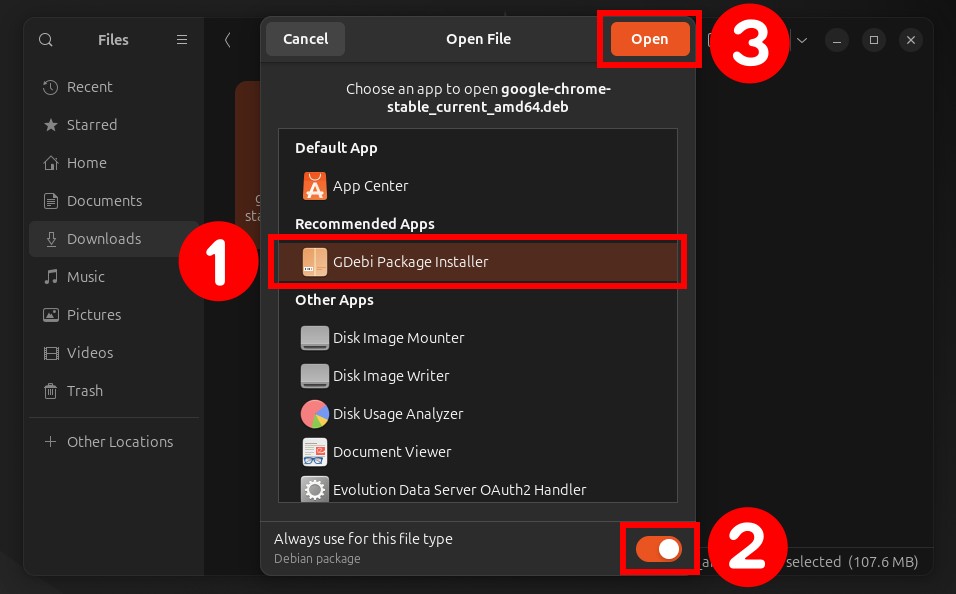
.debfile. - Right-click and Open With: Right-click on the
.debfile. From the context menu, select “Open With” and then choose “GDebi Package Installer.” - Review and Install: GDebi will open, displaying detailed information about the package, including its dependencies. Crucially, it will tell you if all dependencies are met, or if additional packages need to be installed.
- If dependencies are met, it will show “All dependencies are satisfied.”
- If not, it will list the missing dependencies and offer to install them for you.
- Click “Install Package”: Click the button to proceed. Enter your password when prompted.
Pros:
- Excellent at identifying and installing missing dependencies, making installations more reliable.
- Provides clear feedback on dependency status.
- Simple graphical interface.
Cons:
- Requires a separate installation of GDebi itself.
GDebi is a perfect example of a specialized Tech tool that enhances productivity by streamlining a potentially complex process. Its focus on dependency resolution saves users from manual troubleshooting, making it a favorite among experienced Linux users for .deb installations.
Method 2: Mastering the Command Line for .deb Files
For many Linux users, the command line interface (CLI) is the preferred tool for system management. It offers precision, speed, and powerful automation capabilities. Installing .deb files via the terminal is a skill that empowers you with greater control and insight into the installation process.
Using dpkg for Direct Package Installation
dpkg is the foundational package management system for Debian and its derivatives, including Ubuntu. It directly handles .deb packages. While powerful, dpkg has a notable limitation: it does not automatically resolve dependencies. You are responsible for ensuring all required packages are present.
- Open Terminal: Press
Ctrl+Alt+T. - Navigate to the .deb file: Use the
cdcommand to change to the directory where your.debfile is located. For example, if it’s in your Downloads folder:
bash

cd ~/Downloads
- Install the package: Use the
dpkg -icommand, followed by the filename of your.debpackage.
bash

sudo dpkg -i your_package_name.deb
Replaceyour_package_name.debwith the actual filename. You’ll be prompted for your password.
Handling Dependency Errors with dpkg:
Often, dpkg will complete with an error message indicating missing dependencies. This is where its limitation comes into play. If you see errors like dpkg: dependency problems prevent configuration of..., you need to fix them. The solution is usually simple:
sudo apt install -f
This command tells apt to “fix broken dependencies.” apt will then analyze your system, identify the missing dependencies required by the .deb package you just tried to install, and automatically download and install them. After apt finishes, the dpkg installation should be resolved, and your application will be ready.
Pros:
- Direct control over the installation process.
- Essential for server environments or scripting.
- The
dpkgcommand is the lowest-level tool for.debfiles.
Cons:
- Does not automatically resolve dependencies, requiring an additional
apt install -fstep. - Can be intimidating for new users.
While seemingly more complex, mastering dpkg provides a deeper understanding of how packages are managed, a valuable Tech skill.
The Modern apt Command for Seamless Integration
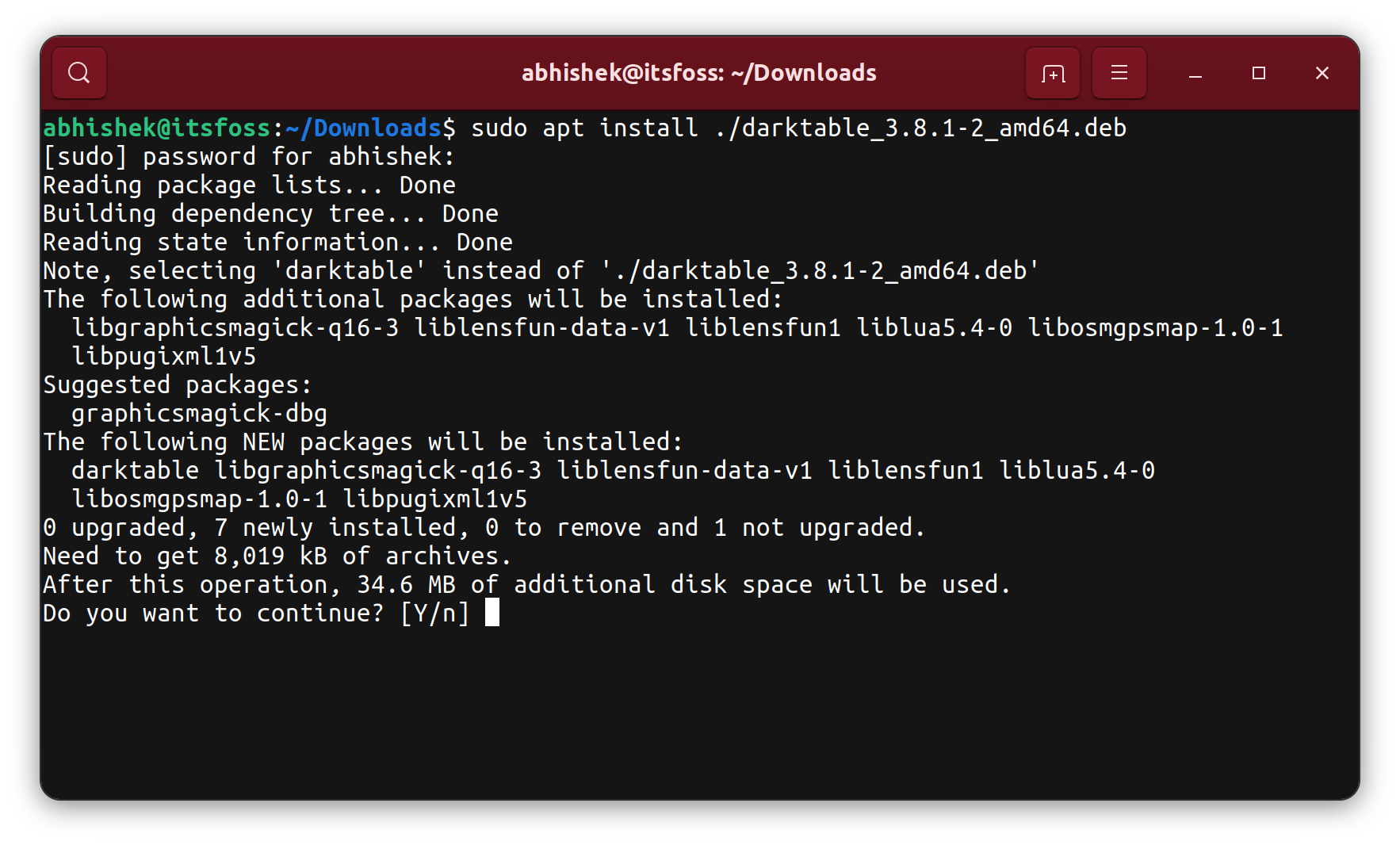
Since Ubuntu 14.04 (and later), the apt command-line tool has evolved significantly, becoming a powerful, user-friendly front-end to dpkg and other package management utilities. Critically, apt can now directly install local .deb files and, unlike dpkg, it automatically handles dependency resolution! This makes it the recommended command-line method for installing local .deb packages.
- Open Terminal: Press
Ctrl+Alt+T. - Navigate to the .deb file:
bash

cd ~/Downloads
- Install the package: Use
apt install, followed by the relative path to your.debfile (starting with./to indicate a local file).
bash

sudo apt install ./your_package_name.deb
aptwill automatically check for dependencies, prompt you to confirm their installation if needed, and then proceed with installing your package.
Pros:
- Automatically resolves and installs dependencies, making it much more robust than
dpkg -ialone. - Combines the power of the command line with the convenience of automatic dependency resolution.
- Modern and user-friendly command-line experience.
- More informative output during installation.
Cons:
- Requires
aptversion that supports this syntax (generally available in modern Ubuntu releases).
Using apt install ./package.deb is a highly efficient way to manage local packages, embodying productivity through its streamlined approach. It brings the robustness of repository-based installation to individual .deb files, representing a significant advancement in command-line package management.
Troubleshooting Common .deb Installation Issues
Even with the best tools and practices, you might occasionally encounter issues. Knowing how to troubleshoot is a hallmark of an effective Tech user.
Resolving Dependency Hell
This is by far the most common problem when installing .deb files. You might see messages like:
dpkg: dependency problems prevent configuration of...The following packages have unmet dependencies:
Solutions:
sudo apt install -f: As discussed, this is the first and most frequent solution. It attempts to fix broken dependencies by installing missing ones.- Manual Installation of Dependencies: Sometimes,
apt install -fmight struggle if a dependency itself is a.debfile you also downloaded. In such cases, you might need to install the dependency’s.debfile first usingapt install ./dependency.deb, then try your main package again. - Check for Architecture Mismatches: If you’re running a 64-bit Ubuntu system, ensure you’re downloading 64-bit
.debpackages (often indicated byamd64in the filename). Installing a 32-bit package (i386) on a 64-bit system without proper multi-arch configuration can cause dependency issues.
Dealing with Broken Packages and Permissions
Broken Packages:
If a package installation gets interrupted or corrupted, your package manager might report “broken packages.”
- Remove and Reinstall: The safest bet is to try removing the problematic package completely and then attempting a fresh installation.
bash

sudo apt remove --purge package_name

sudo apt autoremove

sudo apt clean
Then, try installing the.debfile again. - Force Removal (Last Resort): If
apt removefails, you might need to forcedpkgto remove it, but use this with extreme caution as it can leave your system in an inconsistent state.
bash

sudo dpkg --remove --force-remove-reinstreq package_name
Permission Denied Errors:
If you see “Permission denied” or similar errors during installation, it usually means you forgot to use sudo. Package installations modify system files and require root privileges. Always prefix installation commands with sudo.
sudo command_here
Troubleshooting is an iterative process. Start with the simplest solutions and work your way up. Online forums and documentation are your friends for more specific issues.
Conclusion: Empowering Your Ubuntu Experience
Mastering the installation of .deb files on Ubuntu is more than just a technical skill; it’s about unlocking the full potential of your operating system. From leveraging niche applications to ensuring your system’s digital security through careful source selection and verification, each method discussed offers a pathway to greater control and customization.
Whether you prefer the intuitive clicks of the Ubuntu Software Center or GDebi, or the powerful precision of the apt and dpkg commands, you now have the knowledge to confidently manage software outside the official repositories. Remember to prioritize official sources, verify checksums, and keep your system updated to maintain a secure and efficient computing environment.
In the fast-evolving landscape of Tech, where software is constantly being developed and refined, the ability to seamlessly integrate new tools into your workflow is a significant boost to productivity. By understanding and applying these methods, you’re not just installing software; you’re taking a proactive step towards becoming a more capable and empowered Ubuntu user, ready to adapt your system to any challenge or opportunity.
aViewFromTheCave is a participant in the Amazon Services LLC Associates Program, an affiliate advertising program designed to provide a means for sites to earn advertising fees by advertising and linking to Amazon.com. Amazon, the Amazon logo, AmazonSupply, and the AmazonSupply logo are trademarks of Amazon.com, Inc. or its affiliates. As an Amazon Associate we earn affiliate commissions from qualifying purchases.