
In an increasingly saturated streaming landscape, managing your digital subscriptions has become a critical skill for tech-savvy consumers. From budgeting to content fatigue, there are numerous reasons why one might decide to streamline their entertainment portfolio. Paramount+, with its extensive library spanning live sports, original series, and classic movies from the ViacomCBS family, has carved out a significant niche. However, like any digital service, the decision to unsubscribe can arise. This comprehensive guide will walk you through the precise steps to cancel your Paramount+ subscription, ensuring a smooth and hassle-free process, regardless of how you initially signed up. We’ll delve into the technicalities, provide troubleshooting advice, and offer strategic insights into managing your digital entertainment ecosystem.
Navigating the Cancellation Process: A Step-by-Step Technical Guide
The method for cancelling Paramount+ primarily depends on the platform through which you subscribed. Understanding this distinction is the first and most crucial step to a successful cancellation. Paramount+ offers subscriptions directly through its website and various third-party platforms, each with its own management interface.
Cancelling Directly via the Paramount+ Website
This is the most common and often the most straightforward method if you subscribed using your web browser. This process directly interacts with Paramount+’s billing system.
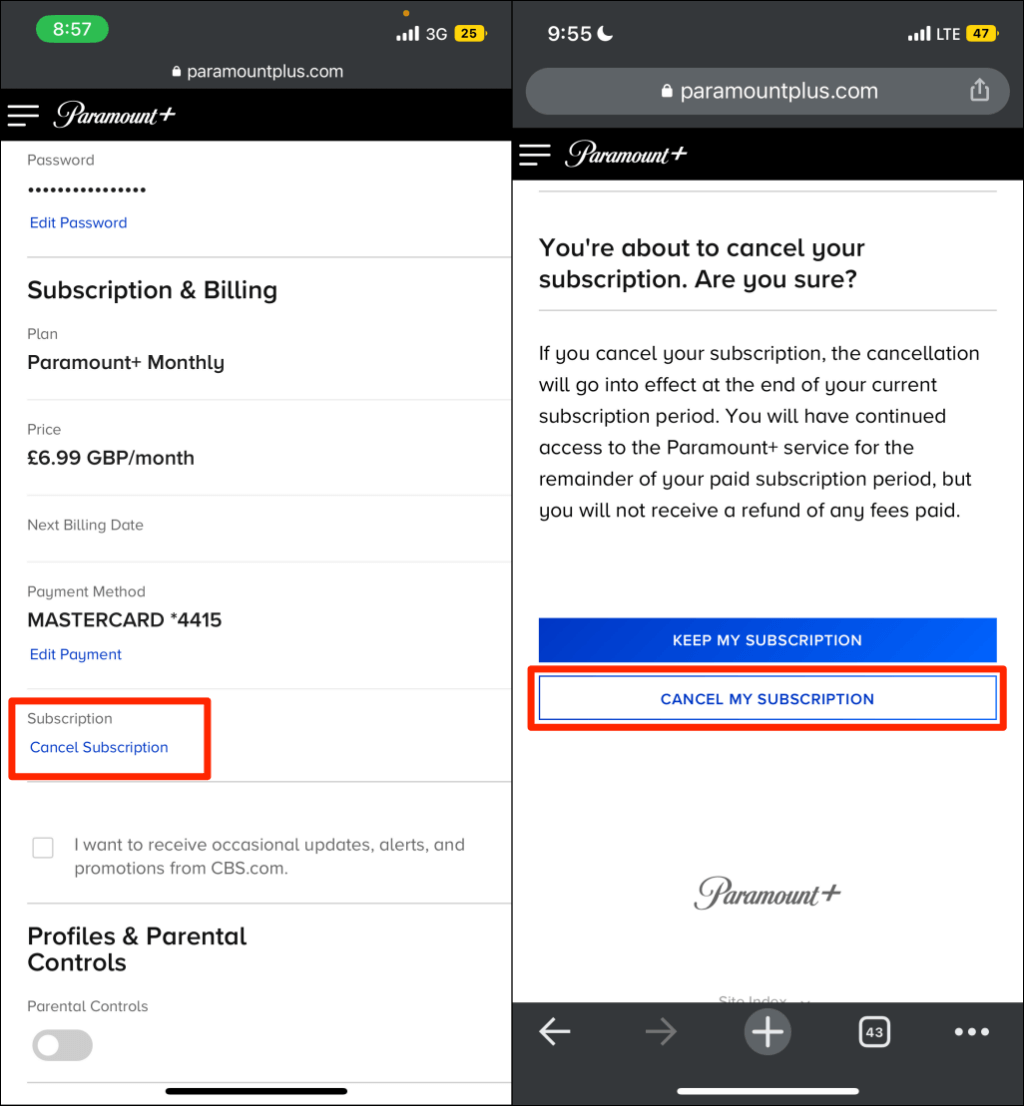
- Access Your Account: Open your preferred web browser and navigate to the official Paramount+ website (paramountplus.com). Log in using your registered email address and password. If you’ve forgotten your credentials, utilize the “Forgot Password” link to reset them, as access to your account is indispensable.
- Locate Account Settings: Once logged in, hover over your profile icon (usually located in the top-right corner of the screen) and select “Account” or “Account Settings” from the dropdown menu. This section is your central hub for managing all aspects of your subscription.
- Find Subscription & Billing: Within the Account Settings page, look for a section labeled “Subscription & Billing,” “Subscription,” or similar. This is where details about your current plan, next billing date, and cancellation options are typically housed.
- Initiate Cancellation: You should see an option such as “Cancel subscription,” “Manage subscription,” or “End subscription.” Click on this link. Paramount+ may present you with a series of prompts asking for feedback on why you’re cancelling, or offering incentives to stay. While providing feedback can be helpful for their service improvement, it’s not mandatory.
- Confirm Cancellation: Crucially, follow all on-screen instructions until you receive a definitive confirmation that your subscription has been cancelled. This often involves clicking a final “Confirm Cancellation” button. You should also receive an email confirmation of your cancellation. Retain this email for your records, as it serves as proof of cancellation. Your access to Paramount+ content will typically continue until the end of your current billing cycle.
Cancelling via Mobile App (iOS/Android)
If you subscribed to Paramount+ directly through the Paramount+ app on an Apple or Android device, your subscription is managed through that device’s respective app store (App Store for iOS, Google Play Store for Android). This means Paramount+ itself doesn’t directly handle the billing or cancellation, but rather the platform provider does.
For iOS Devices (iPhone, iPad, Apple TV):
- Open Settings: On your iOS device, go to the “Settings” app.
- Access Apple ID: Tap on your name at the very top of the Settings menu to access your Apple ID, iCloud, Media & Purchases.
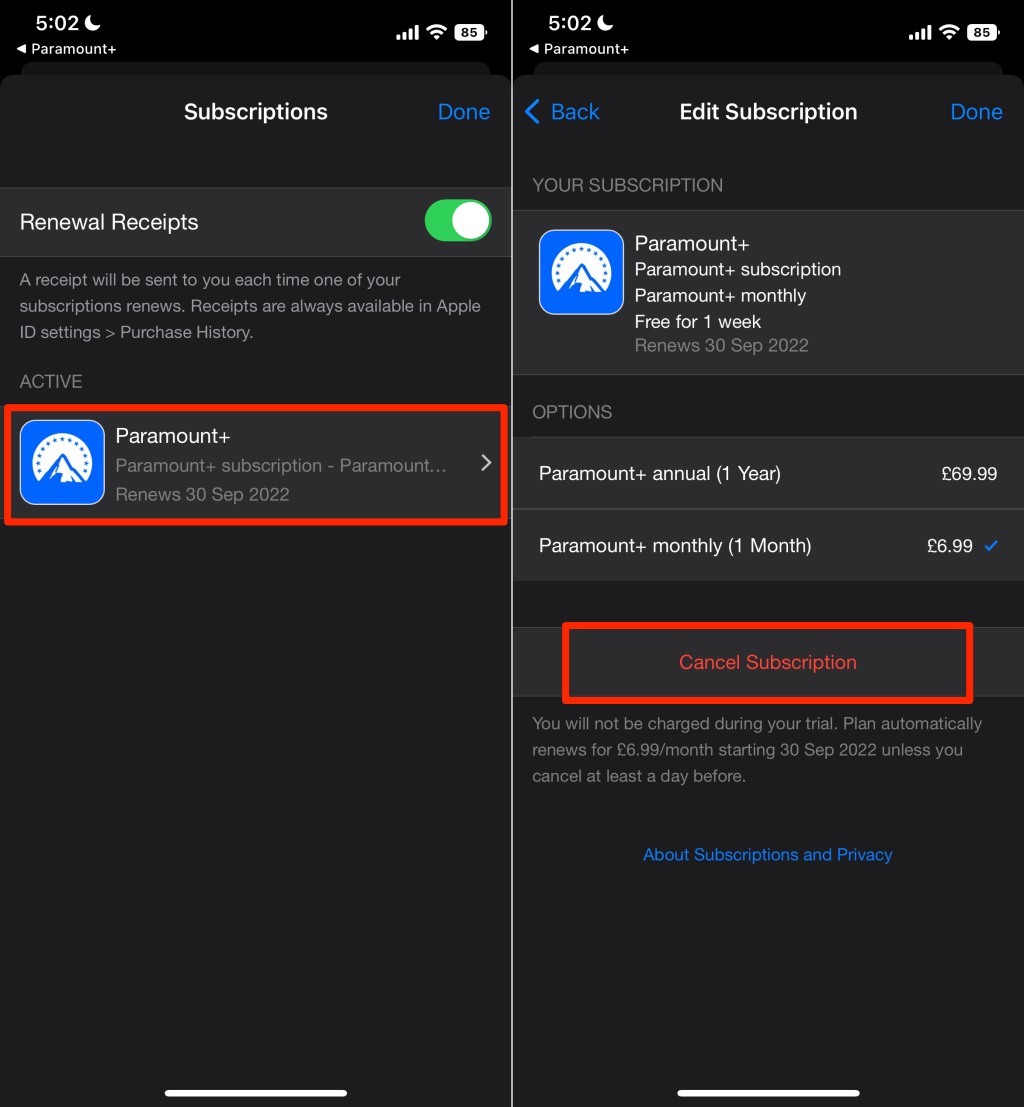
- Subscriptions: Tap on “Subscriptions.” You may be prompted to authenticate with Face ID, Touch ID, or your passcode.
- Find Paramount+: Locate Paramount+ in your list of active subscriptions.
- Cancel Subscription: Tap on Paramount+ and then select “Cancel Subscription.” Confirm your decision. You will receive a confirmation from Apple, and your subscription will remain active until the end of its current billing period.
For Android Devices (Phones, Tablets, Android TV):
- Open Google Play Store: Launch the Google Play Store app on your Android device.
- Access Account Menu: Tap on your profile icon (usually top-right corner).
- Subscriptions: Select “Payments & subscriptions,” then “Subscriptions.”
- Find Paramount+: Locate Paramount+ in your list of active subscriptions.
- Cancel Subscription: Tap on Paramount+ and then select “Cancel subscription.” Follow any prompts to confirm. Google Play will confirm the cancellation, and your access will continue until the end of the current billing cycle.
Cancelling via Third-Party Billing Platforms (Amazon Prime Channels, Roku, Apple TV Channels, etc.)
Many users subscribe to Paramount+ as an add-on or “channel” through other streaming ecosystem providers like Amazon Prime Video Channels, Roku Channel Store, or Apple TV Channels. In these scenarios, the cancellation process must occur on the platform where you originally made the purchase.
For Amazon Prime Video Channels:
- Log into Amazon: Go to amazon.com in your web browser and log into your Amazon account.
- Access Account & Lists: Hover over “Account & Lists” and select “Memberships & Subscriptions.”
- Find Paramount+: Locate Paramount+ in your list of subscriptions under “Prime Video Channels.”
- Cancel Channel: Click on “Cancel Channel” or “Manage Subscription” next to Paramount+. Follow the on-screen instructions to confirm.
For Roku Channel Store:
- Access Roku Account: Log in to your Roku account online at my.roku.com or on your Roku device.
- Manage Subscriptions: On the Roku website, go to “Manage your subscriptions.” On a Roku device, highlight the Paramount+ channel, press the
*button on your remote, and select “Manage subscription.” - Cancel Subscription: Select “Cancel subscription” and follow the prompts to confirm.
For Apple TV Channels (within the Apple TV app):
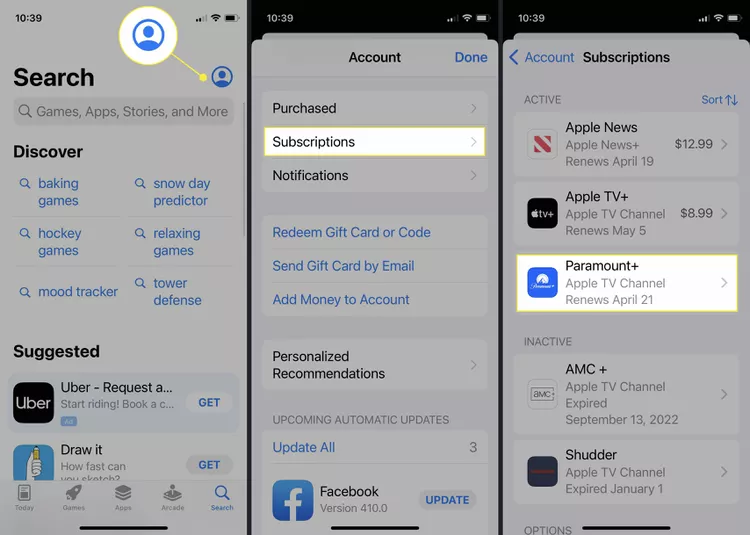
- Open Apple TV App: On an Apple device (iPhone, iPad, Apple TV, Mac), open the Apple TV app.
- Access Account: Go to “Watch Now,” then tap your profile icon at the top.
- Manage Subscriptions: Under “Subscriptions,” select “Manage Subscriptions.”
- Find Paramount+: Locate Paramount+ and select “Cancel Subscription.”
Understanding your original subscription point is paramount to a successful cancellation. Always check your billing statements if you’re unsure where you were initially charged.
Common Pitfalls and Troubleshooting Tips During Cancellation
While the cancellation process is designed to be user-friendly, technological glitches or simple misunderstandings can sometimes lead to frustration. Being aware of potential issues and how to troubleshoot them can save you time and effort.
Billing Cycle Awareness and Prorated Refunds
A common misconception is that cancelling immediately results in a prorated refund for the unused portion of a billing cycle. For Paramount+ (and most streaming services), this is generally not the case. When you cancel, your access to content typically continues until the end of your current paid billing period. To avoid being charged for another month/year, it is crucial to cancel before your next billing date. Always check your “Subscription & Billing” section for the precise renewal date. Paramount+ terms of service explicitly state that subscriptions are non-refundable, so timing your cancellation correctly is key.
Account Access and Password Issues
One of the most frequent hurdles is simply being unable to log into the correct account. Many users have multiple email addresses or have signed up years ago and forgotten their credentials.
- Verify Email Address: Ensure you are using the email address associated with your Paramount+ subscription. Check old confirmation emails or bank statements for clues.
- Password Reset: If you’ve forgotten your password, use the “Forgot Password” or “Reset Password” link on the login page. Follow the instructions to create a new password. Be patient, as password reset emails can sometimes take a few minutes to arrive and may end up in your spam folder.
- Multiple Accounts: It’s possible you inadvertently created multiple Paramount+ accounts. If you continue to see charges after cancelling what you thought was your only account, try logging in with other email addresses you might have used.
Persistent Charges After Cancellation Confirmation
If you’ve followed the cancellation steps and still see charges on your bank or credit card statement, there are a few possibilities:
- Incomplete Cancellation: Double-check your email for a cancellation confirmation. If you don’t have one, it’s possible the final confirmation step was missed. Revisit the cancellation steps on the correct platform.
- Third-Party Billing Confusion: This is a very common issue. If you subscribed via a third party (Amazon, Apple, Google, Roku), cancelling directly on the Paramount+ website will not stop the billing. You must cancel through the platform that is actually billing you. Review your bank statements to identify the billing entity (e.g., “AMAZON VIDEO,” “APPLE.COM/BILL,” “GOOGLE PLAY”).
- Pending Charges: Sometimes, a charge might appear as “pending” just before your billing cycle ends. If you cancelled before the renewal date, this pending charge should eventually disappear. Give it a few business days.
- Contact Support: If all else fails, gather your cancellation confirmation email (if you have one), billing statements, and account details, then contact Paramount+ customer support directly. Be prepared to provide subscription details and dates. If the issue is with a third-party biller, contact their support (e.g., Amazon, Apple, Google, Roku).
What Happens After You Cancel? Understanding the Aftermath
Cancelling a streaming service doesn’t necessarily mean an immediate cut-off from content. There are specific implications for your access, data, and future re-subscription options.
Continued Access Until Billing Cycle End
As mentioned, Paramount+ allows you to continue enjoying its content until the very last day of your current paid billing period. This is a standard practice across the streaming industry, providing value for the full payment made and preventing a sudden, inconvenient cutoff. For example, if you pay monthly on the 15th and cancel on the 1st, you will still have access until the 14th of that month. This grace period can be strategically used to finish watching any pending shows or movies.
Data Retention and Re-subscription Ease
When you cancel, Paramount+ typically retains your profile information, watch history, and preferences for a certain period. This is designed to make re-subscription as seamless as possible. If you decide to return to Paramount+ in the future, you’ll likely find your personalized profile and viewing progress largely intact, eliminating the need to start from scratch. This strategy also serves as a soft retention tactic, as it lowers the barrier for returning users. While the exact duration of data retention isn’t always publicly disclosed, it generally extends for several months, often up to a year or more.
Promotional Offers and Retention Strategies
After initiating a cancellation, or even a period of inactivity, you might receive emails from Paramount+ offering special re-subscription deals or extended free trials. This is a common industry retention strategy, aiming to win back “churned” subscribers. These offers can be appealing if your reasons for cancelling were primarily cost-related or if new content has been added since your departure. Keeping an eye on these offers can be a smart move if you’re open to returning at a later date.
Maximizing Your Streaming Subscriptions: A Strategic Approach
Cancelling Paramount+ can be more than just a one-off task; it can be part of a broader, more strategic approach to managing your digital entertainment and personal finance.
The Subscription Audit: When and Why to Cancel
Regularly auditing your streaming subscriptions is a vital practice for tech-savvy consumers.
- Content Rotation: Many users adopt a “stream-and-churn” strategy, subscribing to a service for a specific show or movie, cancelling after watching, and then rotating to another service. This maximizes value and minimizes monthly expenses.
- Budgeting: With multiple services costing anywhere from $5 to $20+ per month, streaming bills can quickly accumulate. A monthly or quarterly audit helps ensure you’re only paying for services you actively use and enjoy.
- Seasonal Viewing: Some services are more relevant during certain times of the year (e.g., sports packages during a specific season). Cancelling and re-subscribing strategically can align with your viewing habits.
- Content Fatigue: Sometimes, you simply run out of appealing content on a service. Cancelling allows you to explore other options without overlap.
Understanding the ‘Churn’ Phenomenon and Its Impact
“Churn” refers to the rate at which customers cancel a subscription service. For streaming companies, minimizing churn is a critical business metric. This understanding helps explain why cancellation processes are designed the way they are:
- Soft Barriers: Companies often introduce steps like feedback questions or retention offers during cancellation. These are “soft barriers” designed to make you pause and reconsider, rather than hard barriers that prevent cancellation.
- User Experience (UX): While companies want to reduce churn, making cancellation too difficult can lead to negative customer sentiment and regulatory scrutiny. There’s a balance between retention efforts and a reasonably accessible cancellation process.
- Data Insights: The reasons customers provide for cancelling (if they choose to share them) offer valuable data for service improvement, content acquisition, and pricing strategies.
The Future of Streaming Management
As subscription services proliferate, the demand for more sophisticated management tools is growing.
- Aggregator Platforms: Services that allow you to manage all your subscriptions from a single interface are emerging.
- Budgeting Apps: Many personal finance apps now include features to track and categorize subscription spending.
- Reminders and Automation: Tools that remind you of upcoming billing cycles or even automate the cancellation/re-subscription process based on your preferences could become more common. Mastering the manual cancellation process now prepares you for leveraging these future technologies.
Conclusion: Empowering Your Digital Choices
The ability to seamlessly manage your digital subscriptions, including cancelling services like Paramount+, is a fundamental aspect of modern tech literacy. By understanding the specific technical steps for each subscription method, being aware of common troubleshooting scenarios, and recognizing the broader implications of your choices, you empower yourself as a consumer. Whether you’re cutting costs, rotating content, or simply decluttering your digital life, the process of unsubscribing from Paramount+ doesn’t have to be a daunting task. With this guide, you are now equipped with the knowledge to make informed decisions and take control of your streaming landscape, ensuring that your entertainment choices align perfectly with your preferences and financial goals.
aViewFromTheCave is a participant in the Amazon Services LLC Associates Program, an affiliate advertising program designed to provide a means for sites to earn advertising fees by advertising and linking to Amazon.com. Amazon, the Amazon logo, AmazonSupply, and the AmazonSupply logo are trademarks of Amazon.com, Inc. or its affiliates. As an Amazon Associate we earn affiliate commissions from qualifying purchases.