
The Apple TV, a sleek and powerful digital media player, has transformed the living room experience for millions worldwide. Far more than just a streaming box, it’s a portal to a vast ecosystem of entertainment, fitness, gaming, and productivity apps. At its core, the Apple TV’s value lies in its ability to run a diverse range of applications, much like an iPhone or iPad, but optimized for the big screen. Whether you’re a new Apple TV owner or looking to better manage your existing app library, understanding how to effectively install, organize, and utilize apps is key to maximizing your device’s potential. This guide will walk you through everything you need to know, from the basic steps of finding and downloading apps to advanced management tips and insights into the broader Apple ecosystem.
Navigating the App Store: Your Gateway to Endless Entertainment
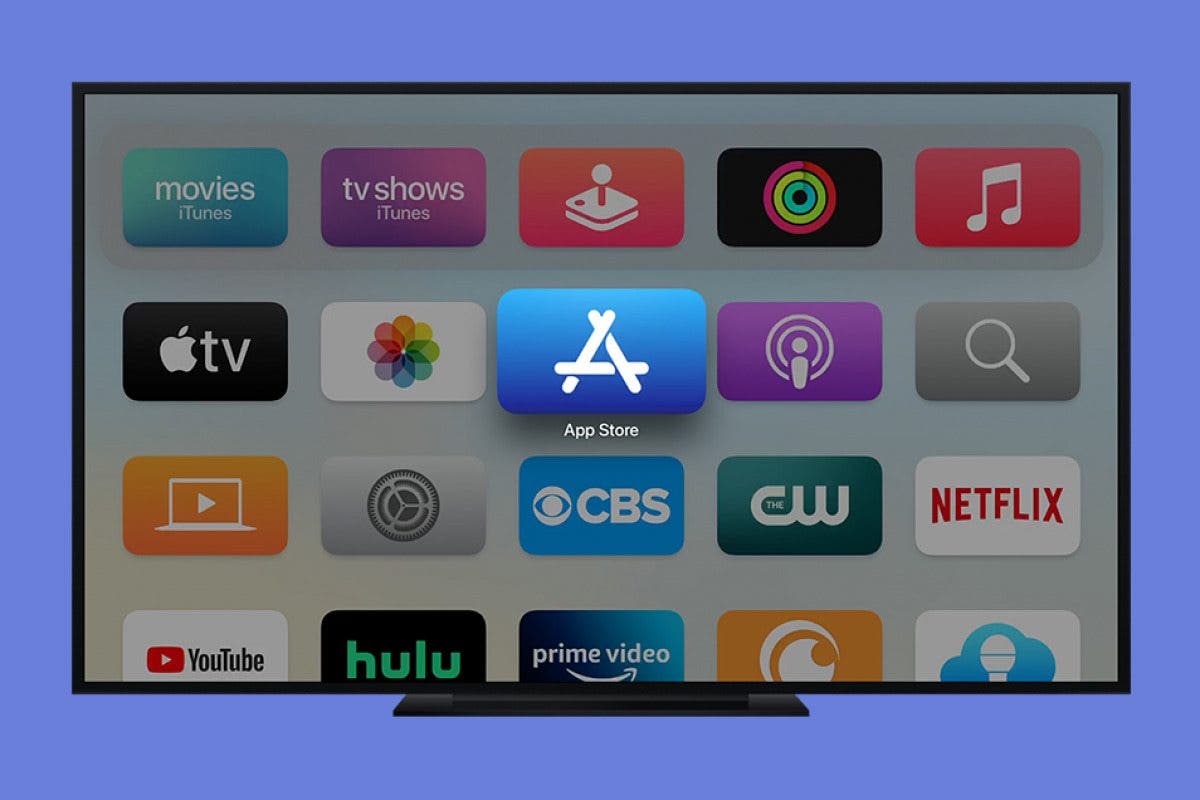
The App Store on Apple TV is your primary destination for discovering and downloading new applications. It’s meticulously designed to provide an intuitive browsing experience, making it easy to find exactly what you’re looking for, or stumble upon new favorites. Think of it as a curated digital marketplace specifically tailored for your television.
Getting Started: Launching the App Store
To begin your app journey, simply navigate to your Apple TV’s Home Screen. Look for the iconic blue App Store icon, which typically features a stylized ‘A’ or the App Store logo. Select it using your Siri Remote. Once launched, you’ll be greeted by a vibrant interface showcasing featured apps, new releases, and various categories. This initial screen is designed to inspire discovery, often highlighting popular streaming services, trending games, and innovative utility apps.
Discovering New Content: Browse, Search, and Curated Collections
The App Store offers several powerful ways to explore its extensive catalog:
- Browse Categories: If you have a general idea of the type of app you want (e.g., “Games,” “Entertainment,” “Sports,” “Lifestyle”), you can browse by category. This is an excellent way to see what’s available within a specific niche. Categories are clearly labeled and easy to navigate, allowing you to quickly narrow down your options.
- Featured Apps and Collections: Apple frequently curates collections and spotlights individual apps on the App Store’s main page. These often include editor’s picks, seasonal recommendations, or apps designed to work particularly well with tvOS, Apple’s operating system for Apple TV. Paying attention to these sections can introduce you to high-quality apps you might not have found otherwise.
- Using Search: When you know exactly what you’re looking for, the search function is your best friend. Select the “Search” tab in the App Store, and you’ll be presented with an on-screen keyboard. You can input text using the Siri Remote’s touch surface, or for even greater convenience, hold down the Siri button on your remote and speak the name of the app or a relevant keyword. For instance, you could say “Netflix,” “Disney+,” “fitness apps,” or “racing games.” The search results will appear dynamically as you type or speak, making the process quick and efficient.
Downloading and Purchasing Apps: Free, Paid, and Subscription Models
Once you’ve found an app that piques your interest, the next step is to download or purchase it. The process is straightforward and secure, leveraging your Apple ID for authentication.
- Free Apps: The ‘Get’ Button
For apps that are free to download, you’ll see a “Get” button. Simply select this button, and the download will begin. Depending on your Apple TV’s settings, you might be prompted to enter your Apple ID password or use an iPhone/iPad with Face ID/Touch ID to confirm the download. This security measure ensures that only authorized users can install apps. Once verified, the app icon will appear on your Home Screen, and a progress bar will indicate the download status. - Paid Apps: The ‘Buy’ Button and Authentication
For apps that require a purchase, you’ll see a button displaying the price (e.g., “$4.99” or “£2.99”). Selecting this “Buy” button initiates the purchase process. You’ll need to confirm the purchase using your Apple ID password or through an authenticated device. The cost of the app will be charged to the payment method associated with your Apple ID. Apple’s secure payment system ensures your financial information is protected throughout the transaction. - Understanding In-App Purchases and Subscriptions (Money Aspect)
Many apps, both free and paid, offer in-app purchases or subscriptions. In-app purchases can be one-time buys for additional content (like game levels, virtual currency, or pro features), while subscriptions typically provide ongoing access to premium content or services (e.g., ad-free streaming, exclusive articles, expanded cloud storage). It’s crucial to be aware of these as they represent additional costs beyond the initial app download. The App Store clearly indicates if an app offers in-app purchases or subscriptions, often listed on the app’s detail page. For subscription-based apps, you’ll usually get a free trial period before being charged, allowing you to test the service. Managing these subscriptions often involves navigating to your Apple ID settings on an iPhone, iPad, or through the Apple TV’s settings menu under “Users and Accounts.” This proactive management helps you avoid unwanted recurring charges and ensures you’re getting value for your money.
Mastering Your App Library: Organization and Management
Once you start accumulating apps, your Apple TV’s Home Screen can quickly become cluttered. Fortunately, tvOS provides robust tools to organize, delete, and update your apps, ensuring a smooth and personalized user experience. A well-organized Home Screen not only looks better but also makes it significantly faster to find and launch your favorite content.
Arranging Your Home Screen: Customizing Your View
Just like on an iPhone or iPad, you can rearrange app icons on your Apple TV’s Home Screen. This allows you to group related apps, place frequently used apps in prominent positions, or simply order them in a way that makes sense to you.
To rearrange apps:
- Select an app icon you wish to move.
- Press and hold the touch surface (or the select button for older remotes) until the icon begins to “jiggle.” This indicates that you’re in editing mode.
- While jiggling, swipe your finger across the touch surface of your Siri Remote to move the app icon to your desired position. You can drag it across pages or even into folders (though folders are less common on Apple TV than iOS, you can still group apps this way).
- Once the app is where you want it, press the Menu button on your Siri Remote to exit jiggle mode and save your changes.
Deleting and Offloading Apps: Freeing Up Space and Decluttering
Over time, you might download apps you no longer use, or you might need to free up storage space. tvOS offers easy ways to remove apps from your device.
To delete an app:
- Navigate to the app icon on your Home Screen.
- Press and hold the touch surface until the icon begins to “jiggle.”
- While jiggling, press the Play/Pause button on your Siri Remote. A prompt will appear asking if you want to delete the app.
- Confirm by selecting “Delete.”
Deleting an app removes it and its data from your Apple TV. If you’ve purchased a paid app, you can always redownload it from the App Store later without buying it again, as long as you use the same Apple ID.
Offloading apps, a feature common on iOS, temporarily removes the app but keeps its documents and data, making reinstallation quicker. While tvOS doesn’t explicitly have an “Offload App” option in the same way, simply deleting an app and then re-downloading it from your purchase history functions similarly, often retaining some user data depending on the app’s design. For most Apple TV users, simply deleting is the most direct approach.

Keeping Apps Up-to-Date: Automatic vs. Manual Updates
Keeping your apps updated is crucial for performance, security, and accessing the latest features. Updates often include bug fixes, new content, and enhancements that improve the overall user experience.
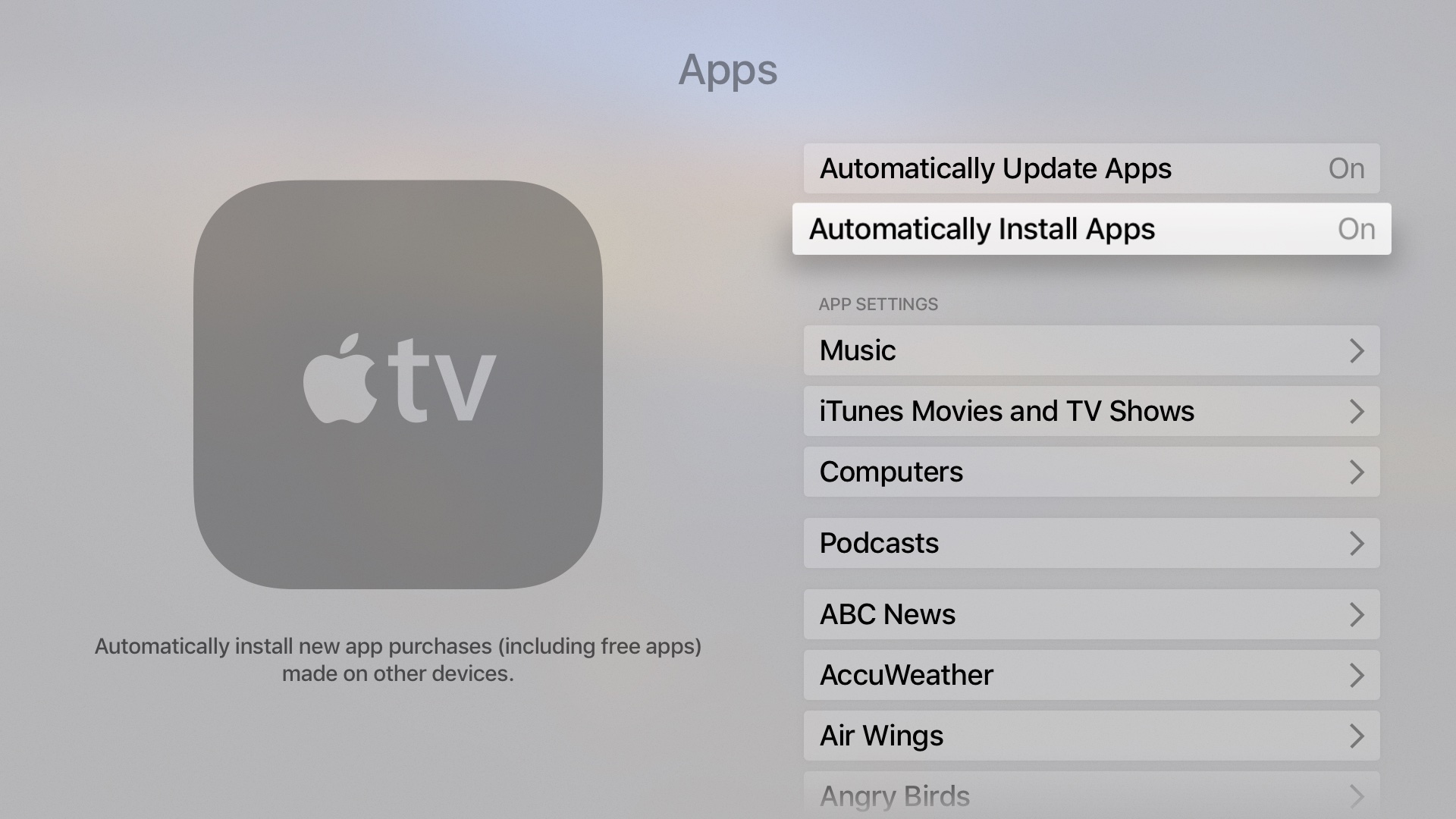
- Automatic Updates: By default, Apple TV is usually set to automatically update apps. This is the most convenient option, ensuring your apps are always current without any manual intervention. To check or change this setting, go to Settings > Apps > Automatically Update Apps. Ensure this is toggled “On” for peace of mind.
- Manual Updates: If you prefer to update apps manually, or if you ever notice an app isn’t performing correctly, you can force an update.
- Go to the App Store on your Apple TV.
- Scroll down to the “Purchased” tab (or sometimes “Updates” will appear directly).
- Look for any apps with available updates. You may see an “Update All” option or individual update buttons next to each app.
- Select the desired update option to begin.
Automatic App Downloads: Seamless Integration Across Devices
One of the seamless benefits of the Apple ecosystem is Automatic Downloads. If you enable this feature, any app you download on your iPhone or iPad that also has an Apple TV version will automatically download to your Apple TV as well, provided you’re using the same Apple ID. This makes setting up a new Apple TV or keeping your devices in sync incredibly convenient.
To enable this, go to Settings > Apps > Automatically Install Apps. Toggle this to “On.” This feature exemplifies Apple’s commitment to user experience and the interconnectedness of its products, reflecting a strong brand identity centered on ease of use and integration (Brand aspect).
Enhancing Your Apple TV Experience: Advanced Tips and Troubleshooting
Beyond the basics of installing and managing, there are several advanced tips and considerations that can significantly enhance your Apple TV experience, from sharing purchases to troubleshooting common issues and making smart financial decisions regarding your app library.
Leveraging Family Sharing for Apps
Family Sharing is a fantastic feature for households with multiple Apple devices. It allows up to six family members to share app purchases (and other content like music, movies, and books) without having to buy them multiple times. If an app is eligible for Family Sharing, once one family member buys it, it becomes available for all other family members to download for free from their own Apple TV App Store “Purchased” section. This can lead to significant cost savings (Money aspect), especially for popular games or premium utility apps. Ensure Family Sharing is set up through your primary Apple ID settings on an iPhone, iPad, or Mac.
Troubleshooting Common App Installation Issues
While the app installation process is generally smooth, you might occasionally encounter issues:
- “Get” or “Buy” button is greyed out: This usually indicates a restriction. Check Settings > General > Restrictions on your Apple TV to ensure app installations are allowed. Also, verify your Apple ID payment information is current if it’s a paid app.
- App won’t download or gets stuck:
- Check your internet connection: A stable Wi-Fi or Ethernet connection is essential.
- Restart your Apple TV: A simple restart (Settings > System > Restart) can resolve many temporary glitches.
- Check Apple’s System Status page: Occasionally, the App Store servers might experience an outage. You can check Apple’s official System Status page online to see if there are any service disruptions.
- Free up storage: While rare for app downloads, if your Apple TV is critically low on storage, it might prevent new downloads. Delete unused apps if necessary.
- App crashes or doesn’t launch: Try deleting the app and re-downloading it. If the issue persists, contact the app developer, as it might be a bug within the app itself.
The Ecosystem Advantage: Why Apple TV Apps Stand Out (Brand Aspect)
Apple’s stringent App Store guidelines ensure a high standard of quality, security, and privacy for apps available on Apple TV. This commitment to excellence is a core part of the Apple brand. Developers must adhere to specific performance and user interface guidelines, resulting in apps that are generally reliable, responsive, and aesthetically pleasing. Furthermore, the tight integration with other Apple services like Apple Arcade, Apple Fitness+, and Apple Music means a cohesive and immersive experience across all your Apple devices. This seamless interoperability enhances the overall brand experience, fostering loyalty and making Apple TV a central hub in a user’s digital life.
Smart Spending: Maximizing Value from Your App Investments (Money Aspect)
Given the plethora of free, paid, and subscription-based apps, it’s wise to be strategic with your spending.
- Utilize Free Trials: For subscription services, always take advantage of free trials to ensure the content or features meet your expectations before committing financially.
- Read Reviews: Before purchasing a paid app, read user reviews in the App Store. They offer valuable insights into an app’s functionality, stability, and overall value.
- Monitor Sales: Keep an eye out for app sales or bundles, especially around holidays. Many premium apps occasionally go on sale, offering a chance to grab them at a discount.
- Review Subscriptions Regularly: Go through your active subscriptions every few months. Are you still using all of them? Cancel any that are no longer providing value to avoid unnecessary recurring costs. This financial discipline helps ensure your entertainment budget is wisely spent.
- Consider Apple Arcade: For gamers, Apple Arcade offers over 200 premium, ad-free games for a single monthly subscription fee. This can be a significantly more cost-effective option than buying multiple individual games, representing excellent value for money.
The Future of Apple TV Apps: What’s Next?
The Apple TV App Store is a dynamic and evolving platform. As technology advances, we can expect even more sophisticated apps leveraging augmented reality (AR) in subtle ways for interactive experiences, deeper integration with smart home devices, and further enhancements in gaming. Apple’s continuous investment in tvOS and its developer community ensures a steady stream of innovative applications that will continue to redefine home entertainment. Mastering app installation and management on your Apple TV today sets you up to seamlessly embrace these future innovations, keeping your living room at the forefront of digital entertainment.
aViewFromTheCave is a participant in the Amazon Services LLC Associates Program, an affiliate advertising program designed to provide a means for sites to earn advertising fees by advertising and linking to Amazon.com. Amazon, the Amazon logo, AmazonSupply, and the AmazonSupply logo are trademarks of Amazon.com, Inc. or its affiliates. As an Amazon Associate we earn affiliate commissions from qualifying purchases.