
Keeping your system’s drivers updated is a foundational aspect of maintaining peak performance, stability, and security for any computer, and this holds especially true for systems equipped with AMD hardware. Whether you’re a gamer seeking the latest frame rate boosts, a content creator demanding seamless rendering, or a professional requiring rock-solid reliability, ensuring your AMD graphics cards, processors, and chipsets operate with the most current software is not just recommended—it’s essential. This comprehensive guide will walk you through the various methods of updating your AMD drivers, helping you navigate the process with confidence and clarity. We’ll delve into the ‘why’ behind driver updates, prepare you for the process, provide step-by-step instructions for different approaches, and equip you with troubleshooting tips to ensure a smooth, optimal experience.
Why Keeping Your AMD Drivers Updated Is Crucial
Drivers are the vital communication link between your operating system and your hardware. They translate commands from the software into instructions your AMD components can understand, ensuring everything works in harmony. Over time, as software evolves and hardware capabilities are further refined, new driver versions are released to enhance this communication. Neglecting these updates can lead to a cascade of issues, from minor glitches to significant performance bottlenecks.
Enhanced Performance and Optimization
Perhaps the most compelling reason for regular driver updates, particularly for AMD graphics cards (GPUs), is the significant performance uplift they can provide. New game releases, for instance, often come with specific optimizations that are only accessible through the latest drivers. AMD engineers constantly fine-tune their software to extract more power and efficiency from existing hardware, leading to higher frame rates, smoother gameplay, and faster rendering times in professional applications. These optimizations aren’t just for new titles; older games and applications can also benefit from improved resource management and compatibility fixes.
Bug Fixes and Stability Improvements
Software is rarely perfect, and drivers are no exception. Initial driver releases might contain bugs or compatibility issues that cause applications to crash, display artifacts, or lead to system instability. AMD regularly releases updates that specifically address these bugs, improving the overall reliability and stability of your system. If you’ve been experiencing random crashes, freezes, or unusual behavior in games or demanding software, an outdated driver is often a prime suspect. Updating can resolve these frustrating issues, providing a more consistent and predictable computing experience.
New Features and Game/Application Support
Beyond performance and stability, driver updates frequently introduce new features that enhance your computing experience. For AMD Adrenalin Software, this could include new overlays, recording options, streaming enhancements, or advanced display technologies like AMD FreeSync™ improvements. For processors and chipsets, updates might unlock new power management options or improve compatibility with emerging hardware standards. Furthermore, as new games and professional applications are released, updated drivers are critical for ensuring full compatibility and unlocking their intended performance capabilities, preventing issues like games failing to launch or critical software functions not working correctly.
Security Vulnerability Patches
While less frequently highlighted, driver updates can also contain crucial security patches. Malicious actors are constantly looking for vulnerabilities in software, and drivers, being low-level software interacting directly with hardware, can sometimes present an entry point. AMD, like all major hardware manufacturers, is proactive in identifying and patching these vulnerabilities. Staying updated ensures your system is protected against known exploits that could compromise your data or system integrity.
Preparing for Your Driver Update
Before embarking on the update process, a few preparatory steps can help ensure a smooth, error-free experience. These actions minimize potential risks and equip you with the necessary information to select and install the correct drivers for your specific AMD hardware and operating system.
Identifying Your AMD Hardware
The first and most critical step is to accurately identify your AMD hardware. This includes your graphics card (e.g., Radeon RX 6700 XT), your processor (e.g., Ryzen 7 5800X), and, less commonly, your chipset (e.g., AMD B550).
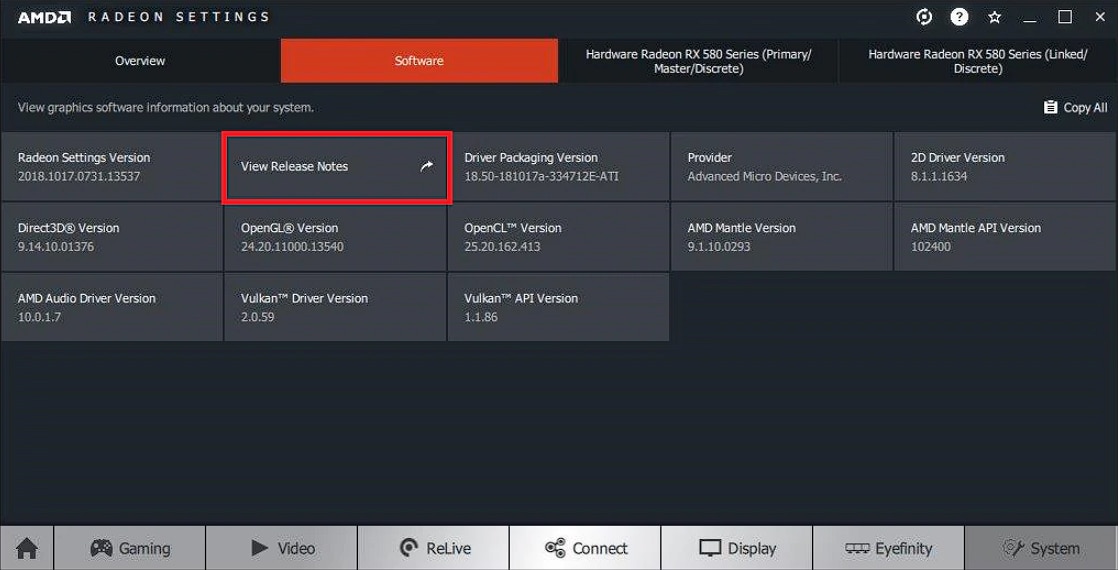
- For Graphics Cards: The easiest way is to use the existing AMD Software: Adrenalin Edition. Open the software and navigate to the “System” or “Hardware” tab, which should clearly list your GPU model. Alternatively, you can open Device Manager (right-click the Start button, select Device Manager), expand “Display adapters,” and note your AMD Radeon card.
- For Processors: In Windows, right-click the Start button, select “System,” and your processor model will be listed under “Device specifications.”
- For Chipsets: This is usually identified by your motherboard model. Check your motherboard’s manual or use a system information tool like CPU-Z to find out your motherboard model, then search for its specifications to determine the chipset.
Knowing your exact hardware model is paramount for downloading the correct drivers from AMD’s website.
Understanding Your Operating System
Driver compatibility is highly dependent on your operating system. You need to know both your Windows version (e.g., Windows 10, Windows 11) and whether it’s 32-bit or 64-bit. Almost all modern systems are 64-bit, but it’s always good to verify.
- To check your OS: Right-click the Start button, select “System.” Under “Windows specifications,” you’ll find “Edition” (e.g., Windows 11 Home) and “System type” (e.g., 64-bit operating system).
Deciding on the Update Method
There are several ways to update your AMD drivers, each with its own advantages. You’ll primarily choose between:
- AMD Software: Adrenalin Edition: This is the recommended and easiest method for graphics drivers, offering an integrated update utility.
- Manual Download from AMD’s Website: Provides the most control and is necessary for chipset drivers or if the Adrenalin software isn’t installed or working.
- Windows Device Manager: A basic method, often less effective for graphics drivers but useful for other components.
Familiarizing yourself with these options beforehand will help you choose the most appropriate path.
Backing Up Important Data (Optional but Recommended)
While driver updates are generally safe, any system-level change carries a minuscule risk of unforeseen issues. It’s always a good practice to back up any critical files or system restore points before performing significant updates. This is a general computing best practice, not specific to driver updates, but worth mentioning for overall system health.
Step-by-Step Guide to Updating AMD Drivers
With your preparations complete, let’s dive into the practical steps for updating your AMD drivers. We’ll cover the most common and recommended methods in detail.
Method 1: Using AMD Software: Adrenalin Edition (Recommended for Graphics)
This is the simplest and most recommended method for updating your AMD Radeon graphics drivers, assuming you already have the Adrenalin software installed.
- Open AMD Software: Adrenalin Edition:
- Right-click anywhere on your desktop and select “AMD Software: Adrenalin Edition” from the context menu.
- Alternatively, search for “AMD Software” in your Windows Start Menu.
- Check for Updates:
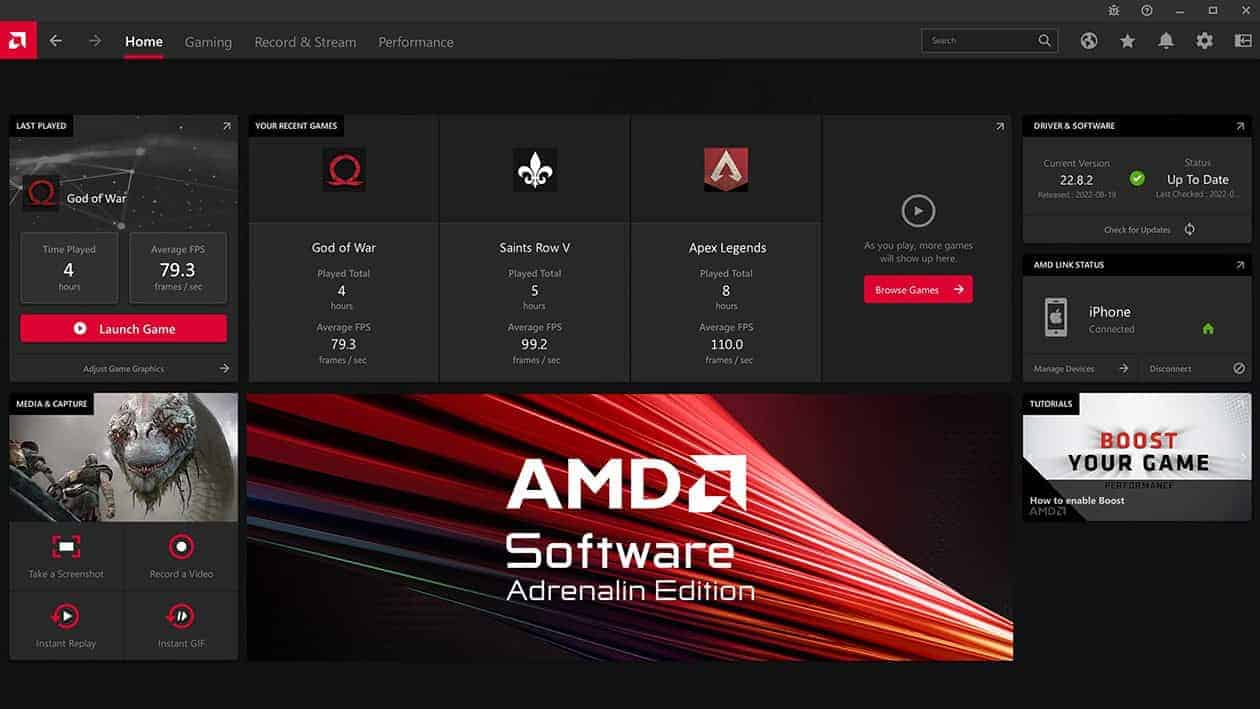
- Once the Adrenalin software opens, navigate to the “Drivers & Software” section (usually found on the top menu bar or a prominent tile on the home screen).
- You’ll see your currently installed driver version. Look for a “Check for Updates” button or a similar option. The software will then scan for newer versions available from AMD’s servers.
- Download and Install:
- If a new driver version is available, the software will display it. You’ll typically have options like “Recommended” and “Optional” (or “WHQL” and “Beta”). For most users, the “Recommended” (WHQL certified) driver is the best choice for stability.
- Click the “Download” button next to the desired driver version. The software will download the installation package.
- Once downloaded, click “Install.” You may be given options for a “Standard Install” or “Factory Reset” (which performs a clean installation by removing previous drivers). For most updates, a “Standard Install” is sufficient. If you’ve been experiencing issues, a “Factory Reset” is often a good idea.
- Complete the Installation and Restart:
- Follow the on-screen prompts. The screen may flicker or go black momentarily during the installation process, which is normal.
- Once the installation is complete, the software will usually prompt you to restart your computer. It is crucial to restart your system to finalize the driver installation and ensure all changes take effect.
Method 2: Manual Download from AMD’s Website (For Graphics, Processors, Chipsets)
This method provides full control and is necessary if you don’t have the Adrenalin software installed, are updating a chipset or processor driver, or prefer a clean installation from scratch.
- Visit the AMD Support Website:
- Open your web browser and go to
www.amd.com/support.
- Open your web browser and go to
- Use the Auto-Detect Tool or Manually Select Your Product:
- Auto-Detect (for Graphics): AMD offers an “Auto-Detect and Install” tool. You can download and run this utility, and it will automatically identify your AMD graphics card and recommend the appropriate driver. This is a convenient option if you’re unsure of your exact GPU model.
- Manual Selection: Scroll down to the “Select Your Product From The List” section.
- Step 1: Select your product type. For graphics cards, choose “Graphics.” For processors, choose “Processors.” For motherboard chipsets, choose “Chipsets.”
- Step 2: Select your product series. For example, “Radeon RX 7000 Series” or “AMD Ryzen Processors > Ryzen 7 Desktop Processors.”
- Step 3: Select your specific product model. For example, “Radeon RX 7900 XTX” or “Ryzen 7 7700X.”
- Step 4: Click “Submit.”
- Select Your Operating System and Download:
- On the next page, expand the section for your operating system (e.g., “Windows 11 – 64-Bit Edition”).
- Locate the latest available driver package. For graphics, this will typically be the “AMD Software: Adrenalin Edition” package. For chipsets, it will be the “AMD Chipset Driver” package.
- Click the “Download” button.
- Run the Installer:
- Once the download is complete, locate the
.exefile (usually in your Downloads folder) and double-click it to run the installer. - Follow the on-screen instructions. The graphics driver installer will often give you options for “Standard Install” or “Factory Reset” (clean install). The chipset installer will usually proceed with a standard update.
- Agree to the license terms and proceed with the installation.
- Once the download is complete, locate the
- Restart Your System:
- After the installation finishes, restart your computer as prompted to ensure the new drivers are fully integrated into your system.
Method 3: Using Windows Device Manager (Least Recommended for Graphics)
This method is less ideal for updating graphics drivers as it often downloads generic drivers or older versions, but it can be useful for other AMD components or if you’re troubleshooting.
- Open Device Manager:
- Right-click the Windows Start button and select “Device Manager.”
- Locate Your AMD Device:
- Expand “Display adapters” to find your AMD Radeon graphics card.
- Expand “Processors” to find your AMD processor.
- Expand “System devices” or “IDE ATA/ATAPI controllers” for chipset-related components.
- Update Driver:
- Right-click on the AMD device you want to update and select “Update driver.”
- Choose Update Method:
- “Search automatically for drivers”: Windows will try to find and install the best available driver on your computer or from Windows Update. This might not always be the latest AMD-specific driver.
- “Browse my computer for drivers”: If you’ve manually downloaded a driver package (as in Method 2), you can point Windows to the folder where you extracted the driver files. This is generally more reliable if using Device Manager for a specific update.
- Follow Prompts and Restart:
- Follow any further on-screen instructions. If a new driver is installed, restart your computer when prompted.
Post-Update Verification and Troubleshooting
After updating your drivers, it’s wise to perform a quick check to ensure everything is working correctly. Should issues arise, there are steps you can take to diagnose and resolve them.
Confirming Successful Installation
- Check AMD Software: Adrenalin Edition: Open the software and go to the “Drivers & Software” section. Verify that the “Driver Version” now matches the version you just installed.
- Check Device Manager: Open Device Manager, right-click your AMD device, select “Properties,” then go to the “Driver” tab. Confirm the driver date and version match the new installation.
- Test Functionality: Launch a few demanding applications or games to ensure they run smoothly and exhibit any expected performance improvements. Play a video, browse the web, and perform other routine tasks to ensure general system stability.
Common Issues and Solutions
While driver updates are usually straightforward, issues can occasionally arise:
- Display Problems (Black Screen, Flickering, Resolution Issues): This is the most common issue. Often, a simple restart resolves it. If not, try booting into Safe Mode (search “Advanced Startup Options” in Windows Settings). Once in Safe Mode, you can either try to reinstall the driver or revert to a previous version.
- System Instability or Crashes: If your system becomes unstable, it’s usually indicative of a corrupted driver installation or an incompatibility.
- Driver Rollback: Windows provides a “Roll Back Driver” option. In Device Manager, right-click your AMD device, go to “Properties,” then the “Driver” tab, and click “Roll Back Driver.” This will revert to your previously installed driver.
- Using Display Driver Uninstaller (DDU): For persistent issues, especially with graphics drivers, a clean slate is often the best solution. DDU is a third-party utility that thoroughly removes all traces of graphics drivers (AMD, NVIDIA, Intel) from your system.
- Download DDU from a reputable source (e.g., Guru3D).
- Boot your computer into Safe Mode.
- Run DDU, select “GPU” and “AMD,” then choose “Clean and restart.”
- Once restarted into normal Windows, proceed with a fresh installation of the latest AMD drivers using Method 2 (Manual Download) for the cleanest install.
Reverting to Previous Driver Versions
If a new driver causes more problems than it solves, or if you encounter a specific bug that wasn’t present before, you can revert to a previous, known-stable driver version. AMD’s website often hosts a few older driver versions for download, or you can use the “Roll Back Driver” feature in Device Manager. Always keep a backup of a stable driver installer if you’re prone to experimenting with beta drivers.
Updating your AMD drivers is a routine maintenance task that yields significant benefits in terms of performance, stability, and security. By following the steps outlined in this guide, you can confidently manage your AMD software, ensuring your system remains at its best, ready to tackle any task or game you throw its way. Regular updates are key to unlocking the full potential of your AMD hardware and enjoying a consistently superior computing experience.
aViewFromTheCave is a participant in the Amazon Services LLC Associates Program, an affiliate advertising program designed to provide a means for sites to earn advertising fees by advertising and linking to Amazon.com. Amazon, the Amazon logo, AmazonSupply, and the AmazonSupply logo are trademarks of Amazon.com, Inc. or its affiliates. As an Amazon Associate we earn affiliate commissions from qualifying purchases.