
Understanding where Python’s package installer, pip, places the libraries and tools you need is far more crucial than many developers realize. It’s not just a trivial detail; it’s a fundamental aspect of managing your Python projects, avoiding conflicts, and ensuring your applications run smoothly across different environments. In the vast and dynamic world of Python development, from intricate AI models to robust web applications, the ability to effectively manage dependencies hinges on a clear comprehension of pip‘s installation mechanisms. This article dives deep into the various destinations pip utilizes, provides actionable insights on how to locate your installed packages, and outlines best practices for maintaining a clean and efficient Python ecosystem.
Understanding Python’s Package Ecosystem and Pip
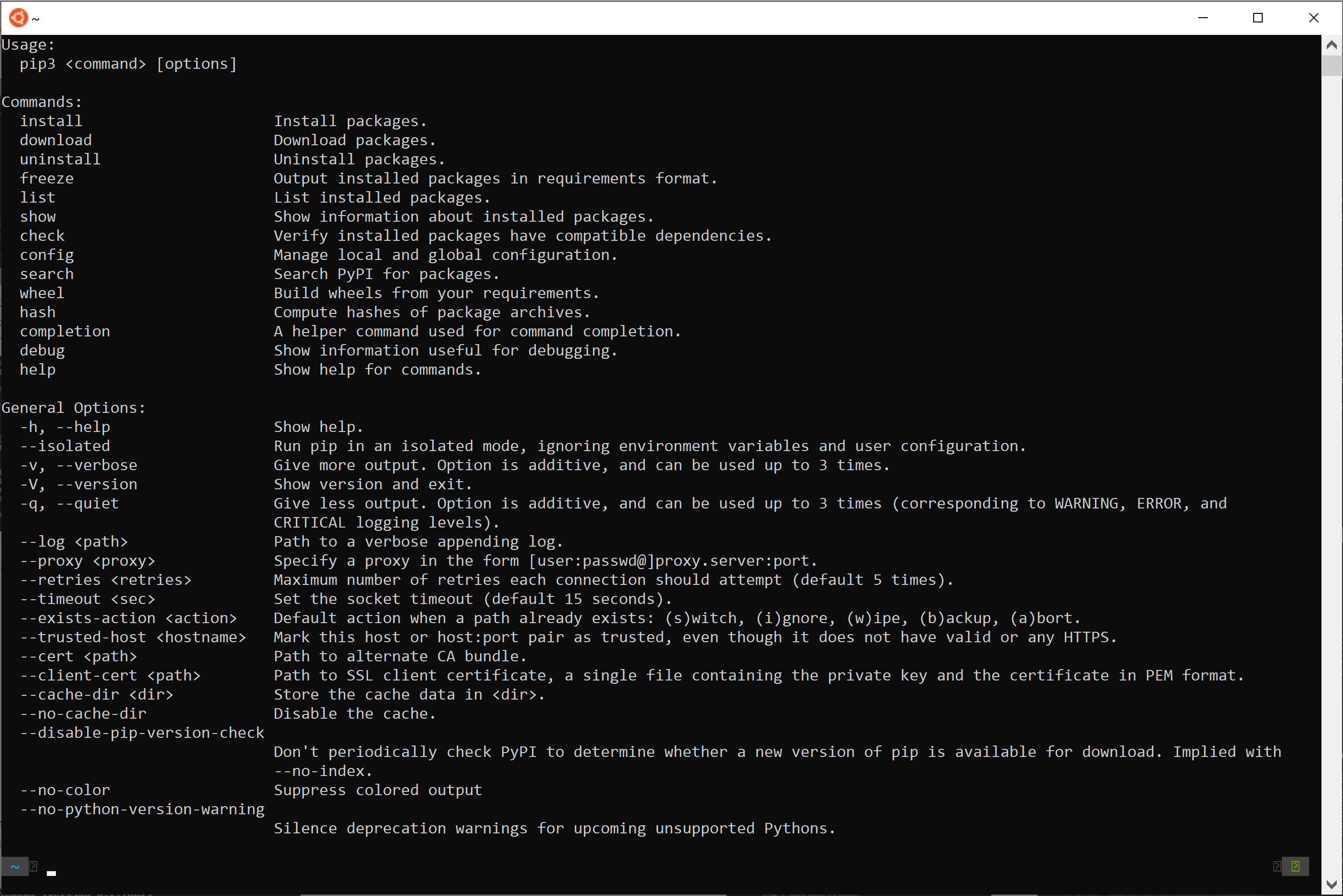
Python’s strength lies not only in its elegant syntax and versatility but also in its incredibly rich ecosystem of third-party libraries and frameworks. These packages, ranging from data science powerhouses like NumPy and Pandas to web development giants like Django and Flask, are the building blocks of modern Python applications. pip (package installer for Python) is the de facto standard tool for installing, managing, and upgrading these packages. It simplifies the process of bringing external code into your projects, but behind its straightforward command-line interface lies a sophisticated system of pathing and environment management.
What is Pip and Why Does Location Matter?
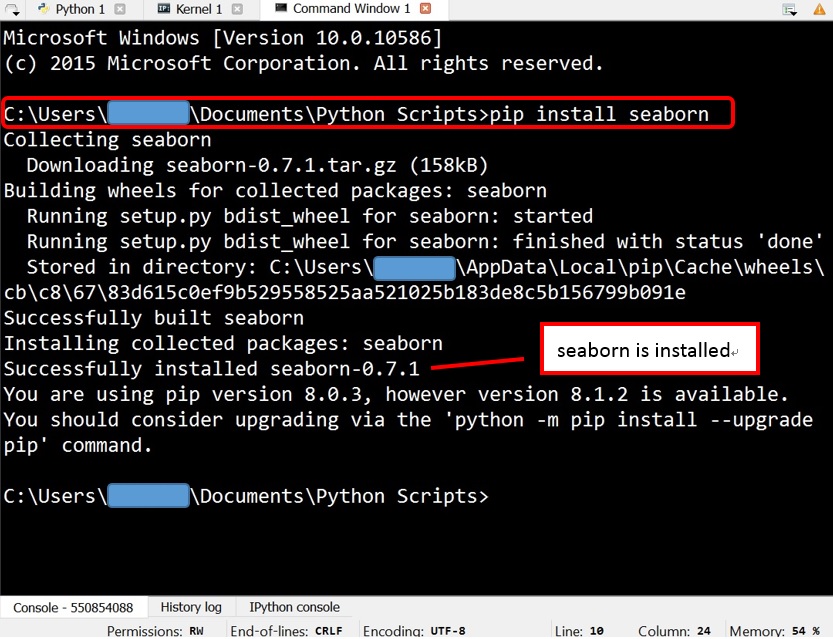
At its core, pip is a command-line utility that allows you to install and manage Python packages found on the Python Package Index (PyPI) and other package indexes. When you run pip install some-package, pip fetches the specified package, resolves its dependencies, and places all the necessary files into a designated location on your system.
The “where” of this installation is paramount for several reasons:
- Dependency Resolution and Conflicts: Different projects often require different versions of the same package. If all packages were installed globally in a single location, resolving these version conflicts would be a nightmare, often leading to “dependency hell” where one project breaks when another’s requirements are met.
- Isolation and Reproducibility: To ensure a project works consistently across different machines or for different developers, its environment needs to be isolated and reproducible. Knowing where packages are installed helps achieve this isolation.
- Permissions and Security: Global installations often require administrative privileges, which can pose security risks or simply be inconvenient in shared environments. Understanding user-specific installation paths allows for safer, non-root installations.
- Troubleshooting: When a package isn’t found or an import error occurs, knowing the potential installation locations is the first step in debugging the problem.
- System Hygiene: Over time, a system can accumulate many unused or conflicting packages. Understanding
pip‘s installation paths aids in cleaning up and maintaining an organized development environment.
The Importance of a Structured Environment
For years, Python developers grappled with the challenges of managing dependencies across multiple projects. The introduction and widespread adoption of virtual environments dramatically improved this situation. A structured environment, typically achieved through virtual environments, creates isolated spaces for each project, ensuring that dependencies installed for one project do not interfere with another. This concept is central to understanding pip‘s installation behavior, as pip intelligently adapts its installation targets based on whether a virtual environment is active.
Demystifying Pip’s Installation Destinations
pip doesn’t just pick a random spot; it follows a well-defined hierarchy of locations, primarily influenced by whether you are operating within a virtual environment, installing globally, or targeting user-specific directories. Let’s break down these primary installation destinations.
The Power of Virtual Environments: Your Isolated Sanctuaries
When you create and activate a virtual environment (using tools like venv or virtualenv), you are essentially creating a self-contained directory tree that contains a fresh installation of the Python interpreter and its own pip executable. When pip is run within an active virtual environment, it will install packages directly into that environment’s site-packages directory.
How it Works:
- Creation: A virtual environment tool (e.g.,
python -m venv myenv) creates a directory (e.g.,myenv). - Structure: Inside
myenv, you’ll typically find:bin/(orScripts/on Windows): Contains thepythonexecutable,pip, and other scripts.lib/pythonX.Y/site-packages/(orLib/site-packages/on Windows): This is the crucial directory where all packages installed viapipinto this specific virtual environment will reside.
- Activation: When you activate the virtual environment (e.g.,
source myenv/bin/activate), your shell’sPATHvariable is temporarily modified to prioritize thepythonandpipexecutables withinmyenv. - Isolation: This means that when you run
pip install some-package, thepipexecutable frommyenvis used, and it installssome-packageonly intomyenv/lib/pythonX.Y/site-packages/. Your global Python installation remains untouched.
Benefits of Virtual Environments:
- Project-Specific Dependencies: Each project can have its own set of packages and package versions without conflicting with others.
- Cleanliness: Prevents your global Python installation from becoming cluttered with project-specific dependencies.
- Reproducibility: Easy to share
requirements.txtfiles (listing project dependencies) and recreate identical environments. - No Root Permissions: You don’t need administrative privileges to install packages within a virtual environment.
Example Path (Conceptual):
/path/to/your_project/my_virtual_env/lib/python3.9/site-packages/your_package
Global Installation: The System-Wide Approach
If you run pip install some-package without an active virtual environment, pip will attempt to install the package into your system’s global Python site-packages directory. This is the primary location where Python itself expects to find third-party modules that are intended to be available to all Python scripts on your system.
Characteristics:
- System-Wide Availability: Packages installed globally are accessible to any Python script executed with that specific global Python interpreter.
- Permissions: Installing globally often requires administrator or root privileges (e.g.,
sudo pip install some-packageon Linux/macOS, or running your command prompt as administrator on Windows) because you are modifying system-level directories. - Potential for Conflicts: This is the main drawback. If Project A needs
library-v1.0and Project B needslibrary-v2.0, installing both globally will lead to one project breaking, as only one version can exist in the globalsite-packages. - Not Recommended for Development: For most application development, global installation is strongly discouraged due to the conflict potential. It’s typically reserved for utility scripts or libraries that are truly intended for system-wide use and have stable, widely compatible versions.
Example Paths (Conceptual):
- Linux/macOS:
/usr/local/lib/python3.X/dist-packages/your_package(often for system-managed Python)/usr/local/lib/python3.X/site-packages/your_package(for user-installed Python, e.g., from Homebrew)/Library/Python/3.X/site-packages/your_package(macOS default for some installs)
- Windows:
C:UsersYourUserAppDataLocalProgramsPythonPython3XLibsite-packagesyour_package(common for user-installed Python)C:Python3XLibsite-packagesyour_package(less common direct installs)
User Site-Packages: Personalizing Your Python
As an alternative to global installation, pip offers the --user flag. When you run pip install --user some-package, the package is installed into a site-packages directory specific to your user account, rather than the global system directory.
When to Use It:
- No Root Permissions: Ideal when you don’t have administrative privileges on a system but still want to install packages for your own use without affecting other users or the global Python installation.
- Personal Utilities: Useful for installing command-line tools or personal scripts that you want to be available across all your Python projects (provided you’re not in an active virtual environment that would take precedence).
- Avoiding Conflicts (Partially): While it avoids global conflicts, it still means all your non-virtual environment Python scripts will use the same version of a package installed via
--user, so version conflicts among your personal projects can still arise if not careful.
Example Paths (Conceptual):

- Linux/macOS:
~/.local/lib/python3.X/site-packages/your_package - Windows:
C:UsersYourUserAppDataRoamingPythonPython3Xsite-packagesyour_package
The --user installation typically takes precedence over global installations if a package exists in both locations, but virtual environment installations always take the highest precedence.
Navigating Your Python Path: How to Find Installed Packages
Knowing the general categories of where pip installs packages is one thing; pinpointing the exact location of a specific package on your system is another. Fortunately, pip and Python provide several robust methods to achieve this.
Using pip show for Specific Package Details
The pip show command is arguably the most straightforward way to get detailed information about an installed package, including its precise location.
How to Use:
pip show <package_name>
What it Reveals:
pip show will output a wealth of information:
Name: The package name.Version: The installed version.Summary: A brief description.Home-page: Link to the package’s website/documentation.Author,Author-email,License: Contact and licensing details.Location: This is the key! It tells you the directory where the package is installed (specifically, its parentsite-packagesordist-packagesdirectory).Requires: Other packages this one depends on.Required-by: Other packages that depend on this one.
Example Output (Conceptual):
Name: requests
Version: 2.28.1
Summary: Python HTTP for Humans.
Home-page: https://requests.readthedocs.io
Author: Kenneth Reitz
Author-email: me@kennethreitz.org
License: Apache 2.0
Location: /Users/youruser/my_project_venv/lib/python3.9/site-packages
Requires: charset-normalizer, idna, urllib3, certifi
Required-by: None
In this example, the Location clearly indicates the package is within a virtual environment named my_project_venv. If it were a global installation, the Location would point to a system-wide site-packages directory.
Leveraging Python’s site Module
Python’s built-in site module provides programmatic access to Python’s site-specific configuration, including the paths where Python looks for modules. This is extremely useful for understanding the full search path for packages.
How to Use:
You can run this directly from your terminal:
python -m site
Or interactively within a Python interpreter:
import site
print(site.getsitepackages())  # Prints a list of system-wide site-packages directories
print(site.getusersitepackages()) # Prints the user-specific site-packages directory
print(site.getusersitepackages(prefix='/path/to/virtualenv')) # (Advanced)
What it Reveals:
The python -m site command provides a comprehensive overview:
sys.pathentries: The list of directories Python searches for modules (including your current working directory, virtual environmentsite-packages, usersite-packages, and globalsite-packages).USER_BASE: The base directory for user-specific installations (~/.localon Linux/macOS,AppDataRoamingPythonon Windows).USER_SITE: The specificsite-packagesdirectory withinUSER_BASE.VIRTUAL_ENV: If active, the path to your current virtual environment.- Other
site-packagesdirectories based on your system and Python installation.
This command is incredibly powerful for debugging “module not found” errors, as it clearly lays out all the directories Python is considering.
Exploring sys.path Programmatically
For a quick check within a Python script or an interactive interpreter session, you can inspect sys.path. This list contains all the directories that Python will search, in order, when you try to import a module.
How to Use:
import sys
for path in sys.path:
    print(path)
What it Reveals:
The order of paths in sys.path is significant. Typically, it will include:
- The current working directory (where your script is being run).
- The
site-packagesdirectory of an active virtual environment (if any). - The user
site-packagesdirectory. - The global
site-packagesordist-packagesdirectories. - Other standard library paths.
If your package isn’t found, checking sys.path can quickly tell you if the directory containing your package is even being considered by the interpreter.
Best Practices for Package Management and Environment Control
Mastering pip and understanding package locations is not just about knowledge; it’s about applying best practices to ensure robust, maintainable, and collaborative development.
Embracing Virtual Environments: A Step-by-Step Guide
Virtual environments are the cornerstone of good Python development hygiene.
- Create: Navigate to your project directory and create a virtual environment:
bash

python3 -m venv venv_name
(Replacevenv_namewith a meaningful name, often justvenvor.venv). - Activate:
- Linux/macOS:
source venv_name/bin/activate - Windows (Command Prompt):
venv_nameScriptsactivate.bat - Windows (PowerShell):
venv_nameScriptsActivate.ps1
You’ll notice your terminal prompt changes to indicate the active virtual environment (e.g.,(venv_name) user@host:~/project$).
- Linux/macOS:
- Install: Once active, use
pip installas usual. Packages will go into yourvenv_name/lib/pythonX.Y/site-packages/.
bash

(venv_name) pip install requests pandas
- Deactivate: When you’re done working on the project, simply type:
bash

(venv_name) deactivate
Your terminal will return to its normal state, and your global Python environment will be restored.
Documenting Dependencies with requirements.txt
For collaborative projects or deployment, it’s essential to document all the packages and their exact versions that your project relies on. This is where requirements.txt comes in.
- Generate: After installing all necessary packages in your active virtual environment, generate the
requirements.txtfile:
bash

(venv_name) pip freeze > requirements.txt
pip freezelists all installed packages and their versions in the current environment. - Install from: When a new developer joins the project or you deploy to a new server, they can easily set up the identical environment:
bash

# Activate your new virtual environment first

(new_venv) pip install -r requirements.txt
This command tellspipto read therequirements.txtfile and install all listed packages at their specified versions.
Dealing with Version Conflicts and Permissions
- Version Conflicts: The best defense against version conflicts is diligent use of virtual environments. If a conflict arises within a single virtual environment (less common if you’re installing fresh from
requirements.txt), you might need to manually inspect dependencies usingpip showor tools likepipdeptree(a separate package) to identify the root cause and adjust versions inrequirements.txt. - Permission Errors:
- If you encounter permission errors during
pip install, it’s almost always because you’re trying to install globally without sufficient privileges. - Solution 1 (Recommended): Use a virtual environment. This eliminates the need for root permissions for project dependencies.
- Solution 2 (If no virtual environment and truly for personal use): Use
pip install --user <package_name>. - Solution 3 (For system-wide utilities, with caution): Use
sudo pip install <package_name>on Linux/macOS, or run your command prompt/PowerShell as an administrator on Windows. Only do this if you understand the implications for your system.
- If you encounter permission errors during
Conclusion: Mastering Your Python Package Landscape
The question “where does pip install packages?” leads us down a path vital for any Python developer. From the isolated sanctity of virtual environments to the broader implications of global and user-specific installations, understanding pip‘s behavior is fundamental to effective project management. By embracing virtual environments, diligently documenting dependencies with requirements.txt, and knowing how to inspect installation paths using pip show and the site module, you gain unparalleled control over your development environment. This mastery not only streamlines your workflow but also prevents countless hours of troubleshooting, allowing you to focus on what truly matters: building innovative and robust Python applications. As the Python ecosystem continues to evolve, a strong grasp of these core concepts will remain an invaluable asset in your technical toolkit.