
The Amazon Firestick has revolutionized how millions access entertainment, transforming any TV into a smart hub for streaming. Its compact design, intuitive interface, and vast app ecosystem make it an incredibly popular device for consuming digital content. However, while the Firestick excels at delivering movies, TV shows, and games, it often leaves users vulnerable to privacy concerns and geo-restrictions inherent in the digital landscape. This is where a Virtual Private Network (VPN) becomes indispensable, and among the myriad of VPN protocols available, WireGuard stands out as a modern marvel, offering unparalleled speed, efficiency, and robust security.
WireGuard is a relatively new, open-source VPN protocol designed with simplicity and high performance in mind. Unlike older protocols that can be complex and resource-intensive, WireGuard boasts a much smaller codebase, making it easier to audit, less prone to bugs, and remarkably faster. For Firestick users, this translates to a smoother, more secure streaming experience with minimal buffering and strong encryption – a vital component of digital security in today’s connected world.
However, installing WireGuard directly from the Amazon Appstore isn’t an option, as Amazon’s ecosystem doesn’t natively support the WireGuard client in its official store. This guide will walk you through the process of sideloading the WireGuard application onto your Firestick, ensuring you can harness its power to protect your privacy, bypass geographical content blocks, and enjoy a truly unfettered streaming experience. We’ll cover everything from understanding WireGuard’s benefits to a step-by-step installation process and essential troubleshooting tips, empowering you to optimize your Firestick for both entertainment and digital security.
Understanding WireGuard and Its Advantages for Firestick Users
Before diving into the technicalities of installation, it’s crucial to grasp what WireGuard is and why it’s a superior choice for enhancing your Firestick’s capabilities. Its design philosophy and performance characteristics offer significant advantages, particularly for a streaming-focused device where speed and reliability are paramount.
What is WireGuard?
WireGuard is a free and open-source software application and communication protocol that implements virtual private network techniques to create secure point-to-point connections. Developed by Jason A. Donenfeld, it aims to be simpler, faster, and more secure than existing VPN protocols like OpenVPN and IPsec. Its key distinguishing features include:
- Minimalistic Codebase: WireGuard’s code is incredibly lean, consisting of only a few thousand lines of code. This drastically reduces the attack surface for potential vulnerabilities, making it easier for security experts to audit and verify its integrity.
- Cutting-Edge Cryptography: It utilizes modern cryptographic primitives, including Noise protocol framework, Curve25519 for key exchange, ChaCha20 for symmetric encryption, Poly1305 for authentication, and Blake2s for hashing. This combination ensures strong, future-proof security.
- High Performance: Thanks to its efficient design and integration into the Linux kernel (and effective implementation across other platforms), WireGuard offers significantly faster connection speeds and lower latency compared to older protocols. This efficiency is critical for bandwidth-intensive activities like 4K streaming.
- Seamless Roaming: WireGuard handles network changes (e.g., switching between Wi-Fi networks) much more gracefully than other protocols, maintaining connections without interruption. While less critical for a stationary Firestick, it speaks to the protocol’s robustness.
In essence, WireGuard represents a leap forward in VPN technology, providing a robust, fast, and secure tunnel for your internet traffic, all packaged in a remarkably simple architecture.
Why WireGuard on Your Firestick?
Integrating WireGuard into your Firestick setup offers a multitude of benefits that directly address common pain points for streamers and anyone concerned about their digital footprint.
- Enhanced Privacy & Security: Your internet service provider (ISP) can see your online activities, including what you stream. This data can be logged, throttled, or even sold. Connecting via WireGuard encrypts all your traffic, making it unreadable to your ISP, government agencies, or potential snoopers. This protects your streaming habits and overall online privacy, safeguarding your personal data and ensuring a secure connection. This aligns perfectly with the “Digital Security” aspect of our Tech topics, emphasizing the importance of securing personal information in an increasingly interconnected world.
- Geo-Restriction Bypassing: Content licensing agreements often mean that certain movies, TV shows, and even entire streaming services are only available in specific geographical regions. A VPN allows you to virtually change your location, making it appear as if you’re browsing from a different country. WireGuard’s speed and reliability make it an excellent choice for unlocking this global library of content, providing seamless access to international entertainment.
- Improved Streaming Performance: While some VPNs can slow down your internet connection due to overhead, WireGuard’s efficient design minimizes this impact. Its superior speeds often mean less buffering, quicker load times, and a smoother overall streaming experience, especially when dealing with high-definition or 4K content. For a device dedicated to entertainment, this performance boost is invaluable, directly contributing to a more productive and enjoyable media consumption environment.
- Protection Against ISP Throttling: Some ISPs deliberately slow down internet speeds for specific types of traffic, such as streaming, a practice known as throttling. By encrypting your connection, WireGuard prevents your ISP from seeing what you’re streaming, making it difficult for them to target and throttle your traffic. This ensures you consistently get the speeds you pay for, leading to a much more reliable streaming experience.
In summary, adopting WireGuard on your Firestick isn’t just about privacy; it’s about unlocking a world of content, enjoying superior performance, and taking proactive steps to protect your digital security.
Prerequisites and Preparations Before Installation
Installing WireGuard on your Firestick isn’t as straightforward as downloading an app from the Amazon Appstore, as it requires “sideloading” the application. This means installing an app from a source other than the official store. Before you begin, there are a few essential tools and settings you’ll need to configure to ensure a smooth installation process.
Essential Tools and Accounts
To successfully install and run WireGuard on your Firestick, gather the following:
- WireGuard VPN Service Provider: WireGuard is a protocol, not a service. You will need a VPN provider that supports WireGuard. Popular services like NordVPN (via their custom NordLynx protocol), Mullvad, ProtonVPN, Surfshark, and others offer WireGuard support. You’ll need an active subscription with one of these providers to obtain the necessary configuration files and server access. Ensure your chosen provider explicitly supports WireGuard and provides
.conffiles for manual setup. - Amazon Firestick Device: Ensure your Firestick (any generation) is powered on, connected to your Wi-Fi network, and running smoothly.
- A Computer or Smartphone: You’ll use this device to download the WireGuard APK file and your VPN configuration file from your service provider. It’s also useful for initial setup and troubleshooting.
- Downloader App on Firestick: This free app is available on the Amazon Appstore and is crucial for sideloading applications. It allows you to download files directly to your Firestick using a URL.
- File Manager App (Recommended): While not strictly mandatory for installation, a file manager like FX File Explorer or Solid Explorer (sideloaded) can be very helpful for navigating your Firestick’s storage, especially when importing configuration files.
- Send Files to TV App (Optional but Recommended): This app, available on both your Firestick and your computer/smartphone, simplifies transferring files (like your WireGuard configuration) between devices over your local network.
Having these tools ready will streamline the entire process, minimizing potential roadblocks and making the sideloading experience much more manageable.
Firestick Settings to Adjust
Your Firestick comes with certain security measures enabled by default that prevent the installation of apps from unknown sources. You’ll need to adjust these settings to allow sideloading.
- Navigate to Settings: From your Firestick’s home screen, go to the rightmost section and select “Settings” (the gear icon).
- Access My Fire TV: Scroll down and select “My Fire TV.”
- Open Developer Options: Within “My Fire TV,” select “Developer Options.”
- Note: If you don’t see “Developer Options,” it might be hidden. To unhide it, go to “About,” then repeatedly click on your “Fire TV Stick” name (or “Fire TV Cube,” etc.) about seven times until a message appears saying “You are now a developer!” Then, go back to “My Fire TV” and “Developer Options” will be visible. This feature is often hidden to promote productivity by encouraging users to use official apps, but for WireGuard, we need to bypass it.
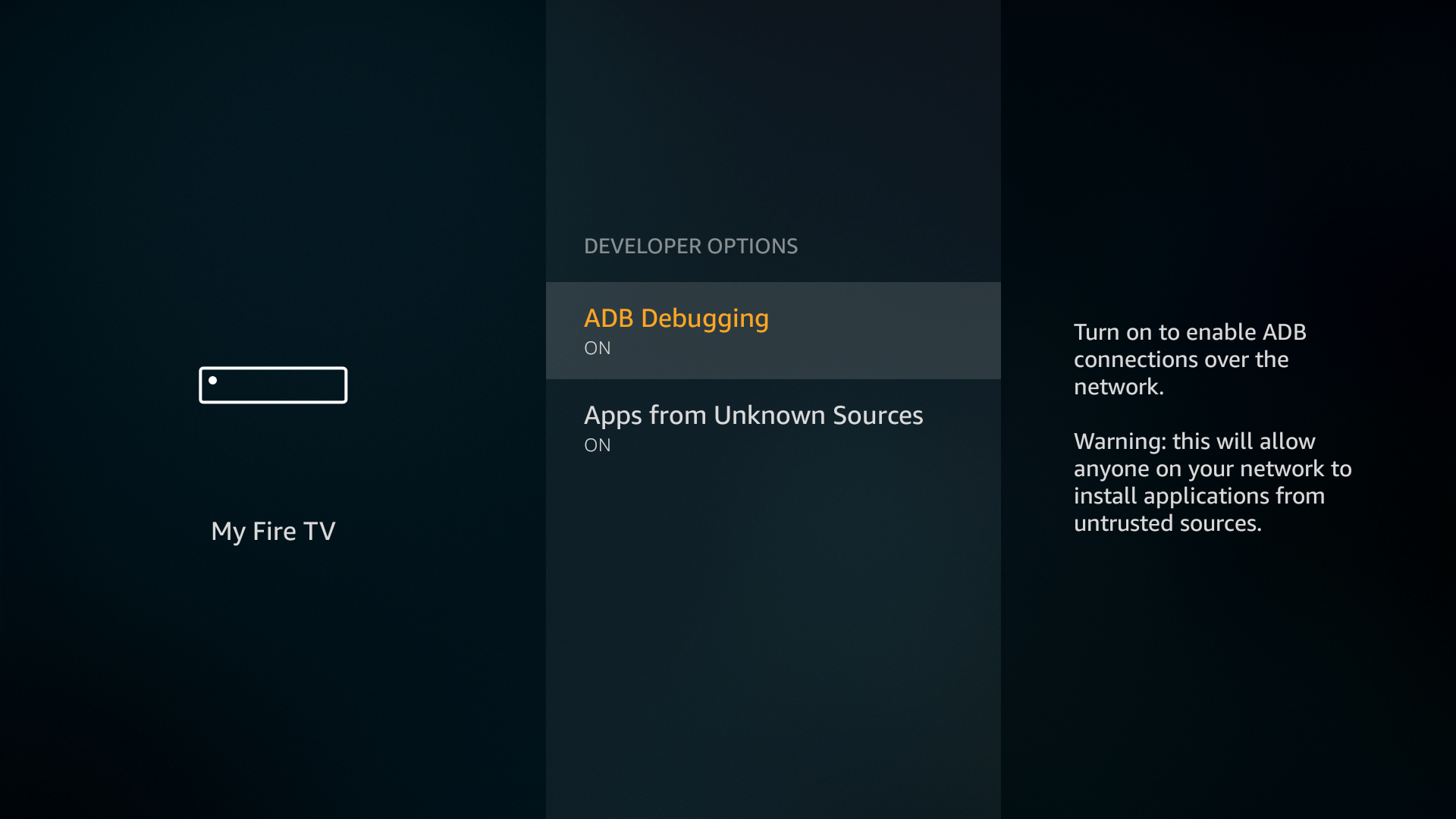
- Enable “Apps from Unknown Sources”: In “Developer Options,” you’ll see “Apps from Unknown Sources.” Turn this setting “ON.” You’ll receive a warning about the risks of installing apps from unknown sources. Confirm by selecting “Turn On.”
- Enable “ADB Debugging” (Optional but Recommended): While not strictly required for this WireGuard setup, enabling “ADB Debugging” is a good practice for Firestick users who frequently sideload or use advanced tools. It allows for communication between your Firestick and a computer for troubleshooting or more complex installations.
By adjusting these settings, you’re essentially telling your Firestick that you trust the sources from which you’ll be installing applications, paving the way for the WireGuard app to be sideloaded successfully. Remember to exercise caution when installing any app from an unofficial source and always use trusted repositories.
Step-by-Step Guide to Installing WireGuard on Firestick
With your Firestick prepared and your tools at hand, you’re ready to proceed with the installation of WireGuard. This process involves obtaining the necessary files, sideloading the WireGuard Android application, and then importing your specific VPN configuration.
Step 1: Obtain Your WireGuard Configuration File
Your VPN service provider will supply you with a WireGuard configuration file, usually in a .conf format. This file contains all the necessary information for your WireGuard app to connect to their servers, including your private key, public keys of their servers, server IP addresses, and allowed IPs.
- Log in to Your VPN Provider’s Account: Access your VPN provider’s website via your computer or smartphone.
- Navigate to WireGuard Configuration Section: Look for a section related to “WireGuard,” “Manual Setup,” or “Generators.” This is often found under your account dashboard, services, or support area.
- Generate/Download Configuration: Follow your provider’s instructions to generate a new WireGuard configuration. You’ll typically choose a server location (e.g., “New York,” “London”) and then download the resulting
.conffile. Each configuration file usually contains a unique private key linked to your account. It’s crucial to download this file to your computer or smartphone. - Transfer the
.confFile to Your Firestick: This is a critical step. You need to get the.conffile onto your Firestick’s internal storage.- Using Send Files to TV (Recommended): If you’ve installed the “Send Files to TV” app on both your Firestick and your smartphone/computer:
- On your computer/smartphone, open “Send Files to TV,” select “Send,” and choose your
.conffile. - On your Firestick, open “Send Files to TV” and select “Receive.” The file should transfer quickly.
- On your computer/smartphone, open “Send Files to TV,” select “Send,” and choose your
- Using a Cloud Service: Upload the
.conffile to a cloud storage service (e.g., Google Drive, Dropbox). Then, on your Firestick, use a browser or a cloud app (if you have one sideloaded) to download it. This can be cumbersome with the Firestick remote. - Email (Less Recommended): Email the file to yourself, then access your email on the Firestick’s Silk Browser to download it. This is often clunky.
- Where to save it: Regardless of the method, make a note of where you save the
.conffile on your Firestick, perhaps in the “Downloads” folder or a specific folder created by your file manager.
- Using Send Files to TV (Recommended): If you’ve installed the “Send Files to TV” app on both your Firestick and your smartphone/computer:
Step 2: Sideload the WireGuard Android App
Since there’s no official WireGuard app on the Amazon Appstore, you’ll need to sideload the Android APK. Always download APKs from trusted sources. The official WireGuard website or F-Droid are generally considered safe.
- Open the Downloader App: On your Firestick, launch the “Downloader” application (which you should have installed from the Amazon Appstore).
- Enter WireGuard APK URL: In the URL bar of the Downloader app, enter the direct URL to download the WireGuard APK. A reliable source is usually the official WireGuard website’s releases page or F-Droid. As an example, a typical F-Droid URL might look like
https://f-droid.org/repo/com.wireguard.android_XXXX.apk(where XXXX is the version number, you’d need to find the latest). Alternatively, search “WireGuard F-Droid APK” on your computer to find the direct download link and type it in. - Download the APK: Press “Go,” and the Downloader app will begin downloading the WireGuard APK file.
- Install the App: Once the download is complete, a prompt will appear asking if you want to install the application. Select “Install.”
- Grant Permissions: The system will ask for permissions. Review them and select “Install” again.
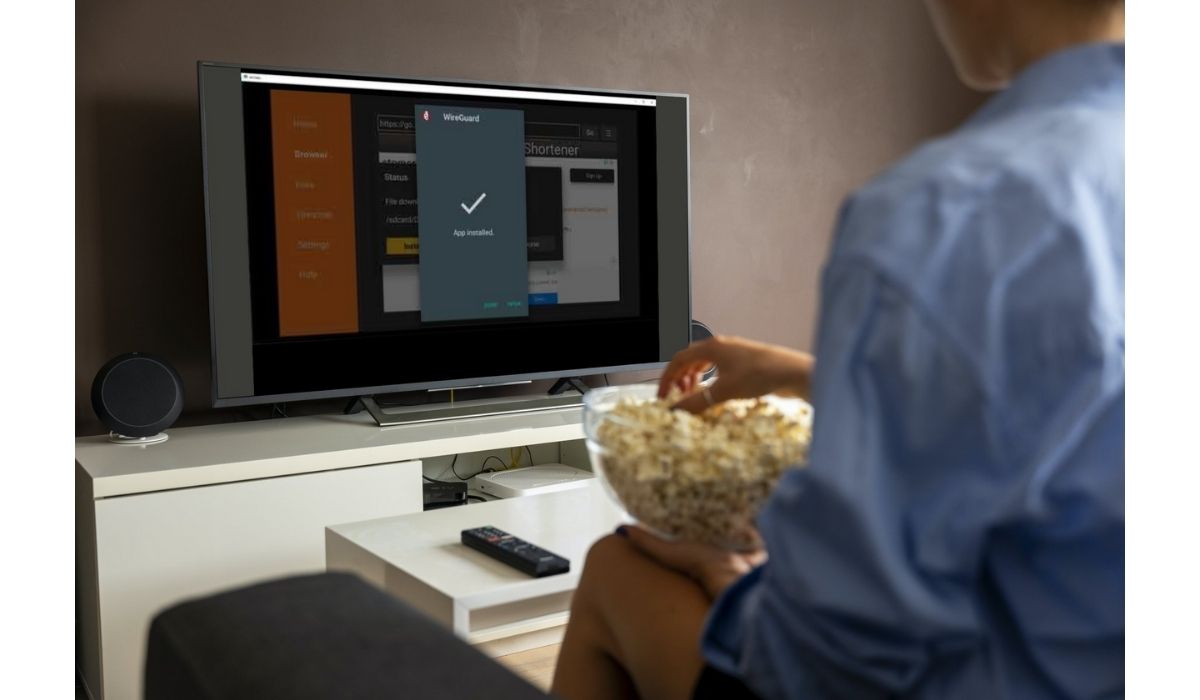
- Done: After installation, you’ll see an “App installed” message. You can choose “Done” (to go back to Downloader) or “Open” (to launch WireGuard immediately). It’s generally better to select “Done” and then “Delete” the APK file from Downloader to free up space on your Firestick.
Step 3: Import the Configuration File into the WireGuard App
Now that the WireGuard app is installed, you need to import the .conf file you obtained earlier.
- Launch the WireGuard App: From your Firestick’s home screen, go to “Apps & Channels” (or find it in your recent apps list) and open the “WireGuard” app.
- Add a Tunnel: Inside the WireGuard app, you’ll see a “+” icon (usually in the bottom right or top right). Select this to add a new VPN tunnel.
- Import from File: Choose the “Import from file or archive” option.
- Navigate and Select
.confFile: The app will open a file browser. Navigate to the location where you saved your.conffile (e.g., the “Downloads” folder, or a specific folder if you used “Send Files to TV”). Select the.conffile. - Name the Tunnel (Optional): The app will automatically parse the configuration. You might be prompted to give your new VPN tunnel a name (e.g., “Mullvad US Server” or “ProtonVPN Germany”). This is for your convenience if you have multiple configurations.
Step 4: Activating and Testing Your WireGuard Connection
With the configuration imported, you’re just one step away from securing your Firestick’s internet traffic.
- Toggle the Connection: In the WireGuard app, you’ll see your newly imported tunnel listed. There will be a toggle switch next to it. Tap this switch to activate the WireGuard VPN connection.
- Connection Request: The first time you activate it, Android will ask for permission to set up a VPN connection. Check the “I trust this application” box and select “OK.” This permission allows WireGuard to route your internet traffic through its secure tunnel.
- Verify Connection Status: The toggle switch should turn green, and the app will indicate that the tunnel is “Active.” You might also see a VPN key icon appear in the top status bar of your Firestick, signifying an active VPN connection.
- Test Your Connection: To confirm that your IP address has changed and your connection is secure:
- Open the Silk Browser on your Firestick.
- Go to a website like
whatismyip.comoripinfo.io. - The IP address displayed should now be that of your VPN server’s location, not your actual public IP address. If it shows the new IP, your WireGuard connection is successful.
Congratulations! Your Amazon Firestick is now routing its internet traffic through a secure and fast WireGuard VPN tunnel, ready for private and geo-unrestricted streaming.
Advanced Tips and Troubleshooting
While the WireGuard setup is generally robust, understanding how to optimize your connection and troubleshoot common issues can significantly enhance your experience and maintain your digital security.
Optimizing Your WireGuard Setup
Maximizing the benefits of WireGuard on your Firestick goes beyond basic installation. Consider these tips for an optimized experience:
- Choose the Right Server Location: For geo-unblocking, select a server in the region where the content is available. For speed, choose a server physically closer to your actual location or one with less load. Experiment with different servers from your provider.
- Regularly Update the WireGuard App: Developers frequently release updates that improve performance, add features, and patch security vulnerabilities. Periodically check F-Droid or the official WireGuard website for newer APK versions and sideload them to keep your app current.
- Secure Your Configuration Files: Your
.conffile contains your private key, which is critical for your VPN connection. Treat it like a password. Do not share it, and ensure it’s deleted from your downloads folder on both your Firestick and any intermediary device after installation. - Monitor Firestick Storage: Sideloaded apps and temporary files can quickly consume the Firestick’s limited storage. Regularly clear caches of apps, delete old APKs, and uninstall unused applications to keep your device running smoothly, which in turn benefits streaming performance. This also ties into productivity, as a well-maintained device performs better.
- Split Tunneling (if available): Some VPN providers or custom WireGuard setups might offer split tunneling, allowing you to choose which apps use the VPN and which access the internet directly. While the official WireGuard Android app doesn’t typically offer this directly, some custom VPN apps built on WireGuard might. This can be useful for apps that don’t need a VPN or perform better without one.
Common Issues and Solutions
Even with a smooth installation, you might encounter issues. Here are some common problems and their fixes:
- Connection Failure / “Handshake Failed”:
- Check Internet Connection: Ensure your Firestick is connected to the internet.
- Verify
.confFile: The most common cause. Double-check that your.conffile is correctly formatted and not corrupted. Re-download it from your VPN provider and re-import it. Ensure no extra spaces or characters were added during transfer. - VPN Account Status: Make sure your VPN subscription is active and in good standing.
- Server Availability: The VPN server might be down or overloaded. Try generating a
.conffile for a different server location. - Firewall Issues: Your router’s firewall might be blocking WireGuard’s UDP traffic (default port 51820). Check your router settings, or try connecting to a different network temporarily to diagnose.
- Slow Speeds or Buffering:
- Change Server Location: As mentioned, a closer or less congested server will usually yield better speeds.
- Check ISP Speed: Run a speed test on your Firestick (via Silk browser) without the VPN connected to ensure your base internet speed is adequate.
- Device Overload: Close other apps running in the background on your Firestick.
- Wi-Fi Interference: Move your Firestick closer to your router or try restarting your router.
- WireGuard App Crashing or Not Launching:
- Clear App Cache: Go to Firestick Settings > Applications > Manage Installed Applications > WireGuard > Clear Cache.
- Reinstall App: If clearing cache doesn’t work, uninstall the WireGuard app and then re-sideload it using the steps above.
- Check Firestick Software: Ensure your Firestick’s operating system is up to date.
- DNS Leaks:
- While WireGuard is designed to prevent DNS leaks, you can verify this by visiting a site like
dnsleaktest.comwith the VPN active. If your actual ISP’s DNS servers appear, consult your VPN provider’s support for specific WireGuard DNS settings or advanced configuration. Many.conffiles include specific DNS entries, ensuring all traffic, including DNS requests, goes through the VPN tunnel.
- While WireGuard is designed to prevent DNS leaks, you can verify this by visiting a site like
- No Internet Access When VPN is Active:
- This often indicates a configuration error. Re-import your
.conffile. Sometimes, an incorrectAllowedIPssetting in the configuration can block all traffic. Your VPN provider’s support can help verify this.
- This often indicates a configuration error. Re-import your
By proactively addressing these common issues and implementing optimization strategies, you can maintain a high level of digital security and enjoy a consistently smooth and private streaming experience on your Firestick.
Conclusion
Installing WireGuard on your Amazon Firestick is a powerful step towards taking control of your digital security and unlocking a world of entertainment. While the process of sideloading might seem a little daunting at first, the benefits of WireGuard’s speed, efficiency, and robust encryption far outweigh the initial effort. By following this comprehensive guide, you’ve transformed your Firestick into a fortress of privacy, ensuring your streaming habits remain confidential and your access to global content unrestricted.
Embracing WireGuard isn’t just about bypassing geo-blocks; it’s about safeguarding your online identity from ISPs, advertisers, and potential malicious actors. In an era where digital security is paramount, equipping your most frequently used entertainment device with such a sophisticated layer of protection is a wise investment in your privacy. Furthermore, WireGuard’s exceptional performance ensures that this enhanced security doesn’t come at the cost of your streaming quality, providing a seamless and buffer-free experience.
As you continue to explore the vast possibilities of your WireGuard-enabled Firestick, remember to keep your applications updated, maintain your device’s storage, and always be mindful of the sources from which you download content. This proactive approach not only optimizes your device’s performance but also reinforces your overall digital security posture. Enjoy your newfound freedom and peace of mind as you stream, knowing that your Firestick is now a beacon of private and productive entertainment.
aViewFromTheCave is a participant in the Amazon Services LLC Associates Program, an affiliate advertising program designed to provide a means for sites to earn advertising fees by advertising and linking to Amazon.com. Amazon, the Amazon logo, AmazonSupply, and the AmazonSupply logo are trademarks of Amazon.com, Inc. or its affiliates. As an Amazon Associate we earn affiliate commissions from qualifying purchases.